How to Obtain a Link to a Photo or Video on Instagram

If you would like to share an Instagram photo or video outside the platform, you will have to get that item’s shareable link.

RAYMOND OGLESBY @RaymondOglesby2
December 16, 2021

If you would like to share an Instagram photo or video outside the platform, you will have to get that item’s shareable link. Let’s explore how to get these links from your Instagram account, on either desktop or mobile.

Note! You can not get links to photos or videos that are in a private Instagram account. For these accounts, Instagram does not offer the option to get a link.

This is for devices running Instagram

Dilbert and Security
Copyright Scott Adams, Inc./Distributed by Universal Uclick for UFS

The instructions to get a link to a photo or video on Instagram are the same for all Instagram-supported devices, including Windows, Mac, Linux, and Chromebook computers, as well as iPhones and Android smartphones.

First, open Instagram and find the photo or video for which you want to get a shareable link. At the top-right corner of that item, click or tap the three dots Menu. Refer to the below image:

Link 1
Accessing the Menu

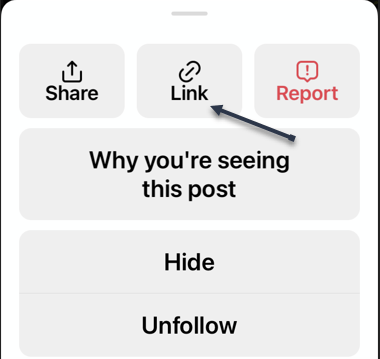
Next, choose Link on an iPhone or Copy Link on other devices. See the below image:
Link 2
Accessing the Link icon

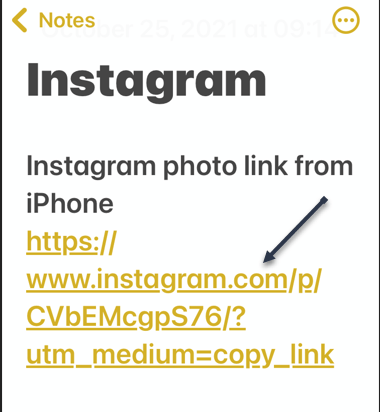
Now, the link to your selected photo or video on Instagram will be copied to your device’s clipboard. Use the Paste option in any text field on your device to view your link. In our example, we pasted the link to the iPhone Notes app.

Your shareable Instagram link should look something like the following image:
Link 3
Your Instagram link

You may now send this link to your friends and family. They can click or tap it to access the photo or video on Instagram.

Quote For the Day

The system is that there is no system. That doesn’t mean we don’t have process. Apple is a very disciplined company, and we have great processes. But that’s not what it’s about. Process makes you more efficient.

Steve Jobs

That was easy. Please feel free to share this post! One way to share is via Twitter.

Just click the Tweet icon below. This will launch Twitter where you click its icon to post the Tweet.

Check out TechSavvy.Life for blog posts on smartphones, PCs, and Macs! You may email us at contact@techsavvy.life for comments or questions.

I Would Like to Hear From You

Please feel free to leave a comment. I would love hearing from you. Do you have a computer or smart device tech question? I will do my best to answer your inquiry. Just send an email to contact@techsavvy.life. Please mention the device, app, and version you are using. To help us out, you can send screenshots of your data related to your question.

The author’s Vietnam eBook on the Battle for Tra Bong Vietnam: Events and Aftermath

How to Set Google Search Results Per Page

By default, when you search for something on Google, the site displays 10 results per page. If you would like to see more results, you can increase the results count from a Settings option on Google. (Note! As of this writing, this feature is only available for the desktop).

RAYMOND OGLESBY @RaymondOglesby2
November 16, 2021

By default, when you search for something on Google, the site displays 10 results per page. If you would like to see more results, you can increase the results count from a Settings option on Google. (Note! As of this writing, this feature is only available for the desktop). In this blog post, we will show you how easily this is done.

This is for desktop devices using Google Search

Dilbert and People
Copyright Scott Adams, Inc./Distributed by Universal Uclick for UFS

To view more search results without having to click the next page number for your Windows, Mac, Linux, or Chromebook computer, first, open a web browser on your computer and access the Google site.

At the bottom right-hand corner of the Google site, click Settings. Refer to the below image:

Search 1
Accessing Google Search Settings

Next, from the pop-up menu that opens, select Search settings. See the below image:

Search 2
Accessing Search settings option

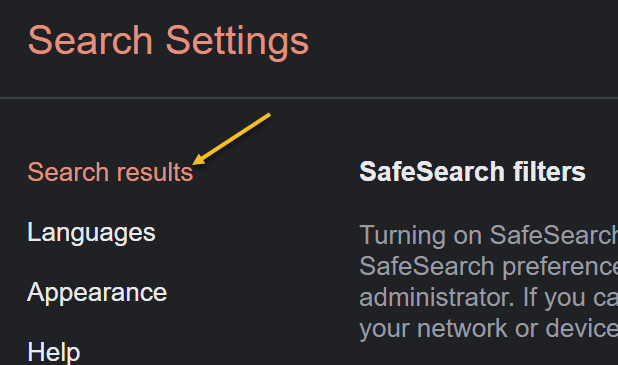
Now, on the Search Settings page, from the left sidebar, select Search results. See the following image:

Search 3
Accessing Search results option

Next, on the right pane, you will see a Results per page slider. To increase the number of results per page, drag this slider to the right. Beneath the slider, you will see the number of search results you can enable on Google. Your options are 10, 20, 30, 40, 50, and 100. (Note! Your searches will be slower if you choose to display more results per page than the default). Refer to the below image:

Search 4
Setting the slider for the number of search results per page

Now, to save your changes, scroll down to the bottom of the page, and click Save. See the below image:

Search 5
Save your changes

Next, in the prompt, Your preferences have been saved, click OK. See the following image:

Search 6
Confirming your changes

You will now see your selected number of search results per page on Google Search on your desktop. If you ever want to modify this option, you can head to the same menu and choose a new number.

Here is a helpful insight on using Google Search for you to consider. As of this writing, Chrome 95 has a bug in its Reading List option. To research, this or any other problem, start with the highest level then drill-down levels. For example, you would enter the following text for the search:

Google Chrome 95 Reading List option Add current tab is dimmed

The highest level is Google, next is Chrome 95, and so on. You will get better search results by following this guideline.

Quote For the Day

When you’re an engineer, you want to analyze things a lot. But if you believe that the most important data points are people, then you have to make conclusions in relatively short order. Because you want to push the people who are doing great. And you want to either develop the people who are not or, in a worst case, they need to be somewhere else.

Tim Cook

That’s it. Please feel free to share this post! One way to share is via Twitter.

Just click the Tweet icon below. This will launch Twitter where you click its icon to post the Tweet.

Check out TechSavvy.Life for blog posts on smartphones, PCs, and Macs! You may email us at contact@techsavvy.life for comments or questions.

I Would Like to Hear From You

Please feel free to leave a comment. I would love to hear from you. Do you have a computer or smart device tech question? I will do my best to answer your inquiry. Just send an email to contact@techsavvy.life. Please mention the device, app, and version you are using. To help us out, you can send screenshots of your data related to your question.

The author’s Vietnam eBook on the Battle for Tra Bong Vietnam: Events and Aftermath