How to Use Dynamic Island for iPhone Flashlight Control | TechSavvy.Life

This post provides instructions for using the Dynamic Island feature to control the flashlight on iPhone 14 Pro and iPhone 15 models. The upcoming iOS 18 update will introduce new features for controlling the flashlight.

RAYMOND OGLESBY @RaymondOglesby2
September 3, 2024 – 3 minutes read

This is for iPhone 14 Pro, iPhone 14 Max, and iPhone 15 running iOS 17+. Screenshots are from iPhone 14 Pro running iOS 17.5.1.

Click here to learn how to update your iPhone to the latest iOS version.

Did you know you can use the Dynamic Island to control your iPhone’s flashlight? The Dynamic Island is one of the most useful features, thanks to shortcuts like this.

There are many different ways to turn off the flashlight on your iPhone. The iPhone 14 Pro and any iPhone 15 models introduced an extra option for switching off your flashlight with Dynamic Island. Let’s explore this feature.

The Dynamic Island is a relatively new interactive iOS 16 feature housing the TrueDepth front camera notch.

Dynamic Island is a pill-shaped zone on the upper side of the ‌iPhone‌ display. It adapts the camera hardware and is a shape-shifting hub for vital iPhone alerts or your ongoing activity. Since the feature is triggered automatically, you can view a multitasking bar within seconds without additional actions.

This UI area displays;

  • Alerts and Notifications
  • Background Activity
  • Access to Controls
  • Real-Time Updates

First, access the Flashlight by swiping down on your Home Screen from the upper right. Refer to the below image:

Flashlight 1
Swiping down to reveal the Control Panel

Now, the Control Center will be displayed. See the below image:

Flashlight 2
Your Control Panel

Next, tap the Flashlight icon. See the following image:
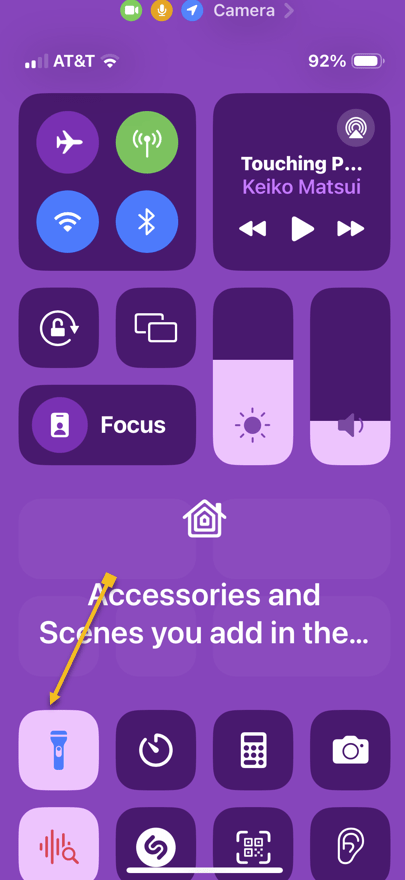
Flashlight 3
Selecting the Flashlight icon

Now, you will see a tiny flashlight icon in the Dynamic Island. Tap it. Refer to the below image:

Flashlight 4
Taping the Flashlight icon in the Dynamic Island

Next, your Flashlight status will be shown in the Dynamic Island. Tap the icon to turn off the Flashlight. See the below image:
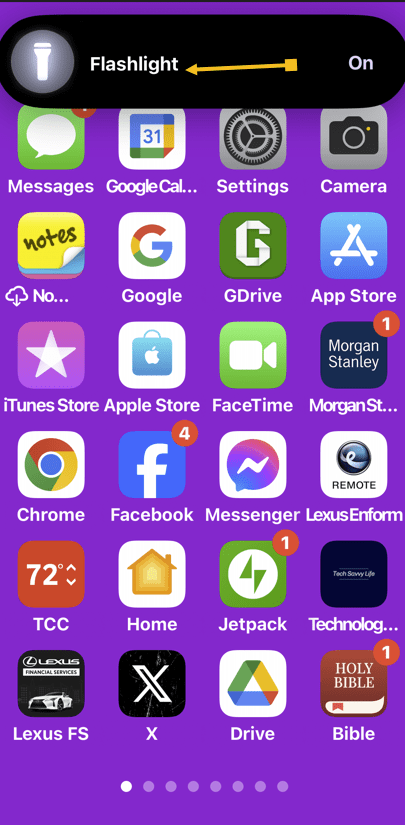
Flashlight 5
Taping the Flashlight icon to turn it off

In the September 2024 iOS 18 update Apple will add swipe capabilities to control the Flashlight beam and brightness.

Disclaimer

Technology is always changing. Rarely is there static tech for smartphones and desktops. Thus, the contents of this post are only valid at the time of writing. Blog posts older than six months may have directions incompatible with your device or OS. Hopefully, older post content will continue to work as advertised. Thank you for reading TechSavvy.Life for Technology at Work For You.

. “Real science can be far stranger than science fiction and much more satisfying.”

– Stephen Hawking

You are finished. Please feel free to share this post! One way to share is via Twitter.

Just click the Tweet icon below. This will launch Twitter where you click its icon to post the Tweet.

Checkout TechSavvy.Life for blog posts on smartphones, PCs, and Macs! You may email us at contact@techsavvy.life for comments or questions.

Was this post helpful? We would love to hear your comments. Do you have a computer or smart device tech question? I will do my best to answer your inquiry. Just send an email to contact@techsavvy.life. Please mention the device, app, and version you are using. To help us out, you can send screenshots of the data related to your question.

The author’s Vietnam eBook on the “Battle for Tra Bong Vietnam: Events and Aftermath” can be accessed from a Kindle device or the Kindle App for a desktop or smartphone. The apps are free.

The author’s Vietnam eBook on the Battle for Tra Bong Vietnam: Events and Aftermath

How to Open the System Control Panel in Windows 10

Microsoft says the System option in the Control Panel has been removed from Windows 10. As of the October 2020 Update, there is no way to access it. Here is a hidden command that opens the System Control Panel if it is missing. This command also works for the May 2020 Update.

Microsoft says the System option in the Control Panel  has been removed from Windows 10. As of the October 2020 Update,  there is no way to access it. There is a hidden command that opens the System Control Panel if it is missing. This command also works for the May 2020 Update.

This is for devices running Windows 10 operating system

Dilbert and Suffering
Copyright Scott Adams, Inc./Distributed by Universal Uclick for UFS

Run the Command

To run the command, press Windows+R to open the Run dialog. Next, copy and paste the following command into the Run dialog, then press Enter or click OK.

explorer.exe shell:::{BB06C0E4-D293-4f75-8A90-CB05B6477EEE}

Refer to below image:

Control Panel 1
Entering Run command for the System panel

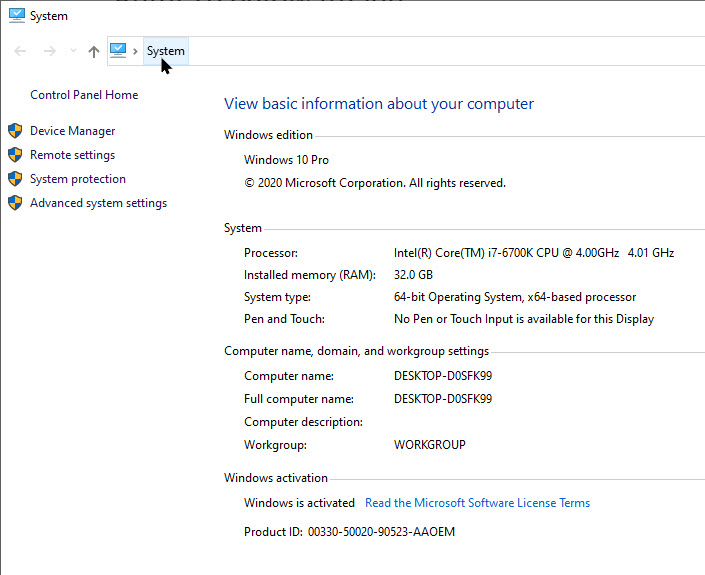
Now, your System Control Panel will be displayed. See below image:

Control Panel 2
The System Control panel

Create a Shortcut

If you want easier access, you can create a shortcut that opens it. Here’s how to do this.

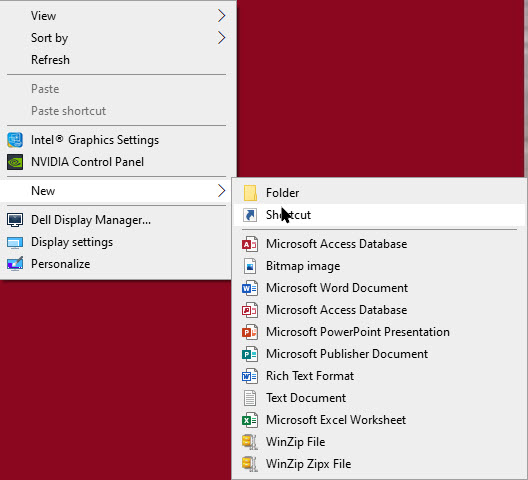
On your desktop or in any folder, right-click and select

New > Shortcut

See following image:

Control 3
Setup shortcut

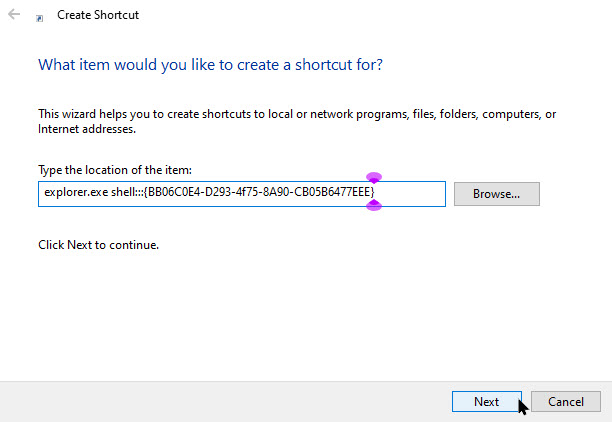
Now, in the Type Location box, copy and paste the the following command

explorer.exe shell:::{BB06C0E4-D293-4f75-8A90-CB05B6477EEE}

and press Next. Refer to below image:

Control Panel 4
Entering shortcut command

Next, assign a name for the shortcut and click Finish. In my example, it is named System Control Panel. See below image:

Control Panel 5
Assigning a name for the shortcut

Change Shortcut Icon

To change its icon, right-click it, and select

Properties > Shortcut tab > Change icon

Then, choose an icon and click OK.

Microsoft may remove the System pane completely from future versions of Windows 10. If so, this command will stop working.

Thanks to Spartan@HIDevolution on the NotebookReview forums for discovering this command!

That’s it. You now have a shortcut that opens the System Control Panel. I hope you have found this post helpful. If so, click the Tweet icon below. This will launch Twitter where you click its icon to post the Tweet.

I have found TechSavvy.Life blog posts extremely helpful. Check them out for posts on smartphones, Macs, and PCs! You may email us at contact@techsavvy.life for comments or questions.

I Would Like to Hear From You

Please feel free to leave a comment. I would love hearing from you. Do you have a computer or smart device tech question? I will do my best to answer your inquiry. Just send an email to contact@techsavvy.life. Please mention the device, app and version that you are using. To help us out, you can send screenshots of your data related to your question.

The author’s Vietnam eBook on the Battle for Tra Bong: Events and Aftermath