

RAYMOND OGLESBY @RaymondOglesby2
December 17, 2024 – 4 minutes read time
Overview
For a really long time, there was not a straightforward way to hide apps on iPhone, but the iOS 18 update introduced a brand new way to lock apps and hide them from the Spotlight search, your Home Screen, and the unlocked portion of the App Library.
One downside is that not all apps can be hidden. Another is that all your hidden apps go to a locked Hidden folder in the App Library. Besides this, it is a nifty feature, so let’s explore this feature for hiding apps on your iPhone.
Why YouWill Like This Tip
- Most but not all apps can be hidden using a feature introduced with the iOS 18 update.
- Apps hidden using this method will appear in a Hidden folder in the App Library that can be unlocked using Face ID!
System Requirements
this tip works on iPhones running iOS 18 or newer. The screenshots are from iPhone 14 Pro using iOS 18.1.1
Click here to learn how to update your iPhone to the latest iOS version.
Hide an App
First, on your Home Screen or App Library, long-press the app you wish to hide. In our example, we will be hiding the CLIPish Pro app. Refer to the below image:

Next, tap the Require Face ID option. See the below image:

Now, select the Hide and Require Face ID option. See the following image:

Next, confirm that you wish to hide the app using Face ID and by tapping the Hide App button. Refer to the below image:

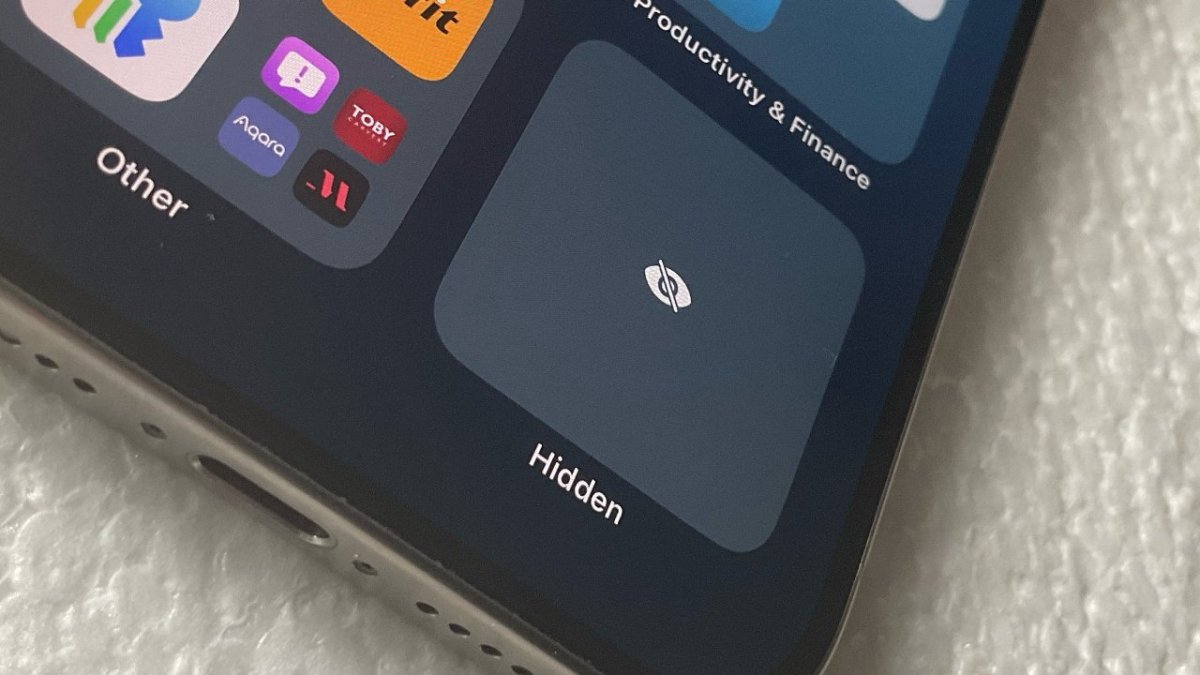
Now, any hidden apps will appear in the Hidden folder in the App Library, which is locked using Face ID. See the below image:

Apps Your Are Unable to Hide
You are unable to hide:
- Apps installed with iOS 18: Apps like Photos and Wallet can mot be hidden.
- Default web browser or app marketplace: Apps set as the default web browser or app marketplace can not be hidden.
Unhide an App
If you are wondering how to unhide apps on iPhones, just open the Hidden folder in the App Library. Tap inside the folder to reveal your hidden app(s). Follow the same steps, and tap the Don’t Require Face ID button. See the following image:

Add App Back to Home Screen
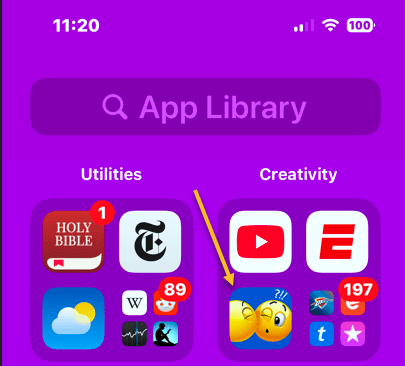
First, locate your app in the App Library. If the app has been hidden, it will be in the Hidden folder. If you have unhidden the app, it will be in a folder section. In our example, our CLIPish Pro app is in the Creativity section. Refer to the below image:
Next, long-press the app and tap the Add to Home Screen option. Your app will appear on your Home screen. See the below image:

Disclaimer
Technology is constantly evolving, and smartphone and desktop tech rarely remains static. Therefore, the information in this post is only accurate as of the date it was written. Blog posts that are older than six months may contain instructions that are no longer compatible with your device or operating system. We hope that the content from previous posts continues to function as intended. Thank you for reading TechSavvy.Life, where technology works for you.
Quote For the Day
.“Technology is a gift of God. After the gift of life, it is perhaps the greatest of God’s gifts. It is the mother of civilizations, of arts and of sciences.”
―Freeman Dyson
X (Twitter) Info
That’s it. Please feel free to share this post! One way to share is via Twitter.
Just click the Tweet icon below. This will launch Twitter where you click its icon to post the Tweet.
Checkout TechSavvy.Life for blog posts on smartphones, PCs, and Macs! You may email us at contact@techsavvy.life for comments or questions.
Tweet
I Would Like to Hear From You
We value your feedback! Was this post helpful? Please share your comments with us. If you have a tech question related to your computer or smart device, feel free to reach out. Just send an email to contact@techsavvy.life, and be sure to include the device, app, and version you are using. To assist us further, you can also attach screenshots related to your inquiry.
The author’s Vietnam eBook on the “Battle for Tra Bong Vietnam: Events and Aftermath” can be accessed from a Kindle device or the Kindle App for a desktop or smartphone. The apps are free.
 Tech Savvy Life