How to Zip and UnZip Files for iPhone or iPad

The Files app got a huge upgrade with iOS 13 and iPadOS 13 and its support for external storage. One of the new things was the native support for Zip files. You’ll no longer need to download third-party apps and shuffle between different apps just to open a Zip file.

Note! The naming convention of zip or compressed, and unzip or uncompressed, are interchangeable. Your original files are left unchanged.

The main reason for compressing your photos or documents is to reduce the file size to send as an email attachment. Without the Zip capability, the file could be too large for emailing.

This is for iPhone/iPad running iOS 13 or higher

Dilbert and Manager
Copyright Scott Adams, Inc./Distributed by Universal Uclick for UFS

Creating a Zip File

To compress files, you’ll first need to add them to the Files app. You can do this easily using the Share sheet feature.

In this example, we’ll walk you through the process of ziping and unziping photos from the Photos app, but it will work using any other type of document.

Note! Your original photos or documents are left unchanged. They are just being compressed to a different location.

Open the Photos app and navigate to the album containing your photos. From there, tap on the Select button in upper right hand corner and select the Photos you want to compress by tapping on them. Refer to below image:

iPhone Zip 1
Selecting photos from the Photos album to be compressed

Next, tap the Share button in lower left hand corner. See below image:

iPhone Zip 2
Selecting the Share button in bottom left hand corner

From the Share sheet, tap on the Save to Files option. See following image:

iPhone Zip 3
Selecting the Save to Files option

Choose the On My iPhone or On My iPad option. Refer to below image:

iPhone Zip 3a
Setlecting the location of your compressed photos

Here you can select an existing folder or create a new one, then tap the Save option. You will see a message at top of the screen displaying number of items, the folder name and On My iPhone or On My iPad location. See below image:
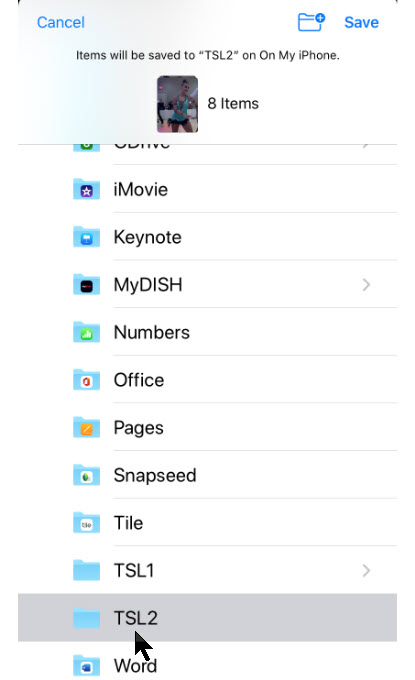
iPhone Zip 4
Selecting the folder of your compressed photos
Accessing the Files App

Navigate to the Files app and open the folder or location where you saved the photos. Then tap the Select button and select all the photos. Next, tap on the hamburger icon (the one with 3 dots) in lower right hand corner. Refer to below image:

iPhone Zip 5
Selecting all your photos and tapping the hamburger icon in lower right hand corner

In the context pop-up menu, tap on the Compress button. See below image:

iPhone Zip 6
Choosing the Compress option from the context pop-up menu

You will see a new file labeled Archive.zip in the same folder. Refer to below image:

iPhone Zip 7
Creating the default Zip file of your compressed photos
Renaming the Zip File

To rename the Zip file, tap and hold on it until the see its Context pop-up menu. See below image:
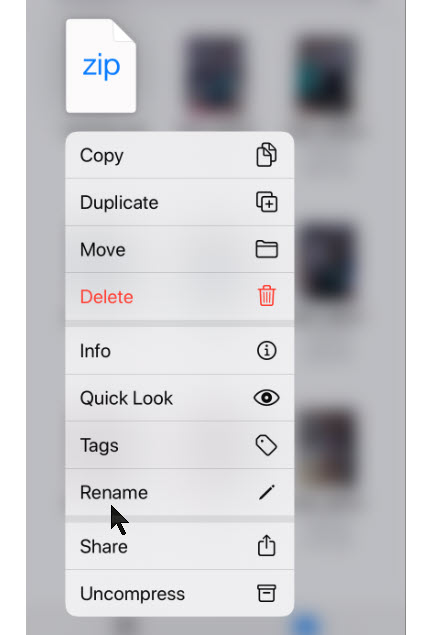
iPhone Zip 8
Selecting the Rename option

Now, tap on the Rename option and type in a new name, then tap Done. See following image:

iPhone Zip 9
Renaming the default Zip file name

Your new compressed file will now be displayed. Refer to below image:
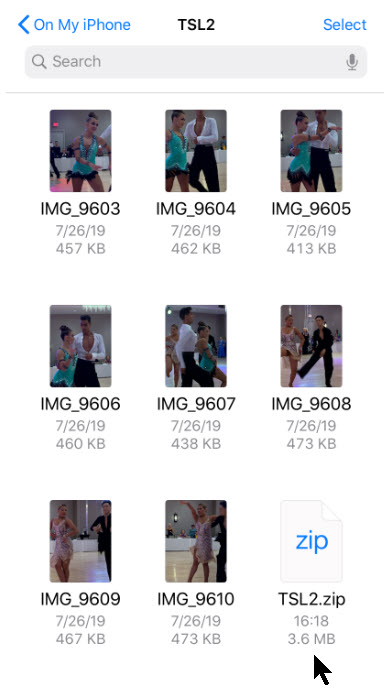
iPhone Zip 10
Viewing your new Zip file

Now you are able to send the Zip file as an email attachment or to a service like Dropbox, Google Drive or OneDrive to share with others.

Choosing Another Location to Save Your Files

For future downloads, you might want to change your default storage location. The downloaded files, by default, are saved to the Downloads folder in iCloud Drive in the Files app. This is a great option if you have a paid iCloud storage plan because it allows your downloaded files to sync across all your devices. But if you’re on the free 5GB plan, you might not have space for storing large files, even if they are compressed.

Thankfully, you can change the default location to local or on-line storage. To do this on your smartdevice:

  1. Open Settings app
  2. Navigate to Safari
  3. Select Downloads
  4. Tap on the Other option to select any folder from the local storage (or from a cloud storage option). Note! The default is the Downloads folder. For our example, we are using the default location and folder. See below image:
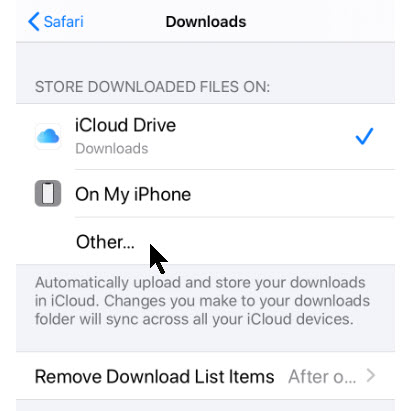
iPhone Zip14

Selecting where to save your iPhone downloads

Unzip your File

The process of unzipping an archive in the Files app is relative easy.

Again, you’ll need the Zip file to be in the Files app. You can follow the same process we did in the previous section to add a Zip file to the Files app.

Navigate to the location where you saved the Zip file. Refer to below image:

iPhone Zip 11
Location of your saved Zip file

Tap and hold on the file name. Select the Uncompress option from the context pop-up menu. See following image:
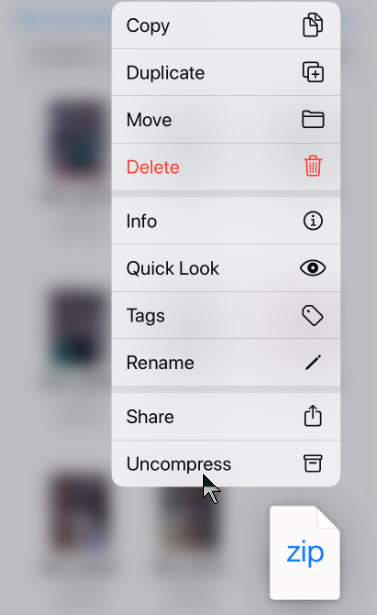
iPhone Zip 12
Selecting the Uncompress option from the context pop-up menu

You will see a new folder with the same name as the Zip file. Tap on it to see the contents of the Zip file. Your photos are now unzipped. See below image:
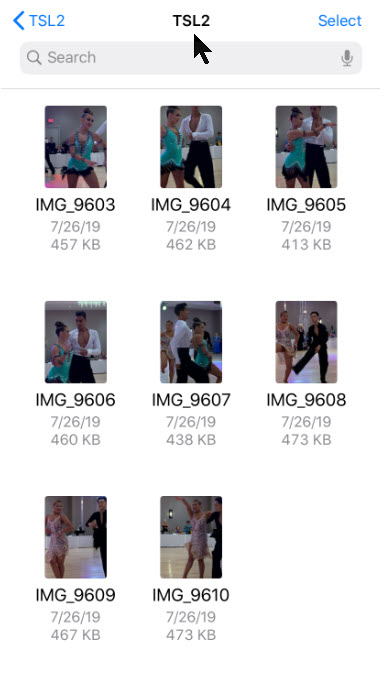
iPhone Zip 13
The unzipped files

You have successfully compressed and uncompressed your photos.

I Would Like to Hear from You

Please feel free to leave a comment. I would love hearing from you. Do you have a computer or smart device tech question? I will do my best to answer your inquiry. Please mention the device, app and version that you are using. To help us out, you can send screenshots of your data related to your question.
The author’s Vietnam eBook on the Battle for Tra Bong: Events and Aftermath

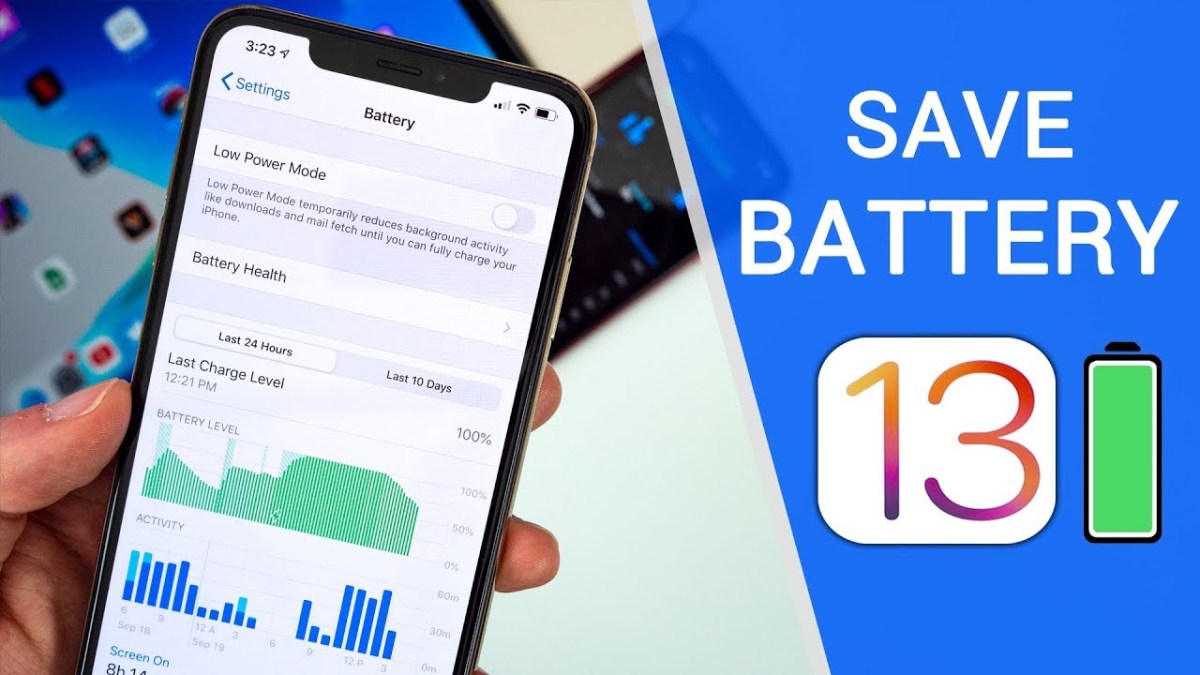
Eight Ways for Better Battery Life in iOS 13

For most users, battery life can last most all day on modern iOS devices. However, you can change some iOS 13 settings to maximize the most of your battery usage.

This is for iOS devices iPhone and iPad running iOS 13 and above. Some tips can be applied in earlier versions.

Dilbert Work Day
Copyright Scott Adams, Inc./Distributed by Universal Uclick for UFS

Disable Dynamic Wallpapers on Your iOS Device

Dynamic Wallpapers was a fun UI feature that was added to iOS 7, but it drains battery life. If you use Dynamic Wallpapers and experience issues with battery life, you might want to disable the app and pick a standard background image by following these steps:

  1. Open the Settings app
  2. Select Wallpaper > Choose a New Wallpaper > Stills
  3. Select a solid color, then set it as the Home Screen background and Lock Screen background.

Note: Selecting the solid black wallpaper on an OLED screen will cause the device to use less power. Solid black pixels do not use power to display the screen.

Use Dark Mode on Your Device

Using Dark Mode can increase the battery life on OLED devices because it swaps out the white backgrounds for dark backgrounds that use less battery life as mentioned above. To enable Dark Mode follow these steps:

  1. Open the Settings app
  2. Select Display & Brightness
  3. Change the Appearance from Light to Dark

Disable Raise to Wake

Raise to Wake was introduced with the iPhone X as a way to view the Lock Screen Notifications by raising your iPhone into portrait mode. This is a great feature, but it can cause your screen to turn on throughout the day and drain your battery life. To disable this feature, perform the following steps:

  1. Open the Settings app
  2. Navigate to Display & Brightness
  3. Disable the option for Raise To Wake

With this feature disabled, you can still tap the screen to turn it on, but raising it will not cause the screen to turn on.

Disable Background App Refresh on Cellular

Background App Refresh is a great feature in iOS that allows apps to update in the background so that the next time you launch an app, everything is already loaded.

While you shouldn’t disable this feature for all apps, it’s good to review the apps that do use it and disable any that aren’t regularly used so they aren’t wasting battery life.

To check which apps are using Background App Refresh, follow these steps:

  1. Open the Settings app
  2. Navigate to General > Background App Refresh
  3. Disable this feature for any apps in this list that aren’t frequently used

When Background App Refresh is disabled and you quit an app that’s in this list, it will no longer download data in the backgroud; instead, you must open the app for it to download new content.

Background App Refresh has a feature that allows apps to use it only when you’re connected to Wi-Fi, not when you’re running on cellular data. To enable Wi-Fi-only Background App Refresh, complete the following steps:

  1. Open the Settings app
  2. Navigate to General > Background App Refresh > Background App Refresh
  3. Select Wi-Fi instead of the default Wi-Fi & Cellular

Ensuring that apps use Background App Refresh only when on Wi-Fi means it will not use battery-draining cellular data to perform the requests.

Disable Motion Effects on Your iOS Device

Disabling motion effects means that the cute animations throughout iOS and third-party apps won’t be as prominent, but if you can live without them, you can save battery life.

To disable motion effects, perform the following steps:

  1. Open the Settings app
  2. Navigate to Accessibility > Motion
  3. Enable the option for Reduce Motion

Manage Bluetooth Connections on Your iOS Device

If you have multiple Bluetooth devices connected to your iOS device and are not using them, it may be a good opportunity to review the items and remove any you’re not currently using.

Follow these steps to review and remove Bluetooth devices:

  1. Open the Settings app
  2. Select Bluetooth, and tap the “i” next to the connected devices you wish to disconnect
  3. Tap Forget This Device (or Disconnect), if available

You can also turn Bluetooth off completely by following these steps\:

  1. Open the Settings app
  2. Select Bluetooth
  3. Toggle the switch to OFF 

Manage Location Settings on Your iOS Device

Location and the use of GPS to track your device for various apps can be a huge battery hog, and iOS 13 includes a new way to manage these settings.

It’s worthwhile to manage your loccation settings in apps to ensure only those that need to use your location have access to do so.

To review and manage location tracking follow the below steps:

  1. Open the Settings app
  2. Select Privacy
  3. Tap Location Services

You should check and control the location tracking for each individual app. Remember that disabling Location Services may hinder the apps functionally.

Place Your iPhone Face Down When Not in Use 

This is more of a tip than a setting change. Starting with the iPhone 6, Apple made its iPhones so that if you turn one face down it will keep the screen from lighting up upon notifications, which helps prevent battery drain.

I Would Like to Hear from You

Please feel free to leave a comment. I would love hearing from you. Do you have a computer or smart device tech question? I will do my best to answer your inquiry. Please mention the device, app and version that you are using. To help us out, you can send screenshots of your data related to your question.

The author’s Vietnam eBook on the Battle for Tra Bong: Events and Aftermath

Want to Fix Your Crooked iPhone Photos?

Your photos are off center and you want to fix one or more. The Apple iOS 13 photo editor can straighten a photo. But what if you want more control over the photo. I am going to introduce to you to a free third party app called Snapseed from Google.

This is for iOS devices iPhone and iPad

  • Either take a crooked photo or select one that you want to fix. See my following crooked photo:
iPhone Crocked Photo Cropped 1
My crooked iPhone photo

Cropping the Photo

  • Tap the Edit button
  • Tap the Crop button at the bottom of the screen

The photo will be automatically crop and the perspective will be changed. Sometimes, this is enough. If so, just click Done and your finished. In my case, I had to use the Straighten tool to rotate the photo then I clicked Done. Notice I rotated the photo a -18. Refer to below image for my result:

iPhone Crocked Photo Cropped 3
Editing with iPhone photo editor

If you are using iOS 13+, head over to the App Store to download and install the free program Snapseed. Once installed:

The Snapseed Tools

  • Open your crooked photo in Snapseed
  • Click on Tools at the bottom of the screen. You will see the following image:
iPhone Crocked Photo Cropped 5
Snapseed tool set

As you will notice, there are lots of tools to chose from for your photo.

  • Click on the Perspective icon. You can tilt up or down, rotate right or left, scale the photo or free hand the perspective. Refer to my below image:
iPhone Crocked Photo Cropped 6
Using the Snapseed Perspective tool

The app is super sensitive to your touch, much more precise than the built in iPhone photo editor. As you move the perspective, the app will automatically fill in the edges. Check out all the other tools you can use for photo editing. Once you are finished, click Done. Notice at the top of the screen the Straighten is precise to the hundreds of a percent. See the below image:

Phone Crocked Photo Cropped 7
Final image with Snapseed. This photo was cropped showing white edges

Saving Your Photo

  • Tap on the Checkmark icon in the lower right of your screen
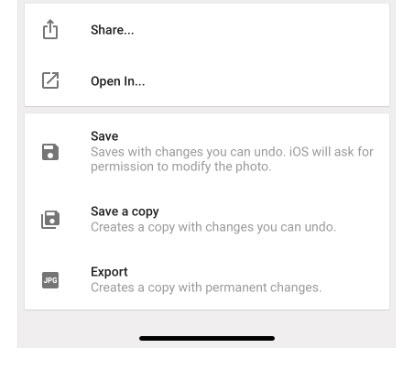
  • Tap on Export. You will see the following image:
iPhone Crocked Photo Cropped 8
Saving your photo
  • Tap on Save to save your changes or Save a copy to preserve your original photo. You are now finished.

I Would Like to Hear from You

Please feel free to leave a comment. I would love hearing from you. Do you have a computer or smart device tech question? I will do my best to answer your inquiry. Please mention the device, app and version that you are using. To help me out, you can send screenshots of your data related to your question.

A Few Notable Features in Safari for iOS 13

Apple had made some new enhancements to its feature browser, Safari, for the iPhone/iPad. There are a few notable features that increase our productivity regarding bookmarks and open tabs. Safari’s toolbar has only five choices for you to select from, Forward, Backward, Share, Bookmarks and New Tab/Page. Instead of just taping on a choice, we are going to press down on these icons and see what happens.

This is for an iPhone/iPad and Mac iOS 13 operating system

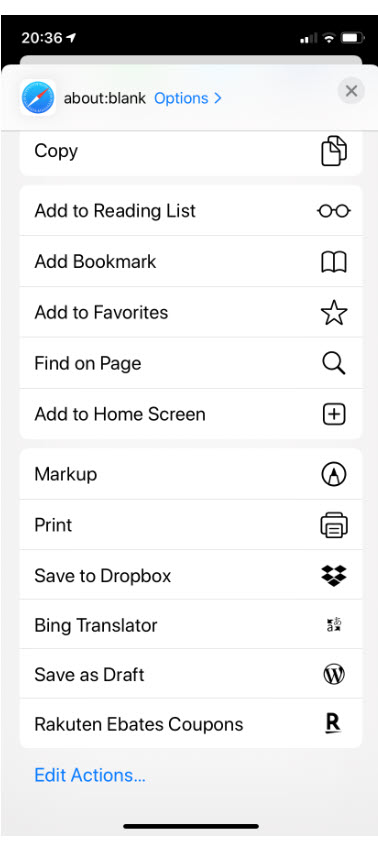
This seems to be an Apple feature. I have gotten into the habit of pressing down on every icon in iOS 13. Just press and hold the Share icon, the one with an up arrow, nothing happens until you release your hold. You will get the regular Share screen, like the image below:

Safari Share Behavior

Safari Bookmarks

So much for that.

The Bookmarks

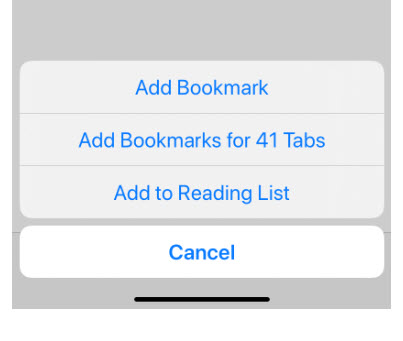
Let’s try pressing and holding the Bookmarks icon. You will get the following screenshot:

Safari Add Bookmark

Well, that worked. I do not recommend adding Bookmarks for all open tabs; this would tend to make your bookmarks messy. It would be better just to add a Bookmark for the current tab.

Testing the New Tab/Page

Okay, lets press and hold the New Tab/Page icon. You should get the following screen:

Safari Close Tabs

Yea, two out of three have the press and hold feature. From this screen, you can close all open tabs or just the current one. Also, you can create a new Private Tab or a New Tab.

This time, just press the New Tab/Page icon to reveal your open tabs (normal behavior). Press and hold a tab to move it into a different location. This works in portrait or landscape mode.

Setting the Time Interval

There is another feature to explore; setting a time interval as to when tabs are closed.

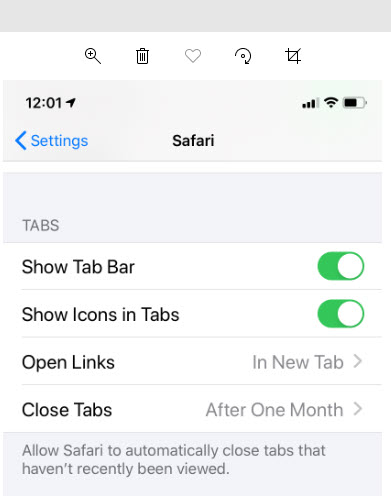
Go to Settings and select Safari. You will see the following image:

Safari Close Tabs Timeline

Click the Close Tabs button. Your screen should display options on when to close your Safari tabs like the following image:

Safari Close Tabs Timeframe

Select your choice from the four options.

Okay, for now. Thanks for trying out these iPhone/iPad features for Safari in IOS 13+.

I Would Like to Hear from You

Please feel free to leave a comment. I would love hearing from you. Do you have a computer tech question? I will do my best to answer your inquiry. Please mention the app and version that you are using. To help me out, you can send screenshots of your data related to your question.

Four Notable iOS 13 Features

Apple has yet to make a big deal about their new operating system. In fact, some of these new features are hidden or have changed from their last update. I am going to discuss four new features; Battery Optimization, Update All, Rearranging Apps and Sharing Photo Location. You may want to check these out.

Apple unveils a new iPhone every year. Along with it comes a new mobile operating system (iOS), in this case iOS 13+. These features work on iPhones back to 6S and SE. If you have a 6 or 5s, you are stuck with iOS 12 variations.

This is for iPhone, iPad and Mac or any other device using iOS 13

Battery Optimization Feature

The first new feature I want to address is “Battery Optimization“. Its best to use for overnight charging. This feature learns how you charge your battery and sets up a routine of charging your phone to 80% until the time right before it knows you will wake up, at which point it will finish charging to 100%.

To set up, go to Settings>Battery>Battery Health and turn on Optimized Battery Charging. Once enabled, the slider control will be lit in green. Below is a screenshot:

Optimized Battery Charging
Optimized Battery Charging screenshot

Where is the Update All Feature?

The second feature is somewhat tricky. I don’t know why Apple took something so simple in their previous iOS and made this feature difficult. I assume they want you to rely on automatic updates. The feature is “Update All Apps“. In the new iOS, this feature seems to be missing, but we will get it back. This feature is for those who don’t want to wait for automatic updates.

First, lets go ahead and setup “Automatic Downloads“. To setup, go to Settings>iTunes & App Store>Cellular Data. To enable this feature, turn on the Automatic Downloads. The slider control will be lit in green. We are doing this in case you forget to manually update your apps.

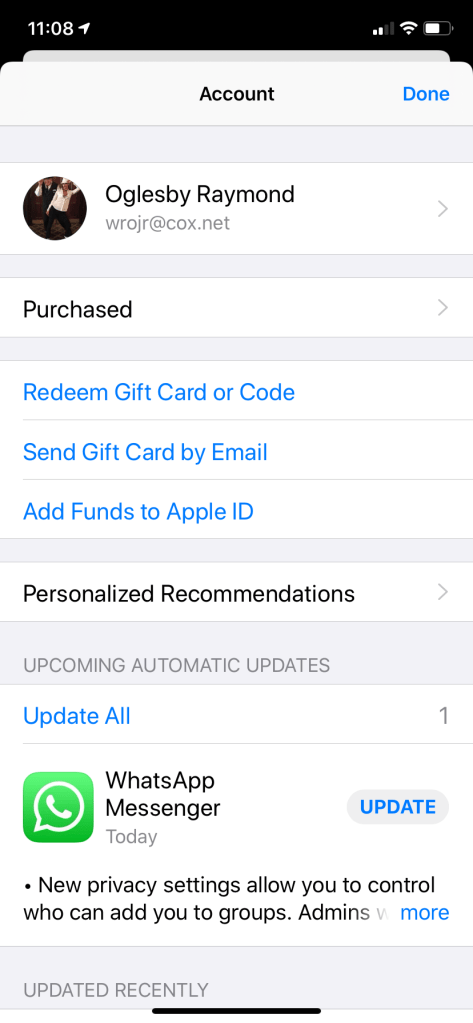
Now, lets get the Update All feature back. Go to the App Store app and click on your profile at the top (it should have a small photo of you). Your screen will look like the below screenshot:

Updated Recently screenshot

Your will notice the Updated Recently section followed by your iPhone Apps. To get the Update All feature, swipe down on the screen. Your screen will look as follows:

Update All screenshot

Notice the Update All feature magically appears IF you have pending updates. You can click this link to update all apps or manually update an app by clicking on its Update button.

Rearranging Apps Has Been Modified

The third feature is for Rearranging Apps. When you press and hold an app, a popup menu appears. These popups are different for each app. To get the “wiggles” for dragging an app to a different location or to create a folder by dragging apps on top of each other, continue to press and hold and the wiggles will appear. Even though the app icon may be hidden by the popup menu, just continue to press and hold. Tap Done at the top of the screen when finished.

A New Privacy Option for Photos

The last feature I want to mention is about a privacy option for photos. From the Photo app, select any number of photos you plan to share. Click the Share icon at the bottom. But before you share, click Options at the top; you will get the option to include location data or not. By removing the location data it makes it a lot harder for someone to track the location of the photo(s). Below is a screenshot of including the Location. To turn off, disable the Location slider control (the control will no longer be lit).

Location data for photos screenshot

I Would Like to Hear from You

Please feel free to leave a comment. I would love hearing from you. Do you have a computer tech question? I will do my best to answer your inquiry.Please mention the app and version that you are using. To help me out, you can send screenshots of your data related to your question.

Testimonials

I love you addressed nearly every frustrating feature change I have! Thanks for sharing and educating me. 

marilyn1998

I was just checking into the zoom meeting stuff. Thanks Raymond.

Debi Holcomb