In iOS 13.6, or iPadOS. You can now choose not to install software updates automatically. There is now a second toggle just for downloading and saving the update for later.
With iOS 12 or later, or iPadOS, you can have your device automatically download and install updates overnight while it is charging. There is a single automatic updates toggle to turn on which is not enabled by default.
But what if you just wanted to download the updates but did not want to install them right away? You would have to dismiss the prompts and reminders for updates on an almost daily basis. This can be quite annoying.
Fast forward to iOS 13.6, or iPadOS. You can now choose not to install software updates automatically. There is now a second toggle just for installing the update. Let’s explore this feature.
This is for the iPhone and iPad
Copyright Scott Adams, Inc./Distributed by Universal Uclick for UFS
Check out TechSavvy.Life for their blog posts on smartphone apps, PCs. and Macs!
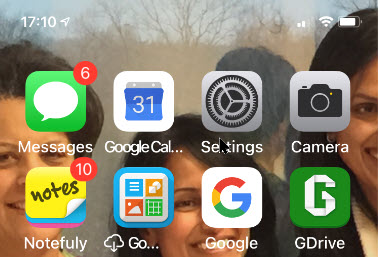
First, open the Settings app on your iPhone or iPad and then go to the General section. Refer to below image:
Accessing Settings
Next, chose the Software Update option. See below image:
Choosing Software Update option
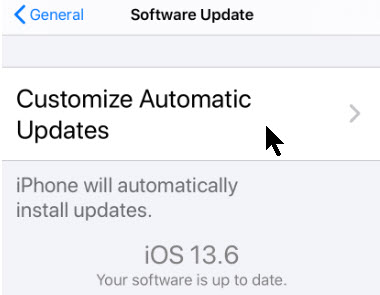
Next, tap the Customize Automatic Updates option. See following image:
Choosing Customize option
Now, tap the toggle Download iOS/iPadOS Updates option. Refer to below image:
Choosing Download option
A new toggle labeled Install iOS/iPadOS Updates will appear. If you want to automatically install iOS, or iPadOS, updates overnight, tap the toggle to enable the feature. In our example, we have set the second toggle to off, meaning we will install the updates at our convenience. See below image:
Choosing Install option
Even if you do enable the feature, you will still get a notification before the updates are installed overnight (just like before iOS 13.6, or iPadOS).
Now, you can have the best of both worlds. New iOS and iPadOS updates will always be downloaded and ready to go. Simply navigate to the Software Update section and install them whenever you are ready (without waiting to download them first).
If you do not want to enable automatic updates, you can still update your iPhone or iPad whenever you want.
I have found TechSavvy.Life blog posts extremely helpful. Check them out for posts on smart phone apps, Macs and PCs!
Please feel free to leave a comment. I would love hearing from you. Do you have a computer or smart device tech question? I will do my best to answer your inquiry. Please mention the device, app and version that you are using. To help us out, you can send screenshots of your data related to your question.
The author’s Vietnam eBook on the Battle for Tra Bong: Events and Aftermath
When you download an app it usually appears either on your Home Screen or a subsequent screen of apps. In iOS 14, you can have it moved straight to the App Library and the relevant app category, instead of it appearing on the Home Screen or another screen of apps. By doing so, you can reduce the Home Screen clutter
When you download an app it usually appears either on your Home Screen or a subsequent screen of apps. In iOS 14, you can have it moved straight to the App Library and the relevant app category, instead of it appearing on the Home Screen or another screen of apps. By doing so, you can reduce the Home Screen clutter. Let’s explore how this is done.
This is for the iPhone running iOS 14
Copyright Scott Adams, Inc./Distributed by Universal Uclick for UFS
Check out TechSavvy.Life for their blog posts on smartphone apps, PCs. and Macs!
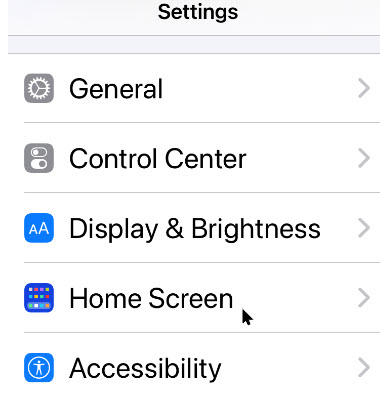
First, open the Settings app (the gear icon). Refer to below image:
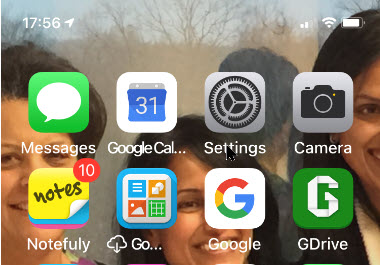
Accessing Settings
Now, scroll down to the Home Screen section and tap it, See below image:
Acc essing the Home Screen section
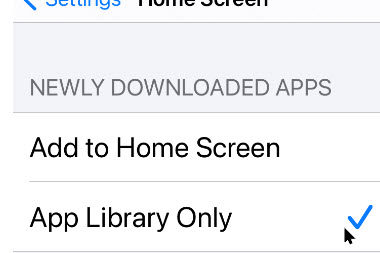
Next, under the New App Downloads heading, select the App Library Only option. See following image:
Enabling sending new apps to the App Library
If you want to see notification badges (like number of unread Tweets) for apps in the App Library, tap the toggle next to the Show In App Library option. Refer to below image:
Enabling new apps notifications
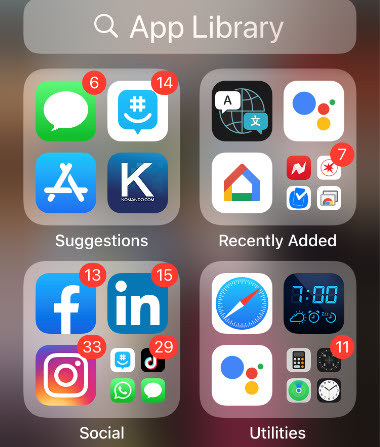
That it’s . When you download new apps, they will show up in the App Library instead of on your Home Screen. See below image fpr an App Library page:
The App Libtary page (trhe last page of your Home Screen)
I have found TechSavvy.Life blog posts extremely helpful. Check them out for posts on smart phone apps, Macs and PCs!
Please feel free to leave a comment. I would love hearing from you. Do you have a computer or smart device tech question? I will do my best to answer your inquiry. Please mention the device, app and version that you are using. To help us out, you can send screenshots of your data related to your question.

The author’s Vietnam eBook on the Battle for Tra Bong: Events and Aftermath
With iOS 14, there are new ways to find and organize the apps on your iPhone — so you see what you want, where you want. It is called the App Library, the main feature of iOS 14.
The App Library is added and configured automatically once you install iOS 14.
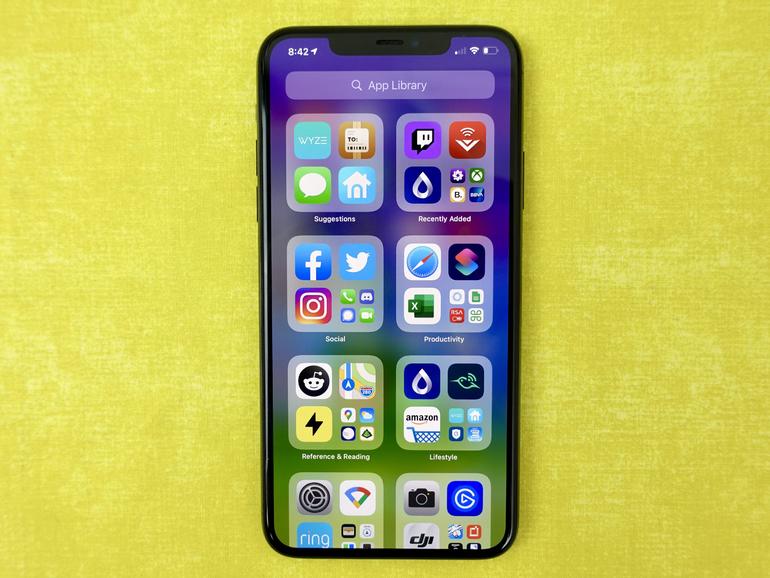
To view the App Library page, swipe all the way to the left, or press on the Dots Bar at bottom of screen and swipe; it will be your last page. Refer to below image:
The App Library page
Your apps are automatically sorted into categories. For example, you might see your social media apps under a Social category. The apps that you use most frequently will automatically reorder based on your usage.
Now that all apps are available in the App Library, it brings up the question. Why should you keep all those pages on the Home Screen as well? Let’s explore how to remove pages from your Home Screen.
This is for the iPhone and iPad running iOS 14
Copyright Scott Adams, Inc./Distributed by Universal Uclick for UFS
Check out TechSavvy.Life for their blog posts on smartphone apps, PCs. and Macs!
If you’re like us, you probably have a couple of pages filled with apps that you almost never visit. You might want to remove some or all the pages between your first page and the App Library page.
First, go to a page you seldom visit or any page. In my example, I am on the last page of my Home Screen. See below image:
A seldom used page
Editing a Page
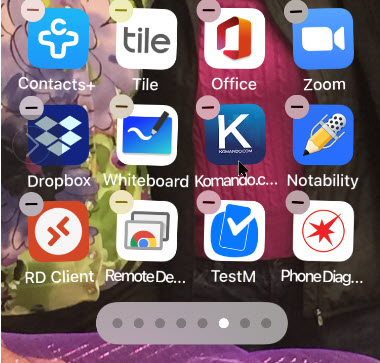
Now, tap and hold on an empty part of your iPhone’s Home Screen to enter editing mode. See following image:
Entering edit mode
Next, tap the Page Dots found above the dock at the bottom of the device’s display. In my example, I have 7 dots representing 7 pages.
This will bring up a new User Interface (UI) that lists all of the pages in a grid. Tap the checkmark below a page to remove it. You can do this for as many pages as you want (except for the first page).
You can come back here at any time to re-enable a page. Once you’re done editing, tap the Done button in the upper right-hand corner. In my example, I have checkmarked my last page. Refer to below image:
Selecting a page to be removed from Home Screen
Viewing Your Changes
Once you go back to the Home Screen, you will see that the page dots at the bottom of the screen have reduced in number. Depending on how many pages you have removed; allows faster access to the App Library page. The apps are not being deleted, just removed from a page. Notice I now have 6 dots or 6 pages. See below image:
Viewing your removal of page(s)
Once you are on the App Library page, swipe up to return to your Home Screen..
Now you have a cleaner look and fewer swipes for navigation of your pages.
I have found TechSavvy.Life blog posts extremely helpful. Check them out for posts on smart phone apps, Macs and PCs!
Please feel free to leave a comment. I would love hearing from you. Do you have a computer or smart device tech question? I will do my best to answer your inquiry. Please mention the device, app and version that you are using. To help us out, you can send screenshots of your data related to your question.
The author’s Vietnam eBook on the Battle for Tra Bong: Events and Aftermath
The Shake to Undo allows you to undo or redo an action, especially typing, by shaking your device. Mistakes are inevitable typing on your iPhone”s small screen. You get the annoying Undo Typing pop-up dialog message. This Shake to Undo feature is on by default. If you find this is being triggered unintentionally, you can disable this feature.
The Shake to Undo allows you to undo or redo an action, especially typing, by shaking your device. Mistakes are inevitable typing on your iPhone”s small screen. You get the annoying Undo Typing pop-up dialog message. This Shake toUndo feature is on by default. If you find this is being triggered unintentionally, you can disable this feature. Let’s explore how to disable.
This is for the iPhone and iPad
Copyright Scott Adams, Inc./Distributed by Universal Uclick for UFS
Check out TechSavvy.Life for their blog posts on smartphone apps, PCs. and Macs!
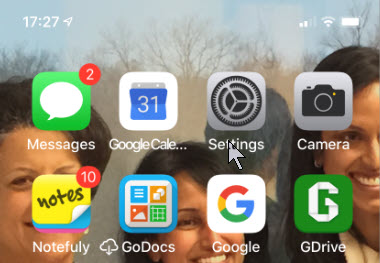
First, launch the Settings app by tapping on the Gear icon, usually found on the first page of your Home screen. Refer to below image:
Accessing the Settings app
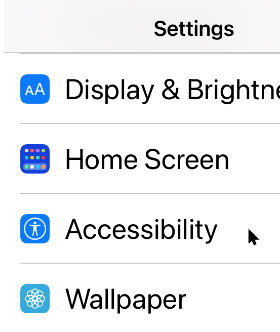
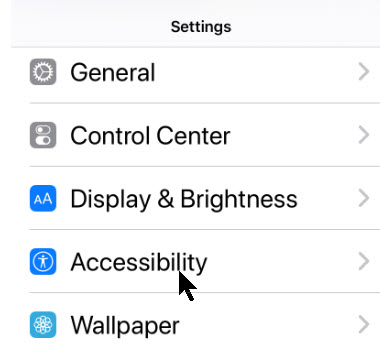
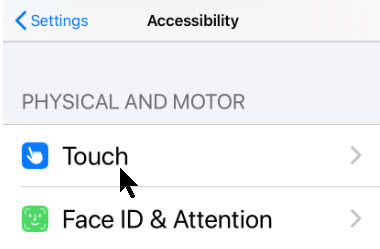
Next, tap on Accessibility. See below image;
Accessing the Accessibility option
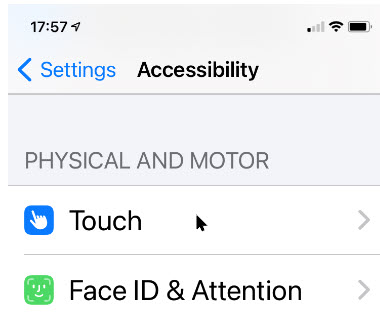
Now, tap Touch. See following image:
Accessing the Touch option
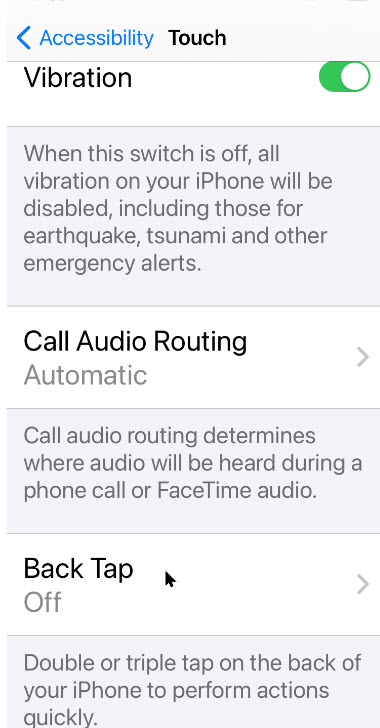
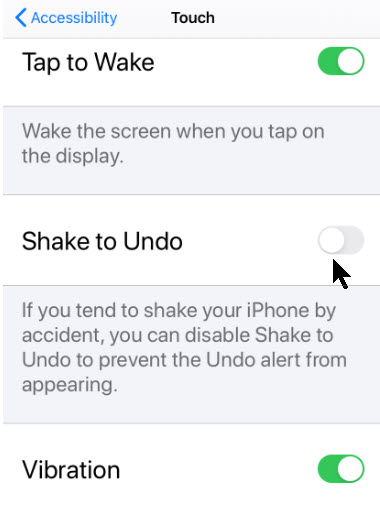
Next, scroll down until you see a toggle labeled Shake to Undo. Tap the toggle to turn it off. Refer to below image:
Disabling the Shake to Undo option
Alternative Methods
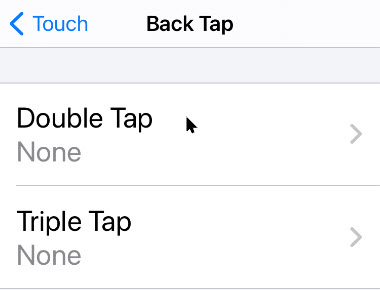
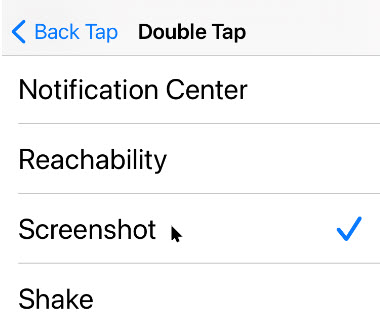
Tap to Undo: Double-tap three fingers on the screen to undo typing. In some apps, the text you’ve just typed disappears. In others, you might see an Undo button pop-up that you need to tap.
Swipe to Undo: Swipe left with three fingers on the screen to undo typing. Just like above, some apps will immediately erase what you last typed, and others will present an Undo button pop-up. If so, just tap it.
That’s it. This should make your typing less intrusive by eliminating the pop-up message on your iPhone or iPad.
I have found TechSavvy.Life blog posts extremely helpful. Check them out for posts on smart phone apps, Macs and PCs!
Please feel free to leave a comment. I would love hearing from you. Do you have a computer or smart device tech question? I will do my best to answer your inquiry. Please mention the device, app and version that you are using. To help us out, you can send screenshots of your data related to your question.
The author’s Vietnam eBook on the Battle for Tra Bong: Events and Aftermath
As an amateur video/photographer, I would take videos of ballroom dancer’ s showcase routines or competitions with the accompanying audio track and publish the video on YouTube, only to have YouTube block the audio due to copyrights. I would spend hours getting the video and audio “just right” for YouTube. If I had known about the copyrights, I would not have spent so much time on the productions. Sometimes you might want to share such videos without infringing on the copyrights or you find the audio distracting.
Fortunately, there is a quick way to silence the audio using the Photos app on your iPhone or iPad.
This is for the iPhone and iPad
Copyright Scott Adams, Inc./Distributed by Universal Uclick for UFS
Check out TechSavvy.Life for their blog posts on smartphone apps, PCs. and Macs!
First, open the Photos app on your iPhone or iPad. Now, locate the video you would like to silence and tap on its thumbnail to open. Refer to below image:
Locate a video
Next, tap the Edit icon in the upper-right corner of your screen. See below image:
Edit a video
Disable the Audio
If the audio is enabled, a yellow speaker icon will appear in the upper-left corner of your screen. To disable the audio, tap the icon. See following image;
Disable the audio for a video
Unlike other speaker icons on the iPhone or iPad, this is not simply a mute button. Tapping the yellow speaker icon removes the audio track from the video file so that the audio will be silent when you share it.
With the audio disabled, the icon will change to a grayed-out speaker icon with a diagonal strike mark through it. Refer to below image;
Audio disabled for a video
To save your change, tap Done in lower right-hand of your screen. See below image:
Save your change
In Photos, you will see a grayed-out speaker icon on the toolbar if a video has no audio track. See following image:
Audio has been disabled
If the icon looks like a crossed-out speaker, it could mean that you phone is merely silenced. If so, simply turn the sound back on and make sure the speaker icon is fully grayed out before sharing. Now you can share the video without the audio component.
Restore the Audio
The Photos app saves the original videos you edited, so you can undo your changes.
After sharing, launch the Photos app and inspect the video you would like to restore the sound. Tap Edit in the upper right-hand corner of the screen, then tap Revert at the bottom right. The audio for that video will be restored. Refer to below image:
Select to revert back to the original
You will receive a confirmation message. Simply click the Revert to Original button. See below image;
Message to revert back to original
I have found TechSavvy.Life blog posts extremely helpful. Check them out for posts on smart phone apps, Macs and PCs!
Please feel free to leave a comment. I would love hearing from you. Do you have a computer or smart device tech question? I will do my best to answer your inquiry. Please mention the device, app and version that you are using. To help us out, you can send screenshots of your data related to your question.
The author’s Vietnam eBook on the Battle for Tra Bong: Events and Aftermath
The decision to listen to Autoplay videos should be in your control. Fortunately, with iOS 13+ you are able to control Autoplay. Whether you want to enjoy Autoplay videos as you browse or you want to shut them down until you’re ready, here is a way you can finally control the noise.
By default, Apple mutes your personal photos and videos in iOS 13+. What’s particularly annoying about this feature is that your iPhone will still Autoplay videos, but it won’t enable the volume by default.
The bad news is that there doesn’t currently seem to be a way to Autoplay with volume via your phone’s settings. The good news is that there is a way to get around this feature. Let’s explore how to do this.
This is for the iPhone and iPad running iOS 13 and above
Copyright Scott Adams, Inc./Distributed by Universal Uclick for UFS
On your IPhone or iPad, open Settings. Next, scroll down to the Photos tab. Refer to below image:
Accessing the Photos option
Now, toggle off Auto-Play Videos and Live Photos.
Turning off Autoplay
It’s important to understand what this actually does. Basically, your personal collection of live photos and videos will no longer play automatically when you load them. The good news is that when you do choose to play them, the volume will be enabled. This is the best way to enjoy audio from the start without having to manually toggle it each time.
That’s it. I hope you like this post. If so, please let us know by leaving a comment.
I have found TechSavvy.Life blog posts extremely helpful. Check them out for posts on smart phone apps, Macs and PCs!
Please feel free to leave a comment. I would love hearing from you. Do you have a computer or smart device tech question? I will do my best to answer your inquiry. Please mention the device, app and version that you are using. To help us out, you can send screenshots of your data related to your question.
The author’s Vietnam eBook on the Battle for Tra Bong: Events and Aftermath
Whether you’re underground between subway stops, caught in a dead zone, or your internet is out, the most reliable way to catch up on your digital reading is to make sure it’s downloaded and accessible offline.
If you have an iPhone or iPad linked to an iCloud account, you can save articles to your Reading List for later reading offline using a feature buried in Settings. Let’s explore how to do this.
This is for iPhone and iPad using Safari browser
Copyright Scott Adams, Inc./Distributed by Universal Uclick for UFS
First we need to make sure iCloud is set up to save your Safari bookmarks and Reading List. To do that, open Settings and tap on your name at the very top. Refer to below image:
Accessing Settings
Next, tap iCloud. See below image:
Accessing iCloud
In iCloud settings, scroll down until you see Safari. Tap the toggle (it will turn green) to enable if it’s not already on. See following image:
Accerssing Safari for iCloud
Return back to the Settings main screen. Scroll down to the Safari option and tap to open. Note! This is a different setting than the one mentioned above. Refer to below image:
Accessing Safari from Settings
Now, scroll down to the Downloads option and ensure that iCloud Drive option is selected. In my example, the option is selected. See below image:
Accessing Downloads
If not selected, tap the Downloads option and select iCloud Drive from the two available options. See following image:
Accessing Downloads options
Continue to scroll down until you find the Reading List section. There you will see the toggle for Automatically Save Offline. Simply enable this toggle. When enabled, the toggle color will turn green. Refer to below image:
Enabling offline reading
Save to the Reading List
Now exit Settings and launch Safari. Whenever you’d like to save a web page to your Reading List for offline viewing, tap on the Share button at the bottom of your screen. See below image:
Accessing the Share button
A pop-up menu will appearr. Select the Add To Reading List option. See following image:
The Add to Reading List option
View Your Reading List
To view your Reading List later, tap the Bookmarks button at the bottom of your screen. Refer to below image:
Accessing the Bookmarks button
Now, tap on the tab that looks like a pair of glasses in the uipper center of your screen. See below image:
Accessing your offline Reading List
From here, you can tap on any one of the items you’ve saved and it should load even if no internet connection is available. See following image for my offline reading list:
Previewing your offline Reading List
I hope you found this post helpful. If so, please leave a comment and or a tweet.
I have found TechSavvy.Life blog posts extremely helpful. Check them out for posts on smart phone apps, Macs and PCs!
Please feel free to leave a comment. I would love hearing from you. Do you have a computer or smart device tech question? I will do my best to answer your inquiry. Please mention the device, app and version that you are using. To help us out, you can send screenshots of your data related to your question.
The author’s Vietnam eBook on the Battle for Tra Bong: Events and Aftermath
The Apple iPhone has a built in browser called Safari. The icon for Safari is usually located in the bottom right of the Home screen. Starting with iOS 9 through the current version, iOS 13, you can have up to 500 tabs open in Safari.
This is a repost on Apple iPhone and its open tabs in Safari web browser
The Apple iPhone has a built in browser called Safari. The icon for Safari is usually located in the bottom right of the Home screen. Starting with iOS 9 through the current version, iOS 13, you can have up to 500 tabs open in Safari.
This is for iPhone, iPad and Mac or similar devices
To chose all your tabs or the current one is not obvious. Here’s how to close these open tabs in Safari.
Tap on the Safari icon to open
In the lower right hand corner you will see an icon represented by two rectangles.
Press down on the icon and hold
You will see several options. Tap “Close All xxx Tabs” where xxx is a number
Confirm you want to close the tabs
Your tabs will now be closed. That it’s.
I Would Like to Hear from You
Please feel free to leave a comment. I would love hearing from you. Do you have a computer tech question? I will do my best to answer your inquiry. Please mention the app and version that you are using. To help me out, you can send screenshots of your data related to your question.
The author’s Vietnam eBook on the Battle for Tra Bong: Events and Aftermath
There’s a hidden feature to view the weather report on your iPhone lock screen. This feature is built-in on an Android device.
There’s a hidden feature to view the weather report on your iPhone lock screen. This feature is built-in on an Android device. Let’s explore how to enable this on your iPhone.
We are going to use the Do Not Disturb Scheduled option available in iOS 12 and later. When enabled, you will see the weather report on the first tap of the lock screen after the Do Not Disturb time has passed. The Do Not Disturb feature automatically mutes all incoming notifications.
This is for the iPhone with iOS 12+
Copyright Scott Adams, Inc./Distributed by Universal Uclick for UFS
Open the Settings app, go to Do Not Disturb section. Next, toggle the Scheduled option. Set the From and To time. Important! You want to set the “To” time frame to 10-15 minutes before you wake up. Finally, toggle the Dim Lock Screen. Refer to below image:
Setting the Do Not Disturb time frame
We are dimming the lock screen and sending all new notifications to the Notifications Center until the Do Not Disturb schedule is over.
Let’s go back to Settings and tap the Privacy option. Now, tap the Location Services option. Next, scroll down to the Weather app. See below image:
The Weather app
Now, tap the While Using the App button to enable. This gives the Weather app permission to see your location, so it show you the weather report. See following image:
Setting permission for the Weather app
The next morning, after the Do Not Disturb time has passed, you will see the day’s weather report on your lock screen. Refer to below image:
The Weather screenshot
I have found TechSavvy.Life blog posts extremely helpful. Check them out for posts on smart phone apps, Macs and PCs!
Please feel free to leave a comment. I would love hearing from you. Do you have a computer or smart device tech question? I will do my best to answer your inquiry. Please mention the device, app and version that you are using. To help us out, you can send screenshots of your data related to your question.
The author’s Vietnam eBook on the Battle for Tra Bong: Events and Aftermath
Yes, it is coming for your iPhone and Android smartphones. As a matter of fact, some of the features have already been available in iOS 13.5 and above for the iPhone that was released in May 2020. Google and Apple are working with public health organizations on contact-tracing apps.
The piece that is missing, for now, is authorized apps from your health authorities. This is where you’ll report any sickness. Apple and Google are not releasing apps; they are collaborating to allow these apps to work across iOS and Android to collect data and send out alerts.
The following guidelines are for the iPhone. Android devices will be similar.
This is for iPhone and Android smartphones. Screenshots are from the iPhone
Copyright Scott Adams, Inc./Distributed by Universal Uclick for UFS
Conventional contact tracing is a technique used by public health authorities to measure and slow the spread of infectious diseases. It requires manually gathering information from infected individuals about the people they have previously been in contact with. These people can then be notified by public health authorities to take appropriate safety measures, such as undertaking self-quarantine and getting tested to break the chain of transmission. While this process will continue to be important to contact tracing efforts, systems that are being developed can alleviate some of the challenges with this process.
First there is a significant organizational burden from a manual process, as many public health workers are needed to perform these tasks. Second, the process can be slow as it requires finding and interviewing infected individuals and then reaching out and talking to their high risk contacts; all of whom may not be able to remember or know all of the people that they came in contact with in the past days to weeks.
The contact tracing is called “COVID-19 Exposure Logging” and is automatically turned off. When contact tracing apps are installed, you can enable the feature.
Setting Up On iPhone
First, launch Settings. Refer to below image:
The Settings icon
Next, scroll down to the Privacy option and tap it. See below image:
The Privacy option
Now, tap the Health option. See following image:
The Health option
You wil see the COVID-19 Exposure Logging option; just tap it. Refer to below image:
COVID-19 Exposure Logging option
How It Works
Once enabled, users’ devices will regularly send out a beacon via Bluetooth that includes a random Bluetooth identifier; basically, a string of random numbers (IDs) that are not tied to a user’s identity and change every 10-20 minutes for additional protection. Other phones will be listening for these beacons and broadcasting theirs as well. When each phone receives another beacon, it will record and securely store that beacon on the device. Refer to below diagram:
Contact Tracing Diagram
At least once per day, the system will download a list of the keys for the beacons that have been verified as belonging to people confirmed as positive for COVID-19. Each device will check the list of beacons it has recorded against the list downloaded from the server. If there is a match between the beacons stored on the device and the positive diagnosis list, the user may be notified and advised on steps to take next. See below diagram:
Contact Tracing Diagram
Active Apps
Now, scroll down to the Active App section. Here you will find your installed apps that works with contact tracing. Once available from local, state or federal authorities, you will need to install the apps then they will appear here. (As of this writing, there is one app available from Center for Disease Control; for a list of States that will participate or have an app available, click here . See below image:
Active Apps for contact tracing that are installed
For these apps to work, you will need your phone’s Bluetooth and location tracking features turned on, though your actual physical location is not tracked; the apps will not know where in the world you are or how many times you have left the house today. They’ll only know which random IDs your phone has come into contact with.
Check for Exposure
To see if the option is working, tap on Exposure Checks. See following image:
Accessing Exposure Checks option
Now, you will see the following image about any exposure within the last 14 days. Refer to below image:
Checking to see if you have been exposed
The Fine Print
Now, tap the Back button then tap on the Learn More blue link. See below image:
Accessing the Terms andConditions
Information on Exposure Notifications & Privacy terms and conditions will be displayed. See following image:
The Terms and Conditions for contact tracing and exposure
I have found TechSavvy.Life blog posts extremely helpful. Check them out for posts on smart phone apps, Macs and PCs!<
Please feel free to leave a comment. I would love hearing from you. Do you have a computer or smart device tech question? I will do my best to answer your inquiry. Please mention the device, app and version that you are using. To help us out, you can send screenshots of your data related to your question.
The author’s Vietnam eBook on the Battle for Tra Bong: Events and Aftermath