

RAYMOND OGLESBY @RaymondOglesby2
April 8, 2025 – 5 minutes read time
Overview
From the classic shakedown to bathing your keycaps, these easy tips will help restore order to the most important peripheral on your desk.
We have to talk about your keyboard. It likely has more germs than a toilet seat, which is gross but can also disrupt your device’s functionality. With spring upon us, now is the perfect time to clean things up. Disconnect or turn off your keyboard, and clear off a work area. Now, let’s explore how to properly clean your keyboard.
Why You Will Like This Tip
- A clean keyboard means clean fingers.
- Increase of typing speed and accuracy, no sticky keys.
System Requirements
Any device with a physical keyboard.
Turn Your Keyboard Upside Down and Give It a Good Shake
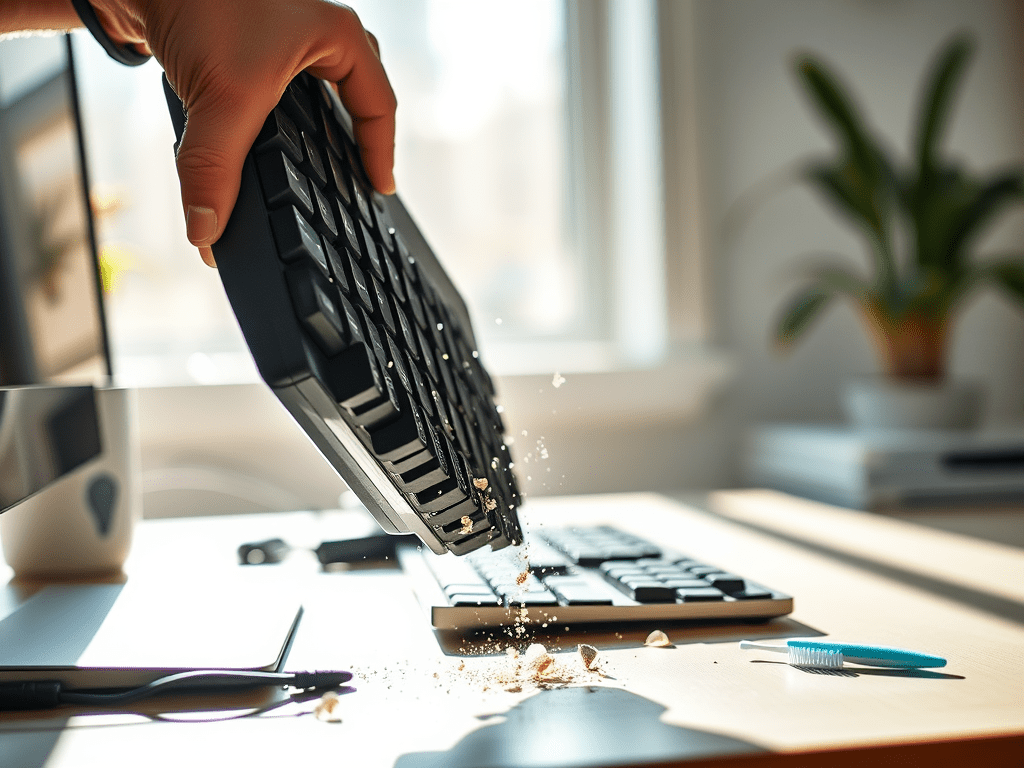
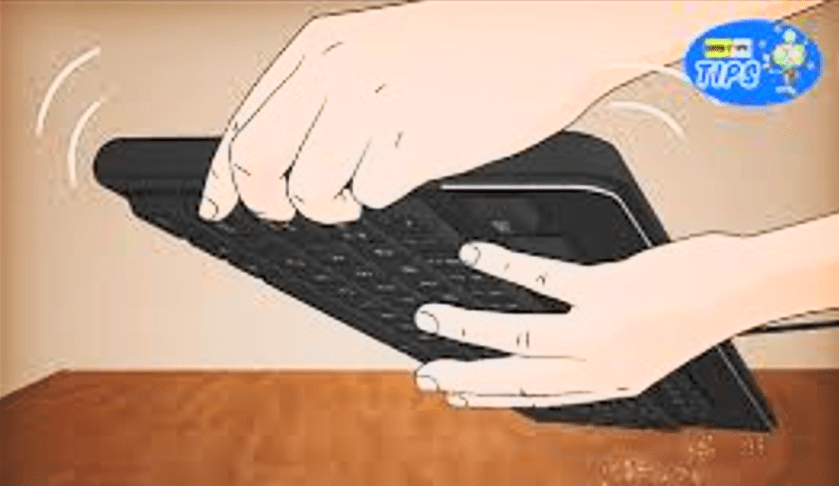
Place the keyboard on a large cloth or clear surface and turn it upside down, giving it a few good shakes. With the keys facing down, tap the back, then hold the board at different angles and pat it firmly but gently across the entire surface to knock free additional loose particles. Expect a cascade of debris. If you’re using a keyboard with removable keycaps (a mechanical keyboard, for instance), carefully pull those off and give the panel another upside-down shake. Refer to the image below:
Brush Out the Muck
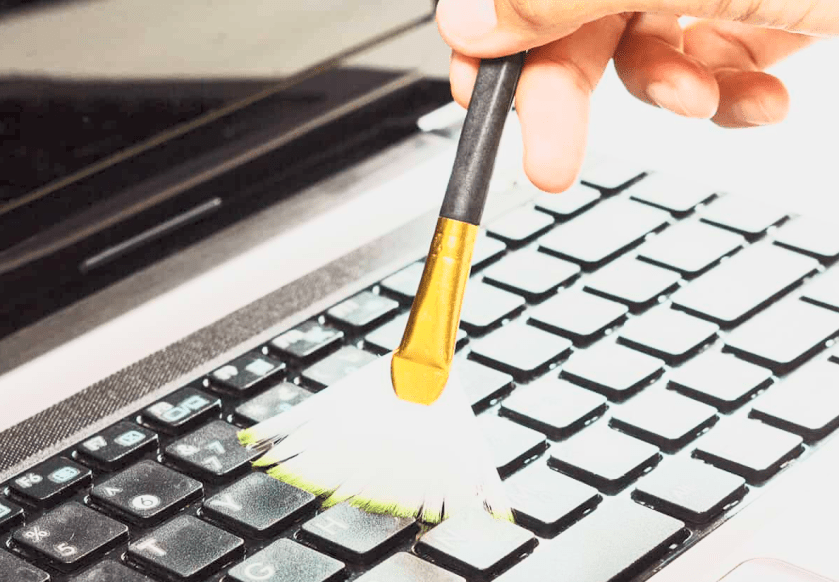
To remove even more from your keyboard, grab a keyboard brush or even just a toothbrush or bottle brush and run it through the spaces between your keys. See the image below:
Blow Out Dust and Debris
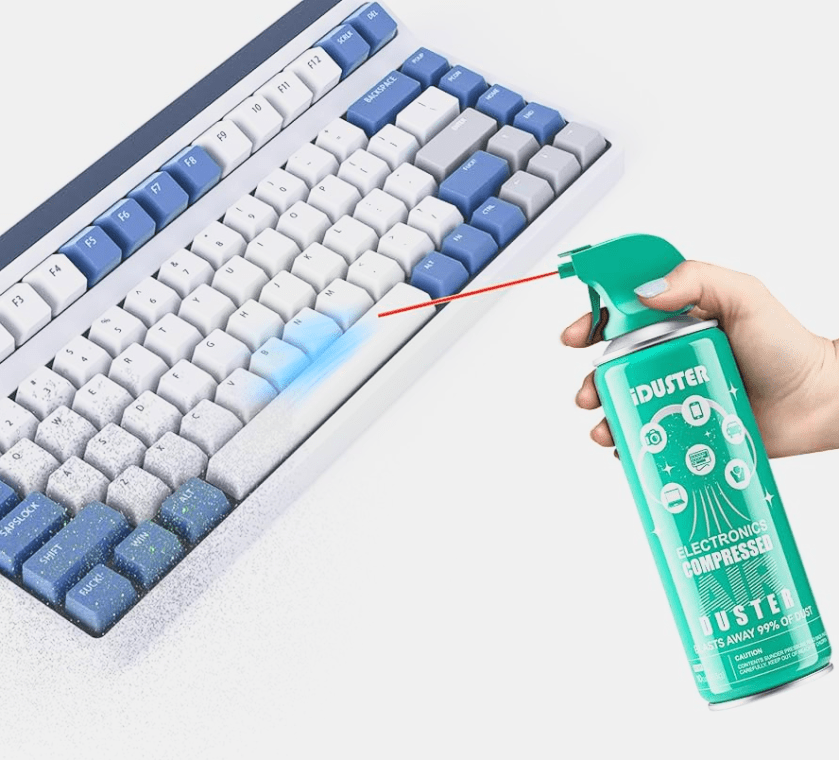
Now to get those particles even a brush can miss. Compressed canned air dislodges dust and dirt with a pressurized blast. Before inserting the straw-like plastic hose and blasting away, though, make sure there are no items nearby that will take on whatever gets knocked out of your keyboard.
You might even want to take this part outside or do it over a bathtub or sink. Just remember that canned air tends to create condensation, so be sure to leave some room between the keyboard and hose to avoid any moisture that could damage inner circuitry.
Prop the keyboard sideways on a steady surface, then, using the duster as directed, aim the straw at an angle along the crevices for a series of short bursts. Give the keyboard another few taps, and repeat the process until you are satisfied. You may be surprised at just how much flies out, even if you do not eat at your desk or have pets who climb across your keyboard at the most inopportune times. Removing the keycaps will make this process all the more effective.
On our humanitarian trips to South America and Southeast Asia, we would always carry 1-2 canisters of compressed air, called Blaster. This item was extremely hard to find. But airport customs, especially in Southeast Asia, would confiscate the canisters. The customs agents thought they were a bomb. See the following image:
Wipe Everything Down
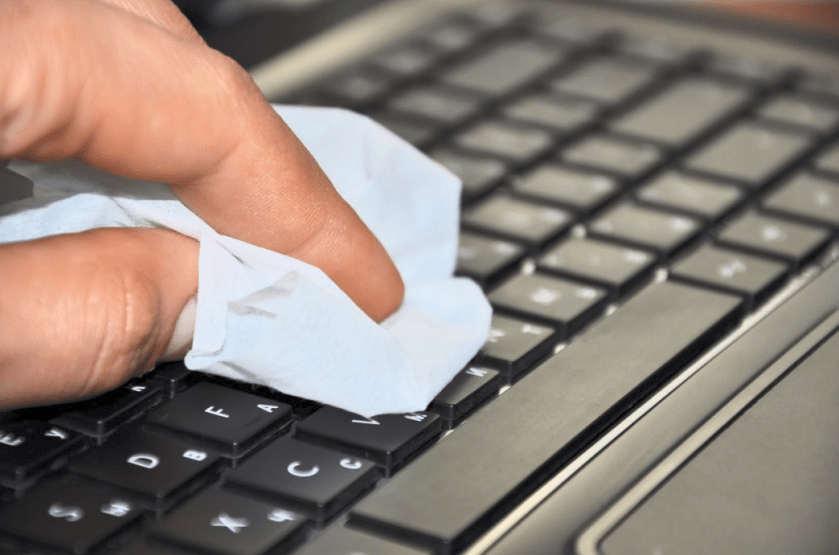
Take a microfiber cloth and dampen it with the tiniest bit of water and wipe down your entire keyboard. Go over it with a dry part of the same cloth. Make sure the keyboard is completely dry before plugging it back in or powering it on. Refer to the image below:
Give Your Keycaps a Bath
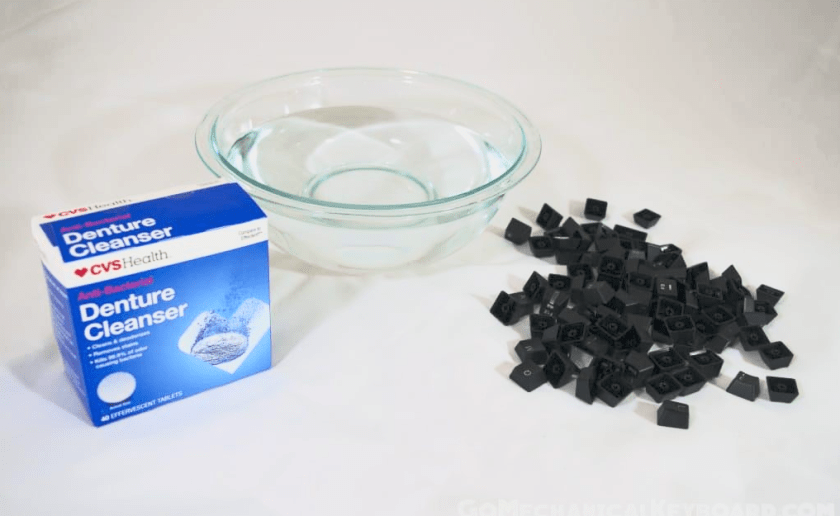
This tip is not for everyone; only those with a mechanical keyboard and removable keytops should follow these instructions. Start by snapping a quick picture of your fully assembled keyboard to avoid mixing up letters, numbers, and commands later. Then simply soak the keycaps in a container of water with a bit of dish soap. After a few minutes, give the keys a scrub with a small brush or rag and set them out to air dry.
If you have a lot of dirty keycaps, our recommendation is to purchase a new keyboard. See the image below:
Disclaimer
Technology is constantly evolving, and smartphone and desktop tech rarely remains static. Therefore, the information in this post is only accurate as of the date it was written. Blog posts that are older than six months may contain instructions that are no longer compatible with your device or operating system. We hope that the content from previous posts continues to function as intended. Thank you for reading TechSavvy.Life, where technology works for you.
Quote For the Day
. “Man is a slow, sloppy, and brilliant thinker; computers are fast, accurate, and stupid.”
― John Pfeiffer
X (Twitter) Info
That’s it. Please feel free to share this post! One way to share is via Twitter.
Just click the Tweet icon below. This will launch Twitter where you click its icon to post the Tweet.
Checkout TechSavvy.Life for blog posts on smartphones, PCs, and Macs! You may email us at contact@techsavvy.life for comments or questions.
Tweet
I Would Like to Hear From You
We value your feedback! Was this post helpful? Please share your comments with us. If you have a tech question related to your computer or smart device, feel free to reach out. Just send an email to contact@techsavvy.life, and be sure to include the device, app, and version you are using. To assist us further, you can also attach screenshots related to your inquiry.
The author’s Vietnam eBook on the “Battle for Tra Bong Vietnam: Events and Aftermath” can be accessed from a Kindle device or the Kindle App for a desktop or smartphone. The apps are free.



 Tech Savvy Life