


RAYMOND OGLESBY @RaymondOglesby2
July 23, 2024 – 2 minutes read time
Overview
If you are familiar with the Photos app, you might be familiar with a feature called Visual Look Up, which uses AI to identify objects in your photos. Most people have heard about its ability to recognize specific faces and identify plants. But, did you know that you can also use Visual Look Up to identify locations and important landmarks?
It’s so cool to know at a glance exactly where a photo was taken, especially if you have recently been traveling and have been to numerous historical sights or landmarks. It can be difficult to keep track of what photo was taken where. Now with the AI of the Visual Look Up feature, you no longer have to remember!
Why You Will Like This Tip:
- Get the most out of the Visual Look Up feature by learning to use it to identify locations.
- Quickly and easily obtain additional info about the landmarks and locations you have visited.
- Not sure what that cool landmark in front of you is? Use Visual Look Up to find out!
System Requirements
This is for iPhones running iOS 16 or later. Screenshots are from iPhone 14 Pro running iOS 18+
Click here to learn how to update your iPhone to the latest iOS version.
Identifying Landmarks
First, open the Photos app. Refer to the below image:

Next, select a photo that features a famous location or landmark. (This will not work if the photo is of your shoes at the statue of Andrew Jackson. It needs to be a photo of Andrew Jackson himself, otherwise, the AI will not be able to identify it.) See the below image:

Now, tap the info button at the bottom. If the AI works on this photo, the Info button will be decorated with sparkles. See the following image:

Next, tap the Look Up Landmark. Refer to the below image:
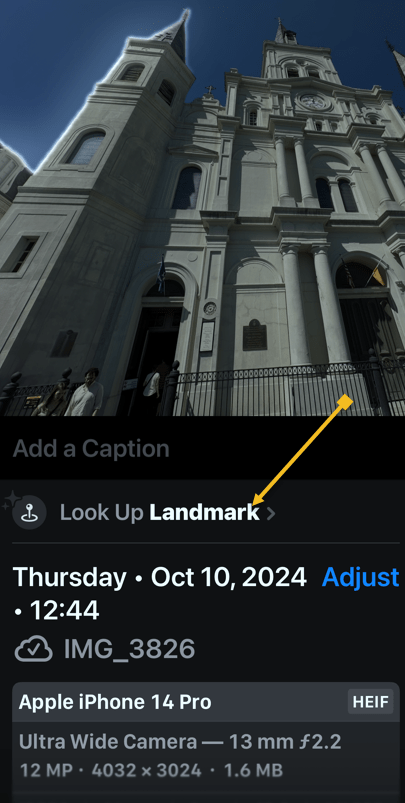
Now, you can select various options for further inquiry, like getting directions, placing a call to the location, or looking up further information about the location via the Internet. See the below image:

Summary
Now you can use Visual Look Up which uses AI to identify locations and important landmarks in your photos.
It can be difficult to keep track of what photo was taken where. But now with this feature. you no longer have to remember the landmark photo location.
Disclaimer
Technology is always changing. Rarely is there static tech for smartphones and desktops. Thus, the contents of this post are only valid at the time of writing. Blog posts older than six months may have directions incompatible with your device or OS. Hopefully, older post content will continue to work as advertised. Thank you for reading TechSavvy.Life for Technology at Work For You.
Quote For the Day
“The great myth of our times is that technology is communication.”
Libby Larsen
X (Twitter) Info
A very nice feature for iOS. Please feel free to share this post! One way to share is via Twitter.
Just click the Tweet icon below. This will launch Twitter where you click its icon to post the Tweet.
Checkout TechSavvy.Life for blog posts on smartphones, PCs, and Macs! You may email us at contact@techsavvy.life for comments or questions.
Tweet
I would Like to Hear from You
Was this post helpful? We would love to hear your comments. Do you have a computer or smart device tech question? I will do my best to answer your inquiry. Just send an email to contact@techsavvy.life. Please mention the device, app, and version you are using. To help us, you can send screenshots of the data related to your question.
The author’s Vietnam eBook on the “Battle for Tra Bong Vietnam: Events and Aftermath” can be accessed from a Kindle device or the Kindle App for a desktop or smartphone. The apps are free.
 Tech Savvy Life