Unlocking the Power of Visual Look Up on iPhone

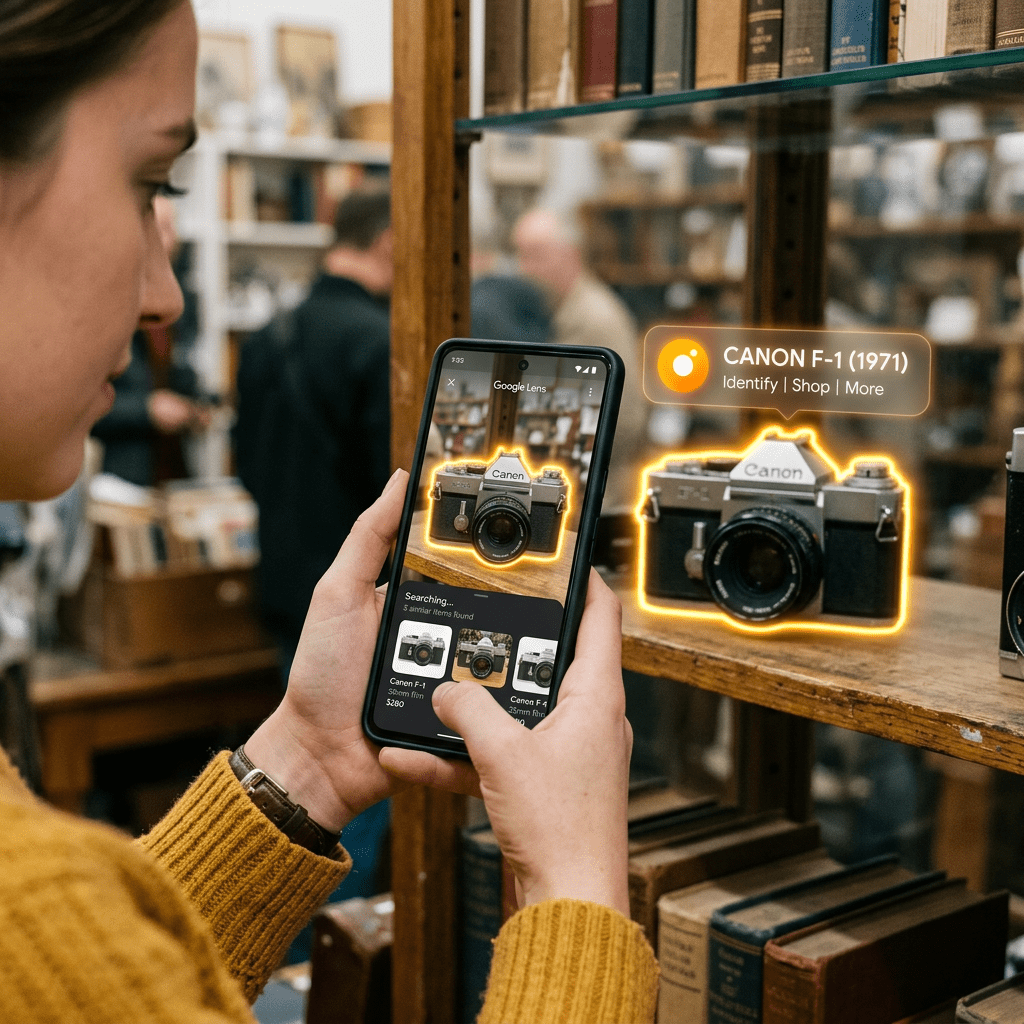
Apple’s new Visual Look Up feature allows iPhone users to search for images across various apps. Users can highlight screenshots to find similar images and ask ChatGPT about them. This feature, available on iPhone 15 Pro, Pro Max, and later models running iOS 26, aims to enhance visual intelligence capabilities.

RAYMOND OGLESBY @RaymondOglesby2
June 30, 2026 – 4 minutes read time

Here’s a new Apple visual intelligence feature you will not want to miss; you can now use Visual Look Up to search images on your iPhone screen across apps.

What can you do with Apple Visual Intelligence? More than ever before! The latest visual intelligence feature is the ability to look up items on your iPhone screen across a variety of apps. Let’s explore how to use this new Apple Visual Intelligence feature.

  • Highlight objects in a screenshot and use visual intelligence to find similar images online. 
  • Ask ChatGPT questions about images on your iPhone screen.
  • Search supported apps like Google and Etsy to find similar products to the image on your iPhone screen.

This tip was tested on an iPhone 17 Pro. You will need an iPhone 15 Pro or Pro Max, or any iPhone 16 or later running iOS 26 or later for this tip to work.

Click here to learn how to update your iPhone to the latest iOS version.

First, take a screenshot of an image that interests you on your iPhone. This can be anything you are interested in. Refer to the image below:

Visual 1
Your screenshot

Next, use your finger to circle or scribble over the part of the screenshot you want to learn about. That area will glow with animation. See the image below:

Visual 2
Circle your screenshot

Now, tap the Ask button. See the following image:
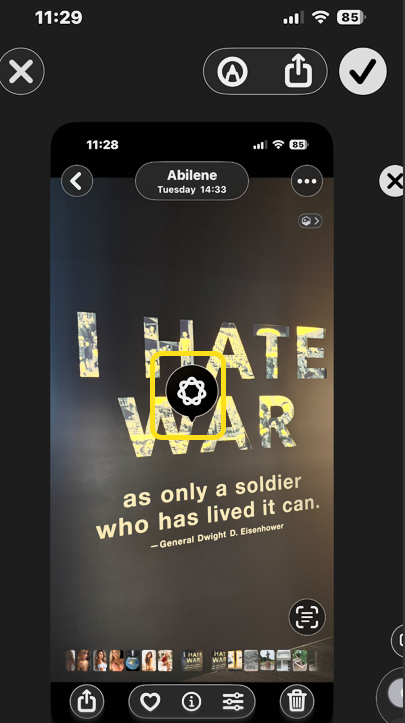
Visual 3
Tapping the Ask button

Next, type a question, then tap the Send button. Or, you can simply wait for Apple Intelligence and ChatGPT to give you general information about the image. Refer to the image below:
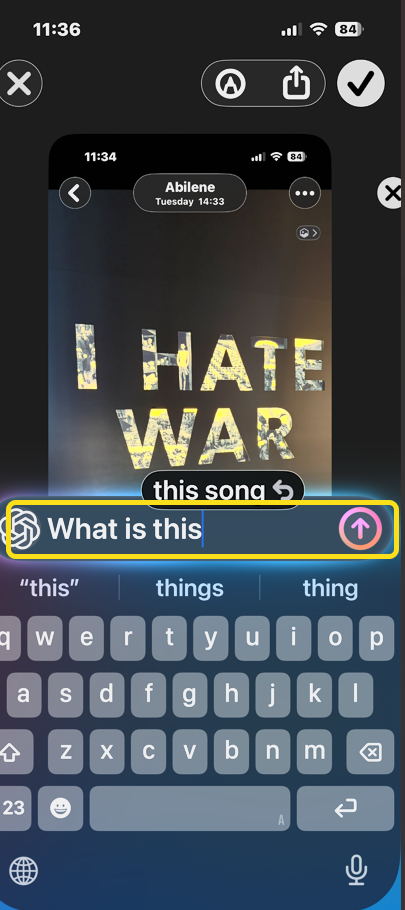
Visual 4
Ask a question

Now, wait a moment, and the ChatGPT results will appear onscreen. See the image below:
Visual 5
Your results

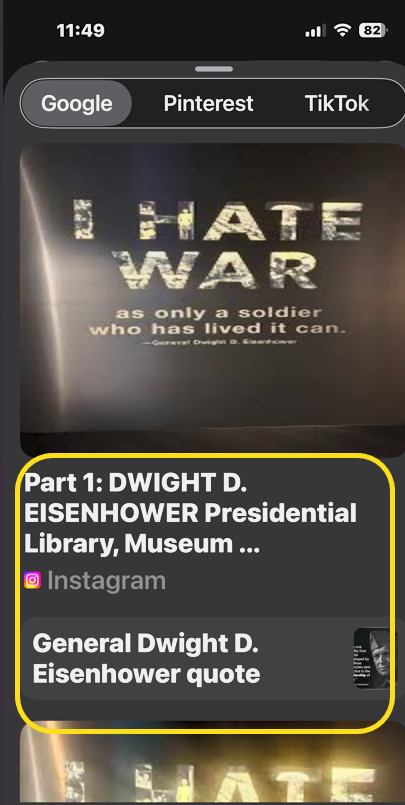
Next, from your screenshot, you can also swipe up to see the image search results. You can tap images from sites to purchase the item or learn more. See the following image:

Visual 6
Swipe up to see more

In the future, Apple promises that you will also be able to see results directly from apps like Etsy and Pinterest here, but that feature is not available as of this writing.

We found this feature cumbersome and frustrating to use. Anyway, that’s how to use Apple Visual Intelligence to look up an on-screen image.

Technology is constantly evolving, and smartphone and desktop tech rarely remains static. Therefore, the information in this post is only accurate as of the date it was written. Blog posts that are older than six months may contain instructions that are no longer compatible with your device or operating system. We hope that the content from previous posts continues to function as intended. Thank you for reading TechSavvy.Life, where technology works for you.

The role of the artist today is to defend feeling against the machine.

– Marty Rubin

You are finished. Please feel free to share this post! One way to share is via Twitter.

Just click the Tweet icon below. This will launch Twitter where you click its icon to post the Tweet.

Checkout TechSavvy.Life for blog posts on smartphones, PCs, and Macs! You may email us at contact@techsavvy.life for comments or questions.

We value your feedback! Was this post helpful? Please share your comments with us. If you have a tech question related to your computer or smart device, feel free to reach out. Just send an email to contact@techsavvy.life, and be sure to include the device, app, and version you are using. To assist us further, you can also attach screenshots related to your inquiry.

Author’s ebook

The author’s Vietnam eBook, “Battle for Tra Bong Vietnam: Events and Aftermath”, is available on Kindle devices and the Kindle App for desktop, laptop, and smartphone. The apps are free.

The author’s Vietnam eBook on the Battle for Tra Bong Vietnam: Events and Aftermath

Identify Landmarks Easily with Visual Look Up on iPhone

The Visual Look Up feature in the Photos app allows iOS users to identify landmarks in their images using AI. This tool enhances travel experiences by providing information about locations, helping users remember where photos were taken.

RAYMOND OGLESBY @RaymondOglesby2
July 23, 2024 – 2 minutes read time

If you are familiar with the Photos app, you might be familiar with a feature called Visual Look Up, which uses AI to identify objects in your photos. Most people have heard about its ability to recognize specific faces and identify plants. But, did you know that you can also use Visual Look Up to identify locations and important landmarks?

It’s so cool to know at a glance exactly where a photo was taken, especially if you have recently been traveling and have been to numerous historical sights or landmarks. It can be difficult to keep track of what photo was taken where. Now with the AI of the Visual Look Up feature, you no longer have to remember!

  • Get the most out of the Visual Look Up feature by learning to use it to identify locations.
  • Quickly and easily obtain additional info about the landmarks and locations you have visited.
  • Not sure what that cool landmark in front of you is? Use Visual Look Up to find out!

This is for iPhones running iOS 16 or later. Screenshots are from iPhone 14 Pro running iOS 18+

Click here to learn how to update your iPhone to the latest iOS version.

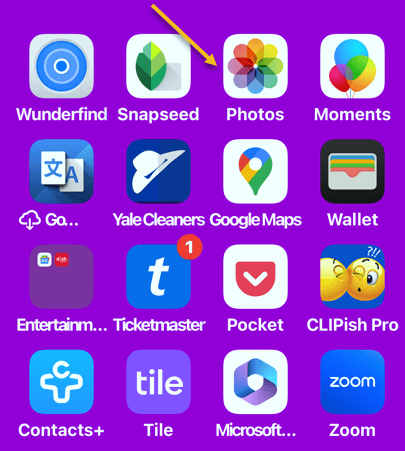
First, open the Photos app. Refer to the below image:

Landmark 1
Accessing the Photos app

Next, select a photo that features a famous location or landmark. (This will not work if the photo is of your shoes at the statue of Andrew Jackson. It needs to be a photo of Andrew Jackson himself, otherwise, the AI will not be able to identify it.) See the below image:

Landmarks 2
Select a photo

Now, tap the info button at the bottom. If the AI works on this photo, the Info button will be decorated with sparkles. See the following image:

Landmarks 3
Selecting the Info button

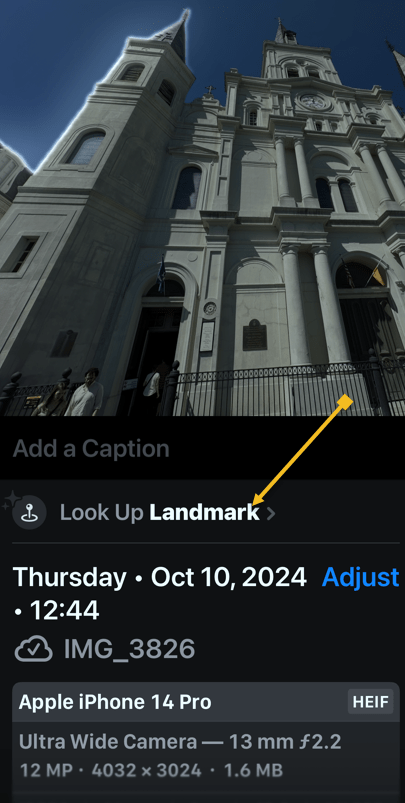
Next, tap the Look Up Landmark. Refer to the below image:

Landmarks 4
Selecting the Look Up Landmark option

Now, you can select various options for further inquiry, like getting directions, placing a call to the location, or looking up further information about the location via the Internet. See the below image:

Landmarks 5
Options for your landmark photo

Now you can use Visual Look Up which uses AI to identify locations and important landmarks in your photos.

It can be difficult to keep track of what photo was taken where. But now with this feature. you no longer have to remember the landmark photo location.

Disclaimer

Technology is always changing. Rarely is there static tech for smartphones and desktops. Thus, the contents of this post are only valid at the time of writing. Blog posts older than six months may have directions incompatible with your device or OS. Hopefully, older post content will continue to work as advertised. Thank you for reading TechSavvy.Life for Technology at Work For You.

“The great myth of our times is that technology is communication.”

 Libby Larsen

A very nice feature for iOS. Please feel free to share this post! One way to share is via Twitter.

Just click the Tweet icon below. This will launch Twitter where you click its icon to post the Tweet.

Checkout TechSavvy.Life for blog posts on smartphones, PCs, and Macs! You may email us at contact@techsavvy.life for comments or questions.

Was this post helpful? We would love to hear your comments. Do you have a computer or smart device tech question? I will do my best to answer your inquiry. Just send an email to contact@techsavvy.life. Please mention the device, app, and version you are using. To help us, you can send screenshots of the data related to your question.

The author’s Vietnam eBook on the “Battle for Tra Bong Vietnam: Events and Aftermath” can be accessed from a Kindle device or the Kindle App for a desktop or smartphone. The apps are free.

The author’s Vietnam eBook on the Battle for Tra Bong Vietnam: Events and Aftermath