This post provides a guide on clearing notifications on the iPhone, either individually or all at once. It also includes a disclaimer on the evolving nature of technology. The post ends with a quote and information on sharing the post and accessing the author’s eBook on the Battle of Tra Bong Vietnam.
This is for the iPhone. Screenshots are from iPhone 14 Pro running iOS 17+
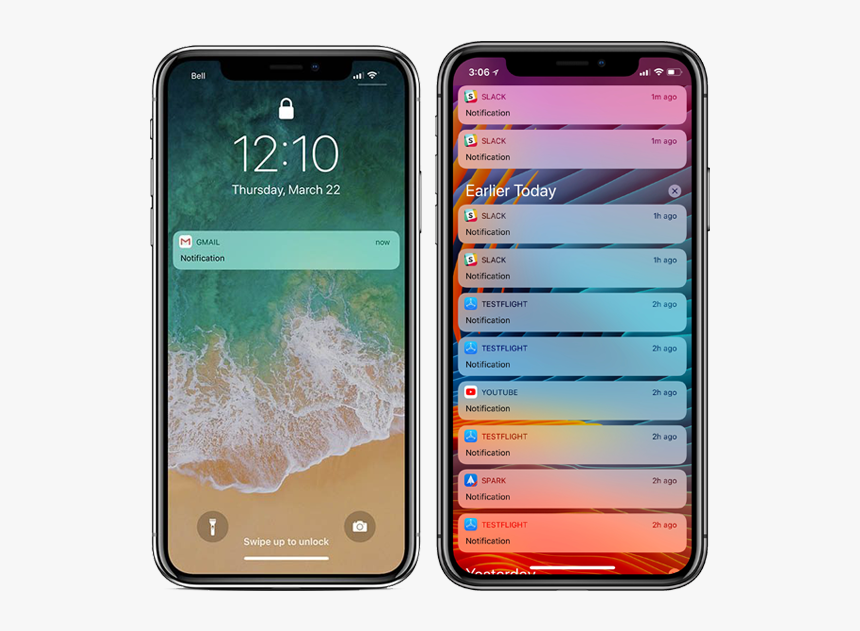
Notifications on your iPhone provide important updates and information at a glance. However, if you are like us and do not dismiss or interact with your notifications, they can start to pile up. When your Notification Center becomes cluttered and clogged up, you can easily clear notifications on your iPhone simultaneously. Let’s explore this easy feature.
Clear All Your iPhone Notifications
If you are feeling overwhelmed by all the unread notifications in your Notification Center, clearing them might help.
Unlock your phone and swipe down from the top left of your screen
OR
swipe up from your Lock Screen to pull them up.to open the Notification Center.
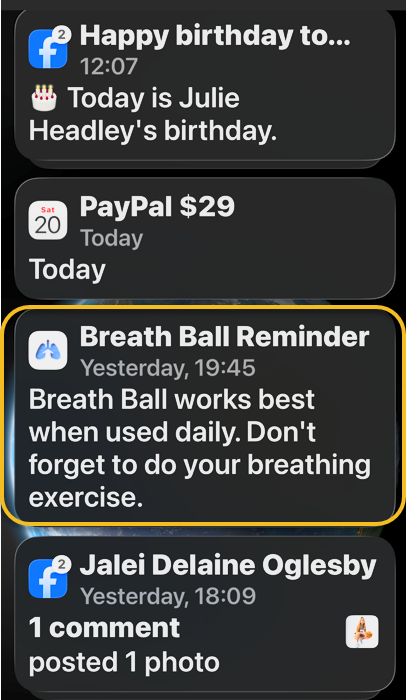
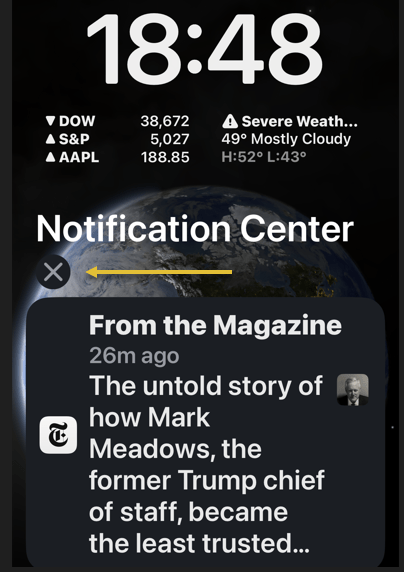
Tap and hold the “X” icon for a moment. Refer to the below image:
Selecting the icon to clear all notifications
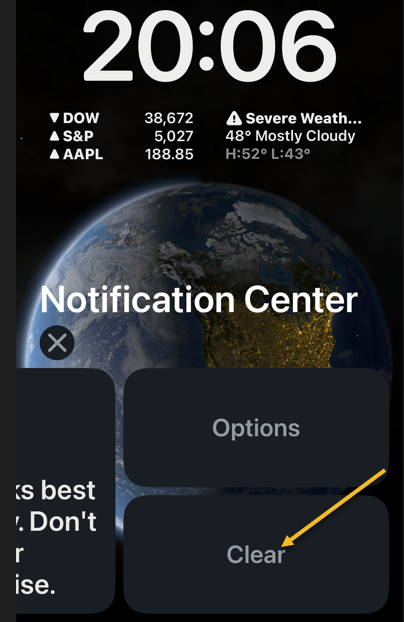
Tap Clear or Clear All Notifications when it pops up. See the below image:
Clear all notifications
Once you tap Clear or Clear All Notifications, all of your notifications will instantly disappear from the Notification Center. Now you do not have to deal with hundreds of notifications clogging up your phone every day!
Clear One
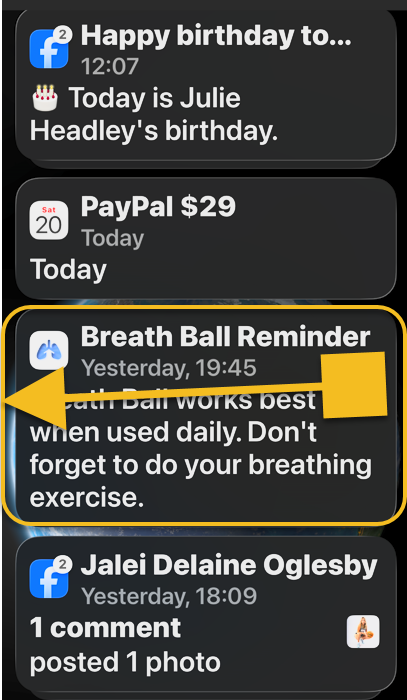
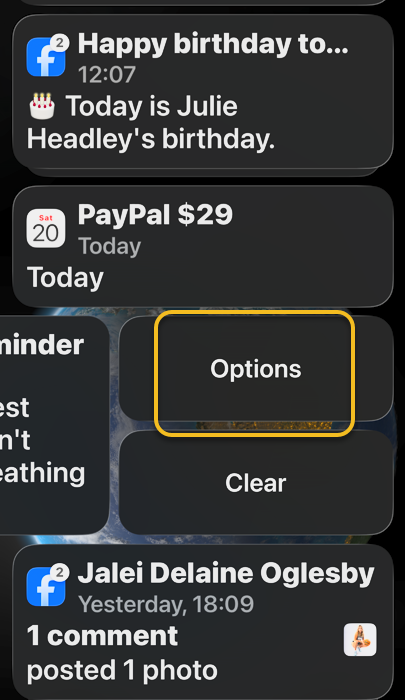
You can delete them one at a time by swiping the notification to the left, and then tap Clear or Clear All. See the following image:
Clear one notification
Disclaimer
Technology is always changing and rarely is there static tech for smartphones and desktops. Thus, the contents of this post are only valid at the time of writing. Blog posts older than six months may have directions incompatible with your device or OS. Hopefully, older post content will continue to work as advertised. Thank you for reading TechSavvy.Life for Technology at Work For You.
Quote for the Day
The way to get things done is not to mind who gets the credit for doing them.
Benjamin Jowett
spacer
Tweet Info
That’s it. Please feel free to share this post! One way to share is via Twitter.
Just click the Tweet icon below. This will launch Twitter where you click its icon to post the Tweet.
Checkout TechSavvy.Life for blog posts on smartphones, PCs, and Macs! You may email us at contact@techsavvy.life for comments or questions.
Year after year, Apple rolls out new features and settings for its iPhones, adding more customization options that change how we use our phones.
Now is a good time to review some settings. Take a few minutes to peruse these three settings and make sure you are getting the most out of your iPhone.
This is for the iPhone. Screenshots are from iPhone 14 Pro running iOS 16+
Check Individual Settings
First, if a factory reset is too drastic, you can handpick the settings that need a refresh. Head to:
Settings > General > Transfer or Reset iPhone > Reset
Next, tap Reset All Settings to refresh your iPhone’s network settings, keyboard dictionary, location settings, privacy settings, and Apple Pay cards all in one shot, without deleting your photos, contacts, or other data and media. Refer to the below image:
Reset Settings
Or update them one by one (the preferred method).
Having connectivity problems? Choose Reset Network Settings to remove previously used networks and VPNs (that were not installed using a configuration profile).
If there’s an issue with your phone’s layout, try Reset Home Screen Layout to return Apple’s built-in apps to the Home screen, like they would be on a new phone out of the box.
Each time you tap on a word or spelling the phone does not know, it notes it and saves the information to your dictionary. If something goes wrong, try Reset Keyboard Dictionary to erase all the words you have added and reset the suggested words you see while typing.
To revoke location access for people or apps, tap Reset Location and Privacy to restore those settings to their default. (For people, this can also be managed from the Find My app.) When you re-open apps that used your location, like Uber or Google Maps, they will likely ask you to grant them access to your location again.
Enable Safety Check
In iOS 16, Apple added Safety Check to quickly disconnect from people and apps that may be tracking you, either with or without your knowledge. In the case of domestic abuse or other harmful situations, this feature can help restore control of the iPhone to its owner.
It can also be helpful to revisit share settings that you made in the past and forgot about to disconnect from anyone who may still have access to your content, location, or settings.
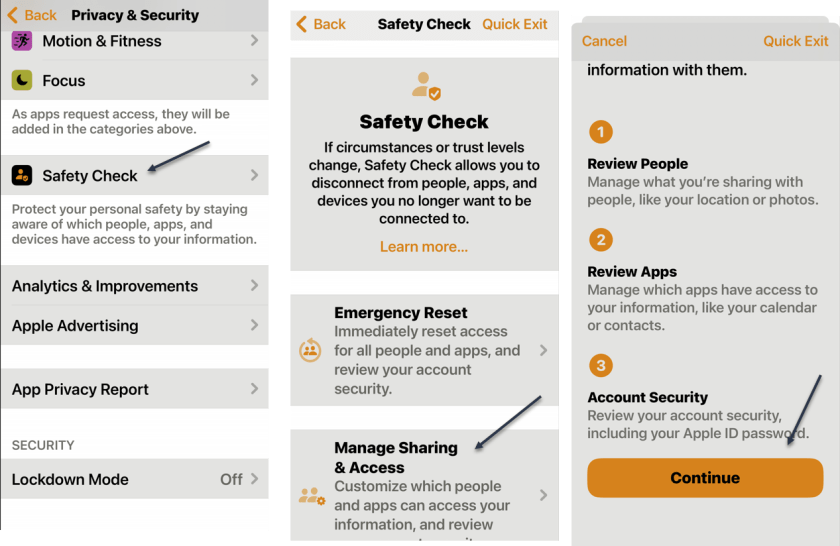
First, to review the people and apps you are sharing information with, head to
to see your current settings and decide if you want to change anything or not. See the below image:
Running Safety Check
Fix Notifications
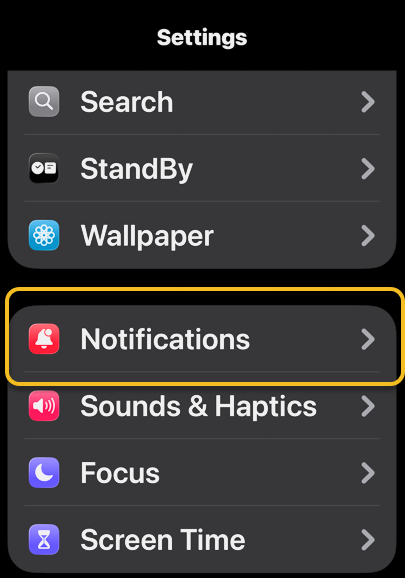
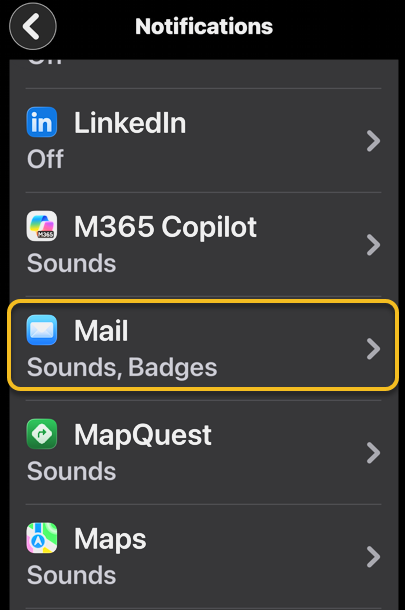
If there are some apps that are not notifying you when you think they should be, there is no single solution to fix those settings. Instead, you will have to change things manually for individual apps: First, head to:
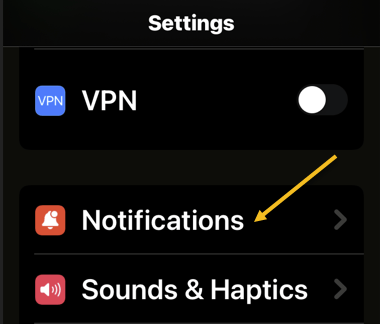
Settings > Notifications
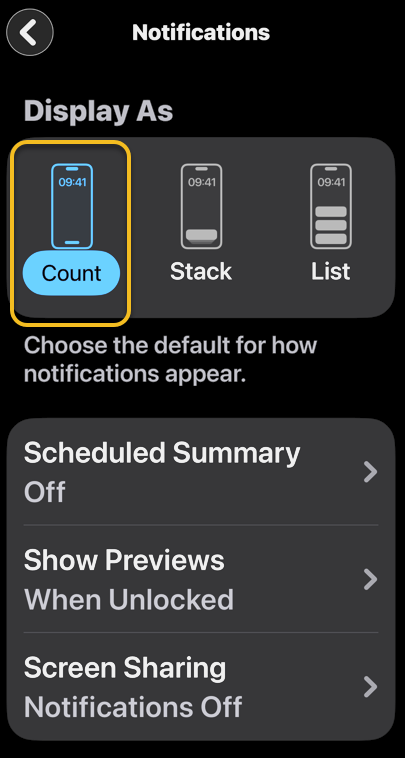
to find a list of all the apps on your phone. Next, choose Scheduled Summary to see if any apps have been set to deliver notifications at a specific time.
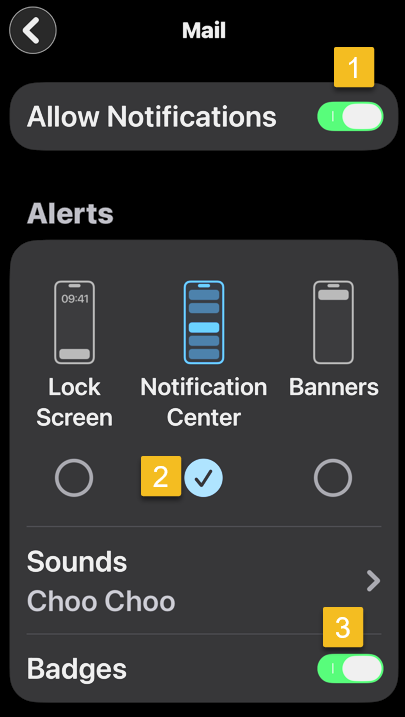
You can also inspect an individual app. An app’s notifications can be enabled or disabled from the Allow Notifications toggle at the top of the screen. You can also decide whether the app notifies you on the Lock Screen, Notification Center, and uses Banners.
If you scroll to the bottom of the Notifications section, you can turn off, or back on, AMBER Alerts, Emergency Alerts, and Public Safety Alerts. See the following image:
Fix Notifications
Disclaimer
Technology is always changing and rarely is there static tech for smartphones and desktops. Thus, the contents of this post are only valid at the time of writing. Blog posts older than six months may have directions incompatible with your device or OS. Hopefully, older post content will continue to work as advertised. Thank you for reading TechSavvy.Life for Technology at Work For You.
Quote For the Day
Science knows no country, because knowledge belongs to humanity, and is the torch which illuminates the world.
Louis Pastuer
Tweet Info
You are finished. Please feel free to share this post! One way to share is via Twitter.
Just click the Tweet icon below. This will launch Twitter where you click its icon to post the Tweet.
Checkout TechSavvy.Life for blog posts on smartphones, PCs, and Macs! You may email us at contact@techsavvy.life for comments or questions.
Please feel free to leave a comment. I would love to hear from you. Do you have a computer or smart device tech question? I will do my best to answer your inquiry. Just send an email to contact@techsavvy.life. Please mention the device, app, and version you are using. To help us out, you can send screenshots of your data related to your question.
Author’s E-Book
You can access the e-book from a Kindle device, the Kindle App for the desktop or smartphone, which is a free app.
The author’s Vietnam eBook on the Battle for Tra Bong Vietnam: Events and Aftermath
Do you feel bombarded by iPhone notifications? If so, there’s a way to silence all of your notifications. Or, you can pick and choose the notifications you want to see and those you want to ignore.
Do you feel bombarded by iPhone notifications? If so, there’s a way to silence all of your notifications. Or, you can pick and choose the notifications you want to see and those you want to ignore. Let’s examine how to gain control over your notifications.
This is for the iPhone. Screenshots are from iPhone 14 Pro running iOS 16+
Copyright Scott Adams, Inc./Distributed by Universal Uclick for UFS
Using Do Not Disturb Mode
The easiest way to silence your notifications is to turn on Do Not Disturb mode from the Control Center. Swipe down from the very top-right of your screen. Then, select:
Focus > Do Not Disturb
Refer to the below image:
Accessing the Do Not Disturb button
Using Focus
If you want to schedule Do Not Disturb mode for a specific time, you can use Focus too.
First, launch the Settings app on your iPhone. In Settings, tap:
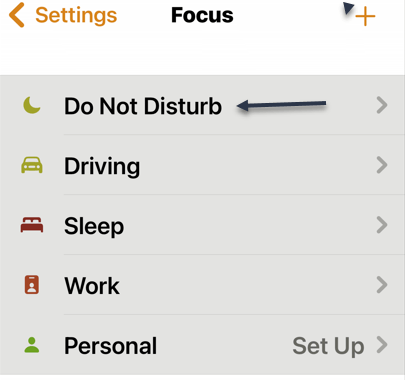
Focus > Do Not Disturb
See the below image:
Accessing the Do Not Disturb option from Focus
Next, you can set which notifications you allow (if any) and choose a custom Home or Lock screen to use in Do Not Disturb mode. See the following image:
Choosing Lock or Home screen
Now, under Set a Schedule, tap Add Schedule to set when you would like to enable Do Not Disturb mode. Refer to the below image:
About to Set a Schedule
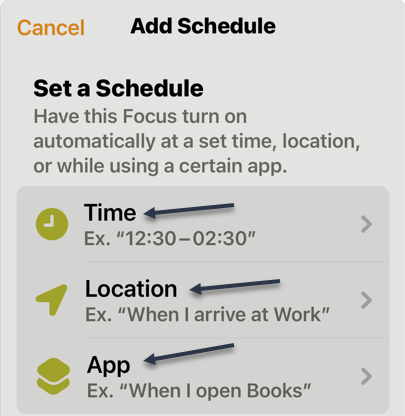
Next, you have three options for setting a schedule. see the below image:
Set a Schedule via three options
Next, you can set a Time, Location, and App to silence notifications. See the following image:
Your three options
Quiet App-Specific
If you want to disable notifications for a specific app, you can manage the notification settings for each app on your iPhone.
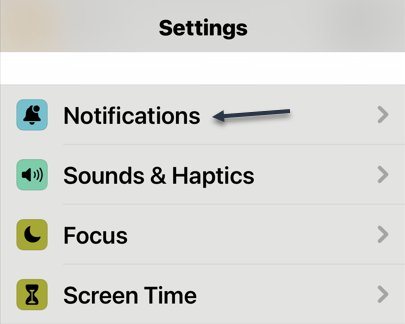
First, open Settings on your device. Then, tap Notifications. Refer to the below image:
Accessing Notifications
Next, on the Notifications page, in the Notification Style section, tap the app for which you want to disable notifications.See the below image where we are choosing the ActiveArmor app:
Selecting an App
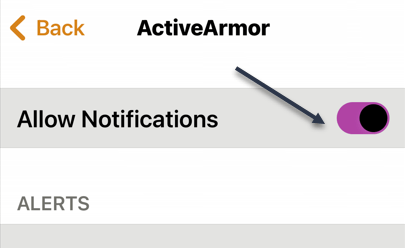
Now, on the app page, at the top, toggle OFF the Allow Notifications option. See the following image:
Toggle Notifications to OFF
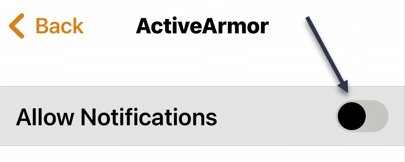
Next, a screen will open showing the Allow Notifications option is OFF. Refer to the below image:
Notifications are OFF for the App
Now, tap the Back icon and notice that notifications for ActiveArmor are OFF. See the below image:
Showing Notifications is OFF for the App
Your iPhone will not send you notifications from your chosen app.
Disclaimer
Technology is always changing, and rarely is their static tech for smartphones and desktops. Thus, the contents of this post are only valid at the time of writing. Blog posts older than six months may have directions incompatible with your device or OS. Hopefully, older post content will continue to work as advertised. Thank you for reading TechSavvy.Life for Technology at Work For You.
Quote For the Day
As technology advances in complexity and scope, fear becomes more primitive.
Don DeLillo
Tweet Info
That’s it. Please feel free to share this post! One way to share is via Twitter.
Just click the Tweet icon below. This will launch Twitter where you click its icon to post the Tweet.
Checkout TechSavvy.Life for blog posts on smartphones, PCs, and Macs! You may email us at contact@techsavvy.life for comments or questions.
Please feel free to leave a comment. I would love to hear from you. Do you have a computer or smart device tech question? I will do my best to answer your inquiry. Just send an email to contact@techsavvy.life. Please mention the device, app, and version you are using. To help us out, you can send screenshots of your data related to your question.
Author’s E-Book
You can access the e-book from a Kindle device, the Kindle App for the desktop or smartphone, which is a free app.
The author’s Vietnam eBook on the Battle for Tra Bong Vietnam: Events and Aftermath
Notifications are a blessing and a curse. They can be great in a lot of situations, but you probably ignore most of them. There are several things we can do to make Notifications on your iPhone work a little better.
Unfortunately, the notification situation on the iPhone is a bit messy. There are a lot of settings and options, but Apple does not explain a lot of them well. Let’s explore some things to get the best notification experience.
This is for the iPhone. Screenshots are from iPhone XR running iOS 16+
Copyright Scott Adams, Inc./Distributed by Universal Uclick for UFS
Stop From Turning on the Screen
By default, iPhone notifications always turn on the screen. Not only can this be annoying, but it also drains the battery faster if you get a lot of them.
Each app has three different types of alerts it can do; Lock Screen, Notification Center, and Banners. Simply turning off the Lock Screen option will prevent notifications from turning on the screen. First, head to:
Settings > Notifications
and scroll down and find an app, then tap on the app. Under the Alerts section, uncheck the Lock Screen option. Refer to the below image:
Disabling the Lock Screen option
Delivery Quietly
Notifications do not have to be loud and annoying. You have the option to make them appear Quietly. This can be done directly from the notification, as shown above, or from Settings.
When a notification is delivered quietly, it basically just appears on your device without any fanfare. You will still see it in the Notification Center and Home screen badge, but not on the Lock screen, and it will not vibrate or make a sound.
First, head to:
Settings > Notifications
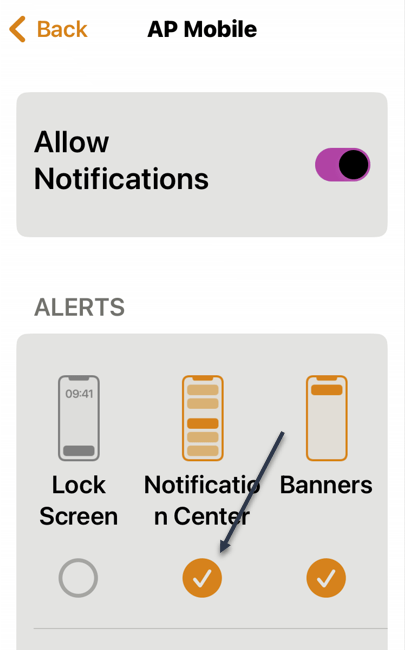
and scroll down and find an app, then tap on the app. Under the Alerts section, check the Notification Center option. See the below image:
Enabling Deliver Quietly option
Group/Ungroup
Notifications from the same app can be grouped together. They appear as a bundle on the Lock screen and Notification Center. This is enabled by default, but it can be tweaked for any app.
Each app has three different options for Notification Grouping, Automatic is the default.
Automatic: The Notifications from the app are intelligently grouped by threads, topics, and other criteria.
By App: All the Notifications from the app are grouped together.
Off: Notifications are not grouped at all.
Just tap on Notification Grouping to see the options See the following image:
Selecting Group or Ungroup option
Using Focus
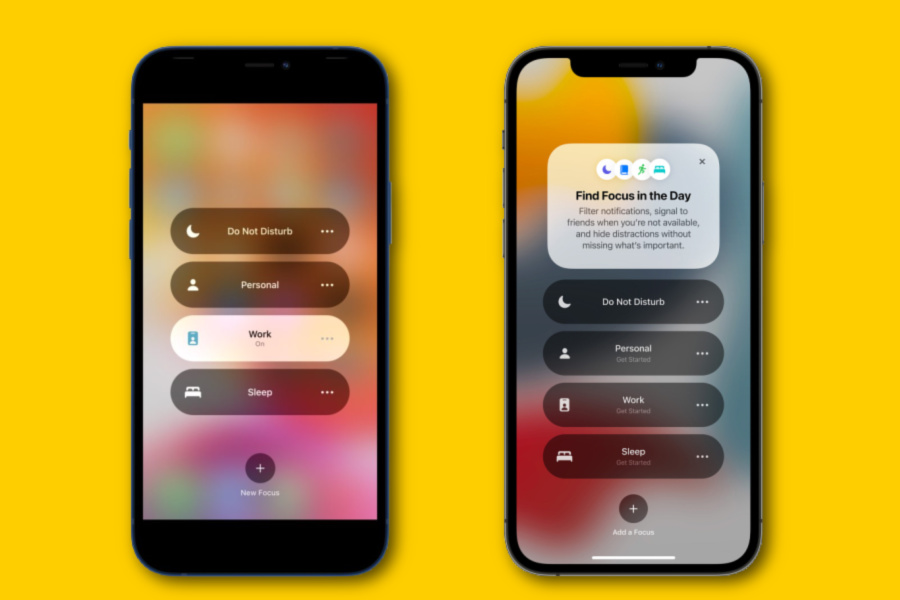
One of the iPhone’s most powerful notification features is called Focus. It’s essentially a way to make personalized Do Not Disturb modes for specific situations. First, head to:
Settings > Focus
and select one or create your own. Refer to the below image:
Setup Focus
iPhone notifications can be great and they can be awful. It’s up to you to customize the experience to your liking. If your iPhone is becoming too much of a distraction and frustration, try the above tips.
Quote For the Day
The human spirit must prevail over technology.
Albert Einstein
Tweet Info
You are finished. Please feel free to share this post! One way to share is via Twitter.
Just click the Tweet icon below. This will launch Twitter where you click its icon to post the Tweet.
Checkout TechSavvy.Life for blog posts on smartphones, PCs, and Macs! You may email us at contact@techsavvy.life for comments or questions.
Please feel free to leave a comment. I would love to hear from you. Do you have a computer or smart device tech question? I will do my best to answer your inquiry. Just send an email to contact@techsavvy.life. Please mention the device, app, and version you are using. To help us out, you can send screenshots of your data related to your question.
Author’s E-Book
You can access the e-book from a Kindle device, the Kindle App for the desktop or smartphone, which is a free app.
The author’s Vietnam eBook on the Battle for Tra Bong Vietnam: Events and Aftermath
Even if you are already filtering unknown senders in Messages on iPhone, you still might see notifications every time you get a text from an unknown number. To stop that and silence the annoying notifications, you will need to make a change in Settings.
Even if you are already filtering unknown senders in Messages on iPhone, you still might see notifications every time you get a text from an unknown number. To stop that and silence the annoying notifications, you will need to make a change in Settings. Let’s explore how to do this.
This is for the iPhone. Screenshots are from iPhone XR
Copyright Scott Adams, Inc./Distributed by Universal Uclick for UFS
First, open Settings (the grey gear icon, usually on your Home Screen). Refer to the below image:
Accessing Settings
Next, on Settings, scroll down and tap Notifications. See the below image:
Accessing Notifications
Now, in Notifications, tap Messages. See the following image:
Accessing Messages
Next, in Messages notification settings, scroll down to the very bottom and tap Customize Notifications. Refer to the below image:
Selecting Customize Notifications
Now, in Customize Notifications, flip the toggle beside Unknown Senders to the OFF position. See the below image:
Disable Unknown Senders
Next, exit Settings. Now, we want to enable Filter Unknown Senders. Head to:
Settings > Messages > Filter Unknown Senders
and flip the toggle to ON. See the following image:
Enable Filter Unknown Senders
Now, you will no longer receive notifications when unknown senders text you.
Quote For the Day
If you don’t have a competitive advantage, don’t compete.
Jack Welch
That’s it. Please feel free to share this post! One way to share is via Twitter.
Just click the Tweet icon below. This will launch Twitter where you click its icon to post the Tweet.
Check out TechSavvy.Life for blog posts on smartphones, PCs, and Macs! You may email us at contact@techsavvy.life for comments or questions.
Please feel free to leave a comment. I would love to hear from you. Do you have a computer or smart device tech question? I will do my best to answer your inquiry. Just send an email to contact@techsavvy.life. Please mention the device, app, and version you are using. To help us out, you can send screenshots of your data related to your question.
Author’s E-book
You can access the e-book from a Kindle device, the Kindle App for the desktop or smartphone, which is a free app.
The author’s Vietnam eBook on the Battle for Tra Bong Vietnam: Events and Aftermath
By now you familiar with notifications and how they can be overwhelming. It’s like having another Inbox to wade through. I have way too many notifications because of way too many apps on this iPhone. Luckily, Apple provides a single location where you can view and manage them called the Notification Center.
Ii is a centralized interface for reviewing notifications on your device that have been received from apps or the operating system itself.
This is for the iPhone and iPad
Copyright Scott Adams, Inc./Distributed by Universal Uclick for UFS
View From Unlocked Screen
To view the Notification Center while your iPhone or iPad is unlocked, swipe downward from the center of the upper edge of the screen. If you have iOS 14 or above you may also swipe down from upper left of your screen.
As a side note, swiping down from upper right will bring up the Control Center. Swiping down from the center will launch the Search screen.
View From Locked Screen
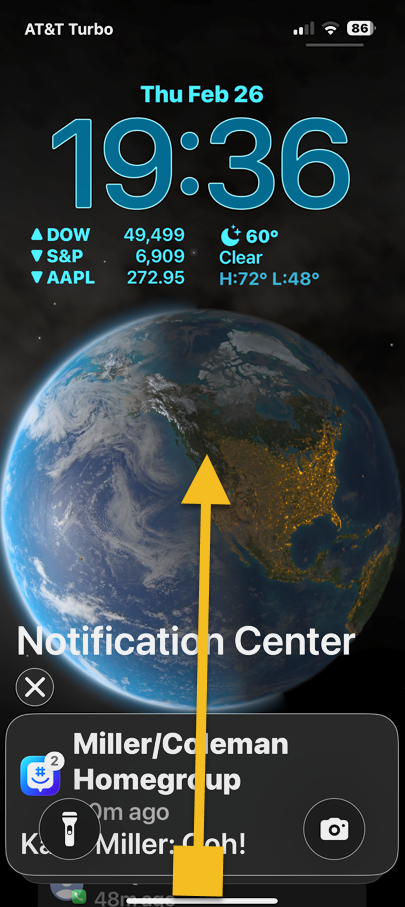
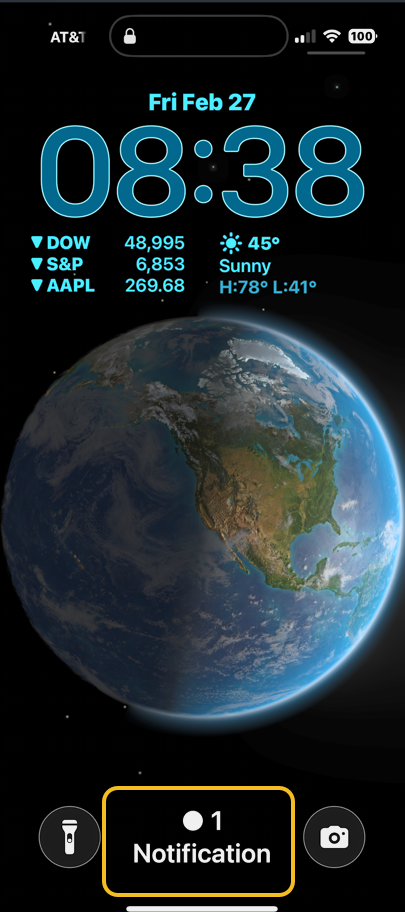
To view NotificationCenter on the Lock screen, swipe upward from the middle of the screen until it appears.
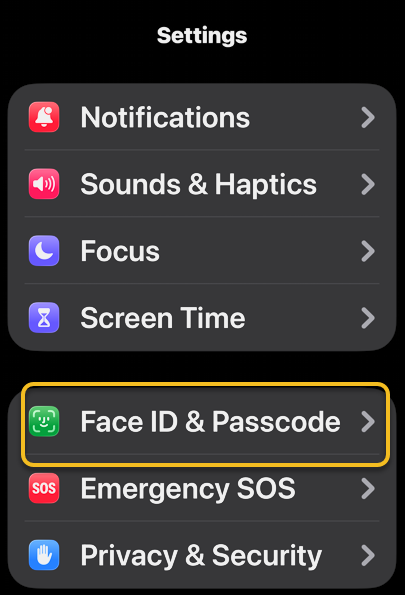
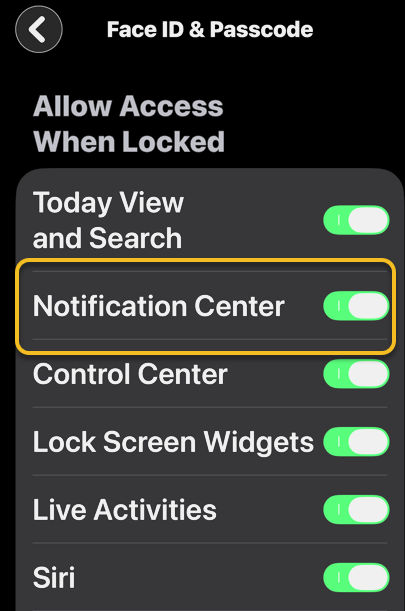
You can enable or disable Notification Center on the Lock screen by going to
Settings > Touch ID & Passcode or Face ID & Passcode
Then enter your Passcode and scroll down till you see the toggle for NotificationCenter.
Your Notifications
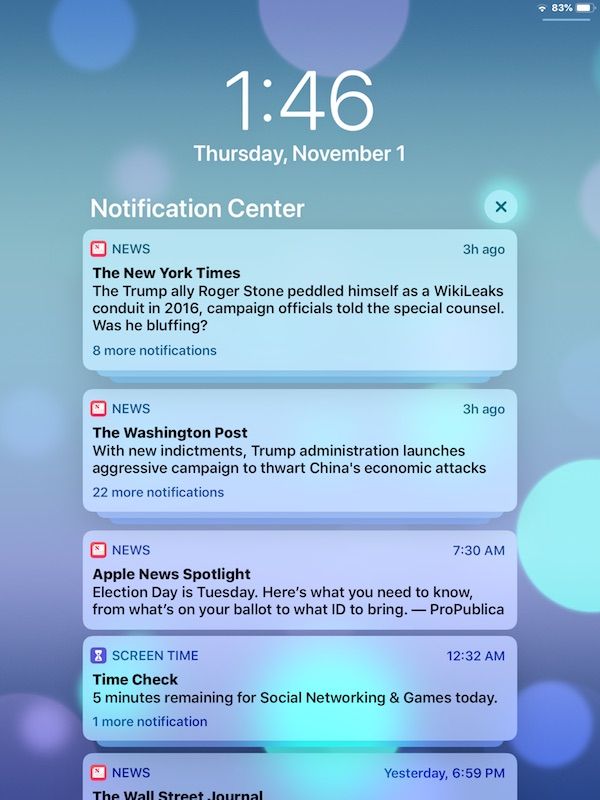
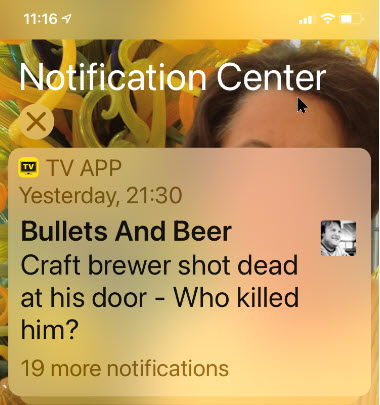
Once launched, you will see a special screen titled Notification Center that lists your recent notifications. If an app has sent more than one notification, the notifications may be stacked (there will be a number in the notification). Tap the stack to see all of the notifications expanded. Refer to below image where I have 19 stacked notifications :
Your Notification Center
Now, you can swipe to the right on a particular notification to open it in the originating app. If you swipe quickly to the left, you can clear that notification away. Or if you want to clear all notifications at once, this is a two step process. First, tap the small “X” button beside the Notification Center heading. See below image:
About to Clear all notifications
Second, tap the Clear text button (where the “X” was) to clear all notifications. See following image:
Accessing to Clear all notifications
You can also turn off certain notifications from this screen by slowing swiping your finger to the left of a notification. Next, tap Manage in the options that appear. Refer to below image:
Manage a notification
If notifications continue to get on your nerves, you can disable them on a per app basis in Settings. Head to
Settings > Notifications
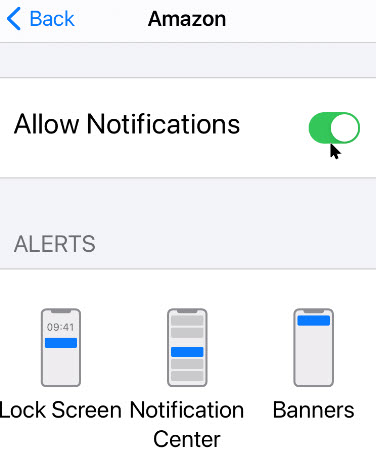
then tap an app you would like to manage. There, you can select the type notifications you would like to receive or disable them completely. For your apps, enable or disable the Allow Notifications toggle as you wish. When finished, tap the Back text button and exit Settings. See below image:
Toggle for Allow Notifications on per app basis
That’s it. Please feel free to share this post! One way to share is via Twitter, as mentioned below.
I hope you have found this post helpful. If so, click the Tweet icon below. This will launch Twitter where you click its icon to post the Tweet.
Check out TechSavvy.Life for blog posts on smartphones, PCs, and Macs! You may email us at contact@techsavvy.life for comments or questions.
Please feel free to leave a comment. I would love hearing from you. Do you have a computer or smart device tech question? I will do my best to answer your inquiry. Just send an email to contact@techsavvy.life. Please mention the device, app and version that you are using. To help us out, you can send screenshots of your data related to your question.
The author’s Vietnam eBook on the Battle for Tra Bong: Events and Aftermath