How to Scan Documents From iPhone Using Google Drive

Google Drive’s latest update allows users to scan documents directly to cloud storage on iPhone, a feature previously available on Android only. The new design includes a Camera button for initiating the scan and saving it as a PDF file. The app also uses machine learning to suggest relevant titles for saved images. The post cautions that the information is only valid at the time of writing due to the constant evolution of technology.

RAYMOND OGLESBY @RaymondOglesby2
January 23, 2024

This is for the iPhone using the latest update for Google Drive. Screenshots are from iPhone 14 Pro running iOS 17+

Google Drive users will be glad to know the cloud storage app has a new handy feature. The app lets you scan documents directly to your cloud storage on your iPhone. The feature is already available on Android; the same functionality has made its way to iPhone.

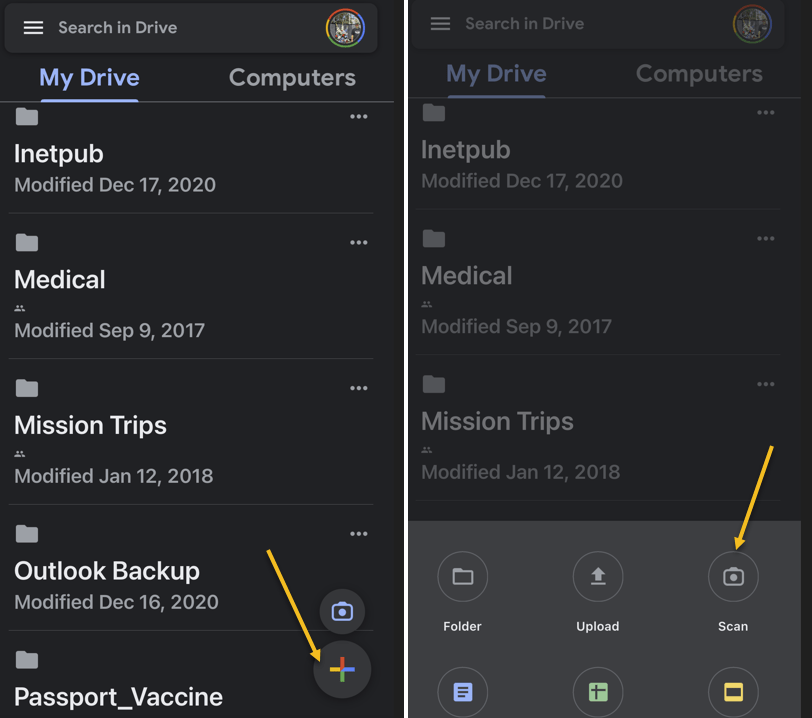
The new Google Drive redesign comes with a new Camera button above the “+” button in the lower right corner. Another option to start a scan from the Google Drive home page is to tap that “+” sign and choose the Scan option. Both will take you to the iPhone’s Camera. Refer to the below image:
Drive Scan 3
Selecting options to scan

Tap the button to initiate a document scan that will feel familiar. Just place the document or receipt from the Camera and take the photo.

The document-scanning feature lets you capture multiple images to scan a document with more than one page.

Once the photo is taken, you can perform the usual edits for such types of images. You can crop and rotate the image and change the color. That can be useful if you want your photo to look like a scanned document.

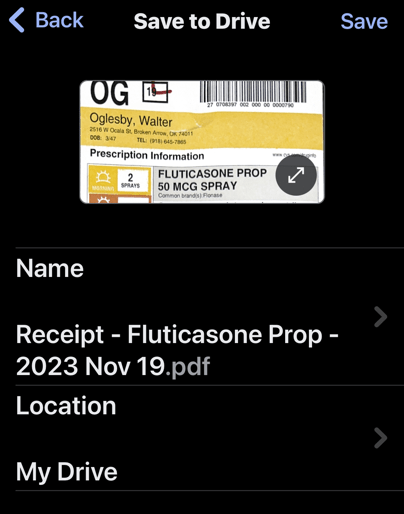
When you are ready to save the scan, press the Save button, and Google Drive will use machine learning to suggest a relevant title for the image or set of images that will be saved as a new PDF file. See the below image:
Drive Scan 4
Save your scan as a PDF file

That’s another handy feature, as it will save you time and ensure you find and retrieve the scan with ease in the future.

As a reminder, your iPhone already has a built-in document scanner feature. You can scan documents directly into the Notes app with similar ease. If you sync Notes across iPhone, iPad, and Mac, you will always have the scanned document available.

However, the Google Drive alternative is also a great option. Some iPhone users might prefer scanning documents to Google’s cloud storage directly.

Technology is always changing and rarely is there static tech for smartphones and desktops. Thus, the contents of this post are only valid at the time of writing. Blog posts older than six months may have directions incompatible with your device or OS. Hopefully, older post content will continue to work as advertised. Thank you for reading TechSavvy.Life for Technology at Work For You.

 “Perfection is not attainable, but if we chase perfection we can catch excellence.”

Vince Lombardi

You are finished. Please feel free to share this post! One way to share is via Twitter.

Just click the Tweet icon below. This will launch Twitter where you click its icon to post the Tweet.

Checkout TechSavvy.Life for blog posts on smartphones, PCs, and Macs! You may email us at contact@techsavvy.life for comments or questions.

Please feel free to leave a comment. I would love to hear from you. Do you have a computer or smart device tech question? I will do my best to answer your inquiry. Just send an email to contact@techsavvy.life. Please mention the device, app, and version you are using. To help us out, you can send screenshots of your data related to your question.

You can access the e-book from a Kindle device, the Kindle App for the desktop or smartphone, which is a free app.

The author’s Vietnam eBook on the Battle for Tra Bong Vietnam: Events and Aftermath

How to Scan a Document on iPhone and iPad

Scanners had their moment, but nowadays it’s not as necessary to own one. However, that does not mean you never need to scan a document or photo. Thankfully, you probably have some tools to do it without a scanner.

RAYMOND OGLESBY @RaymondOglesby2
September 5, 2023

This is for the iPhones and Tablets. Screenshots are from iPhone 14 Pro running iOS 16+

Scanners had their moment, but nowadays it’s not as necessary to own one. However, that does not mean you never need to scan a document or photo. Thankfully, you probably have some tools to do it without a scanner.

If you find yourself scanning a lot of documents and photos, it’s a good idea to invest in an actual scanner. Most people only need to scan a few things a year, so we will show you some good alternatives.

Scan Photos and Documents

A scanner is essentially just a camera that takes a photo of your document in a specific way. Well, you carry a camera with you every day, so why not use that as a scanner?

A smartphone camera is usually perfectly fine for getting the job done as a scanner. The results will not be as crisp and clear as an actual scanner, but it will get the point across. Here are some suggestions for taking photos of a document.

  • Lighting: Place the document on a flat surface with good lighting. Try to avoid casting a shadow on the document with your hand and phone.
  • Placement: Take the photo straight on to avoid any weird angles. This can be done directly above or at a right angle by propping up the document. Do whichever results in the best lighting with the fewest shadows.
  • Framing: Make sure to take the photo from far enough away so the entire document is in view. After you take the photo, crop it to the document so you do not see any of the surroundings.

The camera on your phone will suffice in many situations, but sometimes a more professional-looking scan is necessary. For that, you will want to turn to a document scanner app. You already have one installed on your iPhone, iPad, or Android phone.

Scan Using the Files App on iPhone

Phones and iPads have a built-in Document Scanner feature. This tool is not its own app, but you will find it both in Apple’s Files app and the Apple Notes app. Many websites suggest using the Notes app to scan a document, and that works fine; but you can also use the Files app, which is convenient if you just want to scan the document to a file.

To scan a document on an iPhone or iPad with the Files app, first, open the Files app and go to the location you want to save your scanned document to. For example, to keep it in your iCloud Drive, open the iCloud Drive location. To save it in your iPhone’s Downloads folder, open Downloads.

Next, tap the Menu button (it looks like a “”) at the top-right corner of the screen and tap Scan Documents to get started. Refer to the below image:

iPhone Scan 1
Selecting to scan from the Files app into the Downloads folder

Now, position the document in view of your iPhone or iPad’s camera and hold it still. Your device will automatically capture an image of the document, and you will see it flash on the screen. See the below image:

iPhone Scan 2
The scanned document in Files

Next, to scan a multi-page document, position the second page in view of your iPhone or iPad’s camera. Continue this process to capture as many pages as you like. When you are done, tap Save, and you will get a combined PDF file containing each page. See the following image:

iPhone Scan 3
The scanned document is in the Downloads folder

Scan Using the Notes App on iPhone

You can also use the Notes app to scan documents. First, open the Notes app on your iPhone or iPad, open an existing note or create a new note, tap the camera icon, and tap Scan Documents. The Notes app will then save your scanned documents as notes rather than files Refer to the below image:

iPhone Scan 4
Selecting to scan from the Notes app

Next, your saved document is in the Notes app. See the below image:

iPhone Scan 5
The scanned document in Notes
Disclaimer

Technology is always changing and rarely is there static tech for smartphones and desktops. Thus, the contents of this post are only valid at the time of writing. Blog posts older than six months may have directions incompatible with your device or OS. Hopefully, older post content will continue to work as advertised. Thank you for reading TechSavvy.Life for Technology at Work For You.

Quote For the Day

Whatever you’re thinking, think bigger.

Tony Hsieh

Tweet Info

That’s it. Please feel free to share this post! One way to share is via Twitter.

Just click the Tweet icon below. This will launch Twitter where you click its icon to post the Tweet.

Checkout TechSavvy.Life for blog posts on smartphones, PCs, and Macs! You may email us at contact@techsavvy.life for comments or questions.

I Would Like to Hear From You

Please feel free to leave a comment. I would love to hear from you. Do you have a computer or smart device tech question? I will do my best to answer your inquiry. Just send an email to contact@techsavvy.life. Please mention the device, app, and version you are using. To help us out, you can send screenshots of your data related to your question.

Author’s E-Book

You can access the e-book from a Kindle device, the Kindle App for the desktop or smartphone, which is a free app.

The author’s Vietnam eBook on the Battle for Tra Bong Vietnam: Events and Aftermath