Master Image Search on iPhone and iPad

The Photos app on iOS 18 features an improved search function, allowing users to find pictures using specific search terms like dates, locations, or objects. Users can now easily search for text or items within photos, enhancing the efficiency of locating images from vacations or other events.

RAYMOND OGLESBY @RaymondOglesby2
March 10 2026 – 4 minutes read time

You can use multiple search terms to find specific pictures in the Photos app. We use this time-saving feature to search for specific pictures from vacations, entering a date and location to see all videos and photos from each trip.

With iOS 18, Apple completely revamped the Photos app, introducing a brand-new search function. Previously, you could use search terms from one or more of the following categories: date, location, business name, events, people, pets, captions, and type of photo. Now, you can do an image search on your iPhone for objects or text that show up in your photos. For example, we often forget our license plate number when paying for public parking. We know we have photos of it, so we can just go into the Photos app, type “license plate,” and our phone will show me all the photos of our license plate. Let’s explore how to image search on your iPhone and iPad using multiple keywords.

  • Learn how to search photos on your iPhone and iPad to find Photos of nearly anything.
  • Do an iPhone photo search to find objects or text that appear in your photos.

This tip works on iPhones running iOS 18 or later, but was tested on an iPhone 17 Pro running iOS 26.3.

Click here to learn how to update your iPhone to the latest iOS version.…

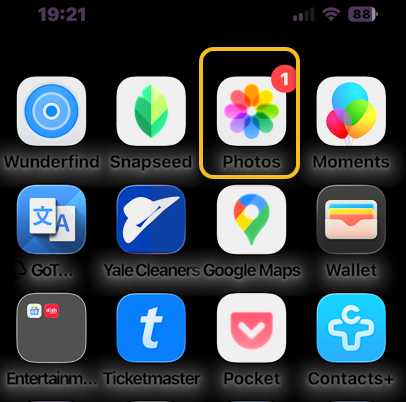
First, open the Photos app. Refer to the image below:
Search Photos 1
Selecting the Photos app

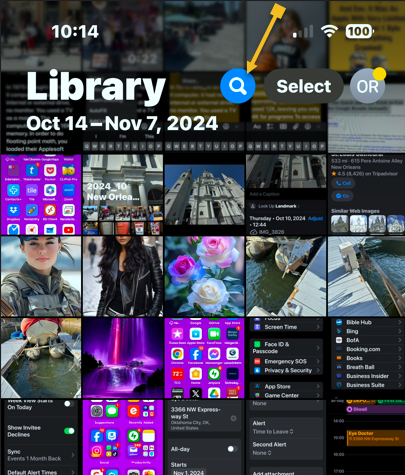
Next, tap the Search icon. See the image below:

Search Photos 2
Selecting the Search icon

Now, you will see some personalized suggestions, which you can tap. Or you can tap the Search bar to type in your own search terms. See the following image:

Search Photos 3
Selecting the Search bar

Next, once you enter a search term, you will see all the photos in your library that match. For example, we searched “Raymond December 2025”, and now we can see all my photos of myself, Raymond, from December 2025. Notice that it found blurred text and rotated images. Refer to the image below:

Search Photos 4
Entering your search criteria into the Search bar

That’s how to search photos on the iPhone or iPad. Try it out yourself! Put in a few search terms and see what you get. It’s super easy to find the exact photo you are looking for every time.

Technology is constantly evolving, and smartphone and desktop tech rarely remains static. Therefore, the information in this post is only accurate as of the date it was written. Blog posts that are older than six months may contain instructions that are no longer compatible with your device or operating system. We hope that the content from previous posts continues to function as intended. Thank you for reading TechSavvy.Life, where technology works for you.

The art challenges the technology, and the technology inspires the art.

. – John Lasseter

That’s it. Please feel free to share this post! One way to share is via Twitter.

Just click the Tweet icon below. This will launch Twitter where you click its icon to post the Tweet.

Checkout TechSavvy.Life for blog posts on smartphones, PCs, and Macs! You may email us at contact@techsavvy.life for comments or questions.

We value your feedback! Was this post helpful? Please share your comments with us. If you have a tech question related to your computer or smart device, feel free to reach out. Just send an email to contact@techsavvy.life, and be sure to include the device, app, and version you are using. To assist us further, you can also attach screenshots related to your inquiry.

Author’s eBook

The author’s Vietnam eBook, “Battle for Tra Bong Vietnam: Events and Aftermath,” is available on Kindle devices and the Kindle App for desktop, laptop, and smartphone. The apps are free.


The author’s Vietnam eBook on the Battle for Tra Bong Vietnam: Events and Aftermath

iOS 18 Photos Search: Find Any Image Easily

Apple’s iOS 18 update enhances the Photos app with natural language search capabilities, allowing users to find images and videos more precisely by describing details. Users can combine elements or search for specific moments in videos.

InserRAYMOND OGLESBY @RaymondOglesby2
March 4, 2025 – 4 minutes read time

Apple’s iOS 18 update brings powerful new search functions to the Photos app, allowing you to find specific images with unprecedented precision. Let’s explore the new Photos app.

iOS 18, the key to effective searching in Photos is using natural language. Instead of simple keywords, try describing the photo you are looking for in detail. The app can now understand complex queries and find images based on specific elements within them.

The new search function is also pretty handy at finding objects and scenes. Try queries like “car next to lake” or “sunset over Tulsa.” You can combine multiple elements in your search, such as “blue flowers in vase by window.”

For food lovers, searches like “pizza with mushrooms” or “steak and chips on the table” can help you find culinary inspiration from your photo library. When searching for people, you can now include details about their appearance or actions. “Rachel in the green hat with a wine glass” or “Susan in a wedding dress” are examples of how specific you can get.

The Photos app can even search within videos. If you remember a specific moment in a video but can not recall which one, try describing the scene. For instance, “baby crawling” or “fireworks over Grand Lake” can take you directly to that moment.

Note! For these advanced search features to work, the Photos app needs time to index your library. This process happens on your device to protect your privacy, so be patient if searches aren’t immediately accurate after updating to iOS 18.

  • Find Photos of nearly anything using the new search feature.
  • Search for objects or text that appear in your photos.

This tip works on iPhones running iOS 18 or later. The screenshots are from iPhone 14 Pro running iOS 18.1

Click here to learn how to update your iPhone to the latest iOS version.

First, open the Photos app. Refer to the below image:

Photos 1
Selecting your Photos app

Next, tap the Search icon. See the below image:

Photos 2
Selecting the Search icon

Now, you will see some personalized suggestions, which you can tap. Or you can tap the Search bar to type in your own search terms. See the following image:

Photos 3
Selecting the Search button

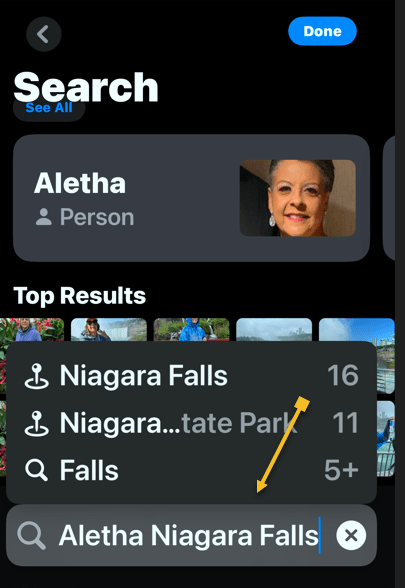
Next, once you enter a search term, you will see all the photos in your library that match. Refer to the below image:

Photos 4
Entering your Search criteria

For example, we are searching for “Aletha Niagara Falls”. Now, we can see all the photos related to “Aletha in Niagara Falls”. See the below image:

Photos 5
Your results

Aletha, my wife, also has a blog at Watercress Words, exploring and sharing the HEART of health.

That’s how to search photos or videos on the iPhone. Try it out yourself! Put in a few search terms and see what you get! While iOS 18 made some controversial changes to the Photos app, this is one change that you will love. It’s super easy to find the exact photo you are looking for every time.

Disclaimer

Technology is constantly evolving, and smartphone and desktop tech rarely remains static. Therefore, the information in this post is only accurate as of the date it was written. Blog posts that are older than six months may contain instructions that are no longer compatible with your device or operating system. We hope that the content from previous posts continues to function as intended. Thank you for reading TechSavvy.Life, where technology works for you.

. “We are stuck with technology when what we really want is just stuff that works.” 

― Douglas Adams

Pretty impressive Photos app? Please feel free to share this post! One way to share is via Twitter.

Just click the Tweet icon below. This will launch Twitter where you click its icon to post the Tweet.

Checkout TechSavvy.Life for blog posts on smartphones, PCs, and Macs! You may email us at contact@techsavvy.life for comments or questions.

We value your feedback! Was this post helpful? Please share your comments with us. If you have a tech question related to your computer or smart device, feel free to reach out. Just send an email to contact@techsavvy.life, and be sure to include the device, app, and version you are using. To assist us further, you can also attach screenshots related to your inquiry.

Author’s eBook

The author’s Vietnam eBook on the “Battle for Tra Bong Vietnam: Events and Aftermath” can be accessed from a Kindle device or the Kindle App for a desktop or smartphone. The apps are free.

The author’s Vietnam eBook on the Battle for Tra Bong Vietnam: Events and Aftermath