How to Permanently Delete Voicemails on iPhone

Voicemails consume storage on your iPhone. Deleting voicemails moves them to a Deleted Voicemails folder, maintaining your storage. To effectively free up space, you must empty this hidden folder by either deleting individual voicemails or using the Clear All option. Confirm the deletion to ensure the space is cleared.

RAYMOND OGLESBY @RaymondOglesby2
May 5 2026 – 4 minutes read time

Do voicemails take up storage on your iPhone? Yes, so if you are looking to clear up storage, delete old voicemails! If you clear all voicemail but notice no change in your storage space, it’s because there’s a hidden folder for deleted voicemails on your iPhone.

When you delete a voicemail, it is moved to a special folder. This means your storage space remains the same. You have to delete the voicemails from this special folder to free up storage on your iPhone.

How do you empty voicemail? To truly clear voicemail, you need to clear Deleted Voicemails. Deleted Voicemails on iPhone can be listened to, undeleted, and permanently deleted with a Clear All. Let’s explore how to delete your voicemails on iPhone permanently.

  • Clear up storage space that’s being taken up by voicemails.
  • Get rid of junk voicemails you don’t need anymore.

This tip was performed on an iPhone 17 Pro running uOS 26.4.

Click here to learn how to update your iPhone to the latest iOS version.

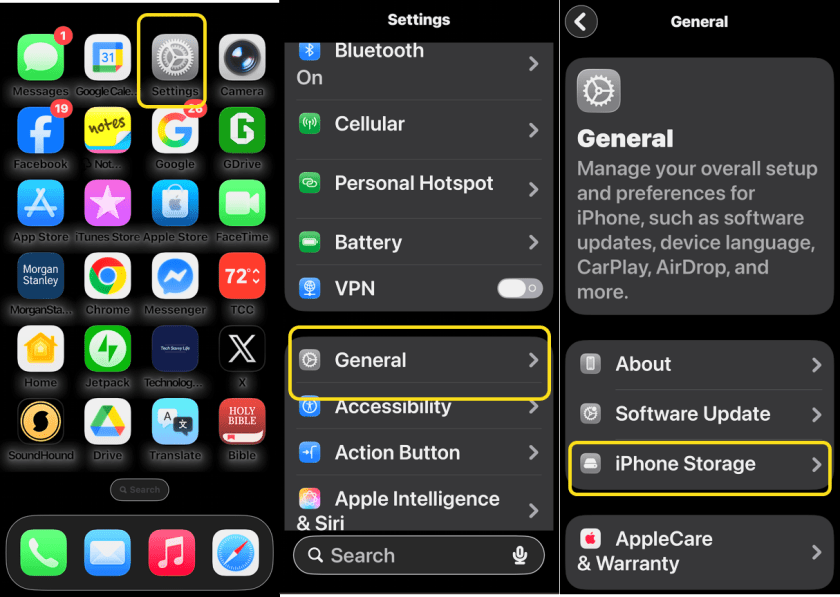
First, let’s examine your iPhone’s storage space. Head to:

Settings > General > iPhone Storage

Refer to the image below:
Deleted Messages 1
Accessing your iPhone Storage

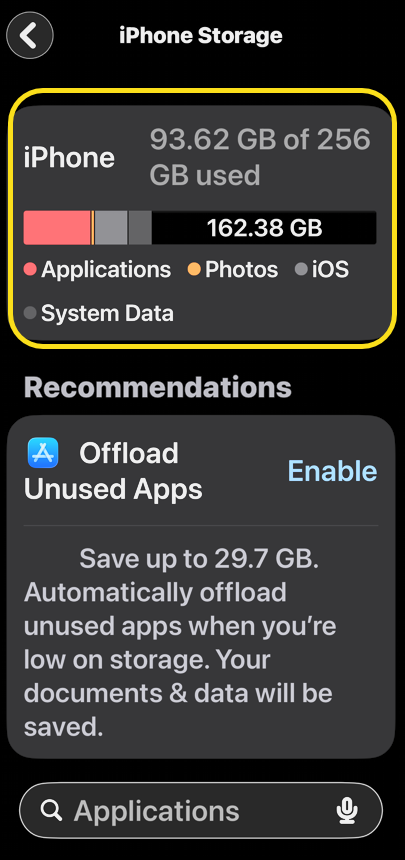
Next, take a screenshot of your iPhone Storage screen. See the image below:
Deleted Messages 2
Your iPhone Storage screenshot

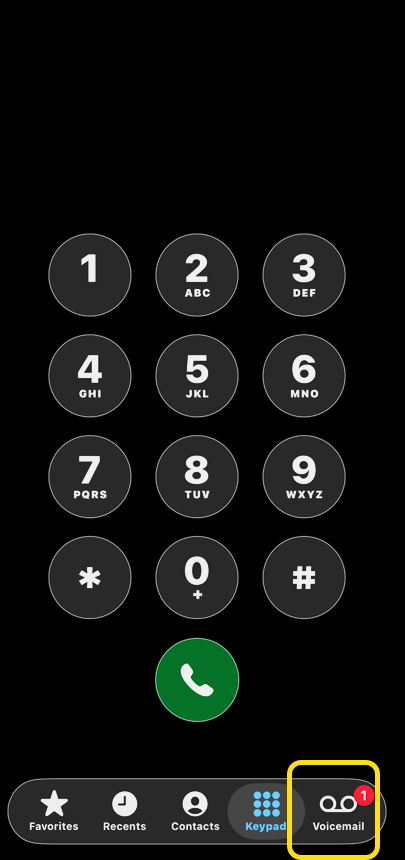
First, open the Phone app, and tap the Voicemail icon. Refer to the image below:
Deleted Messages 3
Selecting your Voicemail icon

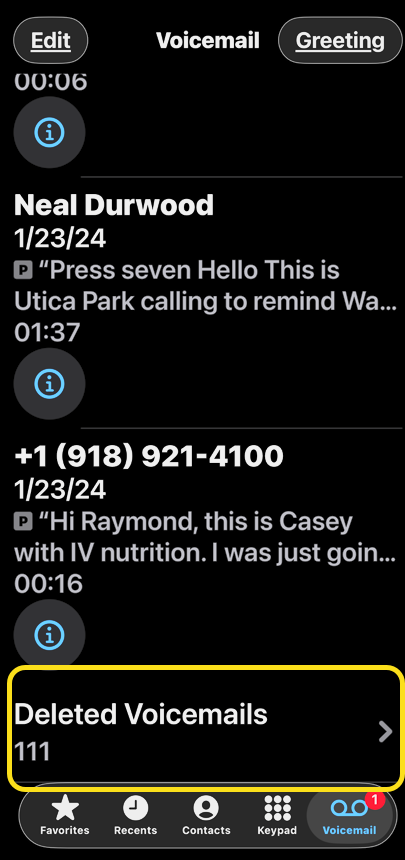
Next, tap Deleted Voicemails at the bottom of your list of voicemails. You may have to scroll down a lot, depending on the number of voicemails you have, to reach the bottom of the list. See the image below:
Deleted Messages 4
Selecting your Deleted Voicemails option

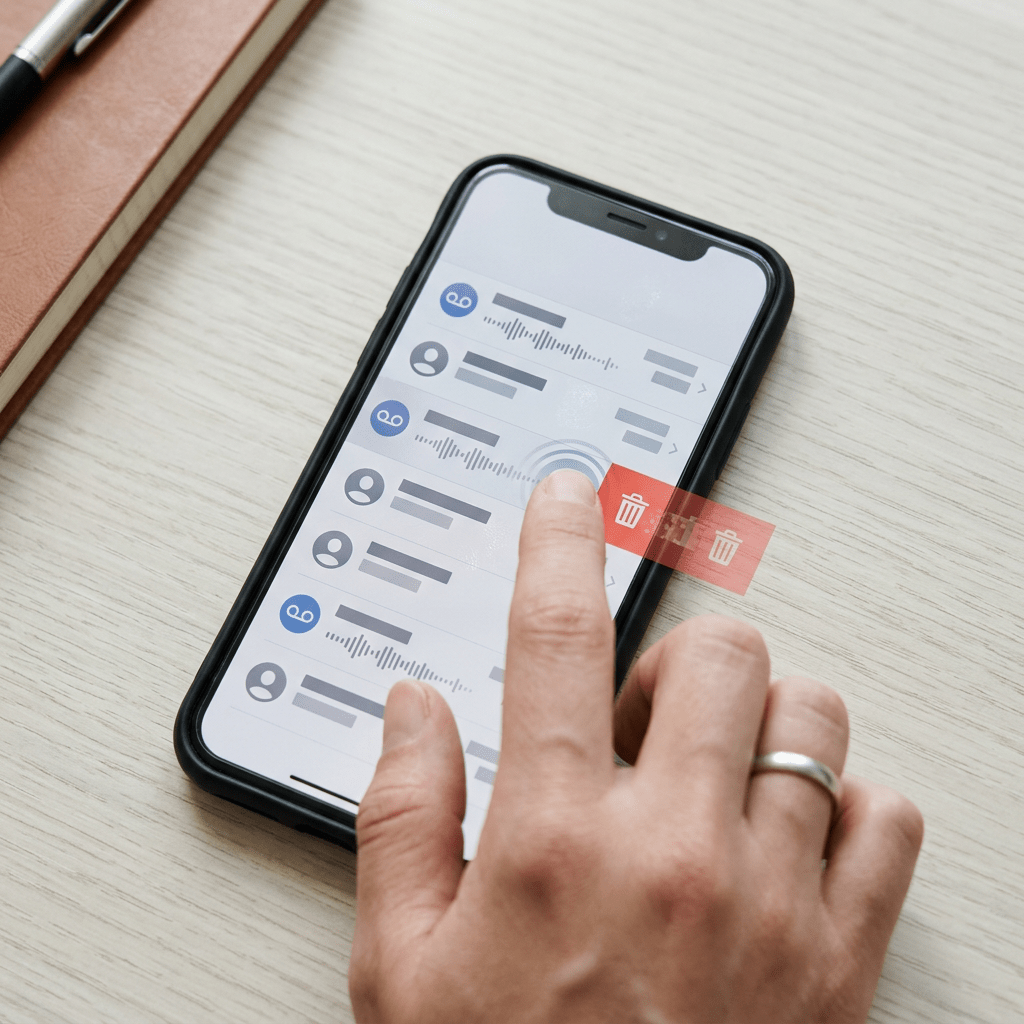
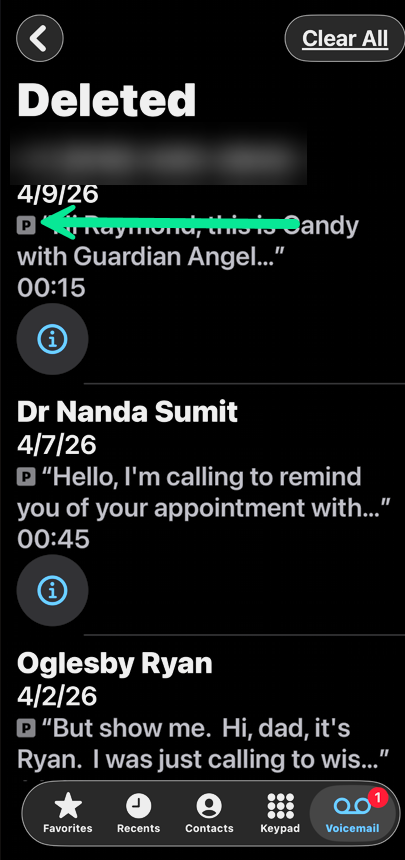
Now, you can delete an individual voicemail by swiping left on it. See the following image:
Deleted Messages 5
Swipe left to select an individual Voicemail

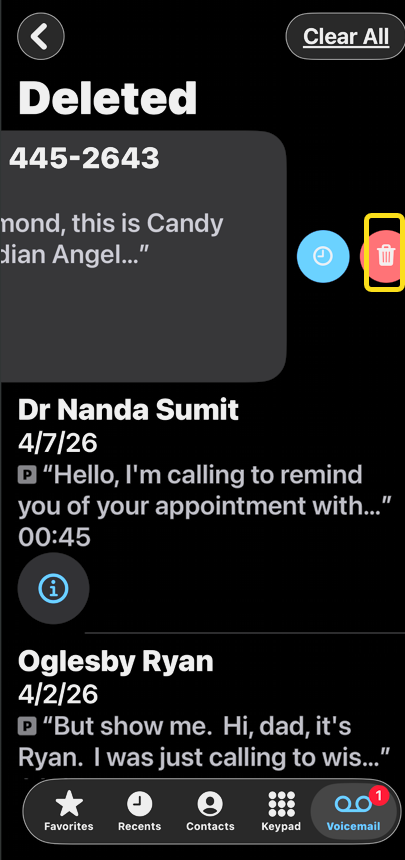
Next, tap the Trash icon to clear it. Refer to the be image below:
Deleted Messages 6
Select the Trash icon to delete the individual Voicemail

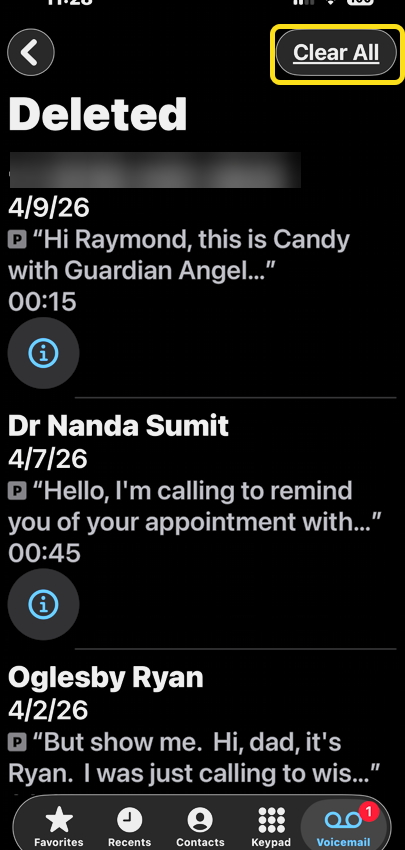
Alternatively, you can delete all your voicemails by tapping Clear All. See the image below:
Deleted Messages 7
Select the Clear All option to delete ALL Voicemails

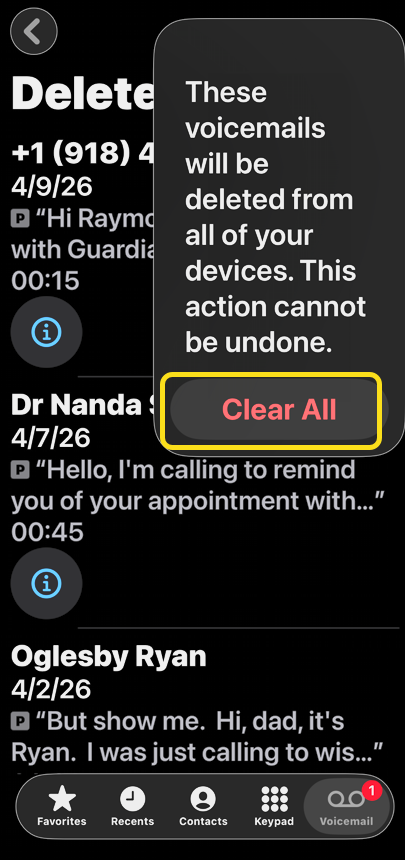
Now, tap Clear All again to confirm. See the following image:
Deleted Messages 8
Confirm you wish to delete ALL Voicemails

Let’s examine your iPhone’s storage space again by following the steps under View Your Storage Space. Hopefully, you increased your storage space.

That’s all there is to it! If someone sends you a voicemail you delete, know that it isn’t gone until it’s been completely cleared. This is reassuring if you accidentally deleted a priceless, hilarious voicemail from a friend. Depending on your cellular provider, the Deleted Voicemails folder might not automatically Clear All voicemails. If your carrier does not automatically clear your voicemails, you will have to do it manually.

Technology is constantly evolving, and smartphone and desktop tech rarely remains static. Therefore, the information in this post is only accurate as of the date it was written. Blog posts that are older than six months may contain instructions that are no longer compatible with your device or operating system. We hope that the content from previous posts continues to function as intended. Thank you for reading TechSavvy.Life, where technology works for you.

Technological progress has merely provided us with more efficient means for going backwards.

– Aldous Huxley

That’s it. Please feel free to share this post! One way to share is via Twitter.

Just click the Tweet icon below. This will launch Twitter where you click its icon to post the Tweet.

Checkout TechSavvy.Life for blog posts on smartphones, PCs, and Macs! You may email us at contact@techsavvy.life for comments or questions.

We value your feedback! Was this post helpful? Please share your comments with us. If you have a tech question related to your computer or smart device, feel free to reach out. Just send an email to contact@techsavvy.life, and be sure to include the device, app, and version you are using. To assist us further, you can also attach screenshots related to your inquiry.

Author’s eBook

The author’s Vietnam eBook, “Battle for Tra Bong Vietnam: Events and Aftermath,” is available on Kindle devices and the Kindle App for desktop, laptop, and smartphone. The apps are free.

The author’s Vietnam eBook on the Battle for Tra Bong Vietnam: Events and Aftermath

How to Find Storage Capacity on iPhone

If you are buying or selling a used iPhone, it’s helpful to identify how much storage space it has. It’s easy to find out how much data your iPhone can hold.

RAYMOND OGLESBY @RaymondOglesby2
June 30, 2022

If you are buying or selling a used iPhone, it’s helpful to identify how much storage space it has. It’s easy to find out how much data your iPhone can hold. Let’s find out.

This is for the iPhone. Screensho9ts are from iPhone XR

Dilbert and Life
Copyright Scott Adams, Inc./Distributed by Universal Uclick for UFS

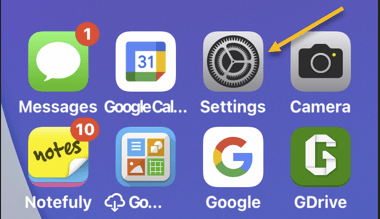
First, open the Settings app on your iPhone by tapping the Gear icon, usually found on your Home Screen. Refer to the below image:

Storage 1
Accessing Settings

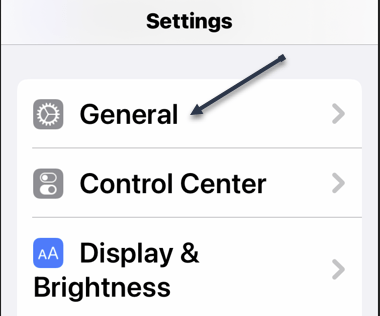
Next, in Settings, tap General. See the below image:

Storage 2
Accessing General option

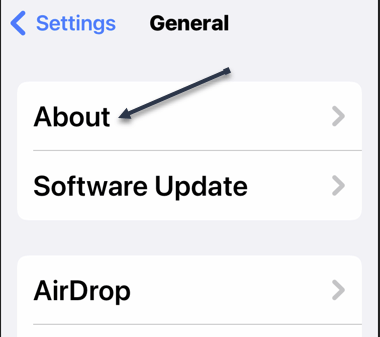
Now, in General, select About. See the following image:

Storage 3
Accessing About option

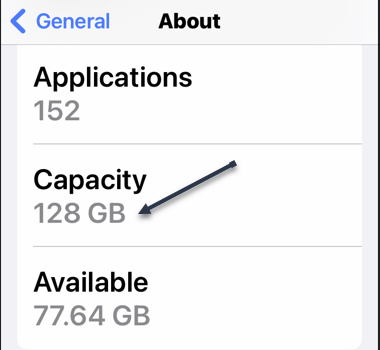
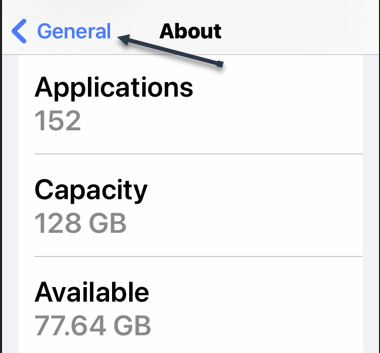
Next, in About, scroll down and locate the entry labeled Capacity. Beside it, you will see your iPhone’s maximum storage capacity listed. For example, you will see 64 GB for a 64 GB model or 128 GB for an iPhone that can store 128 GB of data. Refer to the below image:

Storage 4
Your Capacity

Now, if you would like more detail on how your storage is being used, tap General in the upper left-hand corner of your screen to go back one menu. See the below image:

Storage 5
Go back one screen

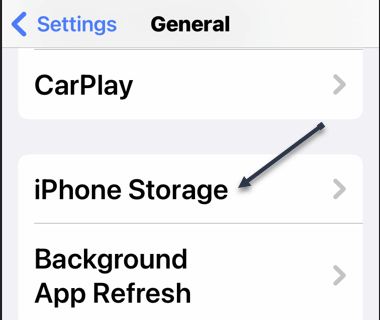
Next, in General, select iPhone Storage. See the following image:

Storage 6
Selecting the iPhone Storage option

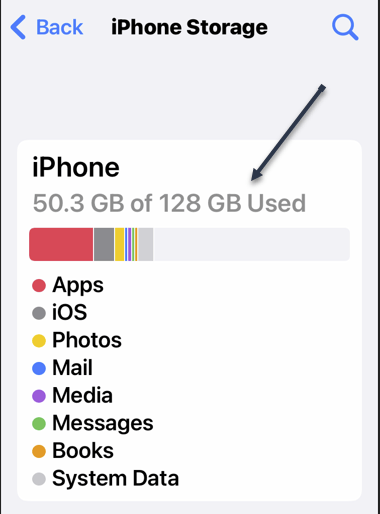
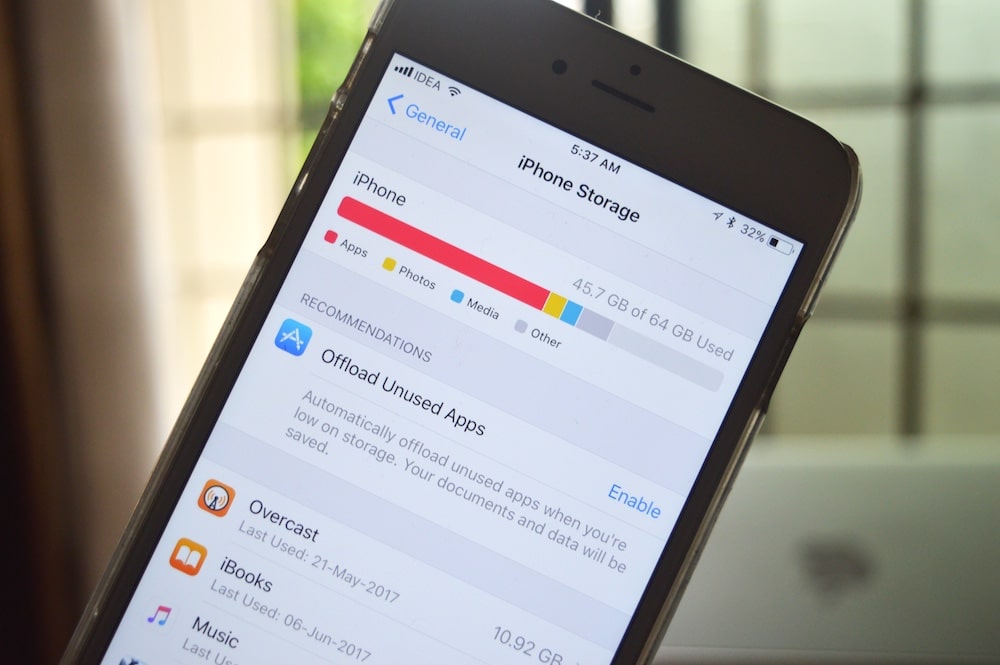
Now, under iPhone Storage, you will see the capacity of the iPhone listed in a phrase such as “50.3 GB of 128 GB Used.” You will also see a breakdown of how that storage space is being utilized. Refer to the below image:

Storage 7
Viewing your iPhone storage usage

Next, in that menu, you can review which apps take up the most space and even delete them if necessary.

Quote For the Day

Getting information off the Internet is like taking a drink from a fire hydrant.

Mitch Kapor

Tweet Info

That’s it. Please feel free to share this post! One way to share is via Twitter.

Just click the Tweet icon below. This will launch Twitter where you click its icon to post the Tweet.

Check out TechSavvy.Life for blog posts on smartphones, PCs, and Macs! You may email us at contact@techsavvy.life for comments or questions.

I Would Like to Hear From You

Please feel free to leave a comment. I would love to hear from you. Do you have a computer or smart device tech question? I will do my best to answer your inquiry. Just send an email to contact@techsavvy.life. Please mention the device, app, and version you are using. To help us out, you can send screenshots of your data related to your question.

Author’s E-book

You can access the e-book from a Kindle device, the Kindle App for the desktop or smartphone, which is a free app.

The author’s Vietnam eBook on the Battle for Tra Bong Vietnam: Events and Aftermath

What About Storage Space on Your iPhone

When shopping for a new or used iPhone, you will need to keep a vital number in mind: Storage capacity. The storage size of your iPhone will determine how many apps, photos, videos, and other data you can keep locally on your device.

RAYMOND OGLESBY @RaymondOglesby2
May 17, 2022

When shopping for a new or used iPhone, you will need to keep a vital number in mind: Storage capacity. The storage size of your iPhone will determine how many apps, photos, videos, and other data you can keep locally on your device. Let’s explore the iPhone storage capacity.

This is for the iPhone

ilbert and Smart
Copyright Scott Adams, Inc./Distributed by Universal Uclick for UFS

Purchase For the Future

When it comes to iPhones, more storage capacity is almost always better, with a big catch: It costs more money. Using an example from March 2022, an unlocked 128 GB iPhone 13 cost $829, while an unlocked 512 GB iPhone 13 cost $1,129. That’s a $300 difference for four times more onboard storage.

As of March 2022, Apple sells iPhones with storage capacities that range from 64 GB to 1 TB. Here’s Apple’s March 2022 iPhone lineup with the typical spread of capacities available:

  • iPhone SE: 64 GB / 128 GB / 256 GB
  • iPhone 11: 64 GB / 128 GB
  • iPhone 12: 64 GB / 128 GB / 256 GB
  • iPhone 13: 128 GB / 256 GB / 512 GB
  • iPhone 13 Pro: 128 GB / 256 GB / 512 GB / 1 TB

Why do you need more storage? Photos and videos in particular take up a lot of space, along with podcasts, music, and large apps such as games. If you are a light-duty iPhone user that typically just uses it to make calls, text people, send emails, and browse the web, you can potentially get by with less storage space on your iPhone.

But if you like to take lots of photos and videos, use hundreds of apps, and want to carry a large music collection in your pocket, you will want as much iPhone storage capacity as possible. Keep in mind that, unlike some Android phones, the iPhone’s storage space is not expandable or upgradeable. Once you buy a model with a certain capacity, it will always be that way.

64 GB Is Too Low

Even if you are not a heavy-duty iPhone user, you might find yourself running up against storage limits rather quickly if you only have 64 GB on your iPhone. Keep in mind that not only will you store your emails, messages (and any video or photo attachments), media files, and apps on your iPhone, but you often need 8-10 GB free just to install iOS updates. Running up against the limit and micromanaging a small amount of free space is not worth the trouble.

While storage needs are subjective and vary from person to person, here’s a rough guide that might help you make a decision about which iPhone is right for you.

  • 64 GB: Not recommended for anything but very light use: Few apps, not much media storage.
  • 128 GB: Good size for medium-duty use. This should be the minimum size Apple offers.
  • 256 GB: Great for heavy mobile games, and will allow storing more photos and other media files locally.
  • 512 GB: Lots of media storage space for professionals or people who take many videos.
  • 1 TB: Good for pro use, storing 4K video, and more.

To offset lower-capacity phones, you can sometimes rely on iCloud, which is Apple’s cloud storage service. With iCloud, you can keep older photos and videos stored in the cloud for later access, which lets you free up storage space on your iPhone without losing any data. iCloud is nice, but it’s no replacement for on-device storage, which is available instantly whenever you need it.

So the bottom line is: Get as much storage as you can afford, but avoid 64 GB if possible. When purchasing computer-related devices, including smartphones, buy the best while factoring in obsolescence.

Quote For the Day

All truth passes through three stages. First, it is ridiculed. Second, it is violently opposed. Third, it is accepted as being self-evident.

Arthur Schopenhauer

Tweet info

That’s it. Please feel free to share this post! One way to share is via Twitter.

Just click the Tweet icon below. This will launch Twitter where you click its icon to post the Tweet.

Check out TechSavvy.Life for blog posts on smartphones, PCs, and Macs! You may email us at contact@techsavvy.life for comments or questions.

I Would Like to Hear From You

Please feel free to leave a comment. I would love to hear from you. Do you have a computer or smart device tech question? I will do my best to answer your inquiry. Just send an email to contact@techsavvy.life. Please mention the device, app, and version you are using. To help us out, you can send screenshots of your data related to your question.

Author’s E-book

You can access the e-book from a Kindle device, the Kindle App for the desktop or smartphone, which is a free app.

The author’s Vietnam eBook on the Battle for Tra Bong Vietnam: Events and Aftermath