

RAYMOND OGLESBY @RaymondOglesby2
April 21, 2026 – 3 minutes read time
Overview
Do you know how to connect to Wi-Fi, change the network you are using, and how to turn off Wi-Fi directly from your iPhone or iPad’s Control Center? This method is much quicker than sorting through the Settings app to find available networks.
Connecting to nearby Wi-Fi networks on iPhone is relatively simple. You can do it from the Settings app, or if you have the setting enabled, a pop-up will sometimes appear, asking if you would like to connect to a nearby network. But the quickest way to get Wi-Fi is from your iPhone’s Control Center: Let’s explore how this is done.
Key Takeaways
- Quickly open your iPad and iPhone Wi-Fi Settings to turn on or turn off Wi-Fi.
- Easily access the Wi-Fi network when you arrive at a friend’s house to turn on Wi-Fi on your iPhone or iPad.
System Requirements
This tip was performed on an iPhone 17 Pro running iOS 26.4.
Click here to learn how to update your iPhone to the latest iOS version.
Connecting to Wi-Fi
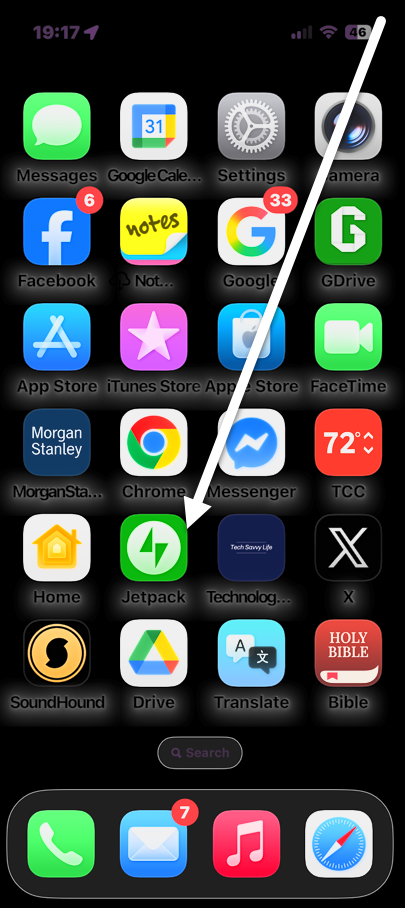
First, swipe down from the upper-right corner to open the Control Center. Refer to the image below:
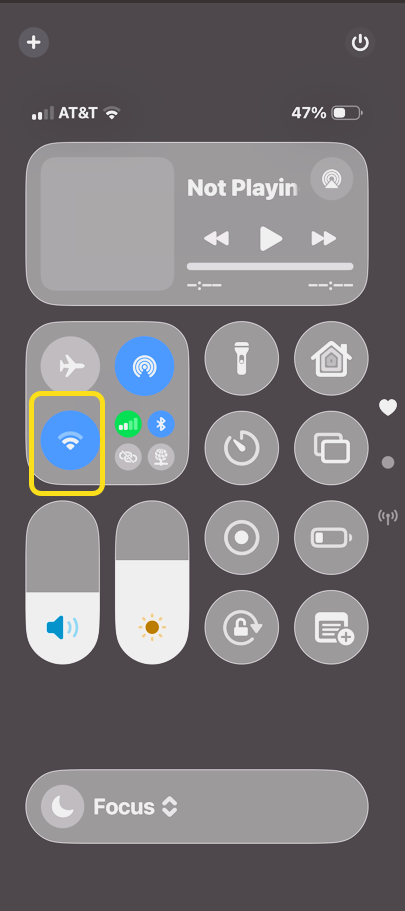
Next, tap and hold the Wi-Fi icon. See the image below:
Now, tap the Wi-Fi option. See the following image:
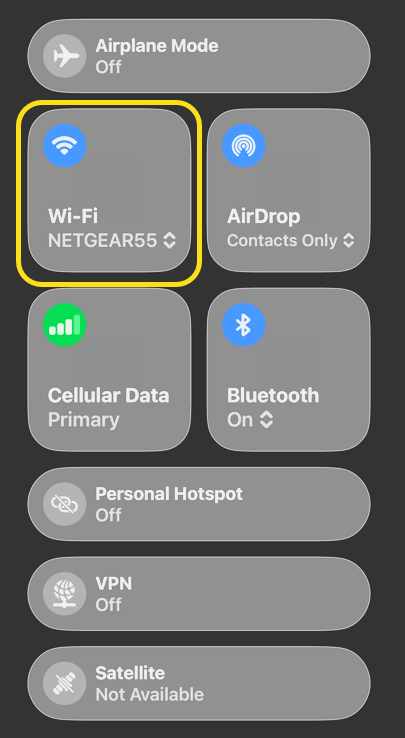
Next, select your Wi-Fi network. Refer to the image below:
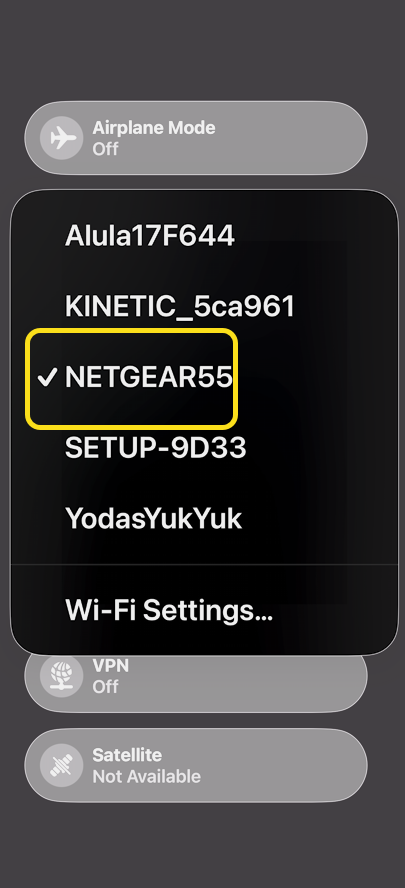
Now you know how to connect to the internet using a Wi-Fi network. You might need to enter a password before you can connect your iPhone to Wi-Fi, but your device will remember the username and password once you’ve joined a network, so all you will need to do next time is tap the name in the Wi-Fi menu to join. Any time you’d like to change the Wi-Fi network you are using, follow the same steps, and tap a different option on the Wi-Fi network list. You can also use these steps to disconnect your iPhone or iPad from a Wi-Fi network.
Now you know how to quickly get a Wi-Fi connection on your iPhone or iPad.
Disclaimer
Technology is constantly evolving, and smartphone and desktop tech rarely remains static. Therefore, the information in this post is only accurate as of the date it was written. Blog posts that are older than six months may contain instructions that are no longer compatible with your device or operating system. We hope that the content from previous posts continues to function as intended. Thank you for reading TechSavvy.Life, where technology works for you.
Quote For the Day
Technology… the knack of so arranging the world that we don’t have to experience it.
– Max Frisch
(X) Twitter Info
That’s it. Please feel free to share this post! One way to share is via Twitter.
Just click the Tweet icon below. This will launch Twitter where you click its icon to post the Tweet.
Checkout TechSavvy.Life for blog posts on smartphones, PCs, and Macs! You may email us at contact@techsavvy.life for comments or questions.
Tweet
I Would Like to Hear From You
We value your feedback! Was this post helpful? Please share your comments with us. If you have a tech question related to your computer or smart device, feel free to reach out. Just send an email to contact@techsavvy.life, and be sure to include the device, app, and version you are using. To assist us further, you can also attach screenshots related to your inquiry.
The author’s Vietnam eBook, “Battle for Tra Bong Vietnam: Events and Aftermath,” is available on Kindle devices and the Kindle App for desktop, laptop, and smartphone. The apps are free.


