Quick Access to Apple Wallet on iPhone Lock Screen

The article explains how to quickly access Apple Wallet from the iPhone Lock Screen using the double-click side button shortcut. This feature allows users to make contactless payments and retrieve passes without needing to pull out a physical wallet. It also requires setup of Apple Pay and verification through Face ID.

RAYMOND OGLESBY @RaymondOglesby2
October 7, 2025 – 4 minutes read time

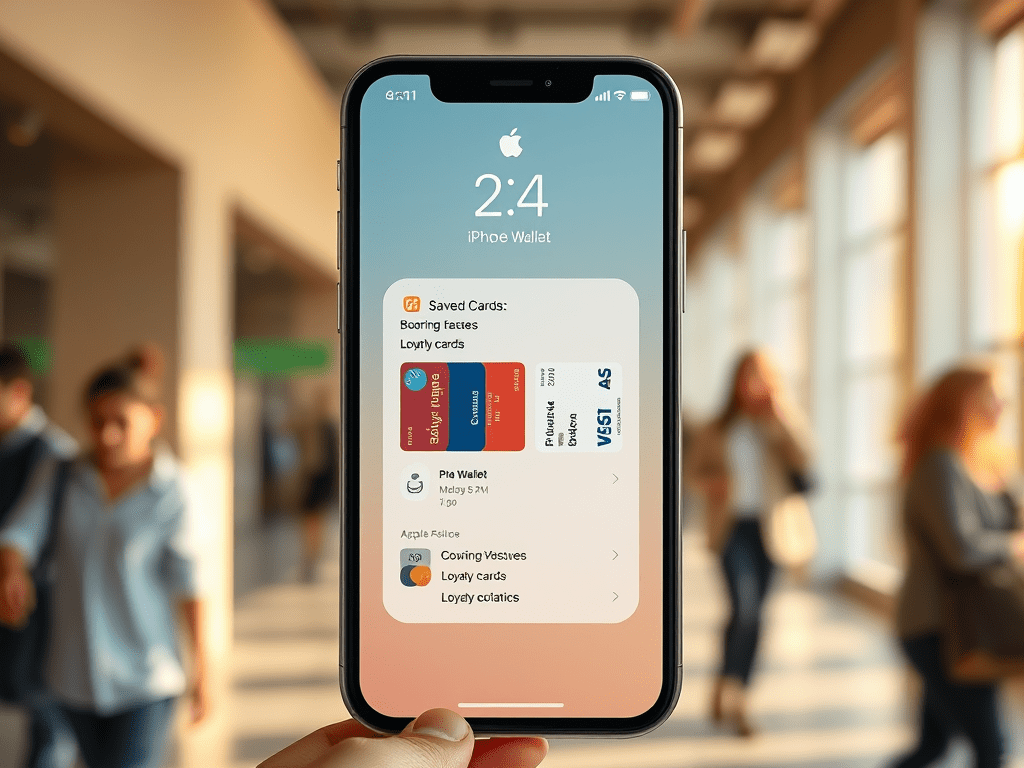
Did you know you can open Apple Wallet from the iPhone Lock Screen? With this Apple Pay shortcut, you can access your saved cards plus the passes and loyalty cards found in your Apple Wallet quickly, so you can get ready to make a payment or bring up your boarding pass while you wait in line.

Let’s explore how to pull up Apple Pay from your Lock Screen.

Before we learn how to set up and then how to access Apple Wallet from the Lock Screen, make sure you have gone over how to set up Apple Pay and how to change your Apple Pay Payment preferences. When you have this set up, you can pay at any establishment that accepts Apple Pay, without ever pulling out your wallet!

  • Get quick access to your payment methods for no-contact payment.
  • Quickly pull up your boarding passes, concert tickets, discount cards, and more.

This tip was performed on an iPhone 14 Pro running iOS 18.6.

Click here to learn how to update your iPhone to the latest iOS version.

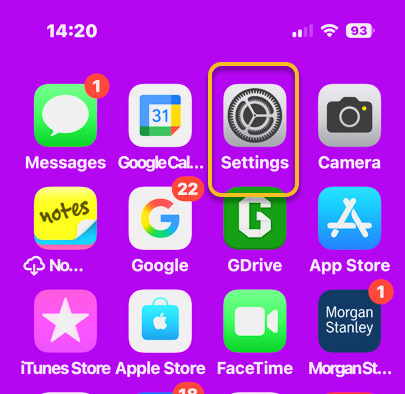
First, open the Settings app. Refer to the image below:
Wallet
Selecting the Settings app

Next, scroll down and tap Wallet & Apple Pay. See the image below:
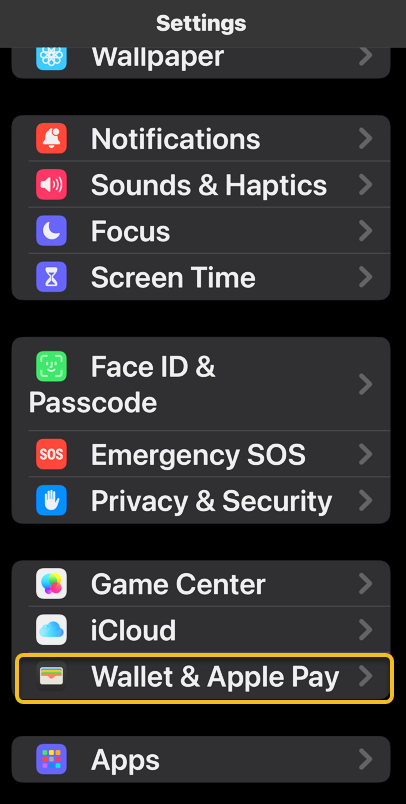
Wallet 2
Selecting Wallet & Apple Pay option

Now, ensure the toggle next to Double-Click Side Button is enabled. See the following image:
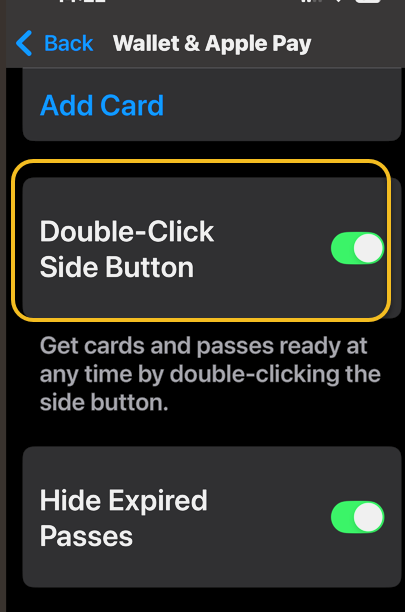
Wallet 3
Enable Double-Click Side Button toggle

Next, when you want to access the Wallet app from the Lock Screen on an iPhone, all you need to do is double-click the side button. Refer to the image below:
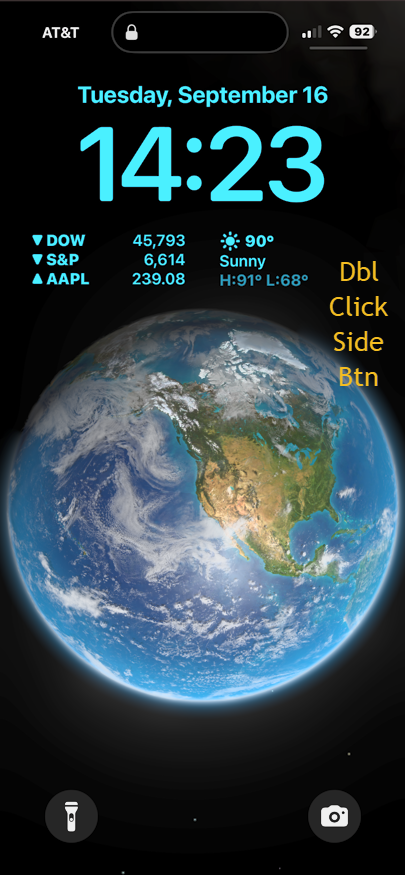
Wallet 4
Access the wallet by a double-click of the Side button

Now, you will need to verify with Face ID. See the image below:
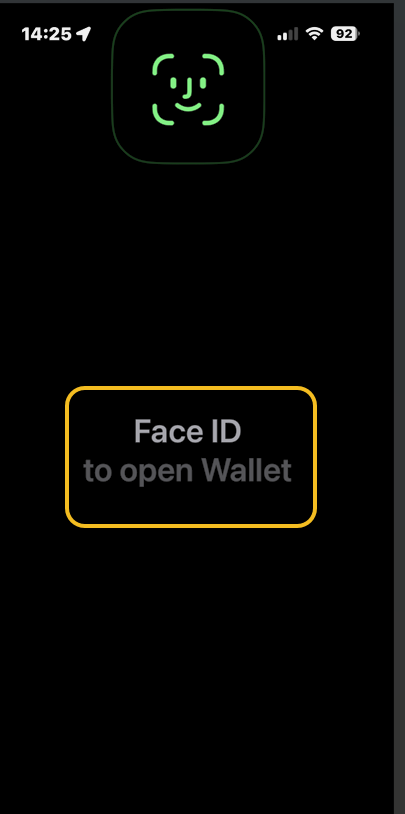
Wallet 5
Verify access with Face ID

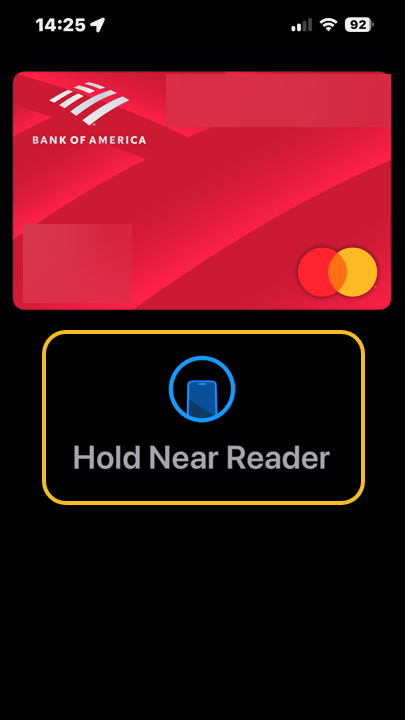
Next, once unlocked, you will be prompted to hold your phone up to the card reader. See the following image:
Wallet 6
Hold phone to card reader to pay

You do not have to be on the Lock Screen to invoke Apple Pay. This double-click action works anywhere, whether you are scrolling Facebook, responding to a text, or snapping a photo.

That’s how to access your wallet on the iPhone’s Lock Screen. Your days of fumbling in your purse or physical wallet for your credit cards are over, and you should be ready to use this Apple Wallet shortcut from your Lock Screen at a moment’s notice. Keep in mind that if you do not have a credit or debit card set up for Apple Pay, this will not open the app.

Technology is constantly evolving, and smartphone and desktop tech rarely remains static. Therefore, the information in this post is only accurate as of the date it was written. Blog posts that are older than six months may contain instructions that are no longer compatible with your device or operating system. We hope that the content from previous posts continues to function as intended. Thank you for reading TechSavvy.Life, where technology works for you.

“If you double the number of experiments you do per year, you’re going to double your inventiveness.” 

” – Jeff Bezos, Founder of Amazon

That’s it. Please feel free to share this post! One way to share is via Twitter.

Just click the Tweet icon below. This will launch Twitter where you click its icon to post the Tweet.

Checkout TechSavvy.Life for blog posts on smartphones, PCs, and Macs! You may email us at contact@techsavvy.life for comments or questions.

We value your feedback! Was this post helpful? Please share your comments with us. If you have a tech question related to your computer or smart device, feel free to reach out. Just send an email to contact@techsavvy.life, and be sure to include the device, app, and version you are using. To assist us further, you can also attach screenshots related to your inquiry.

Author’s eBook

The author’s Vietnam eBook on the “Battle for Tra Bong Vietnam: Events and Aftermath” can be accessed from a Kindle device or the Kindle App for a desktop or smartphone. The apps are free.

The author’s Vietnam eBook on the Battle for Tra Bong Vietnam: Events and Aftermath

What’s the Difference Between Google Wallet and Pay

Google has confusing named products, and that might be most apparent with Google Wallet and Google Pay. These two apps have taken a convoluted path to get where they are today. So, which one should you be using?

RAYMOND OGLESBY @RaymondOglesby2
December 15, 2022

Google has confusing named products, and that might be most apparent with Google Wallet and Google Pay. These two apps have taken a convoluted path to get where they are today. So, which one should you be using?

This is for diPhone and Android. Screenshots are from iPhone XR running iOS 16+

Dilbert and Rumor
Copyright Scott Adams, Inc./Distributed by Universal Uclick for UFS

Both Google Wallet and Pay have seen some pretty drastic revamps over the years. Their purposes have changed a lot and confused many people in the process. Let’s see what these products have to offer.

Some History

You may be surprised to learn that the original version of Google Wallet was introduced way back in 2011. The service was primarily for sending money to people and there was a physical Google Wallet credit card as well.

The Google Wallet card allowed people to pay for things in physical and online stores with the funds in their accounts. This was before mobile payments with tap-to-pay were widely supported. The Wallet card was a very clever solution.

Eventually, tap-to-pay gained enough traction that Google launched Android Pay in 2015. It maintained Google Wallet and Android Pay separately until 2018 when the two were combined into a single service called Google Pay. The Wallet card was discontinued in 2016.

Then, in 2020, Google Pay got a massive overhaul with a bunch of new features. All of Google’s mobile payment services were under one umbrella… for a while. In the summer of 2022, the service was split in two, with the Google Wallet branding making a return.

That’s where things stand as of September 2022. Google Pay and Google Wallet exist as two separate products; sometimes. More on that later.

Google Wallet

Google Wallet can most easily be summed up by its name; it’s a digital wallet. You can add credit cards, debit cards, loyalty cards, transportation passes, event tickets, vaccine cards, and gift cards.

Basically, Google Wallet is for paying for things online and in physical stores with tap-to-pay. It features a very simple interface that shows your cards, tickets, and passes. Google Wallet is only available for Android since the iPhone does not allow non-Apple apps for tap-to-pay.

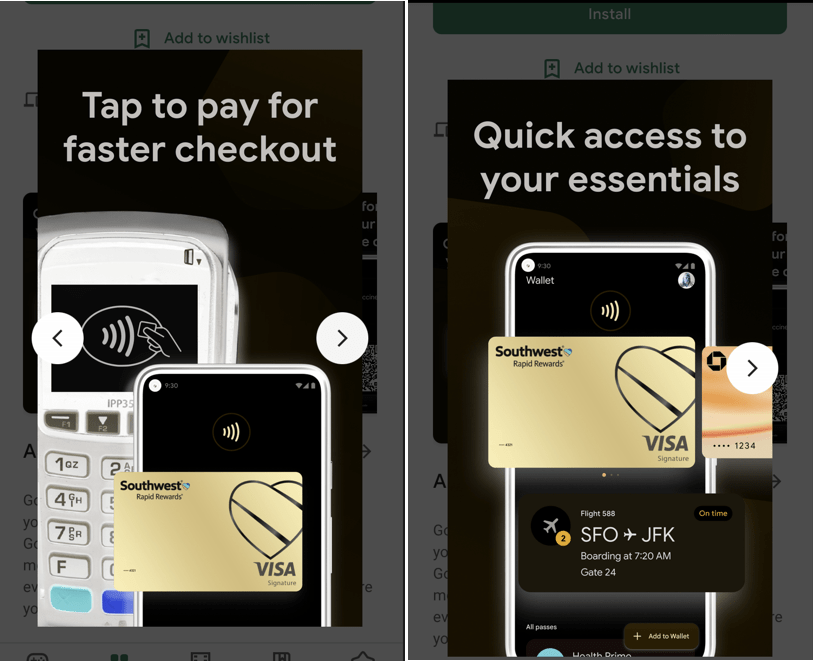
Google Wallet can generally be used with any card reader that has an Apple Wallet, Google Pay, or the contactless tap-to-pay icon. For online purchases, look for the Google Pay or Google Wallet buttons at checkout. It will take some time for the Wallet branding to replace Google Pay. Refer to the below image:

Google 4-5
Google Wallet

Google Pay

Google Pay received a massive overhaul in 2020, and it’s pretty much the same experience now. The tap-to-pay functionality is still present in Google Pay, but that’s not the only thing it can do.

The Google Pay app has peer-to-peer payments, shopping deals, cashback offers, and a full-blown banking experience with personal finance insights. You can think of Pay as a combination of services similar to Venmo, PayPal, RetailMeNot, and Mint.

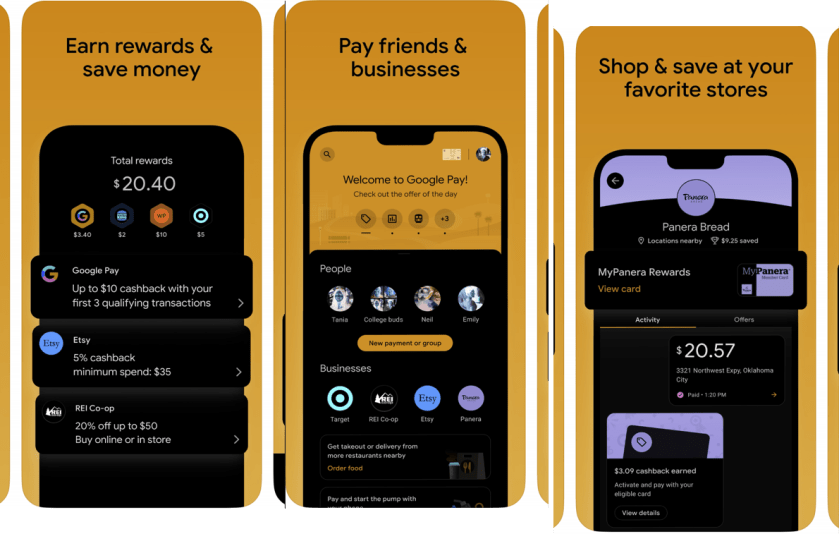
Unlike Google Wallet, Google Pay is available on both Android and iPhone. The tap-to-pay functionality does not work on the iPhone, but the other features do. It’s a feature-packed app that tries to do a lot of things. In fact, it might be too much for some people, which is why Google Wallet exists. See the below image:

Google 1-3
Google Pay

Which App to Use?

Depending on where you live, you may not even need to decide which app to use. Google Pay and Google Wallet only exist side-by-side in the U.S. and Singapore. In every other country, Google Wallet entirely replaced Google Pay, and India does not have Wallet at all (as of September 2022).

Google Pay can do everything Google Wallet can do, but Google Wallet can not do everything Google Pay can do. If you are in a country that has both, you can choose between the full experience (Pay) or just mobile payments (Wallet). There’s no reason to have both.

Use Google Pay if you want peer-to-peer payments, deals, rewards, or personal finance tools. If you only care about mobile payments, Google Wallet is a much more streamlined experience for that. The choice is even simpler for iPhone users; Google Pay is the only option.

In closing, Google Wallet is for mobile payments, Google Pay is for mobile payments, and more. In the author’s opinion, it’s still too complicated.

-Courtesy of other tech blog posts

Quote For the Day

Books don’t need batteries.

Nadine Gordimer

Tweet Info

That’s it. Please feel free to share this post! One way to share is via Twitter.

Just click the Tweet icon below. This will launch Twitter where you click its icon to post the Tweet.

Checkout TechSavvy.Life for blog posts on smartphones, PCs, and Macs! You may email us at contact@techsavvy.life for comments or questions.

I Would Like to Hear From You

Please feel free to leave a comment. I would love to hear from you. Do you have a computer or smart device tech question? I will do my best to answer your inquiry. Just send an email to contact@techsavvy.life. Please mention the device, app, and version you are using. To help us out, you can send screenshots of your data related to your question.

Author’s E-Book

You can access the e-book from a Kindle device, the Kindle App for the desktop or smartphone, which is a free app.

The author’s Vietnam eBook on the Battle for Tra Bong Vietnam: Events and Aftermath