

RAYMOND OGLESBY @RaymondOglesby2
February 13, 2024
This is for Windows 10/11 and iPhone. Screenshots are from Windows 10 and iPhone 14 Pro running iOS 17+
Are you connected to Wi-Fi on one device, but need the password to log in on another? Here’s how to find Wi-Fi passwords in Windows and iOS.
Struggling to connect to Wi-Fi? Maybe your laptop is connected but your phone is not, or you need to share your network with a guest but can not remember the password. There are ways to wirelessly share passwords between devices, but that’s not always an option.
Below, we will outline how to grab a Wi-Fi password from already-connected devices by viewing it as plain text. This way you do not need to reset the network security or hack the Wi-Fi network so everyone can get online.
View Password Using Windows
Windows makes this easy, as long as you are connected to the network.
For Windows 10, open:
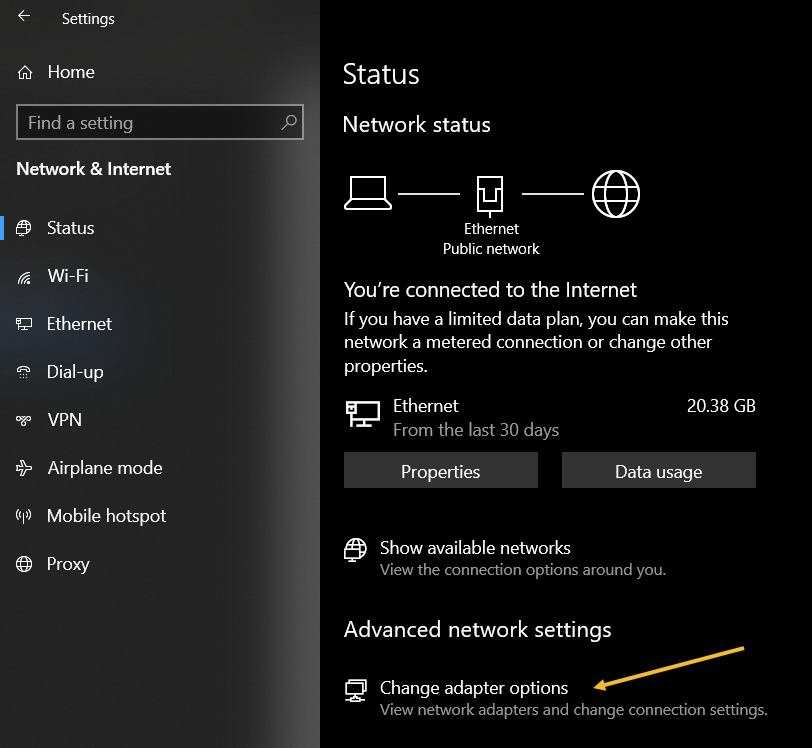
Settings > Network & Internet
then click the Change Adapter Options button. Refer to the below image:
For Windows 11, open:
Advanced network settings > More network adapter options
then right-click on your computer’s Wi-Fi adapter in the list and choose:
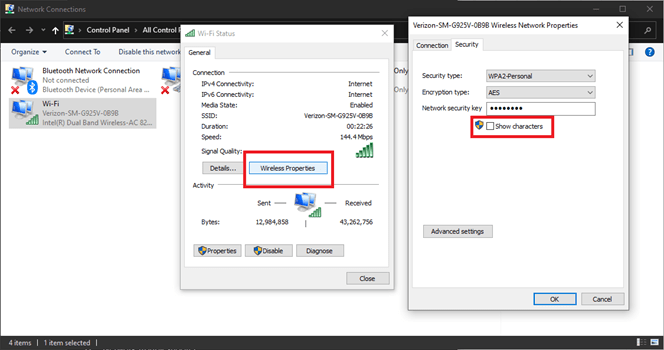
Status > Wireless Properties
Open the Security tab, and you should see a password box with dots in it. Click the Show Characters box to see the password in plain text. See the below image for Windows 10:
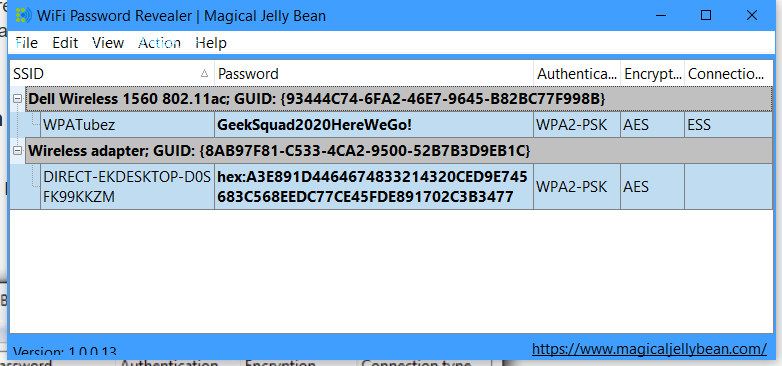
If you are trying to view the password for a network you are not currently connected to, things are a tad more complicated. You can download a third-party app like Wi-Fi Password Revealer which will show you the passwords of all saved networks. See the following image :
View Password Using iPhone
iPhone users could not view Wi-Fi passwords as plain text until iOS 16. First, open:
Settings > Wi-Fi
Refer to the below image:
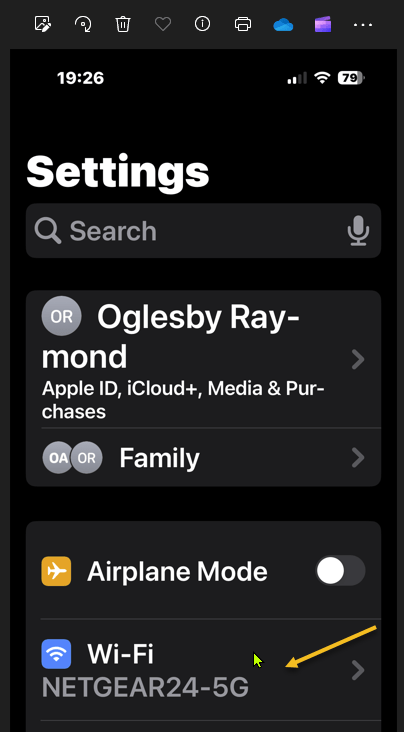
Now, tap the “i” icon for the current network. See the below image:

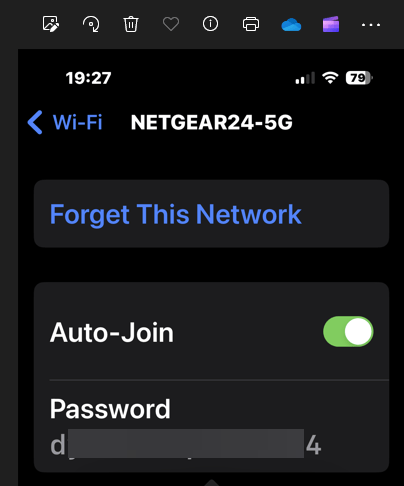
Next, select the Password entry and verify your identity with FaceID, Touch ID, or a Passcode. See the following image:
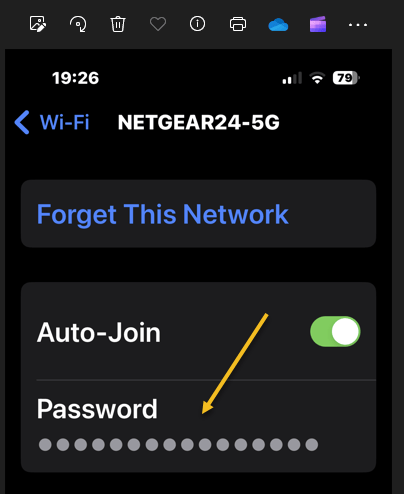
Now tap the password box with dots in it to reveal the password in plain text. Refer to the below image:
Disclaimer
Technology is always changing and rarely is there static tech for smartphones and desktops. Thus, the contents of this post are only valid at the time of writing. Blog posts older than six months may have directions incompatible with your device or OS. Hopefully, older post content will continue to work as advertised. Thank you for reading TechSavvy.Life for Technology at Work For You.
Quote For the Day
It is hard to imagine a more stupid or more dangerous way of making decisions than by putting those decisions in the hands of people who pay no price for being wrong.
Thomas Sowell
Tweet Info
That’s it. Please feel free to share this post! One way to share is via Twitter.
Just click the Tweet icon below. This will launch Twitter where you click its icon to post the Tweet.
Checkout TechSavvy.Life for blog posts on smartphones, PCs, and Macs! You may email us at contact@techsavvy.life for comments or questions.
Tweet
I Would Like to Hear From You
Please feel free to leave a comment. I would love to hear from you. Do you have a computer or smart device tech question? I will do my best to answer your inquiry. Just send an email to contact@techsavvy.life. Please mention the device, app, and version you are using. To help us out, you can send screenshots of your data related to your question.
Author’s E-Book
You can access the e-book from a Kindle device, the Kindle App for the desktop or smartphone, which is a free app.

 Tech Savvy Life
Yes
LikeLike
Excellent tip, Raymond!
David
LikeLike