

RAYMOND OGLESBY @RaymondOglesby2
April 15, 2025 – 5 minutes read time
Overview
The new Windows Backup tool will back up specific folders, apps, settings, and credentials to the cloud.Also, user data and files, including documents, pictures, music, and videos, are backed up. You can then restore all those items to the same PC or a new computer. To use this feature, you need a Microsoft Account (work and school accounts are not supported, and neither is a local account). You also need adequate storage space. OneDrive offers 5GB for free, but you may need to upgrade to one of the paid Microsoft 365 plans for more storage.
NOTE! The primary limitation of the Windows Backup tool is that it will back up only certain locations and items. For example, it will not back up and restore traditional desktop apps, such as Microsoft 365 (which is strange), so make sure you have the software and sources for all the programs you will need to reinstall.
Why You Will Like This Tip
- Peace of mind knowing your PC is backed up.
- If something goes wrong, you can restore your data.
System Requirements
A PC Desktop or Laptop running Windows 10 or 11. Screenshots are from Windows 11 Pro.
Backup
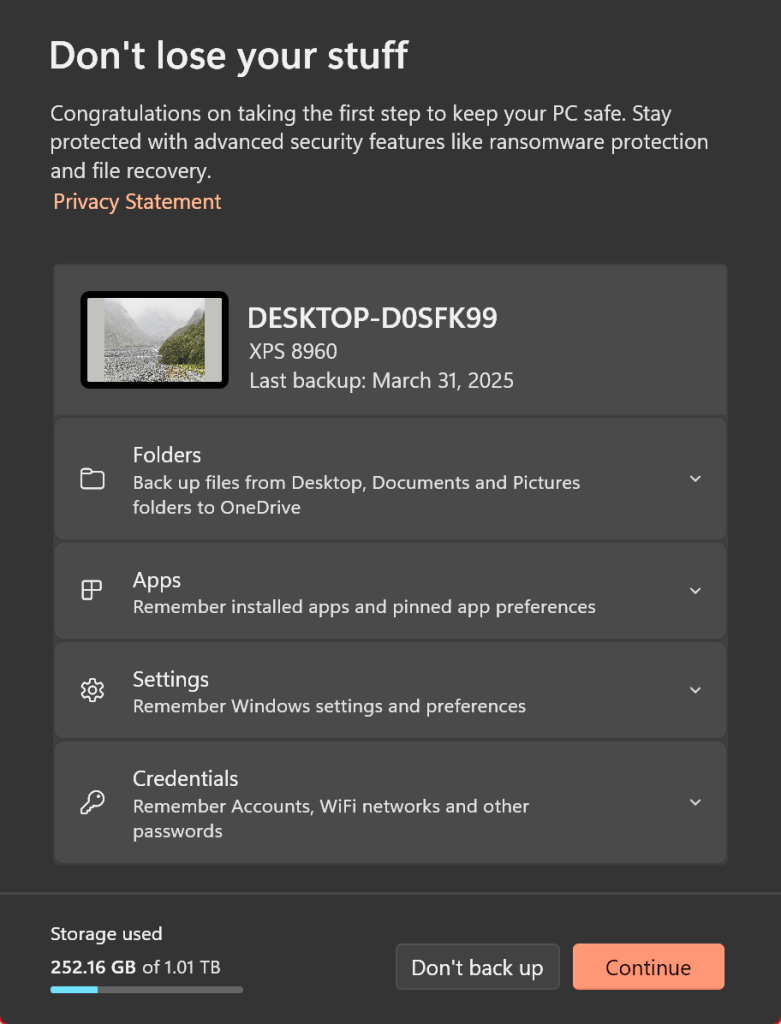
First, turn to the PC you want to back up. In Windows 10, click the Start button and select Windows Backup from the menu. In Windows 11, click the Start button, go to the All Apps screen, and then select Windows Backup. The Windows Backup Tool offers four different categories to configure—Folders, Apps, Settings, and Credentials. Refer to the image below:
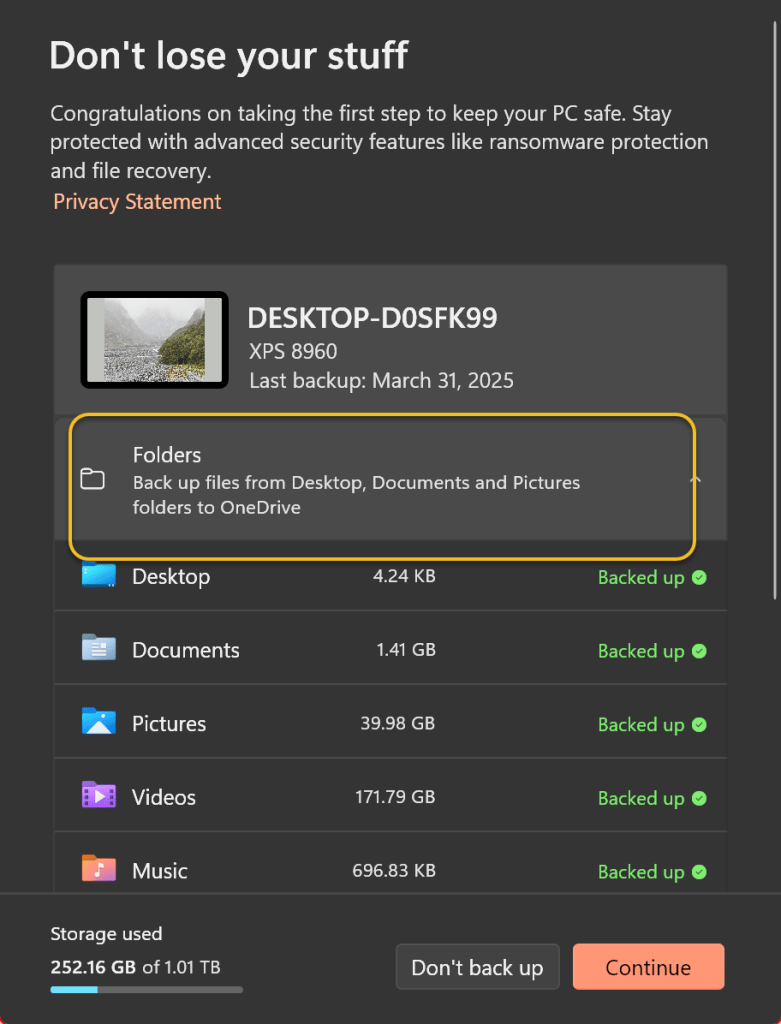
Now, click the down arrow next to Folders and enable the folders you wish to back up. If you have previously done a folder(s) backup, the last backup date will be shown and is enabled. You will be able to back up the Desktop, Documents, and Pictures folders. See the image below:
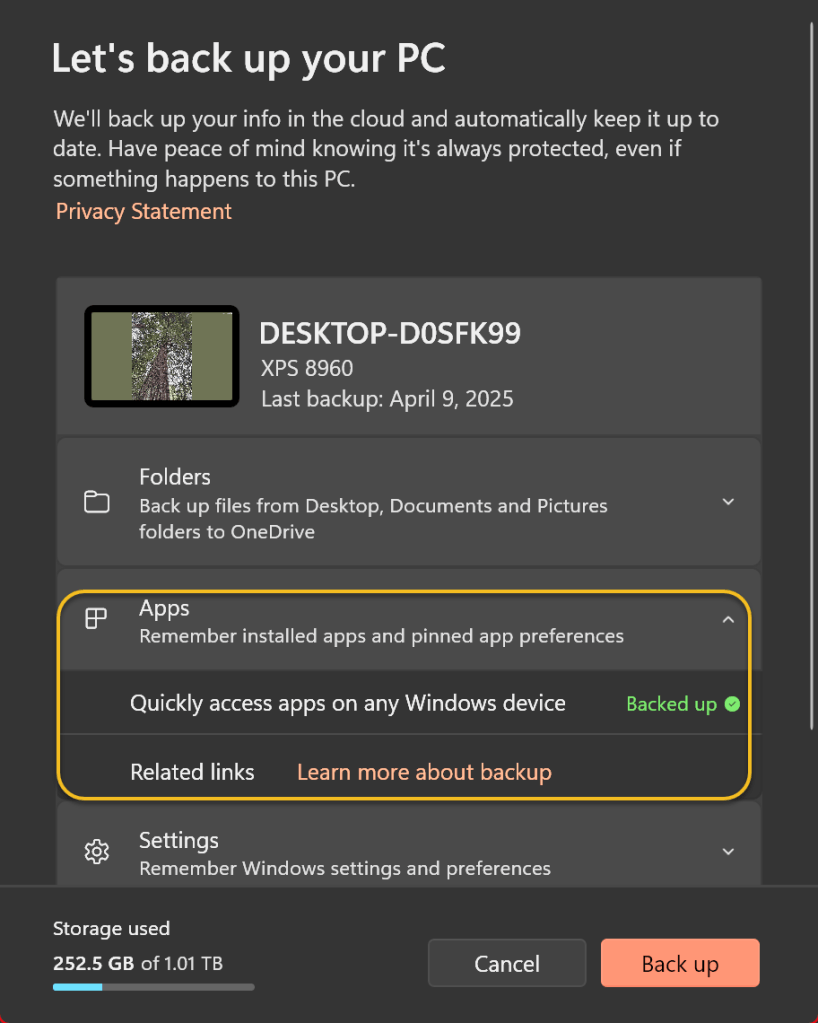
Next, click the down arrow next to Apps. Make sure Quickly access apps on any Windows device is turned on, as this will generate a list of installed apps so you can more easily recover them when you restore the backup. See the following image:
Now, click the down arrow next to Credentials and make sure the switch for Accounts, Wi-Fi networks and other passwords is turned on. Refer to the image below:
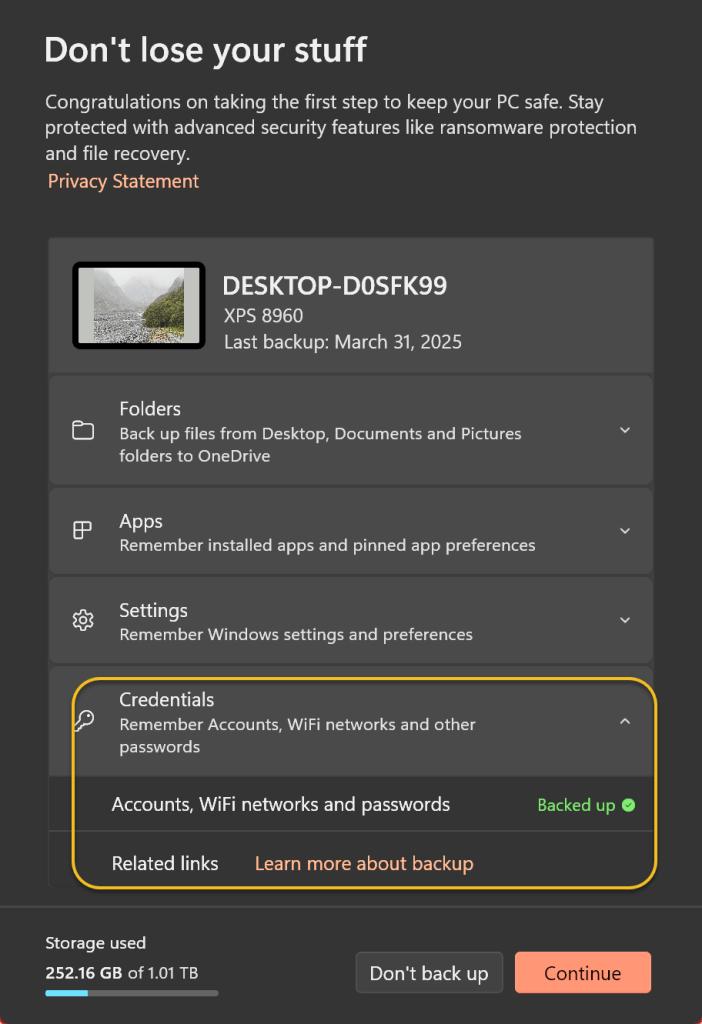
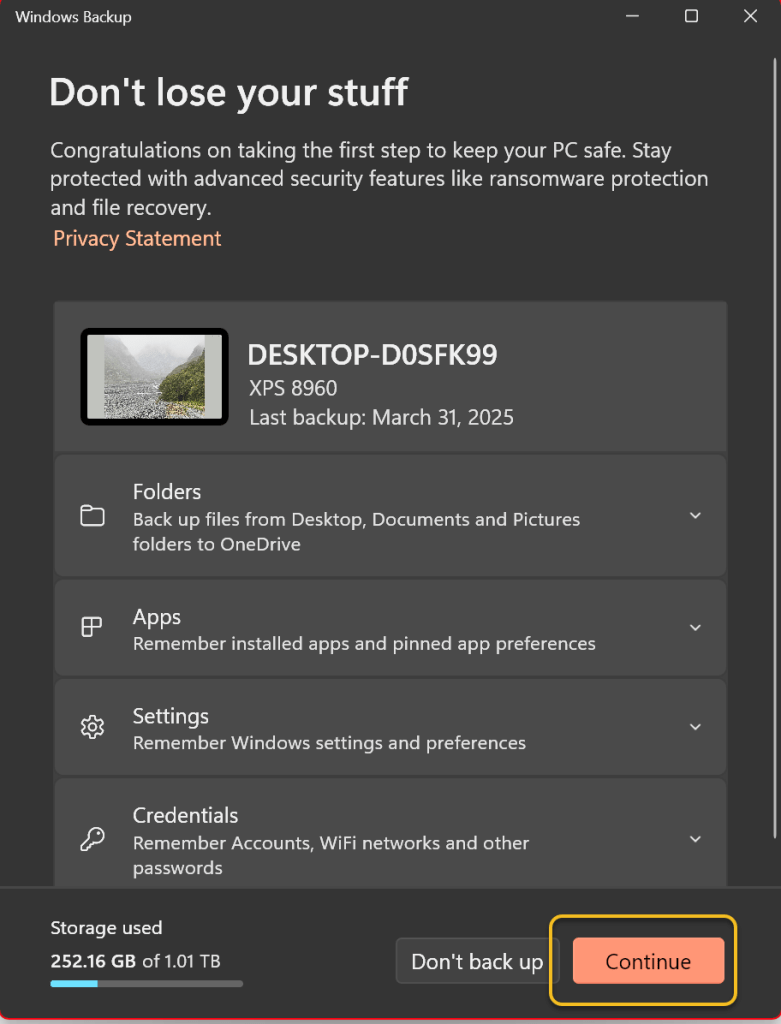
Next, when you are ready, click the Continue button. The items you selected are then backed up to your OneDrive storage. As the backup runs, you can minimize the Windows Backup app and work on other tasks. When the entire backup is finished, you will see that each of the four categories has been backed up. See the image below:
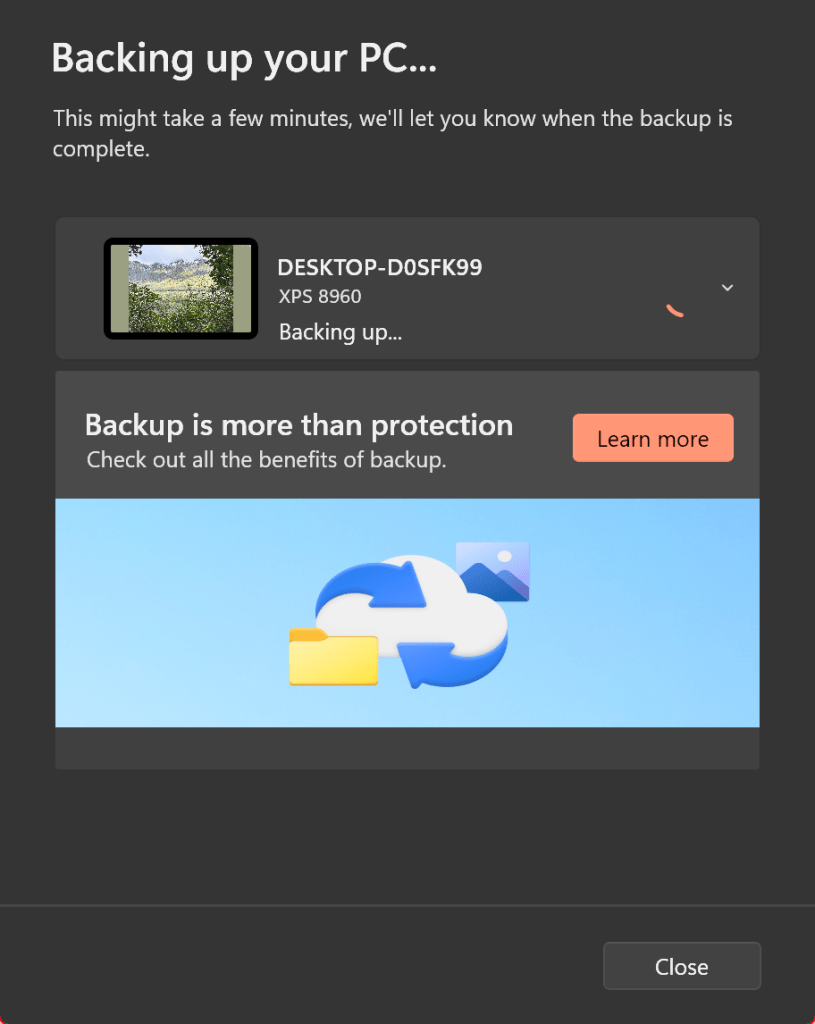
Now, you will receive a screen stating that your backup is in process. See the following image:
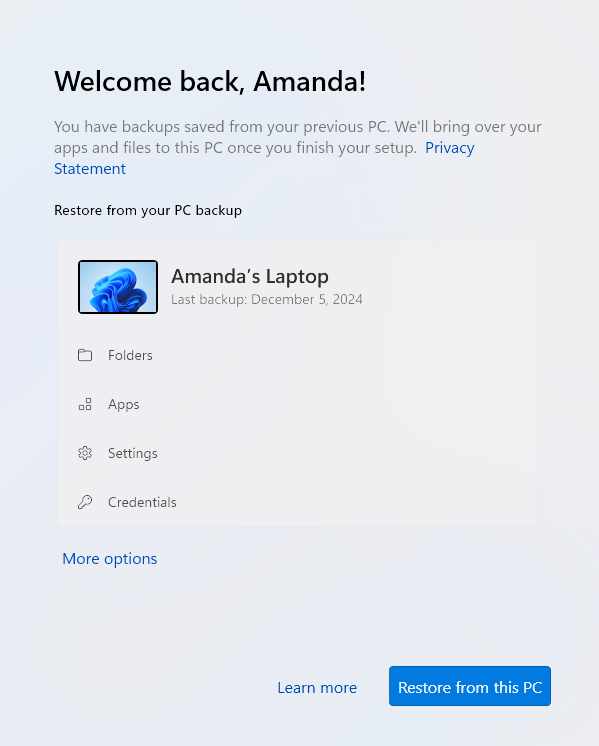
Now, if you reset Windows or switch to a new PC, you can restore your saved files during the setup process. You should see a screen welcoming you back and telling you that there are backups saved from the previous PC. Click the More options link. Refer to the image below:
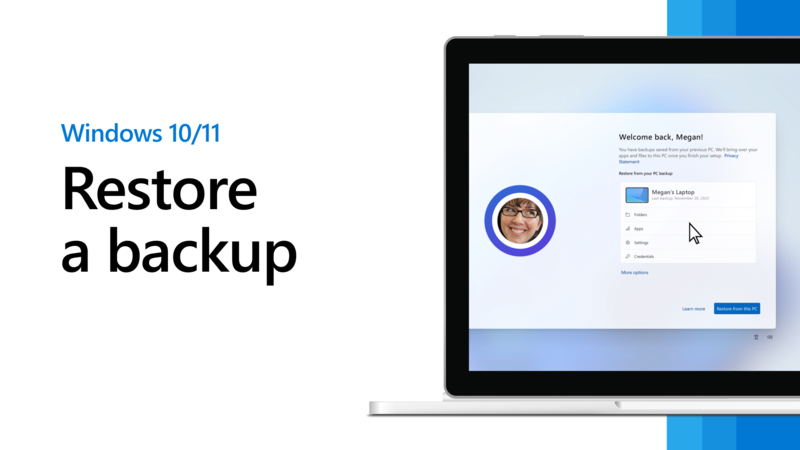
Next, select the name of the backup of your previous PC, and then click the Restore from this PC button. The items that you chose to back up are restored to your new computer. After this process is done, continue with the setup. When finished, sign in to your PC. See the image below:
Now, click the Start menu, Settings screen, and File Explorer to see which apps and settings have been restored. Any program that needs to be reinstalled will display an arrow with the word Install on the icon. Click the app to either automatically reinstall it or open the Microsoft Store so you can download the program.
Disclaimer
Technology is constantly evolving, and smartphone and desktop tech rarely remains static. Therefore, the information in this post is only accurate as of the date it was written. Blog posts that are older than six months may contain instructions that are no longer compatible with your device or operating system. We hope that the content from previous posts continues to function as intended. Thank you for reading TechSavvy.Life, where technology works for you.
Quote For the Day
“Good, bad, or indifferent, if you are not investing in new technology, you are going to be left behind.
— Philip Green
X (Twitter) Info
You are finished. Please feel free to share this post! One way to share is via Twitter.
Just click the Tweet icon below. This will launch Twitter where you click its icon to post the Tweet.
Checkout TechSavvy.Life for blog posts on smartphones, PCs, and Macs! You may email us at contact@techsavvy.life for comments or questions.
Tweet
I Would Like to Hear From You
We value your feedback! Was this post helpful? Please share your comments with us. If you have a tech question related to your computer or smart device, feel free to reach out. Just send an email to contact@techsavvy.life, and be sure to include the device, app, and version you are using. To assist us further, you can also attach screenshots related to your inquiry.
The author’s Vietnam eBook on the “Battle for Tra Bong Vietnam: Events and Aftermath” can be accessed from a Kindle device or the Kindle App for a desktop or smartphone. The apps are free.

 Tech Savvy Life