

InRAYMOND OGLESBY @RaymondOglesby2
January 13, 2026 – 11 minutes read time
Overview
The Windows 11 Settings app isn’t just for configuring your PC’s display and changing your password. It’s also packed with surprisingly weird (and mostly useful) features that give the desktop OS a bit of flair. For example, did you know that it has a native option for sharing files wirelessly between your PCs? Or that you could sync your clipboard to an Android phone? We dug deep through the Settings app to surface the most unexpected capabilities in Windows. Simply press Windows key + I to open the Settings app and get started.
Key Takeaways
Learn some hidden useful Windows 11 Settings options.
Make Windows 11 easier to use.
System Requirements
This post was performed on Windows 11 Pro desktop running 25H2 version.
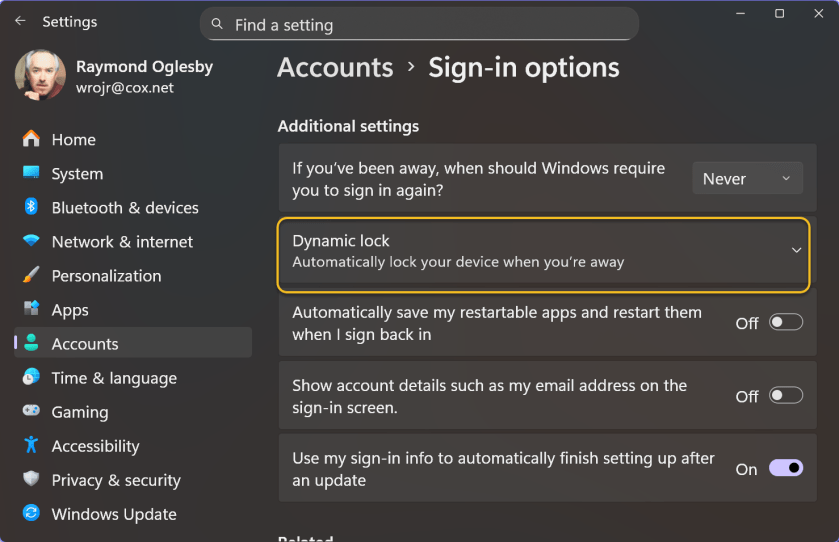
Dynamic Lock
Windows 11 can track your phone’s movements via its Bluetooth signal strength, locking your PC when your phone moves too far away from your computer. Microsoft calls this feature Dynamic Lock, and it serves as an alternative to the Windows key+L shortcut. To activate Dynamic Lock, head to:
Accounts > Sign-In Options > Additional Settings
Refer to the image below:
Some modern Windows 11 PCs with presence sensors do not need to rely on your phone for this feature—they know when you are sitting in front of them. This is probably the more convenient solution in the long term, especially since presence sensors work well with Windows Hello facial recognition. Your PC’s presence sensor notices when you sit back down, and the IR camera checks your face before automatically signing you in. However, until this type of hardware becomes mainstream, setting up Dynamic Lock to work with your phone is the next best option.
Nearby Sharing
What if Microsoft built the Windows version of Apple’s AirDrop, but nobody noticed? That’s exactly what Nearby Sharing is. I do not think I have ever seen Microsoft seriously promote it.
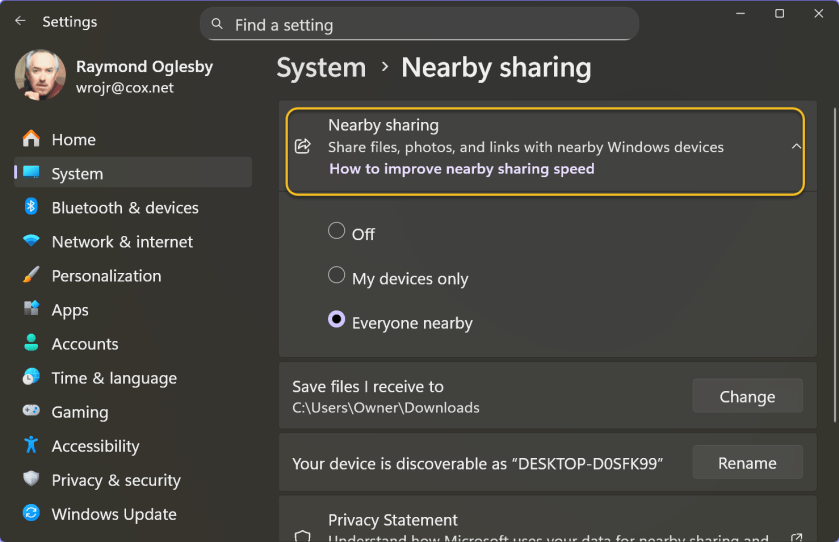
Nearby Sharing lets you share files, photos, and website links between close by PCs using Bluetooth or Wi-Fi. You can restrict it to devices signed in with the same Microsoft account or allow anyone nearby to send you things. To activate and configure this feature, head to:
System > Nearby Sharing > Share
For example, you can right-click a file in File Explorer and select the Share option. You will see Nearby Sharing as an option here.
Nearby Sharing works only between Windows devices. See the image below:
Storage Sense
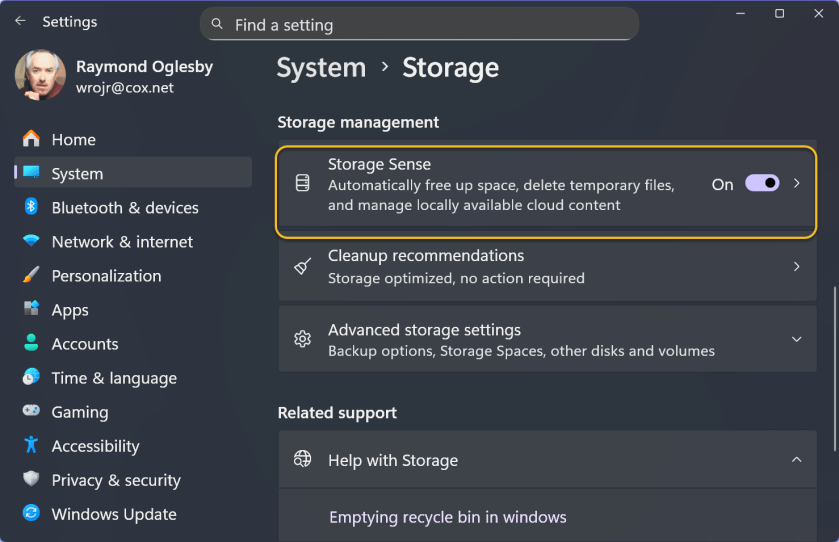
Windows 11 offers multiple methods for freeing up disk space. You can turn to the classic Disk Cleanup tool, for example, or use something called Storage Sense. The most interesting option under the Storage Sense umbrella is the ability to purge files from your Downloads folder. But it can also automatically clean up temporary files and empty your Recycle Bin. Be sure to save all necessary information from those locations before enabling these settin Simply head to:
System > Storage > Storage Sense
to get started. Under Cleanup schedules, you can choose to have Windows automatically delete files from your Downloads folder if you have not opened them in one, 14, 30, or 60 days. Yes, Windows 11 can automatically delete downloads you have not touched in 24 hours, if you like to live dangerously. See the following image:
Project to Your PC
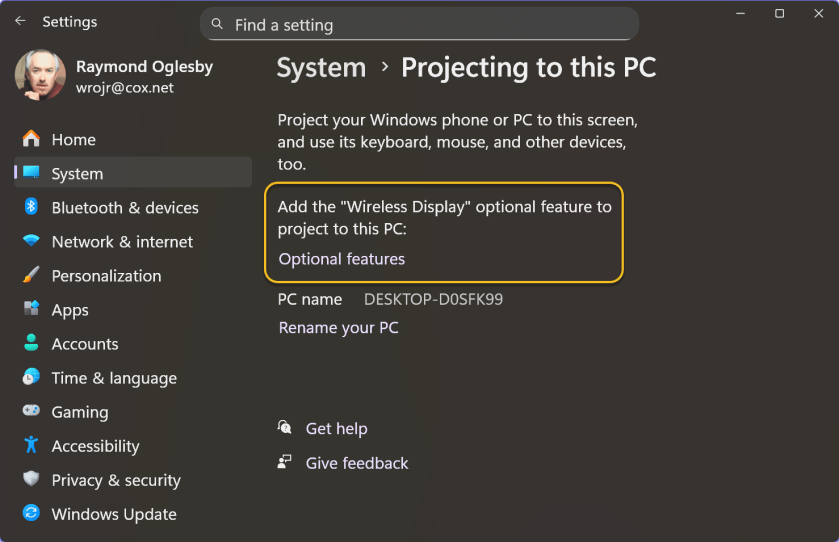
Sure, you can project from your Windows PC to an external display. But did you know that you can project from another device—like a PC or phone—and use your PC’s display as a target. To set this up, head to:
System > Projecting to this PC
Windows will ask you to install the Wireless Display optional feature to continue. After activating it, you can press Windows key+K on another PC on your network and cast to your PC’s display.
This capability could be useful if you have a Windows 11 laptop with a small screen and want to interact with it on your larger all-in-one (AIO)machine.
Here’s another oddity: This screen says you can “Project your Windows phone or PC to this screen.” Hey Microsoft, it’s 2026! People no longer have Windows phones. Refer to the image below:
Clipboard Sync
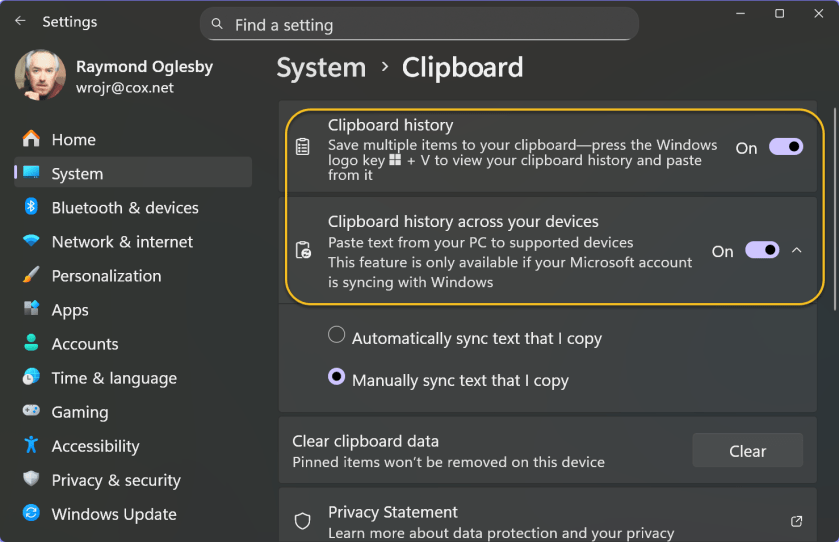
You might be aware that Windows 11 has a clipboard history feature (press Windows key+V to see it), but you might not know that Windows can sync your clipboard between PCs. If you activate that feature, you can copy text on your desktop PC and paste it on your laptop. The clipboard sync feature is strangely configurable and powerful.
Windows offers multiple types of clipboard sync. One is automatic: Everything you copy syncs to your other Windows PCs. The other is manual: You can copy some text, press Windows key+V, and then choose to push that content to your other PCs. In other words, Windows does not sync anything you copy to the cloud until you explicitly request it.
You can also sync your Clipboard to your Android phone by signing into the Microsoft-owned SwiftKey keyboard with your Microsoft account. iPhone users are out of luck—the SwiftKey app does not offer the Clipboard sync feature on iOS. See the image below:
An End Task Button on the Taskbar
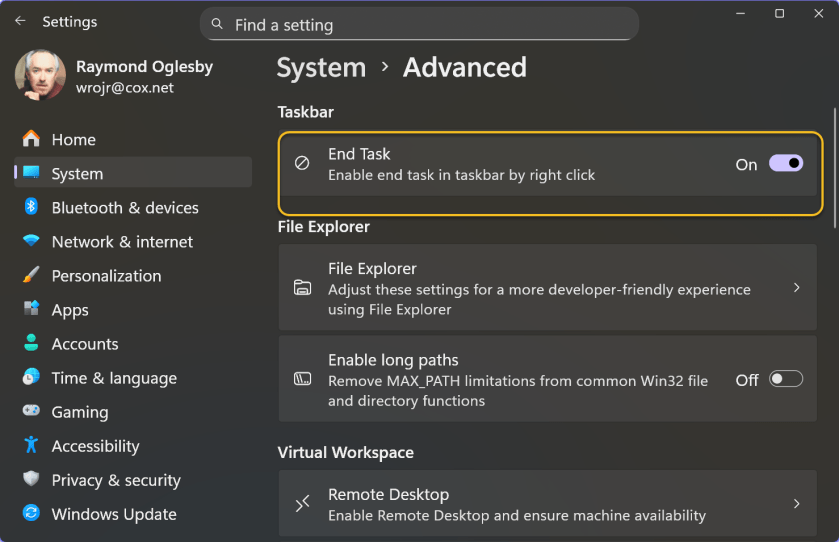
If a program freezes or starts to misbehave, you normally have to visit the Task Manager and use the End Task feature to forcibly close it. If you find yourself doing that often, Microsoft has a convenient shortcut for you: You can add an End Task button on the taskbar. After that, you can right-click an application icon and select End Task to forcibly close it. It’s not ideal for day-to-day use—you are forcibly closing an application without giving it a chance to save your work and any data—but it definitely comes in handy sometimes. To turn this on, head to:
System > Advanced
and activate the End Task toggle under the Taskbar section. see the following image:
Game Mode
Game Mode, which is on by default, is not as straightforward as it sounds. In theory, it means that Windows should detect when you are playing a game and limit background tasks to improve performance. When Game Mode originally launched with Windows 10’s Creators Update in 2017, it was more aggressive. Microsoft provided APIs for game developers to manage the system.
Now, Game Mode primarily prevents Windows from sending notifications that interrupt your gameplay. Microsoft makes a vague promise that Game Mode stops Windows Update from installing driver updates while you are gaming and “helps achieve a more stable frame rate depending on the specific game and system,” with no further explanation. YouTube is full of benchmark videos showing no real change in game performance with Game Mode on or off. To find this toggle, head to:
Gaming > Game Mode
The good news is you likely will never have to turn Game Mode off—it should never break anything because it does not do much. Refer to the image below:

Eye Tracking
Did you know that Windows 11 supports eye-tracking hardware without any third-party software? What this means is you can use your eyes to control your PC, including clicking and typing. Of course, you need very specific hardwareto use this accessibility feature, such as a Tobii eye tracking device.
Despite Microsoft pushing PCs with IR cameras and presence sensors, Windows can not perform eye-tracking with standard hardware. Perhaps that’s something we should expect to see in the future as Windows increasingly embraces AI. Imagine if Copilot Vision could see what you were looking at. Right now, even an AI laptop with an NPU for on-device AI processing ca not do much more. Related options are in:
Accessibility > Eye control
See the image below:

Title Bar Window Shake
Windows Aero launched with Windows Vista and became even better with Windows 7. Some beloved Aero features, such as the Aero Glass translucent interface, are no longer available. (Check out macOS Tahoe if you enjoyed that aesthetic.) Microsoft rebranded other Aero features, however: Aero Snap, for example, evolved into Snap Layouts for arranging desktop windows.
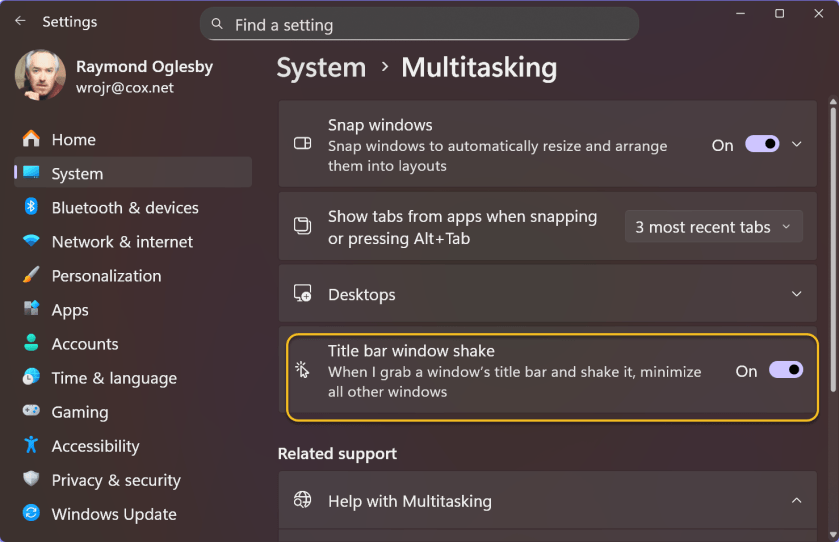
One odd feature that somehow survived under a new name is Aero Shake. It allows you to grab a window’s title bar with your mouse and shake it to minimize all other windows. It’s off by default but was apparently important enough that Microsoft kept it around. To activate this option, head to:
System > Multitasking
and then look for the Title Bar Window Shake option. See the following image:
Device Portal
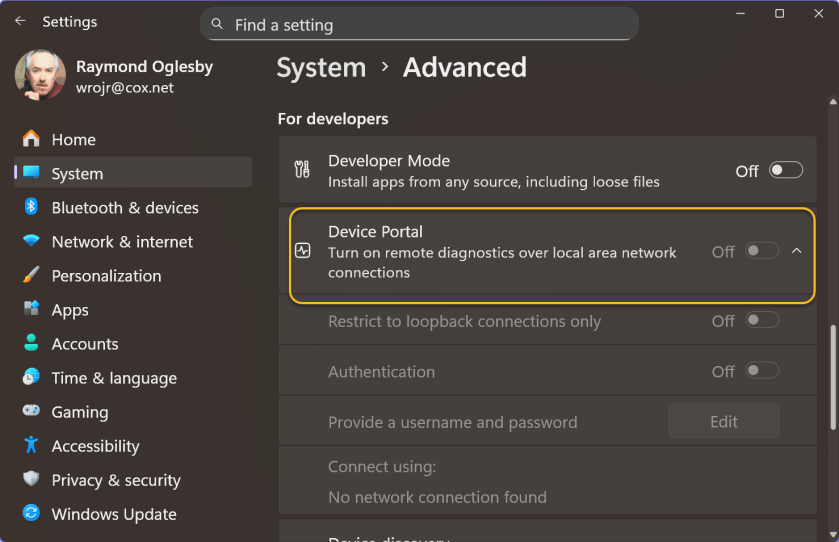
Windows 11 has a Device Portal web interface for “remote diagnostics over local area network connections.” You can activate it via the
System > Advanced
pane. Just turn on Developer Mode and then Device Portal.
This web interface is very strange. It includes an empty Mixed Reality page—functionality that is now no longer available in Windows. It also features a Window Manager page that does not show a single window open on your PC’s desktop. The File Explorer page also highlights the long-forgotten 3D Objects folder. It’s downright bizarre.
The Device Portal was originally meant for managing Microsoft HoloLens hardware, as Microsoft explains. The Window Manager page presumably only shows the kind of floating Mixed Reality windows you would see on a HoloLens. Of course, HoloLens is now dead—Microsoft handed its US military contract off to Anduril earlier this year. Mixed Reality and 3D Objects are gone, too.
But the ghost of HoloLens past lives on, available just a few clicks away in Windows 11’s Settings app. If your PC is not on a network, the options are unavailable. Refer to the image below:
File Explorer
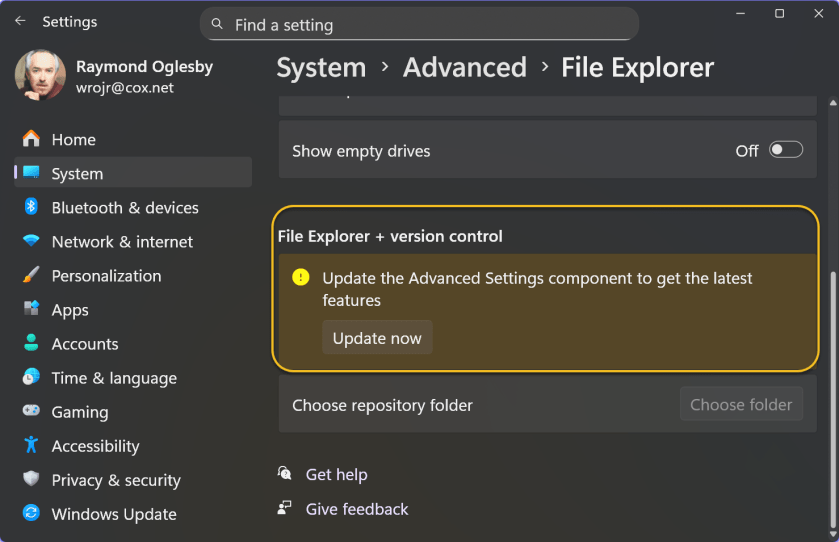
Advanced Windows Settings provides additional functionality to the Advanced page inside Windows settings, such as File Explorer with version control integration. File Explorer with version control integration lets you view Git information directly in your source folder. Head to:
System > Advanced > File Explorer
Under the File Explorer + version control section, click the Update Now button to see if you have the latest Advanced Settings control. See the image below:
The Settings App Is the New Control Panel
Although Microsoft has not finished migrating all the useful options from Windows 11’s Control Panel to the Settings app yet, the latter is already (and amusingly) becoming a junk drawer full of historical options. Exploring the Settings app is like walking through a Windows history museum. Some options only make sense if you understand Microsoft’s original intentions when they were released. Perhaps Microsoft’s Mu-based AI agent can clean things up in the future.
Disclaimer
Technology is constantly evolving, and smartphone and desktop tech rarely remains static. Therefore, the information in this post is only accurate as of the date it was written. Blog posts that are older than six months may contain instructions that are no longer compatible with your device or operating system. We hope that the content from previous posts continues to function as intended. Thank you for reading TechSavvy.Life, where technology works for you.
Quote For the Day
Let’s go invent tomorrow instead of worrying about what happened yesterday – Steve Jobs
(X) Twitter Info
You are finished. Please feel free to share this post! One way to share is via Twitter.
Just click the Tweet icon below. This will launch Twitter where you click its icon to post the Tweet.
Checkout TechSavvy.Life for blog posts on smartphones, PCs, and Macs! You may email us at contact@techsavvy.life for comments or questions.
Tweet
I Would Like to Hear From You
We value your feedback! Was this post helpful? Please share your comments with us. If you have a tech question related to your computer or smart device, feel free to reach out. Just send an email to contact@techsavvy.life, and be sure to include the device, app, and version you are using. To assist us further, you can also attach screenshots related to your inquiry.
The author’s Vietnam eBook on the “Battle for Tra Bong Vietnam: Events and Aftermath” can be accessed from a Kindle device or the Kindle App for a desktop or smartphone. The apps are free.

 Tech Savvy Life