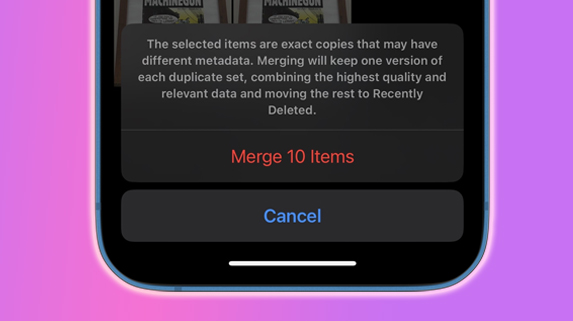
The process of storing your contacts’ information on your device is not always foolproof. iCloud errors or syncing issues between your iPhone and email account can cause contacts to be duplicated on your phone.
The process of storing your contacts’ information on your device is not always foolproof. iCloud errors or syncing issues between your iPhone and email account can cause contacts to be duplicated on your phone. Thankfully, this issue has a few easy fixes to take care of the duplicates. Here’s how to do it.
This is for the iPhone. Screenshots are from iPhone 14 Pro running iOS 16+
Copyright Scott Adams, Inc./Distributed by Universal Uclick for UFS
Method 1: Manually Delete Duplicate Contacts
First, locate the Contacts app icon and tap to open. Scroll through your list of contacts until you find the duplicate entry you wish to delete and tap to open. Refer to the below image:
Selecting a duplicate
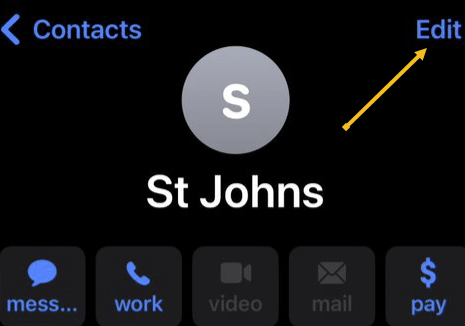
Next, tap the Edit button in the upper right-hand corner of the screen. See the below image:
Selecting the Edit mode
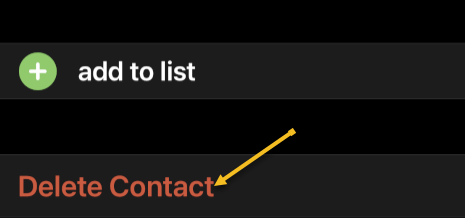
Now, scroll down to the bottom of the screen to find the Delete Contact option. Tap this to delete the contact. See the following image:
Delete a duplicate
A small pop-up will appear asking you to confirm your deletion. Tap Delete Contact again to remove the duplicate. Refer to the below image:
Confirm the deletion
Method 2: Merge and Delete Duplicates
In order to get rid of all duplicate contacts on your iPhone and clean up your contacts so you only have one contact card for each individual, follow these steps.
First, open up the Contacts app. If you have duplicate contacts, a pop-up message will appear under your card at the top of the display (if you do not see this message, see the Pop-Up Message section below). Tap on View Duplicates. See the below image:
Duplicates Found pop-up message
Next, to merge all contacts, tap on the Merge All button at the bottom of your screen. See the following image:
Merge all duplicates
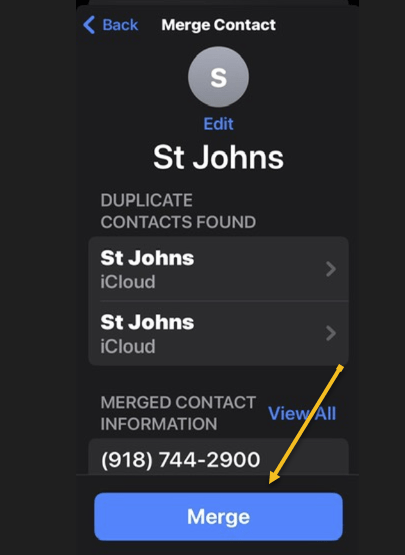
Next, to merge one contact, select a duplicate entry and tap the Merge button at the bottom of your screen. Refer to the below image:
Merge the one duplicate
Pop-Up Message
The pop-up window beneath your card is problematic. If you do not see the pop-up, scroll all the way to the bottom of your Contacts and tap the Duplicates Found link. See the below image:
Accessing duplicates at bottom of contacts
Now, select a duplicate entry or Merge All. See the following image where we selected a duplicate contact card:
Selecting a duplicate
Next, tap the Merge button at the bottom of your screen. Refer to the below image:
Merge the one duplicate
Your duplicated contacts will then be transferred to one contact card and combine all the unique information from each extra card.
Quote For the Day
Technology is a word that describes something that doesn’t work yet.
Douglas Adams
Tweet Info
That’s it. Please feel free to share this post! One way to share is via Twitter.
Just click the Tweet icon below. This will launch Twitter where you click its icon to post the Tweet.
Checkout TechSavvy.Life for blog posts on smartphones, PCs, and Macs! You may email us at contact@techsavvy.life for comments or questions.
Please feel free to leave a comment. I would love to hear from you. Do you have a computer or smart device tech question? I will do my best to answer your inquiry. Just send an email to contact@techsavvy.life. Please mention the device, app, and version you are using. To help us out, you can send screenshots of your data related to your question.
Author’s E-Book
You can access the e-book from a Kindle device, the Kindle App for the desktop or smartphone, which is a free app.
The author’s Vietnam eBook on the Battle for Tra Bong Vietnam: Events and Aftermath
This is for the desktop, iPhone, and Android. Screenshots are from iPhone XR
Copyright Scott Adams, Inc./Distributed by Universal Uclick for UFS
Manage Alexa
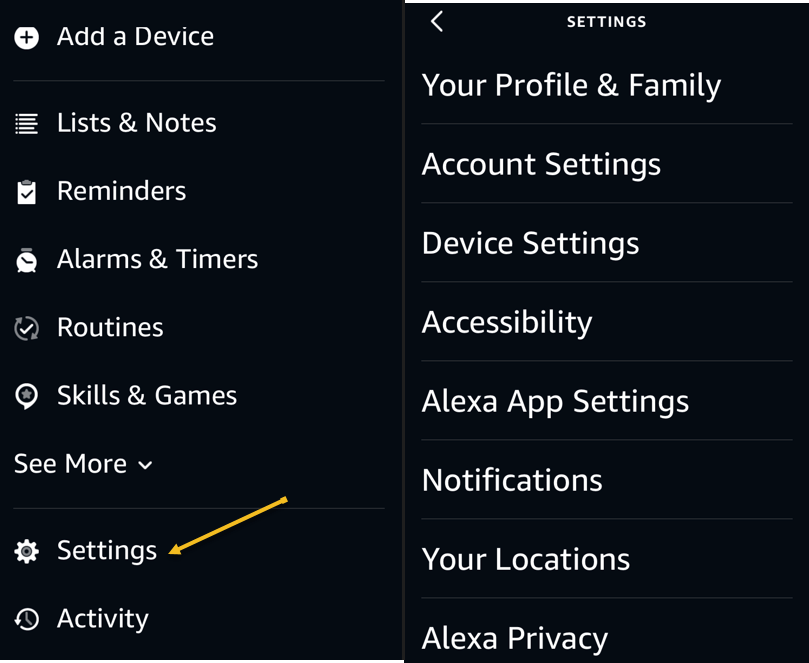
In case you do not already know, you can control Alexa’s various features right from your desktop, iPhone, or Android smartphone. This allows you to tweak various setting options for your Echo without needing physical access to your device. You can manage everything from reminders and alarms to connected smart home devices. Refer to the below image:
Accessing Alexa Settings
On your desktop, you can use the Amazon Alexa website to do that, though it’s worth noting that the web implementation is not as robust as it used to be. You will have a better experience using the official Alexa mobile app on iPhone and Android.
Alexa Voice Tempo
If you find Alexa’s speech too fast or too slow, you can ask her to adjust her speaking speed. Simply say “Alexa, speak slower” or “Alexa, speak faster” and she will obey your command.
That will allow you to listen to certain words carefully, or go through everything quickly if you like to get your information fast.
Alexa Brief Mode
Sometimes, Alexa’s answers are too verbose. She might keep saying little things that you will eventually find annoying. Fortunately, there’s a way around it.
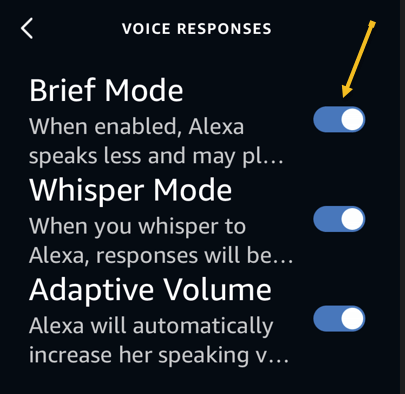
Enter Brief Mode, an Alexa feature that makes the virtual assistant keep her responses shorter. When this mode is enabled, Alexa will not speak as many words as she normally does. You can enable the mode by accessing the Alexa website, heading into:
Settings > Alexa Voice Responses
and enabling Brief Mode. See the below image:
Enabling Brief Mode
On the same page, you can make Alexa whisper her responses by enabling the Whisper Mode option.
Alexa Commute
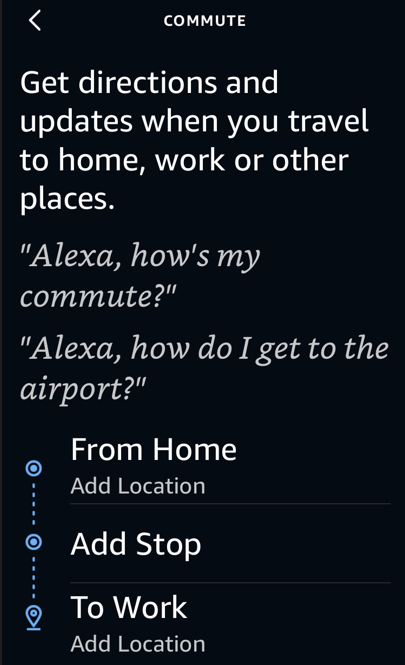
Alexa can let you know what kind of traffic you will meet on your way to your office. As long as you have specified your To and From addresses in Alexa, you can get your commute’s traffic details. See the following image:
Commute info
If you have not already, you can configure your To and From addresses in the
Settings > Traffic
menu on the Alexa website.
Alexa Reminder App
It’s easy to forget your important tasks in this busy life. Setting up a reminder for each of your tasks in a mobile reminder app is also cumbersome.
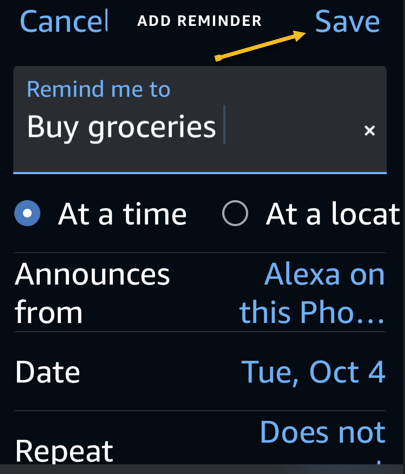
Fortunately, you can use your Alexa assistant as a reminder tool. Simply ask Alexa when you would like to be reminded and about what or type in a reminder, and she will make sure to send you a notification at the specified time. Refer to the below image:
Enter and Save your reminder
Alexa Security Updates
Alexa offers a security feature called Guard to help you keep a check on your home when you are away. This feature listens to certain sounds, like those of breaking glass and smoke alarms going off.
When Alexa detects those sounds, you get a notification as well as a short audio clip of the sound, letting you know something’s not right at your home.
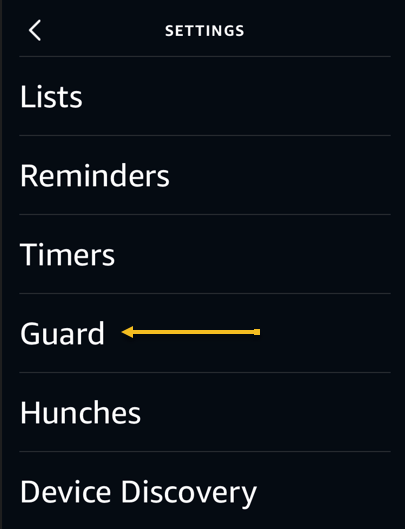
You can activate Alexa’s Guard feature from the
More > Settings > Guard
menu in the Alexa mobile app. You can purchase the Guard Plus feature for a fee if you would like emergency authorities to be notified when those sounds play at your home. See the below image:
Accessing Guard
Alexa Echo as a Bluetooth Speaker
Last but not least, you can use your Alexa-enabled Amazon Echo as a Bluetooth speaker. This way, you can connect any of your Bluetooth-enabled devices to your Echo and play your favorite music.
You may want to use this feature when your favorite music app is not supported by Alexa, or when you prefer to play music from your phone or your desktop. You can pair your phone or desktop with your Amazon Echo by simply asking “Alexa, pair.”
Those are some of the Alexa features you can use to make your Amazon Echo device even more useful.
Quote For the Day
I might love my e-reader, but I’d never pass up the chance to browse real books.
Nichole Chase
Tweet Info
That’s it. Please feel free to share this post! One way to share is via Twitter.
Just click the Tweet icon below. This will launch Twitter where you click its icon to post the Tweet.
Checkout TechSavvy.Life for blog posts on smartphones, PCs, and Macs! You may email us at contact@techsavvy.life for comments or questions.
Please feel free to leave a comment. I would love to hear from you. Do you have a computer or smart device tech question? I will do my best to answer your inquiry. Just send an email to contact@techsavvy.life. Please mention the device, app, and version you are using. To help us out, you can send screenshots of your data related to your question.
Author’s E-Book
You can access the e-book from a Kindle device, the Kindle App for the desktop or smartphone, which is a free app.
The author’s Vietnam eBook on the Battle for Tra Bong Vietnam: Events and Aftermath
There’s a lot to love about the iPhone, and it can be overwhelming at times. Apple’s smartphone includes thousands of handy features tucked away in places you might never discover unless someone told you about them.
There’s a lot to love about the iPhone, and it can be overwhelming at times. Apple’s smartphone includes thousands of handy features tucked away in places you might never discover unless someone told you about them. Here are five great features.
This is for the iPhone. Screenshots are from iPhone XR running iOS 15.6+
Copyright Scott Adams, Inc./Distributed by Universal Uclick for UFS
Silence Unknown Callers
If you are tired of interruptions by phone calls from unknown numbers or spammers, you can silence them completely.
First, head to:
Settings> Phone > Silence Unknown Callers
and toggle Silence Unknown Callers to ON. Refer to the below image:
Enabling Silence Unknown Callers
While enabled, all calls from numbers that are not in your Contacts list will go straight to voicemail without ringing. You will still see silent notifications for the calls if your iPhone is unlocked.
Customize Your Control Center
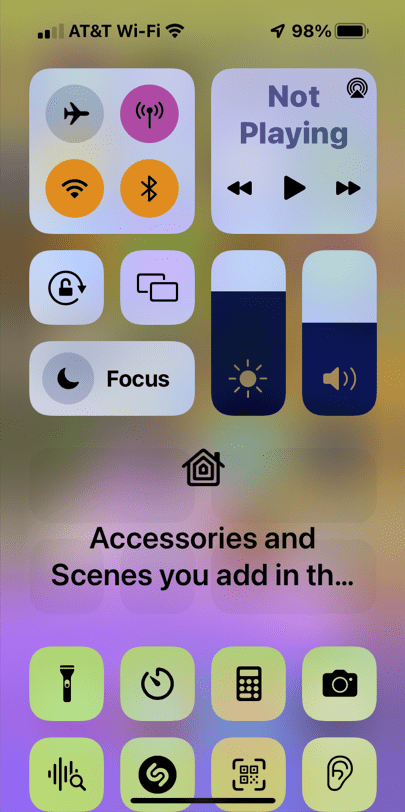
Control Center allows you to quickly access media playback controls, system volume, Wi-Fi settings, your screen’s brightness, and more. (To see it, swipe down from the upper right-hand corner of the screen on phones with Face ID, and swipe up from the bottom edge of the screen on iPhones with Home buttons.). See the below image:
Your Control Center
Control Center also includes a customizable slate of shortcut buttons that you can change to suit your needs. To customize, head to:
Settings > Control Center
Here you can add or remove Control Center shortcuts to functions like the flashlight, timer, calculator, low power mode, Apple TV remote, and much more.
Enable Do Not Disturb
Do Not Disturb mode (which is part of a feature called Focus) is a great way to silence all of your notifications when you do not want to be disturbed. You can schedule it to turn on and off automatically, or just turn it on manually. Head to:
Settings > Focus
and activate the option, or when using Control Center (tap the crescent moon icon). See the following image:
Accessing Focus option
When activated, your iPhone will not ring or vibrate with calls, and you will not hear alerts from any notifications. You can toggle it OFF quickly at any time using Control Center.
Use AirDrop
AirDrop allows you to easily share photos, videos, and other files from your iPhone with other nearby Apple device owners. It works locally through Bluetooth and Wi-Fi, and you can find the AirDrop option under the Share menu.
To use it, open the Share sheet in almost any app (tap the square with the arrow coming up out of it), then select the AirDrop icon, which looks like a bunch of concentric circles with a wedge cut out of it. Then choose who you want to share with, and your files will be beamed wirelessly to the other device. AirDrop must be enabled and configured properly on both devices. Refer to the below image:
Accessing AirDrop
Enable Low Power Mode
If you find yourself running out of battery power before the end of the day, you can extend your battery life by turning on Low Power Mode. When Low Power Mode is on, your iPhone will disable background tasks, reduce screen brightness, and your iPhone’s screen will darken faster when idle. To enable, head to:
Settings > Battery
and toggle Low Power Mode to ON. See the below image:
Enabling Low Power Mode
You can also add a Control Center shortcut that will let you toggle Low Power Mode quickly with a swipe and a tap.
Quote For the Day
If it keeps up, man will atrophy all his limbs but the push-button finger.”
Frank Lloyd Wright
Tweet Info
That’s it. Please feel free to share this post! One way to share is via Twitter.
Just click the Tweet icon below. This will launch Twitter where you click its icon to post the Tweet.
Checkout TechSavvy.Life for blog posts on smartphones, PCs, and Macs! You may email us at contact@techsavvy.life for comments or questions.
Please feel free to leave a comment. I would love to hear from you. Do you have a computer or smart device tech question? I will do my best to answer your inquiry. Just send an email to contact@techsavvy.life. Please mention the device, app, and version you are using. To help us out, you can send screenshots of your data related to your question.
Author’s E-Book
You can access the e-book from a Kindle device, the Kindle App for the desktop or smartphone, which is a free app.
The author’s Vietnam eBook on the Battle for Tra Bong Vietnam: Events and Aftermath
Using Facebook Messenger’s “Secret Conversations” feature, you can ensure your messages and calls are end-to-end encrypted so that only the sender and the receiver can access them.
Using Facebook Messenger’s “Secret Conversations” feature, you can ensure your messages and calls are end-to-end encrypted so that only the sender and the receiver can access them. Let’s explore how to utilize this feature on your iPhone and Android phone.
Note:Facebook Messenger’s “Secret Conversations” feature is only available on iPhone and Android. You can not use it in Messenger on the web.
This is for iPhone and Android. screenshots are from iPhone XR running iOS 16+
Copyright Scott Adams, Inc./Distributed by Universal Uclick for UFS
How Does the Secret Conversations Feature Work
When you enable the “Secret Conversations” feature with a user, Messenger encrypts your messages and calls as soon as you send them. Then, these contents are only decrypted on the receiver’s phone. This ensures no one can access your chat content, not even Meta without physical access.
That encryption is the difference between a regular chat and a secret one. If any bad actors gain access to Meta’s servers, they can not see your encrypted messages. Any of your regular chats might be visible, as they remain unencrypted on Meta’s servers.
However, Meta restricts who you can have secret chats with. At the time of writing in September 2022, you can not start such a chat with businesses, professional accounts, Instagram accounts from Messenger, and people you have not messaged before. Also, both you and your chatting partner need to be using the latest version of the app, so make sure you both update Messenger on your respective devices.
Additionally, certain features you might be used to will not work while in one of these chats. Meta states that group messages and money payments are not supported in secret conversations. If those limitations create problems for you, look into alternative secure communication methods that might offer the features you need.
Start a Secret Chat
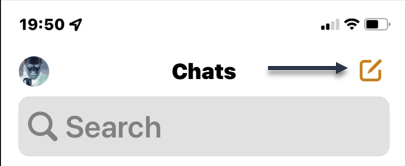
First, launch the Messenger app on your phone. In the Messenger app’s top-right corner, tap the Edit icon. Refer to the below image:
Accessing Edit mode
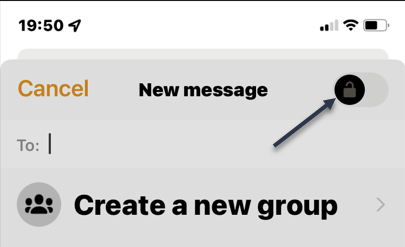
Next, in the New Message screen, at the top-right-hand corner, enable the “Secret Conversations” (the lock icon) option. See the below image:
Selecting the Lock icon
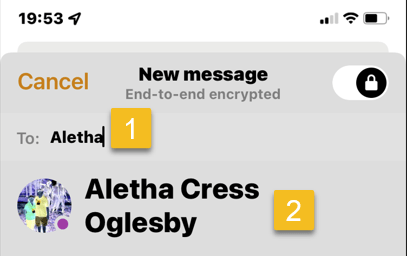
Now, on the same page, in the To field, enter the name of the person you want to have a secret chat with. Then, select that person from the list. See the following image:
Selecting a person to Chat with
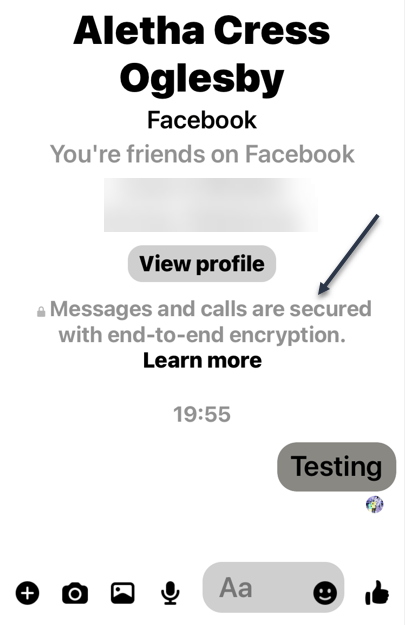
Next, a new chat will start with your chosen person. Any messages or calls you make in this conversation will be end-to-end encrypted. You can start sending messages as usual. Refer to the below image:
Sending your encrypted message
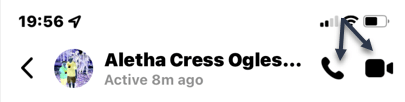
Now, to make a voice or video call, at the top of the chat screen, tap the appropriate icon. See the below image:
Making a voice or video call
Delete a Chat
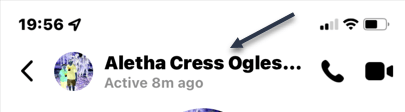
Next, to delete your secret chat with someone, tap the person’s name at the top. See the following image:
Selecting a person to delete the Chat
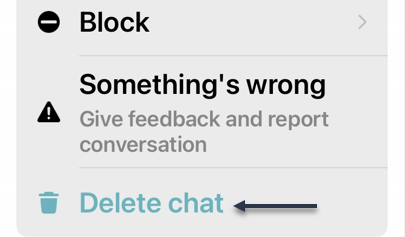
Now, in the menu that opens, choose Delete Chat. Refer to the below image:
Deleting the Chat
Quote For the Day
We take the highest and best of human faculties, and, exalting them in our imagination to an unlimited extent, endeavour to attain an imperfect conception of that Infinite Power which created everything around us.
Charles Babbage (1791-1871), pioneer of modern computer
Tweet Info
That’s it. Please feel free to share this post! One way to share is via Twitter.
Just click the Tweet icon below. This will launch Twitter where you click its icon to post the Tweet.
Checkout TechSavvy.Life for blog posts on smartphones, PCs, and Macs! You may email us at contact@techsavvy.life for comments or questions.
Please feel free to leave a comment. I would love to hear from you. Do you have a computer or smart device tech question? I will do my best to answer your inquiry. Just send an email to contact@techsavvy.life. Please mention the device, app, and version you are using. To help us out, you can send screenshots of your data related to your question.
Author’s E-Book
You can access the e-book from a Kindle device, the Kindle App for the desktop or smartphone, which is a free app.
The author’s Vietnam eBook on the Battle for Tra Bong Vietnam: Events and Aftermath
Changing your iPhone Lock screen and Home screen wallpaper is probably the most effective way of making your phone look and feel unique. Now you can take your wallpaper to the next level by creating or modifying your own designs in just a few taps; no app is required.
This is for the iPhone running iOS 16+. Screenshots are from iPhone XR
Copyright Scott Adams, Inc./Distributed by Universal Uclick for UFS
iOS 16 Required
You can access the new wallpaper creation tools and Lock Screen gallery using iOS 16. If you do not see the Lock screen gallery when you long-press your Lock screen, you might need to update your iPhone to iOS 16.
If you need to, you can upgrade to iOS 16 by going to:
Settings > General > Software Update
Create a Wallpaper
You can create your own wallpapers using the Lock screen gallery. To access the gallery, first, tap and hold the Lock screen to reveal it.
Next, tap Customize to modify your existing Lock screen or tap the plus “+” icon to create a new Lock screen. Refer to the below image:
Customize or add a wallpaper
Now, creating a new Lock screen will take you straight to the wallpaper picker. You will then see a few options at the top of the screen that will allow you to create your own wallpaper:
Photos: Pick a photo from your media library, then customize it by swiping left and right to apply different filters.
Photo Shuffle: Using shuffle mode, you can choose more than one background image. These photos will then change throughout the day. You can also have your iPhone pick photos for you.
Emoji: Pick your favorite emoji, then choose from different patterns and background colors.
Weather: The weather option is a dynamic background that changes based on the weather conditions in your area.
Astronomy: This dynamic background changes based on the position of the earth, the moon, or the planets in our solar system.
Color: Pick a solid color, then swipe left and right to choose different effects like gradients and color intensity.
Next, you can create multiple wallpapers and save them to the Lock screen gallery, then switch between them as you please by tapping and holding your Lock screen at any time. See the below image:
Select a wallpaper
Now, the most fun you can have here is by creating custom Emoji and color wallpapers. Creating wallpapers using your own photos is easier using these tools too. There’s no need to edit or apply filters to your photos inside the Photos app first.
Next, some photos can even be used to create a Depth Effect that overlays subjects on top of the clock (though getting this to work is a bit hit-and-miss).
Using Existing Designs
You can also use the Lock screen gallery to pick from existing or featured designs. Now, take a look at the Featured and Collections areas to see some of Apple’s best offerings. See the following image :
Select template wallpapers
Next, iOS will also put photos in the Suggested Photos slider that should work well on a Lock screen, many of which are compatible with the Depth Effect mentioned above.
If you use Widgets on your Lock screen, you forgo the ability to use the Depth Effect.
There’s also a huge range of apps in the App Store for creating or downloading custom wallpapers, including, Vellum, Everpix, and Pixs. Unlike those apps, Apple’s built-in options are completely free to use.
Please feel free to leave a comment. I would love to hear from you. Do you have a computer or smart device tech question? I will do my best to answer your inquiry. Just send an email to contact@techsavvy.life. Please mention the device, app, and version you are using. To help us out, you can send screenshots of your data related to your question.
Author’s E-Book
You can access the e-book from a Kindle device, the Kindle App for the desktop or smartphone, which is a free app.
The author’s Vietnam eBook on the Battle for Tra Bong Vietnam: Events and Aftermath
Modern iPhones can withstand a splash of water, but you should not rely on Apple’s water-resistant rating and take too many chances. Let’s improve your device’s chances.
This is for the iPhone
Copyright Scott Adams, Inc./Distributed by Universal Uclick for UFS
Your iPhone is Water Resistant
If you have an iPhone 7 or newer, the good news is that your device has some level of water resistance. The bad news is that this rating may have waned over time, so it should not be taken for granted.
The following iPhone models are able to withstand a depth of 6 meters for up to 30 minutes:
iPhone 13 (including mini, Pro, Pro Max)
iPhone 12 ((including mini, Pro, Pro Max)
The following iPhone models can withstand 4 meters for up to 30 minutes:
iPhone 11 Pro
iPhone 11 Pro Max
The following iPhone models can withstand 2 meters for up to 30 minutes:
iPhone 11
iPhone XS
iPhone XS Max
These remaining iPhone models can handle 1 meter for up to 30 minutes:
iPhone SE (second-generation)
iPhone XR
iPhone X
iPhone 8 (including 8 Plus)
iPhone 7 (including 7 Plus)
If you have an older device, there is no guarantee of any water resistance. This does not equate to moisture meaning game over, but rather the chances of your device surviving a dunk are much slimmer.
Age and damage to the chassis may severely impact water resistance. Using compressed air to clean the charging port may also damage the seal (clean the charging port carefully instead). You should take care not to get your iPhone wet, even if you have a modern iPhone with a relatively high level of protection. Water damage is not covered by Apple’s standard warranty.
Turn Off Your iPhone If It Gets Wet
Water may damage your iPhone because it conducts electricity, so turning your iPhone off is a good idea if it gets wet. This is especially true if you have an iPhone model that lacks water resistance, is old, or has been damaged in some way that you believe may have jeopardized the water-resistant seal.
Drying your device out thoroughly before turning it back on will give it the best chance of survival. You should wait around 48 hours before powering it up and leaving it in a warm, dry place for the moisture to evaporate.
Dry Off
Most modern iPhone models can withstand a splash of water, whether that’s a heavy downpour, a spill at the dinner table, or being dropped in the bath. After turning your device off, dry out your iPhone thoroughly. Use a soft cloth to remove moisture, paying close attention to the charging port where droplets are harder to reach.
You should wait for your iPhone to dry out thoroughly before charging. Your iPhone may give you a warning about moisture being detected in the charging port. If so, it is recommended to wait 48 hours before charging again to make sure all moisture has evaporated.
If you are confident that your iPhone’s water-resistant rating has not been jeopardized you may decide to continue using it as normal during this time. If you are low on charge, consider charging wirelessly so that the charging port has time to dry out.
Remove Moisture From Speaker
If you have decided to use your iPhone as normal, you may notice that the speaker does not work quite as it should. A muffled or crackling tone may sound, which is caused by moisture that has yet to evaporate. You can either wait for this to occur naturally or try using an app like Sonic Ⓥ from the App Store. Refer to the below image:
Sonic V from the App Store
This app is a tone generator that has a dedicated button for generating a tone designed to remove moisture from an iPhone speaker. It’s ad-supported so you can experiment with a full range of tones from 0Hz to 25,000Hz to shift any moisture that’s causing issues. Just tap Stop when finished.
Use Fresh Water
Salt water causes corrosion at a much faster rate than fresh water, so it’s important to rinse your iPhone thoroughly if you drop it in the ocean. You should do this as soon as possible since the longer you wait the worse things can get. If you fail to get rid of the salt, corrosion may continue even in the absence of moisture.
Since salt water is so corrosive, the damage may already be done. The gold contacts in the charging port can quickly corrode, which will prevent your iPhone from charging at all using a cable. You will want to remove any salt residue using a soft brush and fresh water to give your iPhone the best chance of survival.
This advice goes for sugary and alcoholic drinks too, though they will not cause corrosion like salt water.
Using Rice Does Not Help
Putting your iPhone into rice will not help to dry it out, and may instead cause grains of rice to become stuck in the charging port.
You are far better off leaving your iPhone in a dry, warm place with plenty of airflow for around 48 hours to evaporate any remaining moisture.
Get a Waterproof Case
If there’s a good chance your iPhone is going to get wet, why not take the preemptive step of getting a waterproof case? These can provide peace of mind from water damage, with a range of designs to choose from.
There are waterproof cases to satisfy just about every kind of user. The LifeProof FRE all-rounder is a good choice and protects against drops and moisture at a depth of up to 2 meters.
LifeProof FRĒ Compatible with Magsafe SERIES Waterproof Case for iPhone 13 Pro Max (ONLY) – BLACK
Protect your iPhone against drops and moisture with the LifeProof FRE, a MagSafe-compatible case that now uses 60% recycled plastic in its construction.
Amazon: $89.27
Model Number
77-87690
Brand
LifeProof
Compatible Phone Models
IPhone 13 Pro Max (ONLY)
Color
Black
Compatible Devices
IPhone 13 Pro Max (ONLY)
LifeProof FRĒ case
If you are a recreational user who loves to boat or kayak, a floating dry bag may be a better choice. Something like the CaliCase Universal Waterproof Floating Case hangs around your neck and ensures your device will float should it drop in the water. You can spend a lot less on a case like this, but make sure it’s tough enough to withstand some wear and tear depending on your hobby.
CaliCase Universal Waterproof Floating Case – White
Protect your iPhone while out on the water with a floating case that you can hang around your neck. If the worst should happen you should be able to find your iPhone again because it will be floating on the water, not at the bottom of a lake.
If you are keen to take your iPhone a little deeper, a diving case will allow you to use it for underwater photography and videography. Look into the YOGRE Diving Case which can withstand depths of 15 meters (50 feet) and has a handy camera grip design.
YOGRE iPhone Samsung Diving Phone Case, Underwater Photography Video Housings Case with Lanyard[50ft/15m], Diving Waterproof Case for iPhone 13/13 Pro/13 Pro Max/12/12 Pro/12 Pro Max LG Google etc
Take your iPhone to new depths with the YOGRE Diving Case. Engage in underwater photography at depths of up to 15 meters (50 feet), just make sure your iPhone model is supported before you buy.
Amazon: $55.99
Brand
YOGRE
Compatible Phone Models
Compatible with iPhone, Samsung, LG, Google, OPPO, vivo, Xiaomi, Redmi, Huawei Series One Plus etc
Color
Orange
Compatible Devices
Compatible with iPhone, Samsung, LG, Google, OPPO, vivo, Xiaomi, Redmi, Huawei Series One Plus etc
Material
Polycarbonate, Thermoplastic Polyurethane
YOGRE case
Even with a case, you should still take care to rinse the housing thoroughly before you remove your device.
iPhones Are Getting More Water Resistant
The good news is that your iPhone will probably be fine in most instances. Apple’s smartphones are more resistant to water ingress and drops than ever before. With that in mind, AppleCare+ might be a good idea if you are especially concerned.
Quote For the Day
The technology you use impresses no one. The experience you create with it is everything.
Sean Gerety
Tweet Info
That’s it. Please feel free to share this post! One way to share is via Twitter.
Just click the Tweet icon below. This will launch Twitter where you click its icon to post the Tweet.
Checkout TechSavvy.Life for blog posts on smartphones, PCs, and Macs! You may email us at contact@techsavvy.life for comments or questions.
Please feel free to leave a comment. I would love to hear from you. Do you have a computer or smart device tech question? I will do my best to answer your inquiry. Just send an email to contact@techsavvy.life. Please mention the device, app, and version you are using. To help us out, you can send screenshots of your data related to your question.
Author’s E-Book
You can access the e-book from a Kindle device, the Kindle App for the desktop or smartphone, which is a free app.
The author’s Vietnam eBook on the Battle for Tra Bong Vietnam: Events and Aftermath
Listening to bird calls is a great, relaxing way to enjoy nature. If your curiosity gets the best of you, hearing the calls may not be enough. Let’s explore how to identify birds.
This is for the iPhone and Android. Screenshots are from iPhone XR running iOS 15.6+
Copyright Scott Adams, Inc./Distributed by Universal Uclick for UFS
There’s a good chance you take your phone with you when you are out for a nature walk. Did you know it can be a surprisingly accurate bird identification tool?
Merlin Bird ID by Cornell Lab
The Cornell Lab of Ornithology is one of the top resources for information about birds. The Merlin Bird ID app puts all of that great information at your fingertips. It’s available for Android and iPhone. First, access the App store and search for Merlin Bird ID.
Next, tap Get to download the app. Refer to the below image:
Download the app from the App Store
Now, enter your email address and tap the Submit button. See the below image:
Enter your email address
Next, check your email to confirm your address, then tap the Continue button. See the following image:
Confirm your email
Now, the Merlin Bird ID app will open. Here, tap on View Suggested for Bird Packs. Refer to the below image:
Select the View Suggested option
Next, we are selecting the Oklahoma and Texas Bird Pack since we live in Oklahoma, then tap the Install button. Note! check your phone’s remaining storage before downloading. See the below image:
Install a Bird Pack
Now, when the app opens, you have a few options. Start Bird ID and Photo ID are for identifying birds based on their sound or appearance. The one we want to use is Sound ID, so tap it. See the following image:
Select Sound ID
Next, a menu will appear with a few options. To immediately start listening for bird calls around you, tap the big Microphone button. Refer to the below image:
Listen for birds
Now, the app will immediately start listening and populate the identified birds on the screen. The bird that is currently singing is highlighted in yellow. See the below image:
The identified bird is highlighted in yellow
Next, tap the red Stop button when you are done. You will get a list of all the birds identified, and you can select any of them to read more information. See the following image:
Stop recording
Your Bird Recordings
Now, go back to the Merlin Bird ID home page and tap the Menu icon in the upper left-hand corner. Refer to the below image:
Accessing the Menu
Next, on the menu that opens, tap the My Sound Recordings option. See the below image:
Select the My Sound Recordings option
Now, tap the top listing for your latest bird sound recording. See the following image:
Select a recording
Next, once again, tap the top listing, then the Play button to hear the bird recording. Refer to the below image:
Play the recording
You can simply let the app listen to your surroundings and watch the identified birds pop up on the screen. The Merlin Bird ID app is chock full of great information if you are curious about birds.
Quote For the Day
We live in a society exquistely dependent on science and technology, in which hardly anyone knows anything about science and technology.
Carl Sagan
Tweet Info
That’s it. Please feel free to share this post! One way to share is via Twitter.
Just click the Tweet icon below. This will launch Twitter where you click its icon to post the Tweet.
Checkout TechSavvy.Life for blog posts on smartphones, PCs, and Macs! You may email us at contact@techsavvy.life for comments or questions.
Please feel free to leave a comment. I would love to hear from you. Do you have a computer or smart device tech question? I will do my best to answer your inquiry. Just send an email to contact@techsavvy.life. Please mention the device, app, and version you are using. To help us out, you can send screenshots of your data related to your question.
Author’s E-Book
You can access the e-book from a Kindle device, the Kindle App for the desktop or smartphone, which is a free app.
The author’s Vietnam eBook on the Battle for Tra Bong Vietnam: Events and Aftermath
YouTube on Android has had Picture-in-Picture support for several years, but the iPhone app lagged behind. That finally changed, and you can now watch YouTube in a floating window on your iPhone or iPad, too.
YouTube on Android has had Picture-in-Picture support for several years, but the iPhone app lagged behind. That finally changed, and you can now watch YouTube in a floating window on your iPhone or iPad, too. Let’s explore this feature.
This is for the iPhone and iPad. Screenshots are from iPhone XR running iOS 15.6+
Copyright Scott Adams, Inc./Distributedsfd by Universal Uclick for UFS
It was a long journey for iOS and iPadOS devices to get Picture-in-Picture for YouTube. The feature started out as an experiment for Premium subscribers in August 2021. A few months later, the experiment ended. In July 2022, Google started rolling it out for real.
Non-Premium Members: Everyone in the U.S. can use Picture-in-Picture in the YouTube app regardless of whether they have a Premium subscription or not. PiP only works with non-music videos.
Premium Members: Premium subscribers in all areas of the world can use Picture-in-Picture in the YouTube app for both music and non-music videos.
First, we need to make sure your iPhone or iPad has Start PiP Automatically enabled. To do so, open the Settings app. Refer to the below image:
Accessing Settings app
Next, go to General. See the below image:
Accessing General option
Now, select Picture in Picture. See the following image:
Accessing the Picture in Picture option
Next, make sure Start PiP Automatically is toggled to ON. Refer to the below image:
Enabling PiP
Using Picture-in-Picture
Using Picture-in-Picture mode is actually very easy. The feature is enabled by default once you get it. First, watch a video and swipe up on the bottom of the screen to go to your Home screen. The video will display the PiP mode. See the below image:
Your YouTube video
Next, if you want to double-check to make sure Picture-in-Picture is ON or turn it OFF, you can do so in the YouTube settings under:
Settings > General > Picture-in-Picture
and toggle it ON or OFF. See the following image:
Enabling Picture-in-Picture on YouTube
Picture-in-Picture is a great feature to have on a phone or tablet. Now you enjoy YouTube on your Apple device while being able to do other things at the same time.
Quote For the Day
Modern technology has become a total phenomenon for civilization, the defining force of a new social order in which efficiency is no longer an option but a neccisity imposed on all human activity.
Jacques Ellul
Tweet Info
You are finished. Please feel free to share this post! One way to share is via Twitter.
Just click the Tweet icon below. This will launch Twitter where you click its icon to post the Tweet.
Checkout TechSavvy.Life for blog posts on smartphones, PCs, and Macs! You may email us at contact@techsavvy.life for comments or questions.
Please feel free to leave a comment. I would love to hear from you. Do you have a computer or smart device tech question? I will do my best to answer your inquiry. Just send an email to contact@techsavvy.life. Please mention the device, app, and version you are using. To help us out, you can send screenshots of your data related to your question.
Author’s E-Book
You can access the e-book from a Kindle device, the Kindle App for the desktop or smartphone, which is a free app.
The author’s Vietnam eBook on the Battle for Tra Bong Vietnam: Events and Aftermath
Your iPhone has Lock screen widgets that give you quick access to information regarding your schedule, the weather, and more. You can even tie these widgets to specific Focus Modes so that different widgets appear (or disappear) depending on what you are doing.
Your iPhone has Lock screen widgets that give you quick access to information regarding your schedule, the weather, and more. You can even tie these widgets to specific Focus Modes so that different widgets appear (or disappear) depending on what you are doing. Let’s ex[ore this feature.
This is for the iPhone running iOS 16+. Screenshots are from iPhone XR
Copyright Scott Adams, Inc./Distributed by Universal Uclick for UFS
Tip: It is recommended you view the post on “How to Use Lock and Home Screen Wallpapers on iPhone in iOS 16+” before implementing this post.
Using the Lock Screen Galleries
First, tap and hold your Lock screen anywhere to show the Lock screen gallery, then tap on the plus “+” icon to add a new Lock screen. Refer to the below image:
About to add a wallpaper
Next, select a wallpaper to appear on your Lock screen. Tap on the Photos option to use an image you have taken or saved to your device. You can also use emojis, the weather, the position of the planets, and more. See the below image:
Selecting a wallpaper from the gallery
Now, with your wallpaper chosen, modify your Lock screen by tapping on the various elements. You can tap on the date to change what information is displayed here, which will add more information to the date display like how much energy you have burned or upcoming calendar events. See the following image:
Browse your suggestions
Next, you can also tap on the time to choose a specific font and color scheme, and swipe left and right on the wallpaper to change how your background is displayed with filters. Refer to the below image:
Choosing elements
Finally, tap on the Add Widgets box to add a single row of widgets to your Lock screen. See the below image:
Selecting to add widgets
Choosing Widgets
Widgets are information that you can easily see from your Lock screen. Many of these appear as smaller circles, of which you can fit four on a single Lock screen. See the below image:
Adding the weather widget
Others take the form of double-length rectangles, including a more detailed weather forecast, upcoming reminders, news headlines, and information about markets and stocks. You can fit two of these, or one rectangular and two smaller circular widgets. See the following image:
The added weather widget
When you choose to use widgets, you forego the ability to use the Depth Effect with your wallpaper. This can be toggled using the “…” ellipsis button while customizing a wallpaper. Refer to the below image:
Adding Depth Effect
This effect makes it possible to overlay some elements of an image over the clock, for a more dynamic feel. It looks impressive, but it’s not particularly useful and widgets are arguably more useful.
At this point, save your newly created Lock screen wallpaper. Tap Done in the upper right-hand corner. See the below image:
Save your wallpaper
Focus Modes
While selecting a Lock screen from the Lock screen gallery, tap on the Focus button to tie your chosen Lock screen to a particular Focus Mode. Assuming you have set up Focus Modes already, this lets you show relevant information while specific Focus Modes are active. See the following image:
Accessing Focus
You can set up a custom Focus that triggers a particular activity or use one of the common ones. Refer to the below image:
Selecting a Focus Mode
The Lock screen gallery and its associated widgets are available with the iOS 16 update. If you do not see these options, make sure you have updated your iPhone (and that your device is compatible with iOS 16).
Quote For the Day
Just because something doesn’t do what you planned it to do doesn’t mean it’s useless.
Thomas Edison
Tweet Info
That’s it. Please feel free to share this post! One way to share is via Twitter.
Just click the Tweet icon below. This will launch Twitter where you click its icon to post the Tweet.
Checkout TechSavvy.Life for blog posts on smartphones, PCs, and Macs! You may email us at contact@techsavvy.life for comments or questions.
Please feel free to leave a comment. I would love to hear from you. Do you have a computer or smart device tech question? I will do my best to answer your inquiry. Just send an email to contact@techsavvy.life. Please mention the device, app, and version you are using. To help us out, you can send screenshots of your data related to your question.
Author’s E-Book
You can access the e-book from a Kindle device, the Kindle App for the desktop or smartphone, which is a free app.
The author’s Vietnam eBook on the Battle for Tra Bong Vietnam: Events and Aftermath
Wallpaper is probably the easiest way to customize the look of your iPhone, and you have two areas to do it; the Home screen and the Lock screen. Let’s explore this iOS 16+ feature.
This is for the iPhone. Screenshots are from iPhone XR running iOS 16+
Copyright Scott Adams, Inc./Distributed by Universal Uclick for UFS
Tip: It is recommended you view the post on “How to Add Widgets on iPhone Lock Screen in iOS 16+” next.
The iPhone has supported separate wallpapers on the Home screen and Lock screen for a while, but iOS 16 introduced a big reworking of the process in 2022.
First, unlock your iPhone and tap and hold on a blank space on the Lock screen. The Lock screen will zoom out, and you will see a Customize and a plus button. Tap the plus button. Refer to the below image:
Selecting to add a wallpaper
If this is your first time playing with the Lock screen wallpaper in iOS 16, you will need to tap Add New when prompted. This will switch you over to the new Lock screen style. See the below image:
Add a new wallpaper
Next, you have a bunch of different options for wallpapers. At the top, you can select from a few categories. Scroll down to see a bunch of pre-made Lock screens. Choose a wallpaper for the Lock screen to proceed. See the following image:
Choosing a wallpaper
Now, once you have a wallpaper that you want to use for the Lock screen, tap the Add button in the top right-hand corner. Refer to the below image:
Selecting the Add button
Next, here’s where you have to option to use a different wallpaper for the Home screen. Tap Customize Home Screen to proceed. See the below image:
Selecting Customize Home Screen button
Now, you have a few options to choose from. You can blur the Lock screen wallpaper, choose a color based on the Lock screen wallpaper, a gradient based on the Lock screen wallpaper, or from your photos. After you have made your selection, tap Done in the top right-hand corner (if you choose a photo, you will need to tap Done twice). See the following image:
Adding a Home Screen wallpaper
Next, you will be brought back to the Lock screen preview screen. Tap the Lock screen to leave and see your new Lock screen and Home screen wallpapers! Refer to the below image:
Your Lock Screen
This is just a fraction of what you can do with the Lock screen on iOS 16+. You can also add widgets, customize the clock font, and apply a cool 3D depth effect to some wallpapers. More on this in another post as mentioned above.
Delete a Wallpaper
First, unlock your iPhone. Next, long-press anywhere on the unlocked Lock screen. See the below image:
Accessing the Lock Screen for deletion
Now, when the Lock screen goes into edit mode, you will see your current Lock screen as a preview among other Lock screens. Swipe to the wallpaper you want to delete. Then, swipe up on the wallpaper preview to reveal more options.
Note: The swipe-up gesture only works if you have another wallpaper added to your Lock screen collections. If you are trying to delete the only remaining Lock screen wallpaper from your iPhone, you will not be able to perform the swipe gesture on this wallpaper.
Next, you will now see a red-colored Trash icon below the selected wallpaper. Tap on the Trash icon to delete this Lock screen wallpaper permanently from your iPhone. See the following image:
Selecting the Trash icon to delete
Now, to confirm your action, tap on Delete This Wallpaper in the prompt that appears at the bottom. Refer to the below image:
Confirming the deletion
The selected wallpaper will now be removed from the edit screen and iOS will now load up your previous wallpaper for your Lock screen.
Quote For the Day
Technology like art is a soaring exercise of the human imagination.
Daniel Bell
Tweet Info
You are finished. Please feel free to share this post! One way to share is via Twitter.
Just click the Tweet icon below. This will launch Twitter where you click its icon to post the Tweet.
Checkout TechSavvy.Life for blog posts on smartphones, PCs, and Macs! You may email us at contact@techsavvy.life for comments or questions.
I Would Like to Hear From You
Please feel free to leave a comment. I would love to hear from you. Do you have a computer or smart device tech question? I will do my best to answer your inquiry. Just send an email to contact@techsavvy.life. Please mention the device, app, and version you are using. To help us out, you can send screenshots of your data related to your question.
Author’s E-Book
You can access the e-book from a Kindle device, the Kindle App for the desktop or smartphone, which is a free app.
The author’s Vietnam eBook on the Battle for Tra Bong Vietnam: Events and Aftermath