How to Preserve Your Voice on iPhone

RAYMOND OGLESBY @RaymondOglesby2
July 2, 2024

This is for the iPhone running iOS 17+. Screenshots are from iPhone 14 Pro

The iPhone has a hidden feature that lets you preserve your voice forever. You just need to read a few inquiries for 15 minutes, and you will always be able to hear your voice the way it was at that moment. While this function could be fun for some tech people, some lose the ability to speak for various reasons.

With that in mind, Apple introduced Personal Voice. Apple says this feature was made to assist those at risk of losing their voice.

The company explains: “Users can create a Personal Voice by reading along with a randomized set of text prompts to record 15 minutes of audio on iPhone or iPad. This speech accessibility feature uses on-device machine learning to keep users’ information private and secure. It integrates seamlessly with Live Speech so users can speak with their Personal Voice when connecting with loved ones.”

Live Voice, for example, allows users to type what they want to say and then have that spoken for them on a phone or FaceTime call. If you use Personal Voice, the person on the other end of the call will hear your actual voice, even though you simply typed a response.

Here are the steps:

  1. Open the Settings > Accessibility > Personal Voice.
  2. Tap Create a Personal Voice.
  3. Follow the onscreen instructions to record your voice.

You must be in a quiet environment for your recording. We found it best to use pause after recording a phrase. Refer to the below image:

Personal Voice 1
Selecting to Create Your Personal Voice

Tap Done in the upper-left corner or close the Settings app to pause your recording session. Your progress will be saved.

To resume your recording session, follow these steps:

  1. Go to Settings > Accessibility > Personal Voice.
  2. Tap the Personal Voice that you want to continue creating.
  3. Tap Continue Recording, then follow the onscreen instructions.

See the below image:

Personal Voice 2
Selecting to Continue Recording

To use Live Voice, here are the steps:

  1. Open the Settings app > Accessibility > Live Speech.
  2. Toggle Live Speech to ON.
  3. Under the Voices section, tap your keyboard language, then select a voice to use. Samantha is the default voice. (You might need to tap the download a voice by tapping the Download button before you can select it.)
  4. Tap the Voice Settings button next to the voice to adjust a voice’s pitch or speed.

See the following image:

Personal Voice 3
Turning ON Live Speech and selecting your voice

Once you delete a recorded voice, you can not recover it.

  1. Open the Settings app > Accessibility > Personal Voice.
  2. Tap the Personal Voice that you want to delete.
  3. Authenticate with Face ID or Touch ID, or enter your passcode.
  4. Tap Delete Voice, then tap Delete Voice And Recordings to confirm.

Refer to the below image:

Personal Voice 4
Selecting to Delete Voice

Disclaimer

Technology is always changing. Rarely is there static tech for smartphones and desktops. Thus, the contents of this post are only valid at the time of writing. Blog posts older than six months may have directions incompatible with your device or OS. Hopefully, older post content will continue to work as advertised. Thank you for reading TechSavvy.Life for Technology at Work For You.

An ounce of action is worth a ton of theory.

Friedrick Engels

You are finished. Please feel free to share this post! One way to share is via Twitter.

Just click the Tweet icon below. This will launch Twitter where you click its icon to post the Tweet.

Checkout TechSavvy.Life for blog posts on smartphones, PCs, and Macs! You may email us at contact@techsavvy.life for comments or questions.

Was this post helpful? We would love to hear your comments. Do you have a computer or smart device tech question? I will do my best to answer your inquiry. Just send an email to contact@techsavvy.life. Please mention the device, app, and version you are using. To help us out, you can send screenshots of your data related to your question.

You can access the E-book from a Kindle device, or the Kindle App for a desktop or smartphone. The apps are free.
The author’s Vietnam eBook on the Battle for Tra Bong Vietnam: Events and Aftermath

How to Route iPhone Calls to Your Speaker and Set Auto-Answer

This post provides guidance for iPhone users on enabling the speaker for all calls and setting up the Auto-Answer feature.

RAYMOND OGLESBY @RaymondOglesby2
June 18, 2024 -3 minutes read time

This is for the iPhone with iOS 17 or above. Screenshots are from iPhone 14 Pro running iOS 17+

If you like talking on the phone for long periods but do not love holding the iPhone to your face for hours, you may prefer to use the speaker. You can turn on a setting that automatically makes all calls through your speaker. Also, you can set the Auto-Answer feature to answer your phone within a certain time frame. This is useful for those working using a headset. Let’s explore these features.

First, head to

Settings > Accessibility > Touch

Refer to the below image:

Accessing the Touch option

Next, select Call Audio Routing. See the below image:

Selecting the Call Audio Routing option

Now, tap the Speaker option. See the following image:

Selecting the Speaker for all calls

Next, when you get a phone call, it will automatically use the speaker when you answer!

If you have paired your iPhone to your car audio system, we recommend leaving the Speaker setting to Automatic. This will send/receive your calls through your audio system speakers.

While you are here, you can set the Auto-Answer feature and the time to pick up a call.

First, tap the Auto-Answer Calls option. Refer to the below image:

Accessing the Auto-Answer Calls option

Next, tap the Auto-Answer Calls toggle to ON. See the below image:

Toggle the Auto-Answer Calls to ON

Now, set your time duration to auto-answer a call (default is 3 seconds). See the following image:

Setting time duration for Auto-Answer

Disclaimer

Technology is always changing. Rarely is there static tech for smartphones and desktops. Thus, the contents of this post are only valid at the time of writing. Blog posts older than six months may have directions incompatible with your device or OS. Hopefully, older post content will continue to work as advertised. Thank you for reading TechSavvy.Life for Technology at Work For You.

Logic will get you from A to B. Imagination will take you everywhere.

Albert Einstein

Just click the Tweet icon below. This will launch Twitter where you click its icon to post the Tweet.

Just click the Tweet icon below. This will launch Twitter where you click its icon to post the Tweet.

Checkout TechSavvy.Life for blog posts on smartphones, PCs, and Macs! You may email us at contact@techsavvy.life for comments or questions.

Was this post helpful? We would love to hear your comments. Do you have a computer or smart device tech question? I will do my best to answer your inquiry. Just send an email to contact@techsavvy.life. Please mention the device, app, and version you are using. To help us out, you can send screenshots of your data related to your question.

You can access the E-book from a Kindle device, or the Kindle App for a desktop or smartphone. The apps are free.
The author’s Vietnam eBook on the Battle for Tra Bong Vietnam: Events and Aftermath

How to Turn on iPhone Low Battery Mode

Low Power Mode on iPhone reduces features to save battery. To enable, go to Settings>Battery and toggle Low Power Mode on, or add it to Control Center for quick access.

RAYMOND OGLESBY @RaymondOglesby2
June 4, 2024

This is for the iPhone. Screenshots are from iPhone 14 Pro running iOS 17.5+

When Low Power Mode is enabled, the Battery icon at the top of your phone will appear yellow, and features like mail fetch, background app refresh, automatic downloads, and some visual effects will be reduced or disabled until it is turned off. There are two primary ways to turn on Low Power Mode.

First, open Settings and tap the Battery option. Refer to the below image:

Low Power 1
Selecting the Battery option

Now, toggle the Low Power Mode to ON. See the below image:

Low Power 2
Turning the Low Power Mode to ON

If you want quick and easy access to the Low Power Mode setting but do not want to go into your Settings and scroll to access it, let’s add it to your Control Center.

First, open Settings and tap the Control Center option. See the following image:

Low Power 3
Selecting the Control Center option

Next, tap Low Power Mode to add it to your Control Center. (If you see a red minus sign instead of a green plus side here, it means Low Power Mode is already in your Control Center.) Refer to the below image:

Low Power 4
Selecting to add Low Power Mode to Control Center

When added, the option will be in your Control Center. See the below image:

Low Power 5
Low Power Mode added to Control Center

Next, swipe down from the top right of the screen. See the following image:

Low Power 6
Accessing the Control Center by swiping down

Now, tap the Battery icon to toggle Low Power Mode ON or OFF. At the top of your screen, you will see the option status. Refer to the below image:

Low Power 7
Toggle on pr pff Low Power Mode from the Control Center

Your iPhone’s Low Power Mode does many things to save battery power. It automatically changes some settings to save battery power, like disabling the automatic fetching of new mail, reducing your screen brightness, and automatically locking the phone and powering off its display more quickly. Apps can detect low power mode is enabled and choose to disable animations and other battery-hungry features, too.

Motion effects and animated wallpapers are also disabled. Background activities and networking are paused to prevent unnecessary power drain in the background. Your iPhone even automatically reduces the performance of its CPU and GPU, which makes it perform a bit slower but saves battery life. Tests have found that this slows iPhones by about 40 percent when Low Power Mode is enabled.

By entering Low Power Mode you will save some battery life until you can get to your charger. 

Disclaimer

Technology is always changing. Rarely is there static tech for smartphones and desktops. Thus, the contents of this post are only valid at the time of writing. Blog posts older than six months may have directions incompatible with your device or OS. Hopefully, older post content will continue to work as advertised. Thank you for reading TechSavvy.Life for Technology at Work For You.

If you can’t do great things, do small things in a great way.

 Napoleon Hill

That’s it. Please feel free to share this post! One way to share is via Twitter.

Just click the Tweet icon below. This will launch Twitter where you click its icon to post the Tweet.

Checkout TechSavvy.Life for blog posts on smartphones, PCs, and Macs! You may email us at contact@techsavvy.life for comments or questions.

Was this post helpful? We would love to hear your comments. Do you have a computer or smart device tech question? I will do my best to answer your inquiry. Just send an email to contact@techsavvy.life. Please mention the device, app, and version you are using. To help us out, you can send screenshots of your data related to your question.

You can access the E-book from a Kindle device, or the Kindle App for a desktop or smartphone. The apps are free.
The author’s Vietnam eBook on the Battle for Tra Bong Vietnam: Events and Aftermath

How to Jump to the Top in iPhone Apps

This post provides tips for iPhone users to quickly navigate to the top of any screen using simple gestures. It also explains how to use Reachability to access the top half of the screen with one hand.

This is for the iPhone. Screenshots are from iPhone 14 Pro running iOS 17.4

Did you know that a simple iPhone gesture can save your thumb the workout of scrolling back to the top of most apps? Across all apps, pages, and platforms, this simple tip will automatically return you to the top of any screen. Whether you have been scrolling Instagram or Facebook, or you have been searching in the Settings app, just tap once at the top of the iPhone’s screen to snap back to the beginning.

We are unsure why we forgot this hidden gesture. This is the BEST iPhone post we have written out of 100-plus posts on the iPhone.

First, open any app, and simply tap the top of the iPhone screen anywhere from the Time to Battery Indicator, known as the Dynamic Island area. We are using the Settings app for our example. Refer to the below image:

Top Screen 2
Tapping to jump to the top of the Settings screen

Next, it should return you back to the top immediately. Be sure when you are doing this, you are tapping at the level of the Time or Battery Indicator. If you tap just below, nothing will happen. See the below image:

Top Screen 1
You are now at the top of the Settings screen

Now, based on your iPhone model:, here is where to tap:

  • iPhone 15 or iPhone 14 Pro — you can tap on either side of the Dynamic Island and the phone will instantly scroll up. 
  • iPhone X or any of the models with the notch—you can tap on either side of the notch.  
  • If you have an older iPhone without Dynamic Island or a notch, you can achieve the same thing by tapping the Clock on the status bar.

It’s that simple! This works in nearly any app with screens you can scroll down on, whether you’ve scrolled through endless emails, a playlist in music, or photos. etc. Now go give that poor thumb a massage.

When you use an iPhone with one hand in Portrait orientation, you can use Reachability to lower the top half of the screen so it’s within easy reach of your thumb.

Head to:

Settings > Accessibility > Touch > Reachability

and toggle to ON. See the following image:

Top Screen 3
Turning on the Reachability option

To lower the top half of the screen, do one of the following:

  • On an iPhone with Face ID: Swipe down on the bottom edge of the screen.
  • On an iPhone with a Home button: Lightly double-tap the Home button.

Refer to the below image:

Top Screen 4
Swiping down to reveal the top half of the screen

To return to the full screen, tap the upper half of the screen or just wait a few seconds and the screen will return to full screen. See the below image:

Top Screen 5
Tapping the upper part of the screen to return to the full screen

In the Photos app, use the above to jump to the top. To return to the bottom, tap the Library icon or the All Photos button.

Note! If you have thousands of photos, tapping the All Photos button is faster.

See the following image:

Top Screen 6
Tapping the Library icon or All Photos button to return to the bottom

Disclaimer

Technology is always changing. Rarely is there static tech for smartphones and desktops. Thus, the contents of this post are only valid at the time of writing. Blog posts older than six months may have directions incompatible with your device or OS. Hopefully, older post content will continue to work as advertised. Thank you for reading TechSavvy.Life for Technology at Work For You.

Success is liking yourself, liking what you do, and liking how you do it.

-Maya Angelou

You are finished. Please feel free to share this post! One way to share is via Twitter.

Just click the Tweet icon below. This will launch Twitter where you click its icon to post the Tweet.

Checkout TechSavvy.Life for blog posts on smartphones, PCs, and Macs! You may email us at contact@techsavvy.life for comments or questions.

Was this post helpful? We would love to hear your comments. Do you have a computer or smart device tech question? I will do my best to answer your inquiry. Just send an email to contact@techsavvy.life. Please mention the device, app, and version you are using. To help us out, you can send screenshots of your data related to your question.

You can access the E-book from a Kindle device, or the Kindle App for a desktop or smartphone. The apps are free.
The author’s Vietnam eBook on the Battle for Tra Bong Vietnam: Events and Aftermath

How to Request a Desktop View of a Webpage on iPhone

This post provides a guide to viewing the desktop version of a website on an iPhone, including how to switch between desktop and mobile versions and enabling Reader Mode.

RAYMOND OGLESBY @RaymondOglesby2
May 21, 2024

Viewing the desktop version of a website can sometimes help you find something unavailable on the mobile version. Of course, the iPhone always defaults to the mobile site, but there is a way to force Safari to load the desktop version. Let’s check out how to request a desktop site on iPhone.

This is for the iPhone running iOS 17+. Screenshots are from iPhone 14 Pro running iOS 17+

First, open Safari. Refer to the below image:

Request Desktop1
Selecting the Safari app

Next, search and open a webpage. We are opening TechSavvy.Life. See the below image:

Request Desktop 2
Opening a webpage in Safari

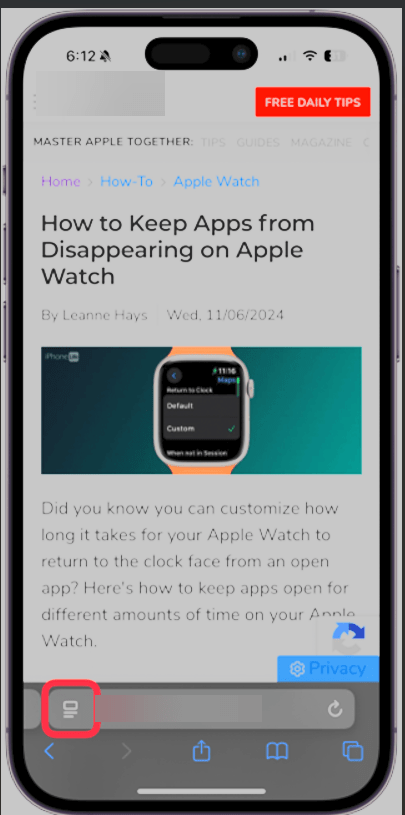
Now, tap the Reader Mode icon (the aA icon) in the upper left corner.

Note! For whatever reason. not all websites support the Reader view. Most likely because they do not want you to miss their advertisements.

See the following image:

Request Desktop 3
Selecting the Reader Mode icon

Next, tap the Request Desktop Website option. Refer to the below image:

Request Desktop 4
Selecting the Request Desktop Website option

You can now browse the desktop version of the website, taking advantage of any features that do not exist on the mobile site.

Now, if you want to switch back to the mobile site, with the webpage open, tap the Request Mobile Website option. See the below page:

Request Desktop 5
Selecting the Request Mobile Website option

Next, you may want to view the webpage automatically in Reader Mode. If so, while viewing the webpage, tap the Website Settings option. See the following image:

Request Desktop 6
Selecting the Website Settings option

Now, toggle Use Reader Automatically to ON then tap Done, Refer to the below image:

Request Desktop 7
Setting the Use Reader Automatically toggle to ON

Disclaimer

Technology is always changing. Rarely is there static tech for smartphones and desktops. Thus, the contents of this post are only valid at the time of writing. Blog posts older than six months may have directions incompatible with your device or OS. Hopefully, older post content will continue to work as advertised. Thank you for reading TechSavvy.Life for Technology at Work For You.

Success is not final, failure is not fatal: it is the courage to continue that counts.

Winston Churchill

You are finished. Please feel free to share this post! One way to share is via Twitter.

Just click the Tweet icon below. This will launch Twitter where you click its icon to post the Tweet.

Checkout TechSavvy.Life for blog posts on smartphones, PCs, and Macs! You may email us at contact@techsavvy.life for comments or questions.

Please feel free to leave a comment. I would love to hear from you. Do you have a computer or smart device tech question? I will do my best to answer your inquiry. Just send an email to contact@techsavvy.life. Please mention the device, app, and version you are using. To help us out, you can send screenshots of your data related to your question.

You can access the E-book from a Kindle device, or the Kindle App for a desktop or smartphone. The apps are free.
The author’s Vietnam eBook on the Battle for Tra Bong Vietnam: Events and Aftermath

How to Use Apple Maps For a City Flyover Tour on iPhone

The Apple Maps app’s Flyover feature provides an immersive 3D city tour experience. Users can select a city, initiate the tour, pause, and exit at will. This augmented reality feature offers a unique way to explore cities worldwide from the comfort of your home, with new cities continually being added.

RAYMOND OGLESBY @RaymondOglesby2
April 30, 2024

This is for the iPhone running iOS 17.3+. Screenshots are from iPhone 14 Pro running iOS 17.4

Did you know you can take a city tour from the comfort of your home with the Apple Maps app? Apple has a Flyover feature which allows you to view 3D modeling of large worldwide cities.

Flyover is an AR (augmented reality) feature to view a city in various ways as you move your iPhone around. For example, if you position your iPhone parallel to the floor, you can see a complete bird’s-eye view of cities such as New York, Florence, Paris, or Rome.

First, locate and open the Maps app. Refer to the below page:

Flyover 1
Selecting the Maps app

Next, search for a city, such as Paris, France. See the below image:

Flyover 2
Entering a City to flyover

Now, tap the Flyover button. See the following image:

Flyover 3
Selecting the Flyover option

Next, you will see an AR of the City! You can look around by turning your iPhone or by swiping the screen. Refer to the below image:

Flyover 4
AR view of your city

Now, tap Start Tour. See the below image:

Flyover 5
Selecting the Start Tour button

Next, you will view a tour around the city, stopping at various monuments and landmarks with the names listed at the bottom. See the following image:

Flyover 6
Viewing a specific site in your city

Now, you can pause the tour by tapping Pause Tour. Refer to the below image:

Flyover 7
Selecting the Pause Tour button

Next, you can also deviate from the tour if you would like to see something better. When you let go of the screen, the tour will continue. See the below image:

Flyover 8
A different view

You can exit the tour at any time by tapping the “X.” Icon. See the following image:

Flyover 9
Selecting to Exit the tour

Apple should continue adding more cities to the Flyover feature. You can also click to view the complete list of cities set up for the Flyover feature. 

Disclaimer

Technology is always changing. Rarely is there static tech for smartphones and desktops. Thus, the contents of this post are only valid at the time of writing. Blog posts older than six months may have directions incompatible with your device or OS. Hopefully, older post content will continue to work as advertised. Thank you for reading TechSavvy.Life for Technology at Work For You.

The true entrepreneur is a doer, not a dreamer.

Jan Bushnell

That’s it. Please feel free to share this post! One way to share is via Twitter.

Just click the Tweet icon below. This will launch Twitter where you click its icon to post the Tweet.

Checkout TechSavvy.Life for blog posts on smartphones, PCs, and Macs! You may email us at contact@techsavvy.life for comments or questions.

Please feel free to leave a comment. I would love to hear from you. Do you have a computer or smart device tech question? I will do my best to answer your inquiry. Just send an email to contact@techsavvy.life. Please mention the device, app, and version you are using. To help us out, you can send screenshots of your data related to your question.

You can access the E-book from a Kindle device, or the Kindle App for a desktop or smartphone. The apps are free.
The author’s Vietnam eBook on the Battle for Tra Bong Vietnam: Events and Aftermath

How to Get More Sound From Your iPhone

The feature “Late Night” enhances sound at lower volumes in Apple Music with iOS 17+ from the Settings app.

RAYMOND OGLESBY @RaymondOglesby2
April 23, 2024

This is for the iPhone with a subscription to Apple Music. Screenshots are from iPhone 14 Pro running iOS 17+

Late Night is so titled because it enables you to hear sound better at a lower volume. So if you have Late Night selected for your EQ setting, you will notice a small but significant difference in the loudness of music on your iPhone when using the Apple Music app. This tip is ideal when you are without headphones or a speaker. Let’s explore this simple feature.

First, open the Settings app and select Music. Refer to the below image:

Music 1
Selecting the Music option

Now, scroll down and tap EQ. See the below image;

Music 2
Selecting the EQ option

Next, from the list, select Late Night. See the following image:

Music 3
Selecting the Late Night sound

Just for fun, you may want to try out other EQ options.

Disclaimer

Technology is always changing. Rarely is there static tech for smartphones and desktops. Thus, the contents of this post are only valid at the time of writing. Blog posts older than six months may have directions incompatible with your device or OS. Hopefully, older post content will continue to work as advertised. Thank you for reading TechSavvy.Life for Technology at Work For You.

Farrah Gray

That’s it. Please feel free to share this post! One way to share is via Twitter.

Just click the Tweet icon below. This will launch Twitter where you click its icon to post the Tweet.

Checkout TechSavvy.Life for blog posts on smartphones, PCs, and Macs! You may email us at contact@techsavvy.life for comments or questions.

Please feel free to leave a comment. I would love to hear from you. Do you have a computer or smart device tech question? I will do my best to answer your inquiry. Just send an email to contact@techsavvy.life. Please mention the device, app, and version you are using. To help us out, you can send screenshots of your data related to your question.

You can access the E-book from a Kindle device, or the Kindle App for a desktop or smartphone. The apps are free.

The author’s Vietnam eBook on the Battle for Tra Bong Vietnam: Events and Aftermath

How to Dial an Extension and Save to Contacts on iPhone

This post provides instructions on how to dial an extension on an iPhone and how to add an extension to a phone number in iPhone Contacts.

RAYMOND OGLESBY @RaymondOglesby2
April 16, 2024

This is for the iPhone. Screenshots are from iPhone 14 Pro running iOS 17+

Do you regularly call extensions for your work or personal phone calls? If so, you are probably sick of dialing through phone trees to reach the person you want to reach. We will show you how to dial an extension on iPhone to skip the whole phone-tree nonsense, and how to add an extension to a phone number in Contacts for later use.

We will start by showing you how to dial an extension on your iPhone. Then, in the next section, we will cover how to add an extension to a phone number in iPhone Contacts.

  1. Open the Phone app, and tap the Keypad tab if it is not already selected.
  2. Dial the main number you are calling, then tap and HOLD the “*” key (asterisk) until a comma appears. The comma acts as a pause and lets your phone know it’s dialing an extension.
  3. Now enter the extension number after the comma.
  4. Tap the green phone Call button and you will dial straight to the person you are trying to reach.

Refer to the below image:

Extension 1
Dialing a phone number with an extension using the keypad

That’s all there is to it! Now, you know how to dial an extension on your iPhone.

If you plan to regularly call a phone number extension, you can save it in your Contacts. That way, the next time you go to dial the extension, it will already be saved as it needs to be dialed.

  1. Open the Contacts app.
  2. Tap on the contact if you want to add an extension. If you do not already have the number saved, simply create a new contact by tapping the “+” plus icon.
  3. Tap Edit in the upper-right corner.
  4. Tap the number you are adding the extension to, or tap the “+” icon next to the phone to add a new phone number for the contact.
  5. Tap the Symbols button on your keyboard.
  6. Now tap the Pause button.
  7. Now enter the extension.
  8. Tap Done to save.

See the below image:

Extension 2
Adding a phone number with an extension to a Contact

Now you can dial an extension before you even get to the operator, and you can also add an extension to a phone number in your iPhone Contacts.

Disclaimer

Technology is always changing and rarely is there static tech for smartphones and desktops. Thus, the contents of this post are only valid at the time of writing. Blog posts older than six months may have directions incompatible with your device or OS. Hopefully, older post content will continue to work as advertised. Thank you for reading TechSavvy.Life for Technology at Work For You.

Be undeniably good. No marketing effort or social media buzzword can be a substitute for that.

Anthony Volodkin

You are finished. Please feel free to share this post! One way to share is via Twitter.

Just click the Tweet icon below. This will launch Twitter where you click its icon to post the Tweet.

Checkout TechSavvy.Life for blog posts on smartphones, PCs, and Macs! You may email us at contact@techsavvy.life for comments or questions.

Please feel free to leave a comment. I would love to hear from you. Do you have a computer or smart device tech question? I will do my best to answer your inquiry. Just send an email to contact@techsavvy.life. Please mention the device, app, and version you are using. To help us out, you can send screenshots of your data related to your question.

You can access the E-book from a Kindle device, the Kindle App for the desktop or smartphone, which is a free app.

The author’s Vietnam eBook on the Battle for Tra Bong Vietnam: Events and Aftermath

How to Print Lists in iOS Reminders App

The post provides a tutorial for iPhone users on how to print lists from the Reminders app. It includes step-by-step instructions with images.

RAYMOND OGLESBY @RaymondOglesby2
April 9, 2024

This is for the iPhone running iOS 16 or above. Screenshots are from iPhone 14 Pro running iOS 17+

For those who love printing physical documents instead of staring at them on their iPhones, this Reminders app trick is a must-have! We will show you how to print lists from the Reminders app on your iPhone so you can check things off your to-do list.

First, open the Reminders app. Refer to the below image:

Print Notes 1
Open your Reminders app

Next, select the list you would like to print. See the below image:

Print Notes 2
Select your list

Now, tap the Nenu icon (the three dots) in the top-right corner of your screen. See the following image:

Print Notes 3
Select the Menu option

Next, tap Print. Refer to the below image:

Print Notes 4
Select the Print option

Now, if a printer is not already selected, tap Printer. See the below image:

Print Notes 5
Select the Printer option

Next, select the printer you would like to use. See the following image:

Print Notes 6
Select your Printer

Now, set the options you want to use for printing. Refer to the below page:

Print Notes 7
Select your Print options

Next, tap Print. See the below image:

Print Notes 8
Print your Reminders list

You can now bring your list to the store or give out physical to-do lists to your family members as needed.

Additionally, you can use the Print option in the Notes app to print a note list.

Disclaimer

Technology is always changing. Rarely is there static tech for smartphones and desktops. Thus, the contents of this post are only valid at the time of writing. Blog posts older than six months may have directions incompatible with your device or OS. Hopefully, older post content will continue to work as advertised. Thank you for reading TechSavvy.Life for Technology at Work For You.

 Make it happen now, not tomorrow. Tomorrow is a loser’s excuse.

Farrah Gray

You ar finished. Please feel free to share this post! One way to share is via Twitter.

Just click the Tweet icon below. This will launch Twitter where you click its icon to post the Tweet.

Checkout TechSavvy.Life for blog posts on smartphones, PCs, and Macs! You may email us at contact@techsavvy.life for comments or questions.

Please feel free to leave a comment. I would love to hear from you. Do you have a computer or smart device tech question? I will do my best to answer your inquiry. Just send an email to contact@techsavvy.life. Please mention the device, app, and version you are using. To help us out, you can send screenshots of your data related to your question.

You can access the E-book from a Kindle device, or the Kindle App for a desktop or smartphone. The apps are free.

The author’s Vietnam eBook on the Battle for Tra Bong Vietnam: Events and Aftermath

How to Delete All Facebook Messages/Chats at Once

The post discusses methods for deleting Facebook Messenger chats on iPhone and desktop. It advises changing message retention settings on the iPhone and provides steps for deleting messages on both platforms. It also mentions using Chrome extensions for bulk deletion.

RAYMOND OGLESBY @RaymondOglesby2
April 2, 2024

This is for the iPhone and desktop using Google. Screenshots are from iPhone 14 Pro running iOS 17.3 and Windows 10.

I was surprised at the number of Facebook Messenger chats on my iPhone. I started to delete them one at a time. But doing so was too time-consuming; there had to be a better way.

If you research this post, you will find articles that say bulk deletion of chats cannot be done. But with the help of Google Extensions, you can delete all your chats at once.

This blog post is one of my favorites, especially since I have thousands of chats that I want to delete. We had forgotten that the Forever option was selected, which as you may guess, saves your chats forever.

Where is a chat, a message, a conversation, or a thread used?

A chat is a term used in Messenger (owned by Facebook). A message is a term found on Facebook. In Facebook if there is more than one message with a person, group, or entity, that is labeled a conversation. For a thread, that is used in Reddit.

Why do you have hundreds or thousands of chats? On your iPhone head to:

Settings > Messages > Keep Messages

and tap the option. If the option is set to Forever you will have lots of chats. Refer to the below image:

FB Messages 1
Your Facebook Message time setting

We recommend you choose another option. When you do so, all older chats will be automatically deleted. We are selecting to delete messages older than one year. On the confirmation screen, tap Delete Older Messages. See the below image:

FB Messages 3
Selecting to delete messages older than one year

Your Keep Messages will now be set to the option you just chose. See the following image:

FB Messages 5
Your Keep Messages setting

Deleting Facebook messages does not have to be incredibly difficult. Whether you are deleting one or an entire history, there are options for you to do both with minimal effort.

Some users may find it easier to delete their entire Facebook account, although we do not recommend this. For now, let’s just clean up your messages/chats.

Deleting messages on an iPhone or iPad one at a time:

  • Open the Facebook Messenger app.
  • Tap and hold the message that you no longer want, then swipe to the left.
  • When the menu appears, select Delete.
  • Confirm the selection by tapping Delete.

If you want to delete in bulk, it would be best to use a browser.

  • Log into your Facebook account.
  • Click See all in Messenger.
  • Click on the 3-dot menu icon next to a conversation.
  • Click Delete Chat if you want to erase all the chats.
  • Confirm your deletion by clicking Delete Chat.

But what can you do about multiple messages and multiple conversations? For this, you have to install a third-party browser extension.

Extensions become a part of your web browser and allow you to perform various functions on a website. To delete multiple or all of your Facebook message history, we need to install a web browser extension.

Whether it’s Chrome, Firefox, or Internet Explorer, we will begin by using Google to pull up the Web Store.

Note! You will find a lot of Chrome extensions for deletion of messages. We strongly recommend only using the following extensions from the Chrome web store, not from third-party web sites.

You want to use Google Search to find the “Delete Facebook Messages” extension. Once you have found it, click Add to Chrome. Refer to the below image:

FB Messages 6
Adding Delete Facebook Messages Chrome extension

You will be prompted through various pop-ups until that extension is added. To view the added extension:

Click the 3-dot menu icon in the upper right-hand > Exenesions > Manage Extensions

See the below image:

FB Messages 7
Delete Facebook Messages Chrome extension

Now, let’s add the extension icon to the Chrome toolbar. Click the Details option. See the following image:

FB Messages 8
Selecting Details for the Chrome extension

Next, toggle the Pin to toolbar to ON. Refer to the below image:

FB Messages 9
Toggle Pin to toolbar to ON

Now, the Delete Facebook Messages icon will be in your toolbar. See the below image:

FB Messages 10
The Chrome extension icon

Next, click the Delete Facebook Messages icon and choose the Begin Deletion option. See the following image:

FB Messages 11
Launching the Chrome extension

Note! To use this extension more than once, there is a subscription fee.

To install the Chrome extension, search for Message Cleaner using Google Search, then select Add to Chrome. Refer to the below image:

B Messages 13
Adding the Message Cleaner Chrome extension

Follow the directions above to add its icon to the toolbar.

The extension icon will be labeled Delete all Facebook Messages in your Chrome toolbar. When you click the extension icon you can Open Messages and Delete All Messages. For one-click deletion, press the F8 key. See the below image:

FB Messages 12
Launching the Message Cleaner Chrome extension

This extension works best if you scroll down to the bottom of the message list. Once you start the extension, it will recognize all the messages as being selected for removal. You can also then pick individual messages that you may want to save.

If you selected “all” before clicking “confirm,” the only way to get those messages back is to ask the person you sent them to for help or to use data recovery methods to retrieve backed-up information, assuming you have them backed up.

Disclaimer

Technology is always changing. Rarely is there static tech for smartphones and desktops. Thus, the contents of this post are only valid at the time of writing. Blog posts older than six months may have directions incompatible with your device or OS. Hopefully, older post content will continue to work as advertised. Thank you for reading TechSavvy.Life for Technology at Work For You.

Discipline is the bridge between goals and accomplishment.

Jim Rohn

That’s it. Please feel free to share this post! One way to share is via Twitter.

Just click the Tweet icon below. This will launch Twitter where you click its icon to post the Tweet.

Checkout TechSavvy.Life for blog posts on smartphones, PCs, and Macs! You may email us at contact@techsavvy.life for comments or questions.

Please feel free to leave a comment. I would love to hear from you. Do you have a computer or smart device tech question? I will do my best to answer your inquiry. Just send an email to contact@techsavvy.life. Please mention the device, app, and version you are using. To help us out, you can send screenshots of your data related to your question.

You can access the E-book from a Kindle device, or the Kindle App for a desktop or smartphone. The apps are free.

The author’s Vietnam eBook on the Battle for Tra Bong Vietnam: Events and Aftermath