In Windows 10, it’s easy to enable and use a virtual device, like a keyboard. This is super handy if you have a touch screen device. There are times when using a mouse or touchpad is inconvenient and problematic with kids or pets squirming on your lap.
This how-to guide shows you how to enable and use the virtual interface built into Windows 10.
This is for Windows 10 operating system
Copyright Scott Adams, Inc./Distributed by Universal Uclick for UFS
Enable the Virtual Device
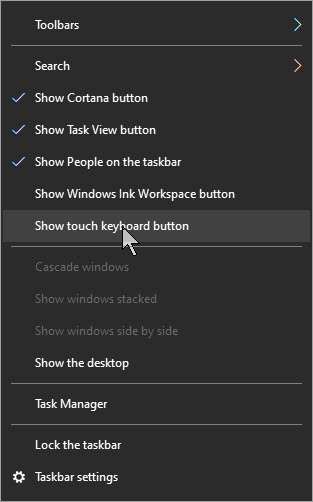
It’s super easy to enable the virtual interface. Just right-click on any open area of your Taskbar and select Show touch keyboard button. Refer to below image:
View the touch keyboard option
You should now see a keyboard icon in the Taskbar tray. See below image:
Showing the touch keyboard icon
Use the Virtual Device
To bring up a virtual keyboard, click on that icon.
If you have a touch display, you may now tap the keys with your finger or use your mouse or touchpad for selecting the keys. To close the virtual keyboard, click the X in upper right hand corner. See following image:
The default touch keyboard
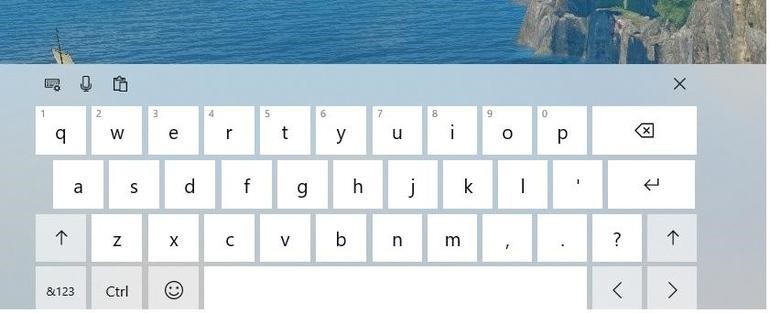
To change the default setting, you can tap or click one of the icons in upper left hand corner. There are three keyboard layouts to choose from, including a full QWERTY keyboard. See below image:
The QWERTY touch keyboard
You can opt to enable your microphone for the interface dictation or select one of the touchpad options. There is also an option to choose a different language for your virtual keyboard.
I Would Like to Hear From You
Please feel free to leave a comment. I would love hearing from you. Do you have a computer or smart device tech question? I will do my best to answer your inquiry. Please mention the device, app and version that you are using. To help us out, you can send screenshots of your data related to your question.
The author’s Vietnam eBook on the Battle for Tra Bong: Events and Aftermath
Several of the more powerful applications, tools and utilities available in Windows 10 are locked behind disabled settings and a labyrinth of configurations menus. We can reach some of these power tools through Developer Settings. Lets get started.
This is for Windows 10 devices
Copyright Scott Adams, Inc./Distributed by Universal Uclick for UFS
Access Developer Settings
Click the Start button
Select Settings (the gear icon)
Select Update & Security
Select For Developers
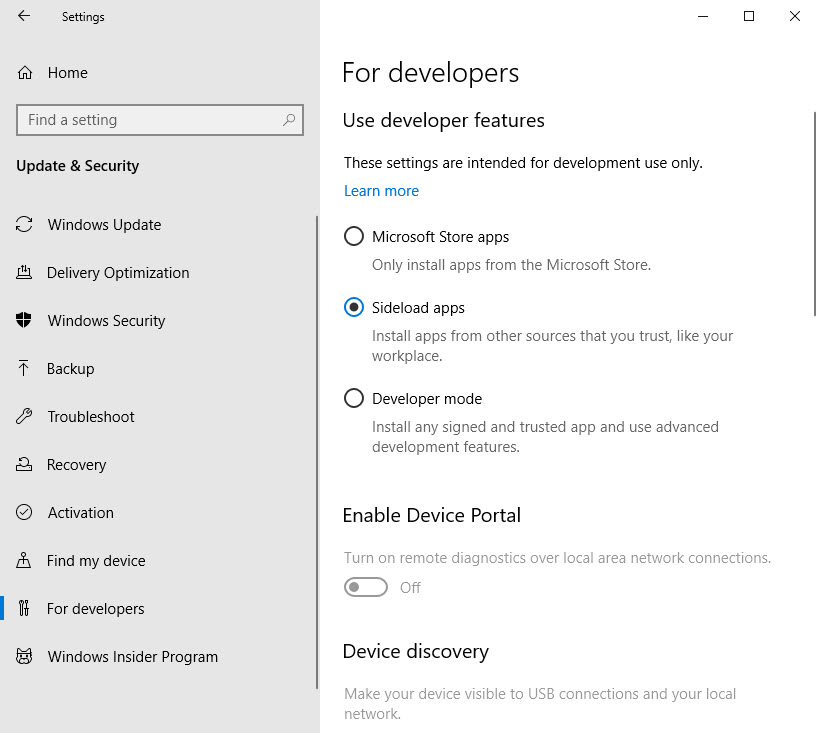
My wifes computer always wants to only install apps from the Microsoft Store. To turn this off, select Sideload apps which allows third party apps to be installed
I suggest you leave Developer mod setting disabled
Device Portal and Device Discovery is to see, configure and manage your PC remotely over a network or USB connection. Unless you have a need for this, leave the features unchecked. See following image:
For Developers screen
To view or change the other features, scroll down the right pane(For Developers)
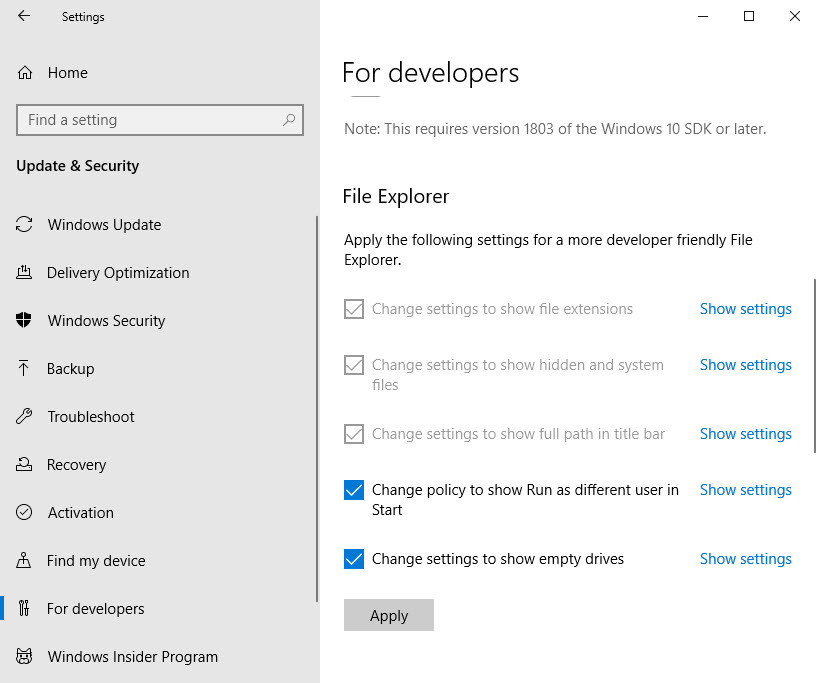
The File Explorer
Note! In the File Explorer, Remote Desktop and Powershell sections, click the Show Settings blue link to view or change the setting.If you change a setting, remember to click OK at the bottom of the dialog box to save your change.
These options will be familar to power users. The benefits of the settings are fairly self-explanatory. Refer to below image:
For Developers File Explorer screen
Click Apply to save any changes
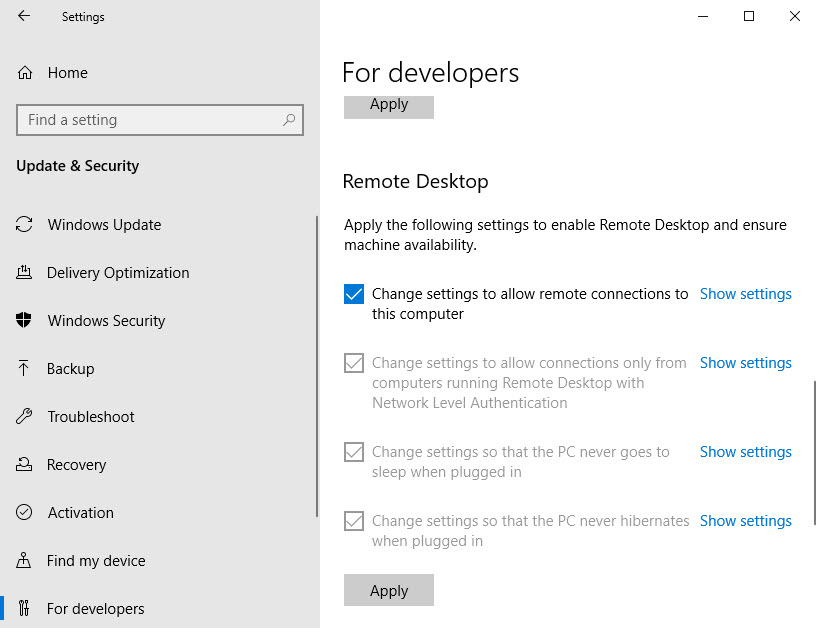
Remote Desktop Functions
Remote access to a workstation connected to a local enterprise network through a VPN is often required. To enable a secure remote connection, these settings must be enabled. See following image:
For Developers Remote Access screen
Click Apply to save any changes
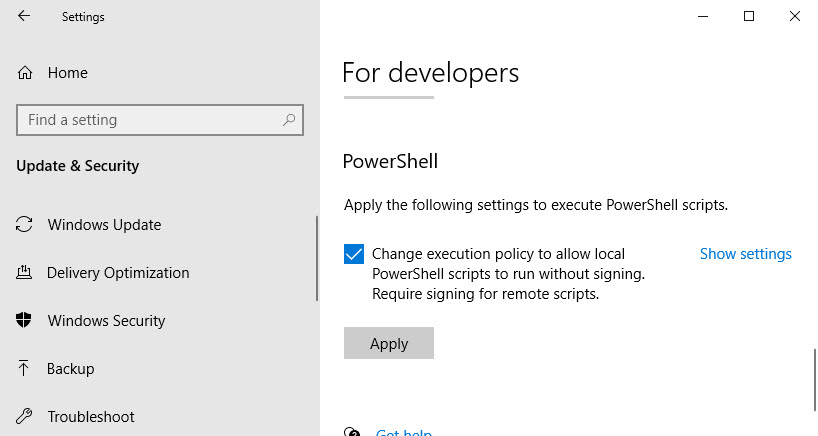
The Powershell
This allows developers to run special utility scripts that have no certificate associated with them. If you are not running Powershell scripts on a regular basis, its best to leave the setting disabled. Refer to following image:
For Developers Powershell screen
Click Apply to save any changes
While many of the configurationn settings located in the For Developers section can be managed from other configuration menus and screens, in Windows 10 they are conviently located in a central location. In previous versions of Windows, power users had to track down these settings. Now, they are in one place.
I Would Like to Hear from You
Please feel free to leave a comment. I would love hearing from you. Do you have a computer or smart device tech question? I will do my best to answer your inquiry. Please mention the device, app and version that you are using. To help me out, you can send screenshots of your data related to your question.
The author’s Vietnam eBook on the Battle for Tra Bong: Events and Aftermath
The Insert Key was needed in early versions of Windows. In our modern day of Windows, the key is no longer needed. Now, we just place our cursor where we want to insert text and start typing. If we use the Insert Key, our text is overwritten. This can be frustrating as we find ourselves clicking Undo and starting over.
Every key has a corresponding key scan code that tells Windows how to handle the keystroke. We can find this code and change it to a null character in the Windows Registry, which disables the key.
Instead of editing the Registry directly, we are going to use a free software utility to perform this task.
This is for desktop/laptop using Windows 10. SharpKeys will run on Vista through Windows 10.
Copyright Scott Adams, Inc./Distributed by Universal Uclick for UFS
Running Regbak Software
First, open and run the program. Next, click on the New Backup button to create a Registry backup. Refer to below image:
Selecting a new backup
A backup dialog box will appear. Here you can chose a Backup Folder. It is recommended you use the default. Next, give the backup a Description of your choice, then click Start. See below image:
Chosing the backup location and entering a description
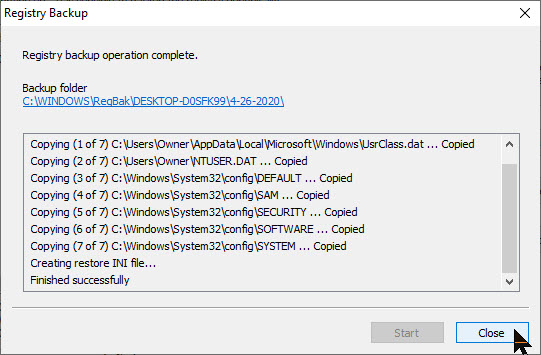
When the program has finished, you will receive a message at the top of the screen that the backup operation has completed. At the bottom of the dialog box, check for the mesage that the operation finished successfully. Now, click Close. See following image:
Completing the process
A final dialog box will appear showing your newly created Registry backup entry. Additionally, by highlighting an entry you can either Restore or Delete a Registry backup. Click Close to end the program. Refer to below image:
Exit the program
SharpKeys Overview
SharpKeys is free software for you to edit specific Registry entries. It uses a Graphical User Interface (GUI) to remap keys on your keyboard. This software makes it easy to edit the Registry without using the built-in Registry Editor. Using the Editor is time consuming and error prone.
Note! This program requires Administrative Privileges to run. Please open the program as an Administrator by right-clicking on the program under Start, and click on More > Run as Administrator.
Once the program is running, click the Add button. See below image:
Opening the program
Scroll through the list on the left and click on Special: Insert (E0_52). Next, click on Turn Key Off (00_00) from the list on the right. To remap the Insert Key, click OK. Refer to below image:
Selecting the Insert Key to be remapped
The value in parentheses is the key scan code associated with it. We are replacing the Insert Key code of E0_52 to a non-existence code of 00_00, which will disable the key.
Next, click the Write to Registry button. The software will add the new code for the Insert Key to the Registry for you. See following image:
Write the null key scan code to the Registry
To complete the process, click OK. Refer to below image:
Restart message
To exit the program, click Close. See below image:
Exit the program
For the changes to take effect, you will need to log out or restart your computer.
You can use SharpKeys to remap a host of other keyboard characters.
Undoing Your Change
If you have made no other changes, you can use Wise Registry Cleaner or Regbak to restore the Registry depending on which software you used to create a Registry backup. If you have made other changes and wish to restore the Insert Key function, those changes will be lost.
Another method is using the Registry Editor to reenable the Insert Key function. This method is very technical, frustrating and error prone; so I don’t recommend doing this.
I Would Like to Hear From You
Please feel free to leave a comment. I would love hearing from you. Do you have a computer or smart device tech question? I will do my best to answer your inquiry. Please mention the device, app and version that you are using. To help us out, you can send screenshots of your data related to your question.

The author’s Vietnam eBook on the Battle for Tra Bong: Events and Aftermath
Whenever you log-in to Windows 10, your name appears above the password entry. What if you want to change your name? This post addresses this issue.
Whether you use a local account or a Microsoft Account, it’s relative easy to change your display name.
This is for Windows 10 devices
Copyright Scott Adams, Inc./Distributed by Universal Uclick for UFS
Changing Your Display Name for a Microsoft Account
To change you name for a Microsoft Account, you need to open your account preferences on the Microsoft website.
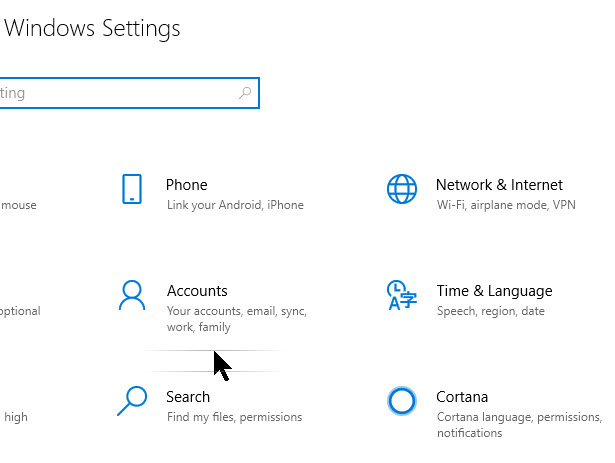
Opens the Settings app by pressing the Windows key+I or type in Settings in the Cortana search field, then click the Settings app at top of the screen. Then click on the Accounts option. Refer to below image:
Selecting your Accounts option
Below your name and photo, click on Manage my Microsoft account. See following image:
Selecting Manange my Microsoft account
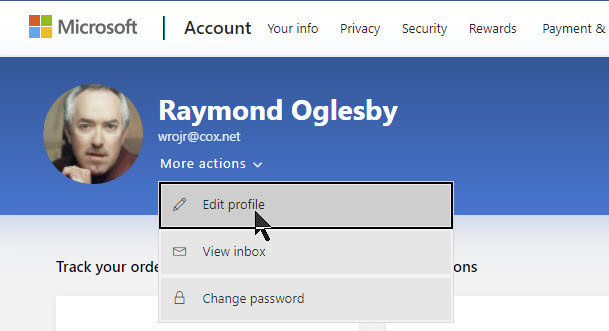
Signin to your Microsoft Account if not already signed. This will open your account preferences in your browser. After your browser opens, click the More Actions drop-down box, then click on Edit Profile from the options list. See below image:
Selecting Edit Profile
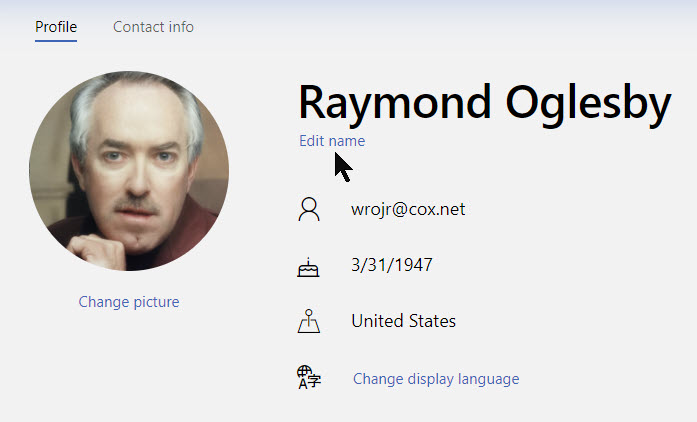
Below your name, click Edit Name. Refer to below image:
Selecting Edit your name
Enter your first and last name, solve the CAPTCHA challenge, then click Save to update your name. See following image:
Changing your firsr and/or last name and entering the CAPTCHA letters
When your Profile page reloads, it will update with the name change.
Note! When you change your Microsoft Account name, it changes on all devices that you use to log-in with this account.
For your new name to show on your Windows 10 log-in screen, you will have to log out of Windows 10. Be sure to save any unsaved work or applications before signing out.
Changing Your Display Name for a Local Account
A local account is a basic approach in using Windows 10. Local accounts don’t have the added features like syncing files, settings, browser history, etc. across multiple devices.
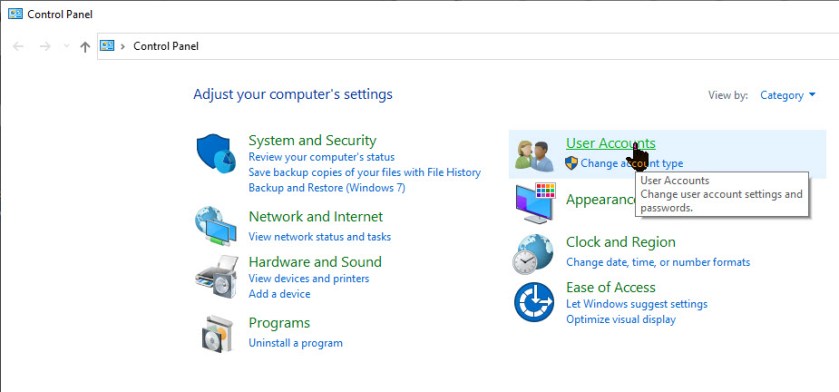
If you want to change your local account name, fire up the Control Panel. In the Cortana search box, type in Control Panel then click on the Control Panel app at the top of the screen.
Next click on the User Accounts option. Refer to below image:
Selecting User Accounts from the Control Panel
Now click on User Accounts one more time. See below image:
Selecting User Accounts again
Now, select Change your account name option to change your log-in name. See following image:
Selection for changing your account name
Note:If an organization manages your device or you don’t have administrator privileges, you won’t be able to change your name.
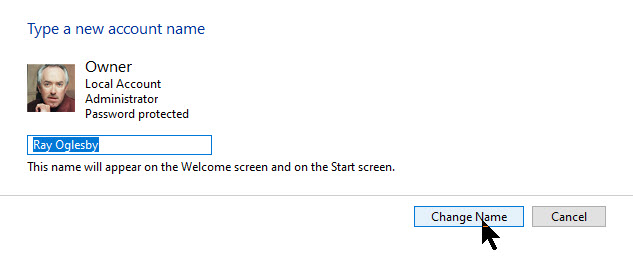
Enter the new log-in name into the text field, then click the Change Name button to save your changes. Refer to below image:
Changing your log-in name
You are done and may now close the Control Panel window. For your new name to show on your Windows 10 log-in screen, you will have to log out of Windows 10. Be sure to save any unsaved work or applications before signing out.
I Would Like to Hear From You
Please feel free to leave a comment. I would love hearing from you. Do you have a computer or smart device tech question? I will do my best to answer your inquiry. Please mention the device, app and version that you are using. To help me out, you can send screenshots of your data related to your question.
The author’s Vietnam eBook on the Battle for Tra Bong: Events and Aftermath
Your hard drive has been acting strange. It’s making clicking or screeching sounds, it’s unable to find files, crashes on boot, slow transfer speed or seems to be moving slowly. Your hard drive is dying.
Since it is a mechanical device it has moving parts unlike a Solid State Device (SSD) which has none. But even a SSD will eventually fail.
Even if your hard drive is healthy, over time, it will die. You should keep an eye on it’s health once in a while for your peace of mind. Let’s see how to do this.
This is for Windows 10 devices and Macs
Copyright Scott Adams, Inc./Distributed by Universal Uclick for UFS
To Tweet about this post, click the Tweet icon below to launch Twitter, then click its Tweet icon to post.
Check out TechSavvy.Life for their blog posts on smartphone apps, PCs. and Macs!
Most modern drives have a feature called S.M.A.R. T. (Self-Monitoring, Analysis and Reporting Technology) that monitors different drive attributes in an attempt to detect a failing disk. That way, your computer will automatically notify you before data loss occurs and the drive can be replaced while it still remains functional.
Check in Windows
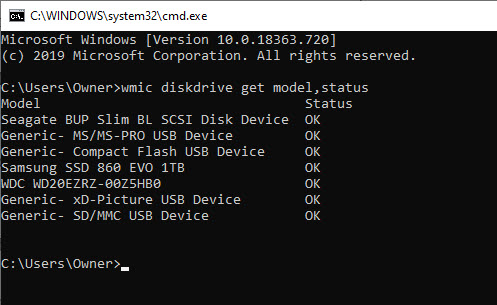
In Windows 10, you can manually check the S.M.A.R.T. status of your drives from the Command Prompt. Just right-click the Start button, select Run, and type “cmd“, then click OK or type “cmd” into the Cortana search bar, then click OK. In the Command Prompt pop-up box, type:
wmic diskdrive get model,status
It will return “Pred Fail” if your drive’s death is imminent; “Bad”, “Unknown” or “Caution” if its time to take care of a drive or “OK” if it thinks a drive is doing fine. Refer to below image:
Checking your hard drives health
Check on a Mac
On a Mac, you can check S.M.A.R.T. status by opening the Disk Utility program, clicking on the drive and looking at “S.M.A.R.T. Status” in the bottom left, which will either read “Verified” or “Failing”.
SMART Status can be Misleading
However, this basic S.M.A.R.T. information can be misleading. You only know when your drive is near death, but you can start to experience problems even if the basic S.M.A.R.T. status is okay.
You can also use Defraggler program I discussed in a previous post. When you use the Analyze feature of the program, it will show your disk health. Click here for the post on using Defraggler.
Manufacture Check
If you want an even deeper, more accurate picture into your drive’s health, check its manufacturer’s website for a dedicated tool; for example, Seagate has SeaTools for its drives, Western Digital has Data Lifeguard Diagnostic for its drives and Samsung has Samsung Magician for its SSDs. These tools can sometimes take into account certain technologies specific to their hard drives and SSDs.
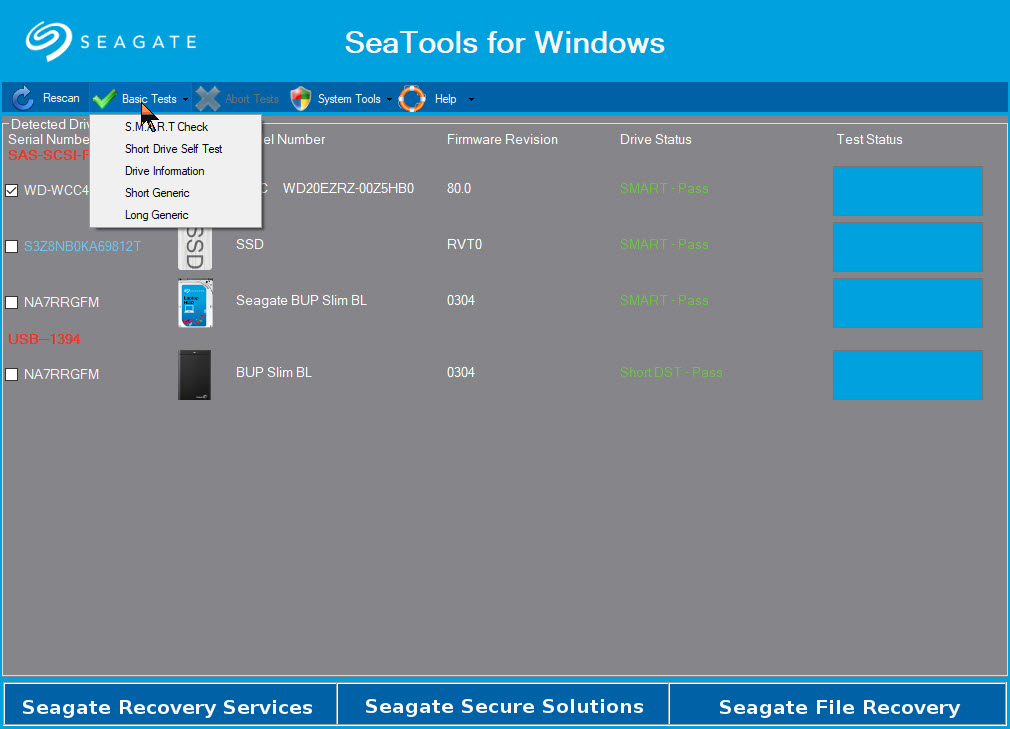
Note! You may find that the SeaTools (Seagate) utility is the only software you will need. In the below image, it can diagnose Samsung, Western Digital as well as Seagate using several methods:
SeaTools for Windows options
Is Your Drive Almost Dead
Drives with the “Pred Fail” status won’t necessarily fail tomorrow. They could chug along for a year or be dead as a doornail in a few days if not hours.
If you’re getting warnings, it’s time to back up your files before your drive fails. Failure to act may cost you serious money to recover your data.
Now is not the time for a full backup, however: you don’t want to stress the drive with too many reads or it could fail while you’re backing up. Instead, plug in an external drive and copy your most important files onto it; family photos, work documents and anything else that can’t easily be replaced. Then, once you know those are safe, you can try doing a full drive clone with something like EaseUS Todo Backup Free.
I got a S.M.A.R.T. status of “Pred Fail” on my main hard drive. I quickly backed up my important files to an external drive. I never finished before it died. I tried the trick off turning my desktop on its side, then upside down. I got a little more life from the hard drive. Then I removed the hard drive and gently shook the device. I could hear the spindle sliding; then I knew if was totally dead. But it’s worth trying this trick.
Is Your Drive Dead
If your hard drive has already stopped working, things get a lot tougher and you’ll probably need a professional data recovery service which can cost $1,000 or more. But if you have pricelrss data on the drive, it may be worth it to you.
Prepare for Hard Drive Failure
It’s not a matter of “if” your hard drive will fail; it’s a matter of “when”. All hard drives fail eventually and if you want to avoid losing all your important files, you absolutely have to back up your computer regularly; including when the drive is healthy.
Take some time to set up an automatic, cloud based backup like Google Backup and Sync using Google Drive. It is one of the best things you can do to protect yourself from heartache later on. Or at least back up to an external drive using Windows 10 built-in File History Tool.
If your drive failed catastrophically with no warning, you can get back up and running in no time by having an up-to-date backup.
That’s it. Please feel free to share this post! One way to share is via Twitter, as mentioned below.
I hope you have found this post helpful. If so, click the Tweet icon below. This will launch Twitter where you click its icon to post the Tweet.
I have found TechSavvy.Life blog posts extremely helpful. Check them out for posts on smart phone apps, Macs and PCs!
Please feel free to leave a comment. I would love hearing from you. Do you have a computer or smart device tech question? I will do my best to answer your inquiry. Please mention the device, app and version that you are using. To help me out, you can send screenshots of your data related to your question.
The author’s Vietnam eBook on the Battle for Tra Bong: Events and Aftermath
If you know the right keyboard shortcut and the right commands, the Windows 10 Run command can be a powerful tool. Lets explore 12 Run commands everyone should know.
With a simple keyboard shortcut and a few keystrokes, you can reach your destination before other users can click their mouse on the right icon.
The key is learning and knowing these common Run commands.
The examples are for Windows 10 operating system. Also works for Windows 7 and Windows 8.
Copyright Scott Adams, Inc./Distributed by Universal Uclick for UFS
Open the Run Command Dialog Box
To use these commands we need to bring up the Run command dialog box. There are two comman ways of doing this as follows:
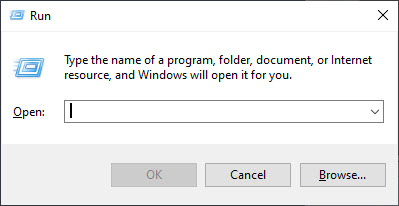
1. Right click the Start menu icon and select the Run command from a list 2. Use the keyboard shortcut by selecting and holding the Window icon button and press the “R” key. See following image:
The Run dialog box
You will simply enter your Run command and press the Enter key or press OK.
The Run Commands
Note! The quotation marks are for emphasis only; they are not part of the command itself and should not be included in the Run command box. Also, the Run remembers your command(s).
1.“\” – Open the default drive, usually drive “C“ This will display the contents of your default configuration to include your Quick Access library. The presumption is that this is where your documents, photos and other files can be most easily found. At times you may just want to open File Explorer to the main hard drive root folder.
2. “.” – Open the Home folder of the current user This command will open the Home folder for the current user.
3. “..” – Open the Users folder Typing two periods (“..”) will open File Explorer in the Users folder, giving quick access to all the user’s folders, providing you have the proper credentials. This is a good command for performing system administrative tasks.
4. “control” – Open the Control Panel Windows 10 has placed many of the common configuration settings into an area known as Settings, which can be found as an entry in the Start menu. While this is fine for many configuration settings, there are times when you have to load the full Windows 10 Control Panel. On those occasions, type control into the Run command box. Refer to below image:
The Control Panel
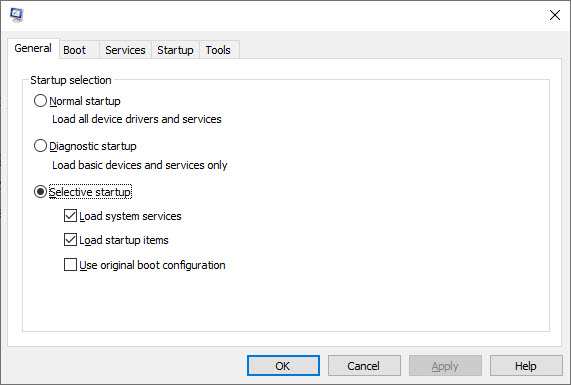
5. “msconfig” – Open System Configuration The System Configuration app is a holdover from previous versions of the Windows operating system, but it is still useful for Windows 10. This command will open an app that grants you access to boot variations including certain startup services during the boot sequence. Also, their are many options to view, add or change under the Tools tab. See following image:
System Configuration screen
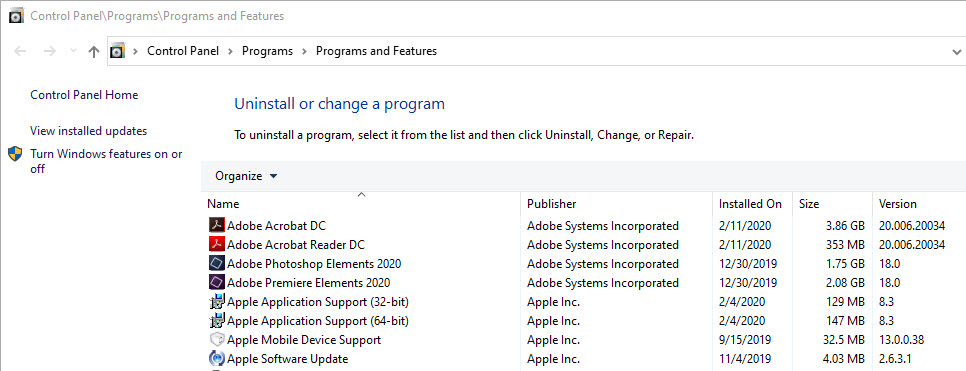
6. “appwiz.cpl” – Open Programs and Features Lets say you want to uninstall a program; you may use this command to do so. Although you can use the Control Panel command to accomplish this task, using this command is much faster. See below image:
Uninstall a program
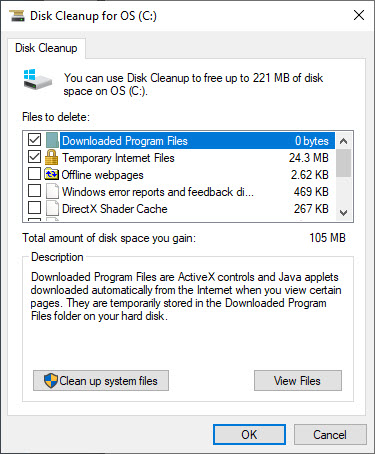
7. “cleanmgr” – Open Disk Cleanup utility Another holdover from previous versions of Windows is the Disk Cleanup utility. Most disk cleanup processes in Windows 10 are handled automatically behind the scenes, but there are occasions where you may want to perform disk cleanup manually. Refer to below image:
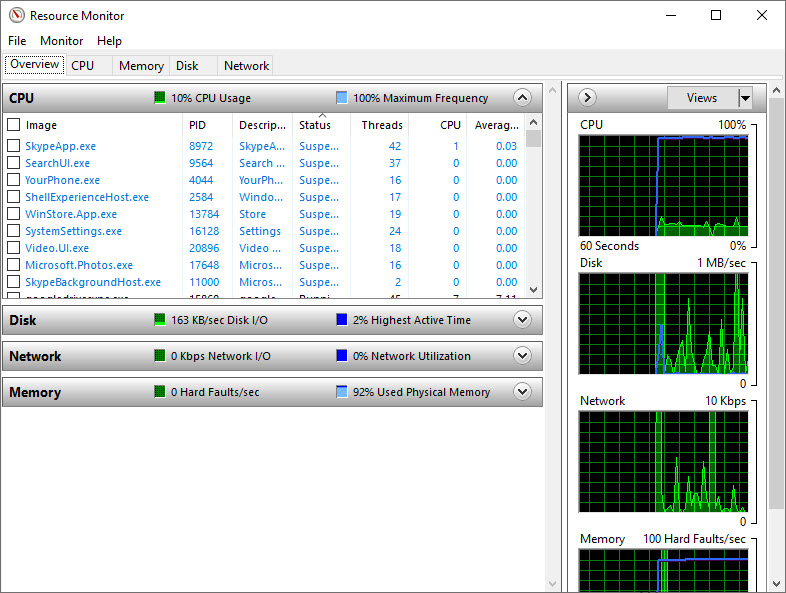
8. “resmon” – Open Resource Monitor A utility app that most users ignore, but really shouldn’t, is the Windows 10 Resource Monitor. If your PC starts lagging or the hard drive seems to be spinning up without cause, run this command and troubleshoot the problem. See below image:
The Resource Monitor
9. “calc”, “notepad”, “mspaint”, etc – Open common apps Another good use for the Run command is to start basic Microsoft applications that you may not use every day and don’t want on your desktop or taskbar but that you still use from time to time.
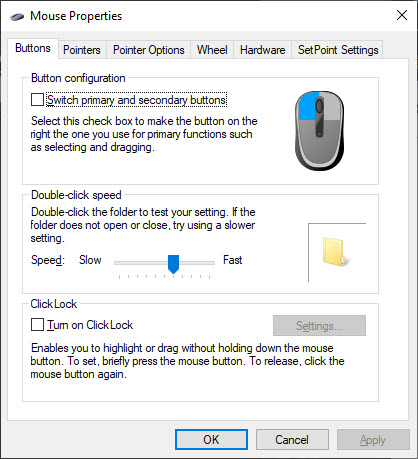
10. “main.cpl” – Adjust your mouse settings One of the first things you need to adjust on a new Windows 10 PC are the mouse settings. A mouse cursor that is too small or moves too slowly across the screen can be frustrating. This is fastest way to get to those settings. Refer to below image:
Settings for the mouse
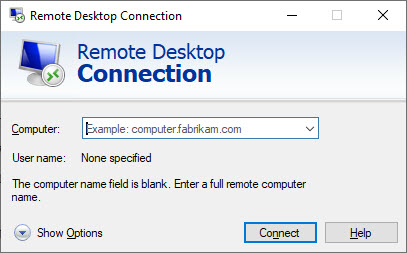
11. “mstsc” – Open Remote Desktop A modern workforce is a mobile workforce, which means many of us have to access our workstation PCs remotely using the Windows 10 Remote Desktop app. See following image:
Open Remote Desktop
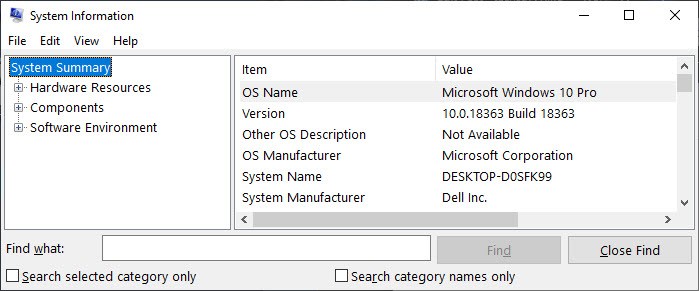
12. “msinfo32” – Access System Information While troubleshooting problems with help desks, it is not uncommon for the technician to ask for detailed system information. Rather than clicking through several different screens, use this Run command. Refer to below image:
System Ongormation scree
You Don’t Have to Remember the Commands
Tip: As you try these Run commands, you will notice that your previous entry is displayed. You can scroll through all previous commands by using the up and down arrow keys or click the drop down arrow to see your entries. This allows less keystrokes, faster access and best of all, you don’t have to memorize these Run commands. They are available even if you Shutdown or Restart your device.
Please feel free to leave a comment. I would love hearing from you. Do you have a computer or smart device tech question? I will do my best to answer your inquiry. Please mention the device, app and version that you are using. To help us out, you can send screenshots of your data related to your question.
The author’s Vietnam eBook on the Battle for Tra Bong:Events and Aftermath
I recently read a post about finding your Microsoft Windows 10 product key. Microsoft likes to hide it but there are occasions you need to know the key. The key is a 25-characters code, making it virtually impossible to remember.
This is for Windows XP through 10 devices
Copyright Scott Adams, Inc./Distributed by Universal Uclick for UFS
That post gave a long command to use and a complicated Visual Basic Script (vbs) from an unknown author to be saved as a text file to run. To make things even more complicated, using two methods, the author showed two different keys. But there is a pain free way to find the key that I posted about using Belarc Advisor. This free software program is among the best to provide a detailed inventory of your device’s hardware and software.
Scroll down the report till you see the Software Licenses section. There you will find your Windows product key plus other software keys. See below image:
I Would Like to Hear from You
Please feel free to leave a comment. I would love hearing from you. Do you have a computer or smart device tech question? I will do my best to answer your inquiry. Please mention the device, app and version that you are using. To help me out, you can send screenshots of your data related to your question.
The author’s Vietnam eBook on the Battle for Tra Bong: Events and Aftermath
We know we can pin Apps to the taskbar. But did you know you can pin your drives, both local and network drives. Instead of opening File Explorer and choosing a drive which requires two clicks, this can be done in one click from your taskbar.
This is for Windows 10 devices
Copyright Scott Adams, Inc./Distributed by Universal Uclick for UFS
Create a Shortcut for a Drive
Create a shortuct by a right click on the desktop. Then select New followed by Shortcut from the menu. Refer to below image:
Creating a shortcut
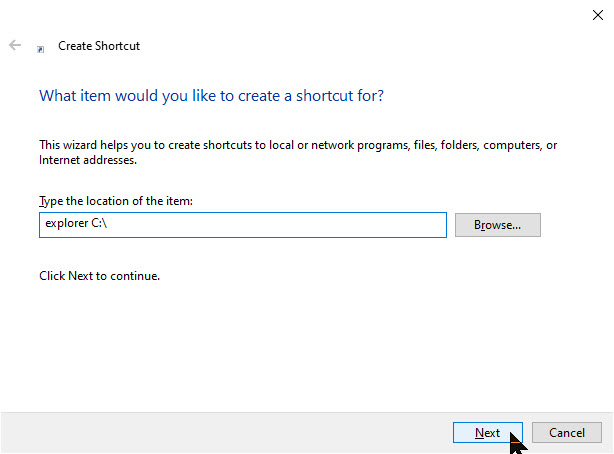
The shortcut wizard will appear. (If the wizard does not appear, you will have to manually edit the Shortcut tab.) In the field Type the location of the item, enter explorer C:\. See below image:
The first screen of the shortcut wizard
Click Next. Assign a name to the shortcut like Drive C. See following image:
The second screen of the shortcut wizard
To complete the wizard, click Finish. The shortcut will be displayed on your desktop. Right click on the the desktop shortcut and select Properties from the context menu to preview the shortcut. Notice the Target and Start in fields have been updated. See below image:
Setting up a shortcut for drive C
Change the Icon for the Shortcut
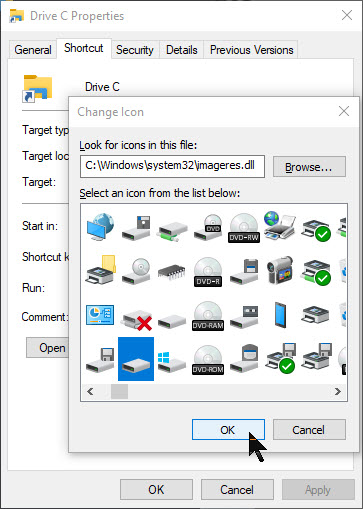
Again, right click on the shortcut and select Properties from the context menu. Go to the Shortcut tab and select Change Icon. You will see an Address field that denotes the default location of the icon. To change this, enter C:\Windows\system32\imageres.dll in the field. Refer to below image:
Changing the default location for the icon
Click OK. Look through the icons and choose the drive icon. You could also use your own custom icon. See following image:
Choosing the drive icon
Click OK to select the icon. Then click OK again to save your changes. Then right click on your desktop shortcut and select Pin to taskbar and/or Pin to Start from the context menu. See below image for the final result of pinning Drive C to the taskbar:
Drive C example pinned to the taskbar
From your taskbar, click the drive icon to open File Explorer for the designated drive. You may now delete the desktop shortcut.
If you are pinning multiple drives, it’s a good idea to use custom icons. If you go with the default icons, they will all look the same. You could hover your mouse over a pinned drive to reveal which drive will open or use a custom icon. Another idea is to remember which drive is which. To make the icons stand out, you could separate the pinned drives from your other apps by using taskbar dividers.
I Would Like to Hear from You
Please feel free to leave a comment. I would love hearing from you. Do you have a computer or smart device tech question? I will do my best to answer your inquiry. Please mention the device, app and version that you are using. To help me out, you can send screenshots of your data related to your question.
The author’s Vietnam eBook on the Battle for Tra Bong: Events and Aftermath
This post will show you how to allow easy access to your favorite websites. We will discuss adding a desktop shortcut for any website to your Windows 10 Taskbar or Start Menu.
This is for Windows 10 devices
Using Google Chrome
Navigate to the website you want to pin
Click the Menu icon (the one with the 3 dots) in upper right hand corner
Hover your mouse over More Tools
Click Create Shortcut
In the popup menu, change the name of the shortcut, if desired
Click Create. See below image:
Creating Desktop shortcut for pinning
This will create a desktop shortcut. Refer to below image for my techsavve.life shortcut at the bottom:
If you select the option Open in window, Chrome will open the page in its own window.
Right click on the shortcut and either click Pin to Start or Pin to taskbar. Once you have pinned the website for one or both ways, you can delete the desktop shortcut.
Using the new Microsoft Edge
The new Microsoft Chromium based browser works similar to Google Chrome. Yes, Microsoft has embraced the Chrome browser, even the version number is the same.
Navigate to the website you want to pin
Click the Settings and more icon (the one with the 3 dots) in upper right hand corner
Hover your mouse over More Tools
Click Pin to taskbar
The new Edge has a new feature called Launch taskbar pinning wizard. It is located just below Pin to taskbar in the menu dialog box.
Click the wizard. Edge will guide you through a short menu that lets you pin the most popular websites and Microsoft web apps to your taskbar. See below image for the first of the three screen wizard:
The Pin to to the taskbar wizard, one of three screens
Note! The new Edge does not have the feature Pin to Start
The Classic Edge
The classic version of Edge came with the original version of Windows 10. If you have yet to update to the new Edge, then use the following for pinning:
To pin the website to the Taskbar:
Navigate to the website you want to pin
Click the Menu icon (the one with the 3 dots) in upper right hand corner
Click Pin this page to the taskbar
To pin the website to the Start menu:
Navigate to the website you want to pin
Click the Menu icon (the one with the 3 dots) in upper right hand corner
Hover your mouse over More Tools
Click Pin this page to Start
You can now delete any created desktop shortcut(s).
I Would Like to Hear from You
Please feel free to leave a comment. I would love hearing from you. Do you have a computer or smart device tech question? I will do my best to answer your inquiry. Please mention the device, app and version that you are using. To help me out, you can send screenshots of your data related to your question.
The author’s Vietnam eBook on the Battle for Tra Bong: Events and Aftermath
If you forget your Windows 10 login PIN, you won’t be able to retrieve it. However, you can change it. If you don’t use a PIN, normally you would signin using a Password. There are other signin options, but the PIN and Password are the most commonuly used.
Using the PIN makes it much easier and faster to login. Before resetting you PIN, I advise you to create a Password Reset Disk.
I was using the guidelines in this post to reset my PIN. I canceled out of the process. That prompted Windows 10 to delete my PIN. I attempted to login with my PIN, but it was gone. Then, I tried using my Password, but I had the wrong Password. After spending an hour or so trying to login and reading help guidelines on my iPhone, I finally entered the correct Password and got past the Windows 10 login screen. In resetting your PIN, DO NOT CANCEL the process.
Even though this post is about resetting your PIN, you should create a Password Reset Disk to avoid the above nightmare.
Windows has a built-in application called Forgotten Password Wizard. This Password recovery tool is what you would use to create your Password reset disk.
This is for Windows 10 devices. To follow this blog post, you will need your Microsoft account Password and Windows 10 login Password.
Creating a Password Reset Disk
In the Cortona search box, type in Control Panel
Open the Control Panel
Click User Accounts
Click User Accounts. Refer to below image:
The Settings User Accounts screen
Insert a flash drive
Click the link Create a password reset disk. This will open the Forgotten Password Wizard. See below image:
Starting the Forgotten Password Wizard
To start, click Next. The wizard will walk you through the process. You will be asked to select the flash drive from a drop down menu where you want to store the reset disk. Click Next to proceed.
Then you will be asked to enter your current Windows Password. Enter your Password and click Next. See following image:
Entering your current Windows Password
You will be presented with a progress bar; once it reaches 100%, click Next, then click Finish. Refer to below image:
Finishing the Forgotten Password Wizard
At this point, you can check for a file called userkey.psw on your designated flash drive. See below image:
Locating your new Password Reset file
You can now remove the flash drive, label it and store in a safe place.
Using the Password Reset Disk
The next time you are locked out of your PC, plug in your USB flash drive and click Reset Password link. You may have to attempt your login a few times before you see the link. Select your disk from the drop down menu and click Next. You will be prompted to type your new Password and a Password hint. When you are done, click Finish.
You should now be able to sign into Windows with your new Password.
Reseting Your Windows 10 PIN When Not Signed In
This assumes you already have a PIN for your Windows 10 login. If not, refer to the section below about adding a PIN. Its best to change your PIN while you are logged on. If you are locked out of your PC and you have a PIN, you should see I Forgot My PIN link on the login screen. If so, click the link. You will be asked to enter your Microsoft account Password and how to send a new code. Once you have the code, input it and click Verify. Enter your new PIN twice and now you can use the new PIN when logging into your device.
Resetting Your Windows 10 PIN When Signed In
Click the Start button
Click the Settings tile (the one with the gear icon)
Click Accounts
Click Sign-in options. Refer to below screen:
The User Accounts sign=in options screen
Click Windows Hello PIN. See following image:
The Windows Hello PIN screen
Click I forgot my PIN link
You will be presented with an Are You Sure screen. Please read the info about resetting you PIN. If you are sure about doing this, click Continue. Refer to following image:
Are you sure you want to do this screen
At this point, DO NOT CANCEL the process. Next, you will be asked to enter your Microsoft account Password. Enter your Password and click Sign in. See following image:
Entering your Microsoft account Password
Now you will be asked to enter your new PIN twice. then click OK. Refer to below image:
Verifying your new PIN
You now have successfully changed your PIN. Simply use it the next time you login into Windows 10 on your device.
Adding a Windows 10 PIN When Signed In
Remember my nightmare story about losing my PIN. I finally got back into Windows through my Password. Adding a PIN is similar to resetting your PIN while signed in. Follow the steps preceeding the first screenshot above, then:
Click Windows Hello PIN. See following image:
The Windows Hello Pin screen
Click the Add button
Enter your Windows 10 login Password and click OK. Refer to below image:
Entering your Windows Password
Now you will be asked to enter your new PIN twice. then click OK. See following image:
Verify your new PIN
You now have successfully added a PIN. Simply use it the next time you login into Windows 10 on your device.
I Would Like to Hear from You
Please feel free to leave a comment. I would love hearing from you. Do you have a computer or smart device tech question? I will do my best to answer your inquiry. Please mention the device, app and version that you are using. To help us out, you can send screenshots of your data related to your question.

The author’s Vietnam eBook on the Battle for Tra Bong: Events and Aftermath