Apple’s new Adaptive Power mode in iOS 26 optimizes battery life by dynamically adjusting performance and resource allocation based on usage, unlike the Low Power Mode. It’s easy to enable on iPhone 15 Pro or later, requiring seven days to learn charging habits. This feature balances battery preservation with device performance effectively.
RAYMOND OGLESBY @RaymondOglesby2 November 4, 2025 – 4 minutes read time
Overview
One of the best practical uses of Apple Intelligence is the new Adaptive Power mode. Adaptive Power mode, new in iOS 26, allows your phone to adjust its resources and performance to optimize battery life during high-power use. It’s easy to turn on, and then you just let your iPhone do the rest.
Adaptive Power Mode enables your phone to adjust idoing things like automatically dimming your screen or slightly slowing down some apps. Unlike Low Power Mode, this mode does not go into power-saving measures 100% of the time. So, you can toggle this on and leave it running all the time, preserving performance when your phone is not working as hard and helping you prevent battery drain well before the little icon turns red. Let’s explore how to enable Adaptive Power Mode:
Key Takeaways
Find the perfect balance between performance and battery saving.
Allow your phone to adjust its settings based on your current usage.
System Requirements
This tip requires an iPhone 15 Pro or later running iOS 26. If you do not see the Power Mode option, you are using an older iPhone.
Click here to learn how to update your iPhone to the latest iOS version.
Enable Adaptive Power Mode
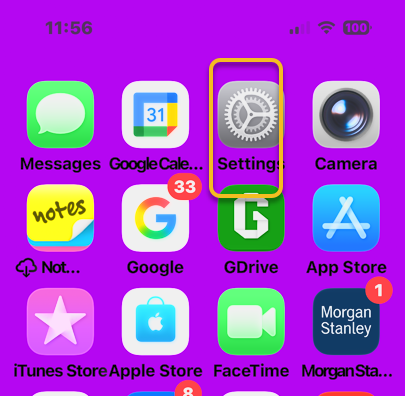
First. Ipen your Settings app. Refer to the image below:
Selecting Settings
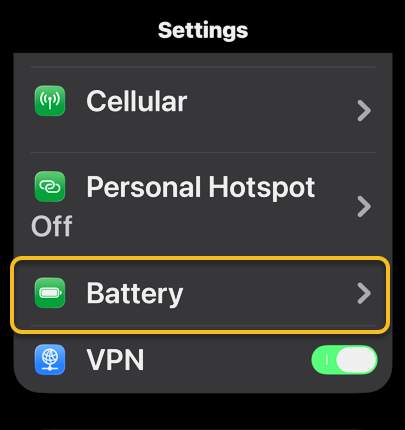
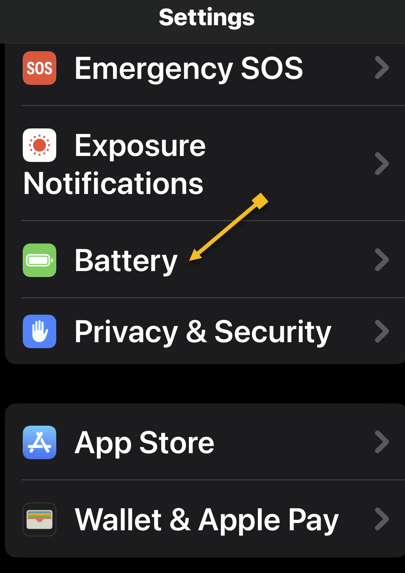
Next, tap Battery. See the image below:
Selecting the Battery option
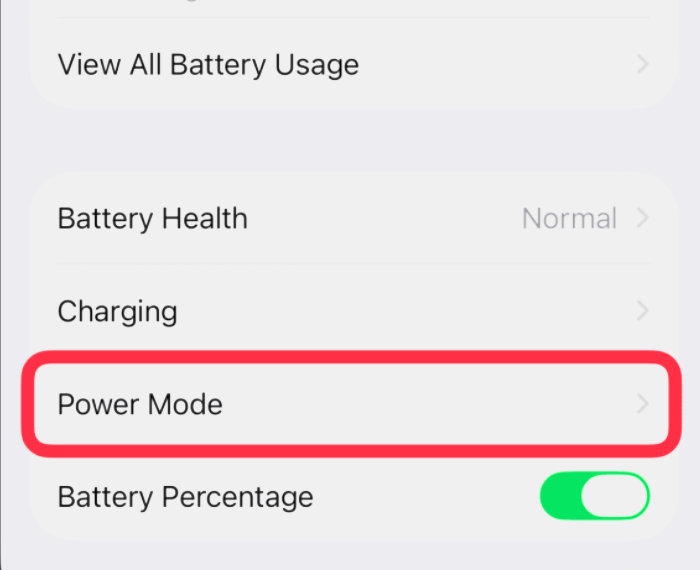
Now, tap Power Mode. See the following image:
Selecting Power Mode option
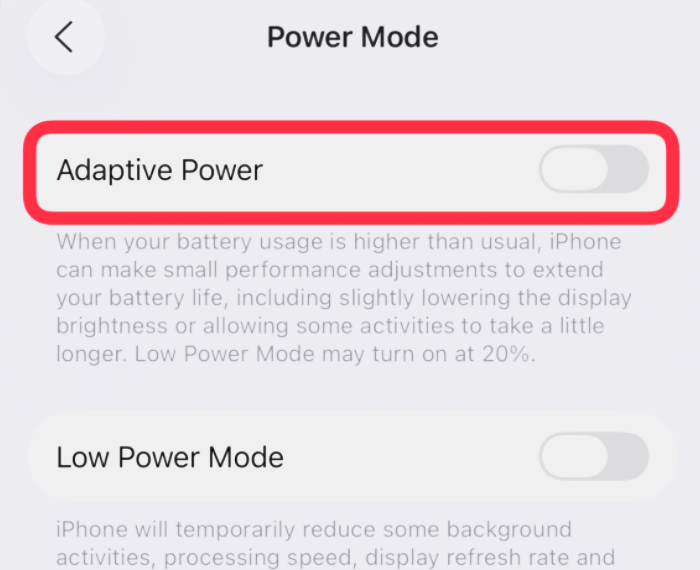
Next toggle on Adaptive Power. Refer to the image below:
Selecting Adaptive Power option
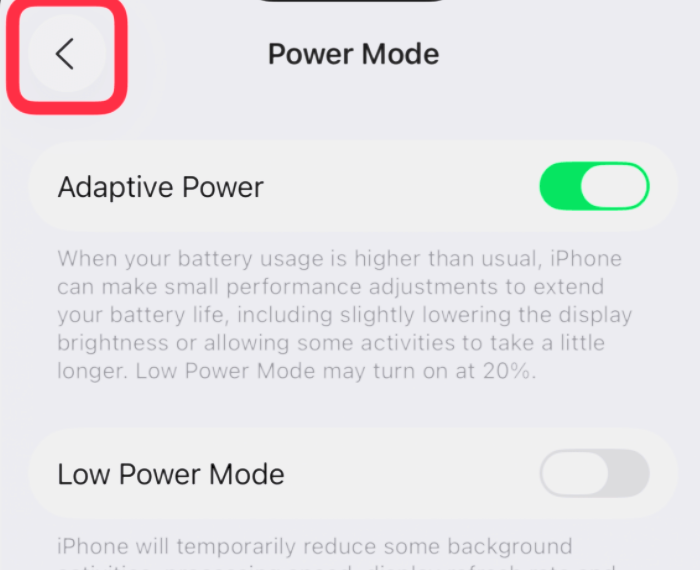
Now, tap the back arrow to return to Settings. See the image below:
Saving your setting
Note! Adaptive Power needs at least seven days to learn your charging habits, so it will not engage before then.
Now your iPhone will adjust its performance to optimize your battery when needed. If you want to turn this feature off, just follow the above steps and toggle Adaptive Power off instead.
Disclaimer
Technology is constantly evolving, and smartphone and desktop tech rarely remains static. Therefore, the information in this post is only accurate as of the date it was written. Blog posts that are older than six months may contain instructions that are no longer compatible with your device or operating system. We hope that the content from previous posts continues to function as intended. Thank you for reading TechSavvy.Life, where technology works for you.
Quote For the Day
When you innovate, you’ve got to be prepared for everyone telling you you’re nuts.”
– Larry Ellison, Co-founder of Oracle
(X) Twitter Info
That’s it. Please feel free to share this post! One way to share is via Twitter.
Just click the Tweet icon below. This will launch Twitter where you click its icon to post the Tweet.
Checkout TechSavvy.Life for blog posts on smartphones, PCs, and Macs! You may email us at contact@techsavvy.life for comments or questions.
We value your feedback! Was this post helpful? Please share your comments with us. If you have a tech question related to your computer or smart device, feel free to reach out. Just send an email to contact@techsavvy.life, and be sure to include the device, app, and version you are using. To assist us further, you can also attach screenshots related to your inquiry.
The author’s Vietnam eBook on the “Battle for Tra Bong Vietnam: Events and Aftermath” can be accessed from a Kindle device or the Kindle App for a desktop or smartphone. The apps are free.
The author’s Vietnam eBook on the Battle for Tra Bong Vietnam: Events and Aftermath
Apple faced backlash for slowing down older iPhone models to preserve battery life. Users can now monitor battery health and enable optimized battery charging to prolong battery lifespan. Additionally, they can track battery usage by app and learn to conserve battery and prevent overheating.
RAYMOND OGLESBY @RaymondOglesby2 September 17, 2024 – 4 minutes read time
Overview
Apple landed in hot water with customers several years ago when a feature designed to slow the processors of older iPhone models to keep them from suddenly shutting down came to light. Critics maintained that Apple was throttling the speed of earlier iPhone models to push customers toward newer devices. At the same time, Apple insisted that the feature was necessary to cope with aging batteries. Now, Apple lets users monitor the health of their iPhones’ battery. Let’s explore this feature.
System Requirements
This post works on iPhones running iOS 15 or later
Click here to learn how to update your iPhone to the latest iOS version.
Check Battery Health
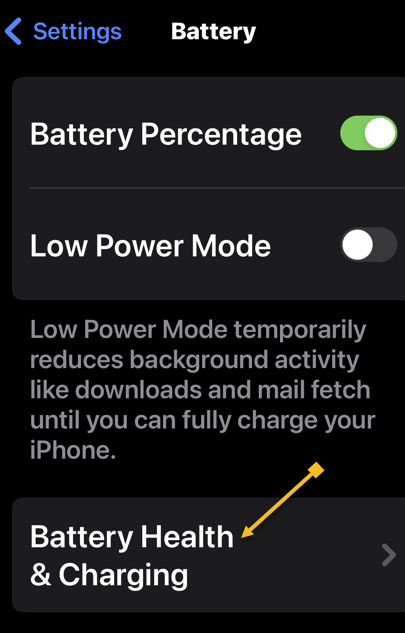
First, open the Settings app, and tap on Battery. Refer to the below image:
Accessing the Battery option
Next, tap on Battery Health & Charging. See the below image:
Accessing the Battery Health option
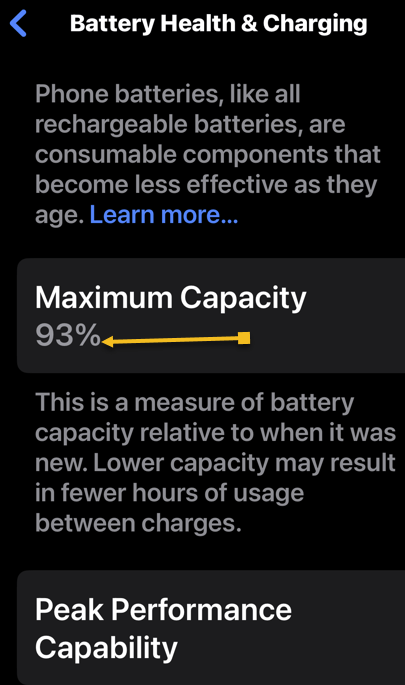
Now, you will see your battery capacity next to Maximum Capacity. See the following image:
Viewing the Maximum Capacity of the battery
The Maximum Capacity tells you your iPhone battery’s capacity compared to its capacity when it was brand new. For example, if your Maximum Capacity is 85%, that is all your battery can charge. On this screen, you can also enable Optimized Battery Charging, which reduces aging by optimizing how your battery behaves when charging. Refer to the below image:
Enabling Optimized Battery Charging
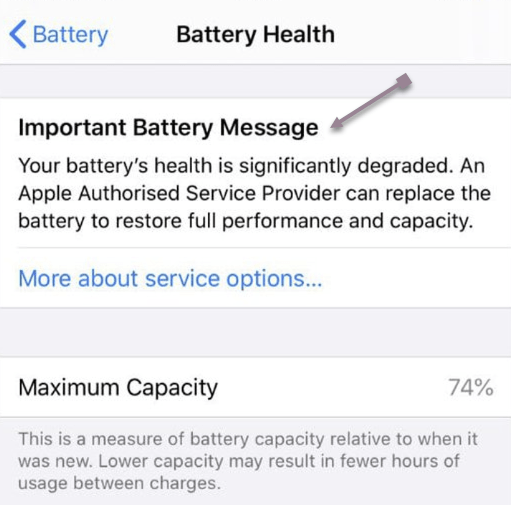
If your battery’s Maximum Capacity has dropped below 80%, a message like this will pop up on your screen if you experience an unexpected shutdown. See the below image:
Viewing Battery Health degradation warning message
You can tap Disable to turn off battery throttling on your iPhone or you may want to consider replacing your battery to improve your iPhone’s performance and the amount of time it can operate between charges.
Track Battery Usage by App
To view your battery usage by app, go back to:
Settings > Battery
Swipe down on the Battery settings screen and you will discover battery usage by app, starting with the biggest battery hogs. By default, the tool shows you the percentage of battery charge by each app. Tap Show Activity or a specific app, and the information changes to display the time the app has used the battery, both in the foreground and background. See the following image:
Viewing Battery Usage
Conserve Battery
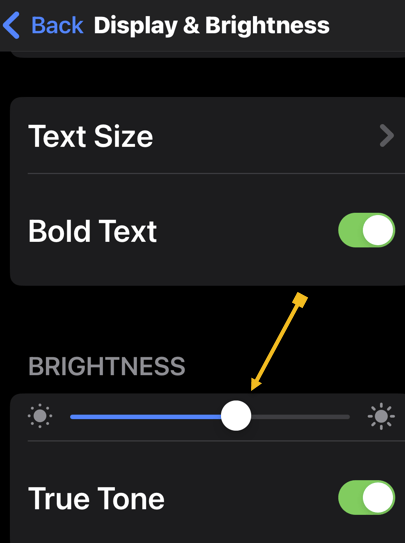
Besides Optimized Battery Charging you can conserve your battery, turning down the brightness of your screen will increase battery health. To adjust the screen brightness, head to:
Settings > Display & Brightness
and moving the slider. Refer to the below image:
Turning down Brightness to conserve battery usage
Keep Your iPhone Cool
Using your iPhone in hot conditions can permanently shorten battery life. Store your device where the temperature is between -20º and 45º C (-4º to 113º F). Do not leave your device in your car, because temperatures in parked cars can exceed this range.
If your device gets too warm or too cold, certain features might become temporarily disabled. In extreme conditions, your device might become temporarily disabled. A temperature warning screen will be displayed. See the below image:
iPhone is too hot warning message
Disclaimer
Technology is always changing. Rarely is there static tech for smartphones and desktops. Thus, the contents of this post are only valid at the time of writing. Blog posts older than six months may have directions incompatible with your device or OS. Hopefully, older post content will continue to work as advertised. Thank you for reading TechSavvy.Life for Technology at Work For You.
Quote For the Day
The real secret to a life of abundance is to stop spending your days searching for security and to start spending your time pursuing opportunity.
Robin S. Charma
X (Twitter) Info
That’s it. Please feel free to share this post! One way to share is via Twitter.
Just click the Tweet icon below. This will launch Twitter where you click its icon to post the Tweet.
Checkout TechSavvy.Life for blog posts on smartphones, PCs, and Macs! You may email us at contact@techsavvy.life for comments or questions.
Was this post helpful? We would love to hear your comments. Do you have a computer or smart device tech question? I will do my best to answer your inquiry. Just send an email to contact@techsavvy.life. Please mention the device, app, and version you are using. To help us, you can send screenshots of the data related to your question.
The author’s Vietnam eBook on the “Battle for Tra Bong Vietnam: Events and Aftermath” can be accessed from a Kindle device or the Kindle App for a desktop or smartphone. The apps are free.
The author’s Vietnam eBook on the Battle for Tra Bong Vietnam: Events and Aftermath
Low Power Mode on iPhone reduces features to save battery. To enable, go to Settings>Battery and toggle Low Power Mode on, or add it to Control Center for quick access.
This is for the iPhone. Screenshots are from iPhone 14 Pro running iOS 17.5+
When Low Power Mode is enabled, the Battery icon at the top of your phone will appear yellow, and features like mail fetch, background app refresh, automatic downloads, and some visual effects will be reduced or disabled until it is turned off. There are two primary ways to turn on Low Power Mode.
Use Settings
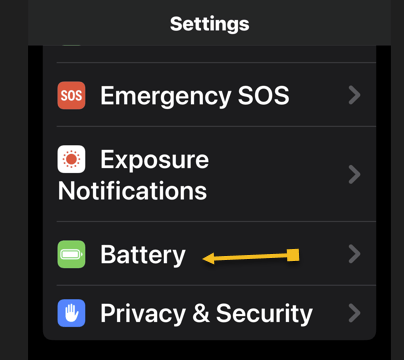
First, open Settings and tap the Battery option. Refer to the below image:
Selecting the Battery option
Now, toggle the Low Power Mode to ON. See the below image:
Turning the Low Power Mode to ON
Use the Control Center
If you want quick and easy access to the Low Power Mode setting but do not want to go into your Settings and scroll to access it, let’s add it to your Control Center.
First, open Settings and tap the Control Center option. See the following image:
Selecting the Control Center option
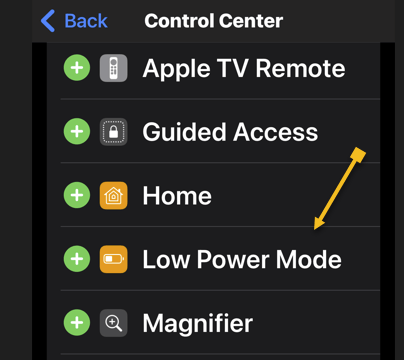
Next, tap Low Power Mode to add it to your Control Center. (If you see a red minus sign instead of a green plus side here, it means Low Power Mode is already in your Control Center.) Refer to the below image:
Selecting to add Low Power Mode to Control Center
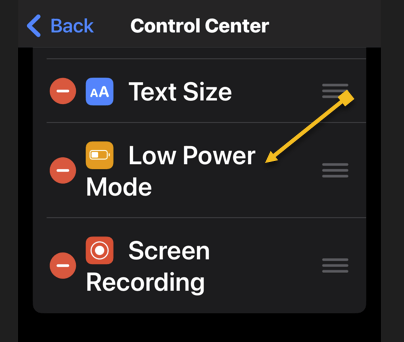
When added, the option will be in your Control Center. See the below image:
Low Power Mode added to Control Center
Next, swipe down from the top right of the screen. See the following image:
Accessing the Control Center by swiping down
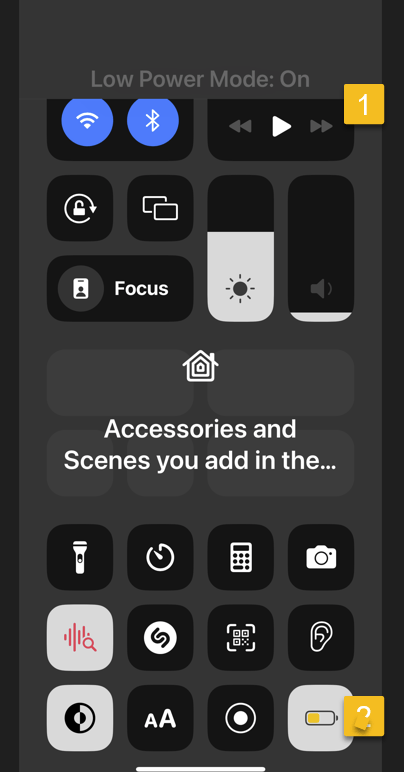
Now, tap the Battery icon to toggle Low Power ModeON or OFF. At the top of your screen, you will see the option status. Refer to the below image:
Toggle on pr pff Low Power Mode from the Control Center
What Does Low Power Mode Do
Your iPhone’s Low Power Mode does many things to save battery power. It automatically changes some settings to save battery power, like disabling the automatic fetching of new mail, reducing your screen brightness, and automatically locking the phone and powering off its display more quickly. Apps can detect low power mode is enabled and choose to disable animations and other battery-hungry features, too.
Motion effects and animated wallpapers are also disabled. Background activities and networking are paused to prevent unnecessary power drain in the background. Your iPhone even automatically reduces the performance of its CPU and GPU, which makes it perform a bit slower but saves battery life. Tests have found that this slows iPhones by about 40 percent when Low Power Mode is enabled.
By entering Low Power Mode you will save some battery life until you can get to your charger.
Disclaimer
Technology is always changing. Rarely is there static tech for smartphones and desktops. Thus, the contents of this post are only valid at the time of writing. Blog posts older than six months may have directions incompatible with your device or OS. Hopefully, older post content will continue to work as advertised. Thank you for reading TechSavvy.Life for Technology at Work For You.
Quote For the Day
If you can’t do great things, do small things in a great way.
Napoleon Hill
Tweet Info
That’s it. Please feel free to share this post! One way to share is via Twitter.
Just click the Tweet icon below. This will launch Twitter where you click its icon to post the Tweet.
Checkout TechSavvy.Life for blog posts on smartphones, PCs, and Macs! You may email us at contact@techsavvy.life for comments or questions.
Was this post helpful? We would love to hear your comments. Do you have a computer or smart device tech question? I will do my best to answer your inquiry. Just send an email to contact@techsavvy.life. Please mention the device, app, and version you are using. To help us out, you can send screenshots of your data related to your question.
This is for the iPhone. Screenshots are from iPhone 14 Pro running iOS 17+
If you struggle to make it through the day or just want to improve your iPhone battery a little, here is one thing you can do.
It all comes down to your phone’s Wi-Fi settings.
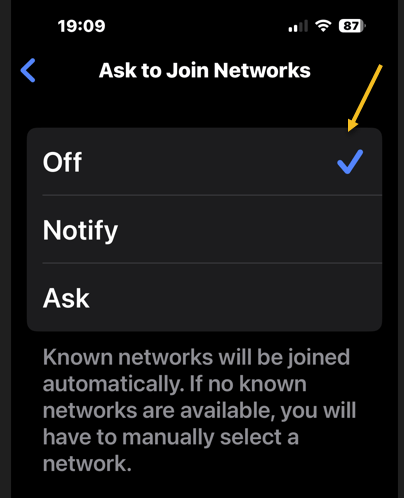
Some settings can search for open wireless networks and even notify you when one is available. This setting allows you to connect to open Wi-Fi networks easily, but it does come with a huge disadvantage; it leaves your phone constantly searching for those open networks throughout the day.
While it is not going to drain your battery extremely fast, using the Ask to Join Networks feature can drain your battery a little. By default, Apple has the iPhone set up to Notify you when an open network is available. However, you can turn this off to save power and improve your iPhone battery.
To turn off the Ask to Join Networks feature, head to:
Settings> Wi-Fi > Ask to Join Networks
This option is below the Other Networks section. If it is not set to off, tap on the option and then select OFF from the drop-down that appears to disable the feature. Refer to the below image:
Setting Ask to Join Networks to OFF
Disclaimer
Technology is always changing and rarely is there static tech for smartphones and desktops. Thus, the contents of this post are only valid at the time of writing. Blog posts older than six months may have directions incompatible with your device or OS. Hopefully, older post content will continue to work as advertised. Thank you for reading TechSavvy.Life for Technology at Work For You.
Quote For the Day
Should you find yourself in a chronically leaking boat, energy devoted to changing vessels is likely to be more productive than energy devoted to patching leaks.
Warren Buffett
Tweet Info
That’s it. Please feel free to share this post! One way to share is via Twitter.
Just click the Tweet icon below. This will launch Twitter where you click its icon to post the Tweet.
Checkout TechSavvy.Life for blog posts on smartphones, PCs, and Macs! You may email us at contact@techsavvy.life for comments or questions.
Please feel free to leave a comment. I would love to hear from you. Do you have a computer or smart device tech question? I will do my best to answer your inquiry. Just send an email to contact@techsavvy.life. Please mention the device, app, and version you are using. To help us out, you can send screenshots of your data related to your question.
Author’s E-Book
You can access the E-book from a Kindle device, the Kindle App for the desktop or smartphone, which is a free app.
The author’s Vietnam eBook on the Battle for Tra Bong Vietnam: Events and Aftermath
Have you ever wanted to check how long it would take for your iPhone or iPad to charge completely? Maybe, you do not like to frequently check how much your device has charged? Well, this particular iOS shortcut intends to do just that. It’s pretty simple to set up and use on your device.
This is for iPhone and iPad. Screenshots are from iPhone 14 Pro running iOS 16+
Have you ever wanted to check how long it would take for your iPhone or iPad to charge completely? Maybe, you do not like to frequently check how much your device has charged? Well, this particular iOS shortcut intends to do just that. It’s pretty simple to set up and use on your device.
Anyone could estimate that your iPhone can fully charge from 0 to 100% in roughly about 2-3 hours. But, this is a very rough estimation. The actual time it takes could vary anywhere between two and three hours, or sometimes even lower depending on whether you have enabled Airplane mode or not. The Charge Time iOS shortcut can make a far more approximate guess from the current battery percentage and tell you how long it’d take to fully charge if you plug it in.
Check Your Charging Time
For those unaware, the Shortcuts app is one of the stock apps for devices running iOS 13/iPadOS 13 or later. We will be using the Shortcuts app to determine the charging time for your device.
First, head to this Charge Time link and tap Get Shortcut to download the shortcut on your iPhone or iPad. This shortcut is not available on the App Store nor is it pre-loaded on your device. You can use the link above or perform a Google search to locate the shortcut.
There are other charging time shortcuts from various sources. This post is only for the Charge Time shortcut as mentioned above.
Note! You may receive a screen asking to enable cookies and other data. Select the items you wish to share.
Refer to the below image:
Get the shortcut
Next, the Shortcuts app will launch on your device and display the Charge Time shortcut. At the bottom, tap on Add Shortcut to proceed. See the below image:
Add the shortcut
Now, this will install the shortcut and add it to the All Shortcuts and My Shortcuts gallery. See the following image:
Added shortcut
Next, tap on the Charge Time shortcut to reveal its menu. From here, tap the Details option. Refer to the below image:
Accessing shortcut options
Now, tap the Add to Home Screen link. See the below image:
Add the shortcut to your Home screen
Next, a preview screen will display the Charge Time shortcut. At the top of this screen, tap Add. See the following image:
Shortcut preview screen
Now, the Charge Time shortcut will be added to your Home screen (the first empty space it finds). Refer to the below image:
Shortcut added to your Home screen
Next, simply tap on the Charge Time icon. You will get a pop-up message at the top of your screen stating how long it will take for your device to charge to 100%. Tap Done or Cancel (depending on if you have made any changes) to close the pop-up. See the below image:
Results of running your shortcut
Before closing the pop-up message, you have more options. Long press on the pop-up message. At the top of the screen, you will notice a down arrow next to the message.
If you say, “Hey Siri, Charge Time”; the shortcut will run but you are unable to use a long press on the pop-up message to view options.
See the following image:
Accessing the drop-down arrow
Now, tap on this down arrow to upload as a text document, save to Files or Print. Finally, to exit, tap Done. Refer to the following image:
Options for the shortcut
That’s pretty much all you have to do.
Charge Time Is An Estimate
It’s important to note the result you get is just an approximate value and not completely accurate to the minute.
As useful as this shortcut is, we would like to point out that there’s one major downside to it. This might be a dealbreaker for a lot of users. The Charge Time shortcut only takes into account the standard charger that comes in the box with your iPhone. Nowadays, people use fast chargers, wireless chargers, or even MagSafe to charge their iPhones, and if you are one of them, this shortcut will not be helpful.
Having said that, there are still plenty of iPhone owners who did not purchase the optional fast charger and instead use the one that came in the box, so it’s not like the shortcut is useless at all. Hopefully, this shortcut was useful for you.
Disclaimer
Technology is always changing and rarely is there static tech for smartphones and desktops. Thus, the contents of this post are only valid at the time of writing. Blog posts older than six months may have directions incompatible with your device or OS. Hopefully, older post content will continue to work as advertised. Thank you for reading TechSavvy.Life for Technology at Work For You.
Quote For the Day
Customers don’t care about your solution. They care about their problems.
Dave McClure
Tweet Info
That’s it. Please feel free to share this post! One way to share is via Twitter.
Just click the Tweet icon below. This will launch Twitter where you click its icon to post the Tweet.
Checkout TechSavvy.Life for blog posts on smartphones, PCs, and Macs! You may email us at contact@techsavvy.life for comments or questions.
Please feel free to leave a comment. I would love to hear from you. Do you have a computer or smart device tech question? I will do my best to answer your inquiry. Just send an email to contact@techsavvy.life. Please mention the device, app, and version you are using. To help us out, you can send screenshots of your data related to your question.
Author’s E-Book
You can access the e-book from a Kindle device, the Kindle App for the desktop or smartphone, which is a free app.
The author’s Vietnam eBook on the Battle for Tra Bong Vietnam: Events and Aftermath
Copyright Scott Adams, Inc./Distributed by Universal Uclick for UFS Let’s explore these myths.
This is for smartphones
Copyright Scott Adams, Inc./Distributed by Universal Uclick for UFS
Maintain Battery Life Forever
Let’s open with the most persistent overarching myth: that you can somehow baby your phone’s battery to keep it in good health forever.
A smartphone battery is, ultimately, a consumable good. Like a battery in your car, the battery exists to be used and, when it has reached the end of its life cycle, replaced.
Sure it’s a minor hassle to get the battery on your phone replaced, given that many phones have sealed-body designs now. But it’s not particularly expensive to do so. You might have to spend $50-$70 for a new battery.
Kill Apps to Save Battery Life
Your phone was designed to be used the way the vast majority of people use it: opening apps when needed, never actually closing them, and just letting unused apps sit off to the side when moving on to the next app; leaving the original apps to hang out in a sort of suspended state until needed again.
Your phone was not designed with the idea that you, the end user, would force quit an app when you were done using it as if you were closing apps down on a desktop computer. That’s true for iPhones, and it’s true for Android-based phones.
Yes, there are rare instances of poorly coded applications using too much background data or otherwise negatively impacting your battery life. If you have an app you really need to use, and it’s one of those apps, force quitting it when you are not actually using it might be wise.
But for the majority of us, closing apps is a waste of time, and actually hurts the performance and battery life of your phone.
Discharge the Battery to 0% Before Using
The consumer use of lithium-ion batteries is fairly recent. Because of that, many people either have first-hand experience with older (and more finicky) batteries or were given advice by people who did.
Some types of rechargeable batteries suffer from “memory” issues. That’s not the case with lithium-ion batteries. In fact, you should go out of your way to avoid fully draining the battery. In general, your phone battery is healthier when it is being regularly used and charged.
However, once or twice a year it is useful to let your lithium-ion battery drain all the way down before recharging to recalibrate the battery. That does not extend the life of the battery, but it does ensure that your phone software can accurately report the charge of the battery.
While Charging Don’t Use It
This myth is based on the idea that heat is damaging to your phone and to the battery life. That’s not entirely untrue. Your battery is healthier operating near room temperature (and actually works a little better in cooler-than-room temperature conditions). Electronics, in general, do not like heat.
But the little bit of heat introduced by charging and then the extra heat introduced by you using the phone is not a big deal. Should you charge your phone while sitting in the direct summer sun, playing the most demanding mobile game you have? No, probably not. But anything short of those kinds of stress-test conditions is fine.
Third-Party Chargers Will Damage Your Phone
Is it ideal to only use first-party OEM chargers created by the manufacturer specifically for your smartphone? Sure. Is it a huge risk to do otherwise? In most cases, not at all.
There are plenty of really great third-party chargers out there from reputable companies like Anker, Belkin, Spigen, and so on.
What you want to avoid are the poorly constructed and poorly quality chargers you find at gas stations, flea markets, and other places where bargain-basement no-name products are sold. Do not trust your phone to a $4 gas station charger.
Fast and Wireless Charging Will Damage Your Battery
Let’s lump these two together because the basis of the myth is the same. There is a long-standing belief that using a fast charger or a wireless charger damages your battery because it introduces excess heat that degrades the battery circuits.
Technically, it’s true that the brief period of intense charging during the peak of a fast charging cycle introduces more heat than not using fast charging would introduce.
It’s also technically true that the inherent inefficiency of a wireless charger over a wired charger will also introduce extra heat.
Neither of these has an impact significant enough to merit any real consideration, that’s why new cars feature wireless charging.
Charging Overnight Damages Your Battery
Here’s another myth that was significantly more true in the past and barely relevant today: leaving your phone plugged in to charge overnight is bad for the battery.
In the past, smartphones were not smart about battery management. Your phone would charge up to 100%, stop charging, and then after slowly discharging, it would charge back up again. Modern phones have adaptive charging, and they strategically manage the charging window to minimize battery damage.
Having a fully charged and ready-to-go phone in the morning far outweighs any minor wear and tear overnight charging might put on the battery.
Battery Is Damaged by Turning It Off at Night
This myth, depending on who shares it, goes both ways. Some people will tell you turning the phone off is good for the battery. Some people will tell you leaving the phone on all the time is bad for the battery. The truth is, neither state really matters much.
Your phone is designed to be on all the time. Not a single phone manufacturer has designed their device with the intention that you power it down and put it in a drawer when you are not using it.
Sure, you can extend the life of a lithium-ion battery by charging it to roughly 50-60% and then storing it in a cool, dry place. But this is your smartphone, you do not have to put it in storage, instead, you use it every day.
Disable Bluetooth and Other Features
Years ago, disabling features to save battery life was a far more useful tip than it is now. To be certain, any features on your smartphone that require energy such as Wi-Fi, Bluetooth, background data, and so on, will impact your battery life.
Turning off Wi-Fi when you are on a plane and not using the plane’s in-flight Wi-Fi, for example, is a straightforward way to squeeze out a little battery life if you do not have a charger handy. And disabling background data updates for a particular app that is aggressively polling for data you do not need constant updates about is also a wise decision.
But turning off Bluetooth and Wi-Fi, leaving your phone in Airplane Mode, or disabling all background data is overkill. For day-to-day use, it just makes your phone a pain to use.
The same thing goes for Low-Power Mode. If you are stuck between locations where you can charge your phone, by all means, use it. But keeping your phone in Low-Power Mode just makes it more frustrating to use.
Micro-managing how you charge your smartphone can, at best, only add a tiny amount to the battery’s lifespan and is hardly worth worrying about.
Quote For the Day
The only way to define your limits is by going beyond them.
Arthur C Clarke
Tweet Info
That’s it. Please feel free to share this post! One way to share is via Twitter.
Just click the Tweet icon below. This will launch Twitter where you click its icon to post the Tweet.
Checkout TechSavvy.Life for blog posts on smartphones, PCs, and Macs! You may email us at contact@techsavvy.life for comments or questions.
Please feel free to leave a comment. I would love to hear from you. Do you have a computer or smart device tech question? I will do my best to answer your inquiry. Just send an email to contact@techsavvy.life. Please mention the device, app, and version you are using. To help us out, you can send screenshots of your data related to your question.
Author’s E-Book
You can access the e-book from a Kindle device, the Kindle App for the desktop or smartphone, which is a free app.
The author’s Vietnam eBook on the Battle for Tra Bong Vietnam: Events and Aftermath
There’s a lot of information out there about how to treat smartphone batteries. We can argue about the best practices, but there are some clearly bad things that can ruin batteries quickly.
There’s a lot of information out there about how to treat smartphone batteries. We can argue about the best practices, but there are some clearly bad things that can ruin batteries quickly. Let’s find out.
This is for the smartphone
Copyright Scott Adams, Inc./Distributed by Universal Uclick for UFS
Smartphone batteries get worse over time, it’s inevitable. There are systems in place to slow it down as much as possible, but some things speed up that process and can even skip right to the end of it.
Damaged Cables
One of the worst and most dangerous things you can do is use cheap or incompatible cables with your phone. If you have ever heard a story about a phone spontaneously catching fire, it’s usually the fault of the cable.
It’s best to stick with charging accessories from the manufacturer of your phone or trusted brands. Avoid super low-cost accessories that do not have a lot of reviews. iPhone users can look for the Made for iPhone sticker to feel safe. All of this applies to wireless chargers as well. Refer to the below image:
Damaged cables
Down to Zero
Charging cycles are what impact the lifespan of a battery the most. The constant cycle of charging and discharging slowly degrades the battery’s health. What makes it even worse is when your phone is frequently starting the cycle from 0%.
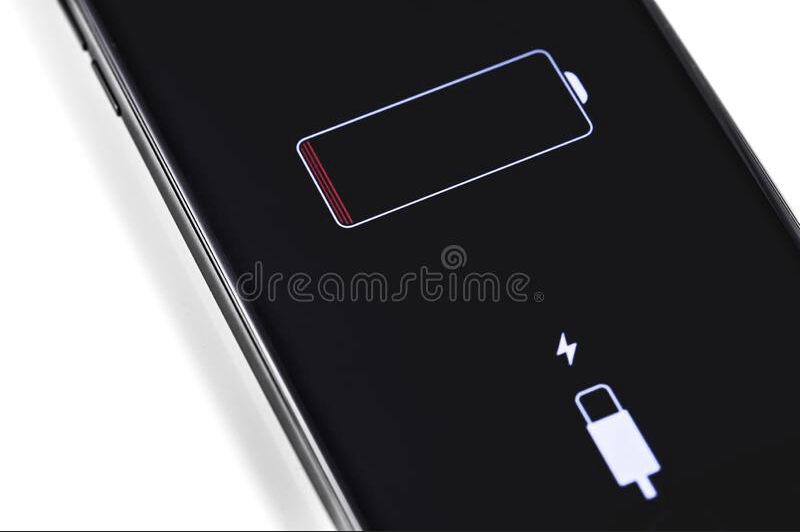
It’s best to keep your phone charged between 20-80% as much as possible. Some phones have features to help you do this, but they can only do so much. Shorter charge cycles are better for the battery, so try not to let it get below 20% as much. See the below image:
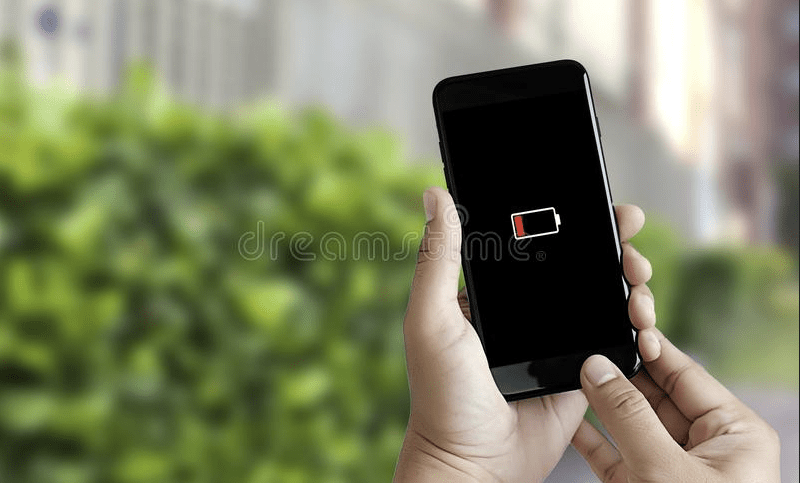
Battery at zero charge
Keeping It Plugged In
It goes the opposite direction, too. Keeping your phone plugged in at 100% all the time is just as bad as letting it get to 0%. Charging your phone overnight is not necessarily bad, but you should not charge it more than you need to.
When the battery reaches 100% charge will protect itself by stopping charging. However, as soon as it drops back down to 99% it will charge back up to 100% again. This small cycle repeats itself over and over and it’s not good for the battery.
The good news is the iPhone and some Android phones now have Adaptive or Optimized charging features to reduce these charging cycles overnight. They keep the battery at around 80% most of the night and then finish the last 20% around your usual wake-up time. See the following image:
Plugged in all the time
Extreme Heat
Most electronics do not like heat. This is especially true for batteries, including the ones in your phone. Excessive heat can shorten the lifespan of the battery. That’s another reason why it’s not great to keep your phone plugged in all the time.
Heat can come from other sources as well. Playing games that require a lot of resources, leaving your phone in a hot car, or letting it bake in the sun at the beach. All of these things can overheat your phone and damage the battery in the process. Refer to the below image:
Smartphones in extreme heat
Screen Brightness
We have noticed this the most amongst adults, and their phone brightness levels are blinding. They are not only causing hurt to the eyes but also to the humble battery. Screens use the most amount of resources on the phone. That means, the higher the brightness level, the more battery drainage will occur. So, keep your brightness levels to a minimum, but also not to a point where you have to squint! See the below image:
Screen brightness
The good news is you probably do not have to worry about ruining your smartphone’s battery. Most of these things are common sense. Stick with name-brand charging accessories, do not overly exhaust or juice up, and keep the device at a comfortable temperature. You will get the best you can out of your battery. Regardless, over time, your battery will slowly deplete, no longer charging to 100%.
Quote For the Day
Globalization, as defined by rich people like us, is a very nice thing… you are talking about the Internet, you are talking about cell phones, you are talking about computers. This doesn’t affect two-thirds of the people of the world.
Jimmy Carter
Tweet Info
That’s it. Please feel free to share this post! One way to share is via Twitter.
Just click the Tweet icon below. This will launch Twitter where you click its icon to post the Tweet.
Check out TechSavvy.Life for blog posts on smartphones, PCs, and Macs! You may email us at contact@techsavvy.life for comments or questions.
Please feel free to leave a comment. I would love to hear from you. Do you have a computer or smart device tech question? I will do my best to answer your inquiry. Just send an email to contact@techsavvy.life. Please mention the device, app, and version you are using. To help us out, you can send screenshots of your data related to your question.
Author’s E-Book
You can access the e-book from a Kindle device, the Kindle App for the desktop or smartphone, which is a free app.
The author’s Vietnam eBook on the Battle for Tra Bong Vietnam: Events and Aftermath
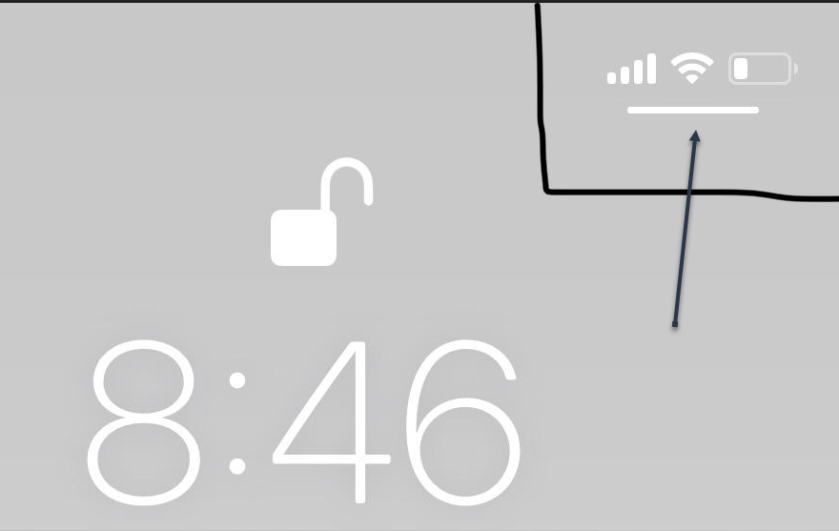
The iPhone has a pretty simple and intuitive interface, but there are still some things that appear with no explanation. One such thing is the line under the cell signal, Wi-Fi, and battery icons on the lock screen.
The iPhone has a pretty simple and intuitive interface, but there are still some things that appear with no explanation. One such thing is the line under the cell signal, Wi-Fi, and battery icons on the Lock screen.
This is not the first mysterious thing to appear in this region of the iPhone screen. iOS 14 and iPad OS 14 introduced little green and orange dots to indicate when apps are using the camera and microphone. Let’s explore this curious UI element.
This is for the iPhone. Screensho9ts are from iPhone XR
Copyright Scott Adams, Inc./Distributed by Universal Uclick for UFS
It’s a Handle for Opening the Control Center
The Line under the battery was introduced in iOS 11.2 On a basic level, it’s an indicator of where the Control Center can be opened. You can think of it as the handle at the bottom of the Lock screen for swiping up.
Note! If you do not see this Line, try changing your wallpaper and/or font. Even if you do not see the Line, this feature will still work. Your Line will be a different color depending on your screen color.
Refer to the below image:
Accessing the Line
The Control Center is a special menu that contains toggles for things such as Airplane Mode, Wi-Fi, and Bluetooth. It can also be used for shortcuts to Flashlight, QR code Scanner, Calculator, and much more.
It’s a Privacy Feature
The Line has a second purpose that may be even more important. It does not just show where the Control Center is, it indicates that the Control Center can be opened from the Lock screen. Why is that important? If you see that Line, anyone can open the Control Center, even if the iPhone is locked. Thankfully, that’s something you can change if it bothers you.
Removing the Line
You can not really permanently remove the Line, but you can make it so the Control Center can not be opened when your iPhone is locked. The Line will still be present when the device is unlocked, though.
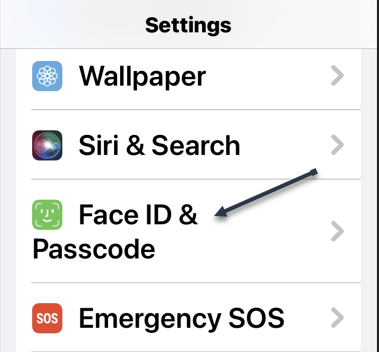
First, launch Settings, then tap the Face/Touch ID & Passcode section. See the below image:
Accessing the Face/Touch ID & Passcode option
Next, switch the Control Center toggle to OFF, under the Allow Access When Locked section. See the following image:
Toggle OFF the Control Center toggle
This is a really small thing, but small things can be confusing sometimes. Apple does not do a good job of explaining why this Line is there, it just is. Now you can explain it to your less knowledgable iPhone friends.
Quote For the Day
Technological progress has merely provided us with more efficient means for going backwards.
Aldous Huxley
Tweet Info
You are finished. Please feel free to share this post! One way to share is via Twitter.
Just click the Tweet icon below. This will launch Twitter where you click its icon to post the Tweet.
Check out TechSavvy.Life for blog posts on smartphones, PCs, and Macs! You may email us at contact@techsavvy.life for comments or questions.
Please feel free to leave a comment. I would love to hear from you. Do you have a computer or smart device tech question? I will do my best to answer your inquiry. Just send an email to contact@techsavvy.life. Please mention the device, app, and version you are using. To help us out, you can send screenshots of your data related to your question.
Author’s E-book
You can access the e-book from a Kindle device, the Kindle App for the desktop or smartphone, which is a free app.
The author’s Vietnam eBook on the Battle for Tra Bong Vietnam: Events and Aftermath
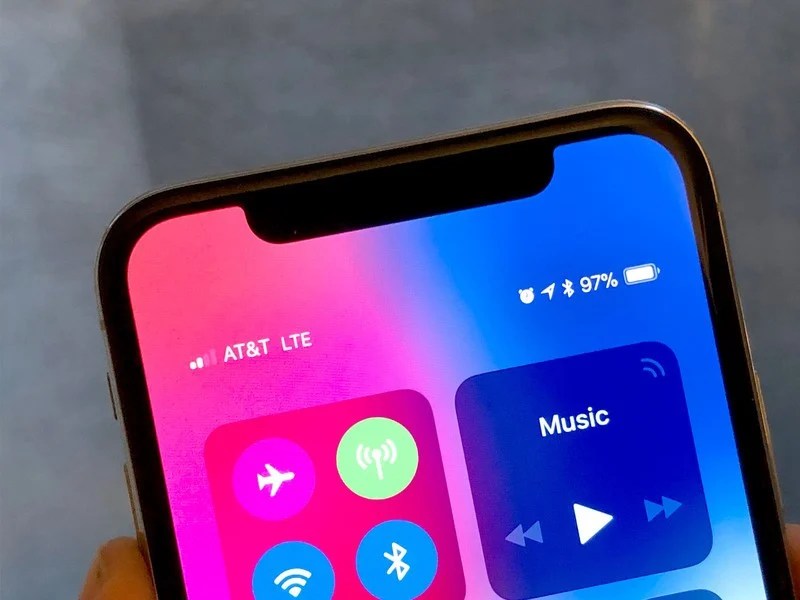
iPhone models that have notches in the upper portion of the screen (such as the iPhone X, 11, 12, 13, and their variants) do not have the option to display the numerical battery percentage on the status bar as on older models.
iPhone models that have notches in the upper portion of the screen (such as the iPhone X, 11, 12, 13, and their variants) do not have the option to display the numerical battery percentage on the status bar as on older models. So, let’s explore how to see battery percentage on newer models.
This is for iPhone and iPad. Screensho9ts are from iPhone XR
Copyright Scott Adams, Inc./Distributed by Universal Uclick for UFS
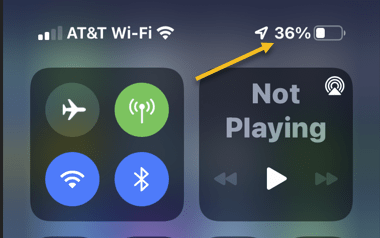
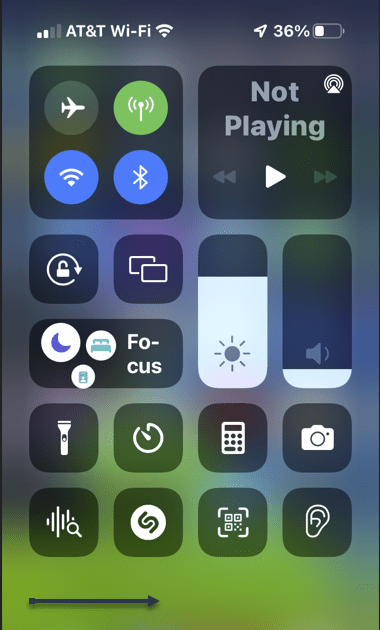
Instead, you can quickly check the battery percentage by launching Control Center. To do so, first, place your finger on the Battery icon in the upper- right-hand corner of your screen and swipe downward. Refer to the below image:
Opening the Control Center
Next, when the Control Center appears, you will see the battery percentage in the upper right-hand corner of your screen. See the below image:
Your Battery percentage
To return back to your Home Screen, just tap any blank area or swipe up from thelower handle. See the following image:
Return back to the Home screen
It’s also possible to add a widget on your iPhone or iPad called “Batteries” to your Home screen (or Today View) that will let you keep an eye on your battery percentage at all times.
Quote for the Day
Technological society has succeeded in multiplying the opportunities for pleasure, but it has great difficulty in generating joy.
Pope Paul VI
Tweet Info
That’s it. Please feel free to share this post! One way to share is via Twitter.
Just click the Tweet icon below. This will launch Twitter where you click its icon to post the Tweet.
Check out TechSavvy.Life for blog posts on smartphones, PCs, and Macs! You may email us at contact@techsavvy.life for comments or questions.
Please feel free to leave a comment. I would love to hear from you. Do you have a computer or smart device tech question? I will do my best to answer your inquiry. Just send an email to contact@techsavvy.life. Please mention the device, app, and version you are using. To help us out, you can send screenshots of your data related to your question.
Author’s E-book
You can access the e-book from a Kindle device, the Kindle App for the desktop or smartphone, which is a free app.
The author’s Vietnam eBook on the Battle for Tra Bong Vietnam: Events and Aftermath
Connecting to lightning fast 5G networks, requires a sacrifice: battery life. But Apple baked a Smart Data Mode setting into new iPhones to give you more control over using 5G.
Connecting to lightning fast 5G networks, requires a sacrifice: battery life. But Apple baked a Smart Data Mode setting into new iPhones to give you more control over using 5G.
Apple gives you three options: You can keep 5G on all the time, switch over to LTE and never use 5G, or allow your iPhone to make that decision for you with an auto mode. There is no reason to upgrade to an iPhone 12 just for the 5G feature because the network carriers are behind the iPhone hardware. 6G is already in the works and Apple is planning on using it in its iPhone 13 lineup.
But, if you have an iPhone 12, here is how to easily turn off 5G to save your battery life.
This is for iPhone 12 lineup
Copyright Scott Adams, Inc./Distributed by Universal Uclick for UFS
First, open Settings (the gear icon) on your iPhone. Refer to below image:
Accessing Settings
Next, tap the Cellular option. See below image:
Accessing the Cellular option
Next. tap the Cellular Data Options. See following image:
Accessing the Cellular Data Options
Now, tap the Voice & Data option. Refer to below image:
Accessing Voice & Data option
Next, select LTE from the list to disable 5G completely. Not shown in the below image are the options 5GOn and 5G Auto because the screenshot is from an iPhone XR. See below image:
Selecting the LTE option to save draining the battery
The option, 5G Auto, allows the iPhone to automatically deactivate 5G to save battery life when it is not needed.
Now, exit Settings. 5G is now disabled on your iPhone. If you ever need to turn it back on, just revisit the above steps and select 5G On or 5G Auto.
That’s it. Please feel free to share this post! One way to share is via Twitter.
Just click the Tweet icon below. This will launch Twitter where you click its icon to post the Tweet.
Check out TechSavvy.Life for blog posts on smartphones, PCs, and Macs! You may email us at contact@techsavvy.life for comments on questions.
Please feel free to leave a comment. I would love hearing from you. Do you have a computer or smart device tech question? I will do my best to answer your inquiry. Just send an email to contact@techsavvy.life. Please mention the device, app and version that you are using. To help us out, you can send screenshots of your data related to your question.
The author’s Vietnam eBook on the Battle for Tra Bong: Events and Aftermath




















 Tech Savvy Life