How to Create an Instagram Photo Post From a PC or Mac

Instagram is primarily used on smartphones, but you can also use it in a desktop browser on Windows or Mac. For years that meant only viewing your feed and messages, but it can also be used to upload photos too.

RAYMOND OGLESBY @RaymondOglesby2
January 5, 2022

Instagram is primarily used on smartphones, but you can also use it in a desktop browser on Windows or Mac. For years that meant only viewing your feed and messages, but it can also be used to upload photos too.

As of October of 2021, Instagram added the long-awaited ability to post to Instagram from the website. You get nearly all of the same filters and editing tools that you can find in the iPhone and Android app, too. Let’s explore how this is done.

This is for Windows, PC, Mac, Linux, and Chromebook using Instagram

Dilbert and Mars
Copyright Scott Adams, Inc./Distributed by Universal Uclick for UFS

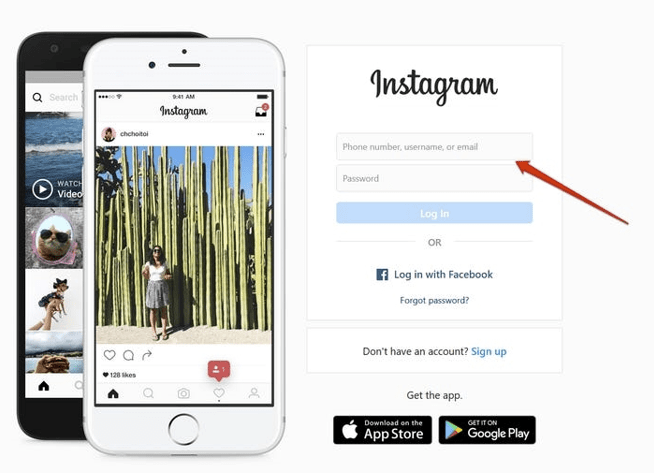
First, head on over to Instagram.com in a web browser such as Google Chrome or Safari. Sign in with your Instagram account if you are not already signed in. Refer to the below image:
Instagram 1
Signing in to your Instagram account

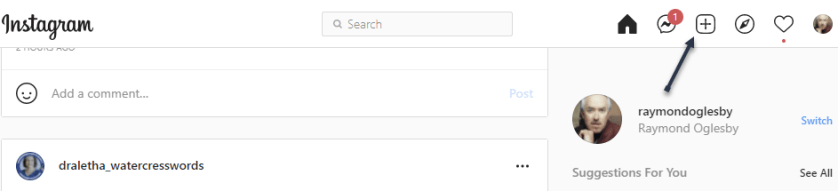
Next, click the plus “+” icon in the upper right-hand corner. See the below image:
Instagram 2
Selecting to add a photo

Now, click Select From Computer and choose a photo from the file manager. See the following image:

Instagram 3
Selecting a photo from your device

Next, there are a couple of options where you can adjust the Aspect Ratio, Zoom in on the photo, or Add more photos to create a slideshow. In our example, we made no adjustments. Click Next when the photo is ready. Refer to the below image:

Instagram 4
Optionally adjust your photo

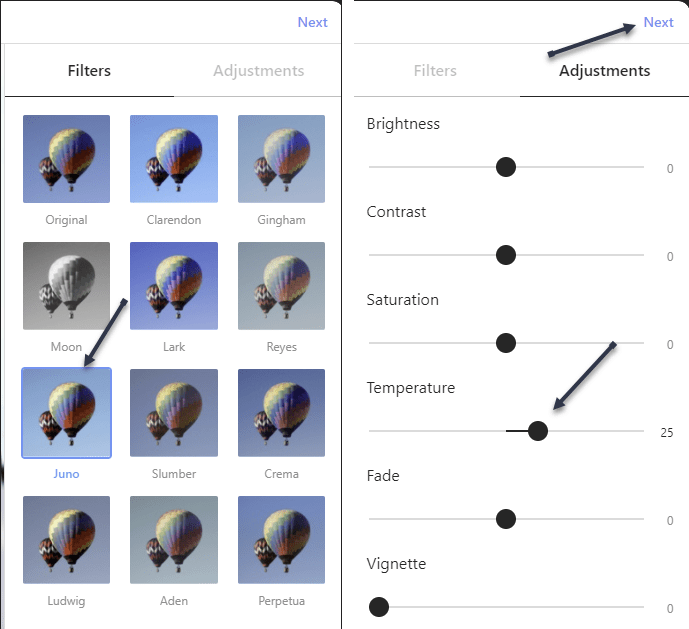
Now, you can choose a Filter or make some other adjustments to the photo. Click Next when the photo looks good. In our example, we set the Filter to Juno and increased the Temperature setting. See the below image:
Instagram 5
Optional adjustments you can make

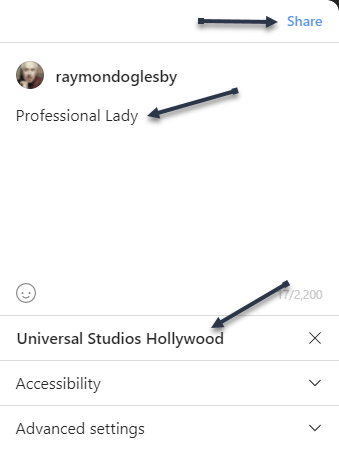
Next, write a Caption in the text box, add a Location if desired, and click Share. See the following image:
Instagram 6
Setting a caption and location

Now, you will be given a message about successfully sharing your Instagram post. Refer to the below image:

Instagram 7
Post shared message

Your photo post will now be displayed on your Instagram account. Notice the warmer color and background from the original above. See the below image:

Instagram 8
Your photo post on Instagram

You can now post photos to your Instagram feed right from your Windows PC, Mac, Linux, or Chrome OS computer. This is especially useful for uploading photos that you have transferred onto your computer,

Quote For the Day

If we keep doing what we’re doing, we’re going to keep getting what we’re getting.

Stephen Covey

You are finished. Personally, I like this feature since I have most of my photos on my computer. Please feel free to share this post! One way to share is via Twitter.

Just click the Tweet icon below. This will launch Twitter where you click its icon to post the Tweet.

Check out TechSavvy.Life for blog posts on smartphones, PCs, and Macs! You may email us at contact@techsavvy.life for comments or questions.

I Would Like to Hear From You

Please feel free to leave a comment. I would love to hear from you. Do you have a computer or smart device tech question? I will do my best to answer your inquiry. Just send an email to contact@techsavvy.life. Please mention the device, app, and version you are using. To help us out, you can send screenshots of your data related to your question.

Author’s E-book

You can access the e-book from a Kindle device, the Kindle App for the desktop or smartphone, which is a free app.


The author’s Vietnam eBook on the Battle for Tra Bong Vietnam: Events and Aftermath

How to Create a QR Code in Google Chrome

With Google Chrome’s built-in QR code option on your desktop, you can make QR codes for any sites and web pages you visit in the browser. When others scan them, they will be taken to the site.

RAYMOND OGLESBY @RaymondOglesby2
December 23, 2021

With Google Chrome’s built-in QR code option on your desktop, you can make QR codes for any sites and web pages you visit in the browser. When others scan them, they will be taken to the site. Let’s explore how this is done.

This is for Windows, Mac, Linux, or Chromebook running Chrome

Dilbert and Interface
Copyright Scott Adams, Inc./Distributed by Universal Uclick for UFS

There are many reasons to generate QR codes for websites. The main reason is to add a QR code to your documents, spreadsheets, presentations, emails, and more. Chrome lets you save the QR codes as images, so you can basically use them anywhere you want.

Since Chrome has a built-in QR code generator, you do not have to install any third-party extensions to get the job done.

First, launch Chrome on your Windows, Mac, Linux, or Chromebook computer. Then access the website you want to turn into a QR code.

At the top of Chrome, click the address bar to reveal the QR code option. Refer to the below image:

qr code 1
Selecting the website

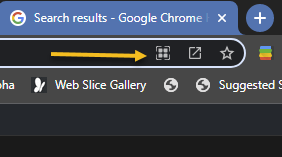
Next, in the far right of the address bar, you will now see various icons. Click the Create QR Code For This Page icon (which is a partial square icon with four small squares). If the icon is missing, click the Zoom icon and click Reset. See the below image:

qr code 2
Selecting the QR icon

Now, Chrome will open a Scan QR Code pop-up with your generated QR code in it. You can now scan this QR code from your iPhone or Android phone. See the following image:

qr code 3
Your generated QR code

Next, to save this QR code as an image to your computer, at the bottom-right-hand corner of the Scan QR Code pop-up window, click Download. Refer to the below image:

qr code 4
Selecting to Download the QR code

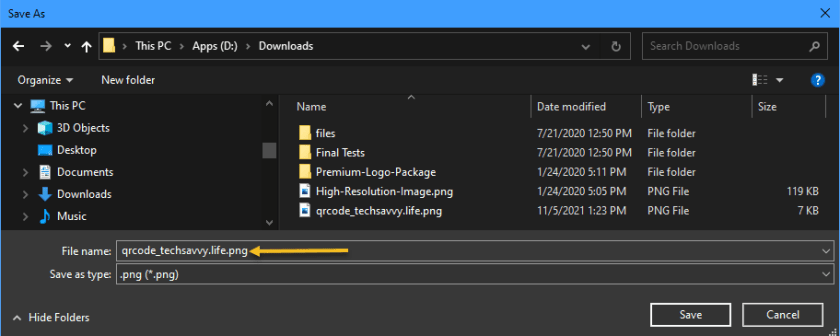
Now, you will see your computer’s standard Save As window. Select a folder to save your QR code image in, type a name for the image, and click Save. See the below image:

qr code 5
Saving the QR code

And that’s all there is to making QR codes in Chrome on the desktop. A nice feature of Chrome.

Quote For the Day

Risk comes from not knowing what you’re doing.

Warren Buffett

You are finished. Please feel free to share this post! One way to share is via Twitter.

Just click the Tweet icon below. This will launch Twitter where you click its icon to post the Tweet.

Check out TechSavvy.Life for blog posts on smartphones, PCs, and Macs! You may email us at contact@techsavvy.life for comments or questions.

I Would Like to Hear From You

Please feel free to leave a comment. I would love to hear from you. Do you have a computer or smart device tech question? I will do my best to answer your inquiry. Just send an email to contact@techsavvy.life. Please mention the device, app, and version you are using. To help us out, you can send screenshots of your data related to your question.

The author’s Vietnam eBook on the Battle for Tra Bong Vietnam: Events and Aftermath

How to Check Your Amazon Gift Card Balance

Not sure if you have sufficient funds to buy that item on Amazon? If so, it’s easy to check your gift card balance on both the Amazon website and the Amazon mobile app, as well as the history of cards you have redeemed. Let’s find out.

RAYMOND OGLESBY @RaymondOglesby2
December 21, 2021

Not sure if you have sufficient funds to buy that item on Amazon? If so, it’s easy to check your gift card balance on both the Amazon website and the Amazon mobile app, as well as the history of cards you have redeemed. Let’s find out.

This is for devices using Amazon

Dilbert and CEO
Copyright Scott Adams, Inc./Distributed by Universal Uclick for UFS

Use the Amazon Website

If you are on a Windows, Mac, Linux, or Chromebook computer, use the official Amazon website to see the available gift card balance in your account.

First, open a web browser on your computer and launch the Amazon site. Sign in to your account on the site.

Next, in Amazon’s top-right corner, hover your mouse over the Account & Lists menu to see an expanded menu. Refer to the below image:

Gift Card 1
Accessing Account & Lists menu option

Now, in the expanded menu, under Your Account, click Account. See the below image:

Gift Card 2
Accessing Your Account

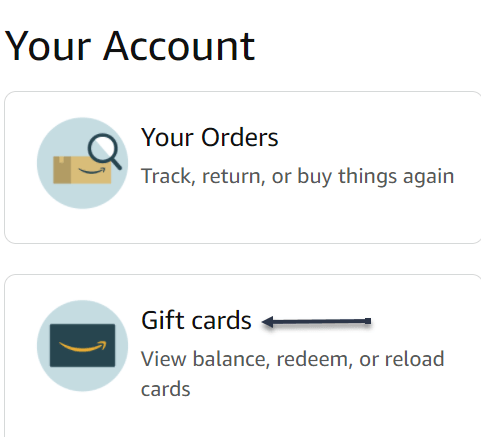
Next, on the Your Account page that opens, click Gift cards. See the following image:

Gift Card 3
Accessing your Gift cards

Now, on the page that opens, right next to Your Gift Card Balance, you will see the gift card balance currently available in your account. Refer to the below image:

Gift Card 4
Viewing your Gift Card balance

Note! You can redeem a gift card by clicking the Redeem a Gift Card button, entering the key, and clicking Apply to your balance button.

If you would like to view the values of gift cards that you have redeemed in your account, scroll down the page to see that information. See the following image:

Gift Card 5
Viewing your Gift Card history

Use the Amazon Mobile App

If you are on an iPhone, iPad, or Android phone, use the Amazon mobile app to check your gift card balance.

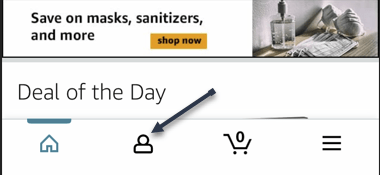
First, launch the Amazon app on your phone. Sign in to your account if you have not already. Then, at the bottom of the app, tap the user icon. Refer to the below image:

Gift Card 6
Accessing the User icon

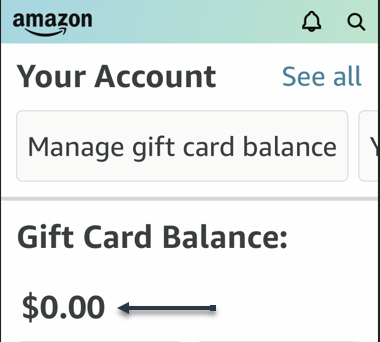
Next, on the account page that opens, scroll down to the Gift Card Balance section. Here, you will see the gift card balance available to use in your Amazon account. See the below image:

Gift Card 7
Viewing your Gift Card Balance

Now, to view the gift cards that you have added to your account so far, then next to Gift Card Balance, tap the Manage option. See the following image:

Gift Card 8
Accessing to Manage your Gift Card

Note! You can redeem a gift card by clicking the Redeem Gift Card button, entering the key, and taping Apply to your balance button.

Next, scroll down the page to the Your Balance activity section. Here, you will see all your redeemed gift cards along with their values. Refer to the below image:

Gift Card 9
Your Gift Card history

And that’s how you know if your gift card balance can buy a certain item on Amazon.

Quote For the Day

Faith is trust in ultimate meaning.

Viktor E Frankl

That’s it. Please feel free to share this post! One way to share is via Twitter.

Just click the Tweet icon below. This will launch Twitter where you click its icon to post the Tweet.

Checkout TechSavvy.LIfe blog posts on smartphones, PCs, and Macs! You may email us at contact@techsavvy.life for comments or questions.

I Would Like to Hear From You

Please feel free to leave a comment. I would love to hear from you. Do you have a computer or smart device tech question? I will do my best to answer your inquiry. Just send an email to contact@techsavvy.life. Please mention the device, app, and version you are using. To help us out, you can send screenshots of your data related to your question.

The author’s Vietnam eBook on the Battle for Tra Bong Vietnam: Events and Aftermath

How to Obtain a Link to a Photo or Video on Instagram

If you would like to share an Instagram photo or video outside the platform, you will have to get that item’s shareable link.

RAYMOND OGLESBY @RaymondOglesby2
December 16, 2021

If you would like to share an Instagram photo or video outside the platform, you will have to get that item’s shareable link. Let’s explore how to get these links from your Instagram account, on either desktop or mobile.

Note! You can not get links to photos or videos that are in a private Instagram account. For these accounts, Instagram does not offer the option to get a link.

This is for devices running Instagram

Dilbert and Security
Copyright Scott Adams, Inc./Distributed by Universal Uclick for UFS

The instructions to get a link to a photo or video on Instagram are the same for all Instagram-supported devices, including Windows, Mac, Linux, and Chromebook computers, as well as iPhones and Android smartphones.

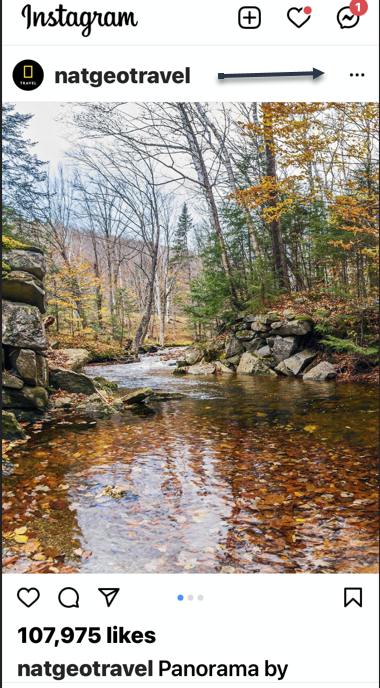
First, open Instagram and find the photo or video for which you want to get a shareable link. At the top-right corner of that item, click or tap the three dots Menu. Refer to the below image:

Link 1
Accessing the Menu

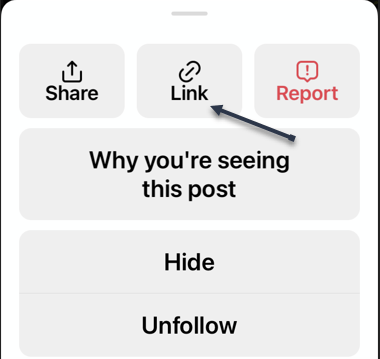
Next, choose Link on an iPhone or Copy Link on other devices. See the below image:

Link 2
Accessing the Link icon

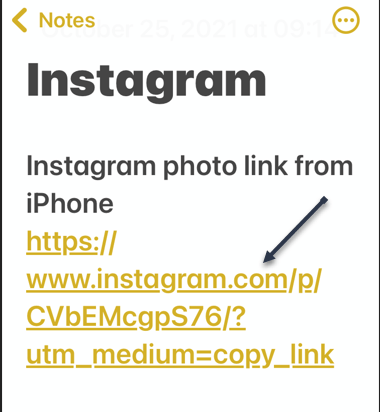
Now, the link to your selected photo or video on Instagram will be copied to your device’s clipboard. Use the Paste option in any text field on your device to view your link. In our example, we pasted the link to the iPhone Notes app.

Your shareable Instagram link should look something like the following image:

Link 3
Your Instagram link

You may now send this link to your friends and family. They can click or tap it to access the photo or video on Instagram.

Quote For the Day

The system is that there is no system. That doesn’t mean we don’t have process. Apple is a very disciplined company, and we have great processes. But that’s not what it’s about. Process makes you more efficient.

Steve Jobs

That was easy. Please feel free to share this post! One way to share is via Twitter.

Just click the Tweet icon below. This will launch Twitter where you click its icon to post the Tweet.

Check out TechSavvy.Life for blog posts on smartphones, PCs, and Macs! You may email us at contact@techsavvy.life for comments or questions.

I Would Like to Hear From You

Please feel free to leave a comment. I would love hearing from you. Do you have a computer or smart device tech question? I will do my best to answer your inquiry. Just send an email to contact@techsavvy.life. Please mention the device, app, and version you are using. To help us out, you can send screenshots of your data related to your question.

The author’s Vietnam eBook on the Battle for Tra Bong Vietnam: Events and Aftermath

How to Set Google Search Results Per Page

By default, when you search for something on Google, the site displays 10 results per page. If you would like to see more results, you can increase the results count from a Settings option on Google. (Note! As of this writing, this feature is only available for the desktop).

RAYMOND OGLESBY @RaymondOglesby2
November 16, 2021

By default, when you search for something on Google, the site displays 10 results per page. If you would like to see more results, you can increase the results count from a Settings option on Google. (Note! As of this writing, this feature is only available for the desktop). In this blog post, we will show you how easily this is done.

This is for desktop devices using Google Search

Dilbert and People
Copyright Scott Adams, Inc./Distributed by Universal Uclick for UFS

To view more search results without having to click the next page number for your Windows, Mac, Linux, or Chromebook computer, first, open a web browser on your computer and access the Google site.

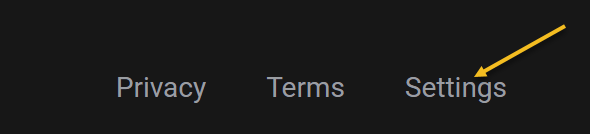
At the bottom right-hand corner of the Google site, click Settings. Refer to the below image:

Search 1
Accessing Google Search Settings

Next, from the pop-up menu that opens, select Search settings. See the below image:

Search 2
Accessing Search settings option

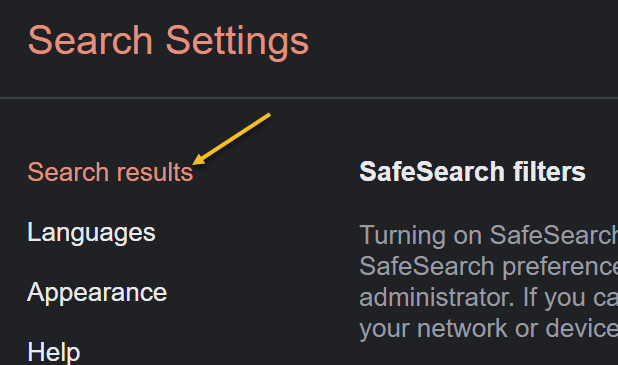
Now, on the Search Settings page, from the left sidebar, select Search results. See the following image:

Search 3
Accessing Search results option

Next, on the right pane, you will see a Results per page slider. To increase the number of results per page, drag this slider to the right. Beneath the slider, you will see the number of search results you can enable on Google. Your options are 10, 20, 30, 40, 50, and 100. (Note! Your searches will be slower if you choose to display more results per page than the default). Refer to the below image:

Search 4
Setting the slider for the number of search results per page

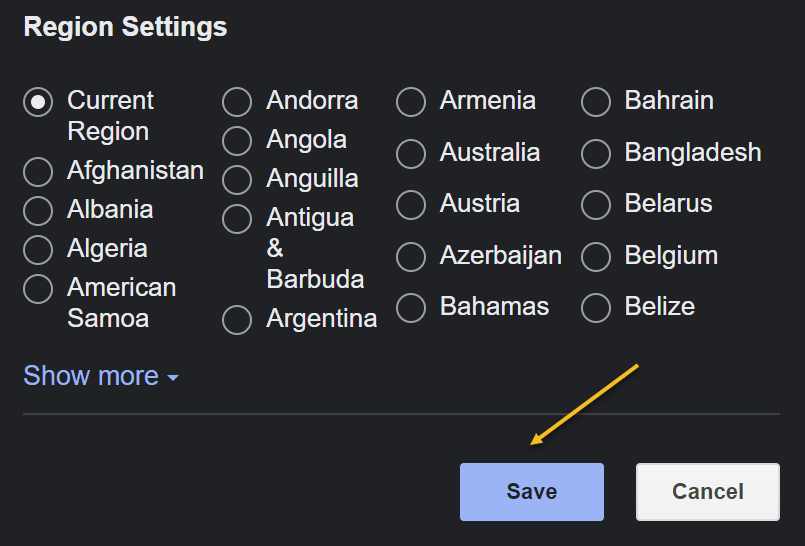
Now, to save your changes, scroll down to the bottom of the page, and click Save. See the below image:

Search 5
Save your changes

Next, in the prompt, Your preferences have been saved, click OK. See the following image:

Search 6
Confirming your changes

You will now see your selected number of search results per page on Google Search on your desktop. If you ever want to modify this option, you can head to the same menu and choose a new number.

Here is a helpful insight on using Google Search for you to consider. As of this writing, Chrome 95 has a bug in its Reading List option. To research, this or any other problem, start with the highest level then drill-down levels. For example, you would enter the following text for the search:

Google Chrome 95 Reading List option Add current tab is dimmed

The highest level is Google, next is Chrome 95, and so on. You will get better search results by following this guideline.

Quote For the Day

When you’re an engineer, you want to analyze things a lot. But if you believe that the most important data points are people, then you have to make conclusions in relatively short order. Because you want to push the people who are doing great. And you want to either develop the people who are not or, in a worst case, they need to be somewhere else.

Tim Cook

That’s it. Please feel free to share this post! One way to share is via Twitter.

Just click the Tweet icon below. This will launch Twitter where you click its icon to post the Tweet.

Check out TechSavvy.Life for blog posts on smartphones, PCs, and Macs! You may email us at contact@techsavvy.life for comments or questions.

I Would Like to Hear From You

Please feel free to leave a comment. I would love to hear from you. Do you have a computer or smart device tech question? I will do my best to answer your inquiry. Just send an email to contact@techsavvy.life. Please mention the device, app, and version you are using. To help us out, you can send screenshots of your data related to your question.

The author’s Vietnam eBook on the Battle for Tra Bong Vietnam: Events and Aftermath

How to Use Spell Check Everywhere on Chrome

We have all been there; looking up a word on Google just to find out how it’s spelled. No matter the typos, Google usually knows what you want to type. Thankfully, Google allows you to use its spell-check feature everywhere in your Chrome web browser.

We have all been there; looking up a word on Google just to find out how it’s spelled. No matter the typos, Google usually knows what you want to type. Thankfully, Google allows you to use its spell-check feature everywhere in your Chrome web browser.

Called the Enhanced spell check, this setting allows you to access Google’s more advanced spell check whenever you type something on the Internet.

But as is the case with most Google services, there is a privacy cost to this. Turning on Enhanced spell check in Chrome also means agreeing to send everything you type on the web to Google’s server. So enable it at your own risk. But, you can also enable Basic spell check without sending data to Google. Lets explore how to do this.

This is for PCs, Macs, Chrome OS, or Linux running Chrome

Dilbert and Package
dCopyright Scott Adams, Inc./Distributed by Universal Uclick for UFS

First, open your Google Chrome browser. Next, click the three-dot hamburger icon located in the top right-hand corner. Refer to below image:

Spell Check 1
Accessing the menu hamburger icon

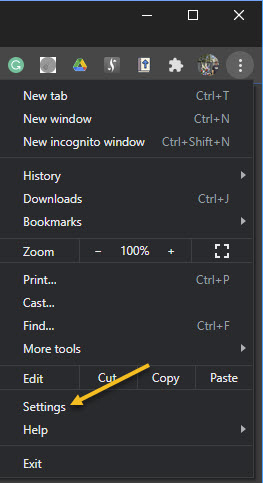
Now, from the drop-down menu that appears, select Settings. See below image:

Spell Check 2
Accessing Settings

Alternatively, you can press the Cmd+Comma keyboard shortcut on a Mac or Alt+E on a Windows PC to access the Settings option.

Next, in the sidebar, click Advanced to reveal the advanced menu. Now, choose Languages from the list. See following image:

Spell Check 3
Accessing Languages under the Advanced section

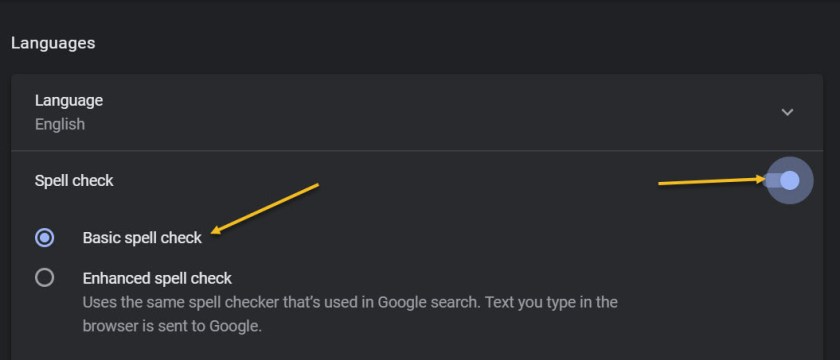
Under the Spell check section, toggle the radio button in front of the Basic spell check option to turn it On. If you want enhanced spell checking, toggle the radio button in front of the Enhanced spell check to turn it On. Keep in mind, the enhanced option means you are sending your browser activity to Google. Refer to below image:

Spell Check 4
Enabling Basic spell check option

At the time of writing, Enhanced spell check is not available for Google Chrome’s Android and iPhone clients.

In case you are still not satisfied with your Chrome’s spell check, you can give a third party Chrome extension called Grammarly, a try.

Quote for the Day

The number one benefit of information technology is that it empowers people to do what they want to do. It lets people be creative. It lets people be productive. It lets people learn things they didn’t think they could learn before, and so in a sense it is all about potential.

Steve Ballmer, Microsoft

That’s it. Please feel free to share this post! One way to share is via Twitter.

Just click the Tweet icon below. This will launch Twitter where you click its icon to post the Tweet.

Check out TechSavvy.Life for blog posts on smartphones, PCs, and Macs! You may email us at contact@techsavvy.life for comments or questions.

The author’s Vietnam eBook on the Battle for Tra Bong: Events and Aftermath

How to Clear Your Google Chrome Browsing Data

Need to clear your Google Chrome browsing data? Your browsing data is stored in a “cache” and at times, may cause a problem with the actual data stored on a website. By clearing your browsing data, you are starting with a “fresh cache” to avoid inconsistencies.

Need to clear your Google Chrome browsing data? Your browsing data is stored in a “cache” and at times, may cause a problem with the actual data stored on a website. By clearing your browsing data, you are starting with a “fresh cache” to avoid inconsistencies.

This is for PCs, Macs, iPhone and iPad

Dilbert and Time
Copyright Scott Adams, Inc./Distributed by Universal Uclick for UFS

FIRST, before doing any of the following, launch your Google Chrome app. For the iPhone or iPad
  1. Open an article or your account and tap the the hamburger icon (the 3 dots) in lower right-hand corner.
  2. Tap History. (It may be labeled More History). Also, you can view more of your history at historygoogle.com
  3. At the bottom, tap Clear Browsing Data.
  4. Check Browsing history. It may be checked by default.
  5. Uncheck any other items you don’t want to delete.
  6. Tap Clear Browsing Data. Tap Clear Browsing Data again or Cancel if you do not want to proceed.
  7. At the top right, tap Done, then tap Done again.

Refer to below image:

Chrome 1
Clearing Chrome browsing data on an iPhone or iPad

For Windows, Mac, or Linux

  1. Press Cntl+Shift+Delete keys for Windows or Linux. Press Command+Shift+Backspace for a Mac. The backspace key is labeled “Delete”.
  2. Uncheck any items you don’t want to delete.
  3. Press Clear data button in lower right.
  4. Hit Enter or Return key.

See below image:

Chrome 2
Clearing Chrome browsing data for Windows, Mac, or Linux

IMPORTANT: Be sure and close/quit your browser and restart it after clearing your browsing data.

Your browsing history will be cleared to the level you have chosen. You may repeat the above process to clear any unchecked items.

That’s it. Please feel free to share this post! One way to share is via Twitter, as mentioned below.

I hope you have found this post helpful. If so, click the Tweet icon below. This will launch Twitter where you click its icon to post the Tweet.

Check out TechSavvy.Life for blog posts on smartphones, PCs, and Macs! You may email us at contact@techsavvy.life for comments or questions.

I Would Like to Hear From You

Please feel free to leave a comment. I would love hearing from you. Do you have a computer or smart device tech question? I will do my best to answer your inquiry. Just send an email to contact@techsavvy.life. Please mention the device, app and version that you are using. To help us out, you can send screenshots of your data related to your question.

The author’s Vietnam eBook on the Battle for Tra Bong: Events and Aftermath