Customizing Apple’s Liquid Glass Design on iOS 26

In 2025, Apple rebranded its operating systems by release year, introducing iOS 26 with a Liquid Glass design. While it enhances aesthetics, some users dislike its transparency, especially in Dark Mode. Apple offers updates to customize this feature, including options to reduce transparency and tweak lighting effects for better usability.

RAYMOND OGLESBY @RaymondOglesby2
April 28, 2026 –4 minutes read time

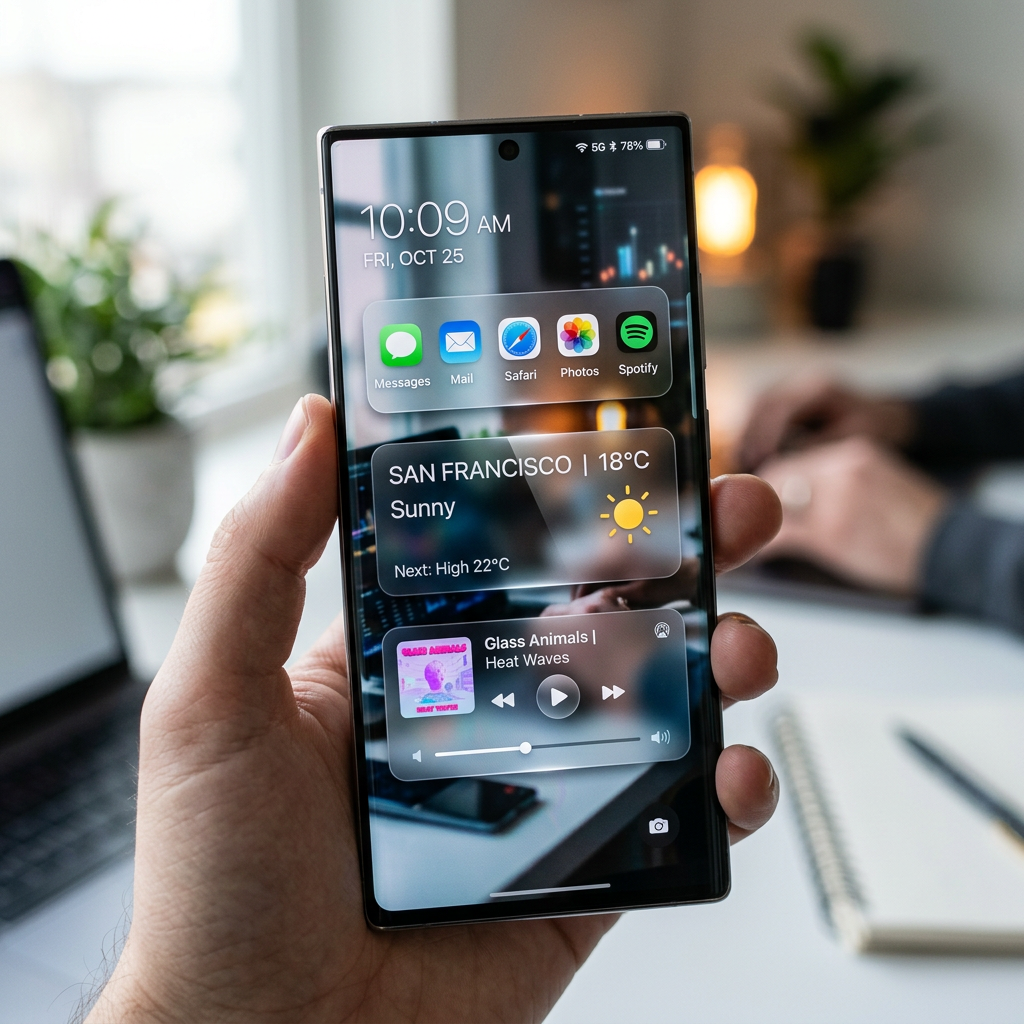
In 2025, Apple changed the naming scheme for its operating systems to align them by release year, so we currently have iOS 26 rather than iOS 19. Tying it all together is the Liquid Glass design, which gives your icons, toolbars, menus, and other elements a translucent appearance, as if you are looking through glass. The problem? Not everyone loves the new look.

Some people have even complained that it makes them feel sick in Dark Mode. Unfortunately, you cannot turn off Liquid Glass, but Apple has released a few OS updates to reduce its transparency, most recently in iOS 26.4. Let’s explore this updated feature.

  • Customize your Lock screen Liquid Glass to your liking.
  • Enhance the appearance of your iPhone or iPad display.

This tip was performed on an iPhone 17 Pro running iOS 26.4.

Click here to learn how to update your iPhone to the latest iOS version.

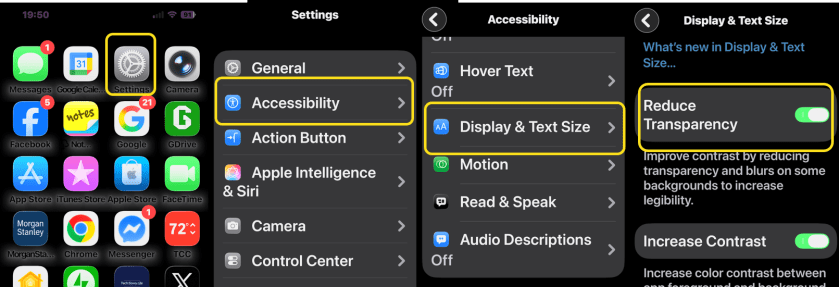
If you want to tone down the effect on an iPhone or iPad, head to:

Settings > Accessibility > Display & Text Size

and enable Reduce Transparency. Now, when you look back at the folders and menus on your Home screen, you should see that the translucent look has been replaced by a more opaque one. Refer to the image below:
Liquid Glass 1

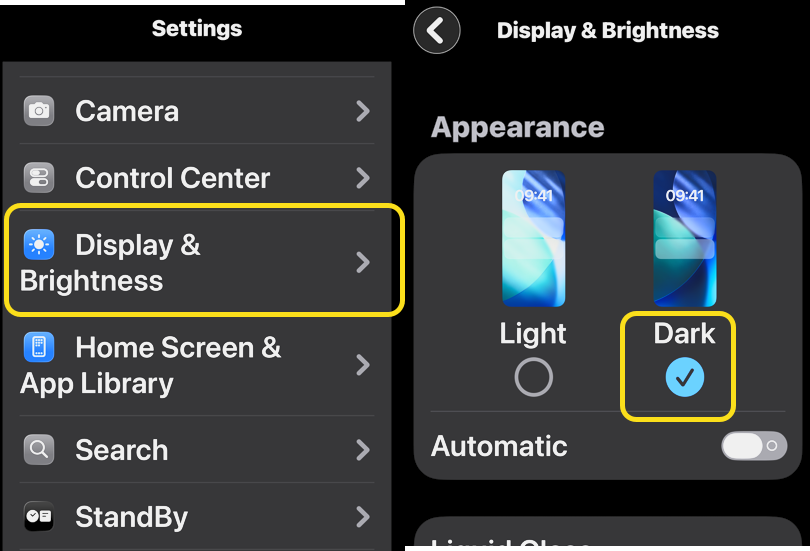
Liquid Glass looks better in Dark Mode instead of Light Mode because it hides much of the new design. To do this on an iPhone or iPad, head to:

 Settings > Display & Brightness

 and set the appearance to Dark. See the image below:
Liquid Glass 2
Enable Dark Mode

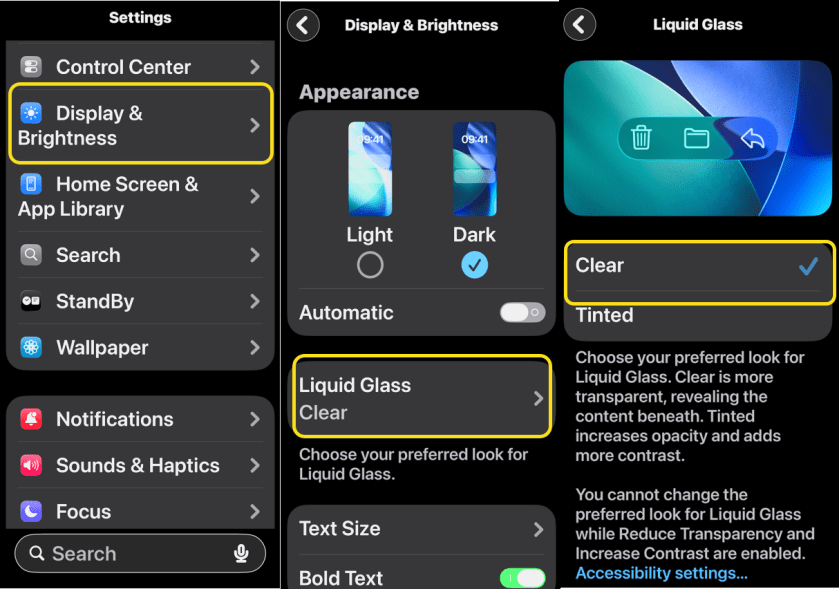
Apple first introduced greater control over the look and feel of the Liquid Glass design with iOS 26.1. To customize, head to:

Settings > Display & Brightness > Liquid Glass

then choose between Clear (more transparent) and Tinted (more opaque). The latter option is recommended if you want more contrast. You can also pair this with Dark Mode for better readability. See the following image:
Liquid Glass 3
Setting your display appearance

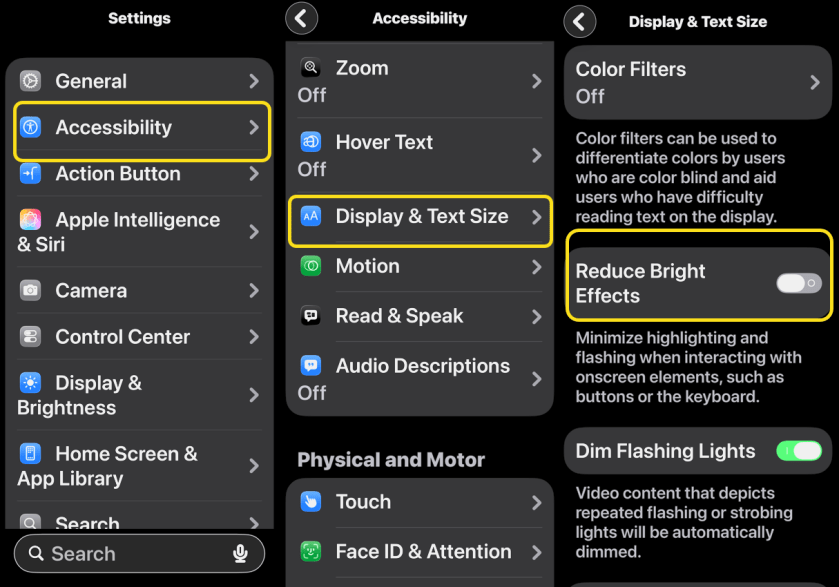
You now have the ability to tone own some of the lighting effects that come with the Liquid Glass redesign. Head to:

Settings > Accessibility > Display & Text Size

then enable Reduce Bright Effects to make the change.

It’s a subtle difference, but one that might help make the theme more tolerable. Refer to the image below:
Liquid Glass 4
Enable Reduce Bright Effects option

It’s also worth noting that Apple has enhanced its Reduce Motion option to incorporate Liquid Glass effects. Just go to:

Settings > Accessibility > Motion

and enable Reduce Motion. See the image below:
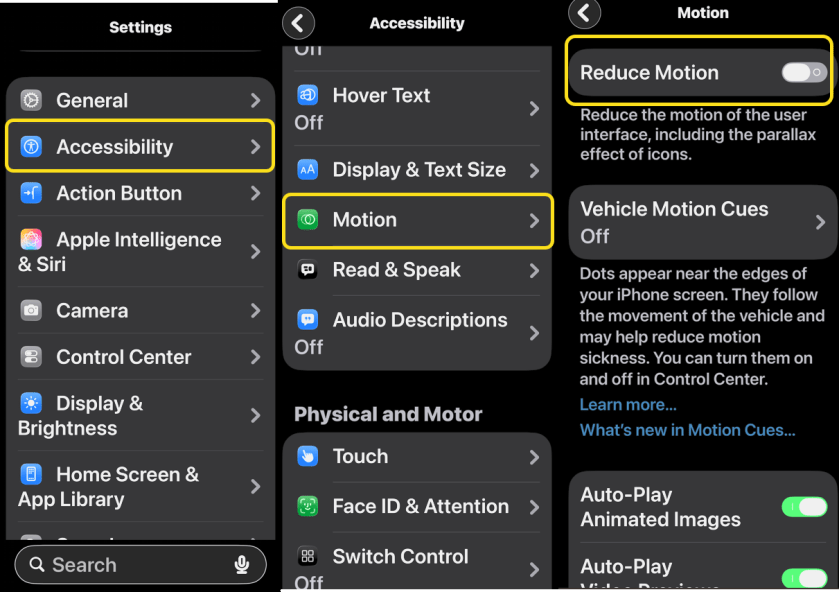
Liquid Glass 5
Enable Reduce Motion option

Technology is constantly evolving, and smartphone and desktop tech rarely remains static. Therefore, the information in this post is only accurate as of the date it was written. Blog posts that are older than six months may contain instructions that are no longer compatible with your device or operating system. We hope that the content from previous posts continues to function as intended. Thank you for reading TechSavvy.Life, where technology works for you.

Technology feeds on itself. Technology makes more technology possible.

 – Alvin Toffler

Yea. You are finished.. Please feel free to share this post! One way to share is via Twitter.

Just click the Tweet icon below. This will launch Twitter where you click its icon to post the Tweet.

Check out TechSavvy.Life for blog posts on smartphones, PCs, and Macs! You may email us at contact@techsavvy.life for comments or questions.

We value your feedback! Was this post helpful? Please share your comments with us. If you have a tech question related to your computer or smart device, feel free to reach out. Just send an email to contact@techsavvy.life, and be sure to include the device, app, and version you are using. To assist us further, you can also attach screenshots related to your inquiry.

Author’s eBook

The author’s Vietnam eBook, “Battle for Tra Bong Vietnam: Events and Aftermath,” is available on Kindle devices and the Kindle App for desktop, laptop, and smartphone. The apps are free.
The author’s Vietnam eBook on the Battle for Tra Bong Vietnam: Events and Aftermath

How to Customize Liquid Glass on iOS 26.1

The iOS 26 update unveiled Liquid Glass, a controversial new user interface with a glassy appearance. User reactions were mixed, prompting Apple to introduce a translucency adjustment option in iOS 26.1. Users can customize the appearance between clear and tinted according to their preferences and accessibility needs.

RAYMOND OGLESBY @RaymondOglesby2
January 6, 2026 – 3 minutes read time

The iOS 26 update introduced us to a redesigned version of iOS called Liquid Glass. The user response to Liquid Glass was very divisive, with some people loving it and others absolutely hating it. Thankfully, Apple has added a new setting to adjust how translucent Liquid Glass is, so you can decide how you want your iPhone to look.

What is Liquid Glass? Liquid Glass is the name Apple has given to the style of its new user interface in iOS 26, due to its glassy appearance. Because of the divisive response to Liquid Glass, iOS 26.1 added an option to adjust the translucency. Let’s explore how to adjust your iPhone’s Liquid Glass.

  • Make it easier to see certain icons by making Liquid Glass tinted.
  • Customize Liquid Glass to look how you want it to look.

This tip was performed on an iPhone 17Pro running iOS 26.1.

Click here to learn how to update your iPhone to the latest iOS version.

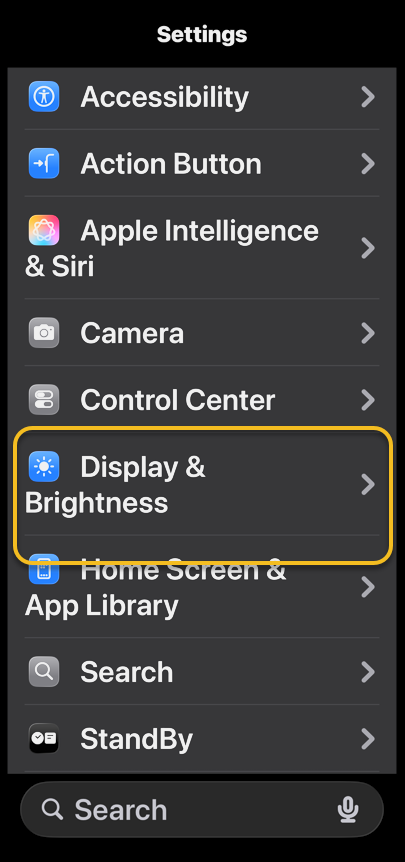
First, open the Settings app and select Display & Brightness. Refer to the image below:

Display 1
Selecting Display & Brightness option

Next, tap Liquid Glass. See the image below:

Display 2
Selecting Liquid Glass option

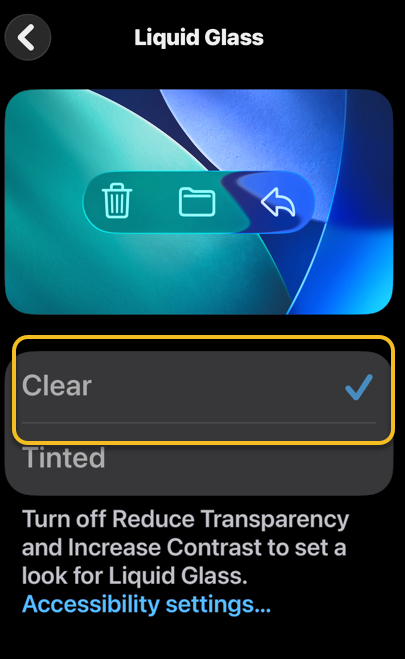
Now, tap  Clear if you want Liquid Glass to have a translucent appearance (you can see a preview above the option you select). See the following image:

Display 3
Selecting Clear option

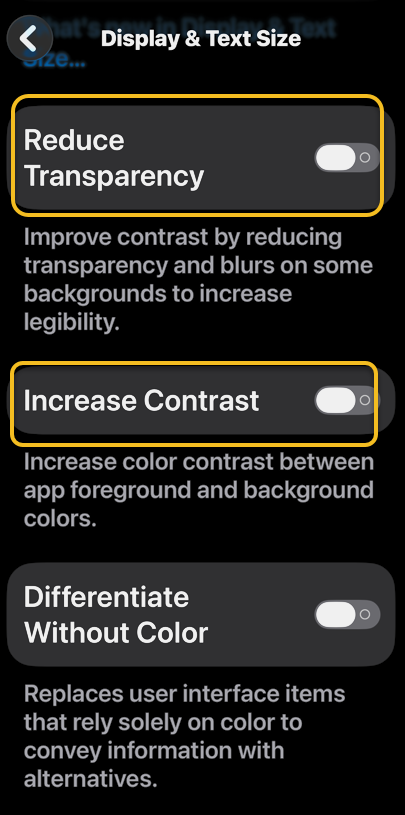
Next, if you are unable to select Tinted, head to:

Settings > Accessibility > Display & Text Size

and turn Reduce Transparency and Increase Contrast toggles to OFF, then return back to the Liquid Glass option. Refer to the image below:

Display 4
Setting Reduce Transparency and Increase Contrast toggles to OFF

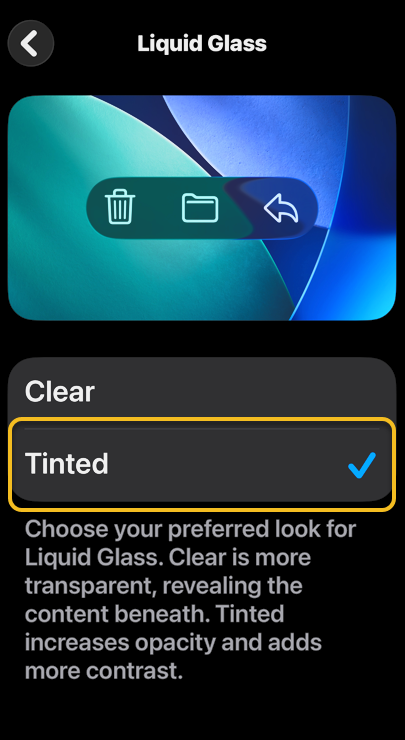
Now, select  Tinted if you want Liquid Glass to have a more opaque appearance (you can see a preview above the option you select). See the image below:

Display 5
Selecting Tinted option

That’s how to change Liquid Glass on iOS 26.1! If you have trouble seeing different UI elements, the Tinted option might be better, while Clear is good if you want to maintain the effect as Apple intended.

Technology is constantly evolving, and smartphone and desktop tech rarely remains static. Therefore, the information in this post is only accurate as of the date it was written. Blog posts that are older than six months may contain instructions that are no longer compatible with your device or operating system. We hope that the content from previous posts continues to function as intended. Thank you for reading TechSavvy.Life, where technology works for you.

One machine can do the work of fifty ordinary men. No machine can do the work of one extraordinary man . – Elbert Hubbard

That’s it. Please feel free to share this post! One way to share is via Twitter.

Just click the Tweet icon below. This will launch Twitter where you click its icon to post the Tweet.

Checkout TechSavvy.Life for blog posts on smartphones, PCs, and Macs! You may email us at contact@techsavvy.life for comments or questions.

We value your feedback! Was this post helpful? Please share your comments with us. If you have a tech question related to your computer or smart device, feel free to reach out. Just send an email to contact@techsavvy.life, and be sure to include the device, app, and version you are using. To assist us further, you can also attach screenshots related to your inquiry.

Author’s eBook

The author’s Vietnam eBook on the “Battle for Tra Bong Vietnam: Events and Aftermath” can be accessed from a Kindle device or the Kindle App for a desktop or smartphone. The apps are free.

The author’s Vietnam eBook on the Battle for Tra Bong Vietnam: Events and Aftermath