


RAYMOND OGLESBY @RaymondOglesby2
SAugust 25. 2026 – 6 minutes read time
Overview
A smooth running iPhone does not happen by accident — it requires some care, like regular reboots to clear temporary files and refresh system processes.
One easy yet often overlooked way to boost iPhone performance is through regular reboots. Automating this process saves time and ensures your device stays efficient and responsive.
While Apple’s security measures are robust, a rebooting automation adds an extra layer of protection by interrupting any potential malicious activity that might rely on an extended session.
Additionally, automated reboots can address minor glitches like app crashes, sluggish performance, or connectivity hiccups. These issues often resolve after a restart, saving you from the frustration of troubleshooting on your own.
This is our first attempt to setup an Automation shortcut. We found it to be tricky and had to redo tsome steps. Fortunately, you can easily go back to the beginning or previous screens in Edit mode to correct any mistakes.
Note! This Automation shortcut is used for a Shut Down or Restart action. This is confusing. Shame on Apple; they need to make this clearer!
Key Takeaways
- Automate a restart of your iPhone on a weekly basis.
- Clean your iPhone of glitches, poor performance, connectivity and security issues via an automated restart.
System Requirements
This tip was performed on an iPhone 17 Pro running iOS 26.5.
Click here to learn how to update your iPhone to the latest iOS version.
Setup Auto Restaet
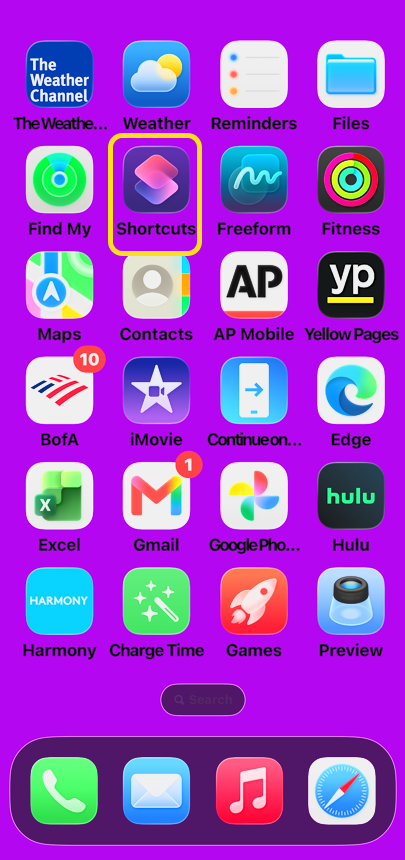
1. Open the Shortcuts app. Refer to the image below:
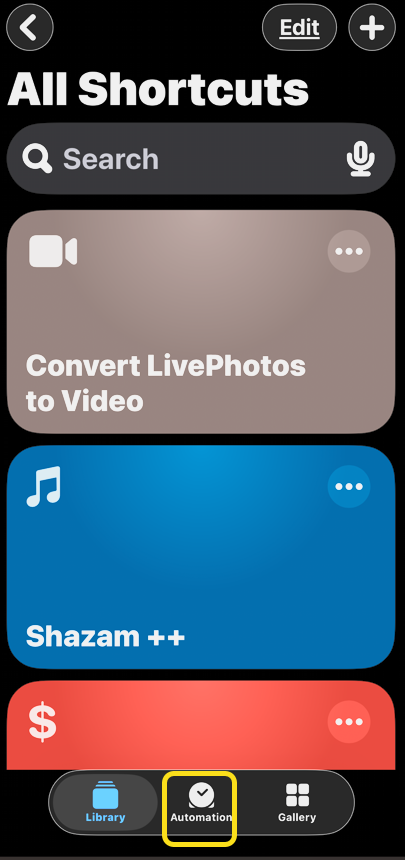
2. Tap the Automation tab at the bottom. See the image below:
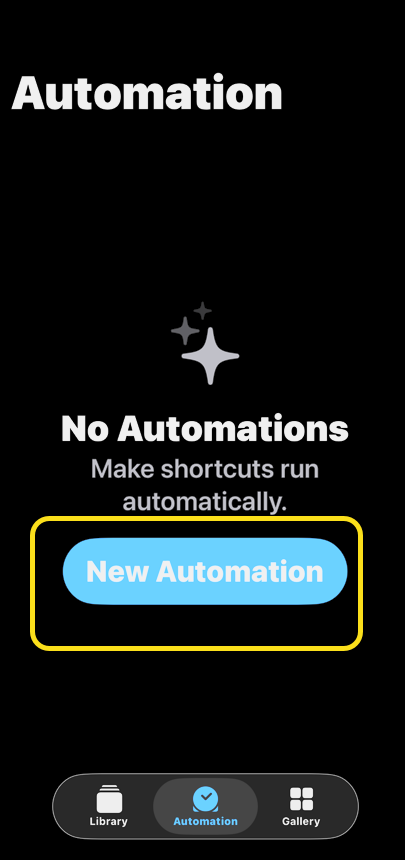
3. Tap the Plus icon or the New Automation button. See the following page:
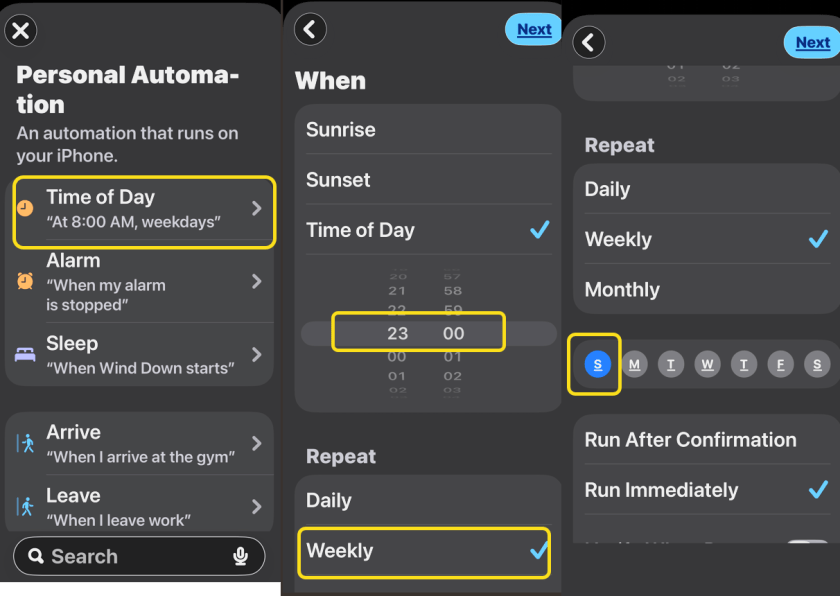
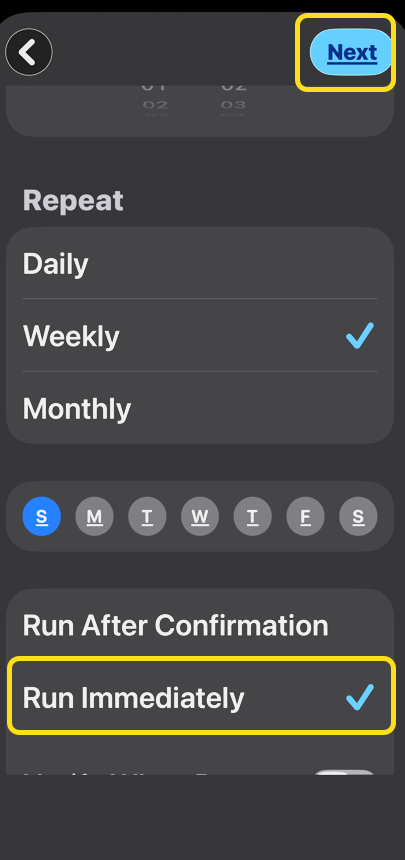
4. Scroll and select Time of Day, then choose your preferred time and frequency (such as Daily, Weekly or Monthly. If Weekly, highlight only ONE day of a week (by default, all days are highlighted). For Monthly, select a day of the month. Refer to the image below for weekly setup:
5. Select Run Immediately option so it executes without needing an extra confirmation tap, then tap Next. See the image below:
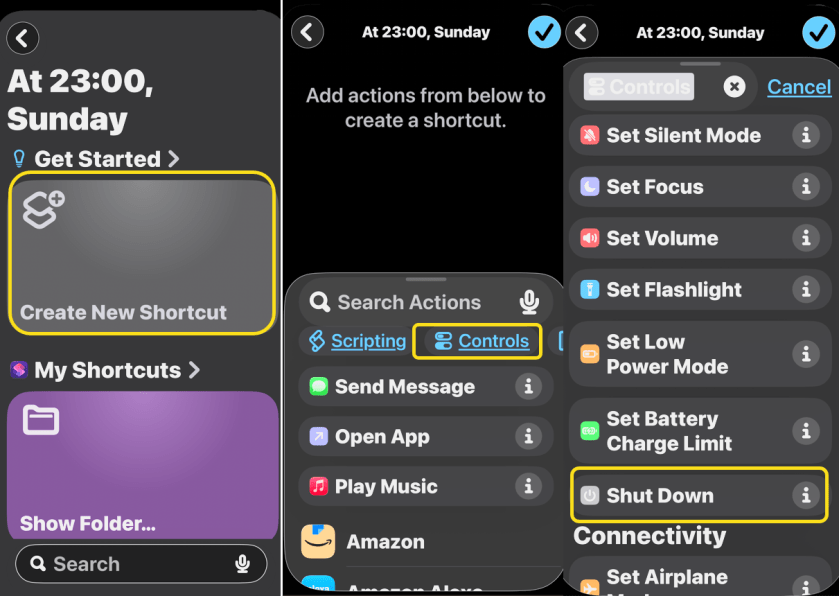
6. Choose Create New Shortcut then tap the Controls tab. Search for the Shut Down action and tap it. See the following image:
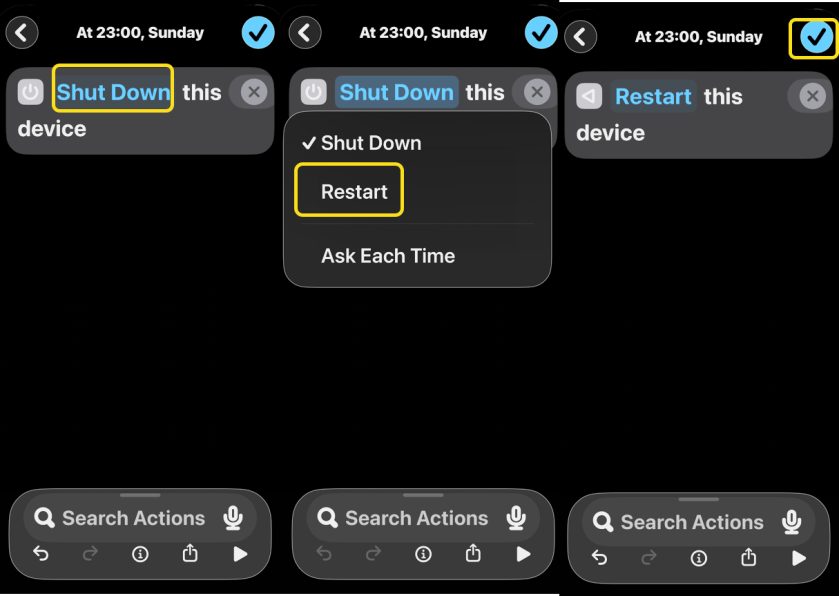
7. Tap the word “Shut Down” inside the action text and select the Restart option. Now tap Done in the top-right corner to save your new automation. Refer to the image below:
Verify Your Automation
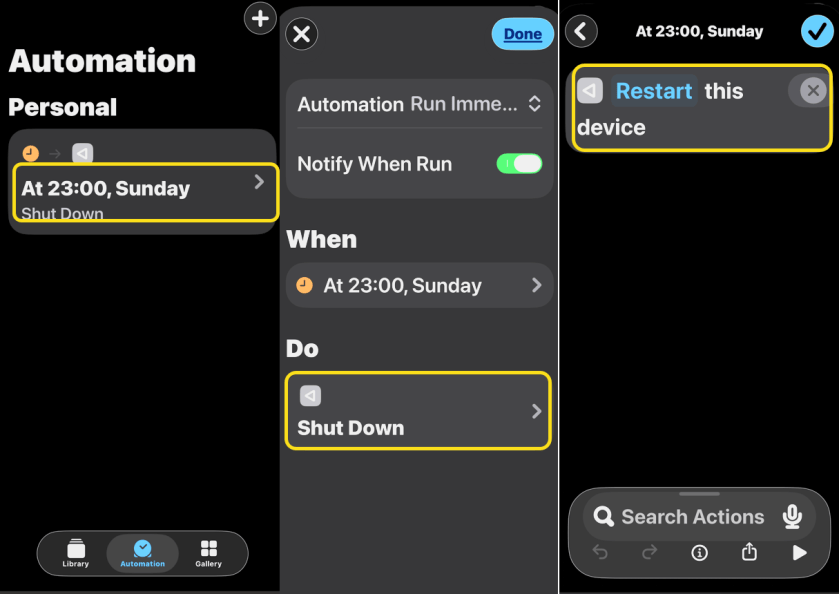
8.When you view your new automation, it will show the action as Shut Down. This is misleading because your action is really Restart. To verify, you can tap on the automation entry then tap the Shut Down option to see Restart this device action. See the image below:
Receive Notification When Run
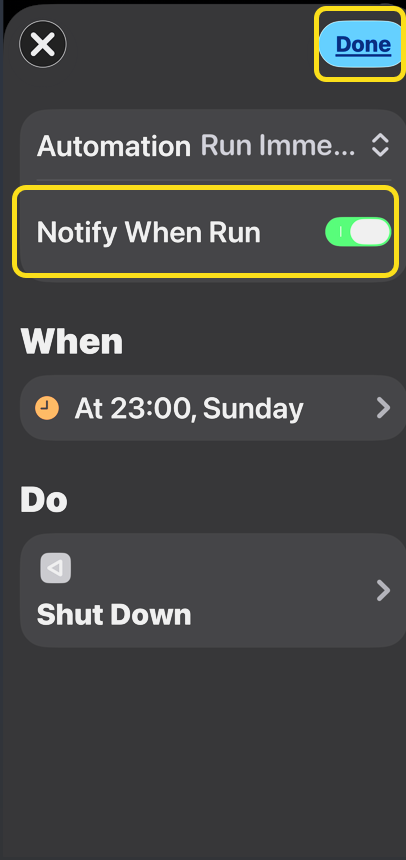
9. If you want to be notified when the Restart occurs, go back one screen, toggle on Notify When Run then tap Done. See the following image:
A well-thought-out restart schedule will keep your device running smoothly and hassle-free.
FAQ
What is the difference between Shut Down and Restart on an iPhone?
Shut Down: Powers off all systems completely. Your phone stays in a zero-power state to save battery or stay off during maintenance until you press the side button.
Restart: Clears temporary memory (RAM) and immediately reloads the operating system without requiring you to turn it back on manually.
How often should you Restart your iPhone?
You should restart your iPhone about once a week to maintain optimal performance, clear temporary memory, and enhance security.
Why Restart your iPhone weekly?
Clears RAM: Stops background processes and clears out temporary files that accumulate over time.
Fixes Glitches: Resolves minor bugs, lagging, or connectivity issues with Wi-Fi and Bluetooth.
Improves Security: Clears out unauthorized background states and allows system updates or security measures to finalize effectively effectively.
Disclaimer
Technology is constantly evolving, and smartphone and desktop tech rarely remains static. Therefore, the information in this post is only accurate as of the date it was written. Blog posts that are older than six months may contain instructions that are no longer compatible with your device or operating system. We hope that the content from previous posts continues to function as intended. Thank you for reading TechSavvy.Life, where technology works for you.
Quote For the Day
Getting information off the Internet is like taking a drink from a fire hydrant.
– Mitchell Kapor
(X) Twitter Info
That’s it. Please feel free to share this post! One way to share is via Twitter.
Just click the Tweet icon below. This will launch Twitter where you click its icon to post the Tweet.
Checkout TechSavvy.Life for blog posts on smartphones, PCs, and Macs! You may email us at contact@techsavvy.life for comments or questions.
Tweet
I Would Like to Hear From You
We value your feedback! Was this post helpful? Please share your comments with us. If you have a tech question related to your computer or smart device, feel free to reach out. Just send an email to contact@techsavvy.life, and be sure to include the device, app, and version you are using. To assist us further, you can also attach screenshots related to your inquiry.
The author’s Vietnam eBook, “Battle for Tra Bong Vietnam: Events and Aftermath”, is available on Kindle devices and the Kindle App for desktop, laptop, and smartphone. The apps are free.


