How to Forward Text Messages on iPhone

The post details how to forward text messages, including photos, on an iPhone. To forward a message, users should long press the message, select “More,” choose additional messages if desired, tap the forward icon, enter the recipient’s contact, and send it. This method allows efficient sharing without creating group texts.

RAYMOND OGLESBY @RaymondOglesby2
May 6, 2025– 4 minutes read time

You can easily forward texts from the Messages app, including photos. Just press and hold the message you want to forward. Let’s explore how to forward a text message on an iPhone.

Why You Will Like This Tip

  • Learn how to forward a text on iPhone to quickly send pictures you received in Messages to friends and family.
  • Use text message forwarding to send the same message to multiple people without making it a group text

This tip was performed on an iPhone 14 Pro running iOS 18.4..1.

Click here to learn how to update your iPhone to the latest iOS version.

Whether it’s sharing important information, funny memes, or heartfelt messages, we often find ourselves wanting to pass along these texts to others. Fortunately, forwarding a text message is a simple task that can be accomplished on most smartphones.

Text message forwarding allows you to send a message you have received to another recipient, either within the same messaging app or through a different platform like email. This feature is handy for sharing information quickly and efficiently.  However, remember that forwarded text messages can not be deleted once sent to another contact.

First, open the Messages app. Refer to the image below.
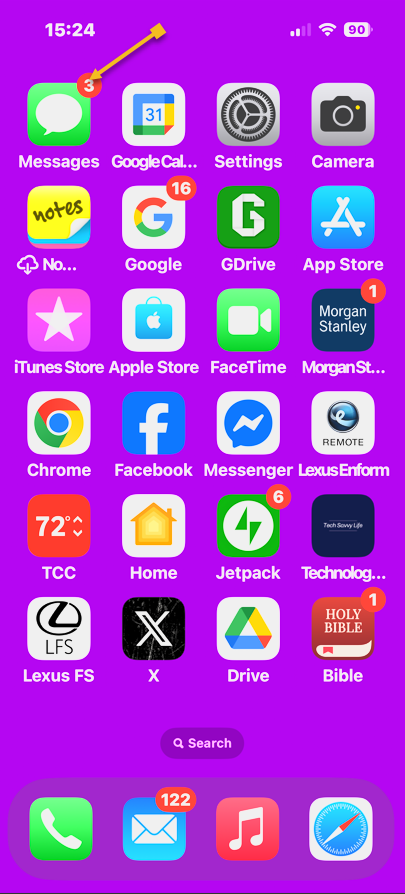
Forward 1
Selecting the Messages app

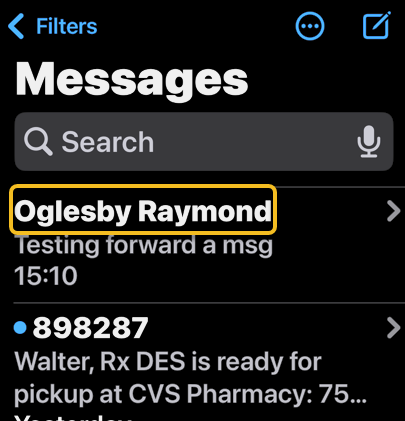
Next, tap the conversation containing the text you want to forward. See the below image:
Forward 2
Selecting a conversation

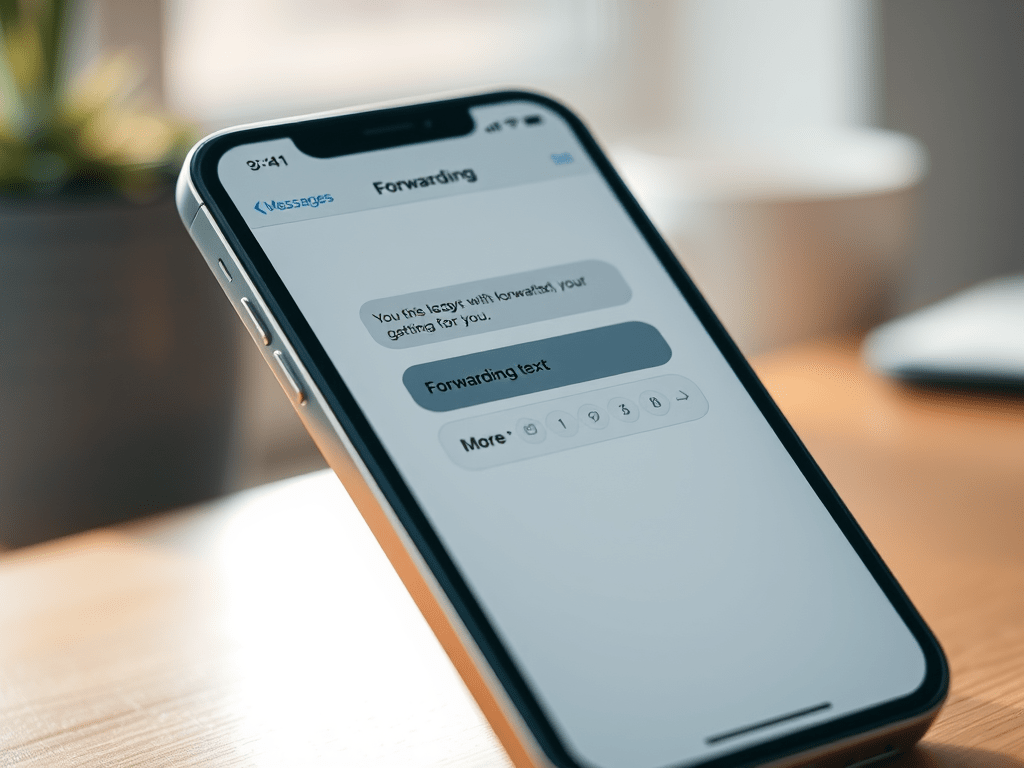
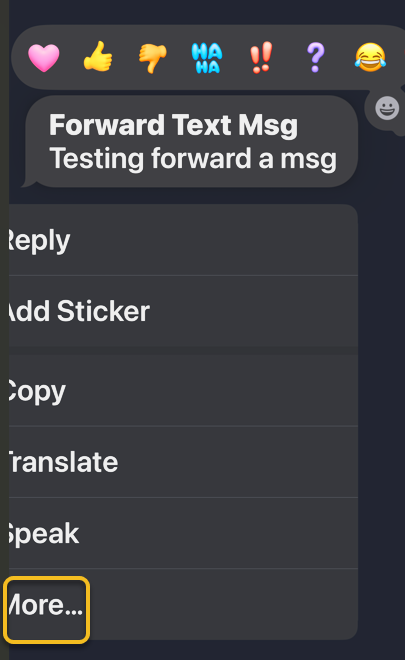
Now, long press on the body of the message you want to forward, then tap More. See the following image:
Forward 3
Selecting the More option

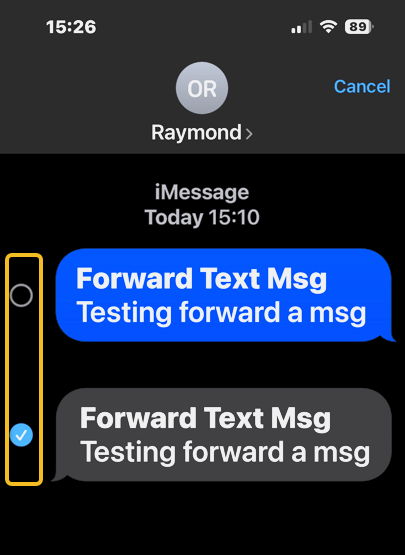
Next, all the messages will have small circles that will appear to the left of each text, with the chosen message already selected. If desired, tap the circle next to any other messages you want to forward. Refer to the image below:
Forward 4
Tapping the circle next to the message you want to forward

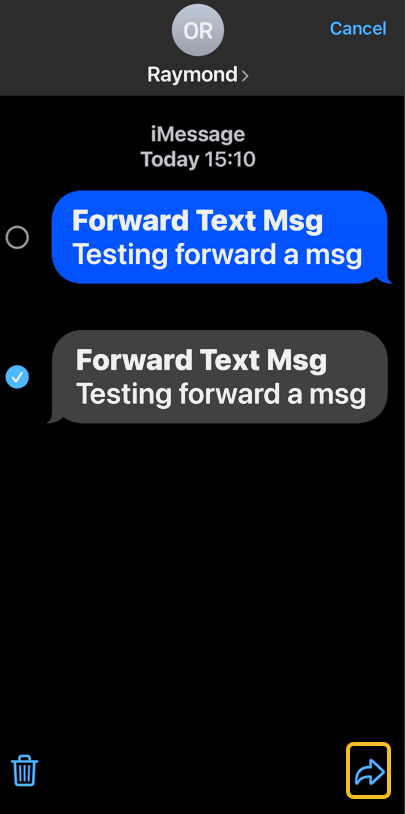
Now, tap the Forward icon, and a new message will open. See the below image:
Forward 5
Selecting the Forward icon

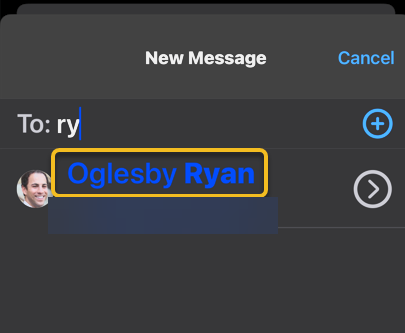
Next, enter your recipient’s contact information and tap the contact when it pops up. See the following image:
Forward 6
Entering a contact

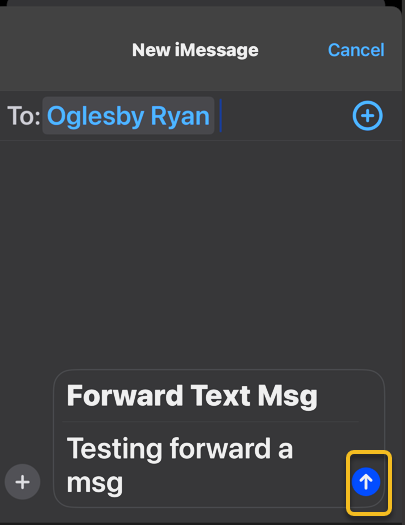
Now, tap the Send icon. Refer to the image below:
Forward 5
Selecting the Send icon

Your friend will receive the text you have forwarded. So much easier than retyping a whole message or using copy and paste!

Disclaimer

Technology is constantly evolving, and smartphone and desktop tech rarely remains static. Therefore, the information in this post is only accurate as of the date it was written. Blog posts that are older than six months may contain instructions that are no longer compatible with your device or operating system. We hope that the content from previous posts continues to function as intended. Thank you for reading TechSavvy.Life, where technology works for you.

. “Even the technology that promises to unite us divides us. Each of us is now electronically connected to the globe, and yet we feel utterly alone.”

― Dan Brown

That’s it. Please feel free to share this post! One way to share is via Twitter.

Just click the Tweet icon below. This will launch Twitter where you click its icon to post the Tweet.

Checkout TechSavvy.Life for blog posts on smartphones, PCs, and Macs! You may email us at contact@techsavvy.life for comments or questions.

We value your feedback! Was this post helpful? Please share your comments with us. If you have a tech question related to your computer or smart device, feel free to reach out. Just send an email to contact@techsavvy.life, and be sure to include the device, app, and version you are using. To assist us further, you can also attach screenshots related to your inquiry.

Author’s eBook

The author’s Vietnam eBook on the “Battle for Tra Bong Vietnam: Events and Aftermath” can be accessed from a Kindle device or the Kindle App for a desktop or smartphone. The apps are free.

The author’s Vietnam eBook on the Battle for Tra Bong Vietnam: Events and Aftermath

Enhance Your iMessage with iOS 18 Text Effects

The latest iOS updates enhance the Messages app by allowing users to use bold, italics, and animated text effects in iMessage on iOS 18 or later. These features add flair and emphasis to messages, but recipients must also have iOS 18 to view them properly.

RAYMOND OGLESBY @RaymondOglesby2
November 5, 2024

The Messages app is much livelier thanks to the latest updates to iOS. With these updates, you can express yourself in more ways than ever with special effects. You can now bold text, italicize it, and even apply some of these effects to emojis! Let’s find out how to add the impact to iMessage in iOS 18.

  • Add some extra flair to every text you send.
  • Emphasize parts of a message to make it stand out.

This tip is for iPhones running iOS 18 or later.

Click here to learn how to update your iPhone to the latest iOS version.

First, open an iMessage conversation, and tap the Text Effects button to the lower right. Refer to the below image:

Text Effects 1
Selecting the Text Effects button

Next, there is a wide variety of text effects to choose from. Just highlight the text to which you want to apply an effect. The top row is simply for formatting the text. You can choose between BoldItalicsUnderlineStrikethrough, or all at once. See the below image:

Text Effects 2
Selecting text formatting options

Now, you can also apply some animation texts to give your texts some extra flair. 

Thankfully, a preview of each animation effect will play on a loop so you can see how they look to your recipient(s).

See the following image for the Big and Small effects:

Text Effects 3
Selecting Big and Small text effects

Next, you can try the other six effects by tapping its button. To turn off an effect, tap the button again.

Note! Your recipient(s) must be running iOS 18 to see the effects. If they are using iOS 17 or below, the message will be in plain text.

Technology is always changing. Rarely is there static tech for smartphones and desktops. Thus, the contents of this post are only valid at the time of writing. Blog posts older than six months may have directions incompatible with your device or OS. Hopefully, older post content will continue to work as advertised. Thank you for reading TechSavvy.Life for Technology at Work For You.

 “Real eyes, realize, real lies…”

Tupac Shakur

That’s it. Please feel free to share this post! One way to share is via Twitter.

Just click the Tweet icon below. This will launch Twitter where you click its icon to post the Tweet.

Checkout TechSavvy.Life for blog posts on smartphones, PCs, and Macs! You may email us at contact@techsavvy.life for comments or questions.

Was this post helpful? We would love to hear your comments. Do you have a computer or smart device tech question? I will do my best to answer your inquiry. Just send an email to contact@techsavvy.life. Please mention the device, app, and version you are using. To help us, you can send screenshots of the data related to your question.

The author’s Vietnam eBook on the “Battle for Tra Bong Vietnam: Events and Aftermath” can be accessed from a Kindle device or the Kindle App for a desktop or smartphone. The apps are free.

The author’s Vietnam eBook on the Battle for Tra Bong Vietnam: Events and Aftermath

How to Delete All Facebook Messages/Chats at Once

The post discusses methods for deleting Facebook Messenger chats on iPhone and desktop. It advises changing message retention settings on the iPhone and provides steps for deleting messages on both platforms. It also mentions using Chrome extensions for bulk deletion.

RAYMOND OGLESBY @RaymondOglesby2
April 2, 2024

This is for the iPhone and desktop using Google. Screenshots are from iPhone 14 Pro running iOS 17.3 and Windows 10.

I was surprised at the number of Facebook Messenger chats on my iPhone. I started to delete them one at a time. But doing so was too time-consuming; there had to be a better way.

If you research this post, you will find articles that say bulk deletion of chats cannot be done. But with the help of Google Extensions, you can delete all your chats at once.

This blog post is one of my favorites, especially since I have thousands of chats that I want to delete. We had forgotten that the Forever option was selected, which as you may guess, saves your chats forever.

Where is a chat, a message, a conversation, or a thread used?

A chat is a term used in Messenger (owned by Facebook). A message is a term found on Facebook. In Facebook if there is more than one message with a person, group, or entity, that is labeled a conversation. For a thread, that is used in Reddit.

Why do you have hundreds or thousands of chats? On your iPhone head to:

Settings > Messages > Keep Messages

and tap the option. If the option is set to Forever you will have lots of chats. Refer to the below image:

FB Messages 1
Your Facebook Message time setting

We recommend you choose another option. When you do so, all older chats will be automatically deleted. We are selecting to delete messages older than one year. On the confirmation screen, tap Delete Older Messages. See the below image:

FB Messages 3
Selecting to delete messages older than one year

Your Keep Messages will now be set to the option you just chose. See the following image:

FB Messages 5
Your Keep Messages setting

Deleting Facebook messages does not have to be incredibly difficult. Whether you are deleting one or an entire history, there are options for you to do both with minimal effort.

Some users may find it easier to delete their entire Facebook account, although we do not recommend this. For now, let’s just clean up your messages/chats.

Deleting messages on an iPhone or iPad one at a time:

  • Open the Facebook Messenger app.
  • Tap and hold the message that you no longer want, then swipe to the left.
  • When the menu appears, select Delete.
  • Confirm the selection by tapping Delete.

If you want to delete in bulk, it would be best to use a browser.

  • Log into your Facebook account.
  • Click See all in Messenger.
  • Click on the 3-dot menu icon next to a conversation.
  • Click Delete Chat if you want to erase all the chats.
  • Confirm your deletion by clicking Delete Chat.

But what can you do about multiple messages and multiple conversations? For this, you have to install a third-party browser extension.

Extensions become a part of your web browser and allow you to perform various functions on a website. To delete multiple or all of your Facebook message history, we need to install a web browser extension.

Whether it’s Chrome, Firefox, or Internet Explorer, we will begin by using Google to pull up the Web Store.

Note! You will find a lot of Chrome extensions for deletion of messages. We strongly recommend only using the following extensions from the Chrome web store, not from third-party web sites.

You want to use Google Search to find the “Delete Facebook Messages” extension. Once you have found it, click Add to Chrome. Refer to the below image:

FB Messages 6
Adding Delete Facebook Messages Chrome extension

You will be prompted through various pop-ups until that extension is added. To view the added extension:

Click the 3-dot menu icon in the upper right-hand > Exenesions > Manage Extensions

See the below image:

FB Messages 7
Delete Facebook Messages Chrome extension

Now, let’s add the extension icon to the Chrome toolbar. Click the Details option. See the following image:

FB Messages 8
Selecting Details for the Chrome extension

Next, toggle the Pin to toolbar to ON. Refer to the below image:

FB Messages 9
Toggle Pin to toolbar to ON

Now, the Delete Facebook Messages icon will be in your toolbar. See the below image:

FB Messages 10
The Chrome extension icon

Next, click the Delete Facebook Messages icon and choose the Begin Deletion option. See the following image:

FB Messages 11
Launching the Chrome extension

Note! To use this extension more than once, there is a subscription fee.

To install the Chrome extension, search for Message Cleaner using Google Search, then select Add to Chrome. Refer to the below image:

B Messages 13
Adding the Message Cleaner Chrome extension

Follow the directions above to add its icon to the toolbar.

The extension icon will be labeled Delete all Facebook Messages in your Chrome toolbar. When you click the extension icon you can Open Messages and Delete All Messages. For one-click deletion, press the F8 key. See the below image:

FB Messages 12
Launching the Message Cleaner Chrome extension

This extension works best if you scroll down to the bottom of the message list. Once you start the extension, it will recognize all the messages as being selected for removal. You can also then pick individual messages that you may want to save.

If you selected “all” before clicking “confirm,” the only way to get those messages back is to ask the person you sent them to for help or to use data recovery methods to retrieve backed-up information, assuming you have them backed up.

Disclaimer

Technology is always changing. Rarely is there static tech for smartphones and desktops. Thus, the contents of this post are only valid at the time of writing. Blog posts older than six months may have directions incompatible with your device or OS. Hopefully, older post content will continue to work as advertised. Thank you for reading TechSavvy.Life for Technology at Work For You.

Discipline is the bridge between goals and accomplishment.

Jim Rohn

That’s it. Please feel free to share this post! One way to share is via Twitter.

Just click the Tweet icon below. This will launch Twitter where you click its icon to post the Tweet.

Checkout TechSavvy.Life for blog posts on smartphones, PCs, and Macs! You may email us at contact@techsavvy.life for comments or questions.

Please feel free to leave a comment. I would love to hear from you. Do you have a computer or smart device tech question? I will do my best to answer your inquiry. Just send an email to contact@techsavvy.life. Please mention the device, app, and version you are using. To help us out, you can send screenshots of your data related to your question.

You can access the E-book from a Kindle device, or the Kindle App for a desktop or smartphone. The apps are free.

The author’s Vietnam eBook on the Battle for Tra Bong Vietnam: Events and Aftermath

Seven Hidden iPhone Message Features

The iPhone’s Messages app has numerous little-known features. Users can track live flights, unlock animations with secret codes, mark messages as unread, stop spam messages, and use Visual Lookup on sent messages. The recently released iOS 17 introduced features to quickly access photos and Check-In, which notifies contacts when the user arrives safely at a destination. The information shared via Check-In is end-to-end encrypted and can provide safety assurance.

RAYMOND OGLESBY @RaymondOglesby2
December 12, 2023

This is for the iPhone. Screenshots are from iPhone 14 Pro running iOS 17+

Even if you use the iPhone’s Messages app every day, there’s a chance you do not know everything it’s capable of. To fully appreciate the app, here are a few of the most hidden secrets Messages offers users. Let’s explore these features.

If you have a friend or family member flying, you can see exactly where they are as long as you know the flight number. Let’s say the flight is AA7262, and they just sent you the flight number. Long press the flight number, then tap on Preview Flight. You will see all the details about the flight. Refer to the below image:

Hidden 1
Track Live Flights

You can get custom animations depending on the phrase you sent on iMessage. While you can long press the Send button before sending a message to choose a proper animation, you can also trigger them depending on the message. Here are some examples:

  • Happy Birthday! – balloons will appear
  • Congratulations! – confetti rain
  • Happy New Year! – fireworks
  • Happy Chinese New Year! – red explosion
  • Pew pew – laser light show

See the below image:

Hidden 4
Unlock Animations

One of the best features available with the Messages app on your iPhone running iOS 16 or above is the ability to mark a message as unread. If you have already read it but do not have time to reply at the moment, you can leave a notification badge on it. To mark messages as unread, tap and hold a conversation in the app’s Inbox and select Mark as Unread. See the following image:

Hidden 1
Unread a Message

iMessage has a great feature that can split your Messages Inbox by different senders. Head to:

Settings > Messages > Filter Unknown Senders

and toggle to ON. Scroll up to:

Notifications > Customize Notifications > Unknown Senders

and toggle to OFF.

With that, you will not be notified about spam or messages from people you do not know. You just need to check the Unknown Senders tab every now and then. Refer to the below image:

Hidden 10
Stop Spam Messages

Visual LookUp works like Google Lens, which can tell you what’s in an image. An example, to view info about a plant:

  1. Take a photo of a plant
  2. Open Photos and find the image
  3. Swipe up on the image
  4. Tap Look Up

Now, view the results from Siri knowledge. See the below image:

Hidden 16
Visual Lookup of a plant

With iOS 17, there’s a new feature to access your Photos in your Messages. Just long press the “+” icon in the bottom left-hand corner and select a photo to place in your message. To access a new menu of options, just press the “+” sign. See the following image:

Hidden 12
Open Photos in Messages

To access a new menu of options, just press the “+” sign. Refer to the below image:

Hidden 15
Photos Options

This is a new iOS 17 feature. It works when a user wants to notify a family member or friend that they have safely made it to their destination. After a user initiates a Check In, their friend or family member will automatically be notified when the user arrives. If they are not making progress toward their destination, useful information will be temporarily shared with the selected contact, such as the device’s location, battery level, and cell service status.

One of the primary benefits of Check In is the safety assurance it provides. Personal safety is paramount, whether navigating the streets late at night, venturing into unfamiliar territory, or heading home, Check In serves as a digital guardian. It offers security, letting your contacts know you’ve safely arrived at your intended destination. Any information shared is end-to-end encrypted. Both the recipient and sender must have iOS 17 or higher installed.

To use this feature:

  1. Open the Messages app. Tap on the conversation where you want to use Check In.
  2. Next, tap the plus (+) button, choose More, and select Check In.
  3. If it’s your first time, follow the on-screen instructions. You must decide between Limited or Full data-sharing access. These options give you control over the level of location access.
  4. Tap the Continue button as you read through the on-screen explanations until you see the Send a Check In button and tap it.

After that, if you do not reach your destination within the set time or place an Emergency SOS Call, your iPhone will prompt you to check if everything’s okay. If you do not respond within 15 minutes, Check In will alert your contact.

Disclaimer

Technology is always changing and rarely is there static tech for smartphones and desktops. Thus, the contents of this post are only valid at the time of writing. Blog posts older than six months may have directions incompatible with your device or OS. Hopefully, older post content will continue to work as advertised. Thank you for reading TechSavvy.Life for Technology at Work For You.

If you don’t ask, the answer is always no.

Nora Roberts

That’s it. Please feel free to share this post! One way to share is via Twitter.

Just click the Tweet icon below. This will launch Twitter where you click its icon to post the Tweet.

Checkout TechSavvy.Life for blog posts on smartphones, PCs, and Macs! You may email us at contact@techsavvy.life for comments or questions.

Please feel free to leave a comment. I would love to hear from you. Do you have a computer or smart device tech question? I will do my best to answer your inquiry. Just send an email to contact@techsavvy.life. Please mention the device, app, and version you are using. To help us out, you can send screenshots of your data related to your question.

You can access the e-book from a Kindle device, the Kindle App for the desktop or smartphone, which is a free app.

The author’s Vietnam eBook on the Battle for Tra Bong Vietnam: Events and Aftermath

How to Delete Message(s) on iPhone

Your iPhone makes it super easy to remove individual text messages as well as entire conversations from the Messages app.

RAYMOND OGLESBY @RaymondOglesby2
August 30, 2022

Your iPhone makes it super easy to remove individual text messages as well as entire conversations from the Messages app. Let’s explore how to delete unwanted messages.

Warning: Once you have deleted a message or a conversation, you can not restore it, so make sure you are okay with losing your chats permanently.

This is for the iPhone. Screenshots are from iPhone XR running iOS 15.5+

Dilbert and Laser
Copyright Scott Adams, Inc./Distributed by Universal Uclick for UFS

Remove Individual Messages

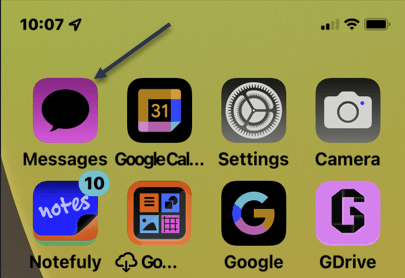
To remove single or multiple select messages from your iPhone, first, launch the Messages app on your iPhone. Refer to the below image:

Message 1
Accessing Messages

Next, in the app, find and tap the conversation in which you want to delete a message.

Now, on the Message screen, tap and hold on to the message you want to remove. Then, from the menu that opens, choose More. If the conversation has only one message, you will not see More, instead, tap Delete. See the below image:

Message 2
Accessing More option

Next, beside each message on your screen, you will see a Select icon. Tap this icon for all messages that you want to remove.

Now, when you are done, in the bottom-left corner, tap the Trash icon. See the following image:

Message 3
Selecting to delete a message

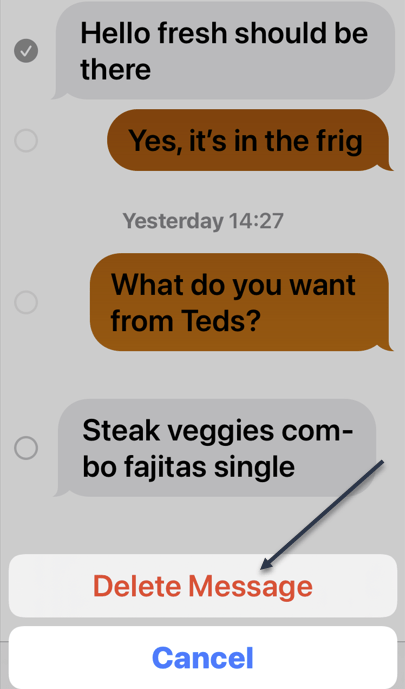
Next, in the prompt that opens, select Delete Message. Refer to the below image:

Message 4
Delete a Message

Your iPhone will delete the selected messages.

Remove Entire Conversations

To remove an entire conversation from your iPhone, first, launch the Messages app on your iPhone. See the below image:

Message 5
Accessing Messages

Next, locate the conversation to delete but do not open it. On the conversation, you want to delete, swipe left. Then, from the options that appear, select Delete. See the following image:

Message 6
Selecting to delete a conversation

In the prompt that opens, choose Delete to confirm the deletion. Refer to the below image:

Message 7
Delete a conversation

Your iPhone will remove the entire chat from your Messages app.

Quote For The Day

Technology is a useful servant but a dangerous master.

Christian Lous Lange

Tweet Info

You are finished. Please feel free to share this post! One way to share is via Twitter.

Just click the Tweet icon below. This will launch Twitter where you click its icon to post the Tweet.

Checkout TechSavvy.Life for blog posts on smartphones, PCs, and Macs! You may email us at contact@techsavvy.life for comments or questions.

I Would Like to Hear From You

Please feel free to leave a comment. I would love to hear from you. Do you have a computer or smart device tech question? I will do my best to answer your inquiry. Just send an email to contact@techsavvy.life. Please mention the device, app, and version you are using. To help us out, you can send screenshots of your data related to your question.

Author’s E-Book

You can access the e-book from a Kindle device, the Kindle App for the desktop or smartphone, which is a free app.

The author’s Vietnam eBook on the Battle for Tra Bong Vietnam: Events and Aftermath

How to Mark All Messages as Read on iPhone and iPad

Many things are easy and obvious on Apple devices. But every so often you come across something that is not. If you want to mark all your emails as read on iPhone and/or iPad and clear those indicators, let’s explore how this is done.

RAYMOND OGLESBY @RaymondOglesby2
June 21, 2022

Many things are easy and obvious on Apple devices. But every so often you come across something that is not. If you want to mark all your emails as read on iPhone and/or iPad and clear those indicators, let’s explore how this is done.

This is for the iPhone and iPad

Dilbert and Source Code
Copyright Scott Adams, Inc./Distributed by Universal Uclick for UFS

Whether you have a mailbox full of unread messages or just a group that you want to mark as read, you can do both in the Mail app on your Apple device.

Mark as Read on iPhone and iPad

First, open the mailbox in the Mail app on iPhone or iPad or choose All Inboxes to take care of all your mailboxes at once. You can also pick a specific folder. Tap Edit on the top right-hand corner and Select All on the top left-hand corner.

On the bottom left-hand corner, tap Mark and select the Mark as Read option. Refer to the below image:

Mark 1A
Selecting all emails as read

Mark as Read on Mobile

Maybe you have just a group of emails that you want to mark. They might be newsletters, promotional emails, or confirmation messages.

First, open the mailbox or folder in the Mail app and tap Edit on the top right-hand corner.

Next, you can select each message one at a time if they are not adjacent to each other. Or, to select a range of emails that are next to each other, drag your finger through them to mark them all quickly.

Now, tap Mark on the bottom left-hand corner and select the Mark as Read option. See the below image:

Mark 2A
Selecting 2 emails as read

You can also use the Search feature to find particular emails and mark messages as “read” the same way.

Once you clear those unread indicators in your inbox or badge on the Mail icon, you can start fresh with new messages.

Quote For the Day

You affect the world by what you browse.

Tim Berners-Lee

Tweet Info

That’s it. Please feel free to share this post! One way to share is via Twitter.

Just click the Tweet icon below. This will launch Twitter where you click its icon to post the Tweet.

Check out TechSavvy.Life for blog posts on smartphones, PCs, and Macs! You may email us at contact@techsavvy.life for comments or questions.

I Would Like to Hear From You

Please feel free to leave a comment. I would love to hear from you. Do you have a computer or smart device tech question? I will do my best to answer your inquiry. Just send an email to contact@techsavvy.life. Please mention the device, app, and version you are using. To help us out, you can send screenshots of your data related to your question.

Author’s E-book

You can access the e-book from a Kindle device, the Kindle App for the desktop or smartphone, which is a free app.

The author’s Vietnam eBook on the Battle for Tra Bong Vietnam: Events and Aftermath

How to Easily Delete Old Text Messages on iPhone or iPad

You might want to delete plain text messages because of the storage space they use. Also, you may want to delete messages for privacy reasons or just because it keeps your Messages app better organized. Plus, texts with images actually can take up a fair bit of room.

You might want to delete plain text messages because of the storage space they use. Also, you may want to delete messages for privacy reasons or just because it keeps your Messages app better organized. Plus, texts with images actually can take up a fair amount of space.

By default, your iPhone and iPad save every iMessage and SMS text message that comes your way. As a result, you could have years of messages synced to iCloud that follow you for the rest of your life, taking up valuable space. Fortunately, there’s a way to delete old text messages automatically. Lets explore how this is done.

This is for the iPhone and iPad. Screenshots are from an iPhone

Dilbert and Done
Copyright Scott Adams, Inc./Distributed by Universal Uclick for UFS

First, lets check how much storage you are using for messages and attachments (like photos on an iPhone). Go to

Settings > General > iPhone Storage > (scroll down to) Messages

Notice the amount of storage used by Documents & Data, and tap on Review Large Attachments for more detail. Refer to below image where I can save 145 MB by deleting them:

Text 1
Viewing how much storage space is being used

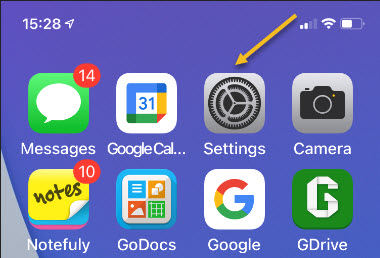
Now, exit back to Settings (the gear icon) on your iPhone or iPad. See below image:

Text 2
Accessing Settings

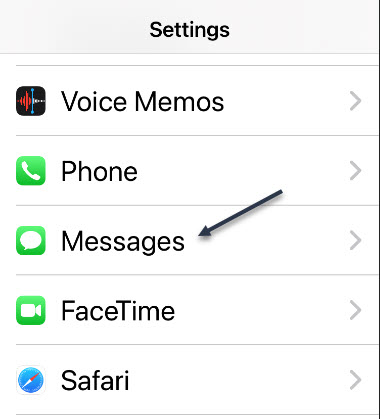
Now, in Settings, scroll down and tap the Messages option. See following image:

Text 3
Accessing the Messages option

Next, in Messages, scroll down and tap the Keep Messages option. Refer to below image:

Text 4
Accessing the Keep Messages option. The default is Forever

By default, Messages is set to keep your SMS text messages and iMessages forever. Next, tap either 30 Days or 1 Year depending on how long you would like to keep your old text messages. See below image:

Text 5
Selecting your option on how long to keep text messages

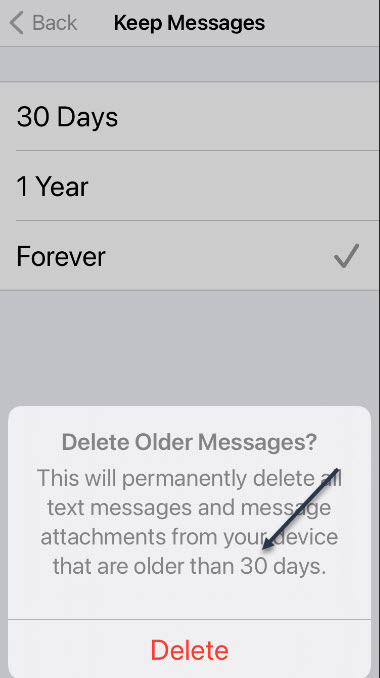
After tapping your preference, you will see a pop-up dialog asking whether you want to delete all messages older than the time period you specified. If you are sure, just tap the Delete button. See following image:

Text 6
Pop-up window showing the option you selected

Next, exit Settings. From now on, Messages will automatically delete any messages once they hit the 30-day or 1-year mark, depending on which option you specified. Note! The default, Forever, will remain checked until you tap the Delete button.

Now, head back to

Settings > General > iPhone Storage > (scroll down to) Messages

and check your Messages storage for the amount of space you reclaimed.

That’s it. Please feel free to share this post! One way to share is via Twitter.

Just click the Tweet icon below. This will launch Twitter where you click its icon to post the Tweet.

Check out TechSavvy.Life for blog posts on smartphones, PCs, and Macs! You may email us at contact@techsavvy.life for comments or questions.

I Would Like to Hear From You

Please feel free to leave a comment. I would love hearing from you. Do you have a computer or smart device tech question? I will do my best to answer your inquiry. Just send an email to contact@techsavvy.life. Please mention the device, app and version that you are using. To help us out, you can send screenshots of your data related to your question.

The author’s Vietnam eBook on the Battle for Tra Bong: Events and Aftermath

How to Mark Text Messages as All Read on iPhone or iPad

If you have a large number of unread text messages on your iPhone or iPad, dealing with them one-by-one can be a hassle. Thanks to Apple, it’s easy to mark every one of your unread messages as read but the feature is not well known. Let’s explore how to mark all text messages as read.

If you have a large number of unread text messages on your iPhone or iPad, dealing with them one-by-one can be a hassle. Thanks to Apple, it’s easy to mark every one of your unread messages as read but the feature is not well known. Let’s explore how to mark all text messages as read.

This is for iPhone and iPad

Dilbert and Format
Copyright Scott Adams, Inc./Distributed by Universal Uclick for UFS

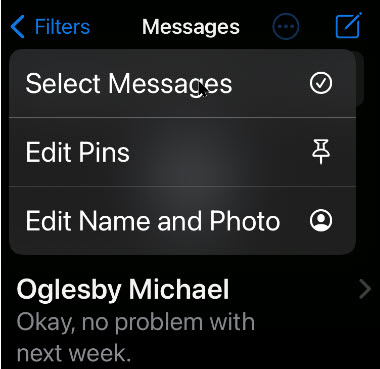
First, open your Messages app. Now, on an iPhone, look in the upper-right corner of the screen and tap the ellipses button, which looks like three dots in a circle. Refer to below image:

Read All 1
The Messages app

For the iPad, tap the Edit button in upper left-hand corner.

A pop-up menu will be displayed. Next, tap the Select Messages option. See below image:

Read All 2
Select Messages option

Now, your messages will enter “Edit” mode. But you don’t need to deal with individual messages. On both iPhone and iPad, look for the Read All button in the lower left- hand corner of your screen and tap it. See following image:

Read All 3
Select Read All option

At first glance, you may be thinking that the Read All means “I am going to read all my messages”. Actually, it means “I have read all my messages”. Apple should have put in a clarification note as to what Read All means.

After that, all unread messages will be marked as read. You will receive no notification that they all read but they will be. Cool feature!

That’s it. Please feel free to share this post! One way to share is via Twitter, as mentioned below.

I hope you have found this post helpful. If so, click the Tweet icon below. This will launch Twitter where you click its icon to post the Tweet.

I have found TechSavvy.Life blog posts extremely helpful. Check them out for blog posts on smartphones, Macs, and PCs! You may email us at contact@techsavvy.life for comments or questions.

I Would Like to Hear From You

Please feel free to leave a comment. I would love hearing from you. Do you have a computer or smart device tech question? I will do my best to answer your inquiry. Just send an email to contact@techsavvy.life. Please mention the device, app and version that you are using. To help us out, you can send screenshots of your data related to your question.

The author’s Vietnam eBook on the Battle for Tra Bong: Events and Aftermath