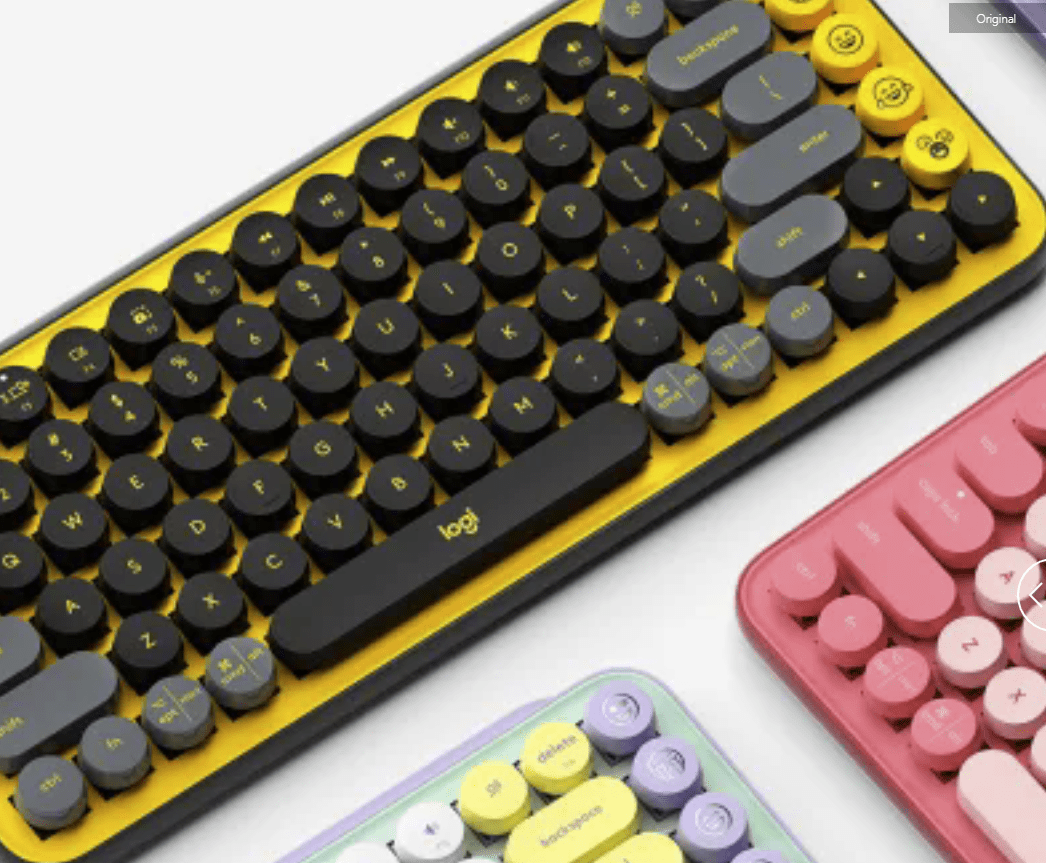
Check Out Logitech’s Colorful Keyboards and Mice

Logitech makes some of the best keyboards and mice around, and you might be familiar with the company’s RGB-packed gaming products.

RAYMOND OGLESBY @RaymondOglesby2
March 21, 2023

Logitech makes some of the best keyboards and mice around, and you might be familiar with the company’s RGB-packed gaming products. These new peripherals are packed with color, but we are not talking about lights.

We have used Logitech products for years and they work as advertised. We love the backlit K800 keyboard as well as the MX Master 3 mouse.

Logitech has announced a range of new colors for a bunch of its products, including the K580/K585 Slim Multi-Device Wireless Keyboard, MK470 Slim Combo, POP Keys, and POP Mouse. These products have been out for some time, but you can now buy them in Mist, a grayish color with a hint of sand, and Cosmos, a combination of lavender and mystic purples. Refer to the below images:

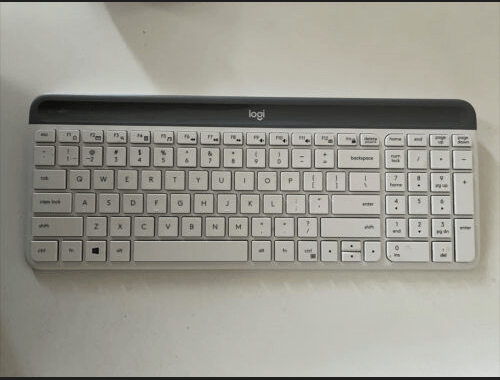
Logitech K585
K585 Keyboard with iPhone holder
Logitech K470
K470 Keyboard

Logitech says they are a perfect addition to any Gen Z or Millennial desk, although we would argue they are a great choice for anyone looking to add a splash of color to their desk. The K585 is a multi-device Bluetooth keyboard with a slot for a phone or tablet, and the MK470 is a combo package of a slim Bluetooth keyboard and mouse. The POP Keys is a bright and fun keyboard with rounded keys and customizable emoji keys, while the matching POP Mouse is a normal Bluetooth mouse but with unique color designs. See the below image:

Logitech POP Keys
POP Keys in many colors
Logitech POP Mouse
POP Mouse in many colors

You can now buy these new keyboards, in addition to all previous keyboards (which are already pretty neat in their own right) on Logitech’s website.

Disclaimer

Technology is always changing, and rarely is there static tech for smartphones and desktops. Thus, the contents of this post are only valid at the time of writing. Blog posts older than six months may incompatible with your device or OS. Hopefully, older post content will continue to work as advertised. Thank you for reading TechSavvy.Life for Technology at Work For You.

Quote For the Day

 Technology alone is not enough

Steve Jobs

Tweet Info

That’s it. Please feel free to share this post! One way to share is via Twitter.

Just click the Tweet icon below. This will launch Twitter where you click its icon to post the Tweet.

Checkout TechSavvy.Life for blog posts on smartphones, PCs, and Macs! You may email us at contact@techsavvy.life for comments or questions.

I Would Like to Hear From You

Please feel free to leave a comment. I would love to hear from you. Do you have a computer or smart device tech question? I will do my best to answer your inquiry. Just send an email to contact@techsavvy.life. Please mention the device, app, and version you are using. To help us out, you can send screenshots of your data related to your question.

Author’s E-Book

You can access the e-book from a Kindle device, the Kindle App for the desktop or smartphone, which is a free app.

The author’s Vietnam eBook on the Battle for Tra Bong Vietnam: Events and Aftermath

How to Change the Mouse Pointer snd Text Indicator on Windows 10

Windows 10 lets you increase the mouse cursor’s size and change its color as well as changed the text indicator.. Want a black mouse cursor instead? You can choose that. Want a huge yellow inverted cursor that’s easier to see? You can choose that, too. Want the cursor indicator that you can see? In our example, we will create a Scheme of yellow inverted size three cursor and a blue text indicator with a thickness of three.

RAYMOND OGLESBY @RaymondOglesby2
April 5, 2022

Windows 10 lets you increase the mouse cursor’s size and change its color as well as changed the text indicator. Want a black mouse cursor instead? You can choose that. Want a huge yellow inverted cursor that’s easier to see? You can choose that, too. Want the cursor indicator that you can see? In our example, we will create a Scheme of yellow inverted size three cursor and a blue text indicator with a thickness of three. Let’s explore how this is done.

This is for devices running Windows 10

Dilbert and Problem
Copyright Scott Adams, Inc./Distributed by Universal Uclick for UFS

Change the Mouse Settings

First, open Mouse Settings. In the Cortana search box at the lower left-hand corner, type in “mouse settings“. From the results, in the upper left-hand corner, click the Mouse settings result. The Mouse window will then open.

Next, in this window, you can adjust:

  • Cursor speed – move the slider from slow to fast
  • Mouse wheel scroll – select Multiple lines at a time
  • Lines to scroll – as you move the slider, hover on it to see the number to scroll
  • Scroll inactive windows – to enable, switch the toggle to ON

Refer to the below image:

Adjust the mouse options

When finished, click Adjust mouse & cursor size in the upper right-hand corner. Now, on the window that opens, you can adjust:

  • Pointer size – change the size from small to large
  • Pointer color – change the color by clicking the second and fourth tile. A color picker will appear for you to choose a color
  • Set touch feedback – change touch feedback toggle to ON

See the below image:

Cursor 3
Adjust the mouse pointer options

Change the Text Indicator

Next, in the pane on the left, select the Text cursor option. See the following image:

Cursor 4
Select the Text cursor option

Now, on the menu that opens, you can adjust:

  • Text cursor indicator – toggle the switch to ON
  • Text cursor size – from small to large
  • Text cursor indicator color – select a color from the tiles
  • Text cursor thickness – as you move the slider, hover on it to see the number for thickness

When finished, navigate back to the Mouse settings window. In the find a setting box in the upper left-hand corner, type in “mouse” and choose Mouse settings option.

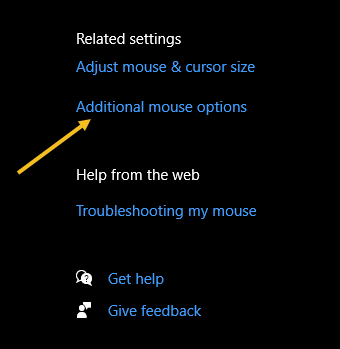
Next, on the window that opens, select Additional mouse options in the upper right-hand corner. Refer to the below image:

Cursor 6
Select Additional mouse options

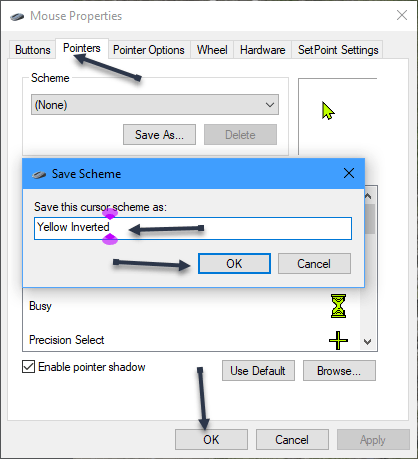
Now, the Mouse Properties window will open. Select the Pointers tab. Then label the Scheme by clicking the drop-down box and type in a name, click OK. When finished, click OK at the bottom. See the below image:

Cursor 7
Adjust the Mouse properties

In our example, we have created a Scheme of yellow inverted size three cursor and a blue text indicator with a thickness of three.

Quote For the Day

Yesterday ended last night. Today is a brand-new day.

Zig Ziglar

That’s it. If you ever want to tweak your mouse cursor again, just come back here. Please feel free to share this post! One way to share is via Twitter.

I hope you have found this post helpful. If so, click the Tweet icon below. This will launch Twitter where you click its icon to post the Tweet.

Check out TechSavvy.Life for blog posts on smartphones, PCs, and Macs! You may email us at contact@techsavvy.life for comments or questions.

I Would Like to Hear From You

Please feel free to leave a comment. I would love to hear from you. Do you have a computer or smart device tech question? I will do my best to answer your inquiry. Just send an email to contact@techsavvy.life. Please mention the device, app, and version you are using. To help us out, you can send screenshots of your data related to your question.

Author’s E-book

You can access the e-book from a Kindle device, the Kindle App for the desktop or smartphone, which is a free app.

The author’s Vietnam eBook on the Battle for Tra Bong Vietnam: Events and Aftermath

How to Turn Off Mouse Acceleration in Windows 10

If your cursor keeps overshooting your target on your Windows 10 desktop, the culprit might be a feature known as Mouse Acceleration. Disabling it might increase your pointer accuracy, letting you land right on point every time.

RAYMOND OGLESBY @RaymondOglesby2
September 14, 2021

If your cursor keeps overshooting your target on your Windows 10 desktop, the culprit might be a feature known as Mouse Acceleration. Disabling it might increase your pointer accuracy, letting you land right on point every time.

This is for devices running Windows 10

Dilbert and Praying
Copyright Scott Adams, Inc./Distributed by Universal Uclick for UFS

What is Mouse Acceleration

Mouse Acceleration in Windows 10 is a feature that increases the distance and speed at which your cursor moves across the screen in response to the speed with which you move your physical mouse.

With Mouse Acceleration enabled, if you were to quickly move your physical mouse three inches, your cursor could travel from one side of the screen to the other. However, if you were to move your mouse the exact same distance, only much slower, your cursor might only make it halfway across the screen.

This feature is enabled on Windows 10 devices by default, and the goal is to enhance the precision of your cursor. For many, it has the exact opposite effect; especially for gamers. If you find this to be the case for you, you can disable it.

Turn Off the Feature

First, in the Cortana search box (next to the Windows logo key), type Mouse and click Mouse settings from the search results in upper left-hand corner. Refer to below image:

Mouse 1
Selecting Mouse settings

Next, find the Related settings group to the right of the Mouse settings window (or the bottom if your window size is small). Now, click Additional mouse options. See below image:

Mouse 2
Selecting more mouse options

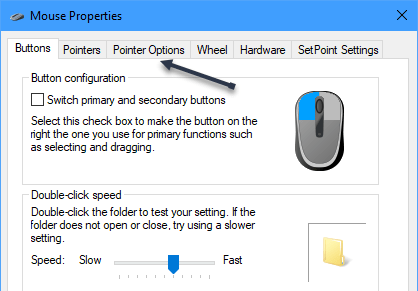
Next, in the Mouse Properties window, click the Pointer Options tab. See following image:

Mouse 3
Selecting Pointer Options tab

Now, under the Motion group, uncheck Enhance pointer precision, and then click Apply. Refer to below image:

Mouse 4
Turn off pointer precision

Now close the Mouse Properties window and exit Settings. Your mouse acceleration is now disabled.

This should help you more accurately land on your targets. But if you are a gamer and you are still having problems, you may want to read up on “mouse DPI and polling rates” and invest in a mouse that’s designed for gaming.

Quote For the Day

There are worse crimes than burning books. One of them is not reading them.

Ray Bradbury

That’s it. Please feel free to share this post! One way to share is via Twitter.

Just click the Tweet icon below. This will launch Twitter where you click its icon to post the Tweet.

Check out TechSavvy.Life for blog posts on smartphones, PCs, and Macs! You may email us at contact@techsavvy.life for comments or questions.

I Would Like to Hear From You

Please feel free to leave a comment. I would love hearing from you. Do you have a computer or smart device tech question? I will do my best to answer your inquiry. Just send an email to contact@techsavvy.life. Please mention the device, app and version that you are using. To help us out, you can send screenshots of your data related to your question.

The author’s Vietnam eBook on the Battle for Tra Bong Vietnam: Events and Aftermath