What is the New Rapid Response from Apple

Rapid Security Responses are a new software release for iPhone, iPad, and Mac. They deliver important security improvements between software updates — for example, improvements to the Safari web browser, the WebKit framework stack, or other critical system libraries. They may also be used to mitigate some security issues more quickly, such as issues that might have been exploited or reported to exist “in the wild.”

RAYMOND OGLESBY @RaymondOglesby2
May 9, 2023

This is for iPhone, iPad, and Mac

Rapid Security Responses deliver significant security improvements between software updates.

Rapid Security Responses are a new software release for iPhone, iPad, and Mac. They deliver important security improvements between software updates; for example, improvements to the Safari web browser, the WebKit framework stack, or other critical system libraries. They may also be used to mitigate some security issues more quickly, such as issues that might have been exploited or reported to exist “in the wild.”

New Rapid Security Responses are delivered only for the latest version of iOS, iPadOS, and macOS — beginning with iOS 16.4.1, iPadOS 16.4.1, and macOS 13.3.1.

By default, your device allows Rapid Security Responses to be applied automatically and, if necessary, will prompt you to restart your device. To check your device settings:

On iPhone or iPad head to:

  • Settings > General > Software Update > Automatic Updates

Then make sure that Security Responses & System Files are turned on. Refer to the below image:
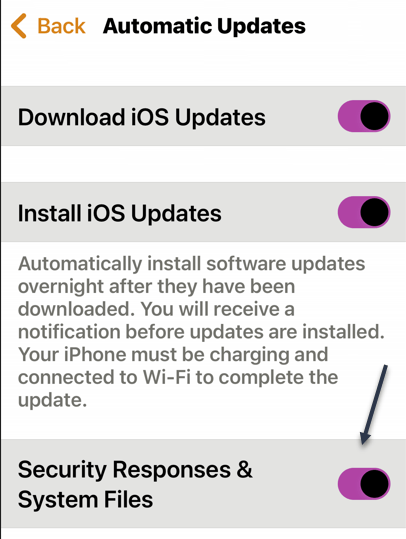
Rapid 1
Security Responses enabled

On a Mac head to:

  • Apple menu  > System Settings >General > Software Update > Show Details button next to Automatic Updates

Then make sure that Install Security Responses and system files are turned on.

When a Rapid Security Response has been applied, a letter appears after the software version number, as in this example: iOS 16.4.1 (a).

Suppose you choose to turn off this setting or not to apply Rapid Security Responses when they are available. In that case, your device will receive relevant fixes or mitigations when they have included in a subsequent software update.

Source: Apple Support

Disclaimer

Technology is always changing and rarely is there static tech for smartphones and desktops. Thus, the contents of this post are only valid at the time of writing. Blog posts older than six months may have directions incompatible with your device or OS. Hopefully, older post content will continue to work as advertised. Thank you for reading TechSavvy.Life for Technology at Work For You.

Quote For the Date

Even in such technical lines as engineering, about 15% of one’s financial success is due one’s technical knowledge and about 85% is due to skill in human engineering, to personality and the ability to lead people.

Dale Carnegie

Tweet Info

That’s it. Please feel free to share this post! One way to share is via Twitter.

Just click the Tweet icon below. This will launch Twitter where you click its icon to post the Tweet.

Checkout TechSavvy.Life for blog posts on smartphones, PCs, and Macs! You may email us at contact@techsavvy.life for comments or questions.

I Would Like to Hear From You

Please feel free to leave a comment. I would love to hear from you. Do you have a computer or smart device tech question? I will do my best to answer your inquiry. Just send an email to contact@techsavvy.life. Please mention the device, app, and version you are using. To help us out, you can send screenshots of your data related to your question.

Author’s E-Book

You can access the e-book from a Kindle device, the Kindle App for the desktop or smartphone, which is a free app.

The author’s Vietnam eBook on the Battle for Tra Bong Vietnam: Events and Aftermath

How to Turn On Safer Browsing in Google Chrome

Google has some built-in tools in Chrome that attempt to make browsing safer. Enhanced Safe Browsing is one such tool.

With Safe Browsing, you get alerts about malware, risky extensions, phishing, or sites on Google’s list of potentially unsafe sites.

Google has some built-in tools in Chrome that attempt to make browsing safer. Enhanced Safe Browsing is one such tool. Let’s explore how to turn on this feature.

This is for the desktop version of Chrome and Android. Screenshots are from Chrome on Windows 10.

Copyright Scott Adams, Inc./Distributed by Universal Uclick for UFS

Enhanced Safe Browsing Explained

Safe Browsing is a list of dangerous URLs that is maintained by Google and used to protect users from malicious sites. Enhanced Safe Browsing builds upon this feature with some additional tools.

With Enhanced Safe Browsing enabled, Chrome shares even more browsing data with Google. This allows for threat assessments to be more accurate and proactive, though it does present a privacy concern in itself. You are letting Google monitor your browsing.

Per Google’s description, Enhanced Safe Browsing enables the following:

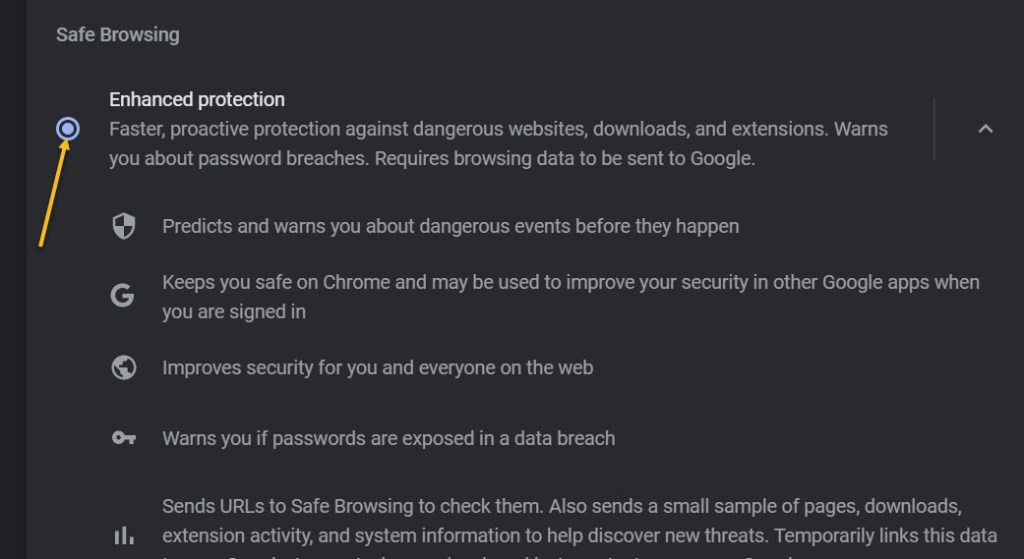
  • It predicts and warns you about dangerous events before they happen.
  • It keeps you safe on Chrome and may be used to improve your security in other Google apps when you are signed in.
  • It improves security for you and everyone on the web.
  • It warns you if passwords are exposed in a data breach.

Enable This Feature

The feature is available for Chrome on the desktop and Android. It is not available for iPhone and iPad. The process for enabling it is very similar on both platforms.

First, launch Chrome. Next, select the three-dot menu (the hamburger) icon in the top-right corner of Chrome. Now, choose Settings from the menu. Refer to below image:

Selecting Settings

Next, go to the Privacy and Security section. See below image:

Accessing Privacy and security option

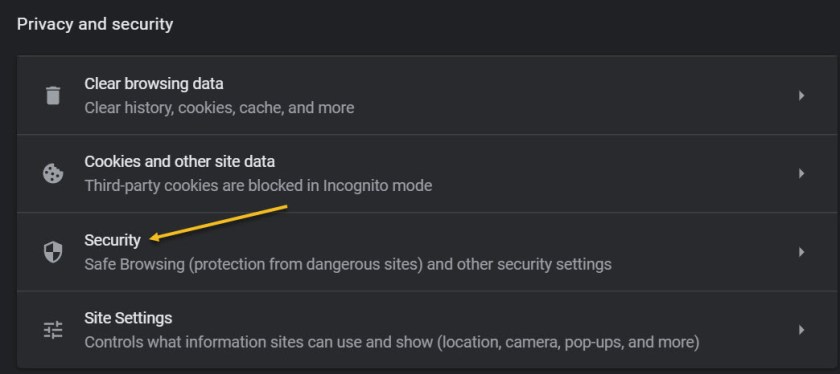
Now, on the desktop, click Security. On the Android, it is called Safe Browsing. See following image:

Browsing 3
Accessing the Security option

Next, click or tap on the radio button to enable Enhanced protection. Refer to below image:

Enabling Enhanced protection

Now, exit Settings. You are finished. You will not notice anything different in your everyday browsing, but you will now have better protection. In the event that something is amiss, Google Chrome will give you a warning.

Please feel free to share this post! One way to share is via Twitter.

Just click the Tweet icon below. This will launch Twitter where you click its icon to post the Tweet.

Check out TechSavvy.Life for blog possts on smartphones, PCs, and Macs! You may email us at contact@techsavvy.life for comments or questions.

I Would Like to Hear From You

Please feel free to leave a comment. I would love hearing from you. Do you have a computer or smart device tech question? I will do my best to answer your inquiry. Just send an email to contact@techsavvy.life. Please mention the device, app and version that you are using. To help us out, you can send screenshots of your data related to your question.

The author’s Vietnam eBook on the Battle for Tra Bong: Events and Aftermath

Cybersecurity Awareness Month

October is designated as National Cybersecurity Awareness Month with this event marking the 17th year that we in the cybersecurity community promote increased awareness on cybersecurity and privacy issues.

Guest Author
Michael Oglesby of True Digial Security

Cyber Security Awareness Resources | Free Tools

October is designated as National Cybersecurity Awareness Month with this event marking the 17th year that we in the cybersecurity community promote increased awareness on cybersecurity and privacy issues. After 17 years, you might think that we should be winding down; that we don’t have much left to say on this subject. The truth is the exact opposite. Every year more and more of our daily lives and services move to the digital world. Last year my family began doing most of our grocery shopping online and now this year due to the global events of 2020, most families, including ours, moved our children’s school online. Increased cybersecurity awareness it seems is needed now more than ever.

Password Security

For this month, I wanted to share with you some thoughts and advice about passwords. You have probably read a lot of advice on passwords in the past like “make them long and unguessable”, “use a password manager”, or “don’t use the same password on more than one website”. All this advice is great, and I still recommend you do all of these steps. Most browsers have a built-in password manager that’s pretty good, easy to setup, and will even sync your passwords between your phone and computer if you use the same browser. However, the truth is that passwords by themselves are not enough to keep you fully safe on the Internet. I view password like a VCR or 8-track player. Old technology for the past that can’t keep up with today’s 4K, blue ray, and streaming Internet. Passwords provide a very minimal level of protection, but they need some help.

Multi-Factor Security

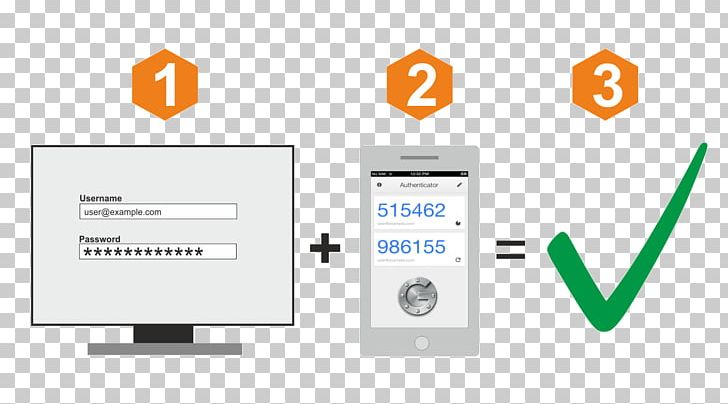
Security Token Multi-factor Authentication Google Authenticator One-time  Password PNG, Clipart, Active Directory, Authentication, Brand,

The good news is that help is already here, you just have to setup it up or turn it on. We call this additional level of security, Multi-Factor or just MFA for short. You also may see it called “Two-Factor” Authentication. You have probably already been exposed to it at your job or place of business, but it simply means using an additional level of security beyond a password. This might be a text message with a one-time code, an automated phone call, or a smart phone application. There are many different types of MFA setups. Personally, I use the smart phone version anywhere I can as I always have my phone handy.

So the question is where should you be using MFA. The easy answer is everywhere! Any place or website you use a password to login you should look and see if that website has MFA. Its usually tucked away in the account setting. You might be surprised when you find out that almost every important website you use today have some form of MFA features. Facebook, Google, Microsoft, Twitter, Amazon, Paypal, Ebay, most email providers, any financial websites, etc. They all support MFA and I highly recommend you turn it on.  Especially if the website has your credit card or gift cards stored or any place you make an online purchase.

Turing on MFA takes a little extra work but it makes a big difference in online safely. Criminals and hackers may be able to guess your password, but it’s much harder for them to also steal your phone.

A Big Thank You

Thanks to Michael for being our guest and creating this blog post.

I have found TechSavvy.Life blog posts extremely helpful. Check them out for posts on smart phone apps, Macs and PCs!

I Would Like to Hear From You

Please feel free to leave a comment. I would love hearing from you. Do you have a computer or smart device tech question? I will do my best to answer your inquiry. Please mention the device, app and version that you are using. To help us out, you can send screenshots of your data related to your question.

The author’s Vietnam eBook on the Battle for Tra Bong: Events and Aftermath