


If you find it more convenient to listen to some text on your iPhone or iPad rather than read it, you can easily enable that capability. You might, for example, want your device to read a web page, ebook, or another document while you perform household chores.
RAYMOND OGLESBY @RaymondOglesby2
November 19, 2024 – 5 minutes read time
Overview
Apple ensured that the iPhone came with a broad array of built-in accessibility features so anyone can use it. Text-to-speech is just one of these accessibility options. Let’s explore how to set up and use text-to-speech.
Why You Will Like This Tip
- Listen to web articles or books when you are busy with other tasks.
- Have your iPhone or iPad read to you if you have difficulty seeing the screen well.
System Requirements
This tip works on iPhones running iOS 16 or newer. Screenshots are from iPhone 14 Pri running iOS 18+
Click here to learn how to update your iPhone to the latest iOS version.
How to Setup
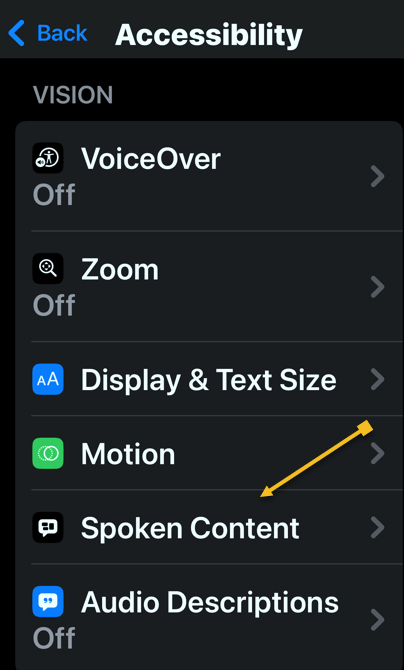
First, open the Settings app, and tap Accessibility. Refer to the below image:

Next, tap Spoken Content. See the below image:
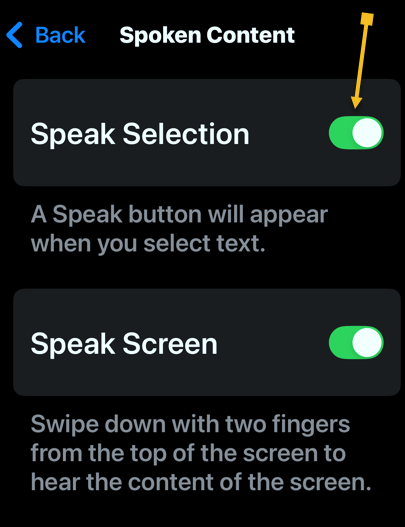
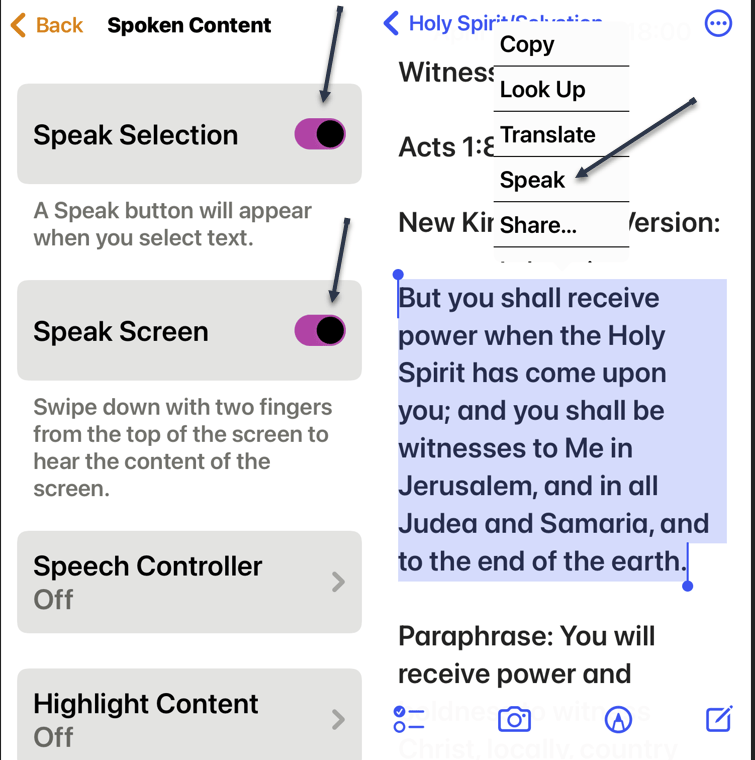
Now, tap the toggle next to Speak Selection to enable or disable it. See the following image:
Tap the Highlight Content option to highlight each word as it is spoken (this is optional). Refer to the below image:

Next, you can tap Voices to choose a different computer-generated voice. See the below image:
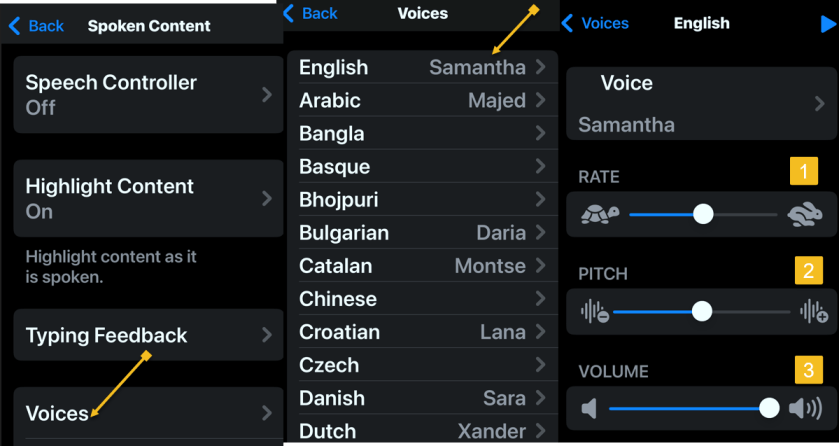
Now, you can also select your Default Language. (Ours is set to Current Locale which is English). See the following image:

If you change your Default Language, you can turn the toggle next to Detect Languages to Off. This will let your iPhone read in other languages instead of translating in your default language. Refer to the below image:

The Speaking Rate slider allows you to adjust how fast or slow the text-to-speech voice reads. See the below image:

Next, you can add Pronunciations, if the text-to-speech voice is not pronouncing something correctly. See the following image:

How to Use
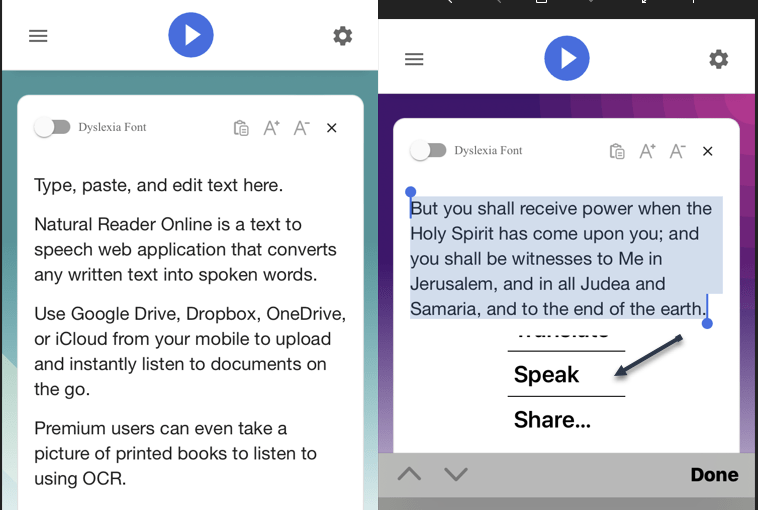
To use text-to-speech, tap and hold some text to highlight it or use the Select or Select All option. Refer to the below image:

Now, tap the Speak option, and your iPhone will read the text aloud. See the below image:

Next, to stop your iPhone from reading the text, tap the highlighted text, then tap the Pause option. See the following image:

Summary
You can use text-to-speech to have your iPhone or iPad read aloud to you if you have trouble reading everything on your screen, or while doing chores, cooking, or going for a walk.
Disclaimer
Technology is always changing. Rarely is there static tech for smartphones and desktops. Thus, the contents of this post are only valid at the time of writing. Blog posts older than six months may have directions incompatible with your device or OS. Hopefully, older post content will continue to work as advertised. Thank you for reading TechSavvy.Life for Technology at Work For You.
Quote For the Day
“Proverbs are all very fine when there’s nothing to worry you, but when you’re in real trouble, they’re not a bit of help.”
L.M. Montegomery
(X) Twitter Info
Congratulations, you are finished. Please feel free to share this post! One way to share is via Twitter.
Just click the Tweet icon below. This will launch Twitter where you click its icon to post the Tweet.
Checkout TechSavvy.Life for blog posts on smartphones, PCs, and Macs! You may email us at contact@techsavvy.life for comments or questions.
Tweet
I Would Like to Hear From You
Was this post helpful? We would love to hear your comments. Do you have a computer or smart device tech question? I will do my best to answer your inquiry. Just send an email to contact@techsavvy.life. Please mention the device, app, and version you are using. To help us, you can send screenshots of the data related to your question.
The author’s Vietnam eBook on the “Battle for Tra Bong Vietnam: Events and Aftermath” can be accessed from a Kindle device or the Kindle App for a desktop or smartphone. The apps are free.

 Tech Savvy Life