How to Enable Dark Mode on Your iPhone

The iPhone Dark Mode feature enhances user experience by darkening backgrounds and lightening text for better contrast, reducing eye strain, and improving battery life. Accessible through Settings or Control Center, it can be toggled manually or set to activate automatically. This feature is available on most iPhone models.

RAYMOND OGLESBY @RaymondOglesby2
May 13, 2025 – 3 minutes read time

The iPhone Dark Mode feature reverses the color scheme on your iPhone, darkening the background and lightening text to provide higher contrast. This change will affect the theme for built-in apps, including Files, Messages, Music, Notes, Safari, and Settings.

Additionally, it can help reduce eye strain caused by looking at bright screens, or just look better to some users. To enable Dark Mode on iPhones of most models, simply make a quick change in the Settings app.

Enabling Dark Mode on your iPhone is easy, as it can be turned on and off as needed, or you can set it to activate automatically in the evenings. Let’s explore this feature.

  • Dark Mode on iPhone is a neat setting that can help reduce eye strain while you use your iPhone.
  • You can also enjoy longer battery life and improved focus while using Dark Mode for iPhone.
  • Your phone can automatically toggle between Light and Dark Mode, depending on the time of day!

This tip was performed on an iPhone 14 Pro running iOS 18.4.1 but will work on most models and older software versions.

Click here to learn how to update your iPhone to the latest iOS version.

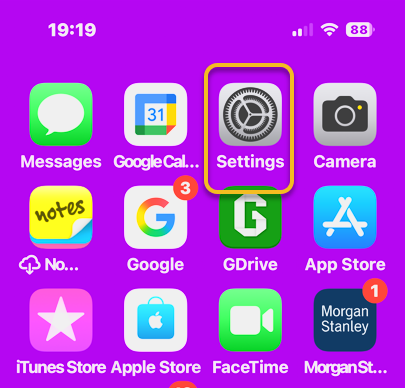
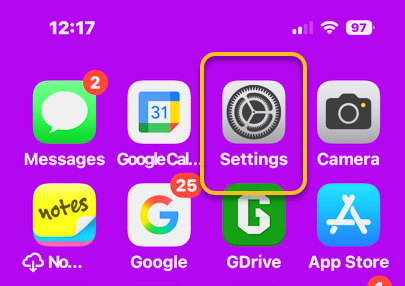
First, open Settings. Refer to the image below:

Dark Mode 1
Selecting the Settings app

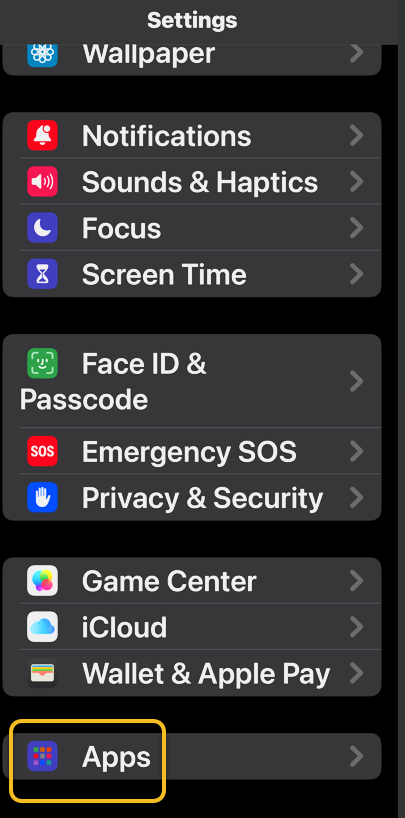
Next, tap Disply & Brightness. See the image below:

Dark Mode 2
Selecting the Display & Brightness option

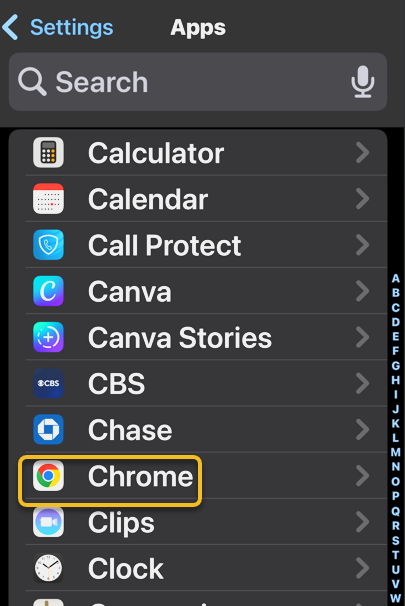
Now, tap the circle under Dark. See the following image:

Dark Mode 3
Running on Dark Mode

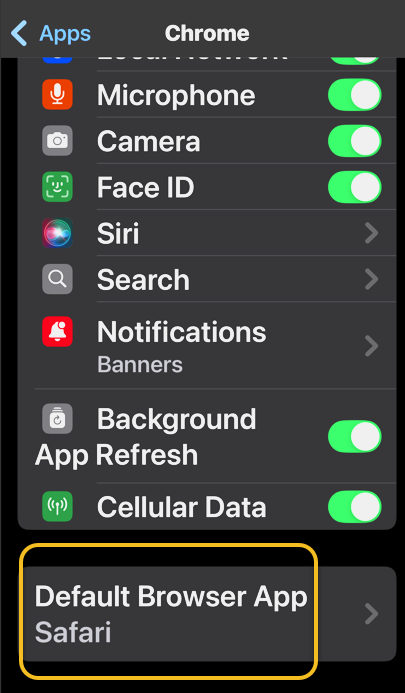
Next, to make Dark Mode turn on automatically when the sun sets and off again when the sun rises, make sure that Automatic is toggled on. Refer to the image below:

Dark Mode 4
Enabling automatic Dark Mode

Now, Dark Mode is turned on for your iPhone, and you can enjoy some battery saving, improved focus, and reduced eye strain!

You can also access Dark Mode from your Control Center. Simply open your Control Center by swiping down from the upper right corner. Then, touch and hold the Brightness bar and select Dark Mode. See the image below:

Dark Mode 5
Accessing Dark Mode via Control Center

The fastest way to turn Dark Mode on or off is to just ask Siri. “Hey Siri, turn on Dark Mode. See the following image:

Dark Mode 6
Using Siri to access Dark Mode

Disclaimer

Technology is constantly evolving, and smartphone and desktop tech rarely remains static. Therefore, the information in this post is only accurate as of the date it was written. Blog posts that are older than six months may contain instructions that are no longer compatible with your device or operating system. We hope that the content from previous posts continues to function as intended. Thank you for reading TechSavvy.Life, where technology works for you.

. “I’d rather check my Facebook than face my checkbook.”

― Craig Coelho

That’s it. Please feel free to share this post! One way to share is via Twitter.

Just click the Tweet icon below. This will launch Twitter where you click its icon to post the Tweet.

Checkout TechSavvy.Life for blog posts on smartphones, PCs, and Macs! You may email us at contact@techsavvy.life for comments or questions.

We value your feedback! Was this post helpful? Please share your comments with us. If you have a tech question related to your computer or smart device, feel free to reach out. Just send an email to contact@techsavvy.life, and be sure to include the device, app, and version you are using. To assist us further, you can also attach screenshots related to your inquiry.

Author’s eBook

The author’s Vietnam eBook on the “Battle for Tra Bong Vietnam: Events and Aftermath” can be accessed from a Kindle device or the Kindle App for a desktop or smartphone. The apps are free.
The author’s Vietnam eBook on the Battle for Tra Bong Vietnam: Events and Aftermath

How to Forward Text Messages on iPhone

The post details how to forward text messages, including photos, on an iPhone. To forward a message, users should long press the message, select “More,” choose additional messages if desired, tap the forward icon, enter the recipient’s contact, and send it. This method allows efficient sharing without creating group texts.

RAYMOND OGLESBY @RaymondOglesby2
May 6, 2025– 4 minutes read time

You can easily forward texts from the Messages app, including photos. Just press and hold the message you want to forward. Let’s explore how to forward a text message on an iPhone.

Why You Will Like This Tip

  • Learn how to forward a text on iPhone to quickly send pictures you received in Messages to friends and family.
  • Use text message forwarding to send the same message to multiple people without making it a group text

This tip was performed on an iPhone 14 Pro running iOS 18.4..1.

Click here to learn how to update your iPhone to the latest iOS version.

Whether it’s sharing important information, funny memes, or heartfelt messages, we often find ourselves wanting to pass along these texts to others. Fortunately, forwarding a text message is a simple task that can be accomplished on most smartphones.

Text message forwarding allows you to send a message you have received to another recipient, either within the same messaging app or through a different platform like email. This feature is handy for sharing information quickly and efficiently.  However, remember that forwarded text messages can not be deleted once sent to another contact.

First, open the Messages app. Refer to the image below.

Forward 1
Selecting the Messages app

Next, tap the conversation containing the text you want to forward. See the below image:

Forward 2
Selecting a conversation

Now, long press on the body of the message you want to forward, then tap More. See the following image:

Forward 3
Selecting the More option

Next, all the messages will have small circles that will appear to the left of each text, with the chosen message already selected. If desired, tap the circle next to any other messages you want to forward. Refer to the image below:

Forward 4
Tapping the circle next to the message you want to forward

Now, tap the Forward icon, and a new message will open. See the below image:

Forward 5
Selecting the Forward icon

Next, enter your recipient’s contact information and tap the contact when it pops up. See the following image:

Forward 6
Entering a contact

Now, tap the Send icon. Refer to the image below:

Forward 5
Selecting the Send icon

Your friend will receive the text you have forwarded. So much easier than retyping a whole message or using copy and paste!

Disclaimer

Technology is constantly evolving, and smartphone and desktop tech rarely remains static. Therefore, the information in this post is only accurate as of the date it was written. Blog posts that are older than six months may contain instructions that are no longer compatible with your device or operating system. We hope that the content from previous posts continues to function as intended. Thank you for reading TechSavvy.Life, where technology works for you.

. “Even the technology that promises to unite us divides us. Each of us is now electronically connected to the globe, and yet we feel utterly alone.”

― Dan Brown

That’s it. Please feel free to share this post! One way to share is via Twitter.

Just click the Tweet icon below. This will launch Twitter where you click its icon to post the Tweet.

Checkout TechSavvy.Life for blog posts on smartphones, PCs, and Macs! You may email us at contact@techsavvy.life for comments or questions.

We value your feedback! Was this post helpful? Please share your comments with us. If you have a tech question related to your computer or smart device, feel free to reach out. Just send an email to contact@techsavvy.life, and be sure to include the device, app, and version you are using. To assist us further, you can also attach screenshots related to your inquiry.

Author’s eBook

The author’s Vietnam eBook on the “Battle for Tra Bong Vietnam: Events and Aftermath” can be accessed from a Kindle device or the Kindle App for a desktop or smartphone. The apps are free.
The author’s Vietnam eBook on the Battle for Tra Bong Vietnam: Events and Aftermath

How to Change Siri’s Voice on iPhone

This post provides a guide on changing Siri’s voice on iPhones. Users can select different accents and voice options in the Settings app under Siri. The process is straightforward, enhancing user experience by personalizing Siri’s voice to be more relatable and understandable. Compatibility depends on current iOS versions.

RAYMOND OGLESBY @RaymondOglesby2
April 29, 2025 – 3 minutes read time

Tired of your current Siri voice? Let’s learn how to change it. Apple has recorded actors’ voices and run them through its neural text-to-speech engine in an effort to make Siri sound more natural, so you have more options than ever for how Siri’s voice should sound.

If you have not used Siri before, when you first use the virtual assistant, you will be prompted to choose a voice for it, but if you have, you can change the voice Siri is using manually. So, how do you change Siri’s voice? You can customize Siri’s voice in the Settings app. Let’s find out how.

  • Customize Siri’s voice to one that you like the best.
  • Make Siri more understandable by matching the voice to your country’s native accent.

This tip was performed on an iPhone 14 Pro running iOS 18.4.1

Click here to learn how to update your iPhone to the latest iOS version.

First, open Settings, and tap either Siri or Apple Intelligence & Siri (the menu option will appear differently depending on whether or not you have an Apple Intelligence-enabled device). Refer to the below image:

Siri 1
Selecting the Siri option

Next, tap Voice. See the image below:

Siri 2
Selecting the Voice option

Now, under Variations, you can choose between AmericanAustralianBritishIndianIrish, or South African. See the following image:

Siri 3
Selecting a Voice Variation

Next, after you have decided on your Variation, you can select a Voice. Depending on which Variation you chose, you should have between 2-5 different voices. Refer to the image below:

Siri 4
Selecting a Voice

Now, once you have found one you like, it will take some time for your iPhone to completely download the voice, though you do not need to wait in Settings for it to do so. See the image below:

Siri 5
Downloading a Voice

If you change the voice of your Siri on your iPhone, it will change it across your synced devices.

That’s how to change Siri’s voice. It’s that easy!

Disclaimer

Technology is constantly evolving, and smartphone and desktop tech rarely remains static. Therefore, the information in this post is only accurate as of the date it was written. Blog posts that are older than six months may contain instructions that are no longer compatible with your device or operating system. We hope that the content from previous posts continues to function as intended. Thank you for reading TechSavvy.Life, where technology works for you.

. “Cars will soon have the Internet on the dashboard. I worry that this will distract me from my texting.”

― Andy Borowitz

That’s it. Please feel free to share this post! One way to share is via Twitter.

Just click the Tweet icon below. This will launch Twitter where you click its icon to post the Tweet.

vCheckout TechSavvy.Life for blog posts on smartphones, PCs, and Macs! You may email us at contact@techsavvy.life for comments or questions.

We value your feedback! Was this post helpful? Please share your comments with us. If you have a tech question related to your computer or smart device, feel free to reach out. Just send an email to contact@techsavvy.life, and be sure to include the device, app, and version you are using. To assist us further, you can also attach screenshots related to your inquiry.

Author’s eBook

The author’s Vietnam eBook on the “Battle for Tra Bong Vietnam: Events and Aftermath” can be accessed from a Kindle device or the Kindle App for a desktop or smartphone. The apps are free.
The author’s Vietnam eBook on the Battle for Tra Bong Vietnam: Events and Aftermath

Top 6 Tips to Enhance Your Windows 11 Experience

This article presents six essential tips for optimizing the Windows 11 experience. Key features include using passkeys for security, utilizing tabs in File Explorer, customizing the Start Menu, exploring new sound modes, learning keyboard shortcuts, and managing desktop clutter with Title Bar Shake. Stay updated as Microsoft refines the operating system.

RAYMOND OGLESBY @RaymondOglesby2
April 22, 2025 –5 minutes read time

With these hand-picked tips and pointers, customize your Windows 11 experience, learn about the best new features, and get the most out of Microsoft’s superb desktop OS.

Windows 11 has been out for a while now, but you likely do not know about every setting and feature this operating system offers. We have done all the hard work for you, collecting six of our favorite tips and tricks that help you maximize your enjoyment and productivity with Windows. Microsoft is always refining and updating Windows 11, of course, so we will continue to update this story with new and exciting pointers.

  • Learn some new tips about Windows 11.
  • Improve the Windows 11 operating system.

Any device running Windows 11. Screenshots are from a desktop running Windows 11 Pro.

Tip 1
Using Passkeys

Passwords are so passé and not as secure as other options. Forward-minded websites and apps support more secure Passkeys to log in, which are linked to a specific device. Windows 11 can now store your passkeys or use those you store on other devices, such as your smartphone. On Windows 11, head to:

Settings > Accounts >Passkeys

Passkeys take advantage of Windows Hello authentication via facial recognition, fingerprint, or PIN.

Tip 2
Using Tabs

Explorer tabs save you from littering your desktop with multiple File Explorer windows when you need to view more than one at a time. Just right-click on a folder and choose Open in New Tab, like you would in a web browser. You can even drag a file between tabs. Just drag it to the desired tab and then down into the file list for that tab. You can also drag tabs sideways to rearrange them and press Alt-Left Arrow to navigate back in a tab (but not Ctrl-PgUp and Ctrl-PgDn as you can on a web browser).

With the initial Windows 11 release, Microsoft streamlined the ribbon at the top of the File Explorer menu. Cut, Copy, Paste, Rename, Share, Delete, Sort, and View choices get prominent buttons at the top, saving you from having to wade through multiple menus you seldom use. Windows 11 also adds a New button for creating new folders and shortcuts, as well as documents based on installed programs. The buttons change based on context, too. So, for example, when you are searching in the right-hand search box, you get a Search Options button.

Tip 3
Customize Start Menu

In Windows 10, the Settings button appears above the Start button when you tap it by default. Not so in Windows 11, but you can add it back via:

Settings > Personalization > Start > Folders

You can add folders from here, as well as Settings, File Explorer, and Network buttons, as well as folders for music, pictures, documents, and so on.

Tip 4
Using new Sound Modes

In Windows 11, you have extra control over your audio output, including mono audio and enhanced audio modes. To go Mono, open:

Settings > System > Sound

then enable Mono audio to combine the left and right audio channels. 

For enhanced audio, which includes bass boost, loudness equalization, room correction, and virtual surround, under the Advanced Section, click:

All sound devices > (choose a device) > Properties

and enable its options.

Tip 5
New Keyboard Shortcuts

Windows 11 has new keyboard shortcuts, and they are worth learning:

  • Windows Key-W to open the Widgets panel
  • Windows Key-A to access the Quick Settings 
  • Windows Key-Z to access Snap Layouts 
  • Windows Key-K to Cast Media

A couple of the best keyboard shortcuts are still in place from Windows 10, including Windows Key-V to show clipboard history and Windows Key-Shift-S for the Screenshot Tool.

Tip 6
Clear desktop with a Shake

(

The Windows Title Bar Shake setting is a favorite of ours. It’s off by default, but you can enable it in:

Settings > System > Multitasking

(or just search for “shake” in Settings). It lets you grab a window’s top title bar and shake it to dismiss all other windows. We use it all the time to clear out a messy desktop and focus on the active window.

Disclaimer

Technology is constantly evolving, and smartphone and desktop tech rarely remains static. Therefore, the information in this post is only accurate as of the date it was written. Blog posts that are older than six months may contain instructions that are no longer compatible with your device or operating system. We hope that the content from previous posts continues to function as intended. Thank you for reading TechSavvy.Life, where technology works for you.

 “What I did in my youth is hundreds of times easier today. Technology breeds crime.”

― Frank W. Abagnale

You are finished. Please feel free to share this post! One way to share is via Twitter.

Just click the Tweet icon below. This will launch Twitter where you click its icon to post the Tweet.

Checkout TechSavvy.Life for blog posts on smartphones, PCs, and Macs! You may email us at contact@techsavvy.life for comments or questions.

We value your feedback! Was this post helpful? Please share your comments with us. If you have a tech question related to your computer or smart device, feel free to reach out. Just send an email to contact@techsavvy.life, and be sure to include the device, app, and version you are using. To assist us further, you can also attach screenshots related to your inquiry.

Author’s eBook

The author’s Vietnam eBook on the “Battle for Tra Bong Vietnam: Events and Aftermath” can be accessed from a Kindle device or the Kindle App for a desktop or smartphone. The apps are free.
The author’s Vietnam eBook on the Battle for Tra Bong Vietnam: Events and Aftermath

How to Use the New Windows Backup Tool

The new Windows Backup tool allows users to back up specific folders, apps, settings, and credentials to OneDrive, enabling restoration on the same or different PCs. A Microsoft Account is required, while traditional desktop apps cannot be backed up. Users can manage their backups through the Windows Backup interface.

RAYMOND OGLESBY @RaymondOglesby2
April 15, 2025 – 5 minutes read time

The new Windows Backup tool will back up specific folders, apps, settings, and credentials to the cloud.Also, user data and files, including documents, pictures, music, and videos, are backed up. You can then restore all those items to the same PC or a new computer. To use this feature, you need a Microsoft Account (work and school accounts are not supported, and neither is a local account). You also need adequate storage space. OneDrive offers 5GB for free, but you may need to upgrade to one of the paid Microsoft 365 plans for more storage.

NOTE! The primary limitation of the Windows Backup tool is that it will back up only certain locations and items. For example, it will not back up and restore traditional desktop apps, such as Microsoft 365 (which is strange), so make sure you have the software and sources for all the programs you will need to reinstall.

  • Peace of mind knowing your PC is backed up.
  • If something goes wrong, you can restore your data.

A PC Desktop or Laptop running Windows 10 or 11. Screenshots are from Windows 11 Pro.

First, turn to the PC you want to back up. In Windows 10, click the Start button and select Windows Backup from the menu. In Windows 11, click the Start button, go to the All Apps screen, and then select Windows Backup. The Windows Backup Tool offers four different categories to configure—Folders, Apps, Settings, and Credentials. Refer to the image below:

Backup 1
Starting Windows Backup Tool

Now, click the down arrow next to Folders and enable the folders you wish to back up. If you have previously done a folder(s) backup, the last backup date will be shown and is enabled. You will be able to back up the Desktop, Documents, and Pictures folders. See the image below:

Backup 2
Selecting folders to backup

Next, click the down arrow next to Apps. Make sure Quickly access apps on any Windows device is turned on, as this will generate a list of installed apps so you can more easily recover them when you restore the backup. See the following image:

Backup 3
Selecting all Apps to backup

Now, click the down arrow next to Credentials and make sure the switch for Accounts, Wi-Fi networks and other passwords is turned on. Refer to the image below:

Backup 4
Selecting everything else to backup

Next, when you are ready, click the Continue button. The items you selected are then backed up to your OneDrive storage. As the backup runs, you can minimize the Windows Backup app and work on other tasks. When the entire backup is finished, you will see that each of the four categories has been backed up. See the image below:

Backup 5
Clicking Continue to start the backup

Now, you will receive a screen stating that your backup is in process. See the following image:

Backup 6
Your backup progress screen

Now, if you reset Windows or switch to a new PC, you can restore your saved files during the setup process. You should see a screen welcoming you back and telling you that there are backups saved from the previous PC. Click the More options link. Refer to the image below:

Backup 0
Selecting to start a Restore from a backup

Next, select the name of the backup of your previous PC, and then click the Restore from this PC button. The items that you chose to back up are restored to your new computer. After this process is done, continue with the setup. When finished, sign in to your PC. See the image below:

Backup 8
Clicking Restore from this PC to begin the restore process

Now, click the Start menu, Settings screen, and File Explorer to see which apps and settings have been restored. Any program that needs to be reinstalled will display an arrow with the word Install on the icon. Click the app to either automatically reinstall it or open the Microsoft Store so you can download the program.

Disclaimer

Technology is constantly evolving, and smartphone and desktop tech rarely remains static. Therefore, the information in this post is only accurate as of the date it was written. Blog posts that are older than six months may contain instructions that are no longer compatible with your device or operating system. We hope that the content from previous posts continues to function as intended. Thank you for reading TechSavvy.Life, where technology works for you.

 “Good, bad, or indifferent, if you are not investing in new technology, you are going to be left behind.

— Philip Green

You are finished. Please feel free to share this post! One way to share is via Twitter.

Just click the Tweet icon below. This will launch Twitter where you click its icon to post the Tweet.

Checkout TechSavvy.Life for blog posts on smartphones, PCs, and Macs! You may email us at contact@techsavvy.life for comments or questions.

We value your feedback! Was this post helpful? Please share your comments with us. If you have a tech question related to your computer or smart device, feel free to reach out. Just send an email to contact@techsavvy.life, and be sure to include the device, app, and version you are using. To assist us further, you can also attach screenshots related to your inquiry.

AAuthor’s eBook

The author’s Vietnam eBook on the “Battle for Tra Bong Vietnam: Events and Aftermath” can be accessed from a Kindle device or the Kindle App for a desktop or smartphone. The apps are free.
The author’s Vietnam eBook on the Battle for Tra Bong Vietnam: Events and Aftermath

Essential Tips for Cleaning Your Keyboard

The article provides a comprehensive guide on how to clean your keyboard effectively. It emphasizes that keyboards harbor numerous germs, making cleaning essential for functionality. Key tips include shaking out debris, brushing between keys, using compressed air, and wiping surfaces. For mechanical keyboards, washing removable keycaps is also recommended.

RAYMOND OGLESBY @RaymondOglesby2
April 8, 2025 – 5 minutes read time

From the classic shakedown to bathing your keycaps, these easy tips will help restore order to the most important peripheral on your desk.

We have to talk about your keyboard. It likely has more germs than a toilet seat, which is gross but can also disrupt your device’s functionality. With spring upon us, now is the perfect time to clean things up. Disconnect or turn off your keyboard, and clear off a work area. Now, let’s explore how to properly clean your keyboard.

  • A clean keyboard means clean fingers.
  • Increase of typing speed and accuracy, no sticky keys.

Any device with a physical keyboard.

Place the keyboard on a large cloth or clear surface and turn it upside down, giving it a few good shakes. With the keys facing down, tap the back, then hold the board at different angles and pat it firmly but gently across the entire surface to knock free additional loose particles. Expect a cascade of debris. If you’re using a keyboard with removable keycaps (a mechanical keyboard, for instance), carefully pull those off and give the panel another upside-down shake. Refer to the image below:

2Keyboard 1
Shaking your keyboard

To remove even more from your keyboard, grab a keyboard brush or even just a toothbrush or bottle brush and run it through the spaces between your keys. See the image below:

2Keyboard 2
Brushing your keyboard

Now to get those particles even a brush can miss. Compressed canned air dislodges dust and dirt with a pressurized blast. Before inserting the straw-like plastic hose and blasting away, though, make sure there are no items nearby that will take on whatever gets knocked out of your keyboard.

You might even want to take this part outside or do it over a bathtub or sink. Just remember that canned air tends to create condensation, so be sure to leave some room between the keyboard and hose to avoid any moisture that could damage inner circuitry.

Prop the keyboard sideways on a steady surface, then, using the duster as directed, aim the straw at an angle along the crevices for a series of short bursts. Give the keyboard another few taps, and repeat the process until you are satisfied. You may be surprised at just how much flies out, even if you do not eat at your desk or have pets who climb across your keyboard at the most inopportune times. Removing the keycaps will make this process all the more effective.

On our humanitarian trips to South America and Southeast Asia, we would always carry 1-2 canisters of compressed air, called Blaster. This item was extremely hard to find. But airport customs, especially in Southeast Asia, would confiscate the canisters. The customs agents thought they were a bomb. See the following image:

Keyboard 3
Using a compressed air canister

Take a microfiber cloth and dampen it with the tiniest bit of water and wipe down your entire keyboard. Go over it with a dry part of the same cloth. Make sure the keyboard is completely dry before plugging it back in or powering it on. Refer to the image below:

Keyboard 4
Wiping your keyboard

This tip is not for everyone; only those with a mechanical keyboard and removable keytops should follow these instructions. Start by snapping a quick picture of your fully assembled keyboard to avoid mixing up letters, numbers, and commands later. Then simply soak the keycaps in a container of water with a bit of dish soap. After a few minutes, give the keys a scrub with a small brush or rag and set them out to air dry.

If you have a lot of dirty keycaps, our recommendation is to purchase a new keyboard. See the image below:

Keyboard 5
Bathing your keycaps

Disclaimer

Technology is constantly evolving, and smartphone and desktop tech rarely remains static. Therefore, the information in this post is only accurate as of the date it was written. Blog posts that are older than six months may contain instructions that are no longer compatible with your device or operating system. We hope that the content from previous posts continues to function as intended. Thank you for reading TechSavvy.Life, where technology works for you.

. “Man is a slow, sloppy, and brilliant thinker; computers are fast, accurate, and stupid.”

― John Pfeiffer

That’s it. Please feel free to share this post! One way to share is via Twitter.

Just click the Tweet icon below. This will launch Twitter where you click its icon to post the Tweet.

Checkout TechSavvy.Life for blog posts on smartphones, PCs, and Macs! You may email us at contact@techsavvy.life for comments or questions.

We value your feedback! Was this post helpful? Please share your comments with us. If you have a tech question related to your computer or smart device, feel free to reach out. Just send an email to contact@techsavvy.life, and be sure to include the device, app, and version you are using. To assist us further, you can also attach screenshots related to your inquiry.

Author’s eBook

The author’s Vietnam eBook on the “Battle for Tra Bong Vietnam: Events and Aftermath” can be accessed from a Kindle device or the Kindle App for a desktop or smartphone. The apps are free.
The author’s Vietnam eBook on the Battle for Tra Bong Vietnam: Events and Aftermath

Enable Advanced Data Protection for Your Apple Devices

Apple has disabled Advanced Data Protection (ADP) for iCloud in the UK due to government demands for law enforcement access. This compromises data security, as backdoor access could be exploited. In contrast, ADP offers end-to-end encryption unavailable to Apple, ensuring only users can access their data. Users outside the UK retain this protection.

Insert dRAYMOND OGLESBY @RaymondOglesby2
April 1, 2025 – 6 minutes read time

Recently. Apple took the unusual step of turning off its highest level of iCloud encryption, Advanced Data Protection (ADP) for customers in the UK. The British government has reportedly demanded that Apple provide a method for law enforcement to access encrypted data as part of criminal investigations. But that creates a serious security problem, because this type of backdoor access can also be exploited by criminals or untrustworthy governments.

  • Have the best encryption for your Apple devices.
  • Prevent hackers from accessing and viewing your data.

See below for the Apple software versions. These screenshots were captured using iOS 18.3.2 on iPhone 14 Pro.

Click here to learn how to update your iPhone to the latest iOS version.

For people in the UK, ADP can no longer be enabled. If you are currently using ADP, you will need to turn off the feature at a future date.

If you are outside the UK and concerned about who can see your data, ADP adds an extra layer of security by making it unreadable even by Apple. If ADP is disabled, your data could be at risk because it can still be unlocked by Apple, a legal request or a data breach. 

Let’s explore how to turn Advanced Data Protection on, and how it differs from the default iCloud encryption methods.

The key difference between ADP and how Apple encrypts data by default is how accessible your information is when stored on Apple’s servers.

In what Apple calls standard data protection, information sent between points, such as files stored on iCloud Drive and iCloud backups of your devices, is encrypted and transmitted securely. If someone intercepts that data between the two points, they will see only gibberish.

That data remains encrypted when it’s stored on Apple’s servers, so you can access it from other devices, for instance. However, Apple can still access the encryption keys to unscramble and read the data; and provide it to law enforcement following a legal request.

By contrast, when you enable Advanced Data Protection for iCloud, the data is end-to-end encrypted, meaning only your trusted devices possess the encryption keys to read it. The information remains encrypted on the servers, and not even Apple can access its contents. (Not all iCloud data can be end-to-end encrypted. Apple breaks out-which types of information, such as iCloud Mail messages, that remain covered by standard data protection even when ADP is turned on.)

The UK’s Investigatory Powers Act, the “Snooperd’s Charter”, makes that inaccessibility illegal, which is why Apple is turning the feature off for UK customers.

Some services are end-to-end encrypted regardless due to the sensitivity of the data, such as passwords, information stored in the Health app and payment information.

Note! Setting up ADP applies to all devices in your Apple account.

To set up ADP on your account, first make sure you have met all the prerequisites for the feature:

  • Your Apple Account must use two-factor authentication.
  • You must have a recovery method set up in case you lose access to your account. That can be a 28-character Recovery Key or a person you have designated as a Trusted Contact.
  • Every device connected with your Apple Account must be able to run at least
  • iOS 16.2, iPadOS 16.2, MacOS 13.1
  • WatchOS 9.2
  • TVOS 16.2
  • HomePod 16.0
  • For Windows computers, make sure iCloud for Windows is at version 14.1 or later.
  • If any of your devices do not qualify, you will be warned during the ADP setup process. If any of those are too old or you no longer have access to them, head to:
  • Settings > Remove Devices and delete them from your list.

Refer to the below image:

adp 1_2
Update your Devices

To turn on ADP on an iPhone, iPad or Mac do the following:

1. Go to Settings > [Your Name] > iCloud. On a Mac, open System Settings > [Your Name] > iCloud.

2. Scroll down to Advanced Data Protection, which likely says Off, and tap that to enable. This will take some time, and the screen will appear to be unresponsive; Just be patient. Later, if you want to disable ADP, repeat the above steps and select the Turn Off button.

See the below image:

adp 3_4
Turn on ADP

3, If there are any of the aforementioned impediments to setting up ADP, such as needing to update other devices on your account, you will review them on the next screen.

4. In the following screen, tap Review Recovery Options. You need to have a Recovery Key, Recovery Contact or both to ensure that you can get your data if you lose access to your iCloud account.

5. Enter your device’s passcode to finish.

See the following image:

adp 5_6
ADP is Enables

Activating ADP on one device means it’s on for all of your devices using the same Apple account, so you only need to set it up once.

Disclaimer

Technology is constantly evolving, and smartphone and desktop tech rarely remains static. Therefore, the information in this post is only accurate as of the date it was written. Blog posts that are older than six months may contain instructions that are no longer compatible with your device or operating system. We hope that the content from previous posts continues to function as intended. Thank you for reading TechSavvy.Life, where technology works for you.

. “Imagination is more important than knowledge. For knowledge is limited, whereas imagination embraces the entire world, stimulating progress, giving birth to evolution.”

-Albert Einstein

That’s it. Please feel free to share this post! One way to share is via Twitter.

Just click the Tweet icon below. This will launch Twitter where you click its icon to post the Tweet.

Checkout TechSavvy.Life for blog posts on smartphones, PCs, and Macs! You may email us at contact@techsavvy.life for comments or questions.

We value your feedback! Was this post helpful? Please share your comments with us. If you have a tech question related to your computer or smart device, feel free to reach out. Just send an email to contact@techsavvy.life, and be sure to include the device, app, and version you are using. To assist us further, you can also attach screenshots related to your inquiry.

Author’s eBook

The author’s Vietnam eBook on the “Battle for Tra Bong Vietnam: Events and Aftermath” can be accessed from a Kindle device or the Kindle App for a desktop or smartphone. The apps are free.
The author’s Vietnam eBook on the Battle for Tra Bong Vietnam: Events and Aftermath

The Best Way to Type Numbers on iPhone Plus a Bonus Tip

This post highlights a helpful trick for iPhone users to type numbers and symbols without switching keyboards. By holding the 123 button, users can access numbers while continuing to type with the ABC keyboard. It also discusses a fun, less practical feature in iOS 17 that displays the time on-screen.

RAYMOND OGLESBY @RaymondOglesby2
March 25, 2025 – 5 minutes read time

It would be convenient if Apple added a numbers row to the standard iPhone keyboard, but it has not happened yet. If you want an iPhone keyboard with numbers, here’s an iPhone texting trick. This post shows how to access iOS keyboard symbols and numbers without leaving the standard keyboard.

  • Type numbers quickly and efficiently without having to switch to the number keyboard.
  • Impress your friends with your iPhone keyboard-shortcut knowledge.

While the steps below work on previous iOS software versions, the screenshots shown were captured using iOS 18.3.2 on iPhone 14 Pro.

Click here to learn how to update your iPhone to the latest iOS version.

Have you been wishing for an iPhone keyboard with numbers and symbols? Let’s go over how to access numbers and symbols without leaving the ABC keyboard on your iPhone.

First, open any app where you want to use a keypad with numbers, such as Messages or Notes.

Next, when typing, touch and hold the 123 button to bring up the keypad with numbers. Since the button is on the left side of the screen, it works best to do this with your left hand. You will need to keep holding it while you type the numbers and/or symbols. Refer to the below image:

Numbers 1
Entering a new message

Now, while still holding the 123 buttons, type the numbers or symbols you need using the other hand. See the below image:

Numbers 2
Holding down the 123 button to display the numbers

Next, release the 123 button, which will automatically switch back to the ABC keys. You can then carry on typing in the standard iPhone keyboard to complete your text. See the following image:

Numbers 3
Release the 123 button to return the normal keyboard

That’s how to get numbers on an iPhone keyboard the quickest way! For those who already type with two hands, this will be a breeze. If you typically type with only one hand, this iPhone keyboard shortcut may take a little bit of getting used to, but it’s still faster than having to navigate from the ABC keyboard to the 123 keyboard and back!

This tip uses the StandBy feature introduced in iOS 17. It should be enabled by default in iOS 17 and higher, but you will still want to confirm that it’s set up for this tip to work.

This nameless tip will show the time in the middle of your screen upon a certain action.

First, head to:

Settings > StandBy 

and make sure StandBy and Always On (if you have that feature) are enabled.

Next, if you want to see notifications, turn on Show Notifications.

Now, tap the Display option, then enable the Night Mode switch if you want the screen to take on a red tint in reaction to low ambient light at night so it does not disturb your sleep. Refer to the below image:

Numbers 4
Enabling options

Bext, you simply press and hold down the Time indicator in the status bar (top left). The current time will be displayed in the middle of your screen and stay there until you release the Time indicator. We ask, why? Some Apple engineer had too much time on his hands. See the below image:

Numbers 5
Press and hold the Time indicator to display Time in the middle of the screen

Want more useless information? Press and hold the other indicators (signal strength, WiFi and Battery). See the following image:

Numbers 6
Display another useless indicators

Technology is constantly evolving, and smartphone and desktop tech rarely remains static. Therefore, the information in this post is only accurate as of the date it was written. Blog posts that are older than six months may contain instructions that are no longer compatible with your device or operating system. We hope that the content from previous posts continues to function as intended. Thank you for reading TechSavvy.Life, where technology works for you.

“Please, no matter how we advance technologically, please don’t abandon the book. There is nothing in our material world more beautiful than the book.”

-Patti Smith

That’s it. Please feel free to share this post! One way to share is via Twitter.

Just click the Tweet icon below. This will launch Twitter where you click its icon to post the Tweet.

Checkout TechSavvy.Life for blog posts on smartphones, PCs, and Macs! You may email us at contact@techsavvy.life for comments or questions.

We value your feedback! Was this post helpful? Please share your comments with us. If you have a tech question related to your computer or smart device, feel free to reach out. Just send an email to contact@techsavvy.life, and be sure to include the device, app, and version you are using. To assist us further, you can also attach screenshots related to your inquiry.

Author’s eBook

The author’s Vietnam eBook on the “Battle for Tra Bong Vietnam: Events and Aftermath” can be accessed from a Kindle device or the Kindle App for a desktop or smartphone. The apps are free.
The author’s Vietnam eBook on the Battle for Tra Bong Vietnam: Events and Aftermath

4 Tips to Speed Up Google Chrome for Better Performance

The article emphasizes the importance of a web browser, specifically Google Chrome, in daily online activities. It provides four methods to enhance its performance: updating Chrome, clearing the cache, upgrading security settings, and managing performance settings like using Memory Saver. These steps aim to ensure a smoother browsing experience.

RAYMOND OGLESBY @RaymondOglesby2
March 11, 2025 – 6 minutes read time

In many ways, your web browser is as important as, if not more so than, your computer’s operating system. Think about it: Nearly everything you do, from writing emails and posting on social media to editing documents and streaming videos, can happen inside a browser. So when Chrome starts feeling sluggish, it can affect your whole online experience, professionally and personally. Do not get bogged down by your browser. Here are four ways to speed it up.

This tip works on devices running Google Chrome. Screenshots are from Windows 11 Pro running Chrome Version 134.0.6998.36 (Official Build) (64-bit).

Each new version of Chrome contains fresh features, security fixes, and performance improvements. So, it’s possible that updating to the latest version may help your speed woes. Even if it does not, it will keep you safer from online threats. When a new version is available, Chrome automatically updates in the background, when you close and re-open the browser.

First, open Chrome and click the Menu icon (the 3 dots) in the upper right. From the Menu, click the Settings option. Next, on the left side, scroll down to the bottom and click on the About Chrome option.

If Chrome is not up-to-date, Chrome will automatically download. Now, click the Relaunch button to update Chrome and reopen the browser. Your Chrome browser is now up-to-date. Refer to the below image:

Chrome 1
Updating Google Chrome

To check which version of Chrome you are running, repeat the above. Chrome will show the version and indicate it is up-to-date. See the below image:

Chrome 2
Google Chrome up to date

To clear your cache in Google Chrome, you clear your browsing data. This will clear your cache, cookies, and other browsing history. 

Clearing your cache can fix problems with loading or formatting on websites.

In the Chrome browser:

  1. Open Chrome and click the Menu icon (the 3 dots) in the upper right.
  2. From the Menu, click the Settings option.
  3. On the left side, click Privacy and security option.
  4. Under the Privacy and security section click the Delete browsing data button. See the following image:
Chrome 3
Accessing Privacy and security options
  1. A new dialogue box will open.
  2. Click the Basic menu option.
  3. Select the period to delete from in the Time range drop down menu
    (To clear all cached data and cookies, select All time, this is recommended).
  4. Ensure check boxes for Browsing history. Cookies and other site data and Cached images and files are ticked.
  5. Click on Delete data and wait for that dialogue box to exit. 
  6. Close all open Chrome tabs.
  7. Restart Chrome.

Refer to the below image:

Chrome 5
Selecting what data and when to delete

Once upon a time, Google developed the Chrome Cleanup Tool, an application that helps find and remove unwanted software (UwS), toolbars, and other automatically installed extensions that antivirus probes may miss from Windows devices. These types of programs can slow down your browser, so checking it for unwanted add-ons every so often is a must.

Unfortunately, the program was shut down in 2023. However, Google says users will remain “automatically protected” by its Safe Browsing features in Chrome. For extra protection, navigate to:

Settings >Privacy and security > Security, > Enhanced Protection

And enable which offers “real-time, AI-powered protection against dangerous sites, downloads, and extensions that’s based on your browsing data getting sent to Google.” See the below image:

Chrome 6
Enable Enhanced protection

There are two types of people in the world: Those who open just a few tabs at a time, then close them, and those who hoard tabs like they have never heard of bookmarking. If you are the latter, it’s a safe bet what’s causing your slowdown, and you should take action. Not sure which tabs to close? Hover over a tab, and the pop-up preview shows how much memory it’s taking up.

For something more automatic, Google introduced Memory Saver mode in 2022. This feature frees up resources from unused tabs in order to improve performance on tabs that are in use. While this feature should be enabled by default, you can open:

Settings > Performance > Memory Saver

and set to Maximum so tabs become inactive sooner. See the following image:

Chrome 7
Setting Memory Saver to Maximum

While you are here, go one further and scroll down to the Speed section. Make sure Preload pagesis enabled so websites and search results load faster. For an extra boost, enable Extended preloading for an even faster experience, though Google will be able to see what sites are being preloaded for you. Refer to the below image:

Chrome 8
Enable Preload and Extended preloading

Technology is constantly evolving, and smartphone and desktop tech rarely remains static. Therefore, the information in this post is only accurate as of the date it was written. Blog posts that are older than six months may contain instructions that are no longer compatible with your device or operating system. We hope that the content from previous posts continues to function as intended. Thank you for reading TechSavvy.Life, where technology works for you.

“Technology is nothing. What’s important is that you have faith in people, that they’re basically good and smart, and if you give them tools, they’ll do wonderful things with them.”

-Steve Jobs

You are finished. Please feel free to share this post! One way to share is via Twitter.

Just click the Tweet icon below. This will launch Twitter where you click its icon to post the Tweet.

Checkout TechSavvy.Life for blog posts on smartphones, PCs, and Macs! You may email us at contact@techsavvy.life for comments or questions.

We value your feedback! Was this post helpful? Please share your comments with us. If you have a tech question related to your computer or smart device, feel free to reach out. Just send an email to contact@techsavvy.life, and be sure to include the device, app, and version you are using. To assist us further, you can also attach screenshots related to your inquiry.

Author’s eBook

The author’s Vietnam eBook on the “Battle for Tra Bong Vietnam: Events and Aftermath” can be accessed from a Kindle device or the Kindle App for a desktop or smartphone. The apps are free.
The author’s Vietnam eBook on the Battle for Tra Bong Vietnam: Events and Aftermath

iOS 18 Photos Search: Find Any Image Easily

Apple’s iOS 18 update enhances the Photos app with natural language search capabilities, allowing users to find images and videos more precisely by describing details. Users can combine elements or search for specific moments in videos.

InserRAYMOND OGLESBY @RaymondOglesby2
March 4, 2025 – 4 minutes read time

Apple’s iOS 18 update brings powerful new search functions to the Photos app, allowing you to find specific images with unprecedented precision. Let’s explore the new Photos app.

iOS 18, the key to effective searching in Photos is using natural language. Instead of simple keywords, try describing the photo you are looking for in detail. The app can now understand complex queries and find images based on specific elements within them.

The new search function is also pretty handy at finding objects and scenes. Try queries like “car next to lake” or “sunset over Tulsa.” You can combine multiple elements in your search, such as “blue flowers in vase by window.”

For food lovers, searches like “pizza with mushrooms” or “steak and chips on the table” can help you find culinary inspiration from your photo library. When searching for people, you can now include details about their appearance or actions. “Rachel in the green hat with a wine glass” or “Susan in a wedding dress” are examples of how specific you can get.

The Photos app can even search within videos. If you remember a specific moment in a video but can not recall which one, try describing the scene. For instance, “baby crawling” or “fireworks over Grand Lake” can take you directly to that moment.

Note! For these advanced search features to work, the Photos app needs time to index your library. This process happens on your device to protect your privacy, so be patient if searches aren’t immediately accurate after updating to iOS 18.

  • Find Photos of nearly anything using the new search feature.
  • Search for objects or text that appear in your photos.

This tip works on iPhones running iOS 18 or later. The screenshots are from iPhone 14 Pro running iOS 18.1

Click here to learn how to update your iPhone to the latest iOS version.

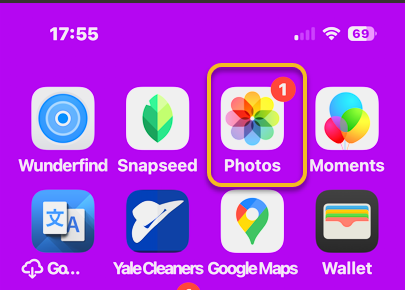
First, open the Photos app. Refer to the below image:

Photos 1
Selecting your Photos app

Next, tap the Search icon. See the below image:

Photos 2
Selecting the Search icon

Now, you will see some personalized suggestions, which you can tap. Or you can tap the Search bar to type in your own search terms. See the following image:

Photos 3
Selecting the Search button

Next, once you enter a search term, you will see all the photos in your library that match. Refer to the below image:

Photos 4
Entering your Search criteria

For example, we are searching for “Aletha Niagara Falls”. Now, we can see all the photos related to “Aletha in Niagara Falls”. See the below image:

Photos 5
Your results

Aletha, my wife, also has a blog at Watercress Words, exploring and sharing the HEART of health.

That’s how to search photos or videos on the iPhone. Try it out yourself! Put in a few search terms and see what you get! While iOS 18 made some controversial changes to the Photos app, this is one change that you will love. It’s super easy to find the exact photo you are looking for every time.

Disclaimer

Technology is constantly evolving, and smartphone and desktop tech rarely remains static. Therefore, the information in this post is only accurate as of the date it was written. Blog posts that are older than six months may contain instructions that are no longer compatible with your device or operating system. We hope that the content from previous posts continues to function as intended. Thank you for reading TechSavvy.Life, where technology works for you.

. “We are stuck with technology when what we really want is just stuff that works.” 

― Douglas Adams

Pretty impressive Photos app? Please feel free to share this post! One way to share is via Twitter.

Just click the Tweet icon below. This will launch Twitter where you click its icon to post the Tweet.

Checkout TechSavvy.Life for blog posts on smartphones, PCs, and Macs! You may email us at contact@techsavvy.life for comments or questions.

We value your feedback! Was this post helpful? Please share your comments with us. If you have a tech question related to your computer or smart device, feel free to reach out. Just send an email to contact@techsavvy.life, and be sure to include the device, app, and version you are using. To assist us further, you can also attach screenshots related to your inquiry.

Author’s eBook

The author’s Vietnam eBook on the “Battle for Tra Bong Vietnam: Events and Aftermath” can be accessed from a Kindle device or the Kindle App for a desktop or smartphone. The apps are free.
The author’s Vietnam eBook on the Battle for Tra Bong Vietnam: Events and Aftermath