In iOS 15, Apple introduced a range of changes to its native iPhone web browser, Safari. Some of them were controversial, such as the decision to move the URL address bar to the bottom of the screen, but others were less so, and Apple eventually provided options so that you could customize the browser to suit their own preferences.
In iOS 15, Apple introduced a range of changes to its native iPhone web browser, Safari. Some of them were controversial, such as the decision to move the URL address bar to the bottom of the screen, but others were less so, and Apple eventually provided options so that you could customize the browser to suit their own preferences.
One of those options is the ability to disable website tinting. Tinting happens when the color of the Safari interface changes around the tabs, bookmark, and navigation button areas to match the color of the website you are viewing.
The idea behind tinting is that it allows the browser interface to fade into the background and create a more immersive experience. However, the effect does not sit well with everyone, and some users are put off by it. Fortunately, Apple chose to include an option to turn it off. It’s easy to disable this feature, let’s find out.
This is for devices using Safari in iOS or iPadOS 15 or higher
Copyright Scott Adams, Inc./Distributed by Universal Uclick for UFS
On the iPhones X and later models with a notch, it’s pretty prominent. But the older iPhone models will only see it while scrolling.
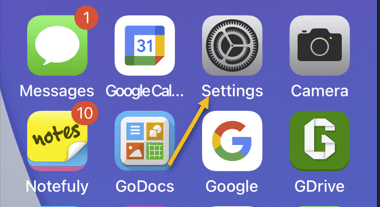
First, open the Settings app on your iPhone or iPad, Refer to below image:
Accessing Settings app
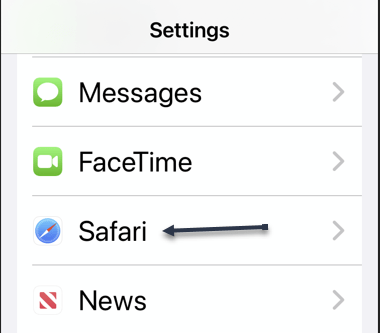
Next, scroll down to Safari, and select it. See below image:
Accessing Safari option
Now, scroll down till you see the Tabs section. From there, toggle OFF (it is ON by default) the switch for Allow Website Tinting. See the following image:
Disable Tinting feature
Next, close the Settings app. You will have to force quit Safari on your iPhone or iPad and reopen it to see the change.
Quote For the Day
Be a yardstick of quality. Some people aren’t used to an environment where excellence is expected.
Steve Jobs
That’s it. Please feel free to share this post! One way to share is via Twitter.
Just click the Tweet icon below. This will launch Twitter where you click its icon to post the Tweet.
Check out TechSavvy.Life blog posts for smartphones, PCs, and Macs! You may email us at contact@techsavvy.life for comments or questions.
Please feel free to leave a comment. I would love to hear from you. Do you have a computer or smart device tech question? I will do my best to answer your inquiry. Just send an email to contact@techsavvy.life. Please mention the device, app, and version you are using. To help us out, you can send screenshots of your data related to your question.
The author’s Vietnam eBook on the Battle for Tra Bong Vietnam: Events and Aftermath
For years, Apple devices have made it easy to share nearly anything. Website links, videos, photos; you name it, chances are it’s easy to share via Messages, especially if you are sharing with other Apple users. Finding the media and links others share with you was not always easy until now.
For years, Apple devices have made it easy to share nearly anything. Website links, videos, photos; you name it. Chances are it’s easy to share via Messages, especially if you are sharing with other Apple users. Finding the media and links others share with you was not always easy until now. Let’s explore this feature.
This is for iPhone and iPad running iOS or iPadOS 15 or higher
Copyright Scott Adams, Inc./Distributed by Universal Uclick for UFS
What is Shared with You
Shared with You is a feature built into multiple apps on both iPhone and iPad that automatically gathers together any content your contacts have sent you. It works in Messages, but is also built into Apple Music, Apple TV, Podcasts, Photos, and Safari.
This feature works in two ways. First, you can easily view all the various media a contact has shared with you in Messages. Second, you can view all the Apple TV shows, for example, that all of your contacts have shared with you, directly inside that app.
Shared with You is a new feature as of iOS 15 and iPadOS 15 or higher, but it works with content sent from older iOS and iPadOS versions. It will even work automatically with some content sent from other devices.
How to Use in Messages
The easiest way to use Shared with You is not all that different from how you would find a friend’s recommendations. First, open the Messages app, then find a conversation with the person whose content you wish to see. Refer to below image:
A Contact to share with
Now, on this screen you will see some of the contact’s details as you would have before. At the bottom of the screen, you will now notice a new section with media that contact has shared with you. See below image for sharing of Links:
Sharing a link
How to Use in Safari
Shared with You makes it easy to see all the links to various websites and articles that contacts have sent you.
First, open Safari, then open a new tab to get to the Start Page. Now, scroll down until you see the Shared with You section. Tap any of the links here to open them in a new tab. See the following image:
Safari Shared with You section
If you do not see a Shared with You section, you might not have it enabled in the Start Page.
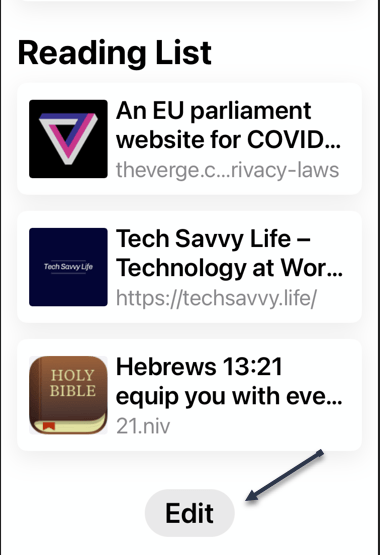
To enable the Shared with You section, next, scroll to the bottom of the StartPage and tap Edit. Refer to below image:
Accessing Edit to enable Shared with You
Now, find and enable the Shared with You toggle. See below image:
Enable/disable Shared with You
How to Use in Other Apps
While the Messages app provides the easiest way to see everything a given contact has shared, it’s not the only way to use Shared with You. You can also see content shared by your contacts in any supported app.
As of this writing, Shared With You is available for Apple TV, Messages, Photos, Podcasts, and Music.
Too Much Sharing
We all know people who seem to share everything they stumble across on social media. If you know more than one of that sort of person, they could quickly overwhelm you with notifications and content.
The good news is that if you are not interested in seeing some or all Shared with You content, you can turn it off. You can either disable Shared with You entirely or simply turn off the feature on a per-app basis.
First, to disable Shared with You features, open the Settings app. See following image:
Accessing Settings app
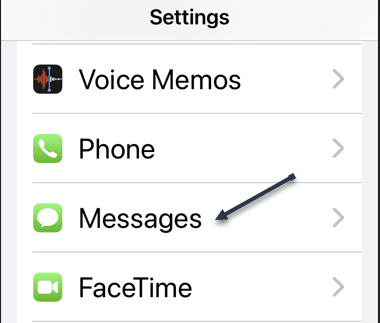
Now, go to Messages. Refer to below image:
Accessing Messages option
Next, tap Shared With You. See the below image:
Accessing Shared with You
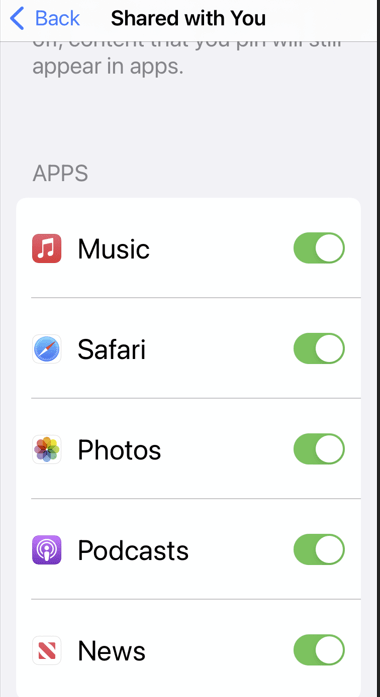
Here you can customize whether you want to use Shared with You at all or only in certain apps. See following image:
Enable/disable Shared with You
Quote For the Day
As individuals, people are inherently good. I have a somewhat more pessimistic view of people in groups. And I remain extremely concerned when I see what’s happening in our country, which is in many ways the luckiest place in the world. We don’t seem to be excited about making our country a better place for our kids.
Steve Jobs
That’s it for a few examples on how to use Shared with You. Please feel free to share this post! One way to share is via Twitter.
Just click the Tweet icon below. This will launch Twitter where you click its icon to post the Tweet.
Check out TechSavvy.Life for blog posts on smartphones, PCs, and Macs! You may email us at techsavvy.life for comments or questions.
Please feel free to leave a comment. I would love to hear from you. Do you have a computer or smart device tech question? I will do my best to answer your inquiry. Just send an email to contact@techsavvy.life. Please mention the device, app, and version you are using. To help us out, you can send screenshots of your data related to your question.
The author’s Vietnam eBook on the Battle for Tra Bong Vietnam: Events and Aftermath
With the introduction of iOS 15, Apple revamped its paid iCloud plans to “iCloud+” to reflect the fact that subscribers now get access to additional privacy features like Hide My Email.
With the introduction of iOS 15, Apple revamped its paid iCloud plans to “iCloud+” to reflect the fact that subscribers now get access to additional privacy features like Hide My Email.
This feature builds on the idea of Sign in With Apple by providing you with unique, random email addresses that forward to your personal inbox whenever you want to keep your personal email address private. Let’s explore how to set up Hide my Email feature.
This is for the iPhone and iPad running iOS 15 or higher
Copyright Scott Adams, Inc./Distributed by Universal Uclick for UFS
The Requirements
To use the Hide My Email feature, you need an iCloud+ or Apple One subscription. (Even the $0.99 per month subscription works.) You will also need an email address. Additionally, your iPhone or iPad must be running iOS 15 or iPadOS 15 (or higher.
It’s worth noting that Hide My Email originally debuted as part of the Sign in With Apple service that shipped with iOS 13 in 2019. If you do not have a paid iCloud+ account, you can still use Hide My Email as part of Sign in With Apple for free.
Privacy Breches
Is your email being comprised? If you are like millions of others, your email is comprised. Most major carriers have a mobile security app. We are using AT&T Mobile Security where we have comprised emails. Refer to the below image:
Our AT&T comprised emails
To find out if you have comprised passwords, head to:
Settings > Passwords > Security Recommendations
and tap an entry to see additional information. See the below image where our email address has been comprised for time.com:
Our comprised passwords
Create “Hide my Email”
To use Hide My Email, you will need to access your iCloud options in the Settings app. First, open Settings on your iPhone or iPad by tapping the grey gear icon, usually on your Home screen. See the following image:
Selecting Settings
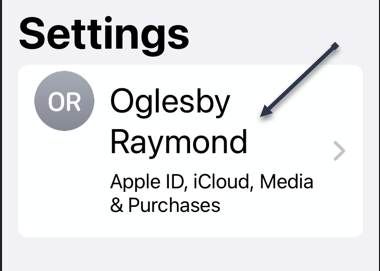
Next, tap your Apple ID name at the very top of Settings. Refer to the below image:
Accessing your Apple ID
Now, in Apple ID settings, tap iCloud. See the below image:
Accessing iCloud
Next, in iCloud settings, tap Hide My Email. If you do not see it listed, then you are not subscribed to iCloud+ or Apple One. See the following image:
Accessing Hide My Email option
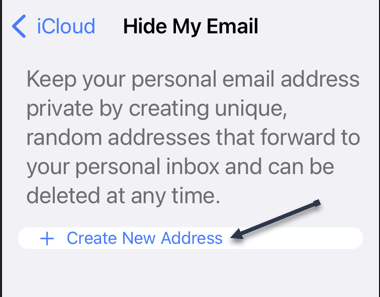
Now, tap the Create New Address link. Refer to the below image:
Selecting to create a new address
Next, tap Continue if you have yet to create an address. See the below image:
Selecting to continue
A potential email address will be randomly generated.
Now, type in a label for the address you just generated. We suggest using the name of the service you will be providing the random email address to (“Outlook,” for example). You can also make a note in a text box below the label. When you are done, tap Next in the upper right-hand corner of the window. See the following image:
Adding a Label for your new address
Next, on the All Set screen, you will confirm that a unique random email address has been created. Tap Done to continue.
Now, tap the Forward To to view a list of email addresses. Refer to the below image:
Selecting Forward To option
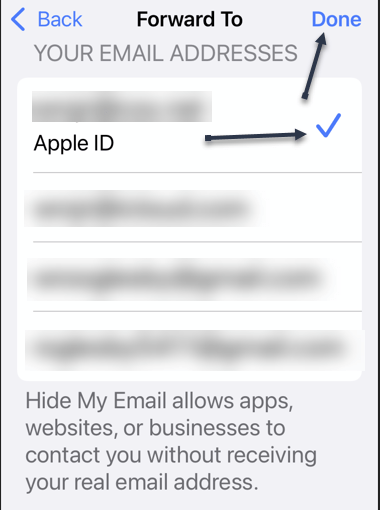
Next, select one from the list. When finished, tap Done in the upper right-hand corner. See the below image:
Selecting a Forward To entry
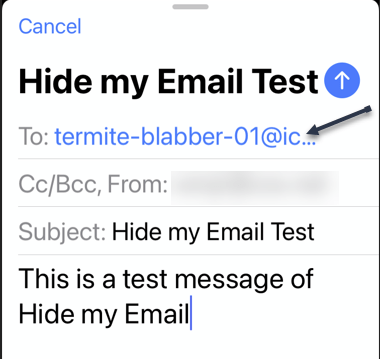
Now, you are ready to use your new email address. When a service asks for your email address, just type in the random one provided by Apple. You will receive emails from it as you normally would, but with one exception: It will have Hide My Email listed in the To field. From here, exit Settings.
Next, open your email service and create an email. See the following image:
Create an email using the new email address
The new email will be displayed in your Inbox. Note! We created an email to ourselves. Refer to the below image:
Your newly created email in your Inbox
Now, navigate back to:
Settings > Apple ID > iCloud > Hide My Email
If you want to create another address, tap Create New Address. Or if you need to adjust which email address your Hide My Email addresses will forward to, tap Forward To.
Next, you will see the address you just created listed (alone with other addresses) on the Hide my Email screen.
Now, tap on your newly created entry. In our example, we are using Outlook. See the below image:
Accessing your labeled email
Please note, if you reply to an email forwarded from Hide My Email, the recipient will see your regular email address, not the random one, so you can not use it to hide your identity in a two-way conversation. Apple-designed Hide My Email as a one-way system, mostly for protection from commercial spam.
Deactivate/Delete “Hide my Email”
If you need to remove or delete a Hide My Email address on your iPhone or iPad, you can either deactivate it or delete it completely.
Next, on the detail screen for the email address, scroll down to the bottom and select Deactivate Email Address. See the following image:
Selecting to Deactivate an email address
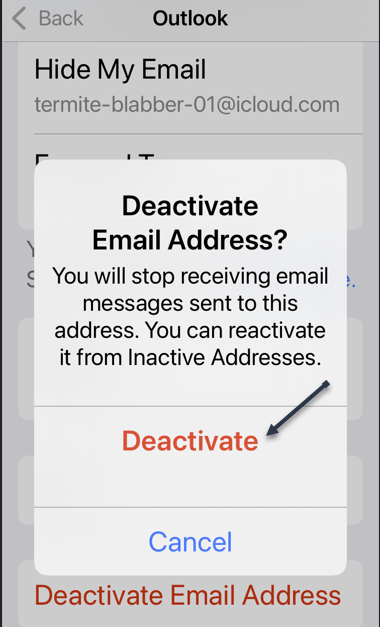
Now, confirm again in the pop-up by tapping Deactivate. Refer to the below image:
Confirming to Deactivate
Next, the deactivated email address will move into an Inactive Addresses section on the:
Settings > Apple ID > iCloud > Hide My Email
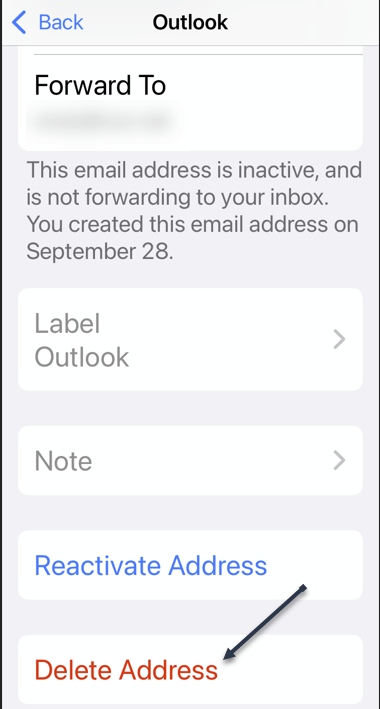
screen. To reactivate the address later, tap its name in that list, then select Reactivate Address. To delete the Hide My Email address permanently, tap Delete Address. See the below image:
Selecting to Delete an email address
After confirming, that particular Hide My Email address will be deleted. It will not affect any emails you have in your Inbox or any of your other email accounts or addresses. If you need to delete another Hide My Email address, repeat the process above.
Quote For the Day
Technology is nothing. What’s important is that you have a faith in people, that they’re basically good and smart, and if you give them tools, they’ll do wonderful things with them.
Steve Jobs
That’s it. It’s somewhat daunting to set up this Hide my Email feature, but worth your time. Please feel free to share this post! One way to share is via Twitter.
Just click the Tweet icon below. This will launch Twitter where you click its icon to post the Tweet.
Check out TechSavvy.Life for blog posts on smartphones, PCs, and Macs! You may email us at contact@techsavvy.life for comments or questions.
Please feel free to leave a comment. I would love to hear from you. Do you have a computer or smart device tech question? I will do my best to answer your inquiry. Just send an email to contact@techsavvy.life. Please mention the device, app, and version that you are using. To help us out, you can send screenshots of your data related to your question.
The author’s Vietnam eBook on the Battle for Tra Bong Vietnam: Events and Aftermath
Microsoft is leading the way for a passwordless future. You no longer are required passwords to login to your Microsoft account as you can now use the Microsoft Authenticator app, Windows Hello, a security key or a verification code sent via SMS or email.
Microsoft is leading the way for a passwordless future. You no longer are required passwords to login to your Microsoft account as you can now use the Microsoft Authenticator app, Windows Hello, a security key or a verification code sent via SMS or email. Let’s explore how to setup this feature.
The company has been preparing for a passwordless future for quite some time and its reason behind is the fact that passwords can be easily manipulated.
Vasu Jakkal, Corporate VP of Microsoft’s Security, Compliance and Identity, said “Weak passwords are the entry point for the majority of attacks across enterprise and consumer accounts. There are a whopping 579 password attacks every second—that’s 18 billion every year,” Jakkal added.
This is for devices using Microsoft Account. Screenshots are from iPhone XR.
Copyright Scott Adams, Inc./Distributed by Universal Uclick for UFS
First, install the Microsoft Authenticator app and link it to your Microsoft account. There are several authenticator apps, ensure you install the correct one from Microsoft. Refer to below image:
Download and install the Microsoft Authenticator app
Next, open your Microsoft account. See below image:
Your Microsoft account
Now, scroll down to Advanced security section and toggle on Passwordless account. See following image:
Setting Passwordless account option
Then follow the on-screen prompts and approve the notification from the Authenticator app.
Your Microsoft account is now passwordless. You can always go back to using a password for your account.
Quote For the Day
A lot of people in our industry haven’t had very diverse experiences. So they don’t have enough dots to connect, and they end up with very linear solutions without a broad perspective on the problem. The broader one’s understanding of the human experience, the better design we will have.
Steve Jobs
That’s it. Please feel free to share this post! One way to share is via Twitter.
Just click the Tweet icon below. This will launch Twitter where you click its icon to post the Tweet.
Check out TechSavvy.Life for blog posts on smartphones, PCs, and Macs! You may email us at contact@techsavvy.life for comments or questions.
Please feel free to leave a comment. I would love hearing from you. Do you have a computer or smart device tech question? I will do my best to answer your inquiry. Just send an email to contact@techsavvy.life. Please mention the device, app and version that you are using. To help us out, you can send screenshots of your data related to your question.
The author’s Vietnam eBook on the Battle for Tra Bong Vietnam: Events and Aftermath
Smartphone displays are rarely the same aspect ratio as YouTube videos. That leaves black bars on the sides. You can pinch-to-zoom to fill the screen, but if you are always doing that, you might as well make it default.
Smartphone displays are rarely the same aspect ratio as YouTube videos. That leaves black bars on the sides. You can pinch-to-zoom to fill the screen, but if you are always doing that, you might as well make it default. Let’s explore how to setup viewing a YouTube video in full screen.
This is is for the iPhone, iPad, and Android. Screenshots are from iPhone XR.
Copyright Scott Adams, Inc./Distributed by Universal Uclick for UFS
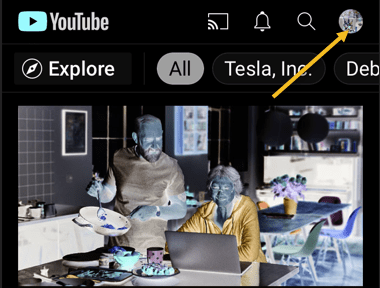
First, open the YouTube app on your iPhone, iPad, or Android device. Now, tap your profile icon in the top-right-hand corner. Refer to below image:
Accessing your Profile icon
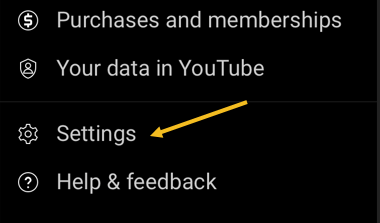
Next, tap Settings from the menu. See below image:
Accessing Settings
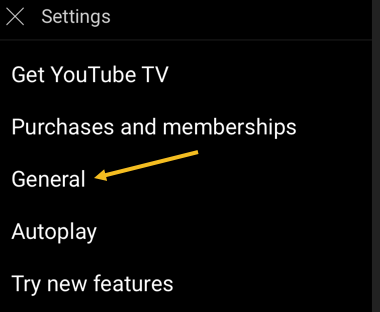
Now, go to the General section. See following image:
Accessing General section
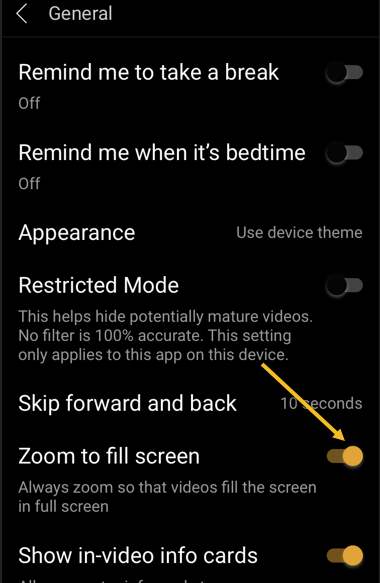
Next, toggle the switch for Zoom to fill screen to ON. Refer to below image:
Toggle ON the Zoom to fill screen
Now, you will no longer need to zoom in on every YouTube video to take up the entire screen.
Quote For the Day
An iPod, a phone, an internet mobile communicator… these are NOT three separate devices! And we are calling it iPhone! Today Apple is going to reinvent the phone. And here it is.
Steve Jobs
You are finished. Please feel free to share this post! One way to share is via Twitter.
Just click the Tweet icon below. This will launch Twitter where you click its icon to post the Tweet.
Check out TechSavvy.Life for blog posts on smartphones, PCs, and Macs! You may email us at contact@techsavvy.life for comments or questions.
Please feel free to leave a comment. I would love hearing from you. Do you have a computer or smart device tech question? I will do my best to answer your inquiry. Just send an email to contact@techsavvy.life. Please mention the device, app and version that you are using. To help us out, you can send screenshots of your data related to your question.
The author’s Vietnam eBook on the Battle for Tra Bong Vietnam: Events and Aftermath
With so many devices and so many social media accounts, it can be hard to remember where you are logged in to which accounts. To protect yourself from potential hacks, it’s a good idea to log out of social media sites, like Facebook, once you are done with your session, especially if you are using someone else’s device.
With so many devices and so many social media accounts, it can be hard to remember where you are logged in to which accounts. To protect yourself from potential hacks, it’s a good idea to log out of social media sites, like Facebook, once you are done with your session, especially if you are using someone else’s device.
But, if you forgot to log out, or suspect an unauthorized third-party login, you can still log out of all devices at once from your Facebook’s account settings. Let’s explore how this is done.
This is for devices running Facebook
Copyright Scott Adams, Inc./Distributed by Universal Uclick for UFS
Use Mobile App
If you use an iPhone, iPad, or Android phone, you can use the official Facebook app to sign out from Facebook on all your devices at once.
First, launch the Facebook app on your smartphone.
In the Facebook app, tap the three horizontal lines menu. On an iPhone or iPad, this menu is at the bottom of the screen. On an Android phone, you will find this menu at the top-right corner of the display. Refer to below image:
Accessing the Menu
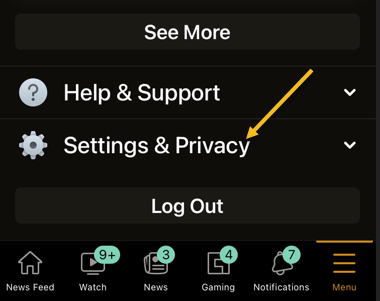
Next, scroll down the Menu screen that opens, and tap Settings & Privacy. See below image:
Accessing Settings & Privacy option
Now, select Settings. See following image:
Accessing Settings option
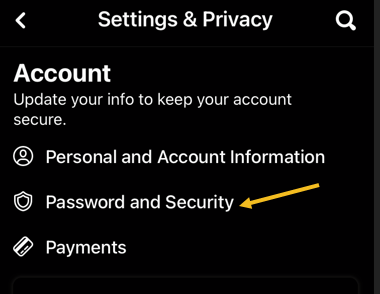
Next, scroll down to the Account section. Here, tap Password and Security. Refer to below image:
Accessing Password and Security option
Now, on the Where you’re logged In header, tap See All. (Note! My display text automatically changes size and the See All may be somewhat hidden depending on font size. See below image:
Accessing See All option
Facebook will display the list of devices where you use your account. At the bottom of this screen, tap Log Out of All Sessions. See following image:
Accessing Log Out Of All Sessions option
Next, select Log Out. Refer to below image:
Confirm your action by tapping Log Out
And Facebook will log you out from all your logged-in devices!
To use your Facebook account on those devices again, you will have to enter your Facebook username and password.
If you just want to log out of one session, tap the 3-dot icon to the right of a session, then tap Log Out and the session will be removed. See below image:
Log Out of one session
Use Facebook Site
If you are on a Windows, Mac, Linux, or Chromebook computer, use the Facebook site to sign yourself out from all your Facebook logged-in devices.
First, launch a web browser on your computer and open the Facebook site.
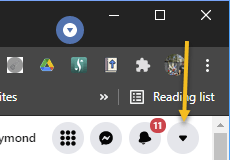
Next, at the top-right corner, click the down-arrow icon. See following image:
Accessing the Menu
Now, select Settings & Privacy. Refer to below image:
Accessing Settings & Privacy option
Next, choose Settings. See below image:
Accessing Settings option
Facebook will take you to your account’s settings page. Here, in the sidebar to the left, click Security and Login. See following image:
Accessing Security and Login option
Now, from the Where You’re Logged In section, click the See More option. Refer to below image:
Accessing See More option
Next, you will see a list of devices where you use your Facebook account. To sign out of all these devices, click Log Out Of All Sessions at the bottom-right corner of the Where You’re Logged In section. See below image:
Accessing Log Out Of All Sessions
Now, a Log Out of All Sessions prompt will appear. Next, click Log Out in the prompt to confirm your choice. See following image:
Confirm your action by tapping Log Out
And Facebook will log you out from all your logged-in devices!
To use your Facebook account on those devices again, you will have to enter your Facebook username and password.
If you just want to log out of one session, click the 3-dot icon to the right of the session, then click Log Out and the session will be removed. Refer to below image:
Log Out of one session
Quote For the Day
The thing that doesn’t fit is the thing that’s the most interesting: the part that doesn’t go according to what you expected.
Richard P Feynman
That’s it. Please feel free to share this post! One way to share is via Twitter.
Just click the Tweet icon below. This will launch Twitter where you click its icon to post the Tweet.
Check out TechSavvy.Life for blog posts on smartphones, PCs, and Macs! You may email us at contact@techsavvy.life for comments or questions.
Please feel free to leave a comment. I would love hearing from you. Do you have a computer or smart device tech question? I will do my best to answer your inquiry. Just send an email to contact@techsavvy.life. Please mention the device, app and version that you are using. To help us out, you can send screenshots of your data related to your question.
The author’s Vietnam eBook on the Battle for Tra Bong Vietnam: Events and Aftermath
Do you find yourself doing a lot of copy and paste of data in your spreadsheets? Did you know that you can use a special Excel’s paste feature to perform simple calculations? You can add, subtract, multiply, or divide in a few clicks with the paste special in Excel.
Do you find yourself doing a lot of copy and paste of data in your spreadsheets? Did you know that you can use a special Excel’s paste feature to perform simple calculations? You can add, subtract, multiply, or divide in a few clicks with the paste special in Excel. Let’s see how this is done.
This is for devices using Microsoft Excel. We are using Excel for Office 365.
Copyright Scott Adams, Inc./Distributed by Universal Uclick for UFS
Maybe you have prices that you want to increase or costs that you want to decrease by dollar amounts. Or, perhaps you have inventory that you want to increase or decrease by unit amounts. You can perform these types of calculations quickly on a large number of cells with Excel’s paste special operations.
Setup Paste Special
For each of your simple calculations, you will open the Paste Special dialog box. Next, you will start copying the data and then selecting the cell(s) that you are pasting to.
First, open Microsoft Excel. To copy, you can press Ctrl+C or right-click and select Copy. Refer to below image:
Selecting Copy option
Now, do one of the following to access Paste Special.
Click the Paste drop-down arrow in the ribbon on the Home tab, then select Paste Special.
Right-click cells that you are pasting to and select Paste Special in the shortcut menu.
See below image:
Selecting Paste Special option
Use Simple Calculations With Paste Special
For basic numbers, decimals, and currency, you can choose from All, Values, or Values and Number Formats in the Paste section of the window. Use the best option for your data.
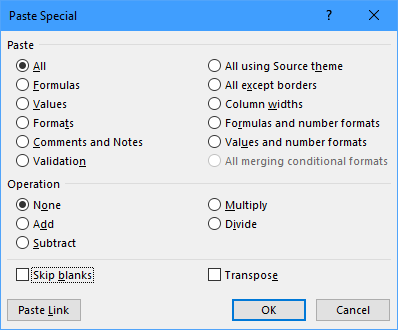
Next. you will use the section labeled Operation to add, subtract, multiply, or divide. See following image:
The Paste Special dialog box
Let’s look at a simple example of one operation to see how it all works.
Add With Paste Special
For this example, we want to add $50 to each of the amounts for our ski jacket prices to accommodate an increase.
We enter $50 into a cell outside of our data set and copy it. You might already have the data in your sheet or workbook that you need to copy. Refer to below image:
Selecting the amount for the increase
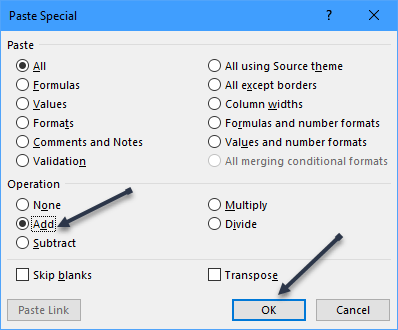
Now, we select the cells that we want to add $50 to and access Paste Special as described. Next, we choose Add in the Operation section and click OK. See below image:
Selecting to Add
And that’s it. All of the cells in your selection have increased by $50. See following image:
Your final result; all Ski Jackets are increased by $50
Subtract, multiply, or divide an amount works the same way. For multiply or divide, you would use units instead of currency.
Be sure to switch the operation back to None when you are finished.
The next time you need to add, subtract, multiply, or divide a large group of cells in Excel by the same amount, remember this trick using Paste Special.
Quote For the Day
I’m sorry, if you were right, I’d agree with you.
Robin Williams
That’s it. Please feel free to share this post! One way to share is via Twitter.
Just click the Tweet icon below. This will launch Twitter where you click its icon to post the Tweet.
Check out TechSavvy.Life for blog posts on smartphones, PCs, and Macs! You may email us at contact@techsavvy.life for comments or questions.
Please feel free to leave a comment. I would love hearing from you. Do you have a computer or smart device tech question? I will do my best to answer your inquiry. Just send an email to contact@techsavvy.life. Please mention the device, app and version that you are using. To help us out, you can send screenshots of your data related to your question.
The author’s Vietnam eBook on the Battle for Tra Bong Vietnam: Events and Aftermath
Features like Google account’s password and bookmark sync, extension support, cross-device migration, etc., make Chrome the number one choice over competitors. Chrome is the most installed web browser used today.
Features like Google account’s password and bookmark sync, extension support, cross-device migration, etc., make Chrome the number one choice over competitors. Chrome is the most installed web browser used today. Let’s explore how to set Chrome as your default browser.
This is for Windows 10 and iPhone/iPad running Chrome
Copyright Scott Adams, Inc./Distributed by Universal Uclick for UFS
Before we go any further, you need to have the Google Chrome browser installed on your computer or iPhone/iPad. You can download the Chrome app from the app or play store for your iPhone/iPad or from Google’s website if you are using a desktop or laptop.
Set Chrome as Default Browser on Windows 10
First, open System settings by pressing Windows key+I, and then click on Apps. Refer to below image:
Selecting Apps from Settings
Next, from the pane on the left side, click Default Apps. See below image:
Selecting Default Apps
Now, locate the Web Browser section, click on your current default browser, and then scroll through the list and select Google Chrome. See following image where Google Chrome is already my default browser:
Setting Chrome as default web browser
Next, close Settings. Chrome is now your default web browser.
Set Chrome as Default Browser on iPhone/iPad
If you are running iOS 14 and iPadOS 14 or higher, Apple made it possible to change the default web browser on iPhone/iPad.
First, locate your Settings app on your iPhone/iPad and tap it. Use Apple’s built-in Spotlight Search (your first screen) to quickly find the app if you can not locate it on your Home screen. Refer to below image:
Accessing Settings
Next, scroll down and select the Chromeapp. See below image:
Selecting Chrome
Now, select the Default Browser App from the menu. If the setting has not been changed before, it will list Safari as the default. See following image:
Selecting Default Browser app
Next, choose Chrome from the list of installed web browser apps. Refer to below image:
Setting Chrome as default web browser
Now, close Settings. The next time you click on a link in any app installed on your iPhone/iPad, it will automatically open Chrome.
Quote For the Day
I was born not knowing and have had only a little time to change that here and there.
Richard Feynman
And that’s it. Please feel free to share this post! One way to share is via Twitter.
Just click the Tweet icon below. This will launch Twitter where you click its icon to post the Tweet.
Checkout TechSavvy.Life for blog posts on smartphones, PCs, and Macs! You may email us at contact@techsavvy.life for comments or questions.
Please feel free to leave a comment. I would love hearing from you. Do you have a computer or smart device tech question? I will do my best to answer your inquiry. Just send an email to contact@techsavvy.life. Please mention the device, app and version that you are using. To help us out, you can send screenshots of your data related to your question.
The author’s Vietnam eBook on the Battle for Tra Bong Vietnam: Events and Aftermath
Apple’s iPhone and iPad takes photos in the HEIF image format by default. These photos have the HEIC file extension. Windows 10 can view HEIC files in just a few clicks; or you can convert them to standard JPEGs and view them anywhere.
Apple’s iPhone and iPad takes photos in the HEIF image format by default. These photos have the HEIC file extension. Windows 10 can view HEIC files in just a few clicks; or you can convert them to standard JPEGs and view them anywhere. Let’s explore how this is done.
This is for devices running Windows 10, iPhone, and iPad
Copyright Scott Adams, Inc./Distributed by Universal Uclick for UFS
What is HEIC
HEIC is the name that Apple gave to its container for the HEIF (High Efficiency Image File) image format and is based on the HEVC (High Efficiency Video Compression) video format.
What it means for you are high-quality images that take up less storage space thanks to a more modern compression method.
You can disable HEIC on the iPhone, but since its introduction in iOS 11, it has become Apple’s default photo storage format.
How to View HEIC Files
On modern versions of Windows 10, you can install support for HEIC image files.
First, locate an HEIC file in File Explorer on your computer and double-click it. If you are asked which application you want to open it in, select Photos.
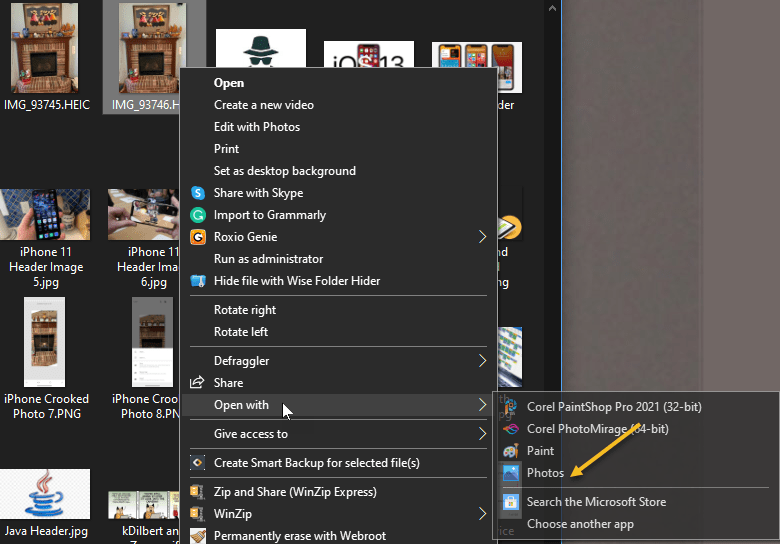
Note! If the HEIC file does not open in the Photos app, right-click the HEIC file and select
Open With > Photos
Refer to below image:
Selecting how to open HEIC photos
The Photos app will tell you that the HEIF Image Extension is required to display this file. Click the Download and install it now link to get it from the Microsoft Store. It’s a free download. If you do not see this requirement screen, do a Google search and install the extension. See below image:
Google search for HEIF extension
If Windows asks Did you mean to switch apps?, select Yes.
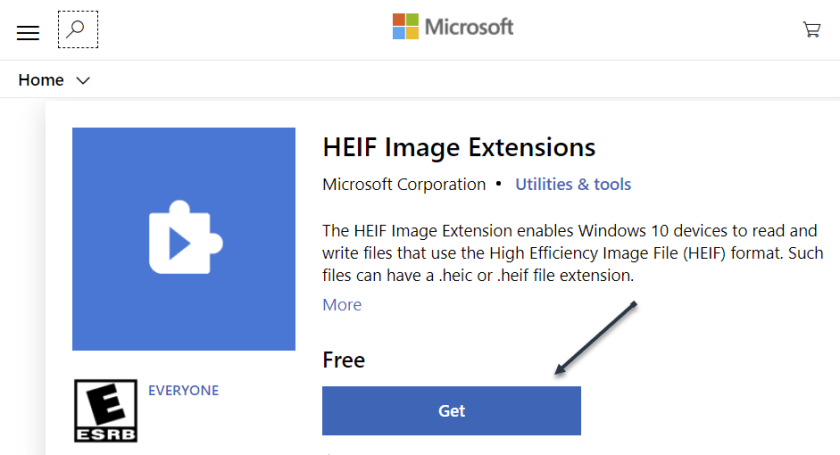
This will open the HEIF Image Extensions page in the Microsoft Store app. Click the Install or Get button to download support for HEIC image files (which use the HEIF format.) See following image:
Get or Install the HEIF extension
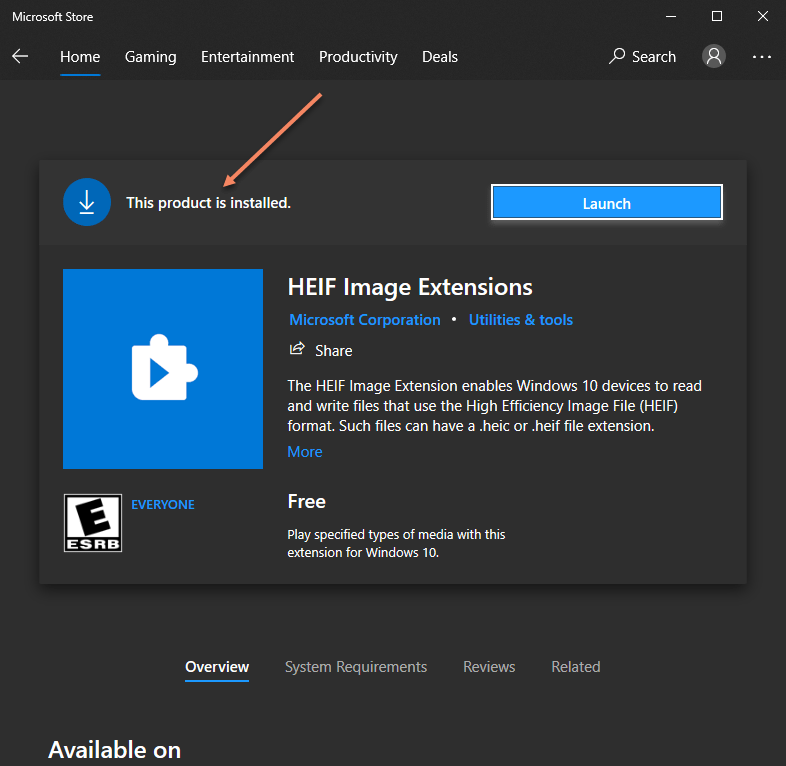
On the next screen, if the extension is already installed, you are set. If not, the Launch button will display Install instead. Just click to install the extension. Refer to below image:
Status of the extension
Now, when you open an HEIC image in the Photos app, you will be able to view it like you would any other image file, like a JPEG, PNG, GIF, or BMP. See below image:
HEIC photo
Windows 10’s File Explorer will automatically generate and display thumbnails for your HEIC image files, too. See following image:
Thumbnails of HEIC photos in File Explorer
Convert HEIC to JPEG
To quickly and easily convert HEIC files to standard JPEG images on Windows, we recommend you download and install CopyTrans HEIC for Windows.
This tool installs full support for HEIC images in Windows, so it’s particularly useful on Windows 7 and older versions of Windows 10 that do not have integrated support in the Photos app. It adds support for HEIC images to the classic Windows Photo Viewer.
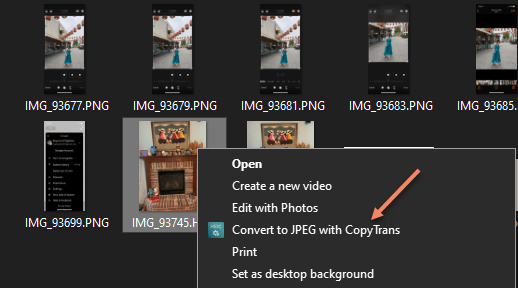
CopyTrans HEIC also allows you to right-click an HEIC file in File Explorer and select Convert to JPEG to easily convert it to a JPEG file. Select the option and you will get a JPEG version of the image automatically placed in the same folder as the original HEIC file.
JPEG files are more widely supported, so this will help you use the HEIC file in applications that support JPEG images but not HEIC files. Refer to below image:
Selecting to convert HEIC to JPEG
Change the Default
If you find dealing with HEIC files inconvenient, you can also configure your iPhone to always take photos in JPEG format.
Go to
Settings > Camera > Formats > (and checkmark) Most Compatible
instead of High Efficiency. See below image:
changing the default on iPhone
However, HEIC offers higher image quality in smaller file sizes. It’s a more modern image format, and we recommend sticking with it if the applications you use support it.
Quote For the Day
When you’re older you want to learn from other people.
Ray Bradbury
That’s it. Please feel free to share this post! One way to share is via Twitter.
Just click the Tweet icon below. This will launch Twitter where you click its icon to post the Tweet.
Checkout TechSavvy.Life for blog posts on smartphones, PCs, and Macs! You may email us at contact@techsavvy.life for comments or questions.
Please feel free to leave a comment. I would love hearing from you. Do you have a computer or smart device tech question? I will do my best to answer your inquiry. Just send an email to contact@techsavvy.life. Please mention the device, app and version that you are using. To help us out, you can send screenshots of your data related to your question.
The author’s Vietnam eBook on the Battle for Tra Bong Vietnam: Events and Aftermath
The all-new compact Siri interface, available with iOS and iPadOS 14, renders just a small animated orb at the display bottom along with a compact, banner-style response that slides into view.
The all-new compact Siri interface, available with iOS and iPadOS 14, renders just a small animated orb at the display bottom along with a compact, banner-style response that slides into view. Lets explore how this is done with a few simple steps.
This is for iPhone and iPad
Copyright Scott Adams, Inc./Distributed by Universal Uclick for UFS
That’s an improvement over Siri in earlier iOS version that would take up the whole display. To keep the interface as minimal as possible, Siri in iOS and iPadOS 14 does not show Caption for spoken text nor does it display a live transcription of what you have spoken.
Thankfully, you can easily enable Siri Captions on an iPhone, iPad or iPod Touch. Doing so will help you verify that you have heard Siri’s response correctly.
Enable Siri Captions
First, open Settings on your iPhone or iPad. Refer to below image:
Selecting the Settings app
Next, in Settings, tap Siri & Search. See below image:
Selecting Siri & Search option
Now, in Siri & Search, scroll down and tap Siri Responses. See following image:
Selecting Siri Responses option
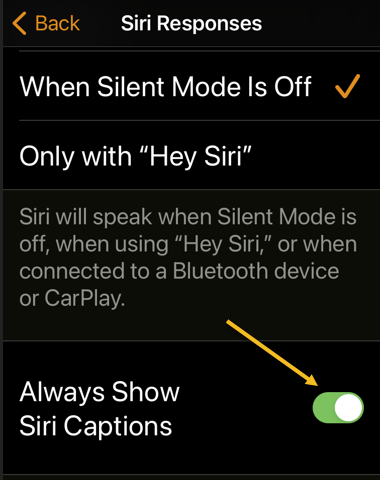
Next, in Siri Responses, toggle the switch beside Always Show SiriCaptions into the ON position.
Note! if you have trouble seeing toggle colors, you can turn on toggle labels in Settings as well. Refer to below image:
Toggle on Captions
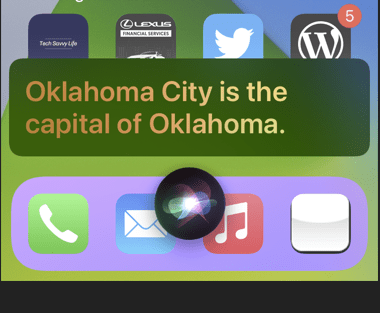
Now, close Settings. Launch Siri and ask it a question. If your phone is not silenced, Siri will speak the response, and you will see the same response written on the screen in the form of a Caption. See below image:
Your Siri Caption
Disable Siri Captions
If you ever want to disable the Captions, revisit
Settings > Siri & Search > Siri Responses
and toggle Always Show Siri Captions to OFF.
Note! you will still see Siri’s responses as Captions if your device is set to silent mode and you have Spoken Responses in Settings > Siri & Search > Siri Responses set to When Silent Mode is OFF.
Quote For the Day
It has not yet become obvious to me that there’s no real problem. I cannot define the real problem; therefore, I suspect there’s no real problem, but I’m not sure there’s no real problem.
Richard Feynman
You are finished. Please feel free to share this post! One way to share is via Twitter.
Just click the Tweet icon below. This will launch Twitter where you click its icon to post the Tweet.
Check out TechSavvy.Life for blog posts on smartphones, PCs, and Macs! You may email us at contact@techsavvy.life for comments or questions.
Please feel free to leave a comment. I would love hearing from you. Do you have a computer or smart device tech question? I will do my best to answer your inquiry. Just send an email to contact@techsavvy.life. Please mention the device, app and version that you are using. To help us out, you can send screenshots of your data related to your question.
The author’s Vietnam eBook on the Battle for Tra Bong Vietnam: Events and Aftermath





















































 Tech Savvy Life