How to Scan Documents From iPhone Using Google Drive

Google Drive’s latest update allows users to scan documents directly to cloud storage on iPhone, a feature previously available on Android only. The new design includes a Camera button for initiating the scan and saving it as a PDF file. The app also uses machine learning to suggest relevant titles for saved images. The post cautions that the information is only valid at the time of writing due to the constant evolution of technology.

RAYMOND OGLESBY @RaymondOglesby2
January 23, 2024

This is for the iPhone using the latest update for Google Drive. Screenshots are from iPhone 14 Pro running iOS 17+

Google Drive users will be glad to know the cloud storage app has a new handy feature. The app lets you scan documents directly to your cloud storage on your iPhone. The feature is already available on Android; the same functionality has made its way to iPhone.

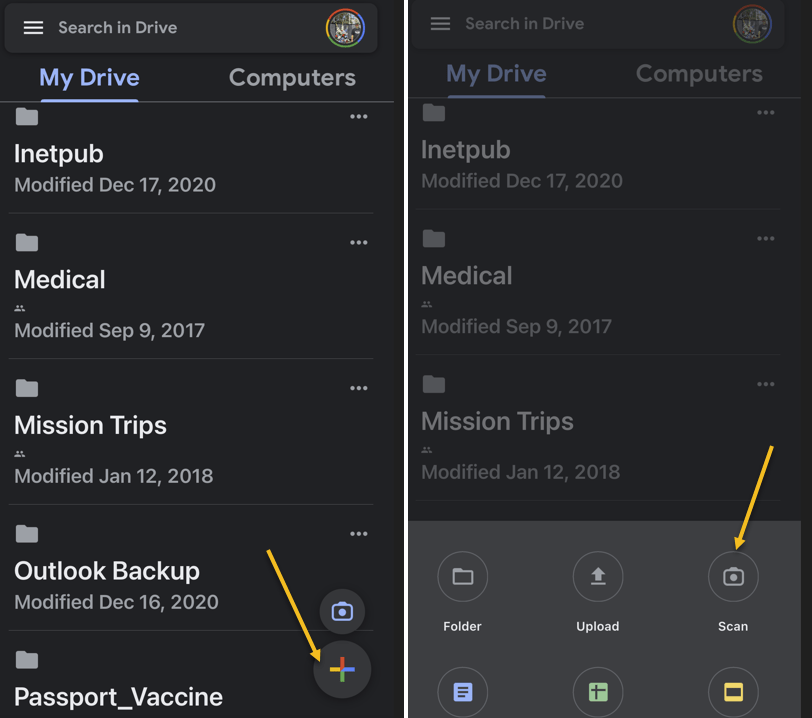
The new Google Drive redesign comes with a new Camera button above the “+” button in the lower right corner. Another option to start a scan from the Google Drive home page is to tap that “+” sign and choose the Scan option. Both will take you to the iPhone’s Camera. Refer to the below image:

Drive Scan 3
Selecting options to scan

Tap the button to initiate a document scan that will feel familiar. Just place the document or receipt from the Camera and take the photo.

The document-scanning feature lets you capture multiple images to scan a document with more than one page.

Once the photo is taken, you can perform the usual edits for such types of images. You can crop and rotate the image and change the color. That can be useful if you want your photo to look like a scanned document.

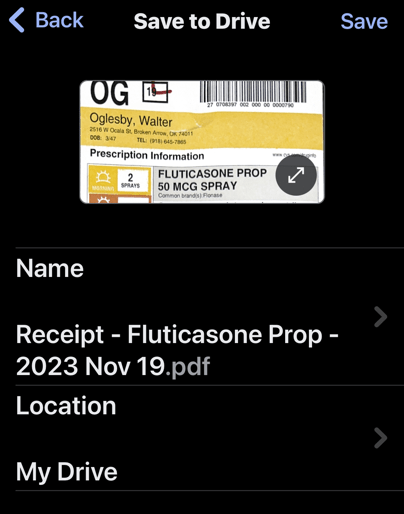
When you are ready to save the scan, press the Save button, and Google Drive will use machine learning to suggest a relevant title for the image or set of images that will be saved as a new PDF file. See the below image:

Drive Scan 4
Save your scan as a PDF file

That’s another handy feature, as it will save you time and ensure you find and retrieve the scan with ease in the future.

As a reminder, your iPhone already has a built-in document scanner feature. You can scan documents directly into the Notes app with similar ease. If you sync Notes across iPhone, iPad, and Mac, you will always have the scanned document available.

However, the Google Drive alternative is also a great option. Some iPhone users might prefer scanning documents to Google’s cloud storage directly.

Technology is always changing and rarely is there static tech for smartphones and desktops. Thus, the contents of this post are only valid at the time of writing. Blog posts older than six months may have directions incompatible with your device or OS. Hopefully, older post content will continue to work as advertised. Thank you for reading TechSavvy.Life for Technology at Work For You.

 “Perfection is not attainable, but if we chase perfection we can catch excellence.”

Vince Lombardi

You are finished. Please feel free to share this post! One way to share is via Twitter.

Just click the Tweet icon below. This will launch Twitter where you click its icon to post the Tweet.

Checkout TechSavvy.Life for blog posts on smartphones, PCs, and Macs! You may email us at contact@techsavvy.life for comments or questions.

Please feel free to leave a comment. I would love to hear from you. Do you have a computer or smart device tech question? I will do my best to answer your inquiry. Just send an email to contact@techsavvy.life. Please mention the device, app, and version you are using. To help us out, you can send screenshots of your data related to your question.

You can access the e-book from a Kindle device, the Kindle App for the desktop or smartphone, which is a free app.

The author’s Vietnam eBook on the Battle for Tra Bong Vietnam: Events and Aftermath

How to Fix Photo Quality on iPhone

TechSavvy.Life explores an iPhone Camera app setting called Prioritize Faster Shooting, which allows quick, successive photography, specifically for iPhone models XS/XR or later running on iOS 14 and above. However, enabling this feature reduces photo quality due to shorter image processing time. Users can personalize this setting in their iPhone settings.

RAYMOND OGLESBY @RaymondOglesby2
January 16, 2024

This is for the iPhone XS/XR or later running iOS 14 or higher. Screenshots are from iPhone 14 Pro running iOS 17+

The iPhone is a great camera out of the box. Just set the phone up and start taking photos and recording videos without worrying about advanced settings. However, if you do want to take your photo skills to the next level, all sorts of iPhone photo tricks can help you improve your game. The iPhone’s Camera app holds settings that can also enhance the pictures and clips coming out of your iPhone.

One of those image settings can come in handy when you do not want to miss a shot. But it can also ruin photo quality, as the iPhone might devote less time to processing the image.

Called Prioritize Faster Shooting, the setting is straightforward. It does what it says; it enables faster shooting, especially if you take lots of burst photos. The setting lets the iPhone capture more shots per unit of time, which can be useful if you are following certain events and want to capture everything. But it might not be worth taking so many shots if the quality of the resulting images has to suffer.

The setting comes enabled by default. To disable this feature, head to:

Settings > Camera > Prioritize Faster Shooting

and toggle to the OFF position. Reger to the below image:

Fix Photo 1
To disable, turn the option to OFF

To enable, set the toggle to the ON position.

If you do not find the setting, you probably use an older iPhone or iOS. You must either update the software or get a new iPhone to take advantage of Prioritize Faster Shooting.

Technology is always changing and rarely is there static tech for smartphones and desktops. Thus, the contents of this post are only valid at the time of writing. Blog posts older than six months may have directions incompatible with your device or OS. Hopefully, older post content will continue to work as advertised. Thank you for reading TechSavvy.Life for Technology at Work For You.

. “You don’t learn to walk by following rules. You learn by doing and falling over.”

Richard Branson

That’s it. Please feel free to share this post! One way to share is via Twitter.

Just click the Tweet icon below. This will launch Twitter where you click its icon to post the Tweet.

Checkout TechSavvy.Life for blog posts on smartphones, PCs, and Macs! You may email us at contact@techsavvy.life for comments or questions.

Please feel free to leave a comment. I would love to hear from you. Do you have a computer or smart device tech question? I will do my best to answer your inquiry. Just send an email to contact@techsavvy.life. Please mention the device, app, and version you are using. To help us out, you can send screenshots of your data related to your question.

You can access the e-book from a Kindle device, the Kindle App for the desktop or smartphone, which is a free app.

The author’s Vietnam eBook on the Battle for Tra Bong Vietnam: Events and Aftermath

How to Manage iPhone Always-On Display

The “always-on display” feature, exclusive to Pro versions of the iPhone 14 or 15 running iOS 17+, allows users to view important information without unlocking the device. The feature can be turned off in various situations, including when the phone is face down or connected to CarPlay, when low power mode is on, or through setting up a Sleep Focus. It can be turned off or adjusted through the Display & Brightness menu in Settings. Apple plans future updates to detail the feature’s battery consumption and introduce additional focus modes.

RAYMOND OGLESBY @RaymondOglesby2
December 19, 203

This is for the iPhone 14 or 15 Pro. Screenshots are from iPhone 14 Pro running iOS 17+

An “always-on display” lets you see important information at a glance. Those with a Pro version of the iPhone 14 or 15 have this feature. It’s exclusive to iPhone 14 Pro, iPhone 14 Pro Max, iPhone 15 Pro, and iPhone 15 Pro Max on iOS.

Those with older iPhones need to update their phones to see any information (or use the Rise to Wake feature), but “always-on” changes all that by dimming the Lock Screen so you can still see certain data without touching your phone. Let’s explore how to take control of the iPhone’s “always-only displays” (and even turn it off if it’s not your thing).

If you feel uneasy about a phone screen that never turns off, do not worry. Despite the name, Apple has done a few things to ensure the feature is not unnecessarily draining your battery (and a future iOS update may detail “always-on” battery consumption). If you do any of the following actions, the “always-on display” will turn off:

  • Place the phone face down, in your pocket, or in a bag. When charging your iPhone, we recommend placing your phone face down and when you are not using your iPhone. By doing this, your battery will last longer between charges.
  • Set up a Sleep Focus for certain times.
  • Connect to CarPlay.
  • Use the Continuity Camera feature.
  • Have low power mode turned on.

Additionally, if you have an Apple Watch connected to your iPhone, it will use your proximity to turn the screen on and off automatically. For example, if you leave your phone in the kitchen and walk upstairs, the display will turn black. When you return to the kitchen, the screen will light up.

To disable the feature, head to:

Settings > Display & Brightness > Always On Display

and toggle OFF the Always On Display option. Refer to the below image:

Always 1
Always On Display option

To enable the feature, toggle ON the Always On Display option.

If you are not ready to give up on the “always-on display” completely, there are a few options you can adjust. You can disable Show Wallpaper to prevent your phone’s wallpaper from appearing on the display. Or disable Notifications to make the screen less distracting.

Since iOS 16.4, Apple has let you schedule or automate when your iPhone’s “always-on display” is enabled using Focus modes. So you could add a filter to make the display stay on during working hours, for example, but turn it off in the evenings.

Other options coming to future updates include seeing how much battery life the “always-on display” consumes and controlling it with additional Focus modes.

Disclaimer

Technology is constantly changing; there is rarely static tech for smartphones and desktops. Thus, the contents of this post are only valid at the time of writing. Blog posts older than six months may have directions incompatible with your device or OS. Hopefully, older post content will continue to work as advertised. Thank you for reading TechSavvy.Life for Technology at Work For You.

. “Don’t worry about failure; you only have to be right once.”

Drew Houston

That’s it. Please feel free to share this post! One way to share is via Twitter.

Just click the Tweet icon below. This will launch Twitter where you click its icon to post the Tweet.

Checkout TechSavvy.Life for blog posts on smartphones, PCs, and Macs! You may email us at contact@techsavvy.life for comments or questions.

Please feel free to leave a comment. I would love to hear from you. Do you have a computer or smart device tech question? I will do my best to answer your inquiry. Just send an email to contact@techsavvy.life. Please mention the device, app, and version you are using. To help us out, you can send screenshots of your data related to your question.

You can access the e-book from a Kindle device, the Kindle App for the desktop or smartphone, which is a free app.

The author’s Vietnam eBook on the Battle for Tra Bong Vietnam: Events and Aftermath

Seven Hidden iPhone Message Features

The iPhone’s Messages app has numerous little-known features. Users can track live flights, unlock animations with secret codes, mark messages as unread, stop spam messages, and use Visual Lookup on sent messages. The recently released iOS 17 introduced features to quickly access photos and Check-In, which notifies contacts when the user arrives safely at a destination. The information shared via Check-In is end-to-end encrypted and can provide safety assurance.

RAYMOND OGLESBY @RaymondOglesby2
December 12, 2023

This is for the iPhone. Screenshots are from iPhone 14 Pro running iOS 17+

Even if you use the iPhone’s Messages app every day, there’s a chance you do not know everything it’s capable of. To fully appreciate the app, here are a few of the most hidden secrets Messages offers users. Let’s explore these features.

If you have a friend or family member flying, you can see exactly where they are as long as you know the flight number. Let’s say the flight is AA7262, and they just sent you the flight number. Long press the flight number, then tap on Preview Flight. You will see all the details about the flight. Refer to the below image:

Hidden 1
Track Live Flights

You can get custom animations depending on the phrase you sent on iMessage. While you can long press the Send button before sending a message to choose a proper animation, you can also trigger them depending on the message. Here are some examples:

  • Happy Birthday! – balloons will appear
  • Congratulations! – confetti rain
  • Happy New Year! – fireworks
  • Happy Chinese New Year! – red explosion
  • Pew pew – laser light show

See the below image:

Hidden 4
Unlock Animations

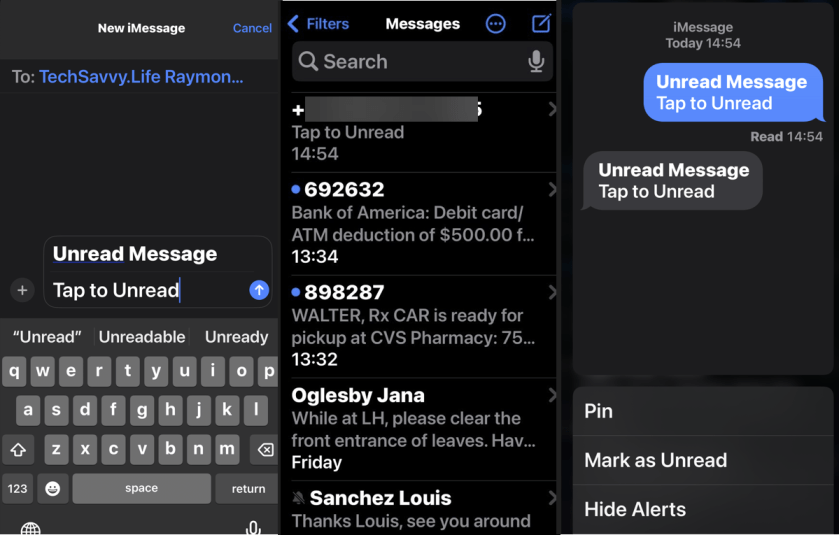
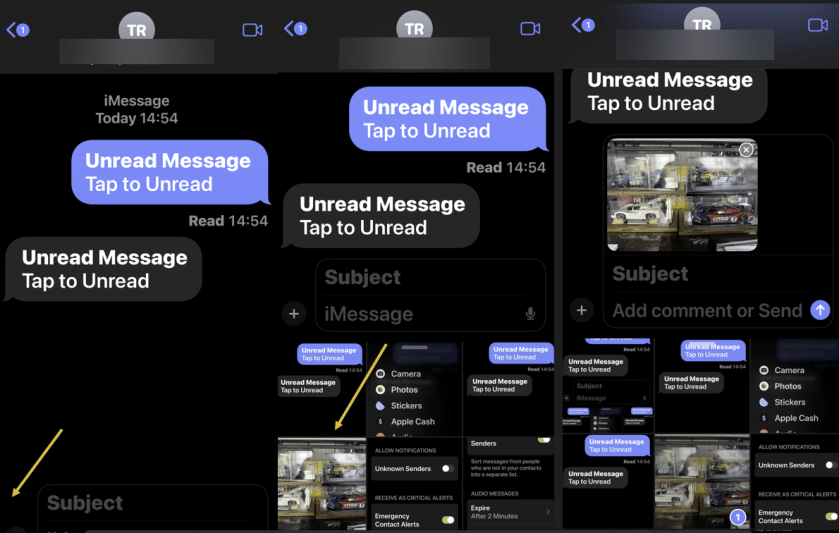
One of the best features available with the Messages app on your iPhone running iOS 16 or above is the ability to mark a message as unread. If you have already read it but do not have time to reply at the moment, you can leave a notification badge on it. To mark messages as unread, tap and hold a conversation in the app’s Inbox and select Mark as Unread. See the following image:

Hidden 1
Unread a Message

iMessage has a great feature that can split your Messages Inbox by different senders. Head to:

Settings > Messages > Filter Unknown Senders

and toggle to ON. Scroll up to:

Notifications > Customize Notifications > Unknown Senders

and toggle to OFF.

With that, you will not be notified about spam or messages from people you do not know. You just need to check the Unknown Senders tab every now and then. Refer to the below image:

Hidden 10
Stop Spam Messages

Visual LookUp works like Google Lens, which can tell you what’s in an image. An example, to view info about a plant:

  1. Take a photo of a plant
  2. Open Photos and find the image
  3. Swipe up on the image
  4. Tap Look Up

Now, view the results from Siri knowledge. See the below image:

Hidden 16
Visual Lookup of a plant

With iOS 17, there’s a new feature to access your Photos in your Messages. Just long press the “+” icon in the bottom left-hand corner and select a photo to place in your message. To access a new menu of options, just press the “+” sign. See the following image:

Hidden 12
Open Photos in Messages

To access a new menu of options, just press the “+” sign. Refer to the below image:

Hidden 15
Photos Options

This is a new iOS 17 feature. It works when a user wants to notify a family member or friend that they have safely made it to their destination. After a user initiates a Check In, their friend or family member will automatically be notified when the user arrives. If they are not making progress toward their destination, useful information will be temporarily shared with the selected contact, such as the device’s location, battery level, and cell service status.

One of the primary benefits of Check In is the safety assurance it provides. Personal safety is paramount, whether navigating the streets late at night, venturing into unfamiliar territory, or heading home, Check In serves as a digital guardian. It offers security, letting your contacts know you’ve safely arrived at your intended destination. Any information shared is end-to-end encrypted. Both the recipient and sender must have iOS 17 or higher installed.

To use this feature:

  1. Open the Messages app. Tap on the conversation where you want to use Check In.
  2. Next, tap the plus (+) button, choose More, and select Check In.
  3. If it’s your first time, follow the on-screen instructions. You must decide between Limited or Full data-sharing access. These options give you control over the level of location access.
  4. Tap the Continue button as you read through the on-screen explanations until you see the Send a Check In button and tap it.

After that, if you do not reach your destination within the set time or place an Emergency SOS Call, your iPhone will prompt you to check if everything’s okay. If you do not respond within 15 minutes, Check In will alert your contact.

Disclaimer

Technology is always changing and rarely is there static tech for smartphones and desktops. Thus, the contents of this post are only valid at the time of writing. Blog posts older than six months may have directions incompatible with your device or OS. Hopefully, older post content will continue to work as advertised. Thank you for reading TechSavvy.Life for Technology at Work For You.

If you don’t ask, the answer is always no.

Nora Roberts

That’s it. Please feel free to share this post! One way to share is via Twitter.

Just click the Tweet icon below. This will launch Twitter where you click its icon to post the Tweet.

Checkout TechSavvy.Life for blog posts on smartphones, PCs, and Macs! You may email us at contact@techsavvy.life for comments or questions.

Please feel free to leave a comment. I would love to hear from you. Do you have a computer or smart device tech question? I will do my best to answer your inquiry. Just send an email to contact@techsavvy.life. Please mention the device, app, and version you are using. To help us out, you can send screenshots of your data related to your question.

You can access the e-book from a Kindle device, the Kindle App for the desktop or smartphone, which is a free app.
The author’s Vietnam eBook on the Battle for Tra Bong Vietnam: Events and Aftermath

How to Find Kaleidoscope Wallpapers on iPhone

Apple’s iOS 17+ introduces new customization features for iPhones, including kaleidoscopic wallpapers that change appearance throughout the day. Users can explore these options in the Wallpaper menu within the Settings app and select images for Lock and Home screens. There are two categories of images to choose from: Jewels and Flowers. Widgets can also be added to the Kaleidoscope screen for further customization. Unfortunately, one can’t set up two different kaleidoscopic images for Lock and Home screens.

RAYMOND OGLESBY @RaymondOglesby2
December 5, 2023

This is for iPhones running iOS 17+. Screenshots are from iPhone 14 Pro.

The iPhone is boring, some people often say. As if Apple had to come up with a new design every year. As if it could significantly and regularly update the external appearance at this particular point in smartphone history, where nearly every device features an all-screen display. But you can make the iPhone a lot more fun by customizing the look of the software. You can change the icons to custom images, set wallpapers for each Focus mode, and then rotate them regularly.

Apple has plenty of good options in the Wallpapers gallery. And it so happens that iOS 17 brings over new kaleidoscopic wallpapers to iPhone that you can start using right away. Let’s find out about the Kaleidoscope wallpapers.

The new wallpapers might not be immediately visible, as you might need to do a bit of scrolling to find them. But they are there, and we will tell you exactly where to go.

What’s so special about the Kaleidoscope wallpapers, you ask? Well, there’s an algorithm at work here that will apply changes to them as the day passes.

First of all, since iOS 16, you have two ways of customizing the wallpaper on your iPhone. One involves pressing and holding your finger against the Lock Screen wallpaper until the customization menu pops up. The other is the one you might have been using since the early days of the iPhone. It involves going to the Settings app and looking for the Wallpaper menu.

Whatever the route, you will get to an Add New Wallpaper menu to select new images for your Lock and Home screens.

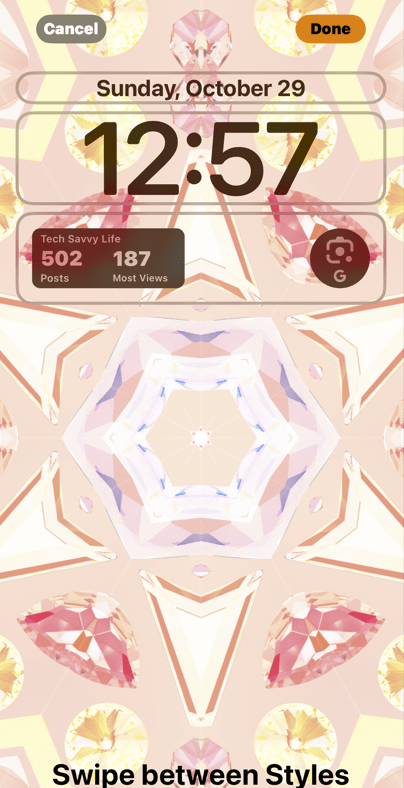
Once there, scroll until you find the Kaleidoscope category to select one of the new wallpapers. You might see the category in the Featured section, so you might not need to scroll. Refer to the below image:

Kai 1
Add a Kaleidoscope wallpaper

You will discover six Jewels kaleidoscope images and eight Flower ones. The Jewels will also feature Dark and Light modes, which means they will change appearance depending on how you have set up your iPhone. Unfortunately, the Flowers kaleidoscopes do not. But we would say the color palette is even better for the Flowers options.

Once you have selected the one you like best, you can set it as a Wallpaper Pair for both the Lock and Home screens. Or you can customize the Home screen with a separate image. You can always select a kaleidoscope for the Lock Screen and a different image for the Home Screen. Sadly, you can not set up two different kaleidoscopes, one for each screen.

Just like other Apple wallpapers, you can add widget(s) to your Kaleidoscope screen. See the below image:

Kai 2
Add Widgets

Related

We have TechSavvy.Life stats and Google Lens widgets for our wallpaper. Your new wallpaper will look similar to the one below. See the following image:

Kai 3
Your added Widgets

That’s all you have to do to take advantage of the new Kaleidoscope wallpapers on iPhone after updating to iOS 17 or higher.

Disclaimer

Technology is always changing and rarely is there static tech for smartphones and desktops. Thus, the contents of this post are only valid at the time of writing. Blog posts older than six months may have directions incompatible with your device or OS. Hopefully, older post content will continue to work as advertised. Thank you for reading TechSavvy.Life for Technology at Work For You.

If you are not willing to risk the unusual, you will have to settle for the ordinary.

Jim Rohn

That’s it. Please feel free to share this post! One way to share is via Twitter.

Just click the Tweet icon below. This will launch Twitter where you click its icon to post the Tweet.

Checkout TechSavvy.Life for blog posts on smartphones, PCs, and Macs! You may email us at contact@techsavvy.life for comments or questions.

Please feel free to leave a comment. I would love to hear from you. Do you have a computer or smart device tech question? I will do my best to answer your inquiry. Just send an email to contact@techsavvy.life. Please mention the device, app, and version you are using. To help us out, you can send screenshots of your data related to your question.

You can access the e-book from a Kindle device, the Kindle App for the desktop or smartphone, which is a free app.
The author’s Vietnam eBook on the Battle for Tra Bong Vietnam: Events and Aftermath

How to Invert the Colors on Your iPhone

The post provides a guide on how to invert colors on an iPhone running iOS 17+, which can assist color-blind individuals or those who find phone screens hard to read. However, if this function results in ghostly blue screenshots, the post advises heading to Accessibility in the Settings app and turning off both Smart Invert and Classic Invert.

RAYMOND OGLESBY @RaymondOglesby2
November 28, 2023

This is for the iPhone running iOS 17+. Screenshots are from iPhone 14 Pro.

Are you considering inverting the colors on your iPhone? It can be a useful feature; especially for those with color blindness or for those who find phone screens difficult to read. The process of inverting your iPhone’s display colors is simple and can be done in no time. Let’s explore using the side button to toggle inverted colors on or off.

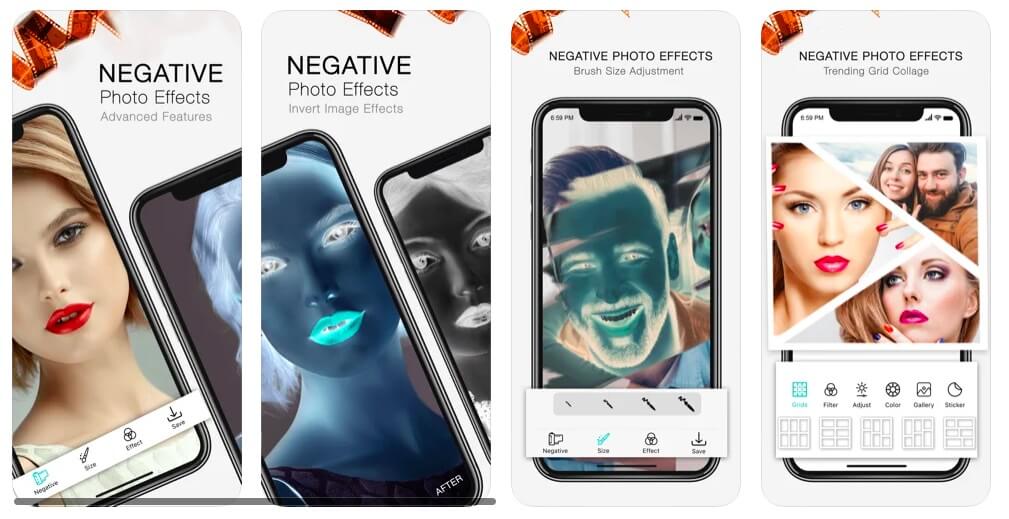
But first, what if you take a photo like the one below?

Invert 2
Your photo

Next, you take a screenshot of your photo and it turns out ghostly blue as displayed below.

Invert 1
Your ghostly blue screenshot

Yikes! How did this happen? We spent hours searching on Google how to fix this to no avail. Then we chatted with two Apple Support specialists before we got an answer on how to resolve this. This issue goes back to iOS 11.

To fix this problem:

  1. Open the Settings app on your iPhone and go to Accessibility.
  2. Select Display and Text Size.
  3. Scroll down to Smart Invert and Classic Invert.
    • Smart Invert will only invert the colors within the app you are currently using. 
    • Classic Invert will invert all the colors on your iPhone, including photos and videos. 
  4. Turn both options to the OFF position.

This will make the screenshot resemble your photo. Refer to the below image:

Invert 3
Turn OFF both options

Note! When you update your iOS, the Smart Invert option is reset to the ON position. If your iPhone is still displaying ghostly images from your Camera Roll or the Photos app while using Dark Mode, turn the Smart Invert and Classic Invert to the OFF position.

In Settings > Display & Brightness resetting the Options, True Tone and Night Shift options has no effect in eliminating the ghostly images as noted in various help articles..Only the steps described in this blog post fixes the problem.

To quickly turn the inverted colors on or off on your iPhone, you can set up an Accessibility Shortcut. To do this, go to the Accessibility section of the Settings app then scroll down to select Accessibility Shortcut. Now, click either Smart Invert or Classic Invert. Once done, triple-click the power button on the side of your iPhone to toggle the inverted colors. To disable the shortcut, triple-click the power button again.

Inverting the display colors on your iPhone can be a helpful tool for those who struggle with bright screens or color blindness, as it creates more contrast and, for some, an easier-to-read display. It’s important to note that while inverted colors can be a useful feature, they are not for everyone, and it may take some time to get used to inverted colors. However, if you find inverted colors to be helpful or think they do improve your overall viewing experience on an iPhone, it’s definitely worth enabling.

Disclaimer

Technology is always changing and rarely is there static tech for smartphones and desktops. Thus, the contents of this post are only valid at the time of writing. Blog posts older than six months may have directions incompatible with your device or OS. Hopefully, older post content will continue to work as advertised. Thank you for reading TechSavvy.Life for Technology at Work For You.

The best vision is insight.

Malcolm Forbes

That’s it. Please feel free to share this post! One way to share is via Twitter.

Just click the Tweet icon below. This will launch Twitter where you click its icon to post the Tweet.

Checkout TechSavvy.Life for blog posts on smartphones, PCs, and Macs! You may email us at contact@techsavvy.life for comments or questions.

Please feel free to leave a comment. I would love to hear from you. Do you have a computer or smart device tech question? I will do my best to answer your inquiry. Just send an email to contact@techsavvy.life. Please mention the device, app, and version you are using. To help us out, you can send screenshots of your data related to your question.

You can access the e-book from a Kindle device, the Kindle App for the desktop or smartphone, which is a free app.
The author’s Vietnam eBook on the Battle for Tra Bong Vietnam: Events and Aftermath

How to Spot Phishing Attempts

Phone and email scammers are running rampant. Here are some real-life phishing lures and how to stop scammers in their tracks.

RAYMOND OGLESBY @RaymondOglesby2
November 14, 2023

This is for devices using Text Messaging and Email.

Phone and email scammers are running rampant. Here are some real-life phishing lures and how to stop scammers in their tracks.

Recently, Google warned that hackers were sending phishing emails to YouTube creators, offering antivirus software in exchange for a review on the channel. The antivirus was, in fact, malware designed to steal passwords and browser cookies, which can also hold login credentials.

Identifying legitimate contact is difficult in the age of frequent phishing attempts. Recently after helping a friend figure out whether an email purporting to be from Facebook was a phishing lure. In the end, that email turned out to be a real marketing message from Facebook, but he had to go through several steps to determine the message’s legitimacy. Even we have difficulty determining the authenticity of messages from Facebook and other companies.

Facebook keeps a list of verified correspondence in the account area of your profile, so it’s easy to match emails you receive in your inbox with the messages you see from Facebook in your account. But what if you want to verify that an email came from someone you know and contains safe links? The US Federal Trade Commission offers a few steps you can take to stay safe:

  1. Look at the From email address. If you do not recognize the address or the sender, think twice about opening any links contained within the email.
  2. Spot a generic greeting. A business email usually will not begin with a casual greeting such as, “Hi Dear.” An email from a friend usually will not spell your name wrong or address you with an honorific like “Mr., Mrs., or Miss.”
  3. Look at the link URLs. Mouse over links before you click on them. Your browser will reveal the web address for each one. If the link looks suspicious (for instance, a link purporting to be from Netflix takes you to an entirely different domain), do not click on it! Delete the email or report it as spam and move on.
  4. Be wary of any emails that invite you to click on a link, whether to update your payment details, update your account information, receive a coupon for free stuff, or examine an invoice you are not expecting.

Our son is a cyber severity expert. He says, “Don’t click that link”.

Even the most vigilant email user can be caught unaware of a malicious link in an email. Add extra layers of protection to your online life so you can mitigate the damage done by scammers:

  • Use security software. The best antivirus and security suites have phishing protection built right in. Set the software to update automatically and run in the background to protect you from phishing attempts.
  • Use multi-factor authentication everywhere you can online. Even if a scammer manages to get a hold of your username or password, if you set up multi-factor to be something you have (a hardware security key or an authenticator app passcode), or something you are (a scan of your fingerprint, retina, or face), it’s harder for the bad guys to log into your accounts.
  • Back up your data. Copy your important documents and information regularly and store them on an external hard drive or with an online backup or storage service.

Recently there have been SMS text messages using phishing attempts, also known as “smishing.” Here are some examples of smishing:

Phishing 4
Phishing text messages

If you are not careful, these types of messages may fool you into giving up valuable information about yourself or downloading malware onto your phone.

Both messages came from an unknown phone number. Also, both requested action related to a finance-related problem, and both contained suspicious links. The first message is from an unknown company about a product we never purchased, and the use of the bit.ly link shortener is a common way for smishers to encourage their victims to click. The Citibank message is worrying because the link address is slightly off, featuring a dash instead of a period between “support” and “citi.”

For years, security researchers have noted that SMS spam could be curtailed by mobile carriers if they stopped offering unlimited texting plans. Until that happens, the best way to fight back against mobile spam in the United States is to forward the messages to short code SPAM (7726).

Here are a couple of email phishing attempts. The first one is an email from a company we do not use and with a weird link.

Phishing 1
Phishing email on desktop

The second one has links that are way too long (only partially displayed) and a white dotted line at the top, and we did not request their help.

Phishing 3
Phishing email on desktop

Technology is always changing and rarely is there static tech for smartphones and desktops. Thus, the contents of this post are only valid at the time of writing. Blog posts older than six months may have directions incompatible with your device or OS. Hopefully, older post content will continue to work as advertised. Thank you for reading TechSavvy.Life for Technology at Work For You.

Failure is an option here. If things are not failing, you are not innovating enough.

Elon Musk

That’s it. Please feel free to share this post! One way to share is via Twitter.

Just click the Tweet icon below. This will launch Twitter where you click its icon to post the Tweet.

Checkout TechSavvy.Life for blog posts on smartphones, PCs, and Macs! You may email us at contact@techsavvy.life for comments or questions.

Please feel free to leave a comment. I would love to hear from you. Do you have a computer or smart device tech question? I will do my best to answer your inquiry. Just send an email to contact@techsavvy.life. Please mention the device, app, and version you are using. To help us out, you can send screenshots of your data related to your question.

You can access the e-book from a Kindle device, the Kindle App for the desktop or smartphone, which is a free app.
The author’s Vietnam eBook on the Battle for Tra Bong Vietnam: Events and Aftermath

How to Turn iPhone Live Photos to Videos

The iPhone allows users to convert Live Photos into videos through the Shortcuts app, creating high-quality clips. Users need to download a specific shortcut from Apple’s website, after which they can select the Convert Live Photos to Video shortcut and choose the photo they wish to convert. The shortcut only works with Live Photos, and for best results, users should select pictures that depict movement. Live Photos can be used with the Bounce, Loop, or Long Exposure effect.

RAYMOND OGLESBY @RaymondOglesby2
November 7, 2023

This is for the iPhone. Screenshots are from iPhone 14 Pro running iOS 16+

If you can not do something in the Apple Photos app on your iPhone, chances are there is a third-party photo-editing app that can. For instance, have you ever viewed a Live Photo and realized it would make a much better video? Get it done with the Shortcuts app. It only takes a few minutes to set up and a couple taps to perform. Let’s explore this feature.

First, Apple’s Shortcuts app should already be on your iPhone, but you can also download it from the App Store. Refer to the below image:

Live Photo 1
Get your Shortcuts app

While the app comes loaded with many different pre-existing shortcuts, you must download a specific one from Apple’s website to convert Live Photos to videos.

Next, head to the Convert LivePhotos to Video page and tap the Add Shortcut button. See the below image:

Live Photo 2
Add the Convert shortcut

Now, this will add it to your Shortcuts app. See the following image:

Live Photo 3
Your Shortcut added

Next, all you have to do is select the Convert Live Photos to Video shortcut and pick the Live Photo you wish to convert. That’s all it takes. The new video will automatically be added to your Camera Roll as if you captured the clip with your phone’s camera. Refer to the below image:

Live Photo 4
Message about the conversion

Now, if you have ever edited a Live Photo, you might notice that most of the photo outside the Key Photo can be quite blurry. However, your new video will retain the quality of the main photo throughout, giving you a crisp and clear clip. Click on the image to play the video:

Live Photo to Video example

This process is as simple as can be, but there are a few tricks to get the best results possible.

  • This might sound obvious, but the shortcut only works with Live Photos.
  • When selecting photos to convert, filter out all still images in Apple Photos by selecting Albums > Live Photos to make sure you are only viewing Live Photos.
  • For best results, select photos that depict movement. For example, fireworks, moving cars, grass blowing in the wind, ocean waves crashing, etc. These will make for a better video than a stationary moment.
  • You can use Live Photos with the Bounce, Loop, or Long Exposure effect.
  • While you can not make a Boomerang out of a Live Photo, or a photo with the Bounce effect, you can convert your Live Photo to a video and make a Boomerang.

Related

Convert a Live Photo to a Still Photo

Disclaimer

Technology is always changing and rarely is there static tech for smartphones and desktops. Thus, the contents of this post are only valid at the time of writing. Blog posts older than six months may have directions incompatible with your device or OS. Hopefully, older post content will continue to work as advertised. Thank you for reading TechSavvy.Life for Technology at Work For You.

So often people are working hard at the wrong thing. Working on the right thing is probably more important than working hard.

Caterina Fake

You are finished. Please feel free to share this post! One way to share is via Twitter.

Just click the Tweet icon below. This will launch Twitter where you click its icon to post the Tweet.

Just click the Tweet icon below. This will launch Twitter where you click its icon to post the Tweet.

Please feel free to leave a comment. I would love to hear from you. Do you have a computer or smart device tech question? I will do my best to answer your inquiry. Just send an email to contact@techsavvy.life. Please mention the device, app, and version you are using. To help us out, you can send screenshots of your data related to your question.

The author’s Vietnam eBook on the Battle for Tra Bong Vietnam: Events and Aftermath

How to Use the App Library to Organize Your Home Screen

Apple’s App Library has been designed to help iPhone and iPad users manage and locate their apps more easily by organizing them into folders based on specific categories. This feature is available on iPhone iOS 14 or higher and iPad iOS 15 or higher. Users can also move apps from the App Library to the Home screen, but can’t change a misallocated folder. A search function guides users to find specific apps.

RAYMOND OGLESBY @RaymondOglesby2
October 31, 2023

This is for the iPhone and iPad. Screenshots are from iPhone 14 Pro running iOS 16+

Thanks to Apple’s App Library, you no longer have to keep every app on the Home Screen. iPhone and iPad apps are organized in folders, so you can locate them more easily.

Keeping track of all the apps on your iPhone or iPad can be challenging, but the App Library has made it more accessible. This feature lets you remove apps from the Home screen and organize them into folders based on specific categories. Open the App Library with a simple swipe to browse all your apps or search for the right one.

To use the feature, you need to update your iPhone to iOS 14 or higher and your iPad to iPadOS 15 or higher if you have not already done so. On either device, go to

Settings > General > Software Update

Your device will indicate that your software is up to date or prompt you to download and install the latest update.

Overall, the App Library is a helpful tool for managing your apps and finding the ones you need. It’s really useful if you have not already manually organized your apps into different folders. Let’s explore how this feature works.

To access your App Library, open the Home screen and swipe to the left until you see a screen with apps automatically organized into folders. Here, you will see folders called Suggestions, Recently Added, Social, Entertainment, Shopping, Music, Games, and more, depending on what apps you have on your device. Refer to the below image:

Apps 1
Your App Library screen

You will notice that some of the apps in a folder have large icons, while others sport smaller icons grouped in fours. To open an app that has a large icon, all you have to do is tap it.

For the smaller app icons, you have to tap the group of four apps to bring up a screen showing all the apps in that category. From there, simply tap an icon to open the corresponding app. See the below image:

Apps 2
Your sub icons under a master icon screen

Apps can be moved from the App Library to the Home screen, or deleted entirely, but apps in the library can not be moved from one folder to another. If you feel an app has been categorized in the wrong folder, there’s nothing you can do.

If you are having trouble finding a specific app, you can search for it by name. Start typing the name of the app you want in the App Library search field at the top to see the corresponding apps. Tap the app icon to launch the app. See the following image:

Apps 3
Using Search

Otherwise, you can swipe down on the App Library screen to view an alphabetical list of all the apps installed on the device. To find a specific app faster, tap a letter on the right-hand side to see all apps starting with that letter. Refer to the below image:

Apps 4
Using alphabetical list

You can add an app from the App Library to your Home screen if it’s not already there. Long-press on the icon to open the command menu and then tap Add to Home Screen. The app’s icon appears on the next free spot on your Home screen but also remains in the App Library. See the below image:

Apps 5
Add to your Home screen option

Another method of moving apps from the App Library to the Home screen is to hold down on an app until all the icons start jiggling. Press down on the icon for the app you want to move and then drag it to the left until the Home screen appears, allowing you to place the icon into the correct position. See the following image:

Apps 6
Using jiggling

You can also press down on an icon from the Home screen and select the Edit Home Screen command from the menu to make all the apps jiggle and then go to the App Library to move an icon to the Home screen. Refer to the below image:

Apps 7
Edit your Home Screen option

Note! Tap on any blank area of your Home screen to turn off the giggles.

Disclaimer

Technology is always changing and rarely is there static tech for smartphones and desktops. Thus, the contents of this post are only valid at the time of writing. Blog posts older than six months may have directions incompatible with your device or OS. Hopefully, older post content will continue to work as advertised. Thank you for reading TechSavvy.Life for Technology at Work For You.

You just have to pay attention to what people need and what has not been done.

Russell simmons

That’s it. Please feel free to share this post! One way to share is via Twitter.

Just click the Tweet icon below. This will launch Twitter where you click its icon to post the Tweet.

Checkout TechSavvy.Life for blog posts on smartphones, PCs, and Macs! You may email us at contact@techsavvy.life for comments or questions.

Please feel free to leave a comment. I would love to hear from you. Do you have a computer or smart device tech question? I will do my best to answer your inquiry. Just send an email to contact@techsavvy.life. Please mention the device, app, and version you are using. To help us out, you can send screenshots of your data related to your question.

You can access the e-book from a Kindle device, the Kindle App for the desktop or smartphone, which is a free app.

The author’s Vietnam eBook on the Battle for Tra Bong Vietnam: Events and Aftermath

How to Block or Hide Your Phone Number

This article outlines ways to hide your caller ID on Android and iPhone, preventing recipients from seeing your number. One method involves dialing a specific shortcode (*67 for US) before a number. Alternatively, you can permanently block your number via the phone’s operating system. However, this may lead to missed calls from contacts who may not pick up unidentified calls. It also mentions ways to deal with spammy no caller ID calls.

RAYMOND OGLESBY @RaymondOglesby2
October 24, 2023

This is for iPhone and Android. Screenshots are from iPhone 14 Pro running iOS 16+

Nobody likes receiving calls from No Caller ID numbers, as they are usually scams. But there might be cases where you will want your iPhone or Android to hide your phone number to protect your privacy. Whether the person at the other end of the line picks up or not, you can still block your phone number so it’s hidden when you call others.

There are two ways to hide your phone number. One involves using a specific shortcode before the phone number you want to dial. The other is having the operating system block your number permanently. We will show you both, and a tip that makes blocking your number a two-second process.

If you plan on blocking your number only for certain calls, there’s no reason to mess with the iPhone or Android phone’s settings. Instead, just add *67 before the number you are about to dial. When you do this, it tells your carrier not to show any Caller ID for that call.

An example of the phone number string to dial would be *67-555-555-5555.

Each country has different shortcodes to hide phone numbers. This is the US version. In the UK, you would need to dial 141 before the number.

If you want to hide your phone number routinely, you will need to go into the phone’s settings to enable it.

On iPhone, head to:

Settings > Phone > Show My Call ID

You might have to wait a short while until the toggle appears. Toggle the switch to OFF. Refer to the below image:

Block 1
Disable showing Caller ID

The feature can come in handy if you are using your personal phone number for work-related calls and do not want others to find out your number. But it can be a hassle if you forget to reenable it when calling family and friends. They will see No Caller ID appear on their devices and might not pick up.

The same warning applies to Android. You can block your phone number on Android phones just as easily as on iPhones. But you will have to remember to unblock it for your closest contacts to see your Caller ID.

To hide your phone number on Android, go to:

Phone > Setting > Calls and Additional Settings > Hide Number

and toggle the switch to OFF.

Repeat the steps to reenable the Caller ID on your Android phone when you are done blocking access to it.

While we are at it, we will remind you there are ways to deal with spammy No Caller IDs on iPhone and Android and ensure they are not too big a hassle for you. Check a related post below to avoid no Caller ID calls.

RELATED

Block No Caller ID

Disclaimer

Technology is always changing and rarely is there static tech for smartphones and desktops. Thus, the contents of this post are only valid at the time of writing. Blog posts older than six months may have directions incompatible with your device or OS. Hopefully, older post content will continue to work as advertised. Thank you for reading TechSavvy.Life for Technology at Work For You.

When you innovate, you’ve got to be prepared for people telling you that you are nuts.

Larry Ellison

That’s it. Please feel free to share this post! One way to share is via Twitter.

Just click the Tweet icon below. This will launch Twitter where you click its icon to post the Tweet.

Checkout TechSavvy.Life for blog posts on smartphones, PCs, and Macs! You may email us at contact@techsavvy.life for comments or questions.

Please feel free to leave a comment. I would love to hear from you. Do you have a computer or smart device tech question? I will do my best to answer your inquiry. Just send an email to contact@techsavvy.life. Please mention the device, app, and version you are using. To help us out, you can send screenshots of your data related to your question.

You can access the e-book from a Kindle device, the Kindle App for the desktop or smartphone, which is a free app.
The author’s Vietnam eBook on the Battle for Tra Bong Vietnam: Events and Aftermath