This post provides instructions for protecting your privacy on Yahoo Mail for iPhone and PC. It explains how to prevent Yahoo from selling your information and control personalized ads.
RAYMOND OGLESBY @RaymondOglesby2 October 1, 2024 – 4 minutes read time
This is for the iPhone and PC running Yahoo Mail. Screenshots are from iPhone 14 Pro running iOS 17.7
Overview
Most companies today are selling your information in some way or form. Luckily, most companies allow you to opt out of having your data sold; if you know how to ask for it.
While you would think the “do not sell my personal information” setting would be on the Yahoo security page, you will find it under a different menu. Let’s explore telling Yahoo, “Do not sell my personal information” and control personalized ads.
System Requirements
Yahoo Mail
iOS 16 or later
Browser
Windows 11/10
iPhone
Click here to learn how to update your iPhone to the latest iOS version.
Why Apply This Post
Protect your privacy by stopping Yahoo from selling your information.
Make sure your data stays out of the hands of third parties.
Opening Settings
First, open the Yahoo Mail app. Next, tap your profile icon in the upper left. Now, tap Settings. Refer to the below image:
Accessing Settings
Accessing Privacy
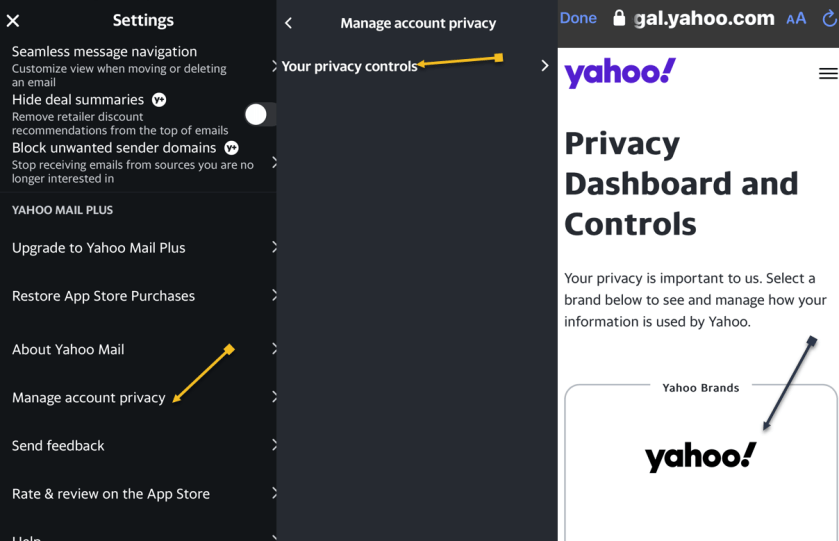
First, scroll down and tap Manage account privacy. Next, tap Your Privacy controls. Now, tap the Yahoo logo. See the below image:
Accessing Privacy
Setting the Do Not Sell Option
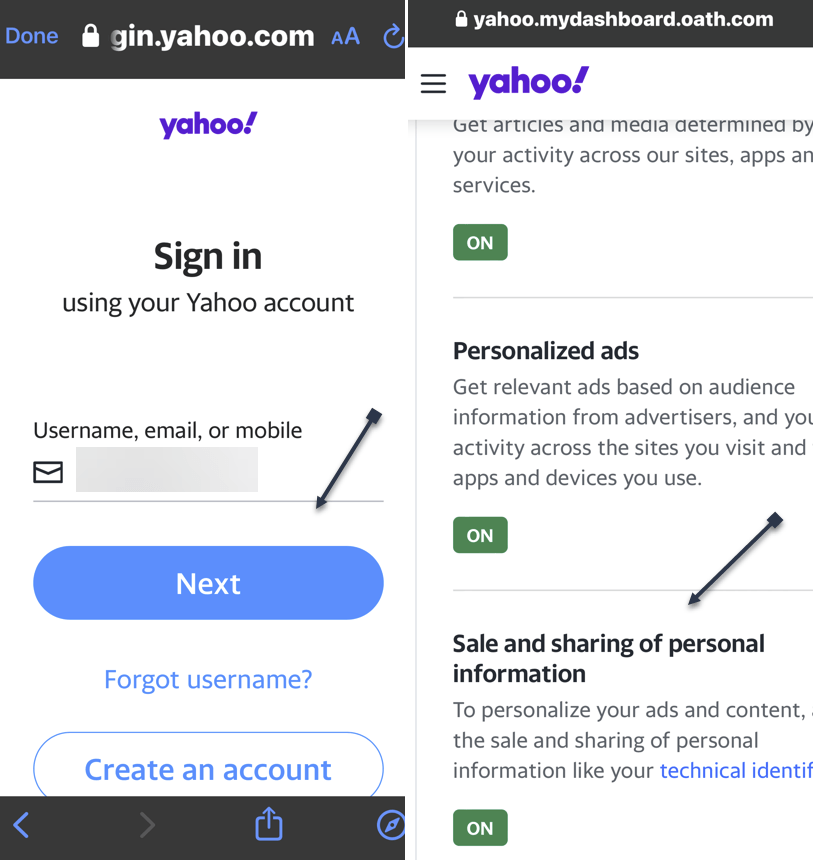
First, you will be prompted to log into your Yahoo mail account. Enter your username/email address, tap Next, and follow the on-screen prompts to log in. Next, After logging in, scroll down to the Sale and sharing of personal information and tap the link. See the following image:
Accessing the Sale and Share link
Disable the Do Not Sell Option
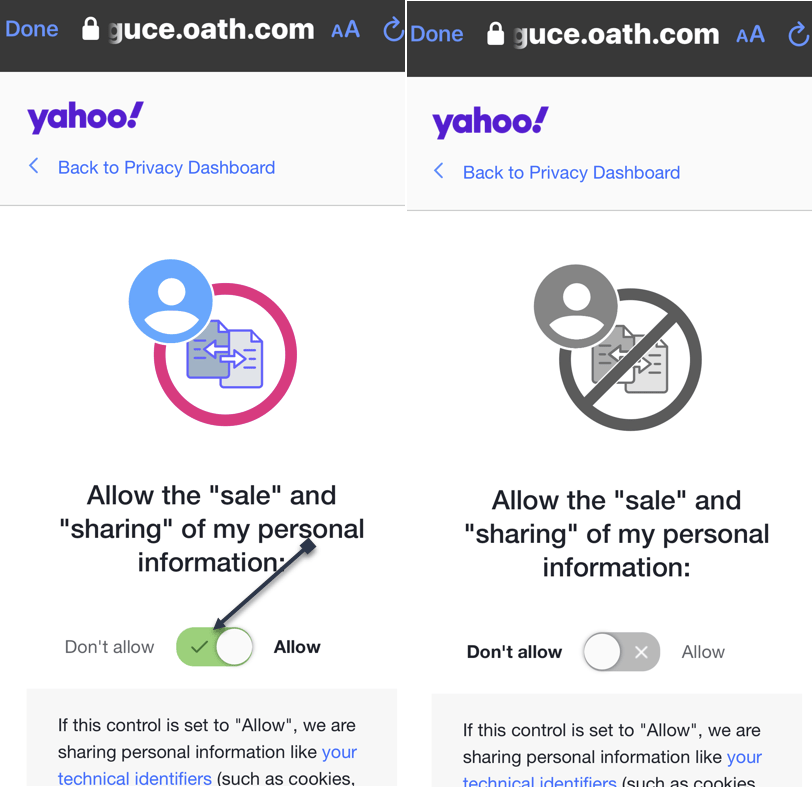
First, tap the toggle. The default is set to AllowYahoo to sell your data. Next, the page and its toggle will turn gray, indicating that the setting has been disabled. Refer to the below image:
Setting the Do Not Sale option
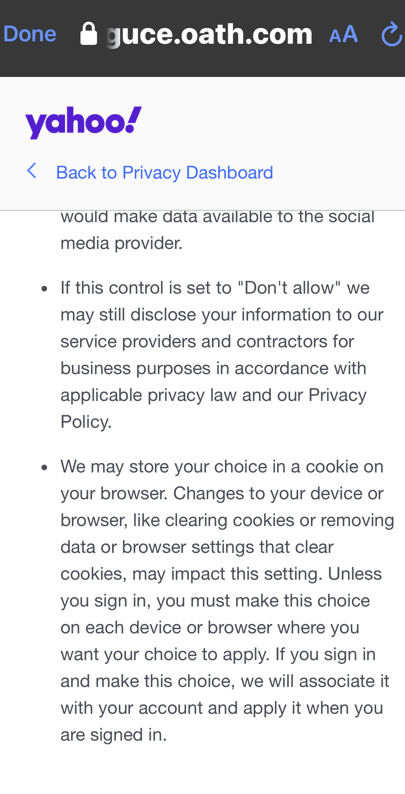
You may want to read the “fine print” about setting the option to Don’t Allow. If you clear cookies for your browser, the option is reset to Allow. See the below image:
The fine print
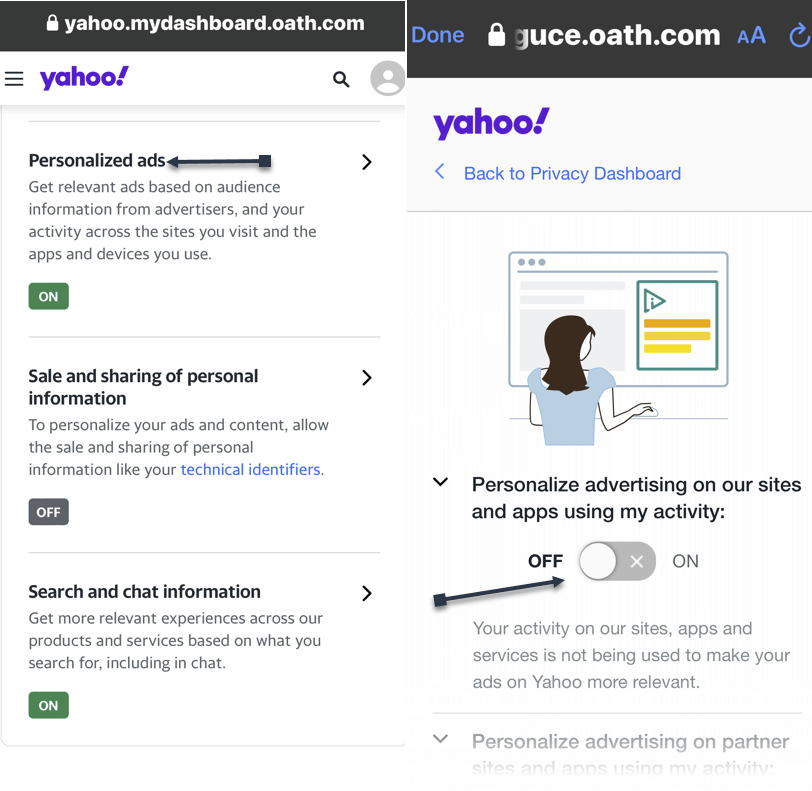
While here, go back to the Sale and sharing of personal information screen to control ads. Tap the Personalized ads link and turn off any option on delivering ads. See the following image on the first of four options:
Turning off Personalized ads
Using a PC Desktop/Laptop Running Windows 10/11
Open Yahoo Mail
Click the Gear icon in the upper left below the Home icon
Click the More settings link
Click About our Ads menu option. You would think of accessing the Security and Privacy menu option, but Yahoo wants to hide selling your data.
Under What choices do I have section, click View our other Privacy Controls
click the Yahoologo, and sign in
Click the Sale and sharing personal information link
Click the toggle. The default is set to AllowYahoo to sell your data. Next, the page and its toggle will turn gray, indicating that the setting has been disabled. If you have set the toggle to Don’t Allow on your iPhone first, the toggle will already be disabled.
Disclaimer
Technology is always changing. Rarely is there static tech for smartphones and desktops. Thus, the contents of this post are only valid at the time of writing. Blog posts older than six months may have directions incompatible with your device or OS. Hopefully, older post content will continue to work as advertised. Thank you for reading TechSavvy.Life for Technology at Work For You.
Quote For the Day
“I play to win, whether during practice or a real game.”
– Michael Jordan
X (Twitter) Info
That’s it. Please feel free to share this post! One way to share is via Twitter.
Just click the Tweet icon below. This will launch Twitter where you click its icon to post the Tweet.
Checkout TechSavvy.Life for blog posts on smartphones, PCs, and Macs! You may email us at contact@techsavvy.life for comments or questions.
Was this post helpful? We would love to hear your comments. Do you have a computer or smart device tech question? I will do my best to answer your inquiry. Just send an email to contact@techsavvy.life. Please mention the device, app, and version you are using. To help us out, you can send screenshots of the data related to your question.
The author’s Vietnam eBook on the “Battle for Tra Bong Vietnam: Events and Aftermath” can be accessed from a Kindle device or the Kindle App for a desktop or smartphone. The apps are free.
The author’s Vietnam eBook on the Battle for Tra Bong Vietnam: Events and Aftermath
This post emphasizes the importance of strong, unique passwords and the use of password managers to enhance security. It highlights the risks of using common or personal information-based passwords and provides tips for creating and managing secure passwords.
RAYMOND OGLESBY @RaymondOglesby2 August 13, 2024 -9 minutes read time
This is for devices using passwords. Screenshots are from iPhone 14 Pro running iOS 17.5.1+
If you are still using “qwerty” or “starwars” as a password, you should stop doing this. Let’s find out what makes a bad password, why you should care, and how to make a good one.
The Case For Strong Passwords
Don’t have the password to get into your bank account? You are out of luck unless you can trick the bouncer into telling you the password is “kangaroo.” A simple password like that would be a terrible choice to protect your access to a bank site. And yet, chances are good you are using something just as bad, because stronger passwords are too hard to remember.
The only safe way to store proper passwords is in a password manager. If you are not using one, you probably rely on a highly crackable password like “baseball” or “12345”, or you have memorized one complex password, like “Jazz2day4Me!” and use it everywhere. Password security is no small matter. Given the enormous risk, you need to keep your passwords safe.
Even the best password manager does not guarantee the safety of your accounts; not if you use it to store the same old, tired passwords. You have to switch out your old and weak passwords for new and stronger ones.
Once you have replaced all your lame passwords with strong, unique ones, you can relax, at least until a data breach forces a change. The National Institute of Standards and Technology (NST) no longer recommends changing passwords every 90 days. NIST now recommends using long phrases like “Correct-Horse-Battery-Staple” and changing them only when necessary. If you have terrible passwords, “when necessary” means right now.
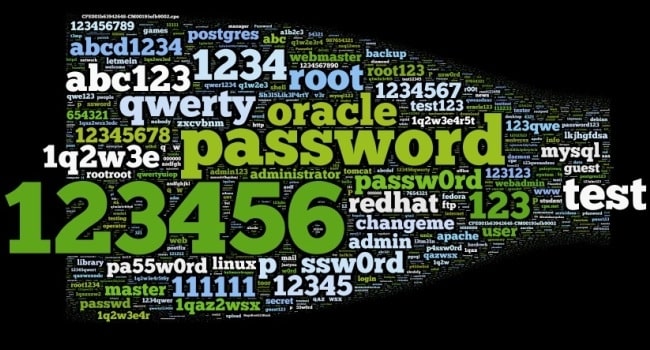
Bad passwords
Just what makes a bad password? Let’s look at some of the attributes of terrible passwords, and then some pointers on improving them.
Ditch the Dictionary
Every few months a news outlet posts a list of the worst passwords. We see a lot of easy-to-type options, like“12345” and “qwerty”. Easy for you to type? Sure. But also easy for hackers to crack. Other common (and poor) passwords consist of simple dictionary words, like “baseball”, “monkey”, and “starwars” in the list of worst passwords. These, too, are easy to crack.
A few of the best password managers (tap or click a button to view):
Some secure websites lock down after a given number of wrong password attempts, but many do not. For those with no bad guess lockout, hackers can cross a list of email addresses with a list of popular passwords and set up an automated process to keep trying combinations until they get in.
A properly secured website does not store your password anywhere. Instead, it runs the password through a hashing algorithm, a one-way encryption. The same input always produces the same output, but there’s no way to return to the original password from the resulting hash. If the password you type hashes to the same one that’s stored, you gain access. Even if hackers capture the site’s user data, they do not get passwords, just hashes.
But smart hackers can crack weak passwords if they know the site’s hashing function. They start by running a huge dictionary of common passwords through the hashing function. Then they look for the resulting hashes in the captured data. Each match is a cracked password. Sites with the best security enhance the hash function with password salting, which makes table-based cracking impossible, but why take the risk? Just stay out of the dictionary.
Think Differently
What about this perfect password: 1qaz2wsx3edc4rfv. You just “type” it by sliding a finger down four slanted columns of the keyboard. You think it’s so perfect, that you use it everywhere. And that is a big mistake.
Hardly a week goes by without news of a breach at some company or website, exposing thousands or millions of usernames and passwords. Smart victims change their passwords immediately. Those who ignore the problem may find themselves locked out of their accounts after the hackers have reset your passwords.
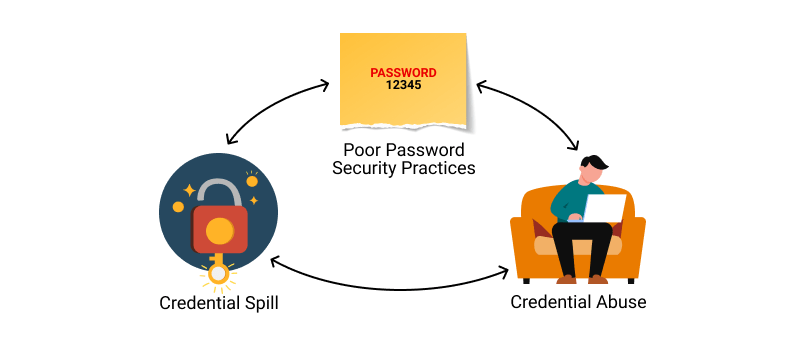
Those hackers know that all too many people recycle their passwords. Once they find a working username and password pair, they try the same credentials on other sites. You may not be so worried about losing access to your old Dropbox account, but if you used the same login on your bank’s website, you are in big trouble.
Using the same credentials on websites
It gets worse. If someone else takes control of your email account, they can lock you out by changing the password. Then they can break into your other accounts by having a password reset link emailed to that account. Worried yet? You should be!!!!
Stay Away From Being Personal
Using personal information as the basis for your passwords is awfully tempting, but it’s a bad idea. Whether your dog’s name is Fifi or Khaleesi, that name probably appears in the dictionaries hackers use for brute-force attacks. Other possibilities such as the initials and birthdate of a family member probably will not fall to a brute-force attack. If someone wants to hack your account specifically, that personal data can fuel a trial-and-error guessing attack.
Do not think for a minute that your personal details are private. There are dozens of sites people can use to find details about anybody: address, birthdate, marital status, and more. Your social media posts can be another source of personal info, especially if you have not properly secured your accounts. A determined hacker (or a nosy neighbor) can probably guess any password you build based on your data.
Shut the Back Door
If you are not using a password manager, you have surely experienced forgetting the password for a site. It’s all too common. That is why virtually every login page includes a “Forgot your password?” link. Some sites send a reset link to your email address, while others let you reset the password after answering your security questions. And that opens a back door to anyone wanting to hack your account.
Most sites offer abysmal options for security questions like:
What is your mother’s maiden name?
Where did you go to high school?
What was your first job?
As noted, your personal life is an open book to anyone with internet searching skills. When possible, ignore the preset questions. Create your own question, with a unique answer you will always remember but nobody else could guess.
It’s harder when the site does not let you define your own questions. In that case, your best bet is to use a memorable answer that’s a total LIE like:
My mother’s maiden name is Fauci.
I went to school at More Science High School.
For my first job, I was a linotype operator.
There is an element of risk since you might forget which lie you chose. We suggest storing these oddball answers in the iPhone Notes app or onGoogle Drive.
What To Do Now
We hope we have convinced you that using common passwords is a rotten idea, as is building passwords from personal information. Even the best strong, random password becomes a liability if you use it everywhere. If you are ready to spring into action, here are some starting points:
Use a password manager
Switch to a better password manager
Remember an extremely secure master password for your password manager and keep it on another app. Better yet, just remember the master password.
Take advantage of a random password generator to upgrade your old, bad passwords
You could even create your own random password generator in Excel
Enable multi-factor authentication wherever available
If a secure site does not take care of security, you could still lose that site’s credentials to a data breach, but by making all your passwords long, strong, and unique, you can rest assured that you have done everything you can to protect your online accounts from password-based attacks.
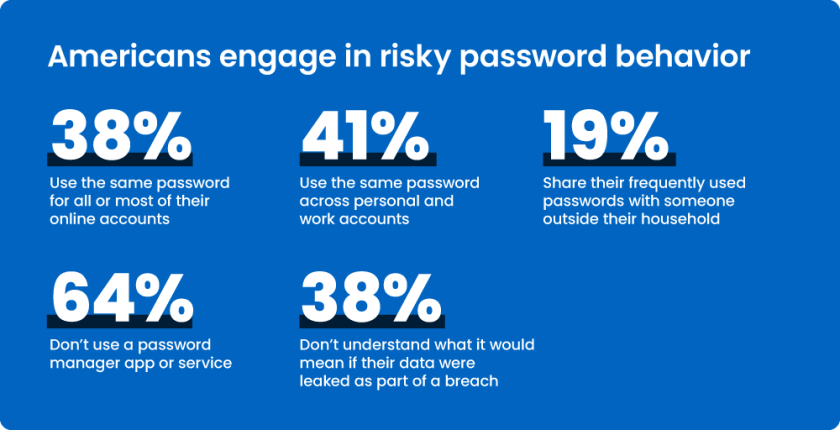
Risky password behavior
You may want to switch to using Passkeys or Passphrases.
Source: PC Mag
Disclaimer
Technology is always changing. Rarely is there static tech for smartphones and desktops. Thus, the contents of this post are only valid at the time of writing. Blog posts older than six months may have directions incompatible with your device or OS. Hopefully, older post content will continue to work as advertised. Thank you for reading TechSavvy.Life for Technology at Work For You.
Quote For the Day
“Try and keep on trying until that which seems difficult becomes possible and that which seems only possible becomes habit and a real part of you.”
Dieter F Uchtdorf
X (Twitter) Info
That’s it. Please feel free to share this post! One way to share is via Twitter.
Just click the Tweet icon below. This will launch Twitter where you click its icon to post the Tweet.
Checkout TechSavvy.Life for blog posts on smartphones, PCs, and Macs! You may email us at contact@techsavvy.life for comments or questions.
Was this post helpful? We would love to hear your comments. Do you have a computer or smart device tech question? I will do my best to answer your inquiry. Just send an email to contact@techsavvy.life. Please mention the device, app, and version you are using. To help us, you can send screenshots of the data related to your question.
This post discusses how to identify legitimate calls and avoid scammers, addressing phone verification, spoofed numbers, and web searching. It provides options like reverse phone lookup websites and tools like WhoCallsMe, Spy Dialer, PeopleFinders, and USPhoneBook. It also suggests utilizing mobile carrier solutions, reporting to the FTC, and the National Do Not Call Registry to combat spam calls.
This is for any browser on a desktop, laptop, or smartphone. Screenshots are from Google Chrome on Windows 10
The phone rings and it’s a number you do not recognize. Or perhaps an unknown number shows up in your missed calls. You are curious but do not want to pick up or call back if it’s a telemarketer or scammer. Instead of playing robocall roulette let’s explore five ways to see who is calling before you engage.
Legit Verses Scam Calls
You may have noticed that America has a problem with scam calls. Scammers took $10 billion from unsuspecting victims in 2023, and it’s hard to see the problem going away anytime soon. If you get a call, there are a few ways to tell if it’s legit or not.
What does the phone say? When a call comes in, look for a displayed number and location. If your phone is not showing any information and says something like Unknown, chances are there’s a scammer on the other end. Anyone can hide their number, but it’s best to let this one go to voicemail and call back if it’s someone you know. If the phone says Scam Likely, it’s typically correct; just ignore the call.
Look for verification. Carriers have started verifying phone numbers when you receive a call. Google’s phone app also adds a badge on incoming calls that can be attached to a business. Unfortunately, this does not verify every call from a legitimate business or weed out legitimate businesses that use robocalls.
Watch out for spoofed numbers. Have you ever gotten a call from what looks to be your own phone number, only it’s a few numbers off? Do not pick those calls up; scammers like to spoof phone numbers and trick you into picking up. They think you are more likely to pick up if the call is from your area code or someone you know.
Note! We recommend ou not click or tap on any icon off the main screen. These buttons launch web sites that may introduce malware or be blocked by your browser security. Also, any screen that has flashing items, immediately exit the screen.
If you click or tap on a button that starts a scanning process for addresses,emails, public information, criminal records, etc., the process will take several minutes. On the desktop, you can stop the process by hitting Cntl-Alt-Del keys, then select Task Manger. Next, right=-click on your browser entry and select End Task. Your browser will exit stopping the scanning process.
Search the Web
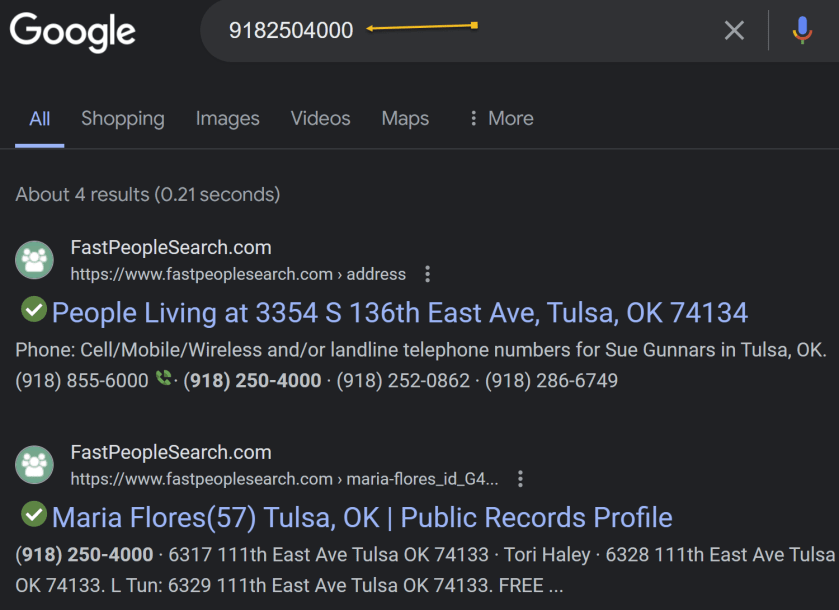
If you want to quickly know whether a caller is legit or a scammer, do a quick web search. As a rule of thumb, if the search results are primarily reverse phone lookup websites, it’s safe to say other people have received unwarranted calls from that same number and are reporting it to warn others. Refer to the below image:
Search the web
Reverse Phone Lookup
Speaking of reverse phone lookups, if you want to do some digging about a certain phone number, many websites can help you. You usually have to pay to get any worthwhile information, but there are a few tools that can help you for free. Even though they are free if you want additional information about the phone number, the sites charge for their service.
whocallsme
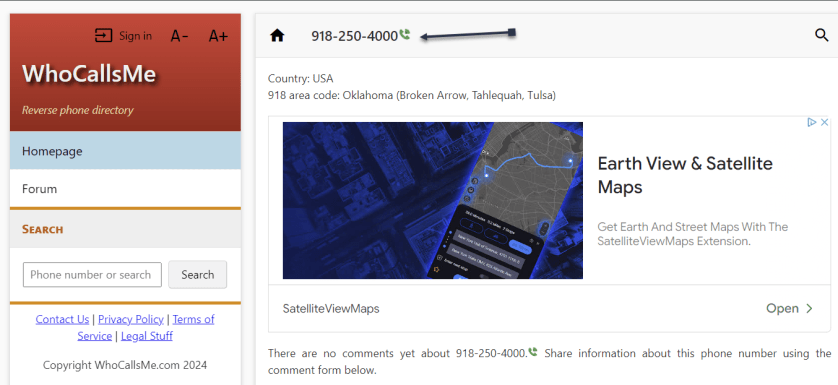
At WhoCallsMe, users can report their experiences with specific phone numbers. Enter a number and the website will tell you where the area code is from. You can then enter your own report or view what others say about it. See the below image:
WhoCallsMe main screen
spy dialer
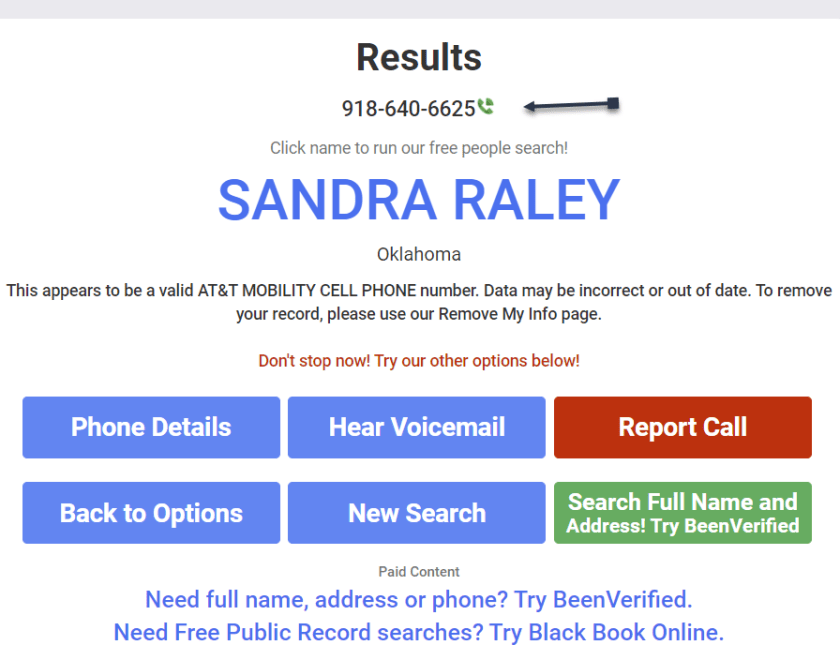
Spy Dialer allows you to search for phone numbers, names, addresses, and emails. Enter a phone number, then choose if you want to look up any linked names or photos, listen to the number’s outbound voicemail, or confirm if the number is spam or not. Spy Dialer can tell you with whom the number is registered, their general location, and whether or not the number has been reported as spam before.
For more information, click Phone Details to see how long the line has been in service and if the number is spoofed. Choose Hear Voicemail to get the caller’s outbound voicemail, if available. You can click Report Call to file a complaint with Spy Dialer.
We recommend this site over the others because it’s faster and offers more information. See the following image:
Spy Dialer main screen
peoplefinders
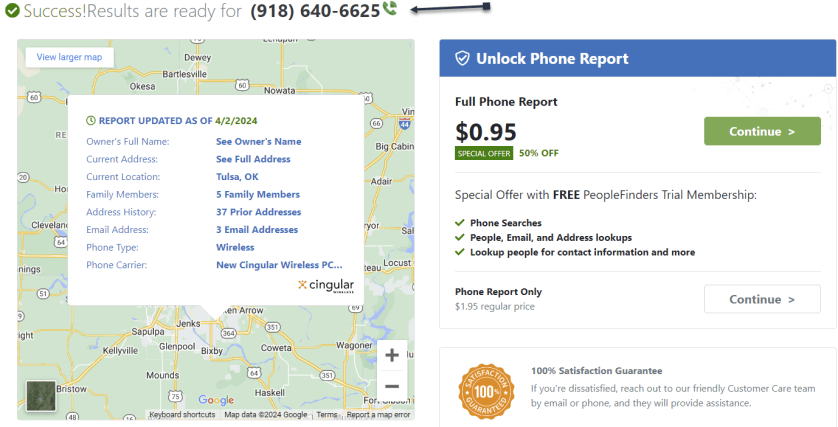
PeopleFinders allows you to look up a phone number, name, address, or email. Enter a phone number into the search bar to get the caller’s general location, carrier, and phone type. More revealing information, such as the caller’s full name and address, is hidden requiring a fee. Refer to the below image:
PeopleFinders main screen
usphonebook
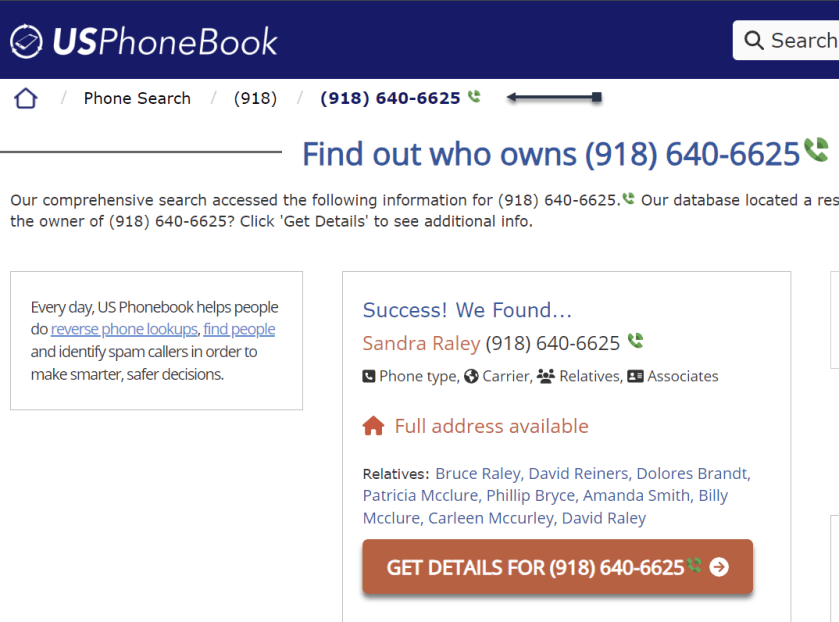
You can look up phone numbers, names, and addresses at USPhoneBook, though this works better for identifying individuals rather than businesses. Enter a number to find the person connected to it. The site will display a list of people who may be related to the person. You can then mark the number as safe or spam. Keep in mind that these listings can be outdated.
Click Get Details to view extra information about the person. This will include their age, current (and former) addresses, phone numbers associated with them, a list of relatives and associates, and even related email addresses. See the below image:
USPhoneBook main screen
What To Do Next
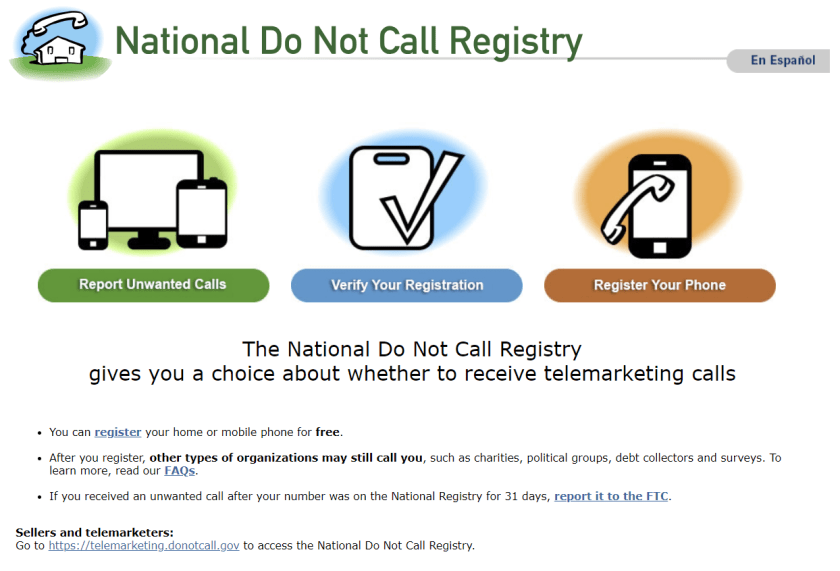
One option is to look at your mobile carrier’s anti-spam solutions for stopping spam calls and robo texts. Additionally, apps likeRoboKiller and Truecaller help keep the spam callers at bay. You can also report unwanted calls to the FTC and register your number with the National Do Not Call Registry, though those wishing to do you harm will undoubtedly ignore this. See the following image:
National Do Not Call Registry main screen
Disclaimer
Technology is always changing. Rarely is there static tech for smartphones and desktops. Thus, the contents of this post are only valid at the time of writing. Blog posts older than six months may have directions incompatible with your device or OS. Hopefully, older post content will continue to work as advertised. Thank you for reading TechSavvy.Life for Technology at Work For You.
Quote For the Day
. Motivation is what gets you started. Habit is what keeps you going.
Jim Rohn
Tweet Info
You are finished. Please feel free to share this post! One way to share is via Twitter.
Just click the Tweet icon below. This will launch Twitter where you click its icon to post the Tweet.
Checkout TechSavvy.Life for blog posts on smartphones, PCs, and Macs! You may email us at contact@techsavvy.life for comments or questions.
Was this post helpful? We would love to hear your comments. Do you have a computer or smart device tech question? I will do my best to answer your inquiry. Just send an email to contact@techsavvy.life. Please mention the device, app, and version you are using. To help us out, you can send screenshots of your data related to your question.
Google One offers Dark Web Monitoring to track personal information in the hidden internet, aiming to provide proactive protection, convenience, and comprehensive monitoring. Users with a Google One membership can set up a monitoring profile to check for breached data. The feature is designed to help users stay informed and take action to protect their digital identity.
This is for the desktop using Google One. Screenshots are from Windows 10
Table of Contents
What is the Dark Web
Personal Information on the Dark Web
Who is Eligible
Set Up Monitoring Profile
How to Use Your Monitoring Profile
Dark Web Monitoring Feature
Enabling Dark Web Monitoring
Viewing Your Dark Web Report
Why Does Dark Web Monitoring Matter?
Not a Google One Member?
Availability of Dark Web Report
Conclusion
What is the Dark Web
The dark web is a hidden part of the internet not indexed by traditional search engines like Google, Bing, or Yahoo. It is intentionally designed to be anonymous, making it a haven for illegal activities such as the sale of stolen data, drugs, weapons, and more stuff of nightmares. It’s where cybercriminals often trade in stolen personal information like credit card numbers, login credentials, and social security numbers. It’s also where lots of stolen personal data from breaches end up for sale.
Personal Information on the Dark Web
With a Google One membership, you can set up a profile to monitor the dark web to see if your info is found in breaches.
You can check for data on the dark web that might be associated with your email address or other info you add to your monitoring profile. Breach results may contain information including:
Your name
Address
Phone number
Email
Social Security Number (SSN)
Username
Password
Tip: only accounts with a US billing method can add a Social Security Number to their monitoring profile.
Any information in the breach results will be displayed in redacted form to maintain data privacy.
With the results, you can review your information and make informed decisions about how to protect yourself.
Who is Eligible
You can set up a monitoring profile with a paid Google One membership. Click here for help on signing up for a Google One account.
You do not need a paid Google One membership to run a dark web report for the email address associated with your Google Account. Click here for help on scanning the dark web with your email address.
Set Up Monitoring Profile
You can monitor your Google Account email address or add other information to your monitoring profile.
On your computer, click here if you have a Google One account.
Under Dark web report, click Set up and then Start monitoring.
To include additional Google Account personal information in your monitoring profile:
Select the desired checkboxes.
Click Allow.
Confirm your selections and add any additional data you want to monitor.
Click Done.
How to Use Your Monitoring Profile
When you set up your monitoring profile in Google One, your profile info is used to check whether a match was found on the dark web. If matching info is found, we will email or notify you. You can find guidance to protect your personal information on the Google One website and app.
Google’s Dark Web Monitoring feature is designed to help users stay informed about the presence of their personal information on the dark web. Here’s how it works:
Continuous Scanning: One of Google’s many sophisticated algorithms scans the dark web continuously, looking for any signs of your personal information, such as email addresses, passwords, or financial details. The best part is you are in control of what it scans for.
Alerts: If Google’s monitoring system detects any of your information on the dark web, it will send you an alert. This alert will prompt you to secure your accounts and data.
Reporting: Once set up, you can view the report right away from your Google One homepage
Enabling Dark Web Monitoring
First, we need to set up the feature. Fortunately, Google has made this process relatively straightforward:
Access Your Google Account: Start by logging into your Google account. Click here to log in.
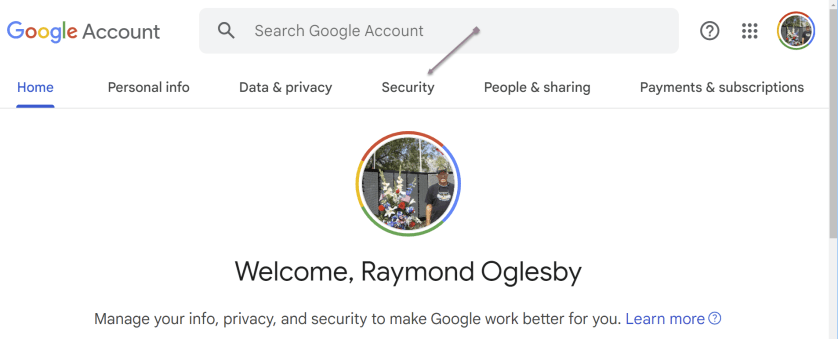
Security Tab: Once logged in, click the Security tab at the top of the page. This section contains various settings related to your account’s security.
Dark Web Monitoring: Scroll down to find the Dark Web Monitoring section. If it’s your first time accessing this feature, you might need to provide your password for verification.
Turn On Dark Web Monitoring: Click the Turn On button to activate the feature. Google will ask you to confirm your choice.
Verification: To ensure the security of this feature, Google may prompt you to re-enter your Google Account password.
Confirmation: Once you have completed the above steps, you should receive a confirmation message that Dark Web Monitoring is active for your account.
Refer to the below image:
Accessing the Security tab
s
Viewing Your Dark Web Report
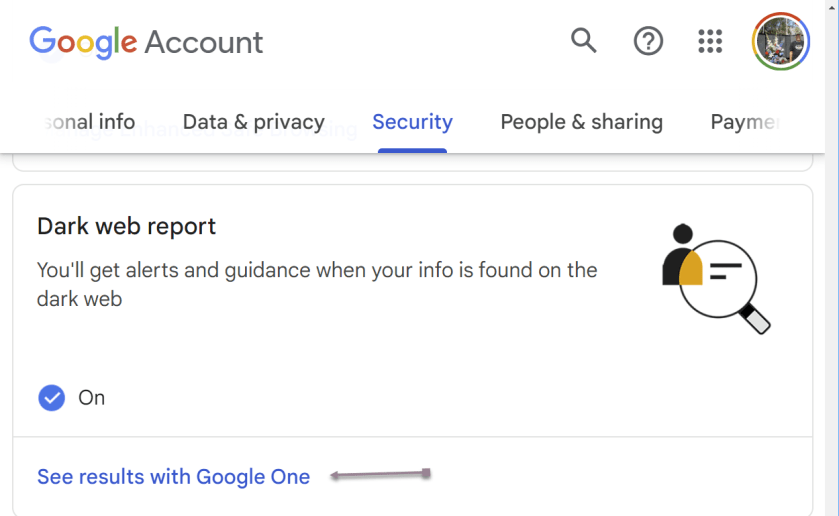
To view your report, click the Security tab, and scroll down to the Dark web report section. Now, click the link See results with Google One. See the below Image:
Selecting to view your results
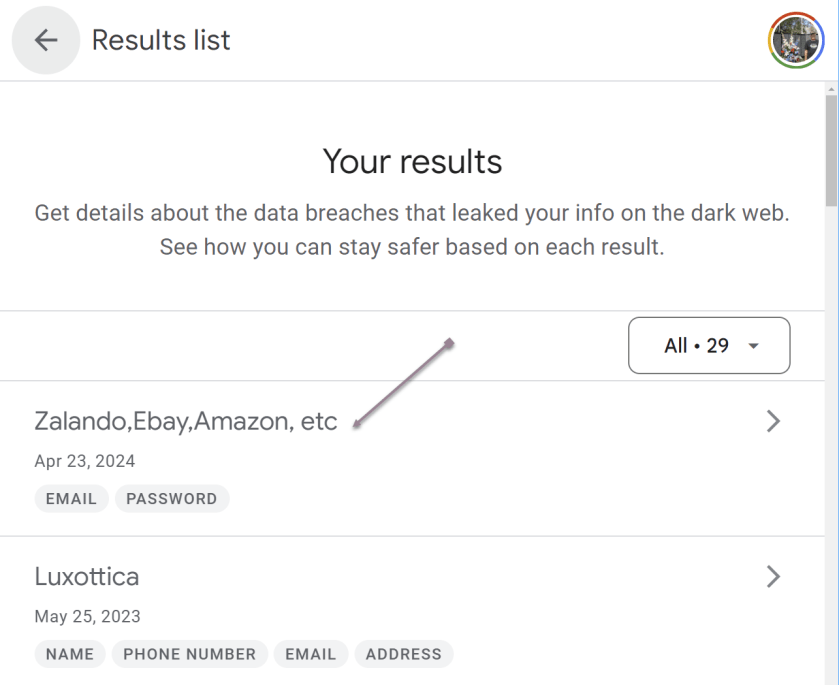
You will see a summary of your results. You can click an individual breech (or the All button; we have 29 breeches) to view detailed information and recommended actions. See the following image:
Selecting a single breach
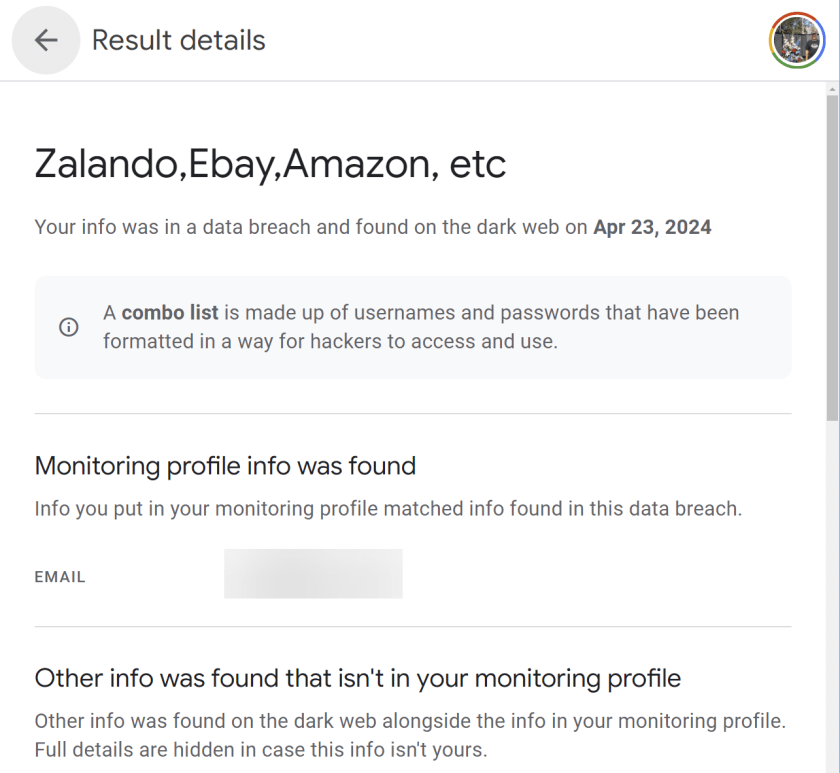
The selected breech details are now displayed. Refer to the below image:
Viewing details of a single breach
Why Does Dark Web Monitoring Matter?
Proactive Protection: With this feature, Google aims to provide proactive protection. Instead of waiting until a data breach occurs, you can take action as soon as your information appears on the dark web, reducing the potential impact of cyberattacks.
User Convenience: Google’s Dark Web Monitoring is seamlessly integrated into the user experience, making monitoring their online security easier for everyday users. You need not be a cybersecurity expert to benefit from this feature.
Comprehensive Monitoring: Google’s vast resources and expertise allow for comprehensive dark web monitoring. It can scan many sources, increasing the likelihood of detecting compromised information.
Data Privacy: Google emphasizes data privacy and security. The company ensures that your personal data is protected while providing this service, addressing concerns about potential privacy breaches.
Not a Google One Member?
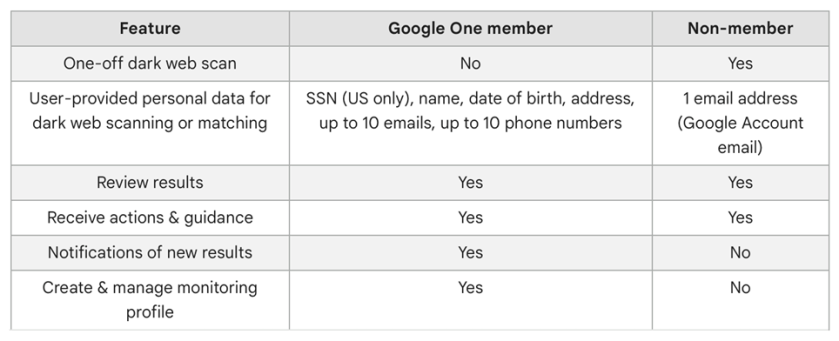
You can still access some features without the membership, it essentially boils down to whether you want continuous monitoring or not and if the other Google One features are enough to justify the monthly costs (depending on the plan you choose) Here’s a breakdown of what Google One members and non-members get. See the below image:
Google One and non-menbers features
Availability of Dark Web Report
The Dark Web Report is available in the following countries or regions.
Albania
Algeria
Argentina
Austria
Australia
Bangladesh
Belgium
Bolivia
Brazil
Canada
Chile
Colombia
Denmark
Ecuador
Finland
France
Germany
Greece
Iceland
India
Indonesia
Ireland
Israel
Italy
Japan
Mexico
Morocco
Netherlands
Nicaragua
Norway
Pakistan
Philippines
Senegal
Slovenia
South Korea
Spain
Sri Lanka
Sweden
Switzerland
Taiwan
Türkiye
Ukraine
United Kingdom
United States
Venezuela
Vietnam
Conclusion
Your personal data is constantly under threat. Google’s Dark Web Monitoring feature represents a significant step toward enhancing online security and protecting your digital identity. By providing continuous scanning, timely alerts, and actionable recommendations, Google empowers users to take control of their online safety. While no security measure is foolproof, this feature is a valuable addition to Google’s suite of tools aimed at helping users stay one step ahead of cybercriminals. Your digital identity is worth safeguarding, and it appears Google is here to help you.
Source: Google Help
Disclaimer
Technology is always changing. Rarely is there static tech for smartphones and desktops. Thus, the contents of this post are only valid at the time of writing. Blog posts older than six months may have directions incompatible with your device or OS. Hopefully, older post content will continue to work as advertised. Thank you for reading TechSavvy.Life for Technology at Work For You.
Quote For the Day
Visualize this thing you want. See it, feel it, believe in it. Make your mental blueprint and begin.
Robert Collier
Tweet Info
That’s it. Please feel free to share this post! One way to share is via Twitter.
Just click the Tweet icon below. This will launch Twitter where you click its icon to post the Tweet.
Checkout TechSavvy.Life for blog posts on smartphones, PCs, and Macs! You may email us at contact@techsavvy.life for comments or questions.
Please feel free to leave a comment. I would love to hear from you. Do you have a computer or smart device tech question? I will do my best to answer your inquiry. Just send an email to contact@techsavvy.life. Please mention the device, app, and version you are using. To help us out, you can send screenshots of your data related to your question.
Author’s E-Book
You can access the E-book from a Kindle device, or the Kindle App for a desktop or smartphone. The apps are free.
The author’s Vietnam eBook on the Battle for Tra Bong Vietnam: Events and Aftermath
Microsoft’s latest operating system, Windows 11, has high requirements many users cannot meet with their current PCs. Consequently, many users might stick with Windows 10, which will receive Microsoft’s official support until 2025. Tips and tricks, some old and some specific to Windows 10, can enhance the user experience.
This is for devices running Windows 10. Screenshots are from Windows 10
Windows 11 is the latest and greatest operating system from Microsoft, but it will be a few years before it surpasses Windows 10 as the most popular desktop OS in the world. Despite the company’s desire to get us all to upgrade, Microsoft has made it difficult with high requirements many users can not meet with their current PCs.
If you are sticking with Windows 10 instead of buying a new computer, you have until 2025 before Microsoft begins to wind down official support. So there’s still plenty to learn to get the most out of your aging operating system. Personally, we do not like Windows 11. We will wait for Windows 12 before upgrading from Windows 10.
Whether you do not consider yourself a power user or made the jump from macOS, these tips will help you get more out of your Windows 10 experience. Some of these tricks originated from an older generation of Windows, while others are new to this iteration.
The Secret Start Menu
If you are a fan of that old-school (i.e. non-tiled) Start menu experience, you can still (sort of) have it. Right-click on the Windows icon in the bottom-left corner to prompt a textual jump menu with several familiar destinations, including Apps and Features, Search, and Run. All these options are available through the standard menu interface, but you can access them quickly here.
Note! In this post your can access Settings from the Start menu as noted below or in the Sortana type “Settings”, then click on the Settings app in the Search results.
Refer to the below image:
Start Menu
View Your Desktop Quickly
You do not have to minimize all your open windows just to look at the desktop. There’s a secret button in the bottom-right corner of the taskbar. If you do not see it, look all the way to the bottom and right, beyond the date and time. There, you will find a small sliver of an invisible button. Click it to minimize all your open windows at once; click it again to bring everything back. See the below image:
Accessing View Your Desktop
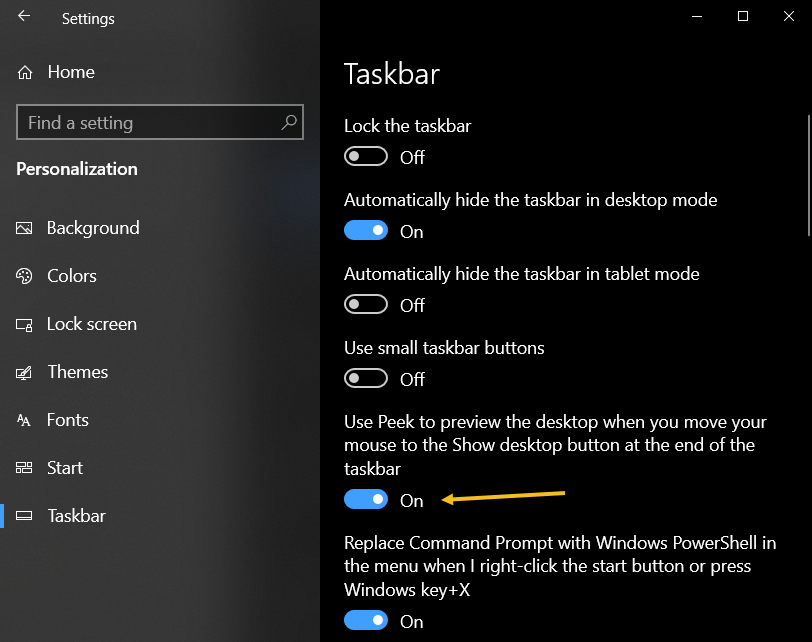
There’s also the option to minimize windows when you hover over the small silver button versus clicking. Select your preference in:
Settings > Personalization > Taskbar
then flip the switch to ON under Use Peek to preview the desktop… See the following image:
View your Desktop option
Change Windows Search Settings
If your PC searches are taking too long in Windows, narrow things down under:
Settings > Search > Searching Windows
Set search to Classic, which only applies searches to your libraries and desktop. The Enhanced option indexes your whole computer, which can take longer and uses more power. You can further narrow your search by marking certain folders as excluded. Refer to the below image:
Search Settings
Enable God Mode
This may be a little too niche for most users, but if you are a power user or IT professional who wants access to all of Windows’ control panels from one folder, God Mode is for you. Right-click on the desktop and select:
New > Folder
.Re-name the new folder with this bit of code:
GodMode.{ED7BA470-8E54-465E-825C-99712043E01C}
To enter God Mode or the Windows Master Control Panel shortcut, as it is officially called, simply double-click the folder. See the below image:
God Mode
Customize the Command Prompt
If you like to dig into the innards of Windows with the Command Prompt, you will be happy to know you can customize the tool. Open the Command Prompt from the Cortana search box, right-click on the window’s top bar, and select Properties to personalize your experience.
The Properties window allows you to change the controls, font, layout, colors, and cursor within the Command Prompt. You can also turn the window transparent by opening the Colors tab and moving the Opacity slider. This lets you code while simultaneously observing the desktop. See the following image for the color setting:
Command Prompt colors
Dark and Light Mode
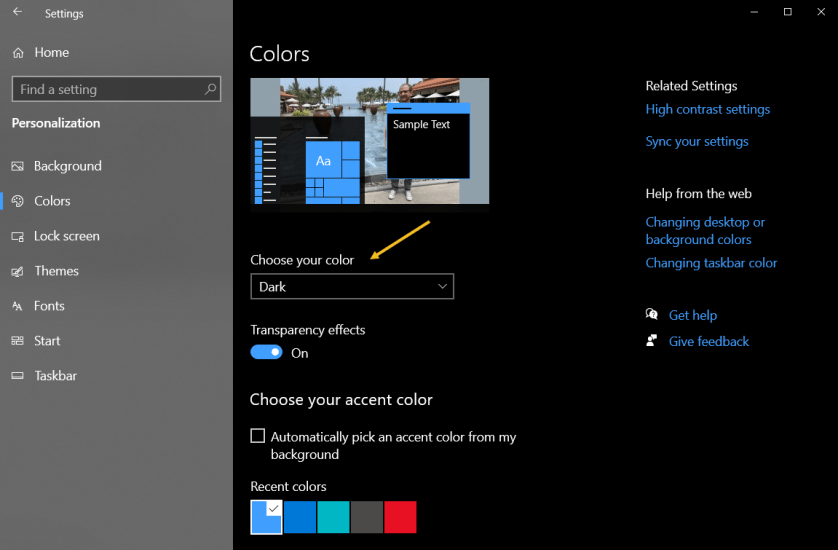
Windows 10 gives you a significant amount of control over color themes. Open:
Settings > Personalization > Colors
and you can set the operating system to either Dark mode or Light mode. These themes change the color of the Start menu, Taskbar, Action Center, File Explorer, Settings menus, and any other compatible programs. There is also a custom option that will let you set one theme for Windows menus and another for apps. Want a little more color? There are swatches of color themes available to choose from that can help your menus and taskbars really pop Refer to the below image:
We all use the Windows Clipboard to cut and paste, but did you know you can save multiple items at once and paste across devices? Use the command Win + V to view the last 25 clippings saved to the Clipboard. Go to:
Dark and Light mode
Bulk Copy and Past
Settings > System > Clipboard
to control this feature and to sign into your Microsoft Account for cross-device usage. See the below image:
Bulk Copy and Paste
Use Sandbox to Test Files and Apps
Windows 10 Pro users have an extra asset to protect them against dangerous apps and files. If you enable Windows Sandbox inside the Control Panel, it will create a virtual instance of Windows inside Windows. In the Cortana search box, type in Control Panel then click the Control Panel app in the Search results. Now, click:
Programs > Programs and Features > Turn Windows features on or off link. > Windows Sandbox in the popup > Select a program
Note! If you receive a message about Sandbox virtualization support is disabled in the firmware, then click here on how to enable.
You can then safely open anything you are unsure about before introducing it to your Windows installation. Once you close out of Sandbox, everything inside it goes away without hurting your computer. See the following image:
Sandbox
Quickly Open Task Manager
Back in the day, Ctrl + Alt + Delete was the go-to command if your PC was acting up. If you are sick of having to select Task Manager from the menu that appears, there’s a quicker option. Use the keyboard shortcut Ctrl + Shift + Esc to immediately open the Task Manager and make things a little easier. Refer to the below image:
Task Manager
View File Extensions
By default, Windows hides file extensions in File Explorer, requiring you to dig into the file’s properties to see if it’s a .jpg or .png file. But you can set it so Windows shows you the file extension automatically. Open:
File Explorer >View > Options > View
Scroll down to the option for Hide extension for known file types and uncheck the box. Click Apply, and now file types will be listed at the end of all file names inside File Explorer. See the below image:
Do not hide the File Extensions option
Set New Start Menu Shortcuts
Have you ever noticed the shortcut options that Windows offers when you open the Start menu? Just above the power button, you should have links to Settings, Documents, and Pictures. However, if you do not find those options useful, Windows lets you change them.
Head to:
Settings > Personalization > Start > Choose which folders appear on Start link
You can then add a shortcut for File Explorer, Downloads, and a few others. See the following image:
Start Menu options
Disclaimer
Technology is always changing and rarely is there static tech for smartphones and desktops. Thus, the contents of this post are only valid at the time of writing. Blog posts older than six months may have directions incompatible with your device or OS. Hopefully, older post content will continue to work as advertised. Thank you for reading TechSavvy.Life for Technology at Work For You.
Quote For the Day
You will either step forward into growth or you will step back into safety.
Abraham Maslow
Tweet Info
That’s it. Please feel free to share this post! One way to share is via Twitter.
Just click the Tweet icon below. This will launch Twitter where you click its icon to post the Tweet.
Checkout TechSavvy.Life for blog posts on smartphones, PCs, and Macs! You may email us at contact@techsavvy.life for comments or questions.
Please feel free to leave a comment. I would love to hear from you. Do you have a computer or smart device tech question? I will do my best to answer your inquiry. Just send an email to contact@techsavvy.life. Please mention the device, app, and version you are using. To help us out, you can send screenshots of your data related to your question.
Author’s E-Book
You can access the e-book from a Kindle device, the Kindle App for the desktop or smartphone, which is a free app.
The author’s Vietnam eBook on the Battle for Tra Bong Vietnam: Events and Aftermath
You can start Google Chrome to open a specific page, a new tab, or continue where you left off from the On starup option. We will show you how to set this option to load your Google Apps. You can use the same procedure to load any website at startup or create a bookmark.
This is for the Desktop and iPhone. Screenshots are from Windows 10 and iPhone 14 Pro running iOS 17+
You can start Google Chrome to open a specific page, a new tab, or continue where you left off from the On startup option. We will show you how to set this option to load your Google Apps. You can use the same procedure to load any website at startup or create a bookmark.
Setup the On Startup Option
Your Google Apps can be displayed using the On startup option. First, to set this option, open Chrome and click the Menu (the 3 dots) in the upper right corner, then navigate to:
Settings > On startup
Next, under the Open a specific page or set of pages option, enter the following:
chrome://apps/
Refer to the below image:
Setting On startup option to your Google Apps
Now whenever you start Chrome, your Google Apps page will be displayed.
By doing the above, you can just click the Home button next to the address bar to display your Google Apps anytime. See the below image:
Accessing the Home button to view your Google Apps page
Clicking the Home button next to the address bar will display the page you have set as the On startup page.
Setup the Google Apps Bookmark on Desktop
If you do not have the On startup option set to Google Apps, why not create a bookmark for it. Following are the steps to do this.
First, open the Google Apps page you want to bookmark in Chrome. See the following image:
Setting your Google Apps page to bookmark
Next, click the Star icon in the address bar. Refer to the below image:
Adding your Google Apps page as a bookmark
Now, choose a name and location for your bookmark then hit Done. See the below image:
Editing your Google Apps bookmark
Next, head to your saved bookmark to see your Google Apps entry. See the following image:
Your saved Google Apps bookmark
Setup the Google Apps Bookmark on iPhone
First, open the Google Apps page you want to bookmark in Chrome then tap the Share button. Refer to the below image:
Setting your Google Apps page
Next, tap the Add to Bookmarks option. See the below image:
Adding your Google Apps bookmark
Edit the Google Apps Bookmark on iPhone
First, tap the Menu (the 3 dots) at the bottom right corner. See the following image:
Accessing the Menu option
Next, tap the Edit Bookmark option. Refer to the below image:
Choosing to edit your Google Apps bookmark
Now, change as necessary, then tap Done. See the below image:
Editing your Google Apps bookmark
Not only do bookmarks save you time as you do not need to type in a URL or search for your most frequently visited sites on Google every time you visit, but they are also great for keeping track of articles and videos you plan to head back to later. If you do not have Google Apps set as your startup page, creating a bookmark allows you to easily display the page.
Disclaimer
Technology is constantly changing; there is rarely static tech for smartphones and desktops. Thus, the contents of this post are only valid at the time of writing. Blog posts older than six months may have directions incompatible with your device or OS. Hopefully, older post content will continue to work as advertised. Thank you for reading TechSavvy.Life for Technology at Work For You.
Quote for the Day
“The best vision is insight.”
Malcolm Forbes
Tweet Info
That’s it. Please feel free to share this post! One way to share is via Twitter.
Just click the Tweet icon below. This will launch Twitter where you click its icon to post the Tweet.
Checkout TechSavvy.Life for blog posts on smartphones, PCs, and Macs! You may email us at contact@techsavvy.life for comments or questions.
Please feel free to leave a comment. I would love to hear from you. Do you have a computer or smart device tech question? I will do my best to answer your inquiry. Just send an email to contact@techsavvy.life. Please mention the device, app, and version you are using. To help us out, you can send screenshots of your data related to your question.
Author’s E-Book
You can access the e-book from a Kindle device, the Kindle App for the desktop or smartphone, which is a free app.
The author’s Vietnam eBook on the Battle for Tra Bong Vietnam: Events and Aftermath
This post provides instructions on finding Wi-Fi passwords on Windows and iPhone devices. For Windows, it details how to access and reveal the password in plain text. For iPhone, it explains the steps to reveal the Wi-Fi password. The post also includes a disclaimer about technology changes and a quote by Thomas Sowell.
This is for Windows 10/11 and iPhone. Screenshots are from Windows 10 and iPhone 14 Pro running iOS 17+
Are you connected to Wi-Fi on one device, but need the password to log in on another? Here’s how to find Wi-Fi passwords in Windows and iOS.
Struggling to connect to Wi-Fi? Maybe your laptop is connected but your phone is not, or you need to share your network with a guest but can not remember the password. There are ways to wirelessly share passwords between devices, but that’s not always an option.
Below, we will outline how to grab a Wi-Fi password from already-connected devices by viewing it as plain text. This way you do not need to reset the network security or hack the Wi-Fi network so everyone can get online.
View Password Using Windows
Windows makes this easy, as long as you are connected to the network.
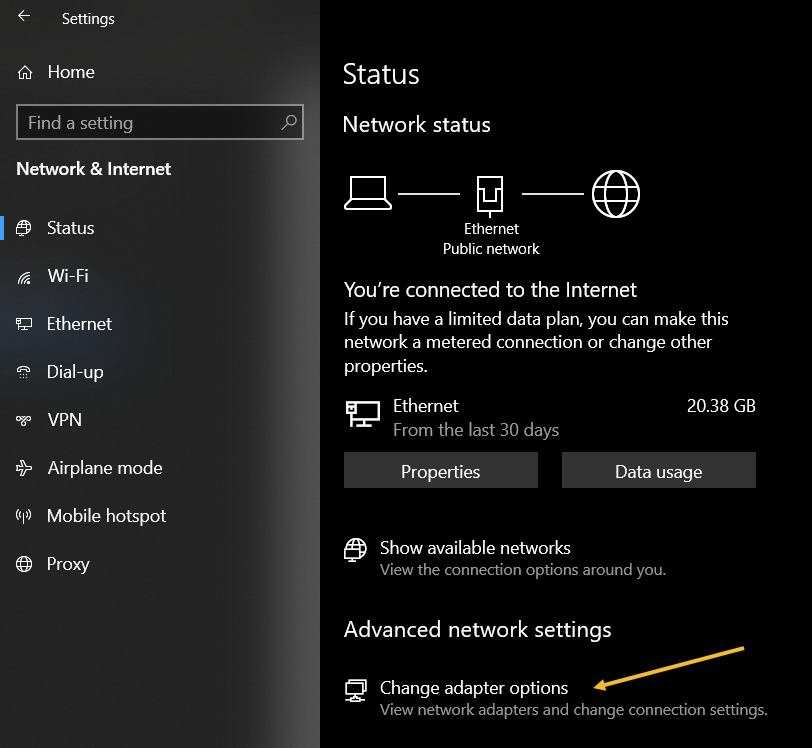
For Windows 10, open:
Settings > Network & Internet
then click the Change Adapter Options button. Refer to the below image:
Accessing your network
For Windows 11, open:
Advanced network settings > More network adapter options
then right-click on your computer’s Wi-Fi adapter in the list and choose:
Status > Wireless Properties
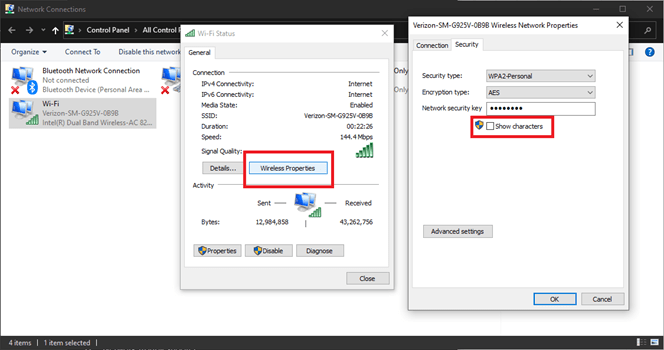
Open the Security tab, and you should see a password box with dots in it. Click the Show Characters box to see the password in plain text. See the below image for Windows 10:
Viewing your password in plain text on Windows 10
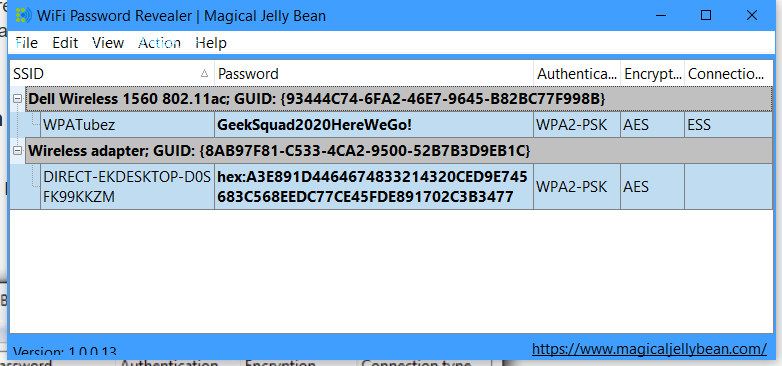
If you are trying to view the password for a network you are not currently connected to, things are a tad more complicated. You can download a third-party app like Wi-Fi Password Revealer which will show you the passwords of all saved networks. See the following image :
Viewing Password Revealer software
View Password Using iPhone
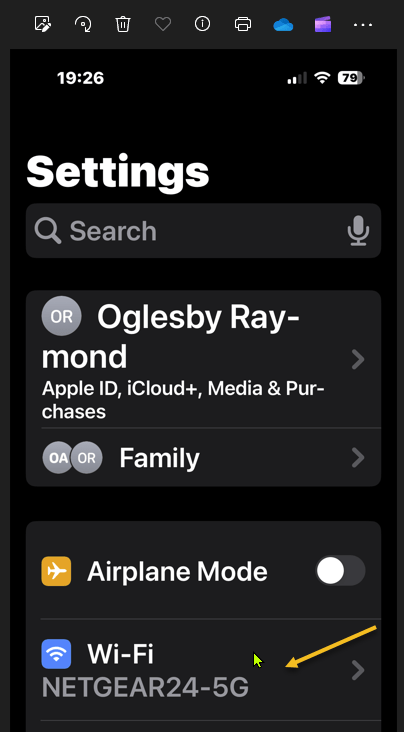
iPhone users could not view Wi-Fi passwords as plain text until iOS 16. First, open:
Settings > Wi-Fi
Refer to the below image:
Accessing your Wi-Fi network
Now, tap the “i” icon for the current network. See the below image:
Tapping the informational icon
Next, select the Password entry and verify your identity with FaceID, Touch ID, or a Passcode. See the following image:
Tapping the hidden password
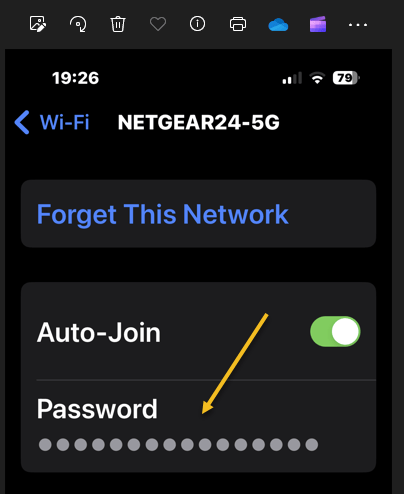
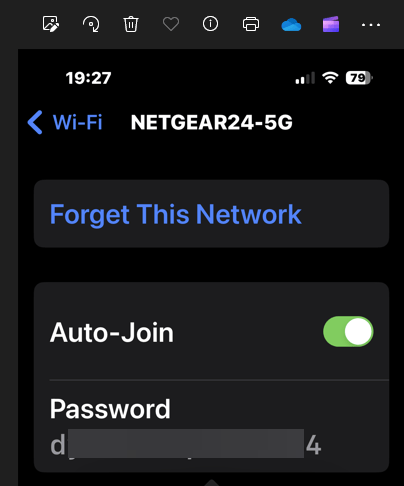
Now tap the password box with dots in it to reveal the password in plain text. Refer to the below image:
Revealing the hidden password in plain text
Disclaimer
Technology is always changing and rarely is there static tech for smartphones and desktops. Thus, the contents of this post are only valid at the time of writing. Blog posts older than six months may have directions incompatible with your device or OS. Hopefully, older post content will continue to work as advertised. Thank you for reading TechSavvy.Life for Technology at Work For You.
Quote For the Day
It is hard to imagine a more stupid or more dangerous way of making decisions than by putting those decisions in the hands of people who pay no price for being wrong.
Thomas Sowell
Tweet Info
That’s it. Please feel free to share this post! One way to share is via Twitter.
Just click the Tweet icon below. This will launch Twitter where you click its icon to post the Tweet.
Checkout TechSavvy.Life for blog posts on smartphones, PCs, and Macs! You may email us at contact@techsavvy.life for comments or questions.
Please feel free to leave a comment. I would love to hear from you. Do you have a computer or smart device tech question? I will do my best to answer your inquiry. Just send an email to contact@techsavvy.life. Please mention the device, app, and version you are using. To help us out, you can send screenshots of your data related to your question.
Author’s E-Book
You can access the e-book from a Kindle device, the Kindle App for the desktop or smartphone, which is a free app.
The author’s Vietnam eBook on the Battle for Tra Bong Vietnam: Events and Aftermath
At the top of our shortlist of outstanding apps is Everything. This app has been around for a long time but we have recently discovered the Windows app.
This is for Windows XP through Windows 11. Screenshots are from Windows 10
At the top of our shortlist of outstanding apps is Everything. This app has been around for a long time but we have recently discovered the Windows app. It’s now an integral part of our Windows apps.
What is Everything
Everything is a Windows freeware file search application created by programmer David Carpenter in 2008.
The single most notable thing about Everything is the speed.
If you have ever used Windows file search (File Explorer)or even some third-party file search tools, the most memorable thing about the experience is how long it takes.
Even after all these years, Windows file search is agonizingly slow. Truly, it’s agony. In an age of inexpensive SSDs with instant booting and instant program loading, waiting thirty seconds for Windows to grind through a search feels like torture. It does not matter if you are still using Windows 7 or upgraded to Windows 11, Windows search has never been speedy.
Everything sidesteps the shortcomings of the Windows file search by doing something that was novel when the application was first released and remains novel; it taps right into the file table at the file system level for lightning-fast search.
How fast is it? It’s so fast that if you create a new file, by the time you open up the Everything search box a moment later, the file is instantly in the index. It’s unlikely you could create the file and get to the search box fast enough to beat the nearly instantaneous addition of the entry into the Everything index.
The only downside to Everything is that it works off the file table and the file names and does not index the contents of the files. If you need a tool that will look deep into documents and help you find key phrases, this tool is not it. But if you are just trying to find where, exactly, you put your tax returns from five years ago, it’s almost magical in its speed and efficiency.
Why Is It Indispensable
We have a huge number of files, across a huge number of folders and drives. But as long as we name files and folders sensibly as they come in, it does not matter where they end up. They could be on the C drive, the G drive (portable external drive), or even buried in a network drive hosted somewhere (you can enable network drive search in the Everything settings).
No matter where the files are, you can find them if you member even a fraction of the folder or file name. Old taxes, work forms, Photoshop projects, comic books you hoarded five years ago, you name it. If you want it, you can churn it up to the surface with a few keywords.
For example, I need to find old tax returns to answer questions from the IRS about depreciation. That made me say, “Didn’t I squirrel those returns somewhere?” and sure enough, I did. I might have forgotten where they were, but Everything did not. Refer to the below image:
Everything displaying tax returns
You do not need wildcards for your search. Everything search implies wildcard searches; the app will find all files/folders that include your search criteria. In the menu bar, select Search to view more options. See the below image:
Accessing the Search options
It instantly scanned hundreds of thousands of files and folders on my computer and the attached drives to find exactly what I wanted.
If you can remember anything about the file; part of the name, the file extension, the root directory it might be deeply buried in; you can dig it up with a few keystrokes.
Even on my laptops, where the files are definitely not stacked terabytes deep, I still install Everything, I certainly do not want to be stuck waiting for Windows search to sift through the files at a slow pace.
it’s freeware. So Download it. The website name has an odd name, Voidtools, but this is the download page.
Take Notice
If you need to download this app or any other on a desktop or laptop, always download it from the manufacturer. Another safe bet is to download from a store like Apple Store or Microsoft Store.
Never download from these websites:
FileHorse Softonic CNET Download 82 Softlay Dealnews Windowsinside Us7p Files10 Soft112 UpdateStar Techno360 ColorMango MajorGeeks FileHonor FilesWin iGeeksBlog Neowin Linenseapps Business Wire SoftwareKeep TechShout Windows Latest’ Wondershare Slant iMobie BitsDuJour Softfree.eu Uptodown FreeProSoftz TechWhoop Tickcoupon CrackDJ AbbasPC Giev Away of the Day GroovyPost TechGeek365 TechMoran Digital Connect Mag Malavida …. and 16 more
The above websites should be banned. If you download from any other site besides the manufacturer or a store, expect viruses and malware to appear. If this happens, immediately Shutdown and/or Restart your PC and run a virus scan.
As a test, I downloaded it from File Horse. I got popups from Google Chrome saying my PC has been hacked followed by a full webpage saying my PC is corrupted. I got rid of the messages. but I had more problems. The FtleHorse website gave the site access to everything on my PC. I had to manually go through Google Privacy and Security Settings to block each access.
I recommend only using Voidtools website for downloading. Then feel the speed of searching, Everything, on your computer instantly.
Disclaimer
Technology is always changing and rarely is there static tech for smartphones and desktops. Thus, the contents of this post are only valid at the time of writing. Blog posts older than six months may have directions incompatible with your device or OS. Hopefully, older post content will continue to work as advertised. Thank you for reading TechSavvy.Life for Technology at Work For You.
Quote For the Day
The most intractable problem today is not pollution or technology or war; but the lack of belief that the future is very much in the hands of the individual.
Margaret Mead
Tweet Info
You are finished. Please feel free to share this post! One way to share is via Twitter.
Just click the Tweet icon below. This will launch Twitter where you click its icon to post the Tweet.
Checkout TechSavvy.Life for blog posts on smartphones, PCs, and Macs! You may email us at contact@techsavvy.life for comments or questions.
Please feel free to leave a comment. I would love to hear from you. Do you have a computer or smart device tech question? I will do my best to answer your inquiry. Just send an email to contact@techsavvy.life. Please mention the device, app, and version you are using. To help us out, you can send screenshots of your data related to your question.
Author’s E-Book
You can access the e-book from a Kindle device, the Kindle App for the desktop or smartphone, which is a free app.
The author’s Vietnam eBook on the Battle for Tra Bong Vietnam: Events and Aftermath
Using Google Photos‘ slideshow feature, you can have all or specific album photos play one after another automatically. You can make this slideshow on both your desktop and your mobile device.
This is for the desktop and smartphones. Screenshots are from Windows 10 and iPhone 14 Pro running iOS 16+
Using Google Photos‘ slideshow feature, you can have all or specific album photos play one after another automatically. You can make this slideshow on both your desktop and your mobile device. Let’s explore how this is done.
On Your Desktop
To create a slideshow on your desktop computer, first, open a web browser and launch the Google Photos site. Sign in to your account on the site if you have not already.
Next, once you see your photos, if you want to include all your photos in the slideshow, then click the first photo on the main screen to open it in full screen.
Now, once the photo opens in full screen, at the top-right corner, click the three dots (the Menuicon). Refer to the below image:
Selecting the Menu icon
Next, in the menu that opens, click Slideshow. See the below image:
Selecting the Slideshow option
Now, your browser will go full screen and your slideshow will start playing. Sit back, relax, and enjoy recollecting your memories with your photos.
Next, you can stop the slideshow at any time by pressing the Esc key on your keyboard. See the following image:
Exiting the Slideshow
Now, if you would like to make a slideshow using photos from a specific album, then access that album on Google Photos. On the album page, in the top-right corner, click the three dots (the Menu icon). Refer to the below image:
Selecting the Menu icon
Next, from the three dots (the Menu icon), select Slideshow to start playing your photos. You can close the slideshow by pressing the Esc key. See the below image:
Selecting the Slideshow option
On Your Mobile
To play your photos slideshow on your phone, first, launch the Google Photos app on your phone.
Next, to include all your photos in the slideshow, then tap the first photo on the main screen.
Now, when your photo opens in full screen, in the top-right corner, tap the three dots (the Menu icon). See the following image:
Selecting the Menu icon
Next, from the three dots (the Menu icon), select Slideshow to start playing your photos. Refer to the below image:
Selecting the Slideshow option
Now, Google Photos will start playing a slideshow for all your photos. If you would like to stop this slideshow, tap anywhere on the screen then tap Done in the top-left corner. See the below image:
Exiting the Slideshow
To create a slideshow using photos from a particular album, first, tap Library and choose your photo album. Select the first photo in the album, then in the top-right corner, tap the three dots (the Menu icon). See the following image:
Selecting the Menu icon
Next, in the menu that opens, tap Slideshow. Refer to the below image:
Selecting the Slideshow option
Now, your slideshow containing photos only from the selected album will play. If you would like to stop this slideshow, tap anywhere on the screen then tap Done in the top-left corner. See the below image:
Exiting the Slideshow
Disclaimer
Technology is always changing; there is rarely static tech for smartphones and desktops. Thus, the contents of this post are only valid at the time of writing. Blog posts older than six months may have directions incompatible with your device or OS. Hopefully, older post content will continue to work as advertised. Thank you for reading TechSavvy.Life for Technology at Work For You.
Quote for the Day
My view is that if your philosophy is not unsettled daily then you are blind to all the universe has to offer.
Neil deGrasse Tyson
Tweet Info
That’s it. Please feel free to share this post! One way to share is via Twitter.
Just click the Tweet icon below. This will launch Twitter where you click its icon to post the Tweet.
Checkout TechSavvy.Life for blog posts on smartphones, PCs, and Macs! You may email us at contact@techsavvy.life for comments or questions.
People love to check the weather. On your phone, smartwatch, or computer, it’s nice to have easy access to this information. Windows 10 and Windows 11 allow you to put the weather on the Lock Screen.
For Windows 10
To add Weather to the Windows 10 Lock Screen, here’s a summary.
Settings > Personalization > Lock Screen > Change the background to “Windows Spotlight” > Choose “Weather” as the app to display.
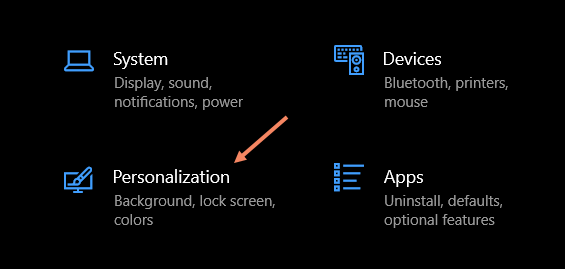
Now, for the details. First, open Settings on your Windows 10 PC and go to the Personalization section. Refer to the below image:
Accessing Personalization
Next, select the Lock Screen section. See the below image:
Selecting the Lock Screen section
Now, make sure the Background drop-down menu is set to Windows spotlight. See the following image:
Selecting Windows spotlight
Next, select the app icon under the text that reads: Choose one app to show detailed status on the lock screen. Refer to the below image:
Selecting the one app icon
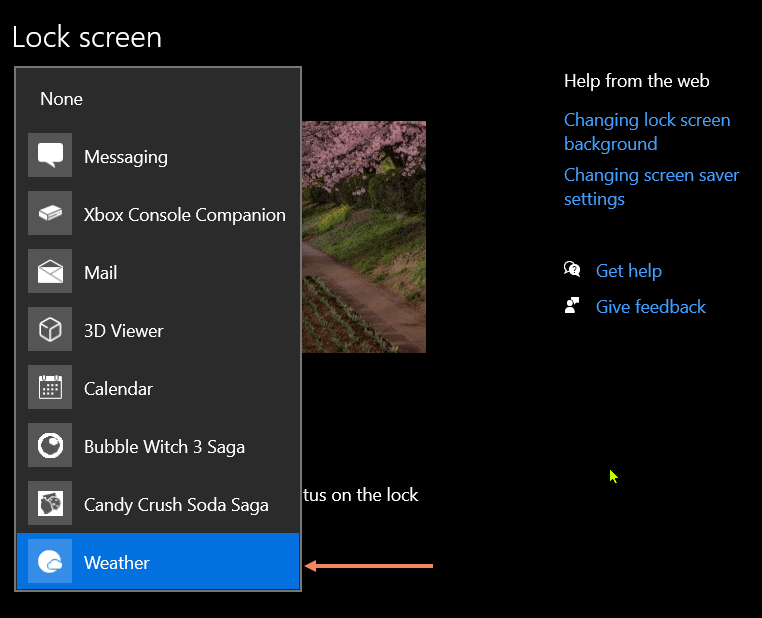
Now, choose Weather from the list of available apps. See the below image:
Selecting Weather app
That’s all there is to it! The weather information will be shown underneath the clock and the date on the Lock Screen.
For Windows 11
To add Weather to the Windows 11 Lock Screen, here’s a summary.
Settings > Personalization > Lock Screen > Choose “Weather” for the “Lock Screen Status” feature.
Note! You need to have Microsoft’s MSN Weather app installed for this to be available.
First, open Settings on your Windows 11 PC and select Personalization. See the following image:
Accessing Personalization
Now, go to the Lock Screen section. Refer to the below image:
Selecting the Lock Screen option
Next, look for Lock Screen Status and select Weather from the drop-down menu. This will not be available if you do not have the MSN Weather app installed. See the below image:
Selecting Weather app
That’s it! The weather information will appear centered at the bottom of the Lock Screen.
You may not look at the Lock Screen on your Windows PC as much as your smartphone, but it’s mostly a blank canvas for glanceable information.
Disclaimer
Technology is always changing and rarely is there static tech for smartphones and desktops. Thus, the contents of this post are only valid at the time of writing. Blog posts older than six months may have directions incompatible with your device or OS. Hopefully, older post content will continue to work as advertised. Thank you for reading TechSavvy.Life for Technology at Work For You.
Quote For the Day
There is a difference between what technology enables and what historical business practices enable.
Bill Gates
Tweet Info
That’s it. Please feel free to share this post! One way to share is via Twitter.
Just click the Tweet icon below. This will launch Twitter where you click its icon to post the Tweet.
Checkout TechSavvy.Life for blog posts on smartphones, PCs, and Macs! You may email us at contact@techsavvy.life for comments or questions.
Please feel free to leave a comment. I would love to hear from you. Do you have a computer or smart device tech question? I will do my best to answer your inquiry. Just send an email to contact@techsavvy.life. Please mention the device, app, and version you are using. To help us out, you can send screenshots of your data related to your question.
Author’s E-Book
You can access the e-book from a Kindle device, the Kindle App for the desktop or smartphone, which is a free app.
The author’s Vietnam eBook on the Battle for Tra Bong Vietnam: Events and Aftermath






















 Tech Savvy Life