How to View Saved Wi-Fi Passwords

This post provides instructions on finding Wi-Fi passwords on Windows and iPhone devices. For Windows, it details how to access and reveal the password in plain text. For iPhone, it explains the steps to reveal the Wi-Fi password. The post also includes a disclaimer about technology changes and a quote by Thomas Sowell.

RAYMOND OGLESBY @RaymondOglesby2
February 13, 2024

This is for Windows 10/11 and iPhone. Screenshots are from Windows 10 and iPhone 14 Pro running iOS 17+

Are you connected to Wi-Fi on one device, but need the password to log in on another? Here’s how to find Wi-Fi passwords in Windows and iOS.

Struggling to connect to Wi-Fi? Maybe your laptop is connected but your phone is not, or you need to share your network with a guest but can not remember the password. There are ways to wirelessly share passwords between devices, but that’s not always an option.

Below, we will outline how to grab a Wi-Fi password from already-connected devices by viewing it as plain text. This way you do not need to reset the network security or hack the Wi-Fi network so everyone can get online.

Windows makes this easy, as long as you are connected to the network.

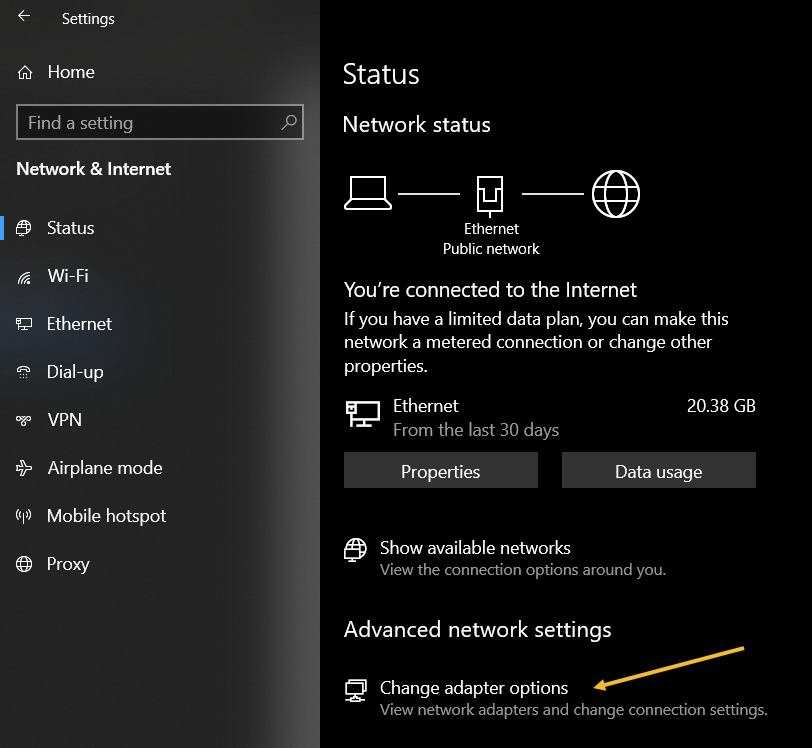
For Windows 10, open:

Settings > Network & Internet

then click the Change Adapter Options button. Refer to the below image:

Password 1
Accessing your network

For Windows 11, open:

Advanced network settings > More network adapter options

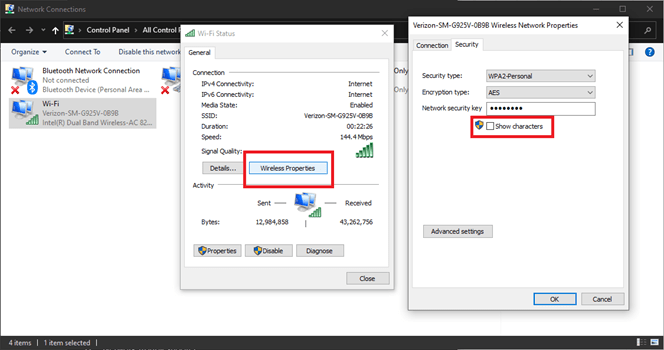
then right-click on your computer’s Wi-Fi adapter in the list and choose:

Status > Wireless Properties

Open the Security tab, and you should see a password box with dots in it. Click the Show Characters box to see the password in plain text. See the below image for Windows 10:

Password 2
Viewing your password in plain text on Windows 10

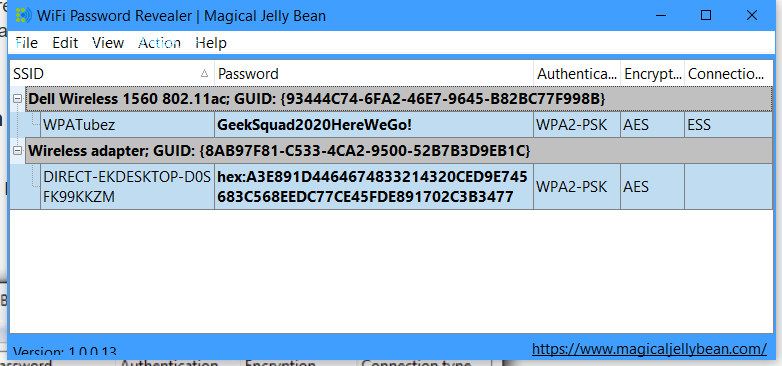
If you are trying to view the password for a network you are not currently connected to, things are a tad more complicated. You can download a third-party app like Wi-Fi Password Revealer which will show you the passwords of all saved networks. See the following image :

Password 3
Viewing Password Revealer software

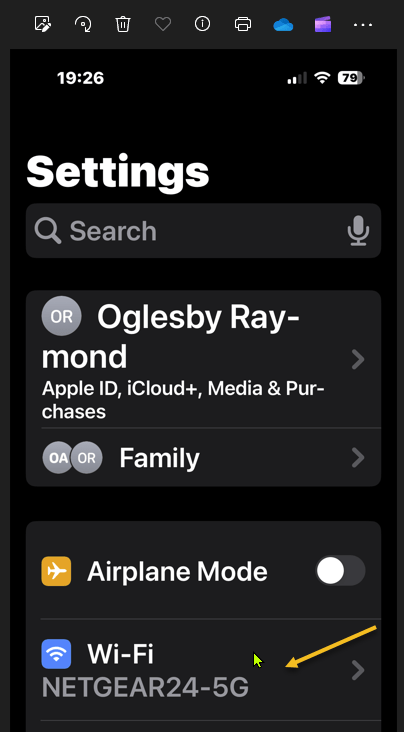
iPhone users could not view Wi-Fi passwords as plain text until iOS 16. First, open:

Settings > Wi-Fi

Refer to the below image:

Password 4
Accessing your Wi-Fi network

Now, tap the “i” icon for the current network. See the below image:

Password 5
Tapping the informational icon

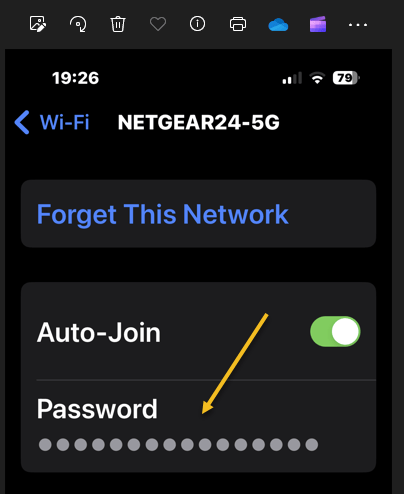
Next, select the Password entry and verify your identity with FaceID, Touch ID, or a Passcode. See the following image:

Password 6
Tapping the hidden password

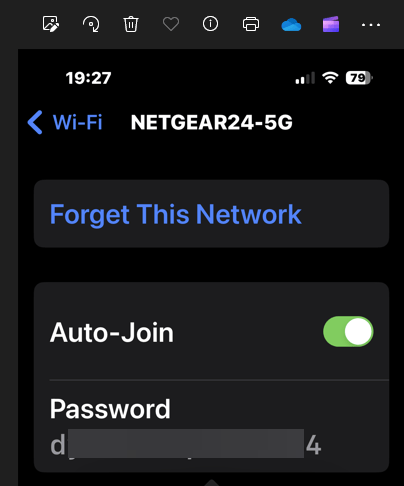
Now tap the password box with dots in it to reveal the password in plain text. Refer to the below image:

Password 7
Revealing the hidden password in plain text

Disclaimer

Technology is always changing and rarely is there static tech for smartphones and desktops. Thus, the contents of this post are only valid at the time of writing. Blog posts older than six months may have directions incompatible with your device or OS. Hopefully, older post content will continue to work as advertised. Thank you for reading TechSavvy.Life for Technology at Work For You.

It is hard to imagine a more stupid or more dangerous way of making decisions than by putting those decisions in the hands of people who pay no price for being wrong.

Thomas Sowell

That’s it. Please feel free to share this post! One way to share is via Twitter.

Just click the Tweet icon below. This will launch Twitter where you click its icon to post the Tweet.

Checkout TechSavvy.Life for blog posts on smartphones, PCs, and Macs! You may email us at contact@techsavvy.life for comments or questions.

Please feel free to leave a comment. I would love to hear from you. Do you have a computer or smart device tech question? I will do my best to answer your inquiry. Just send an email to contact@techsavvy.life. Please mention the device, app, and version you are using. To help us out, you can send screenshots of your data related to your question.

You can access the e-book from a Kindle device, the Kindle App for the desktop or smartphone, which is a free app.

The author’s Vietnam eBook on the Battle for Tra Bong Vietnam: Events and Aftermath

How to Change Your Desktop Google Background

This post provides instructions for customizing the Google homepage on both the Google website and Google Chrome. It covers enabling Dark Mode, changing the homepage color and background, managing shortcuts, and installing themes from the Chrome Web Store. The post also includes a disclaimer about technology changes and a quote for the day.

RAYMOND OGLESBY @RaymondOglesby2
February 6, 2024

This is for devices using Google. Screenshots are from Windows 10

How many times a day do you navigate to Google.com to look up something on the internet? Modern browsers allow you to search directly from the address bar, so there are a few reasons to load up Google Search’s homepage, but some people can not shake the habit. If that’s you, at least customize it to your needs. Here’s how to customize your Google Homepage.

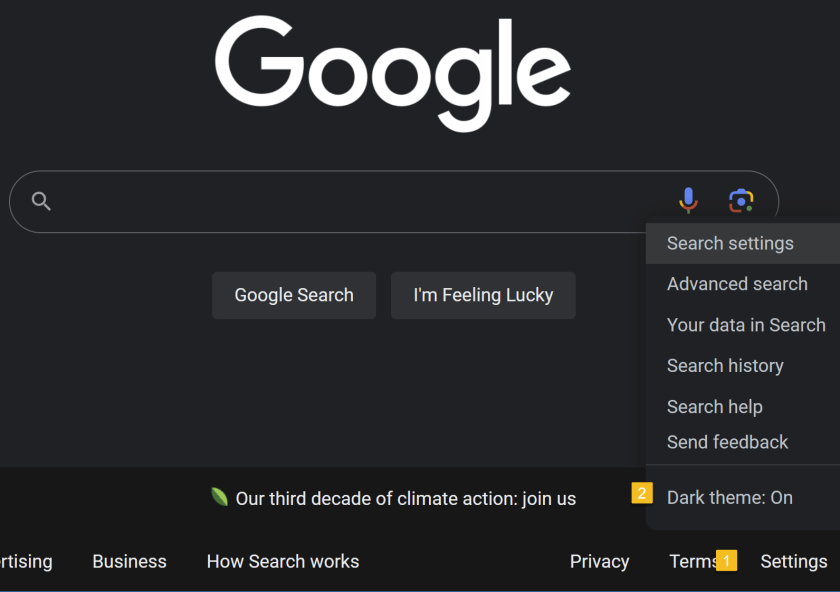
The barebones aesthetic of Google.com keeps things simple…and bright. Turn down the lights with Dark Mode. Click the Settings button in the lower-right corner of the screen, where you can toggle the Dark theme on and off to change the theme you see on Google Search results pages. Refer to the below image:

Google Background 1
Set Dark Mode

Are you a Google Chrome user? If so, chances are your homepage is set to Google already, which adds a few shortcuts to Google’s usually minimalist screen. Unlike the Google website, this version of Google Search only follows the default theme setting of your operating system.

To customize Chrome’s Homepage, click the Customize Chrome link in the bottom-right of the screen to open options related to appearance, shortcuts, and what Google calls Cards. Change the color of Chrome’s homepage and menus by choosing one of the preset colors in the menu or selecting the color picker option. See the below image:

Google Background 2
Set your color

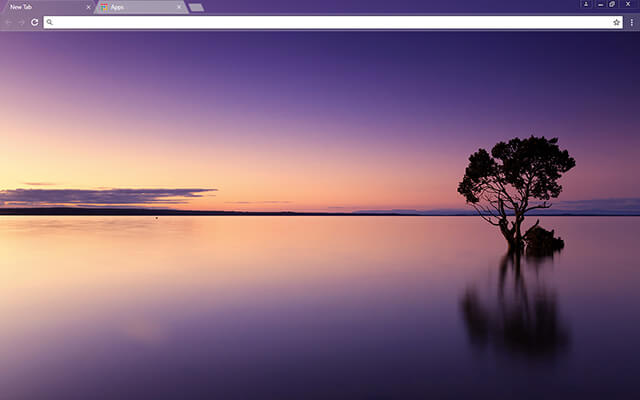
For more options, click Change Theme to see several available categories. You can set your homepage to feature Chrome’s brand colors or select among collections of landscapes, space, art, and various artists. Each option gives you a background and color theme. You can also upload your own picture to use as a background. See the following image:

Google Background 3
Set your background

From the Customize Chrome menu, you can also tell Google whether or not you want to show shortcuts on the Homepage. Enable My shortcuts to manually set what websites should be included or the Most visited sides to have Google suggest websites based on how often you visit them. Lastly, Google has a Cards section that allows you to see recent Google Drive files, shopping carts, and recipes. You can turn this section off or disable certain components.

You can also customize your Google Homepage on Chrome with the help of themes from the Chrome Web Store. Open the Customize Chrome menu and click Change Theme, then choose the Chrome Web Store listing at the bottom. (Or open Settings > Appearance > Theme.) Refer to the below image:

Google Background 4
Search the Chrome Web Store

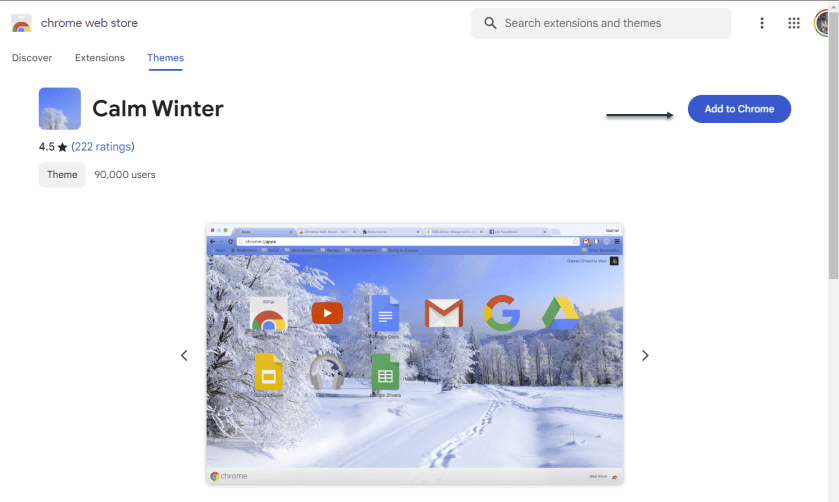
Choose the Themes tab on the web store sidebar to search through various categories. Click into a category, then select a theme you like and choose Add to Chrome to download the theme and apply it to your Google page. See the below image:

Google Background 5
Select a theme

Disclaimer

Technology is always changing and rarely is there static tech for smartphones and desktops. Thus, the contents of this post are only valid at the time of writing. Blog posts older than six months may have directions incompatible with your device or OS. Hopefully, older post content will continue to work as advertised. Thank you for reading TechSavvy.Life for Technology at Work For You.

Think big. Start small.

Seth Godin

That’s it. Please feel free to share this post! One way to share is via Twitter.

Just click the Tweet icon below. This will launch Twitter where you click its icon to post the Tweet.

Checkout TechSavvy.Life for blog posts on smartphones, PCs, and Macs! You may email us at contact@techsavvy.life for comments or questions.

Please feel free to leave a comment. I would love to hear from you. Do you have a computer or smart device tech question? I will do my best to answer your inquiry. Just send an email to contact@techsavvy.life. Please mention the device, app, and version you are using. To help us out, you can send screenshots of your data related to your question.

You can access the e-book from a Kindle device, the Kindle App for the desktop or smartphone, which is a free app.

The author’s Vietnam eBook on the Battle for Tra Bong Vietnam: Events and Aftermath

How to Spot Phishing Attempts

Phone and email scammers are running rampant. Here are some real-life phishing lures and how to stop scammers in their tracks.

RAYMOND OGLESBY @RaymondOglesby2
November 14, 2023

This is for devices using Text Messaging and Email.

Phone and email scammers are running rampant. Here are some real-life phishing lures and how to stop scammers in their tracks.

Recently, Google warned that hackers were sending phishing emails to YouTube creators, offering antivirus software in exchange for a review on the channel. The antivirus was, in fact, malware designed to steal passwords and browser cookies, which can also hold login credentials.

Identifying legitimate contact is difficult in the age of frequent phishing attempts. Recently after helping a friend figure out whether an email purporting to be from Facebook was a phishing lure. In the end, that email turned out to be a real marketing message from Facebook, but he had to go through several steps to determine the message’s legitimacy. Even we have difficulty determining the authenticity of messages from Facebook and other companies.

Facebook keeps a list of verified correspondence in the account area of your profile, so it’s easy to match emails you receive in your inbox with the messages you see from Facebook in your account. But what if you want to verify that an email came from someone you know and contains safe links? The US Federal Trade Commission offers a few steps you can take to stay safe:

  1. Look at the From email address. If you do not recognize the address or the sender, think twice about opening any links contained within the email.
  2. Spot a generic greeting. A business email usually will not begin with a casual greeting such as, “Hi Dear.” An email from a friend usually will not spell your name wrong or address you with an honorific like “Mr., Mrs., or Miss.”
  3. Look at the link URLs. Mouse over links before you click on them. Your browser will reveal the web address for each one. If the link looks suspicious (for instance, a link purporting to be from Netflix takes you to an entirely different domain), do not click on it! Delete the email or report it as spam and move on.
  4. Be wary of any emails that invite you to click on a link, whether to update your payment details, update your account information, receive a coupon for free stuff, or examine an invoice you are not expecting.

Our son is a cyber severity expert. He says, “Don’t click that link”.

Even the most vigilant email user can be caught unaware of a malicious link in an email. Add extra layers of protection to your online life so you can mitigate the damage done by scammers:

  • Use security software. The best antivirus and security suites have phishing protection built right in. Set the software to update automatically and run in the background to protect you from phishing attempts.
  • Use multi-factor authentication everywhere you can online. Even if a scammer manages to get a hold of your username or password, if you set up multi-factor to be something you have (a hardware security key or an authenticator app passcode), or something you are (a scan of your fingerprint, retina, or face), it’s harder for the bad guys to log into your accounts.
  • Back up your data. Copy your important documents and information regularly and store them on an external hard drive or with an online backup or storage service.

Recently there have been SMS text messages using phishing attempts, also known as “smishing.” Here are some examples of smishing:

Phishing 4
Phishing text messages

If you are not careful, these types of messages may fool you into giving up valuable information about yourself or downloading malware onto your phone.

Both messages came from an unknown phone number. Also, both requested action related to a finance-related problem, and both contained suspicious links. The first message is from an unknown company about a product we never purchased, and the use of the bit.ly link shortener is a common way for smishers to encourage their victims to click. The Citibank message is worrying because the link address is slightly off, featuring a dash instead of a period between “support” and “citi.”

For years, security researchers have noted that SMS spam could be curtailed by mobile carriers if they stopped offering unlimited texting plans. Until that happens, the best way to fight back against mobile spam in the United States is to forward the messages to short code SPAM (7726).

Here are a couple of email phishing attempts. The first one is an email from a company we do not use and with a weird link.

Phishing 1
Phishing email on desktop

The second one has links that are way too long (only partially displayed) and a white dotted line at the top, and we did not request their help.

Phishing 3
Phishing email on desktop

Technology is always changing and rarely is there static tech for smartphones and desktops. Thus, the contents of this post are only valid at the time of writing. Blog posts older than six months may have directions incompatible with your device or OS. Hopefully, older post content will continue to work as advertised. Thank you for reading TechSavvy.Life for Technology at Work For You.

Failure is an option here. If things are not failing, you are not innovating enough.

Elon Musk

That’s it. Please feel free to share this post! One way to share is via Twitter.

Just click the Tweet icon below. This will launch Twitter where you click its icon to post the Tweet.

Checkout TechSavvy.Life for blog posts on smartphones, PCs, and Macs! You may email us at contact@techsavvy.life for comments or questions.

Please feel free to leave a comment. I would love to hear from you. Do you have a computer or smart device tech question? I will do my best to answer your inquiry. Just send an email to contact@techsavvy.life. Please mention the device, app, and version you are using. To help us out, you can send screenshots of your data related to your question.

You can access the e-book from a Kindle device, the Kindle App for the desktop or smartphone, which is a free app.

The author’s Vietnam eBook on the Battle for Tra Bong Vietnam: Events and Aftermath

How to Reverse Image Search With Google Images

Google Image Search allows users to perform a reverse image search by either using a URL from a website or a local image on your device. To do so, paste the image’s URL or upload the image file onto the Google Images search bar. Google will then provide visually similar images and may also help identify the original source of the image. However, pinpointing the exact origin of the image may not always be successful.

RAYMOND OGLESBY @RaymondOglesby2
October 10, 2023

This is for devices using Google. Screenshots are from Windows 10

Google Image Search is a great way to find images similar to one you already have or to help you track down the original source of a photo. Let’s find out how to do a reverse image search.

If you would like to search for an image that appears on a website, you can paste the URL into the Google Images search bar; drag and drop an image or browse your files. We will show you how to do both.

For the first method, you need the URL of the image itself, not just the address for the page on which the image appears. The easiest way to grab that URL is to right-click the image and select the Copy image address. Refer to the below image:

Google Image 1
Selecting the Copy image address option

Next, with the URL in your clipboard, head to Google Images and click the Google Lens icon. See the below image:

Google Image 6
Selecting the Google Lens icon

Now, in the Paste image link text box, paste the URL you copied earlier and click Search. See the following image:

Google Image 3
Paste the image link

Next, you will see visually similar images in the right sidebar, and you can click Find image source to see where the image originated from. Keep in mind that this is not an exact science. Google often can not find the source, if there is one. Refer to the below image:

Google Image 4
Selecting Find image source

Now, if there’s a specific part of the image you would like to search for, you can use the handles to adjust which part of the image is selected. See the below image:

Google Image 5
Find image source by using the handles

That’s it! This is definitely the easiest method for searching Google with images. There are also ways to do reverse image searches on Android and iPhone or iPad.

To search Google Images with a local image you already have; maybe one you downloaded from the web; use the Google Lens icon in the Google Images search bar. You will be able to drag and drop an image or browse your files.

First, head on over to the Google Images page and click the Google Lens icon. See the following image:

Google Image 6
Selecting the Google Lens icon

Next, you can either drag an image from another window; such as the file explorer; or click upload a file to browse for photos on your computer. Refer to the below image:

Google Image 8
Selecting to drag and drop an image or upload a file

Now, after the image uploads, you will be brought to a page with visually similar images in the right sidebar. Click Find image source to see where the image originated from. One thing to note is with images that have not been grabbed from the web, it’s not as easy to find the original source. See the below image:

Google Image 4
Selecting Find image source

Next, if there’s a specific part of the image you would like to search for, you can use the handles to adjust which part of the image is selected. See the following image:

Google Image 5
Find image source by using the handles

How about that! This is a great way to find similar images, or maybe you want to find different sizes of an image you already have. Google Search is a powerful tool, and Google Lens drives a lot of image-related search functions. It’s a pretty impressive tool in itself.

Disclaimer

Technology is always changing and rarely is there static tech for smartphones and desktops. Thus, the contents of this post are only valid at the time of writing. Blog posts older than six months may have directions incompatible with your device or OS. Hopefully, older post content will continue to work as advertised. Thank you for reading TechSavvy.Life for Technology at Work For You.

When you want to succeed as bad as you want to breathe, then you’ll be successfull.

Eric Thomas

That’s it. Please feel free to share this post! One way to share is via Twitter.

Just click the Tweet icon below. This will launch Twitter where you click its icon to post the Tweet.

Checkout TechSavvy.Life for blog posts on smartphones, PCs, and Macs! You may email us at contact@techsavvy.life for comments or questions.

Please feel free to leave a comment. I would love to hear from you. Do you have a computer or smart device tech question? I will do my best to answer your inquiry. Just send an email to contact@techsavvy.life. Please mention the device, app, and version you are using. To help us out, you can send screenshots of your data related to your question.

The author’s Vietnam eBook on the Battle for Tra Bong Vietnam: Events and Aftermathsd

How to Stop Edge From Putting a Shortcut on Your Desktop

Does Microsoft Edge keep placing its shortcut on your desktop without you telling it to do so? Your frustration will soon be over, as we will show you how to stop Microsoft’s web browser from creating its shortcut and cluttering your desktop.

RAYMOND OGLESBY @RaymondOglesby2
September 26, 2023

This is for the desktop running Edge. Screenshots are from Windows 10

Does Microsoft Edge keep placing its shortcut on your desktop without you telling it to do so? Your frustration will soon be over, as we will show you how to stop Microsoft’s web browser from creating its shortcut and cluttering your desktop. Let’s find out how this is done.

The most reliable way to prevent Edge from making its shortcut on your desktop is by tweaking a value in your Windows registry. This value tells Edge whether to make the shortcut and once you set it to OFF, the browser will not make any shortcuts.

Note: Making accidental incorrect changes in your Windows registry can make your PC unstable. So, be very careful while editing the values in your registry.

First, open the Run dialog box by pressing Windows+R. In the box, type the following and press Enter.

regedit

Next, in the User Account Control prompt, select Yes.

Now, in the Registry Editor, using the options on the left, navigate to the following path:

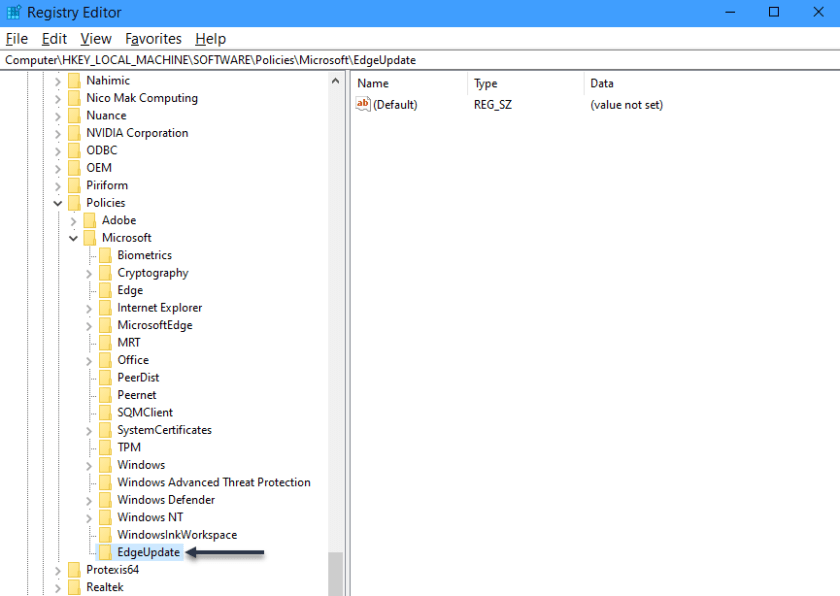
HKEY_LOCAL_MACHINE\SOFTWARE\Policies\Microsoft\EdgeUpdate

Next, if you do not see the EdgeUpdate path, create it manually by right-clicking Microsoft in the left sidebar, choosing

New > Key, using “EdgeUpdate

as the key name, and click Enter. Refer to the below image:

Edge Update 1
Editing the Registry

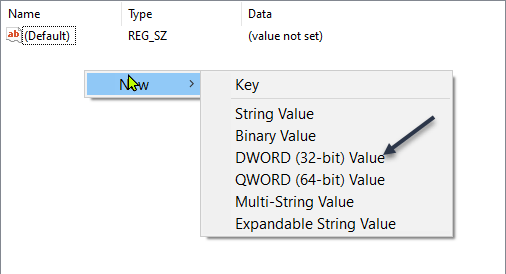
Now, on the right pane, click anywhere blank and select

New > DWORD (32-bit Value)

See the below image:

Edge Update 2
Accessing the DWORD option

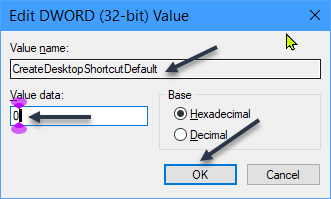
Next, use CreateDesktopShortcutDefault as the entry name and press Enter. Then, double-click the entry to open it. In the open box, click the Value Data field and type “0”. Then, choose OK. See the following image:

Edge Update 3
Setting the DWORD

Now, close the Registry Editor and restart your PC. You will notice that Edge does not create its shortcut anymore.

If for some reason the registry edit above does not work for you, you can also work to stop Edge from automatically launching on your PC’s boot. If you remove the program from your startup list, it will not be able to make the shortcut.

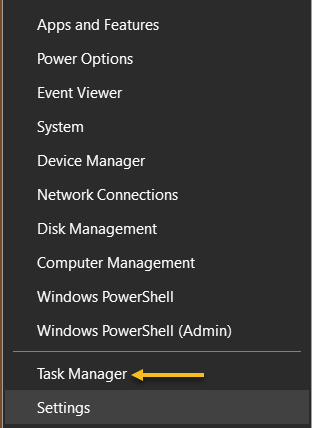
First, right-click your Start menu icon and choose Task Manager. Refer to the below image:

Edge Update 4
Accessing the Task Manager

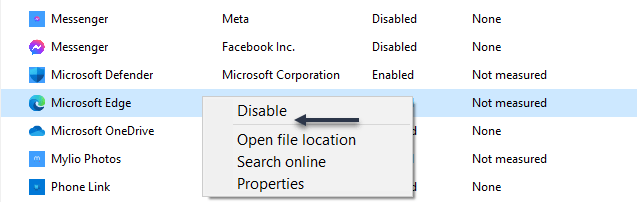
Next, in the Task Manager, access the Startup Apps section. Here, right-click msedge or Microsoft Edge and choose Disable. See the below image:

Edge Update 5
Disable Edge

Now, Windows stops Edge from automatically launching on boot, preventing it from making its desktop shortcut.

If you have set Edge as the default web browser, make it the non-default browser to prevent it from creating a desktop shortcut. You should use this method if the above methods have failed to work for you.

Ensure you have at least one non-Edge web browser installed on your PC. You have various web browsers to choose from, including Chrome, Firefox, and Brave.

First, navigate to

Settings > Apps > Default Apps

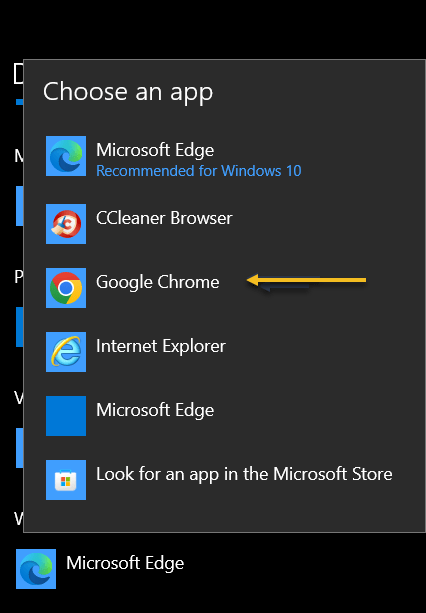
Next, in the Web Browser section, click Microsoft Edge and choose another web browser to make it the default. Refer to the following image:

Edge Update 6
Setting Chrome as the default browser

Now, restart your PC, and that’s it.

Disclaimer

Technology is always changing and rarely is there static tech for smartphones and desktops. Thus, the contents of this post are only valid at the time of writing. Blog posts older than six months may have directions incompatible with your device or OS. Hopefully, older post content will continue to work as advertised. Thank you for reading TechSavvy.Life for Technology at Work For You.

Don’t worry about failure; you only have to be right once.

Drew Houston

That’s it. Please feel free to share this post! One way to share is via Twitter.

Just click the Tweet icon below. This will launch Twitter where you click its icon to post the Tweet.

Checkout TechSavvy.Life for blog posts on smartphones, PCs, and Macs! You may email us at contact@techsavvy.life for comments or questions.

Please feel free to leave a comment. I would love to hear from you. Do you have a computer or smart device tech question? I will do my best to answer your inquiry. Just send an email to contact@techsavvy.life. Please mention the device, app, and version you are using. To help us out, you can send screenshots of your data related to your question.

You can access the e-book from a Kindle device, the Kindle App for the desktop or smartphone, which is a free app.

The author’s Vietnam eBook on the Battle for Tra Bong Vietnam: Events and Aftermath

What Is the Green Dot on Facebook and Messenger

Wondering why Facebook displays a green dot on someone’s profile picture, in the Messenger app, and next to the camera icon in Messenger? What the green dot means is context-dependent.

RAYMOND OGLESBY @RaymondOglesby2
September 19, 2023

This is for mobile devices and desktops using Facebook and Messenger. Screenshots are from Windows 10

Wondering why Facebook displays a green dot on someone’s profile picture, in the Messenger app, and next to the camera icon in Messenger? What the green dot means is context-dependent. Let’s decode this green dot.

Key Points

  •  The green dot on someone’s Facebook profile picture indicates that they are active on the Facebook platform, whether on the site, through the app, or on the Messenger app.
  •  In Facebook Messenger, the green dot next to people’s profile pictures confirms that they are currently active on Facebook, either through Messenger, the app, or the site.
  •  A green dot next to the camera icon in Messenger means that the user is available for a video call.
  • Disable the feature so others do not know you are active on Facebook or Messenger.

Green Dot on Facebook

On Facebook’s desktop site or mobile app, when you visit someone’s profile page, you might have seen a green dot. This green dot indicates that the user is active on the Facebook platform. Refer to the below image:

Green Dot 1
The user is active on the Facebook platform

The dot does not necessarily mean the user is active on the Facebook site. The user may be using the Facebook app or even the Messenger app. But if you see it, it means the user is active somewhere within the Facebook network and it can stand in as an online indicator.

Green Dot on Messenger

While scrolling chat lists in the Messenger app, you may have seen green dots appearing in the bottom-right corner of people’s profile pictures. These green dots indicate that those users are currently active on Facebook. See the below image:

Green Dot 2

Those users may be active on Messenger, the Facebook app, or the Facebook site. The dot just indicates that they are active somewhere on the Facebook platform.

Green Dot Next to Camera Icon on Messenger

When you see a green dot next to the camera icon in the Messenger app, it means that the user is available for a video call in the app. This indicator is separate from the profile picture indicator we discussed in the previous two sections and only references video call availability. See the following image:

Green Dot 3
The user is available for a video call

So when you see the camera-adjacent green dot you know the user has Messenger installed, and it’s possible for you to initiate a video call with them.

Disable Active Status on Desktop Facebook Website

  1. In a browser, log in to Facebook and then click the Messenger icon in the top-right corner of the page.
  2. Click the Menu icon (three dots)  at the top of the chats window.
  3. Click Active Status.
  4. Toggle off the switch next to Active Status: ON to disable it. The switch will be turned OFF.

You can enable the Active Status at any time. by toggling the switch to the ON position.

Note! A couple of additional options in the Active Status window allow you to appear active for some friends, but not others, and vice versa. Simply tap the edit button to select which friends you want to include in either list. Refer to the below image:

Green Dot 4
Active Status options

You can disable the feature on your mobile device but it’s more complicated.

Disclaimer

Technology is always changing and rarely is there static tech for smartphones and desktops. Thus, the contents of this post are only valid at the time of writing. Blog posts older than six months may have directions incompatible with your device or OS. Hopefully, older post content will continue to work as advertised. Thank you for reading TechSavvy.Life for Technology at Work For You.

Quote For the Day

When you find an idea that you just can’t stop thinking about, that’s probably a good one to pursue.

Josh James

Tweet Info

You are finished. Please feel free to share this post! One way to share is via Twitter.

Just click the Tweet icon below. This will launch Twitter where you click its icon to post the Tweet.

Checkout TechSavvy.Life for blog posts on smartphones, PCs, and Macs! You may email us at contact@techsavvy.life for comments or questions.

I Would Like to Hear From You

Please feel free to leave a comment. I would love to hear from you. Do you have a computer or smart device tech question? I will do my best to answer your inquiry. Just send an email to contact@techsavvy.life. Please mention the device, app, and version you are using. To help us out, you can send screenshots of your data related to your question.

Author’s E-Book

You can access the e-book from a Kindle device, the Kindle App for the desktop or smartphone, which is a free app.

The author’s Vietnam eBook on the Battle for Tra Bong Vietnam: Events and Aftermath

How to Use Google Lens

Google Lens is an image and text recognition app that uses Google Search to deliver results based on what it sees in photos.

RAYMOND OGLESBY @RaymondOglesby2
August 22, 2023

This is for iPhone, iPad, Android, and Desktop. Screenshots are from iPhone and Windows 10

Google Lens is an image and text recognition app that uses Google Search to deliver results based on what it sees in photos.

You have probably seen the colorful camera icon in the Google Search bar or the Google app. It’s an unassuming shortcut that leads to a variety of impressive abilities. This is Google Lens, and it’s a Google app you should know.

What is Google Lens

Google Lens is most easily described as the visual component of Google Search. You typically do Google Searches with HR text queries, but Google Lens uses images and your camera as input. It identifies things in images; such as QR codes, plants, text, and products; then delivers information or search results related to the object or text.

Long-time smartphone users may remember an app called “Google Goggles.” It was launched in 2010, and it was one of our first looks at what image recognition software could do with the cameras we were starting to carry around with us everywhere. Goggles was the precursor to Google Lens.

Google Lens was officially launched in 2017 and pre-installed on the Pixel 2 smartphone. Since then, Lens has slowly crept into more and more Google services: Google Assistant, Google Search, and Google Photos. Google Lens will also be integrated with the company’s AI chatbot, Google Bard.

What Does Google Lens Do

Google Lens essentially lets you do Google Searches by simply pointing your camera at things. What it can do with what it sees is pretty amazing. Google Lens can tell you a lot more than just what you’re looking at.

Got a math equation that you can not figure out? Do not bother typing the whole thing into your calculator point Google Lens at it. See some text in the real world that you do not feel like manually typing? Snap a photo and let Google Lens copy it for you. Find a weird bug in your backyard that you are not sure about? Google Lens can identify it for you.

These are just some of the simple things you can do with Google Lens. It can also read text from the real world out loud, translate text, search the web for an image you found, and tell you where to buy something you see out in the world.

How to Use

Google Lens is available in the Google app for iPhone, iPad, and Android; simply tap the colorful camera icon in the search bar. In a desktop browser such as Google Chrome or Microsoft Edge, you can use Lens by clicking the icon in the search bar on Google.com.

Using an iPhone, iPad, and Android

To use Google Lens on the iPhone, iPad, and Android, first, open the Google app and tap the colorful camera icon on the right side of the search bar. Refer to the below image:

Google Lens 1
Selecting Google Lens

Next, you can choose from different functions under the shutter button before pointing your camera at an object or text and snapping a photo. See the below image:

Google Lens 2
Accessing your search

Now, you can also use photos you already took from the section under the viewfinder for Lens searches. See the following image:

Google Lens 3
Choosing an image

That’s how easy it is to use Google Lens! If you have an Android phone, you may also be able to use Lens directly from one of the multiple modes in the camera app.

Using on the Desktop

To use Google Lens on the web, in a desktop browser such as Google Chrome or Microsoft Edge, first head to Google.com and tap the colorful camera icon on the right side of the search bar. Refer to the below image:

Google Lens 4
Selecting Google Lens

Next, you can either drag a photo into the box, browse for a photo on your device, or paste a link to a photo. See the below image:

Google Lens 5
Drag and Drop an image to search

Now you can select text in the image, see visually similar images, or click Find the Image Source to try and find where the image originated from. See the following image:

Google Lens 6
Your image search results
Disclaimer

Technology is always changing and rarely is there static tech for smartphones and desktops. Thus, the contents of this post are only valid at the time of writing. Blog posts older than six months may have directions incompatible with your device or OS. Hopefully, older post content will continue to work as advertised. Thank you for reading TechSavvy.Life for Technology at Work For You.

Quote For the Day

Tribalism is a social form which can exist at any level of technology. It’s a complete illusion to associate it with low levels of technology. It is probably, in fact, a form of social organization second only to the family in its ability to endure.

Terance McKenna

Tweet Info

That’s it. Please feel free to share this post! One way to share is via Twitter.

Just click the Tweet icon below. This will launch Twitter where you click its icon to post the Tweet.

Checkout TechSavvy.Life for blog posts on smartphones, PCs, and Macs! You may email us at contact@techsavvy.life for comments or questions.

I Would Like to Hear From You

Please feel free to leave a comment. I would love to hear from you. Do you have a computer or smart device tech question? I will do my best to answer your inquiry. Just send an email to contact@techsavvy.life. Please mention the device, app, and version you are using. To help us out, you can send screenshots of your data related to your question.

Author’s E-Book

You can access the e-book from a Kindle device, the Kindle App for the desktop or smartphone, which is a free app.

The author’s Vietnam eBook on the Battle for Tra Bong Vietnam: Events and Aftermath

How to Use Everything App for Windows

At the top of our shortlist of outstanding apps is Everything. This app has been around for a long time but we have recently discovered the Windows app.

RAYMOND OGLESBY @RaymondOglesby2
August 8, 2023

This is for Windows XP through Windows 11. Screenshots are from Windows 10

At the top of our shortlist of outstanding apps is Everything. This app has been around for a long time but we have recently discovered the Windows app. It’s now an integral part of our Windows apps.

What is Everything

Everything is a Windows freeware file search application created by programmer David Carpenter in 2008.

The single most notable thing about Everything is the speed.

If you have ever used Windows file search (File Explorer)or even some third-party file search tools, the most memorable thing about the experience is how long it takes.

Even after all these years, Windows file search is agonizingly slow. Truly, it’s agony. In an age of inexpensive SSDs with instant booting and instant program loading, waiting thirty seconds for Windows to grind through a search feels like torture. It does not matter if you are still using Windows 7 or upgraded to Windows 11, Windows search has never been speedy.

Everything sidesteps the shortcomings of the Windows file search by doing something that was novel when the application was first released and remains novel; it taps right into the file table at the file system level for lightning-fast search.

How fast is it? It’s so fast that if you create a new file, by the time you open up the Everything search box a moment later, the file is instantly in the index. It’s unlikely you could create the file and get to the search box fast enough to beat the nearly instantaneous addition of the entry into the Everything index.

The only downside to Everything is that it works off the file table and the file names and does not index the contents of the files. If you need a tool that will look deep into documents and help you find key phrases, this tool is not it. But if you are just trying to find where, exactly, you put your tax returns from five years ago, it’s almost magical in its speed and efficiency.

Why Is It Indispensable

We have a huge number of files, across a huge number of folders and drives. But as long as we name files and folders sensibly as they come in, it does not matter where they end up. They could be on the C drive, the G drive (portable external drive), or even buried in a network drive hosted somewhere (you can enable network drive search in the Everything settings).

No matter where the files are, you can find them if you member even a fraction of the folder or file name. Old taxes, work forms, Photoshop projects, comic books you hoarded five years ago, you name it. If you want it, you can churn it up to the surface with a few keywords.

For example, I need to find old tax returns to answer questions from the IRS about depreciation. That made me say, “Didn’t I squirrel those returns somewhere?” and sure enough, I did. I might have forgotten where they were, but Everything did not. Refer to the below image:

Everything 1
Everything displaying tax returns

You do not need wildcards for your search. Everything search implies wildcard searches; the app will find all files/folders that include your search criteria. In the menu bar, select Search to view more options. See the below image:

Everything 1
Accessing the Search options

It instantly scanned hundreds of thousands of files and folders on my computer and the attached drives to find exactly what I wanted.

If you can remember anything about the file; part of the name, the file extension, the root directory it might be deeply buried in; you can dig it up with a few keystrokes.

Even on my laptops, where the files are definitely not stacked terabytes deep, I still install Everything, I certainly do not want to be stuck waiting for Windows search to sift through the files at a slow pace.

it’s freeware. So Download it. The website name has an odd name, Voidtools, but this is the download page.

Take Notice

If you need to download this app or any other on a desktop or laptop, always download it from the manufacturer. Another safe bet is to download from a store like Apple Store or Microsoft Store.

Never download from these websites:

FileHorse
Softonic
CNET
Download 82
Softlay
Dealnews
Windowsinside
Us7p
Files10
Soft112
UpdateStar
Techno360
ColorMango
MajorGeeks
FileHonor
FilesWin
iGeeksBlog
Neowin
Linenseapps
Business Wire
SoftwareKeep
TechShout
Windows Latest’
Wondershare
Slant
iMobie
BitsDuJour
Softfree.eu
Uptodown
FreeProSoftz
TechWhoop
Tickcoupon
CrackDJ
AbbasPC
Giev Away of the Day
GroovyPost
TechGeek365
TechMoran
Digital Connect Mag
Malavida
…. and 16 more

The above websites should be banned. If you download from any other site besides the manufacturer or a store, expect viruses and malware to appear. If this happens, immediately Shutdown and/or Restart your PC and run a virus scan.

As a test, I downloaded it from File Horse. I got popups from Google Chrome saying my PC has been hacked followed by a full webpage saying my PC is corrupted. I got rid of the messages. but I had more problems. The FtleHorse website gave the site access to everything on my PC. I had to manually go through Google Privacy and Security Settings to block each access.

I recommend only using Voidtools website for downloading. Then feel the speed of searching, Everything, on your computer instantly.

Disclaimer

Technology is always changing and rarely is there static tech for smartphones and desktops. Thus, the contents of this post are only valid at the time of writing. Blog posts older than six months may have directions incompatible with your device or OS. Hopefully, older post content will continue to work as advertised. Thank you for reading TechSavvy.Life for Technology at Work For You.

Quote For the Day

The most intractable problem today is not pollution or technology or war; but the lack of belief that the future is very much in the hands of the individual.

Margaret Mead

Tweet Info

You are finished. Please feel free to share this post! One way to share is via Twitter.

Just click the Tweet icon below. This will launch Twitter where you click its icon to post the Tweet.

Checkout TechSavvy.Life for blog posts on smartphones, PCs, and Macs! You may email us at contact@techsavvy.life for comments or questions.

I Would Like to Hear From You

Please feel free to leave a comment. I would love to hear from you. Do you have a computer or smart device tech question? I will do my best to answer your inquiry. Just send an email to contact@techsavvy.life. Please mention the device, app, and version you are using. To help us out, you can send screenshots of your data related to your question.

Author’s E-Book

You can access the e-book from a Kindle device, the Kindle App for the desktop or smartphone, which is a free app.

The author’s Vietnam eBook on the Battle for Tra Bong Vietnam: Events and Aftermath

How to Make a Slideshow on Google Photos

Using Google Photos‘ slideshow feature, you can have all or specific album photos play one after another automatically. You can make this slideshow on both your desktop and your mobile device.

RAYMOND OGLESBY @RaymondOglesby2
July 25, 2023

This is for the desktop and smartphones. Screenshots are from Windows 10 and iPhone 14 Pro running iOS 16+

Using Google Photos‘ slideshow feature, you can have all or specific album photos play one after another automatically. You can make this slideshow on both your desktop and your mobile device. Let’s explore how this is done.

On Your Desktop

To create a slideshow on your desktop computer, first, open a web browser and launch the Google Photos site. Sign in to your account on the site if you have not already.

Next, once you see your photos, if you want to include all your photos in the slideshow, then click the first photo on the main screen to open it in full screen.

Now, once the photo opens in full screen, at the top-right corner, click the three dots (the Menu icon). Refer to the below image:

Photos 1
Selecting the Menu icon

Next, in the menu that opens, click Slideshow. See the below image:

Photos 2
Selecting the Slideshow option

Now, your browser will go full screen and your slideshow will start playing. Sit back, relax, and enjoy recollecting your memories with your photos.

Next, you can stop the slideshow at any time by pressing the Esc key on your keyboard. See the following image:

Photos 3
Exiting the Slideshow

Now, if you would like to make a slideshow using photos from a specific album, then access that album on Google Photos. On the album page, in the top-right corner, click the three dots (the Menu icon). Refer to the below image:

Photos 4
Selecting the Menu icon

Next, from the three dots (the Menu icon), select Slideshow to start playing your photos. You can close the slideshow by pressing the Esc key. See the below image:

Photos 5
Selecting the Slideshow option

On Your Mobile

To play your photos slideshow on your phone, first, launch the Google Photos app on your phone.

Next, to include all your photos in the slideshow, then tap the first photo on the main screen.

Now, when your photo opens in full screen, in the top-right corner, tap the three dots (the Menu icon). See the following image:

Photos 6
Selecting the Menu icon

Next, from the three dots (the Menu icon), select Slideshow to start playing your photos. Refer to the below image:

Photos 7
Selecting the Slideshow option

Now, Google Photos will start playing a slideshow for all your photos. If you would like to stop this slideshow, tap anywhere on the screen then tap Done in the top-left corner. See the below image:

Photos 8
Exiting the Slideshow

To create a slideshow using photos from a particular album, first, tap Library and choose your photo album. Select the first photo in the album, then in the top-right corner, tap the three dots (the Menu icon). See the following image:

Photos 9
Selecting the Menu icon

Next, in the menu that opens, tap Slideshow. Refer to the below image:

Photos 10
Selecting the Slideshow option

Now, your slideshow containing photos only from the selected album will play. If you would like to stop this slideshow, tap anywhere on the screen then tap Done in the top-left corner. See the below image:

Photos 11
Exiting the Slideshow

Disclaimer

Technology is always changing; there is rarely static tech for smartphones and desktops. Thus, the contents of this post are only valid at the time of writing. Blog posts older than six months may have directions incompatible with your device or OS. Hopefully, older post content will continue to work as advertised. Thank you for reading TechSavvy.Life for Technology at Work For You.

Quote for the Day

My view is that if your philosophy is not unsettled daily then you are blind to all the universe has to offer.

Neil deGrasse Tyson

Tweet Info

That’s it. Please feel free to share this post! One way to share is via Twitter.

Just click the Tweet icon below. This will launch Twitter where you click its icon to post the Tweet.

Checkout TechSavvy.Life for blog posts on smartphones, PCs, and Macs! You may email us at contact@techsavvy.life for comments or questions.

Author’s E-Book

You can access the e-book from a Kindle device, the Kindle App for the desktop or smartphone, which is a free app.

The author’s Vietnam eBook on the Battle for Tra Bong Vietnam: Events and Aftermath

Threads the New Social Media App

Meta, formerly known as Facebook, has made a history of copying features from other platforms. This time, Meta has launched Threads, a social media app connected to Instagram that works more like Twitter and should eventually connect to Mastodon.

RAYMOND OGLESBY @RaymondOglesby2
July 18, 2023

As of this writing, We have reached 50,000 views in 487 posts!!!

This is for devices that use social media

Meta, formerly known as Facebook, has made a history of copying features from other platforms. This time, Meta has launched Threads, a social media app connected to Instagram that works more like Twitter and should eventually connect to Mastodon.

Meta, as the maker of Facebook, Instagram, and WhatsApp, has been after Twitter for many, many years. The company attempted to buy Twitter back in 2008, but that did not work out. Last year, Elon Musk acquired Twitter, and then promptly ran it into the ground. That has led to a surge in popularity for Twitter-like platforms, and now Meta’s app is live.

What Is Threads

Threads is a micro-blogging platform that looks and feels just like Twitter, letting you post texts up to 500 characters. This is almost twice Twitter’s 280-character standard limit, but still just enough for posts to not look like so much text. The platform itself is heavily linked to Instagram, and if you have an Instagram account, you can sign up for Threads with a couple of taps. All handles are pre-reserved; your username on Instagram will be your username on Threads. Refer to the below image of Threads:

Threads 2

Threads is actually seeing plenty of adoption, with the platform getting up to 20 million users within the first hours of launch. However, many of those accounts are brands instead of actual people. Instagram’s user base is in the billions, so we can only expect this number to keep increasing as time passes.

As it keeps growing, we can also expect a number of other changes, too. Threads is supposed to play nice with Mastodon and the Fediverse, and it will be getting ActivityPub support down the road. The exact degree to which Mastodon and Threads will be interoperable remains to be seen, but you will be able to follow and interact with Mastodon users from Threads. Likewise, Mastodon users will be able to follow Threads users by using their full username, such as “@john@threads.net.”

Pause Before You Download

Be aware of Threads Privacy Policy and the Dara the app collects. In our opinion, the app collects way too much data about you. This includes Data from your: Health/Fitness, Financial info, Contact info, User Content, Browsing history, Usage data, Diagnostics, Purchases, Location, Contacts, Search history, Identifiers, Sensitive data, and Other data.

In contrast, Facebook and Instagram only track Contact info, Identifiers, and Other data.

According to its Privacy Policy, you cannot delete your Threads account, until you delete your Instagram account. You can deactivate your Threads account at any time but you can not delete your Threads account without also deleting your Instagram account.

Our Summary

We recommend you wait until the Data collection and Privacy Policy issues are addressed.

If You Want to Download the App

If you want to give it a spin, Threads is now available from the Apple App Store and the Google Play Store. In the Apple App Store and Google Play Store, the app name is “Threads, an Instagram app”. There are other Threads apps, so ensure you download the correct one.

Disclaimer

Technology is always changing and rarely is there static tech for smartphones and desktops. Thus, the contents of this post are only valid at the time of writing. Blog posts older than six months may have directions incompatible with your device or OS. Hopefully, older post content will continue to work as advertised. Thank you for reading TechSavvy.Life for Technology at Work For You.

Quote For the Day

Always deliver more than expected.

Larry Page

Tweet Info

That’s it. Please feel free to share this post! One way to share is via Twitter.

Just click the Tweet icon below. This will launch Twitter where you click its icon to post the Tweet.

Just click the Tweet icon below. This will launch Twitter where you click its icon to post the Tweet.

I Would Like to Hear From You

Please feel free to leave a comment. I would love to hear from you. Do you have a computer or smart device tech question? I will do my best to answer your inquiry. Just send an email to contact@techsavvy.life. Please mention the device, app, and version you are using. To help us out, you can send screenshots of your data related to your question.

Author’s E-Book

You can access the e-book from a Kindle device, the Kindle App for the desktop or smartphone, which is a free app.

The author’s Vietnam eBook on the Battle for Tra Bong Vietnam: Events and Aftermath