0patch, a Slovenia-based service, offers extended Windows 10 updates after Microsoft’s support ends in October 2025. For €24.95 ($27) per year, users receive small security “micropatches” for critical vulnerabilities, without needing to reboot. This service may appeal to those with incompatible Windows 11 PCs.
RAYMOND OGLESBY @RaymondOglesby2 October 8, 2024 – 4 minutes read time
This is for devices running Windows 10. Screenshots are from Dell XPS PC
Overview
As Microsoft prepares to end support for Windows 10, a third-party service is ready to step into the void by offering five years of extra updates for the popular OS.
The offer comes from Slovenia-based 0patch, which has made a business out of patching out-of-date Windows operating systems, including Windows 7. It plans to supply critical security patches for $27.00 annually to Windows 10 users once Microsoft officially stops supporting the OS in October 2025.
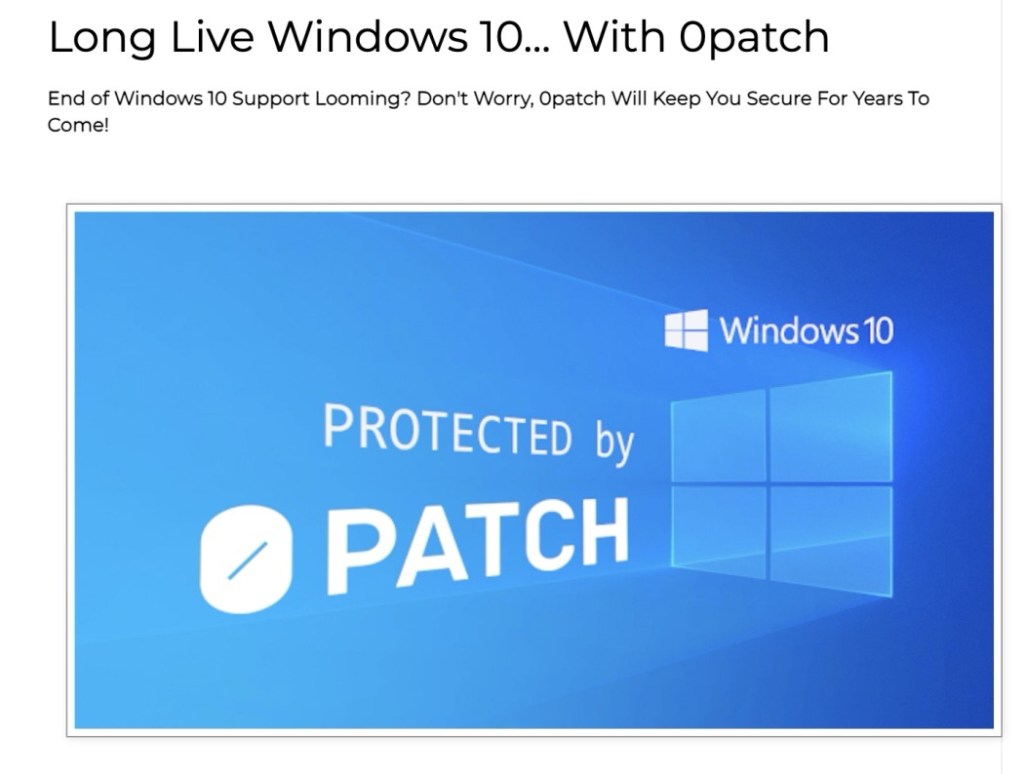
“With 0patch, you will be receiving security ‘micro patches’ for critical, likely-to-be-exploited vulnerabilities that get discovered after October 14, 2025,” Refer to the below image:
Protected by Opatch screen
Pricing
The catch is trusting Opatch, an unofficial Microsoft service, to safely maintain your Windows 10 installation. Extended support will cost €24.95 ($27) per year.
Still, the price might be a bargain. Microsoft will also offer an Extended Security Updates (ESU) program, but the cost to business customers starts at $61 per device per year and doubles every consecutive year for up to three years ESU does not include new features, nonsecurity updates, or design changes. It has not announced pricing for consumers yet, but it will likely be more than $27 per year as Microsoft would prefer you upgrade to Windows 11.
The 0patch service may appeal to those with one of the estimated 240 million PCswhich are incompatible with Windows 11.
“Many of us do not want to, or simply can not upgrade to Windows 11,” 0patch wrote in a blog post that also excoriates Microsoft’s efforts to revamp the OS. “We do not want to because of increasing enshittification including bloatware, Start Menu ads, and serious privacy issues. We do not want to have an automated integrated screenshot and key-logging feature constantly recording our activity on the computer”.
How It Works
In contrast, 0patch promises to maintain Windows 10 by serving its critical security fixes. “These patches will be small, typically just a couple of CPU instructions (hence the name), and will get applied to running processes in memory without modifying a single byte of original Microsoft’s binary files,” the service says. Thus, no CrowdStrike-like crash.
“There will be no rebooting the computer after a patch is downloaded because applying the patch in memory can be done by briefly stopping the application, patching it, and then letting it continue,” 0patch adds. “Users will not even notice that their computer was patched while they were writing a document, just like servers with 0patch get patched without any downtime at all.”
Still, 0patch will not fix every security vulnerability for Windows 10, only “the important ones, such as those exploited in the wild or those without official vendor patches.” If demand for 0patch’s Windows 10 support is high, the service plans will support the OS beyond five years.
Source – PC Mag, Microsoft
Disclaimer
Technology is always changing. Rarely is there static tech for smartphones and desktops. Thus, the contents of this post are only valid at the time of writing. Blog posts older than six months may have directions incompatible with your device or OS. Hopefully, older post content will continue to work as advertised. Thank you for reading TechSavvy.Life for Technology at Work For You.
Quote For the Day
“Real stupidity beats artificial intelligence every time.”
-Terry Prachett
X (Twitter info)
That’s it. Please feel free to share this post! One way to share is via Twitter.
Just click the Tweet icon below. This will launch Twitter where you click its icon to post the Tweet.
Checkout TechSavvy.Life for blog posts on smartphones, PCs, and Macs! You may email us at contact@techsavvy.life for comments or questions.
Was this post helpful? We would love to hear your comments. Do you have a computer or smart device tech question? I will do my best to answer your inquiry. Just send an email to contact@techsavvy.life. Please mention the device, app, and version you are using. To help us out, you can send screenshots of the data related to your question.
The author’s Vietnam eBook on the “Battle for Tra Bong Vietnam: Events and Aftermath” can be accessed from a Kindle device or the Kindle App for a desktop or smartphone. The apps are free.

The author’s Vietnam eBook on the Battle for Tra Bong Vietnam: Events and Aftermath
This post provides instructions for protecting your privacy on Yahoo Mail for iPhone and PC. It explains how to prevent Yahoo from selling your information and control personalized ads.
RAYMOND OGLESBY @RaymondOglesby2 October 1, 2024 – 4 minutes read time
This is for the iPhone and PC running Yahoo Mail. Screenshots are from iPhone 14 Pro running iOS 17.7
Overview
Most companies today are selling your information in some way or form. Luckily, most companies allow you to opt out of having your data sold; if you know how to ask for it.
While you would think the “do not sell my personal information” setting would be on the Yahoo security page, you will find it under a different menu. Let’s explore telling Yahoo, “Do not sell my personal information” and control personalized ads.
System Requirements
Yahoo Mail
iOS 16 or later
Browser
Windows 11/10
iPhone
Click here to learn how to update your iPhone to the latest iOS version.
Why Apply This Post
Protect your privacy by stopping Yahoo from selling your information.
Make sure your data stays out of the hands of third parties.
Opening Settings
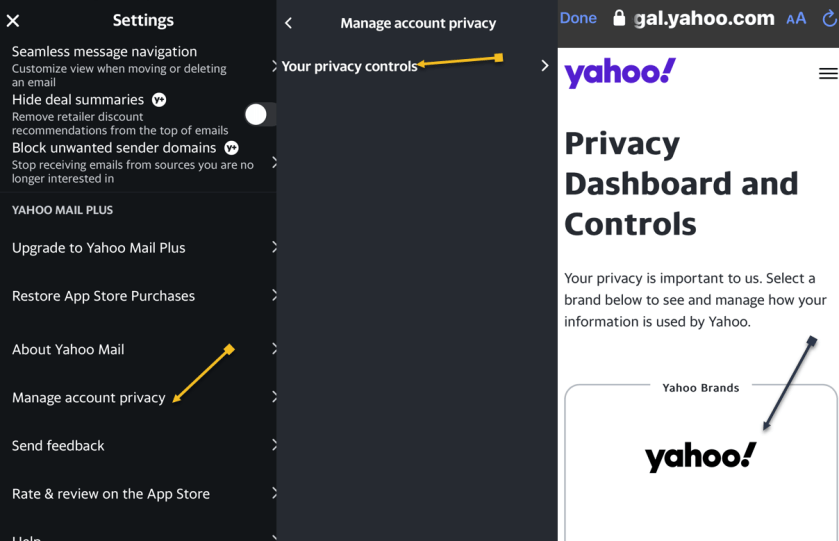
First, open the Yahoo Mail app. Next, tap your profile icon in the upper left. Now, tap Settings. Refer to the below image:
Accessing Settings
Accessing Privacy
First, scroll down and tap Manage account privacy. Next, tap Your Privacy controls. Now, tap the Yahoo logo. See the below image:
Accessing Privacy
Setting the Do Not Sell Option
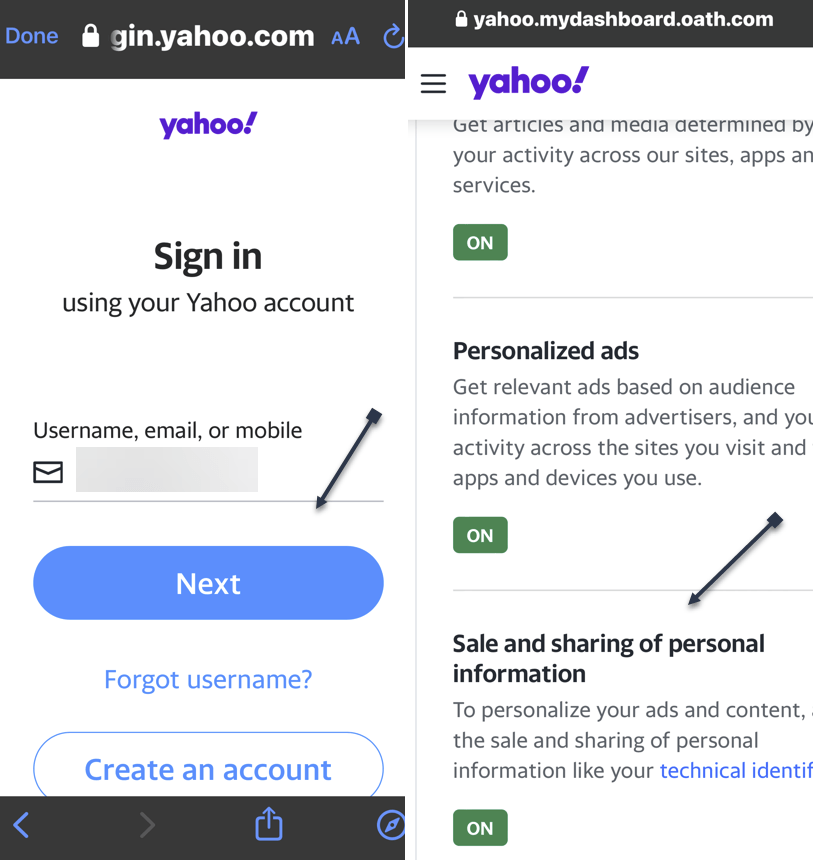
First, you will be prompted to log into your Yahoo mail account. Enter your username/email address, tap Next, and follow the on-screen prompts to log in. Next, After logging in, scroll down to the Sale and sharing of personal information and tap the link. See the following image:
Accessing the Sale and Share link
Disable the Do Not Sell Option
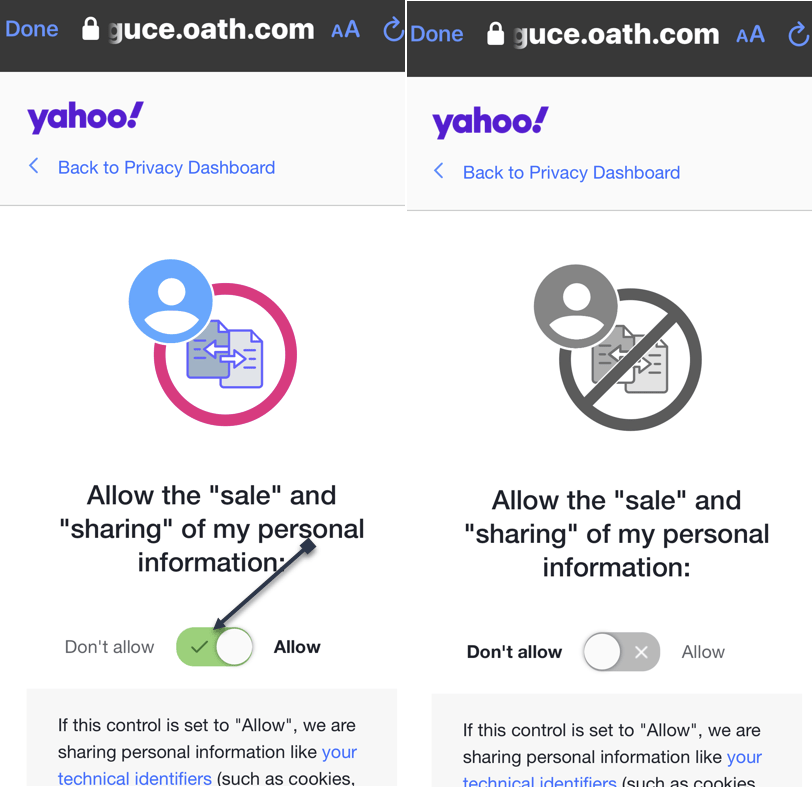
First, tap the toggle. The default is set to AllowYahoo to sell your data. Next, the page and its toggle will turn gray, indicating that the setting has been disabled. Refer to the below image:
Setting the Do Not Sale option
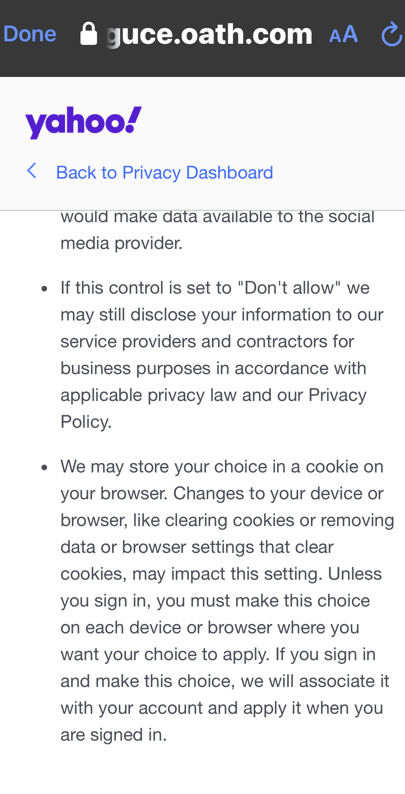
You may want to read the “fine print” about setting the option to Don’t Allow. If you clear cookies for your browser, the option is reset to Allow. See the below image:
The fine print
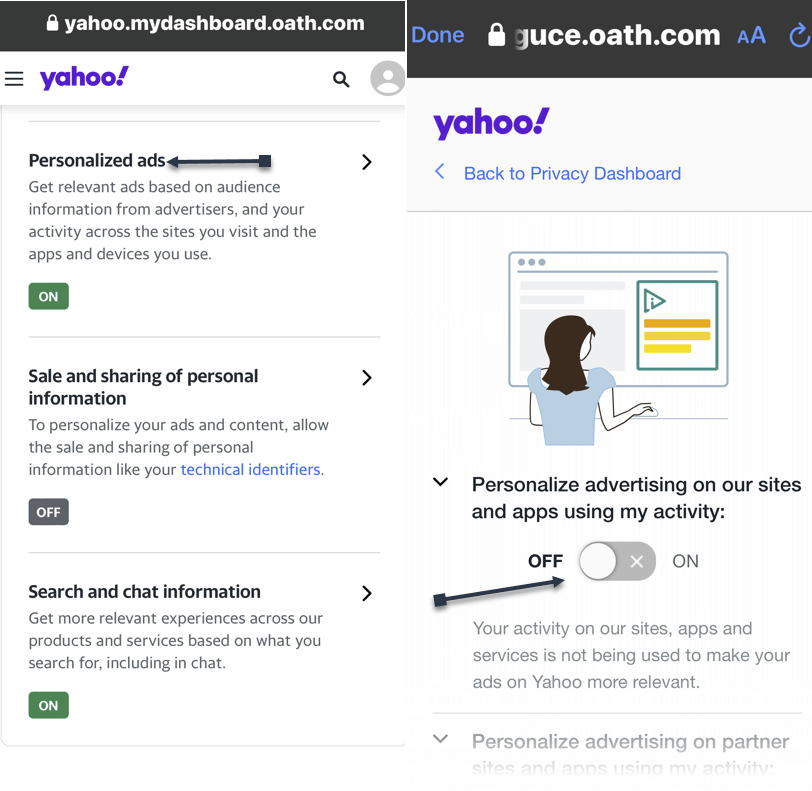
While here, go back to the Sale and sharing of personal information screen to control ads. Tap the Personalized ads link and turn off any option on delivering ads. See the following image on the first of four options:
Turning off Personalized ads
Using a PC Desktop/Laptop Running Windows 10/11
Open Yahoo Mail
Click the Gear icon in the upper left below the Home icon
Click the More settings link
Click About our Ads menu option. You would think of accessing the Security and Privacy menu option, but Yahoo wants to hide selling your data.
Under What choices do I have section, click View our other Privacy Controls
click the Yahoologo, and sign in
Click the Sale and sharing personal information link
Click the toggle. The default is set to AllowYahoo to sell your data. Next, the page and its toggle will turn gray, indicating that the setting has been disabled. If you have set the toggle to Don’t Allow on your iPhone first, the toggle will already be disabled.
Disclaimer
Technology is always changing. Rarely is there static tech for smartphones and desktops. Thus, the contents of this post are only valid at the time of writing. Blog posts older than six months may have directions incompatible with your device or OS. Hopefully, older post content will continue to work as advertised. Thank you for reading TechSavvy.Life for Technology at Work For You.
Quote For the Day
“I play to win, whether during practice or a real game.”
– Michael Jordan
X (Twitter) Info
That’s it. Please feel free to share this post! One way to share is via Twitter.
Just click the Tweet icon below. This will launch Twitter where you click its icon to post the Tweet.
Checkout TechSavvy.Life for blog posts on smartphones, PCs, and Macs! You may email us at contact@techsavvy.life for comments or questions.
Was this post helpful? We would love to hear your comments. Do you have a computer or smart device tech question? I will do my best to answer your inquiry. Just send an email to contact@techsavvy.life. Please mention the device, app, and version you are using. To help us out, you can send screenshots of the data related to your question.
The author’s Vietnam eBook on the “Battle for Tra Bong Vietnam: Events and Aftermath” can be accessed from a Kindle device or the Kindle App for a desktop or smartphone. The apps are free.
The author’s Vietnam eBook on the Battle for Tra Bong Vietnam: Events and Aftermath
This post emphasizes the importance of strong, unique passwords and the use of password managers to enhance security. It highlights the risks of using common or personal information-based passwords and provides tips for creating and managing secure passwords.
RAYMOND OGLESBY @RaymondOglesby2 August 13, 2024 -9 minutes read time
This is for devices using passwords. Screenshots are from iPhone 14 Pro running iOS 17.5.1+
If you are still using “qwerty” or “starwars” as a password, you should stop doing this. Let’s find out what makes a bad password, why you should care, and how to make a good one.
The Case For Strong Passwords
Don’t have the password to get into your bank account? You are out of luck unless you can trick the bouncer into telling you the password is “kangaroo.” A simple password like that would be a terrible choice to protect your access to a bank site. And yet, chances are good you are using something just as bad, because stronger passwords are too hard to remember.
The only safe way to store proper passwords is in a password manager. If you are not using one, you probably rely on a highly crackable password like “baseball” or “12345”, or you have memorized one complex password, like “Jazz2day4Me!” and use it everywhere. Password security is no small matter. Given the enormous risk, you need to keep your passwords safe.
Even the best password manager does not guarantee the safety of your accounts; not if you use it to store the same old, tired passwords. You have to switch out your old and weak passwords for new and stronger ones.
Once you have replaced all your lame passwords with strong, unique ones, you can relax, at least until a data breach forces a change. The National Institute of Standards and Technology (NST) no longer recommends changing passwords every 90 days. NIST now recommends using long phrases like “Correct-Horse-Battery-Staple” and changing them only when necessary. If you have terrible passwords, “when necessary” means right now.
Bad passwords
Just what makes a bad password? Let’s look at some of the attributes of terrible passwords, and then some pointers on improving them.
Ditch the Dictionary
Every few months a news outlet posts a list of the worst passwords. We see a lot of easy-to-type options, like“12345” and “qwerty”. Easy for you to type? Sure. But also easy for hackers to crack. Other common (and poor) passwords consist of simple dictionary words, like “baseball”, “monkey”, and “starwars” in the list of worst passwords. These, too, are easy to crack.
A few of the best password managers (tap or click a button to view):
Some secure websites lock down after a given number of wrong password attempts, but many do not. For those with no bad guess lockout, hackers can cross a list of email addresses with a list of popular passwords and set up an automated process to keep trying combinations until they get in.
A properly secured website does not store your password anywhere. Instead, it runs the password through a hashing algorithm, a one-way encryption. The same input always produces the same output, but there’s no way to return to the original password from the resulting hash. If the password you type hashes to the same one that’s stored, you gain access. Even if hackers capture the site’s user data, they do not get passwords, just hashes.
But smart hackers can crack weak passwords if they know the site’s hashing function. They start by running a huge dictionary of common passwords through the hashing function. Then they look for the resulting hashes in the captured data. Each match is a cracked password. Sites with the best security enhance the hash function with password salting, which makes table-based cracking impossible, but why take the risk? Just stay out of the dictionary.
Think Differently
What about this perfect password: 1qaz2wsx3edc4rfv. You just “type” it by sliding a finger down four slanted columns of the keyboard. You think it’s so perfect, that you use it everywhere. And that is a big mistake.
Hardly a week goes by without news of a breach at some company or website, exposing thousands or millions of usernames and passwords. Smart victims change their passwords immediately. Those who ignore the problem may find themselves locked out of their accounts after the hackers have reset your passwords.
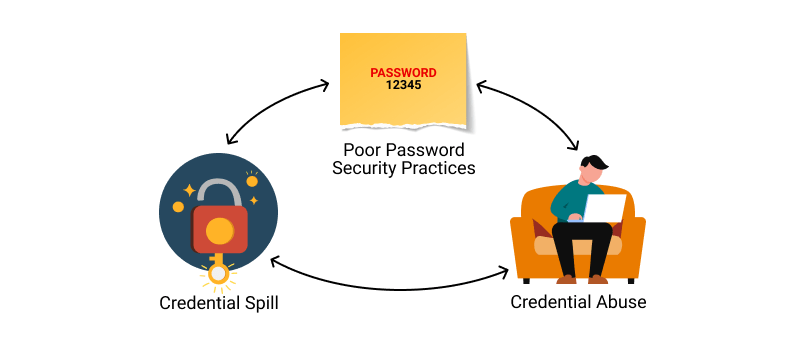
Those hackers know that all too many people recycle their passwords. Once they find a working username and password pair, they try the same credentials on other sites. You may not be so worried about losing access to your old Dropbox account, but if you used the same login on your bank’s website, you are in big trouble.
Using the same credentials on websites
It gets worse. If someone else takes control of your email account, they can lock you out by changing the password. Then they can break into your other accounts by having a password reset link emailed to that account. Worried yet? You should be!!!!
Stay Away From Being Personal
Using personal information as the basis for your passwords is awfully tempting, but it’s a bad idea. Whether your dog’s name is Fifi or Khaleesi, that name probably appears in the dictionaries hackers use for brute-force attacks. Other possibilities such as the initials and birthdate of a family member probably will not fall to a brute-force attack. If someone wants to hack your account specifically, that personal data can fuel a trial-and-error guessing attack.
Do not think for a minute that your personal details are private. There are dozens of sites people can use to find details about anybody: address, birthdate, marital status, and more. Your social media posts can be another source of personal info, especially if you have not properly secured your accounts. A determined hacker (or a nosy neighbor) can probably guess any password you build based on your data.
Shut the Back Door
If you are not using a password manager, you have surely experienced forgetting the password for a site. It’s all too common. That is why virtually every login page includes a “Forgot your password?” link. Some sites send a reset link to your email address, while others let you reset the password after answering your security questions. And that opens a back door to anyone wanting to hack your account.
Most sites offer abysmal options for security questions like:
What is your mother’s maiden name?
Where did you go to high school?
What was your first job?
As noted, your personal life is an open book to anyone with internet searching skills. When possible, ignore the preset questions. Create your own question, with a unique answer you will always remember but nobody else could guess.
It’s harder when the site does not let you define your own questions. In that case, your best bet is to use a memorable answer that’s a total LIE like:
My mother’s maiden name is Fauci.
I went to school at More Science High School.
For my first job, I was a linotype operator.
There is an element of risk since you might forget which lie you chose. We suggest storing these oddball answers in the iPhone Notes app or onGoogle Drive.
What To Do Now
We hope we have convinced you that using common passwords is a rotten idea, as is building passwords from personal information. Even the best strong, random password becomes a liability if you use it everywhere. If you are ready to spring into action, here are some starting points:
Use a password manager
Switch to a better password manager
Remember an extremely secure master password for your password manager and keep it on another app. Better yet, just remember the master password.
Take advantage of a random password generator to upgrade your old, bad passwords
You could even create your own random password generator in Excel
Enable multi-factor authentication wherever available
If a secure site does not take care of security, you could still lose that site’s credentials to a data breach, but by making all your passwords long, strong, and unique, you can rest assured that you have done everything you can to protect your online accounts from password-based attacks.
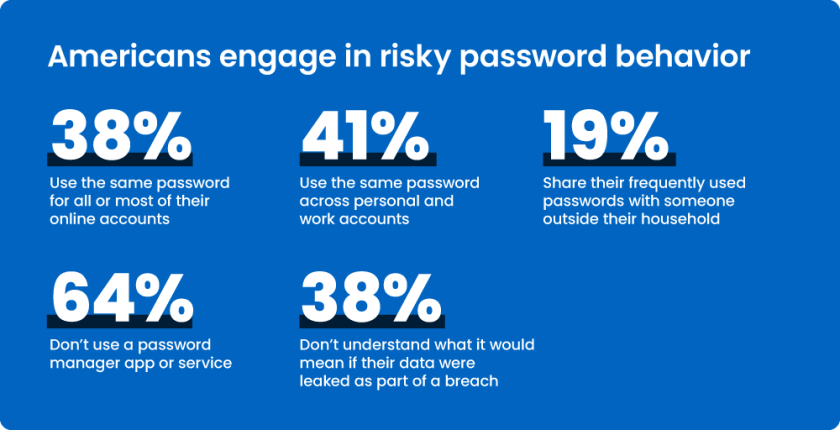
Risky password behavior
You may want to switch to using Passkeys or Passphrases.
Source: PC Mag
Disclaimer
Technology is always changing. Rarely is there static tech for smartphones and desktops. Thus, the contents of this post are only valid at the time of writing. Blog posts older than six months may have directions incompatible with your device or OS. Hopefully, older post content will continue to work as advertised. Thank you for reading TechSavvy.Life for Technology at Work For You.
Quote For the Day
“Try and keep on trying until that which seems difficult becomes possible and that which seems only possible becomes habit and a real part of you.”
Dieter F Uchtdorf
X (Twitter) Info
That’s it. Please feel free to share this post! One way to share is via Twitter.
Just click the Tweet icon below. This will launch Twitter where you click its icon to post the Tweet.
Checkout TechSavvy.Life for blog posts on smartphones, PCs, and Macs! You may email us at contact@techsavvy.life for comments or questions.
Was this post helpful? We would love to hear your comments. Do you have a computer or smart device tech question? I will do my best to answer your inquiry. Just send an email to contact@techsavvy.life. Please mention the device, app, and version you are using. To help us, you can send screenshots of the data related to your question.
This post discusses how to identify legitimate calls and avoid scammers, addressing phone verification, spoofed numbers, and web searching. It provides options like reverse phone lookup websites and tools like WhoCallsMe, Spy Dialer, PeopleFinders, and USPhoneBook. It also suggests utilizing mobile carrier solutions, reporting to the FTC, and the National Do Not Call Registry to combat spam calls.
This is for any browser on a desktop, laptop, or smartphone. Screenshots are from Google Chrome on Windows 10
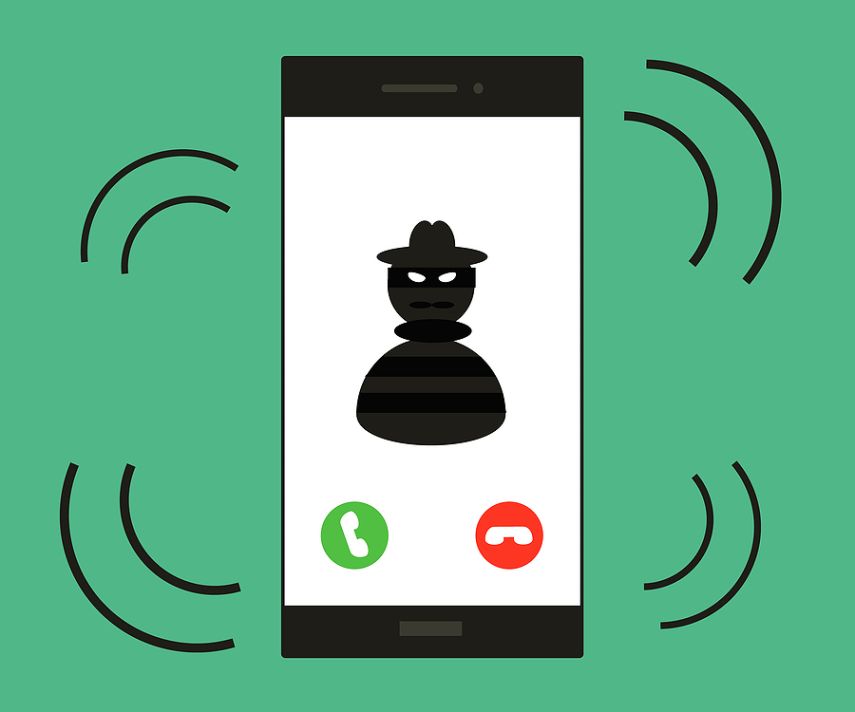
The phone rings and it’s a number you do not recognize. Or perhaps an unknown number shows up in your missed calls. You are curious but do not want to pick up or call back if it’s a telemarketer or scammer. Instead of playing robocall roulette let’s explore five ways to see who is calling before you engage.
Legit Verses Scam Calls
You may have noticed that America has a problem with scam calls. Scammers took $10 billion from unsuspecting victims in 2023, and it’s hard to see the problem going away anytime soon. If you get a call, there are a few ways to tell if it’s legit or not.
What does the phone say? When a call comes in, look for a displayed number and location. If your phone is not showing any information and says something like Unknown, chances are there’s a scammer on the other end. Anyone can hide their number, but it’s best to let this one go to voicemail and call back if it’s someone you know. If the phone says Scam Likely, it’s typically correct; just ignore the call.
Look for verification. Carriers have started verifying phone numbers when you receive a call. Google’s phone app also adds a badge on incoming calls that can be attached to a business. Unfortunately, this does not verify every call from a legitimate business or weed out legitimate businesses that use robocalls.
Watch out for spoofed numbers. Have you ever gotten a call from what looks to be your own phone number, only it’s a few numbers off? Do not pick those calls up; scammers like to spoof phone numbers and trick you into picking up. They think you are more likely to pick up if the call is from your area code or someone you know.
Note! We recommend ou not click or tap on any icon off the main screen. These buttons launch web sites that may introduce malware or be blocked by your browser security. Also, any screen that has flashing items, immediately exit the screen.
If you click or tap on a button that starts a scanning process for addresses,emails, public information, criminal records, etc., the process will take several minutes. On the desktop, you can stop the process by hitting Cntl-Alt-Del keys, then select Task Manger. Next, right=-click on your browser entry and select End Task. Your browser will exit stopping the scanning process.
Search the Web
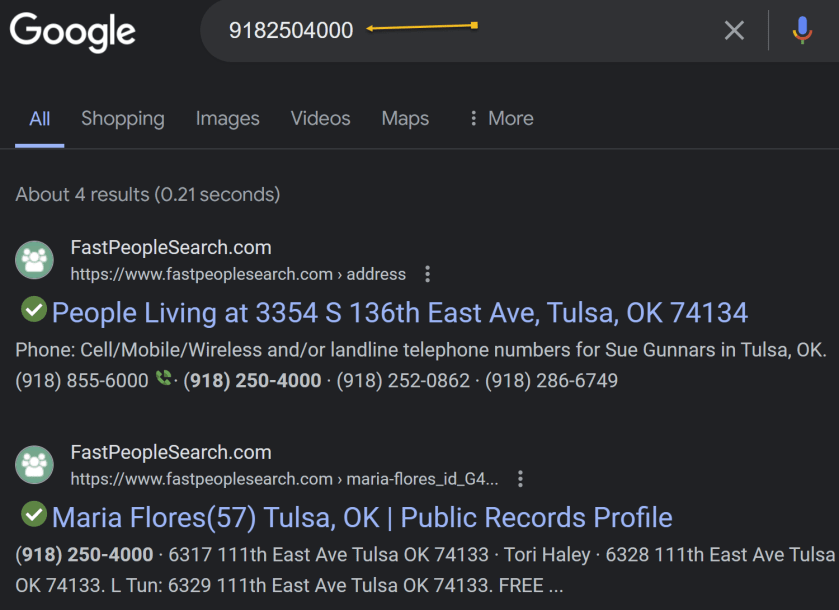
If you want to quickly know whether a caller is legit or a scammer, do a quick web search. As a rule of thumb, if the search results are primarily reverse phone lookup websites, it’s safe to say other people have received unwarranted calls from that same number and are reporting it to warn others. Refer to the below image:
Search the web
Reverse Phone Lookup
Speaking of reverse phone lookups, if you want to do some digging about a certain phone number, many websites can help you. You usually have to pay to get any worthwhile information, but there are a few tools that can help you for free. Even though they are free if you want additional information about the phone number, the sites charge for their service.
whocallsme
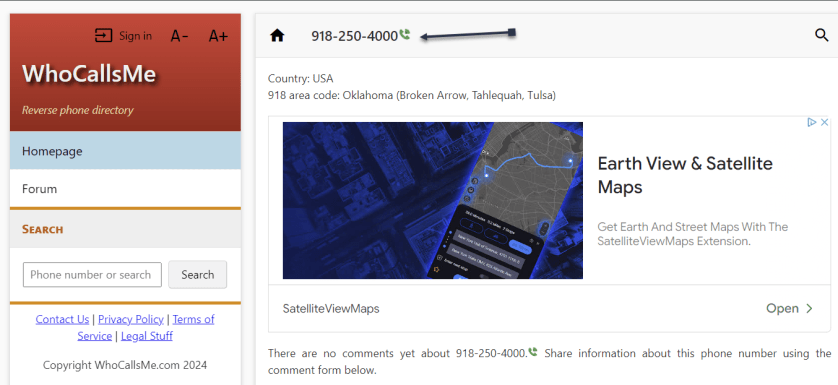
At WhoCallsMe, users can report their experiences with specific phone numbers. Enter a number and the website will tell you where the area code is from. You can then enter your own report or view what others say about it. See the below image:
WhoCallsMe main screen
spy dialer
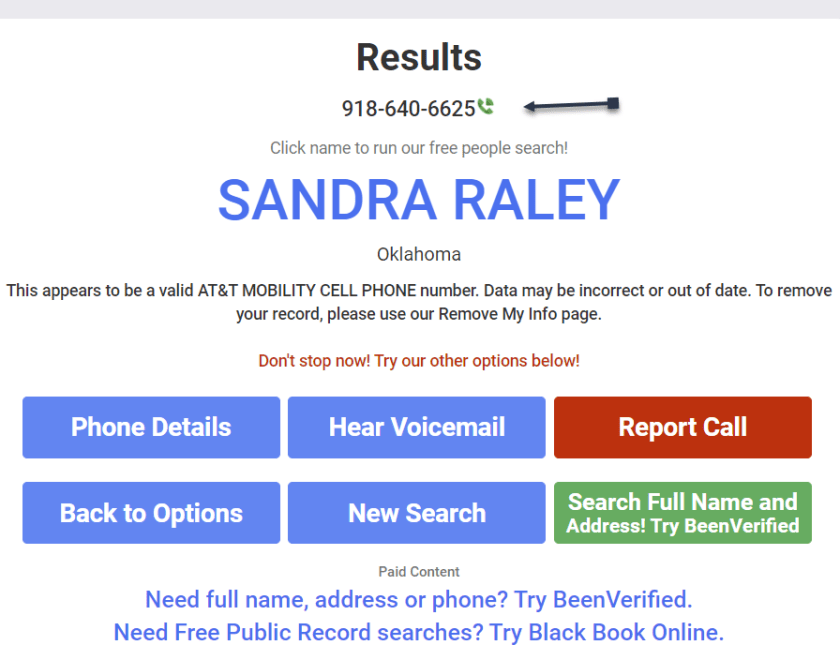
Spy Dialer allows you to search for phone numbers, names, addresses, and emails. Enter a phone number, then choose if you want to look up any linked names or photos, listen to the number’s outbound voicemail, or confirm if the number is spam or not. Spy Dialer can tell you with whom the number is registered, their general location, and whether or not the number has been reported as spam before.
For more information, click Phone Details to see how long the line has been in service and if the number is spoofed. Choose Hear Voicemail to get the caller’s outbound voicemail, if available. You can click Report Call to file a complaint with Spy Dialer.
We recommend this site over the others because it’s faster and offers more information. See the following image:
Spy Dialer main screen
peoplefinders
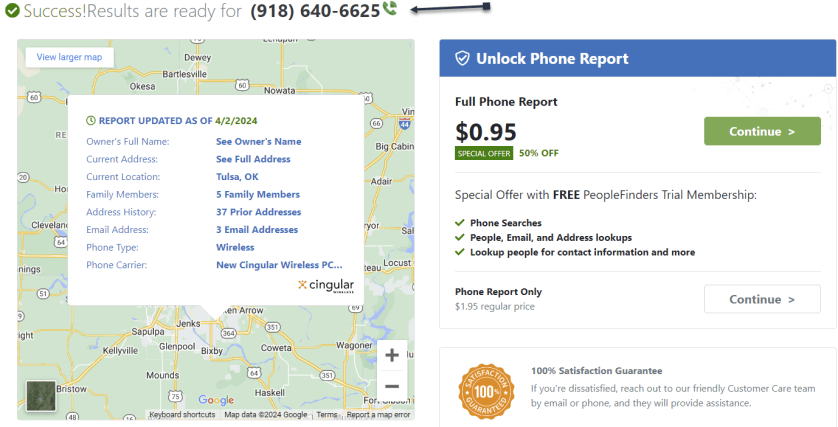
PeopleFinders allows you to look up a phone number, name, address, or email. Enter a phone number into the search bar to get the caller’s general location, carrier, and phone type. More revealing information, such as the caller’s full name and address, is hidden requiring a fee. Refer to the below image:
PeopleFinders main screen
usphonebook
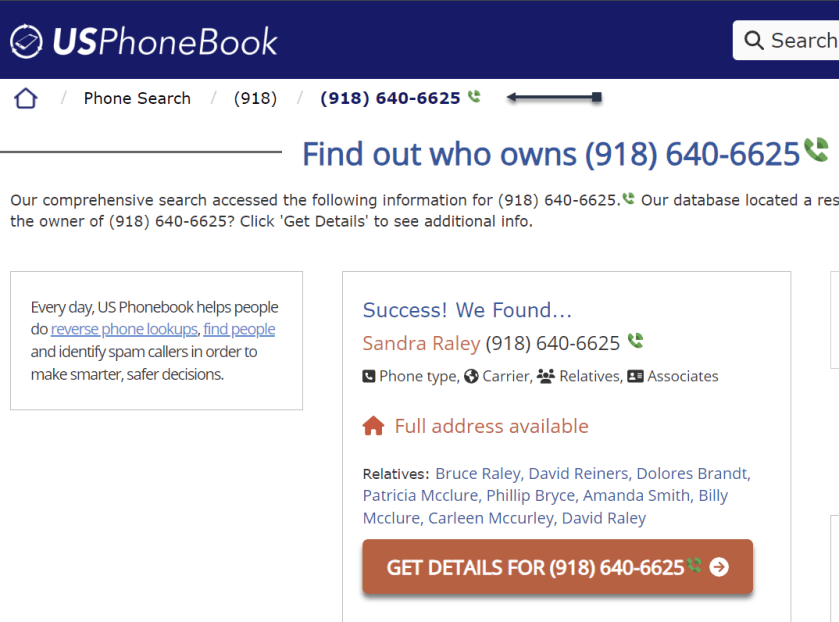
You can look up phone numbers, names, and addresses at USPhoneBook, though this works better for identifying individuals rather than businesses. Enter a number to find the person connected to it. The site will display a list of people who may be related to the person. You can then mark the number as safe or spam. Keep in mind that these listings can be outdated.
Click Get Details to view extra information about the person. This will include their age, current (and former) addresses, phone numbers associated with them, a list of relatives and associates, and even related email addresses. See the below image:
USPhoneBook main screen
What To Do Next
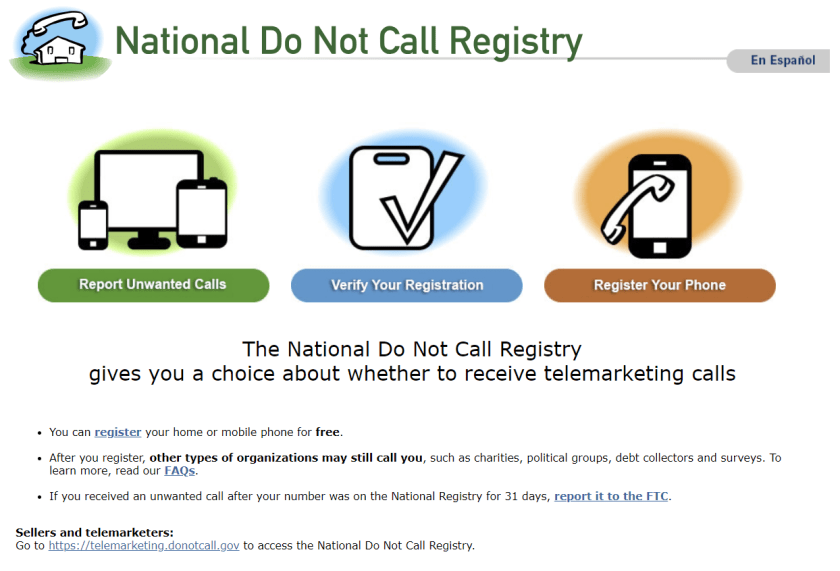
One option is to look at your mobile carrier’s anti-spam solutions for stopping spam calls and robo texts. Additionally, apps likeRoboKiller and Truecaller help keep the spam callers at bay. You can also report unwanted calls to the FTC and register your number with the National Do Not Call Registry, though those wishing to do you harm will undoubtedly ignore this. See the following image:
National Do Not Call Registry main screen
Disclaimer
Technology is always changing. Rarely is there static tech for smartphones and desktops. Thus, the contents of this post are only valid at the time of writing. Blog posts older than six months may have directions incompatible with your device or OS. Hopefully, older post content will continue to work as advertised. Thank you for reading TechSavvy.Life for Technology at Work For You.
Quote For the Day
. Motivation is what gets you started. Habit is what keeps you going.
Jim Rohn
Tweet Info
You are finished. Please feel free to share this post! One way to share is via Twitter.
Just click the Tweet icon below. This will launch Twitter where you click its icon to post the Tweet.
Checkout TechSavvy.Life for blog posts on smartphones, PCs, and Macs! You may email us at contact@techsavvy.life for comments or questions.
Was this post helpful? We would love to hear your comments. Do you have a computer or smart device tech question? I will do my best to answer your inquiry. Just send an email to contact@techsavvy.life. Please mention the device, app, and version you are using. To help us out, you can send screenshots of your data related to your question.
The post discusses methods for deleting Facebook Messenger chats on iPhone and desktop. It advises changing message retention settings on the iPhone and provides steps for deleting messages on both platforms. It also mentions using Chrome extensions for bulk deletion.
This is for the iPhone and desktop using Google. Screenshots are from iPhone 14 Pro running iOS 17.3 and Windows 10.
I was surprised at the number of Facebook Messenger chats on my iPhone. I started to delete them one at a time. But doing so was too time-consuming; there had to be a better way.
If you research this post, you will find articles that say bulk deletion of chats cannot be done. But with the help of Google Extensions, you can delete all your chats at once.
This blog post is one of my favorites, especially since I have thousands of chats that I want to delete. We had forgotten that the Forever option was selected, which as you may guess, saves your chats forever.
Where is a chat, a message, a conversation, or a thread used?
A chat is a term used in Messenger (owned by Facebook). A message is a term found on Facebook. In Facebook if there is more than one message with a person, group, or entity, that is labeled a conversation. For a thread, that is used in Reddit.
Check Your Settings
Why do you have hundreds or thousands of chats? On your iPhone head to:
Settings > Messages > Keep Messages
and tap the option. If the option is set to Forever you will have lots of chats. Refer to the below image:
Your Facebook Message time setting
We recommend you choose another option. When you do so, all older chats will be automatically deleted. We are selecting to delete messages older than one year. On the confirmation screen, tap Delete Older Messages. See the below image:
Selecting to delete messages older than one year
Your Keep Messages will now be set to the option you just chose. See the following image:
Your Keep Messages setting
Deleting Facebook messages does not have to be incredibly difficult. Whether you are deleting one or an entire history, there are options for you to do both with minimal effort.
Some users may find it easier to delete their entire Facebook account, although we do not recommend this. For now, let’s just clean up your messages/chats.
Using iPhone
Deleting messages on an iPhone or iPad one at a time:
Open the Facebook Messenger app.
Tap and hold the message that you no longer want, then swipe to the left.
When the menu appears, select Delete.
Confirm the selection by tapping Delete.
If you want to delete in bulk, it would be best to use a browser.
Using a Browser
Log into your Facebook account.
Click See all in Messenger.
Click on the 3-dot menu icon next to a conversation.
Click Delete Chat if you want to erase all the chats.
Confirm your deletion by clicking Delete Chat.
But what can you do about multiple messages and multiple conversations? For this, you have to install a third-party browser extension.
Using a Chrome Extension
Extensions become a part of your web browser and allow you to perform various functions on a website. To delete multiple or all of your Facebook message history, we need to install a web browser extension.
Whether it’s Chrome, Firefox, or Internet Explorer, we will begin by using Google to pull up the Web Store.
Note! You will find a lot of Chrome extensions for deletion of messages. We strongly recommend only using the following extensions from the Chrome web store, not from third-party web sites.
Extension: Delete Facebook Messages
You want to use Google Search to find the “Delete Facebook Messages” extension. Once you have found it, click Add to Chrome. Refer to the below image:
Adding Delete Facebook Messages Chrome extension
You will be prompted through various pop-ups until that extension is added. To view the added extension:
Click the 3-dot menu icon in the upper right-hand > Exenesions > Manage Extensions
See the below image:
Delete Facebook Messages Chrome extension
Now, let’s add the extension icon to the Chrome toolbar. Click the Details option. See the following image:
Selecting Details for the Chrome extension
Next, toggle the Pin to toolbar to ON. Refer to the below image:
Toggle Pin to toolbar to ON
Now, the Delete Facebook Messages icon will be in your toolbar. See the below image:
The Chrome extension icon
Next, click the Delete Facebook Messages icon and choose the Begin Deletion option. See the following image:
Launching the Chrome extension
Note! To use this extension more than once, there is a subscription fee.
Extension: Message Cleaner
To install the Chrome extension, search for Message Cleaner using Google Search, then select Add to Chrome. Refer to the below image:
Adding the Message Cleaner Chrome extension
Follow the directions above to add its icon to the toolbar.
The extension icon will be labeled Delete all Facebook Messages in your Chrome toolbar. When you click the extension icon you can Open Messages and Delete All Messages. For one-click deletion, press the F8 key. See the below image:
Launching the Message Cleaner Chrome extension
This extension works best if you scroll down to the bottom of the message list. Once you start the extension, it will recognize all the messages as being selected for removal. You can also then pick individual messages that you may want to save.
If you selected “all” before clicking “confirm,” the only way to get those messages back is to ask the person you sent them to for help or to use data recovery methods to retrieve backed-up information, assuming you have them backed up.
Disclaimer
Technology is always changing. Rarely is there static tech for smartphones and desktops. Thus, the contents of this post are only valid at the time of writing. Blog posts older than six months may have directions incompatible with your device or OS. Hopefully, older post content will continue to work as advertised. Thank you for reading TechSavvy.Life for Technology at Work For You.
Quote For the Day
Discipline is the bridge between goals and accomplishment.
Jim Rohn
Tweet Info
That’s it. Please feel free to share this post! One way to share is via Twitter.
Just click the Tweet icon below. This will launch Twitter where you click its icon to post the Tweet.
Checkout TechSavvy.Life for blog posts on smartphones, PCs, and Macs! You may email us at contact@techsavvy.life for comments or questions.
Please feel free to leave a comment. I would love to hear from you. Do you have a computer or smart device tech question? I will do my best to answer your inquiry. Just send an email to contact@techsavvy.life. Please mention the device, app, and version you are using. To help us out, you can send screenshots of your data related to your question.
Author’s E~Book
You can access the E-book from a Kindle device, or the Kindle App for a desktop or smartphone. The apps are free.
The author’s Vietnam eBook on the Battle for Tra Bong Vietnam: Events and Aftermath
You can start Google Chrome to open a specific page, a new tab, or continue where you left off from the On starup option. We will show you how to set this option to load your Google Apps. You can use the same procedure to load any website at startup or create a bookmark.
This is for the Desktop and iPhone. Screenshots are from Windows 10 and iPhone 14 Pro running iOS 17+
You can start Google Chrome to open a specific page, a new tab, or continue where you left off from the On startup option. We will show you how to set this option to load your Google Apps. You can use the same procedure to load any website at startup or create a bookmark.
Setup the On Startup Option
Your Google Apps can be displayed using the On startup option. First, to set this option, open Chrome and click the Menu (the 3 dots) in the upper right corner, then navigate to:
Settings > On startup
Next, under the Open a specific page or set of pages option, enter the following:
chrome://apps/
Refer to the below image:
Setting On startup option to your Google Apps
Now whenever you start Chrome, your Google Apps page will be displayed.
By doing the above, you can just click the Home button next to the address bar to display your Google Apps anytime. See the below image:
Accessing the Home button to view your Google Apps page
Clicking the Home button next to the address bar will display the page you have set as the On startup page.
Setup the Google Apps Bookmark on Desktop
If you do not have the On startup option set to Google Apps, why not create a bookmark for it. Following are the steps to do this.
First, open the Google Apps page you want to bookmark in Chrome. See the following image:
Setting your Google Apps page to bookmark
Next, click the Star icon in the address bar. Refer to the below image:
Adding your Google Apps page as a bookmark
Now, choose a name and location for your bookmark then hit Done. See the below image:
Editing your Google Apps bookmark
Next, head to your saved bookmark to see your Google Apps entry. See the following image:
Your saved Google Apps bookmark
Setup the Google Apps Bookmark on iPhone
First, open the Google Apps page you want to bookmark in Chrome then tap the Share button. Refer to the below image:
Setting your Google Apps page
Next, tap the Add to Bookmarks option. See the below image:
Adding your Google Apps bookmark
Edit the Google Apps Bookmark on iPhone
First, tap the Menu (the 3 dots) at the bottom right corner. See the following image:
Accessing the Menu option
Next, tap the Edit Bookmark option. Refer to the below image:
Choosing to edit your Google Apps bookmark
Now, change as necessary, then tap Done. See the below image:
Editing your Google Apps bookmark
Not only do bookmarks save you time as you do not need to type in a URL or search for your most frequently visited sites on Google every time you visit, but they are also great for keeping track of articles and videos you plan to head back to later. If you do not have Google Apps set as your startup page, creating a bookmark allows you to easily display the page.
Disclaimer
Technology is constantly changing; there is rarely static tech for smartphones and desktops. Thus, the contents of this post are only valid at the time of writing. Blog posts older than six months may have directions incompatible with your device or OS. Hopefully, older post content will continue to work as advertised. Thank you for reading TechSavvy.Life for Technology at Work For You.
Quote for the Day
“The best vision is insight.”
Malcolm Forbes
Tweet Info
That’s it. Please feel free to share this post! One way to share is via Twitter.
Just click the Tweet icon below. This will launch Twitter where you click its icon to post the Tweet.
Checkout TechSavvy.Life for blog posts on smartphones, PCs, and Macs! You may email us at contact@techsavvy.life for comments or questions.
Please feel free to leave a comment. I would love to hear from you. Do you have a computer or smart device tech question? I will do my best to answer your inquiry. Just send an email to contact@techsavvy.life. Please mention the device, app, and version you are using. To help us out, you can send screenshots of your data related to your question.
Author’s E-Book
You can access the e-book from a Kindle device, the Kindle App for the desktop or smartphone, which is a free app.
The author’s Vietnam eBook on the Battle for Tra Bong Vietnam: Events and Aftermath
This post provides instructions on finding Wi-Fi passwords on Windows and iPhone devices. For Windows, it details how to access and reveal the password in plain text. For iPhone, it explains the steps to reveal the Wi-Fi password. The post also includes a disclaimer about technology changes and a quote by Thomas Sowell.
This is for Windows 10/11 and iPhone. Screenshots are from Windows 10 and iPhone 14 Pro running iOS 17+
Are you connected to Wi-Fi on one device, but need the password to log in on another? Here’s how to find Wi-Fi passwords in Windows and iOS.
Struggling to connect to Wi-Fi? Maybe your laptop is connected but your phone is not, or you need to share your network with a guest but can not remember the password. There are ways to wirelessly share passwords between devices, but that’s not always an option.
Below, we will outline how to grab a Wi-Fi password from already-connected devices by viewing it as plain text. This way you do not need to reset the network security or hack the Wi-Fi network so everyone can get online.
View Password Using Windows
Windows makes this easy, as long as you are connected to the network.
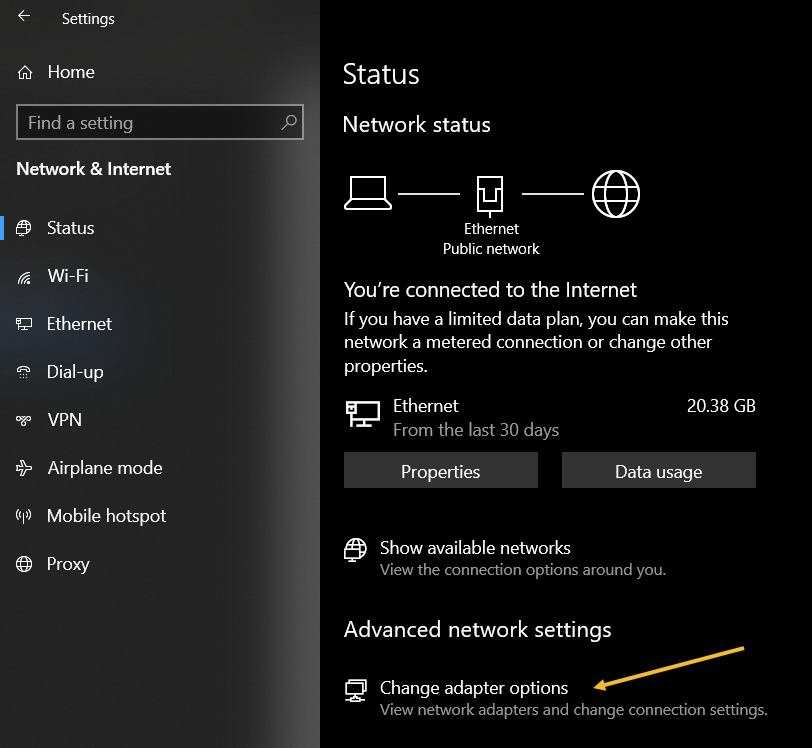
For Windows 10, open:
Settings > Network & Internet
then click the Change Adapter Options button. Refer to the below image:
Accessing your network
For Windows 11, open:
Advanced network settings > More network adapter options
then right-click on your computer’s Wi-Fi adapter in the list and choose:
Status > Wireless Properties
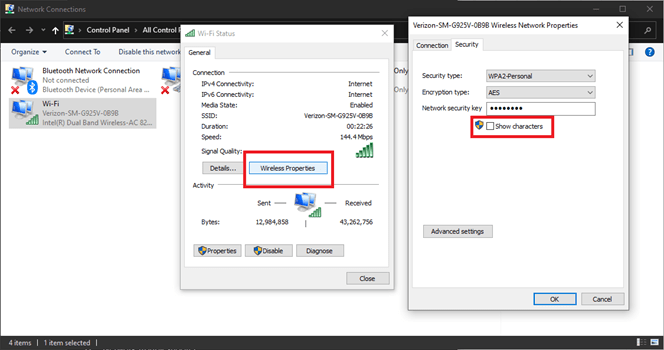
Open the Security tab, and you should see a password box with dots in it. Click the Show Characters box to see the password in plain text. See the below image for Windows 10:
Viewing your password in plain text on Windows 10
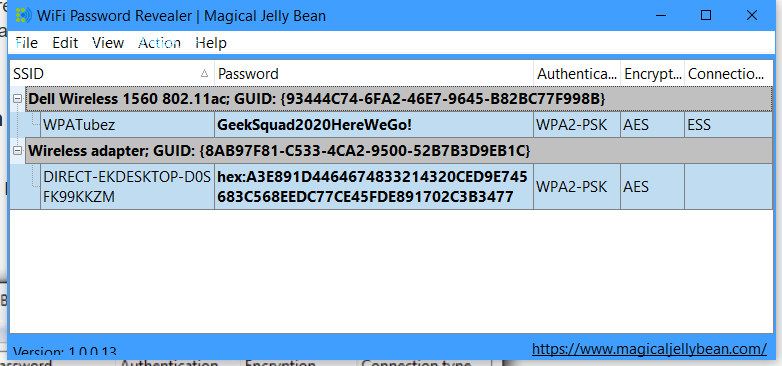
If you are trying to view the password for a network you are not currently connected to, things are a tad more complicated. You can download a third-party app like Wi-Fi Password Revealer which will show you the passwords of all saved networks. See the following image :
Viewing Password Revealer software
View Password Using iPhone
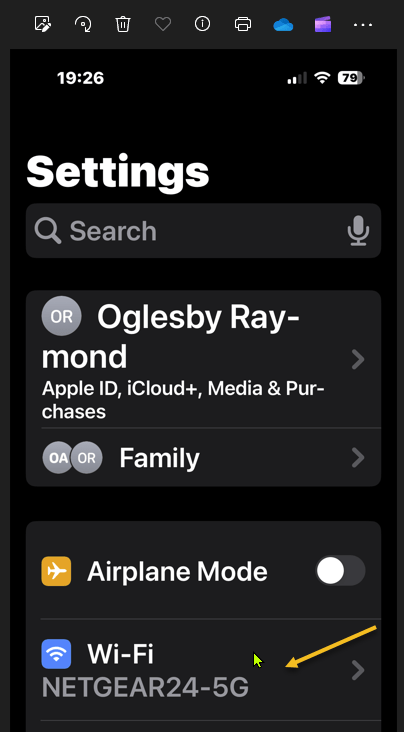
iPhone users could not view Wi-Fi passwords as plain text until iOS 16. First, open:
Settings > Wi-Fi
Refer to the below image:
Accessing your Wi-Fi network
Now, tap the “i” icon for the current network. See the below image:
Tapping the informational icon
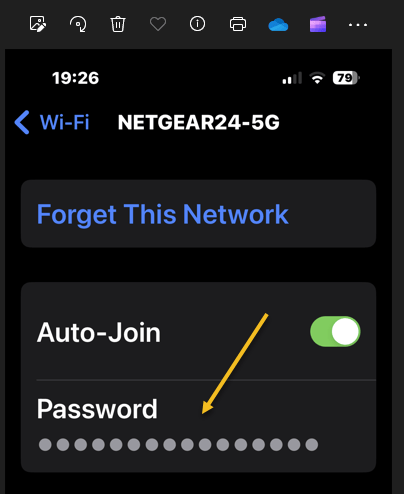
Next, select the Password entry and verify your identity with FaceID, Touch ID, or a Passcode. See the following image:
Tapping the hidden password
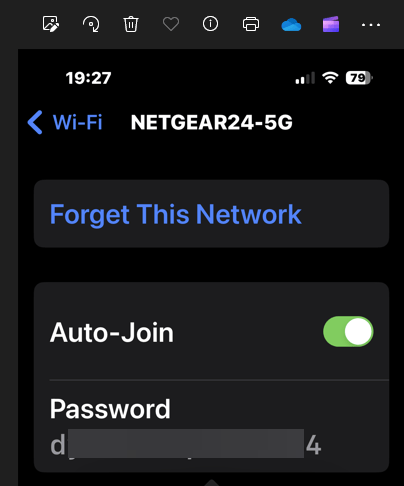
Now tap the password box with dots in it to reveal the password in plain text. Refer to the below image:
Revealing the hidden password in plain text
Disclaimer
Technology is always changing and rarely is there static tech for smartphones and desktops. Thus, the contents of this post are only valid at the time of writing. Blog posts older than six months may have directions incompatible with your device or OS. Hopefully, older post content will continue to work as advertised. Thank you for reading TechSavvy.Life for Technology at Work For You.
Quote For the Day
It is hard to imagine a more stupid or more dangerous way of making decisions than by putting those decisions in the hands of people who pay no price for being wrong.
Thomas Sowell
Tweet Info
That’s it. Please feel free to share this post! One way to share is via Twitter.
Just click the Tweet icon below. This will launch Twitter where you click its icon to post the Tweet.
Checkout TechSavvy.Life for blog posts on smartphones, PCs, and Macs! You may email us at contact@techsavvy.life for comments or questions.
Please feel free to leave a comment. I would love to hear from you. Do you have a computer or smart device tech question? I will do my best to answer your inquiry. Just send an email to contact@techsavvy.life. Please mention the device, app, and version you are using. To help us out, you can send screenshots of your data related to your question.
Author’s E-Book
You can access the e-book from a Kindle device, the Kindle App for the desktop or smartphone, which is a free app.
The author’s Vietnam eBook on the Battle for Tra Bong Vietnam: Events and Aftermath
This post provides instructions for customizing the Google homepage on both the Google website and Google Chrome. It covers enabling Dark Mode, changing the homepage color and background, managing shortcuts, and installing themes from the Chrome Web Store. The post also includes a disclaimer about technology changes and a quote for the day.
This is for devices using Google. Screenshots are from Windows 10
How many times a day do you navigate to Google.com to look up something on the internet? Modern browsers allow you to search directly from the address bar, so there are a few reasons to load up Google Search’s homepage, but some people can not shake the habit. If that’s you, at least customize it to your needs. Here’s how to customize your Google Homepage.
Enable Google Search Dark Mode
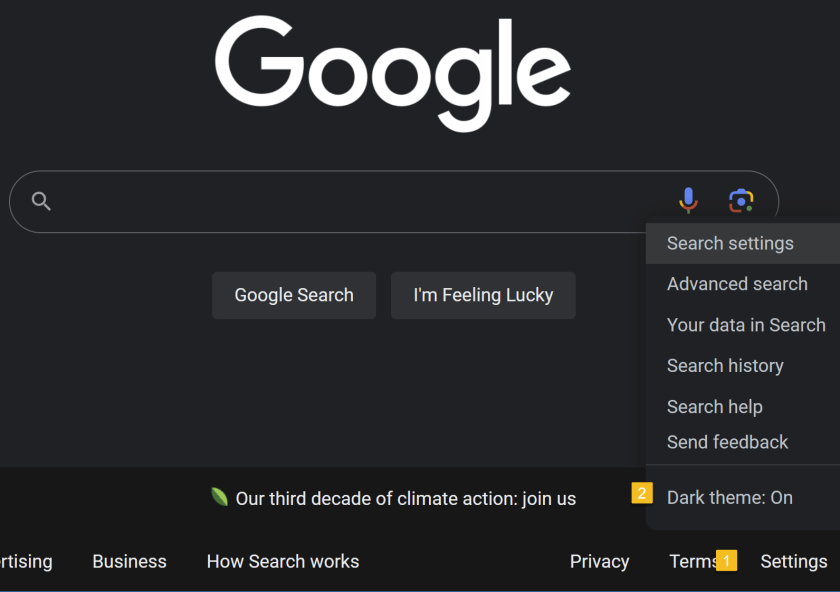
The barebones aesthetic of Google.com keeps things simple…and bright. Turn down the lights with Dark Mode. Click the Settings button in the lower-right corner of the screen, where you can toggle the Dark theme on and off to change the theme you see on Google Search results pages. Refer to the below image:
Set Dark Mode
Customize Google Chrome Homepage
Are you a Google Chrome user? If so, chances are your homepage is set to Google already, which adds a few shortcuts to Google’s usually minimalist screen. Unlike the Google website, this version of Google Search only follows the default theme setting of your operating system.
To customize Chrome’s Homepage, click the Customize Chrome link in the bottom-right of the screen to open options related to appearance, shortcuts, and what Google calls Cards. Change the color of Chrome’s homepage and menus by choosing one of the preset colors in the menu or selecting the color picker option. See the below image:
Set your color
For more options, click Change Theme to see several available categories. You can set your homepage to feature Chrome’s brand colors or select among collections of landscapes, space, art, and various artists. Each option gives you a background and color theme. You can also upload your own picture to use as a background. See the following image:
Set your background
From the Customize Chrome menu, you can also tell Google whether or not you want to show shortcuts on the Homepage. Enable My shortcuts to manually set what websites should be included or the Most visited sides to have Google suggest websites based on how often you visit them. Lastly, Google has a Cards section that allows you to see recent Google Drive files, shopping carts, and recipes. You can turn this section off or disable certain components.
Install Themes
You can also customize your Google Homepage on Chrome with the help of themes from the Chrome Web Store. Open the Customize Chrome menu and click Change Theme, then choose the Chrome Web Store listing at the bottom. (Or open Settings > Appearance > Theme.) Refer to the below image:
Search the Chrome Web Store
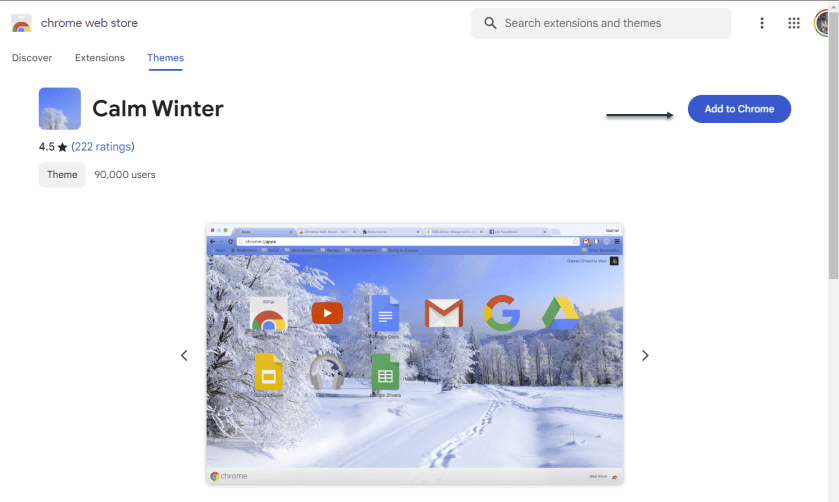
Choose the Themes tab on the web store sidebar to search through various categories. Click into a category, then select a theme you like and choose Add to Chrome to download the theme and apply it to your Google page. See the below image:
Select a theme
Disclaimer
Technology is always changing and rarely is there static tech for smartphones and desktops. Thus, the contents of this post are only valid at the time of writing. Blog posts older than six months may have directions incompatible with your device or OS. Hopefully, older post content will continue to work as advertised. Thank you for reading TechSavvy.Life for Technology at Work For You.
Quote For the Day
Think big. Start small.
Seth Godin
Tweet Info
That’s it. Please feel free to share this post! One way to share is via Twitter.
Just click the Tweet icon below. This will launch Twitter where you click its icon to post the Tweet.
Checkout TechSavvy.Life for blog posts on smartphones, PCs, and Macs! You may email us at contact@techsavvy.life for comments or questions.
Please feel free to leave a comment. I would love to hear from you. Do you have a computer or smart device tech question? I will do my best to answer your inquiry. Just send an email to contact@techsavvy.life. Please mention the device, app, and version you are using. To help us out, you can send screenshots of your data related to your question.
Author’s E-Book
You can access the e-book from a Kindle device, the Kindle App for the desktop or smartphone, which is a free app.
The author’s Vietnam eBook on the Battle for Tra Bong Vietnam: Events and Aftermath
Does Microsoft Edge keep placing its shortcut on your desktop without you telling it to do so? Your frustration will soon be over, as we will show you how to stop Microsoft’s web browser from creating its shortcut and cluttering your desktop.
This is for the desktop running Edge. Screenshots are from Windows 10
Does Microsoft Edge keep placing its shortcut on your desktop without you telling it to do so? Your frustration will soon be over, as we will show you how to stop Microsoft’s web browser from creating its shortcut and cluttering your desktop. Let’s find out how this is done.
The most reliable way to prevent Edge from making its shortcut on your desktop is by tweaking a value in your Windows registry. This value tells Edge whether to make the shortcut and once you set it to OFF, the browser will not make any shortcuts.
Using the Registry Editor
Note: Making accidental incorrect changes in your Windows registry can make your PC unstable. So, be very careful while editing the values in your registry.
First, open the Run dialog box by pressing Windows+R. In the box, type the following and press Enter.
regedit
Next, in the User Account Control prompt, select Yes.
Now, in the Registry Editor, using the options on the left, navigate to the following path:
Next, if you do not see the EdgeUpdate path, create it manually by right-clicking Microsoft in the left sidebar, choosing
New > Key, using “EdgeUpdate
as the key name, and click Enter. Refer to the below image:
Editing the Registry
Now, on the right pane, click anywhere blank and select
New > DWORD (32-bit Value)
See the below image:
Accessing the DWORD option
Next, use CreateDesktopShortcutDefault as the entry name and press Enter. Then, double-click the entry to open it. In the open box, click the Value Data field and type “0”. Then, choose OK. See the following image:
Setting the DWORD
Now, close the Registry Editor and restart your PC. You will notice that Edge does not create its shortcut anymore.
Using Startup Programs List
If for some reason the registry edit above does not work for you, you can also work to stop Edge from automatically launching on your PC’s boot. If you removetheprogramfrom your startup list, it will not be able to make the shortcut.
First, right-click your Start menu icon and choose Task Manager. Refer to the below image:
Accessing the Task Manager
Next, in the Task Manager, access the Startup Apps section. Here, right-click msedge or Microsoft Edge and choose Disable. See the below image:
Disable Edge
Now, Windows stops Edge from automatically launching on boot, preventing it from making its desktop shortcut.
Set Edge as Non-Default
If you have set Edge as the default web browser, make it the non-default browser to prevent it from creating a desktop shortcut. You should use this method if the above methods have failed to work for you.
Ensure you have at least one non-Edge web browser installed on your PC. You have various web browsers to choose from, including Chrome, Firefox, and Brave.
For Windows 10
First, navigate to
Settings > Apps > Default Apps
Next, in the Web Browser section, click Microsoft Edge and choose another web browser to make it the default. Refer to the following image:
Setting Chrome as the default browser
Now, restart your PC, and that’s it.
Disclaimer
Technology is always changing and rarely is there static tech for smartphones and desktops. Thus, the contents of this post are only valid at the time of writing. Blog posts older than six months may have directions incompatible with your device or OS. Hopefully, older post content will continue to work as advertised. Thank you for reading TechSavvy.Life for Technology at Work For You.
Quote For the Day
Don’t worry about failure; you only have to be right once.
Drew Houston
Tweet Info
That’s it. Please feel free to share this post! One way to share is via Twitter.
Just click the Tweet icon below. This will launch Twitter where you click its icon to post the Tweet.
Checkout TechSavvy.Life for blog posts on smartphones, PCs, and Macs! You may email us at contact@techsavvy.life for comments or questions.
Please feel free to leave a comment. I would love to hear from you. Do you have a computer or smart device tech question? I will do my best to answer your inquiry. Just send an email to contact@techsavvy.life. Please mention the device, app, and version you are using. To help us out, you can send screenshots of your data related to your question.
Author’s E-Book
You can access the e-book from a Kindle device, the Kindle App for the desktop or smartphone, which is a free app.
The author’s Vietnam eBook on the Battle for Tra Bong Vietnam: Events and Aftermath
Wondering why Facebook displays a green dot on someone’s profile picture, in the Messenger app, and next to the camera icon in Messenger? What the green dot means is context-dependent.
This is for mobile devices and desktops using Facebook and Messenger. Screenshots are from Windows 10
Wondering why Facebook displays a green dot on someone’s profile picture, in the Messenger app, and next to the camera icon in Messenger? What the green dot means is context-dependent. Let’s decode this green dot.
Key Points
The green dot on someone’s Facebook profile picture indicates that they are active on the Facebook platform, whether on the site, through the app, or on the Messenger app.
In Facebook Messenger, the green dot next to people’s profile pictures confirms that they are currently active on Facebook, either through Messenger, the app, or the site.
A green dot next to the camera icon in Messenger means that the user is available for a video call.
Disable the feature so others do not know you are active on Facebook or Messenger.
Green Dot on Facebook
On Facebook’s desktop site or mobile app, when you visit someone’s profile page, you might have seen a green dot. This green dot indicates that the user is active on the Facebook platform. Refer to the below image:
The user is active on the Facebook platform
The dot does not necessarily mean the user is active on the Facebook site. The user may be using the Facebook app or even the Messenger app. But if you see it, it means the user is active somewhere within the Facebook network and it can stand in as an online indicator.
Green Dot on Messenger
While scrolling chat lists in the Messenger app, you may have seen green dots appearing in the bottom-right corner of people’s profile pictures. These green dots indicate that those users are currently active on Facebook. See the below image:
Those users may be active on Messenger, the Facebook app, or the Facebook site. The dot just indicates that they are active somewhere on the Facebook platform.
Green Dot Next to Camera Icon on Messenger
When you see a green dot next to the camera icon in the Messenger app, it means that the user is available for a video call in the app. This indicator is separate from the profile picture indicator we discussed in the previous two sections and only references video call availability. See the following image:
The user is available for a video call
So when you see the camera-adjacent green dot you know the user has Messenger installed, and it’s possible for you to initiate a video call with them.
Disable Active Status on Desktop Facebook Website
In a browser, log in to Facebook and then click the Messenger icon in the top-right corner of the page.
Click the Menu icon (three dots) at the top of the chats window.
Click Active Status.
Toggle off the switch next to Active Status: ON to disable it. The switch will be turned OFF.
You can enable the Active Status at any time. by toggling the switch to the ON position.
Note! A couple of additional options in the Active Status window allow you to appear active for some friends, but not others, and vice versa. Simply tap the edit button to select which friends you want to include in either list. Refer to the below image:
Active Status options
You can disable the feature on your mobile device but it’s more complicated.
Disclaimer
Technology is always changing and rarely is there static tech for smartphones and desktops. Thus, the contents of this post are only valid at the time of writing. Blog posts older than six months may have directions incompatible with your device or OS. Hopefully, older post content will continue to work as advertised. Thank you for reading TechSavvy.Life for Technology at Work For You.
Quote For the Day
When you find an idea that you just can’t stop thinking about, that’s probably a good one to pursue.
Josh James
Tweet Info
You are finished. Please feel free to share this post! One way to share is via Twitter.
Just click the Tweet icon below. This will launch Twitter where you click its icon to post the Tweet.
Checkout TechSavvy.Life for blog posts on smartphones, PCs, and Macs! You may email us at contact@techsavvy.life for comments or questions.
Please feel free to leave a comment. I would love to hear from you. Do you have a computer or smart device tech question? I will do my best to answer your inquiry. Just send an email to contact@techsavvy.life. Please mention the device, app, and version you are using. To help us out, you can send screenshots of your data related to your question.
Author’s E-Book
You can access the e-book from a Kindle device, the Kindle App for the desktop or smartphone, which is a free app.
The author’s Vietnam eBook on the Battle for Tra Bong Vietnam: Events and Aftermath