If you do not want Google Chrome to remember your activity, you can browse the web privately in Incognito mode.
If you do not want Google Chrome to remember your activity, you can browse the web privately in Incognito mode.
It is easy to quickly open an Incognito window using a keyboard shortcut. Lets explore how to do this.
This is devices running Google Chrome
Copyright Scott Adams, Inc./Distributed by Universal Uclick for UFS
First, open Chrome. Next, with any Chrome browser window open, press the following keyboard combination to open a new Incognito window:
Windows, Linux, or Chrome OS: Press Ctrl + Shift + N.
Mac: Press ⌘ + Shift + N.
After pressing the keyboard shortcut, a special Incognito window will open. If you want to block third-party cookies, just toggle the switch to On, the default setting. Refer to below image:
The Incognito window
Whenever you are in Incognito mode, you will be able to tell because the Chrome browser window’s toolbar will have a darker color scheme and there will be a small Incognito icon beside the address bar in the toolbar. See below image:
The icon and text telling you are in Incognito mode
You can switch between Incognito windows and regular Chrome windows. You will only browse in private when you are using an Incognito window.
While browsing within an Incognito window, Chrome will not locally store your browsing history, site data, cookies, or saved form data once you close the Incognito window. However, downloaded files and bookmarks will be saved unless you manually remove them.
At any time, you can press Ctrl+T (or ⌘ + T on Mac) to open a new tab within the Incognito window, and browsing activity within that tab will be locally private as well.
Remember that Incognito mode is not perfect, and it does not protect you from those who might view your activity on the web remotely, such as your employer, school, ISP, or the websites you visit. It is only to prevent local snooping of your browsing history.
If you see a number next to the Incognito text at the top right, you have more than one Incognito window open. See following image:
The number of Incognito windows open
When you are ready to stop private browsing, you will need to close the Incognito window(s). To do so using a keyboard shortcut:
Windows, Linux, or Chrome OS: Press Alt + F4
Mac: Press ⌘ + Shift + W
Or you can just click the “X” in the corner of the window with your mouse.
That’s it. Please feel free to share this post! One way to share is via Twitter, as mentioned below.
I hope you have found this post helpful. If so, click the Tweet icon below. This will launch Twitter where you click its icon to post the Tweet.
Check out TechSavvy.Life for blog posts on smartphones, PCs, and Macs! You may email us at contact@techsavvy.life for comments or questions.
Please feel free to leave a comment. I would love hearing from you. Do you have a computer or smart device tech question? I will do my best to answer your inquiry. Just send an email to contact@techsavvy.life. Please mention the device, app and version that you are using. To help us out, you can send screenshots of your data related to your question.
The author’s Vietnam eBook on the Battle for Tra Bong: Events and Aftermath
Apple released a software update for iPhones and iPads in their operating system that includes a built-in music recognition icon that can help you quickly identify a song that is playing.
Apple released a software update for iPhones and iPads in their operating system that includes a built-in music recognition app that can help you quickly identify a song that is playing.
It is one way Apple is using Shazam, which it acquired in 2018. Since it is built-in, you don’t need to have the Shazam app installed for this to work. All you do is add a button to the Control Center menu and then, when you hear a song you like and want to know who the artist is, you just tap the button.
This is for iPhone and iPad
Copyright Scott Adams, Inc./Distributed by Universal Uclick for UFS
Setting Up Music Recognition
We need to check your software updates, enable Siri, and download/install the Shamaz app.
First, let’s check your software updates. Head to
Settings > General > SoftwareUpdate
for the iOS or iPadOS 14.2 update (or higher) and update if necessary.
Next, head to the Apple Store to download/install the Shazam app.
Here.is how the feature works. When you tell your iPhone to listen for a song, it uses its microphone to record the audio around you. That audio data is uploaded to a server and analyzed, matching it to a known song in a database.
Listen by Siri
Let’s examine another built-in feature that does not require the lastest software update; Siri. To enable Siri, go to
Settings > Siri & Search
and toggle on Listen for Hey Siri. You may also want to enable Press Side Button for Siri. Refer to below image:
Enabling Siri
You can ask Siri what song is playing by saying something like “What’s that song?” or “What’s playing?”.
To activate Siri, long-press the Power button. Say “What’s that song?”. If you have Hey Siri set up, you can also say “Hey Siri, what’s that song?” without pressing any buttons.
Siri will pop up and say something like “Let me listen” or “Naming that tune.” Be sure your iPhone can hear the music properly. If you are in a noisy location or someone is talking loudly over the music, it might not hear the song well enough. If you have a problem, try moving your iPhone closer to the sound source playing the music, reducing noise in the area, or turning the volume up on the speaker playing the song. See below image where Siri is listening for a song:
Listening by Siri
If your device hears the song well enough, it will show you the song. If not, you will receive a message like “I can’t seem to recognize this song”.
Listen by Shazam in Control Center
As of the iOS and iPadOS 14.2 update, there is now a quick Control Center button you can use to start identifying a song. However, it is not enabled by default. Why; I do not know. Why does Apple want to hide this feature? But that is the reason for this post; to show you how to setup and use the Shazam built-in app.
First, head to Settings (the gear icon). See following image:
Accessing Settings
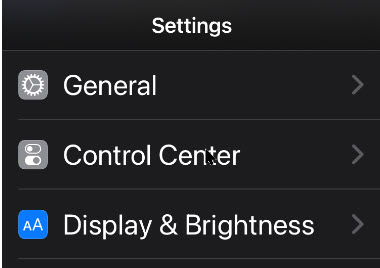
Next, scroll down to Control Center. Refer to below image:
Accessing Control Center option
Now, scroll down and tap the plus (+) sign to the left of the Music Recognition button to add the feature to the Control Center. If you do not see this option on the Settings screen, you have not updated your iPhone or iPad to 14.2 or higher yet. See below image:
Enabling Music Recognition in Control Center
You can then drag it up or down in the list to rearrange the Control Center layout.
With the button added, you can now swipe down from the top-right corner of your device screen to open the Control Center. (On an older iPhone without a notch, you will have to swipe up from the bottom of the screen instead.)
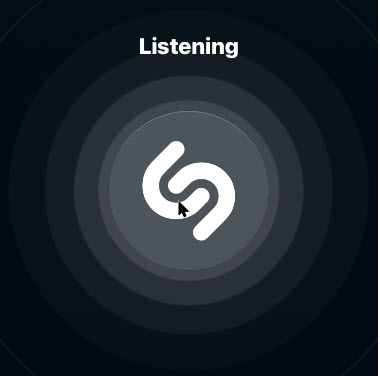
Now, tap the button with the Shazam logo. The button will light up and pulse while it listens to the audio around you. Ensure your iPhone can hear the audio source properly. See following image:
Listening by Shazam in Control Center
When the process is complete (it can take 10-15 seconds), you will see a “Music Recognition” notification banner showing you what song is playing. This notification appears along with all your other apps’ notifications in your notification center. If it can not identify a song in that period of time, you will see a notification saying a song was not detected.
Listen by the Shazam App
If you want more features, you will need a separate music recognition app on your device. The integrated music recognition features rely on Shazam, the music recognition app Apple purchased.
Shazam still has an app for your device that you can install, and it has more features. For example, the Shazam app supports Autp Shazam. In this mode, Shazma will stay in the background on your iPhone or iPad, listen to everything around you, and store a history of songs it’s heard. For example, let’s say you are at a party or ballroom dance competition and you love the playlist. You can enable Auto Shazma mode and your phone or tablet will automatically remember all the songs that was played. You can even keep using other apps on your device while Shazma listens.
To use this feature, install the Shazma app as mentioned in the beginning of this post. Now, launch it, and long-press the big Shazma button, to enable Auto Shazma mode. Refer to below image:
Listening by Shazam app
Listen by Google
Although, not an Apple product, here is another music recognition method.
If a song you are trying to identify is trapped in your head and all you can remember is the song’s melody, there is still something you can do. With the Google app, you can hum or whistle a song’s tune to identify it.
Launch Google Search
Tap the microphone icon
Tap the Search A Song button
Now, start humming or whistling the song you are trying to identify. If Google can find similar matches, the results will appear labeled with match percentages. Tap More Results to see more possible matches. If Google does not find a match, you will receive a message saying so.
That’s it. Please feel free to share this post! One way to share is via Twitter, as mentioned below.
Just click the Tweet icon below to launch Twitter where you click its icon to post the Tweet.
Check out TechSavvy.Life for blog posts on smartphones, PCs, and Macs! You may email us at contact@techsavvy.life for comments or questions.
Please feel free to leave a comment. I would love hearing from you. Do you have a computer or smart device tech question? I will do my best to answer your inquiry. Just send an email to contact@techsavvy.life. Please mention the device, app and version that you are using. To help us out, you can send screenshots of your data related to your question.
The author’s Vietnam eBook on the Battle for Tra Bong: Events and Aftermath
Gmail allows you to change the name that is associated with your email address. Your display name and your email address will show up when you send an email from your Gmail account.
Gmail allows you to change the name that is associated with your email address. Your display name and your email address will show up when you send an email from your Gmail account.
Your Google username is what pops up whenever you send someone an email. It is how people identify you, and how they know that it is okay to open those messages, even if your email address does not include your full name or another way of identifying who you are.
Keep in mind that changing your username is not the same as changing your email address; you would need to create a new account for that.
Before diving in, keep in mind that this action is not yet supported on mobile devices like Android, iPhone, or iPad. This can only be done on your desktop/laptop browser and you have to be logged into your Gmail account to get started.
This is for the PC
Copyright Scott Adams, Inc./Distributed by Universal Uclick for UFS
Setting Menus
To change the name on your Gmail account, first, log in to your account through mail.google.com on your desktop/laptop browser. Note! You may already be logged in, if so, you can just launch Gmail.
Now, click the gear icon to open the Settings menu. Refer to below image:
Accessing Gmail Settings
Next, select See All Settings link at the top of the drop-down menu. See below image:
Accessing See All Settings link
You will now be in the General tab of Gmail’s Settings menu. Now, click the Accounts and Import tab. See following image:
Selecting the Accounts and Import tab
Your Display Name
Notice in the Send Mail As section, you will see your email address and the display name associated with your address. Author’s Note! Email addresses have been grayed out for privacy purposes.
Next, click the Edit Info button to change your display name. Refer to below image:
Selecting Edit Info button
A new window will appear. Here, you can change your display name by clicking the bubble next to the text box and then typing the new display name in that text box.
Now, click Save Changes to apply your change. See below image:
Changing your display name
Your Changed Display Name
Now, you will see your newly entered display name next to the Send Mail As section in Gmail’s Settings menu. See following image:
Showing your new display name
Final Notes
The next time you send an email, your new display name will be shown to the recipient.
While Google allows you to change your display name, you can not actually change your username (which is different than your display name) or your email address. As mentioned previously, if you really need a new email address, you can always create another Google account. Also, you can migrate your data from your “old” account to the newly created one.
You are finished. Please feel free to share this post! One way to share is via Twitter, as mentioned below.
I hope you have found this post helpful. If so, click the Tweet icon below. This will launch Twitter where you click its icon to post the Tweet.
Check out TechSavvy.Life blog posts about smart phone apps, PCs, and Macs! You may email us at contact@techsavvy.life for comments or questions.
Please feel free to leave a comment. I would love hearing from you. Do you have a computer or smart device tech question? I will do my best to answer your inquiry. Just send an email to contact@techsavvy.life. Please mention the device, app and version that you are using. To help us out, you can send screenshots of your data related to your question.
The author’s Vietnam eBook on the Battle for Tra Bong: Events and Aftermath
Need to clear your Google Chrome browsing data? Your browsing data is stored in a “cache” and at times, may cause a problem with the actual data stored on a website. By clearing your browsing data, you are starting with a “fresh cache” to avoid inconsistencies.
Need to clear your Google Chrome browsing data? Your browsing data is stored in a “cache” and at times, may cause a problem with the actual data stored on a website. By clearing your browsing data, you are starting with a “fresh cache” to avoid inconsistencies.
This is for PCs, Macs, iPhone and iPad
Copyright Scott Adams, Inc./Distributed by Universal Uclick for UFS
FIRST, before doing any of the following, launch your Google Chrome app. For the iPhone or iPad
Open an article or your account and tap the the hamburger icon (the 3 dots) in lower right-hand corner.
Tap History. (It may be labeled MoreHistory). Also, you can view more of your history at historygoogle.com
At the bottom, tap Clear Browsing Data.
Check Browsing history. It may be checked by default.
Uncheck any other items you don’t want to delete.
Tap Clear Browsing Data. Tap Clear Browsing Data again or Cancel if you do not want to proceed.
At the top right, tap Done, then tap Done again.
Refer to below image:
Clearing Chrome browsing data on an iPhone or iPad
For Windows, Mac, or Linux
Press Cntl+Shift+Delete keys for Windows or Linux. Press Command+Shift+Backspace for a Mac. The backspace key is labeled “Delete”.
Uncheck any items you don’t want to delete.
Press Clear data button in lower right.
Hit Enter or Return key.
See below image:
Clearing Chrome browsing data for Windows, Mac, or Linux
IMPORTANT: Be sure and close/quit your browser and restart it after clearing your browsing data.
Your browsing history will be cleared to the level you have chosen. You may repeat the above process to clear any unchecked items.
That’s it. Please feel free to share this post! One way to share is via Twitter, as mentioned below.
I hope you have found this post helpful. If so, click the Tweet icon below. This will launch Twitter where you click its icon to post the Tweet.
Check out TechSavvy.Life for blog posts on smartphones, PCs, and Macs! You may email us at contact@techsavvy.life for comments or questions.
Please feel free to leave a comment. I would love hearing from you. Do you have a computer or smart device tech question? I will do my best to answer your inquiry. Just send an email to contact@techsavvy.life. Please mention the device, app and version that you are using. To help us out, you can send screenshots of your data related to your question.
The author’s Vietnam eBook on the Battle for Tra Bong: Events and Aftermath
The iPhone has been out for over a decade, and for most of that time, Apple has only allowed one browser to be the default. Safari, the one they built; till iOS 14 and higher, has been the only supported browser.
The iPhone has been out for over a decade, and for most of that time, Apple has only allowed one browser to be the default. Safari, the one they built; till iOS 14 and higher, has been the only supported browser.
This means that Google Chrome fans can finally set the app as their default, and use it for all their browsing.
As long as your device is running the latest version of the operating system, this setting should be available to you.
You can change the default browser in the Settings app. First, though, make sure you have downloaded the latest version of Chrome from the App Store and opened it at least once.
This is for iPhone and iPad
Copyright Scott Adams, Inc./Distributed by Universal Uclick for UFS
First, launch your Settings app (the gear icon). Refer to below image:
Accessing Settings
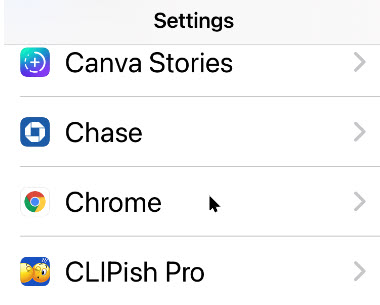
Next, scroll way down to the Chrome section and tap on it. See below image:
Selecting Chrome app settings
Now, tap the Default Browser App option. See following image:
Selecting Default Browser App option
You will see a list of installed browsers. Tap the Chrome app to place a checkmark by it. Refer to below image:
Selecting Chrome as the default browser
To ensure your setting, tap the Back text button. You may now exit Settings.
That’s all you need to do! Chrome is now your default browser on your iPhone and/or iPad.
You may still see Safari if an app uses this browser by default. If this happens, you can simply tap the associated browser icon to reopen the page in Chrome.
If you want to revert back to Safari or choose another browser, navigate back to the Default Browser App section in the Chrome or Safari settings.
You are done. Please feel free to share this post! One way to share is via Twitter, as mentioned below.
I hope you have found this post helpful. If so, click the Tweet icon below. This will launch Twitter where you click its icon to post the Tweet.
Check out TechSavvy.Life for blog posts on smartphones, PCs, and Macs! You may email us at contact@techsavvy.life for comments or questions
Please feel free to leave a comment. I would love hearing from you. Do you have a computer or smart device tech question? I will do my best to answer your inquiry. Just send an email to contact@techsavvy.life. Please mention the device, app and version that you are using. To help us out, you can send screenshots of your data related to your question.
The author’s Vietnam eBook on the Battle for Tra Bong: Events and Aftermath
October is designated as National Cybersecurity Awareness Month with this event marking the 17th year that we in the cybersecurity community promote increased awareness on cybersecurity and privacy issues.
October is designated as National Cybersecurity Awareness Month with this event marking the 17th year that we in the cybersecurity community promote increased awareness on cybersecurity and privacy issues. After 17 years, you might think that we should be winding down; that we don’t have much left to say on this subject. The truth is the exact opposite. Every year more and more of our daily lives and services move to the digital world. Last year my family began doing most of our grocery shopping online and now this year due to the global events of 2020, most families, including ours, moved our children’s school online. Increased cybersecurity awareness it seems is needed now more than ever.
Password Security
For this month, I wanted to share with you some thoughts and advice about passwords. You have probably read a lot of advice on passwords in the past like “make them long and unguessable”, “use a password manager”, or “don’t use the same password on more than one website”. All this advice is great, and I still recommend you do all of these steps. Most browsers have a built-in password manager that’s pretty good, easy to setup, and will even sync your passwords between your phone and computer if you use the same browser. However, the truth is that passwords by themselves are not enough to keep you fully safe on the Internet. I view password like a VCR or 8-track player. Old technology for the past that can’t keep up with today’s 4K, blue ray, and streaming Internet. Passwords provide a very minimal level of protection, but they need some help.
Multi-Factor Security
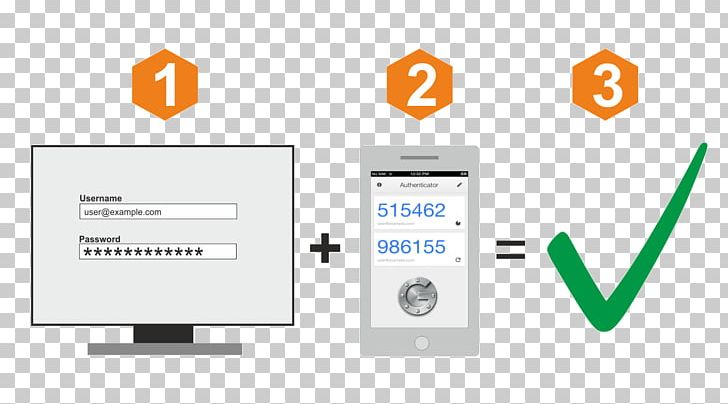
The good news is that help is already here, you just have to setup it up or turn it on. We call this additional level of security, Multi-Factor or just MFA for short. You also may see it called “Two-Factor” Authentication. You have probably already been exposed to it at your job or place of business, but it simply means using an additional level of security beyond a password. This might be a text message with a one-time code, an automated phone call, or a smart phone application. There are many different types of MFA setups. Personally, I use the smart phone version anywhere I can as I always have my phone handy.
So the question is where should you be using MFA. The easy answer is everywhere! Any place or website you use a password to login you should look and see if that website has MFA. Its usually tucked away in the account setting. You might be surprised when you find out that almost every important website you use today have some form of MFA features. Facebook, Google, Microsoft, Twitter, Amazon, Paypal, Ebay, most email providers, any financial websites, etc. They all support MFA and I highly recommend you turn it on. Especially if the website has your credit card or gift cards stored or any place you make an online purchase.
Turing on MFA takes a little extra work but it makes a big difference in online safely. Criminals and hackers may be able to guess your password, but it’s much harder for them to also steal your phone.
A Big Thank You
Thanks to Michael for being our guest and creating this blog post.
I have found TechSavvy.Life blog posts extremely helpful. Check them out for posts on smart phone apps, Macs and PCs!
Please feel free to leave a comment. I would love hearing from you. Do you have a computer or smart device tech question? I will do my best to answer your inquiry. Please mention the device, app and version that you are using. To help us out, you can send screenshots of your data related to your question.
The author’s Vietnam eBook on the Battle for Tra Bong: Events and Aftermath
If you’re having trouble comfortably reading text that is either too small or too big on a website in Google Chrome, there’s a quick way to change it.
If you’re having trouble comfortably reading text that is either too small or too big on a website in Google Chrome, there’s a quick way to change it. Let’s explore how to do this.
Chrome includes a feature called Zoom that allows you to quickly make text and images bigger or smaller on any website. You can zoom a web page from anywhere between 25% and 500% of its usual size.
When you navigate away from a page, Chrome will remember your zoom level for that website when you come back to it.
This is for devices using Google Chrome
Copyright Scott Adams, Inc./Distributed by Universal Uclick for UFS
Press Ctrl and 0 (zero) to return to the default size, normally 100%
Method 2: Using the Mouse
Press and hold the Ctrl key and rotate the scroll wheel on your mouse. Depending on which direction you spin the wheel, the text will become larger or smaller.
Method 3: Using the Menu
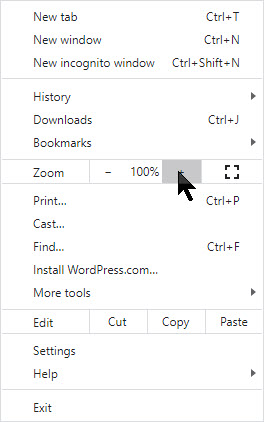
Select the Hamburger icon (the one with 3 dots) in the top-right of the Chrome web browser. Refer to below image:
The Hamburger icon
In the Zoom section, select the + (plus) button to increase the size of text and images. Select the – (minus) button to decrease the size of text and images. See below image:
Selecting a Zoom level
Press the Esc key to hide the menu.
Reset Zoom
One way is to use any of the zoom methods listed above to set the zoom level to 100%.
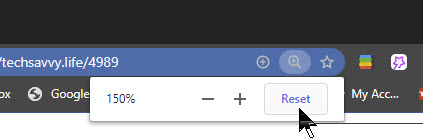
Another way is to select the magnifying glass icon in the address bar (this will only appear if you are zoomed to a level other than 100%), then select Reset. If you dont see the magnifying glass (normally due to numerous icons), just press and hold the Ctrl key while pressing the + (plus) or – (minus) key or mouse scroll. See following image;
Resetting the Zoom
Set a Custom Default
You can customise the default zoom level used by the Google Chrome browser. This way, text and images will always appear larger or smaller whenever you use the browser. To do so:
Select the Hamburger icon (the one with 3 dots) in the top-right of the Chrome web browser. Refer to below image:
The Hamburger icon
Select Settings from the menu. See below image;
Accessing the Settings
In the search box at the top of the Settings page, type “page zoom”. See following image:
Using the Settings search box
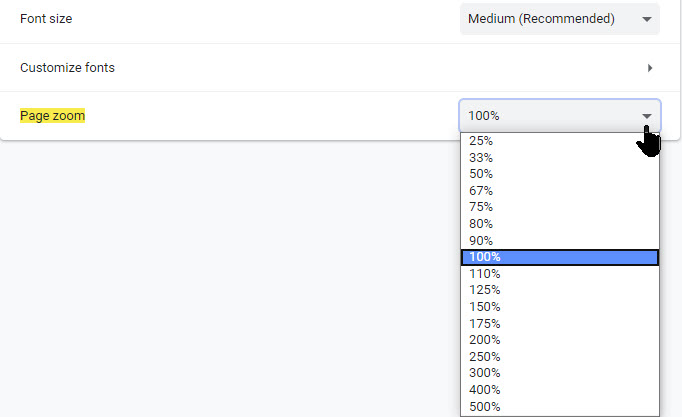
Under the Appearance options, select the drop-down menu for Page zoom and choose a new default zoom level. Refer to below image:
Selecting a custome Zoom level
That’s it. Now you can make your Chrome browsing easier on your eyes.
I have found TechSavvy.Life blog posts extremely helpful. Check them out for posts on smart phone apps, Macs and PCs!
Please feel free to leave a comment. I would love hearing from you. Do you have a computer or smart device tech question? I will do my best to answer your inquiry. Please mention the device, app and version that you are using. To help us out, you can send screenshots of your data related to your question.
The author’s Vietnam eBook on the Battle for Tra Bong: Events and Aftermath
Yes, it is coming for your iPhone and Android smartphones. As a matter of fact, some of the features have already been available in iOS 13.5 and above for the iPhone that was released in May 2020. Google and Apple are working with public health organizations on contact-tracing apps.
Yes, it is coming for your iPhone and Android smartphones. As a matter of fact, some of the features have already been available in iOS 13.5 and above for the iPhone that was released in May 2020. Google and Apple are working with public health organizations on contact-tracing apps.
The piece that is missing, for now, is authorized apps from your health authorities. This is where you’ll report any sickness. Apple and Google are not releasing apps; they are collaborating to allow these apps to work across iOS and Android to collect data and send out alerts.
The following guidelines are for the iPhone. Android devices will be similar.
This is for iPhone and Android smartphones. Screenshots are from the iPhone
Copyright Scott Adams, Inc./Distributed by Universal Uclick for UFS
Conventional contact tracing is a technique used by public health authorities to measure and slow the spread of infectious diseases. It requires manually gathering information from infected individuals about the people they have previously been in contact with. These people can then be notified by public health authorities to take appropriate safety measures, such as undertaking self-quarantine and getting tested to break the chain of transmission. While this process will continue to be important to contact tracing efforts, systems that are being developed can alleviate some of the challenges with this process.
First there is a significant organizational burden from a manual process, as many public health workers are needed to perform these tasks. Second, the process can be slow as it requires finding and interviewing infected individuals and then reaching out and talking to their high risk contacts; all of whom may not be able to remember or know all of the people that they came in contact with in the past days to weeks.
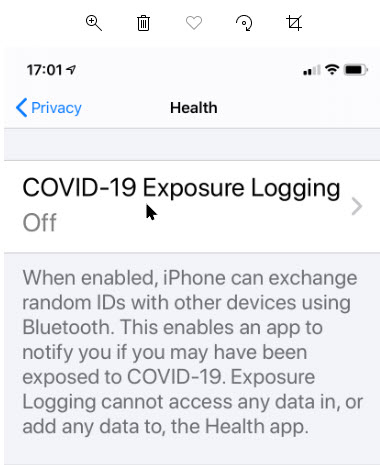
The contact tracing is called “COVID-19 Exposure Logging” and is automatically turned off. When contact tracing apps are installed, you can enable the feature.
Setting Up On iPhone
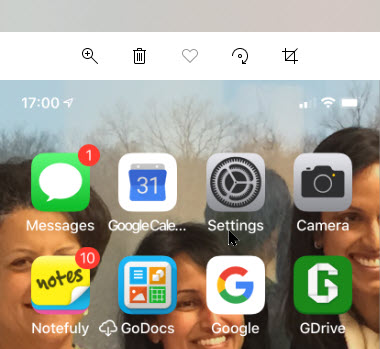
First, launch Settings. Refer to below image:
The Settings icon
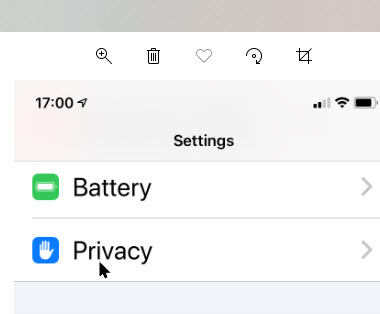
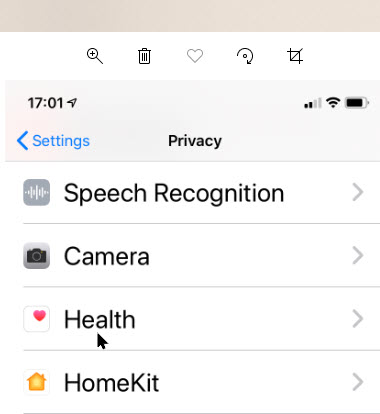
Next, scroll down to the Privacy option and tap it. See below image:
The Privacy option
Now, tap the Health option. See following image:
The Health option
You wil see the COVID-19 Exposure Logging option; just tap it. Refer to below image:
COVID-19 Exposure Logging option
How It Works
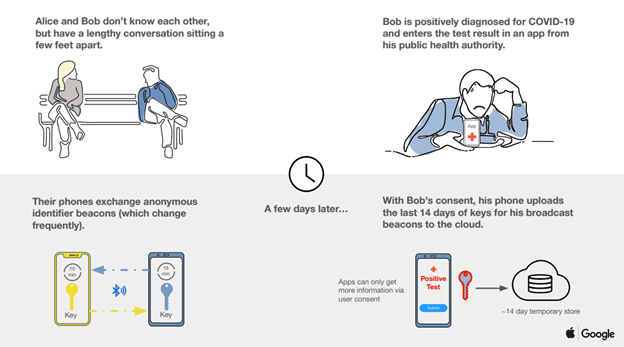
Once enabled, users’ devices will regularly send out a beacon via Bluetooth that includes a random Bluetooth identifier; basically, a string of random numbers (IDs) that are not tied to a user’s identity and change every 10-20 minutes for additional protection. Other phones will be listening for these beacons and broadcasting theirs as well. When each phone receives another beacon, it will record and securely store that beacon on the device. Refer to below diagram:
Contact Tracing Diagram
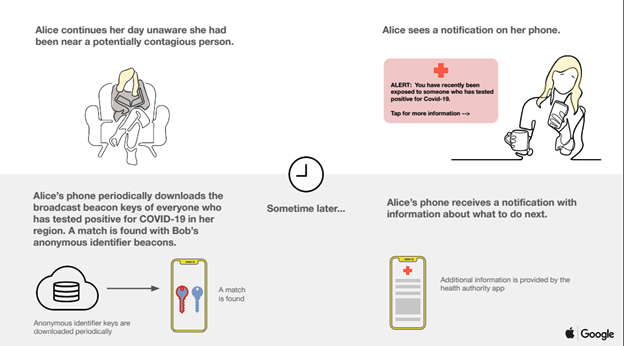
At least once per day, the system will download a list of the keys for the beacons that have been verified as belonging to people confirmed as positive for COVID-19. Each device will check the list of beacons it has recorded against the list downloaded from the server. If there is a match between the beacons stored on the device and the positive diagnosis list, the user may be notified and advised on steps to take next. See below diagram:
Contact Tracing Diagram
Active Apps
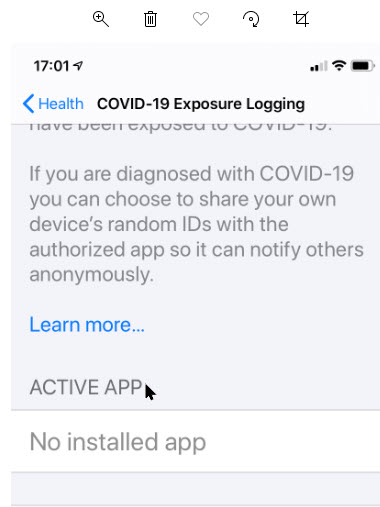
Now, scroll down to the Active App section. Here you will find your installed apps that works with contact tracing. Once available from local, state or federal authorities, you will need to install the apps then they will appear here. (As of this writing, there is one app available from Center for Disease Control; for a list of States that will participate or have an app available, click here . See below image:
Active Apps for contact tracing that are installed
For these apps to work, you will need your phone’s Bluetooth and location tracking features turned on, though your actual physical location is not tracked; the apps will not know where in the world you are or how many times you have left the house today. They’ll only know which random IDs your phone has come into contact with.
Check for Exposure
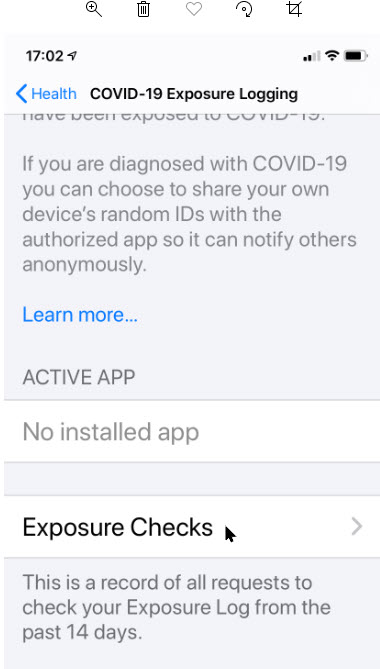
To see if the option is working, tap on Exposure Checks. See following image:
Accessing Exposure Checks option
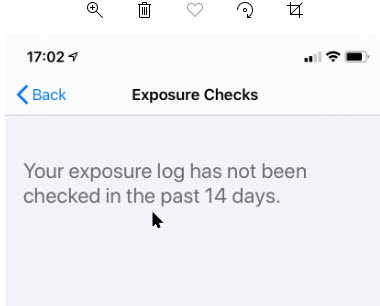
Now, you will see the following image about any exposure within the last 14 days. Refer to below image:
Checking to see if you have been exposed
The Fine Print
Now, tap the Back button then tap on the Learn More blue link. See below image:
Accessing the Terms andConditions
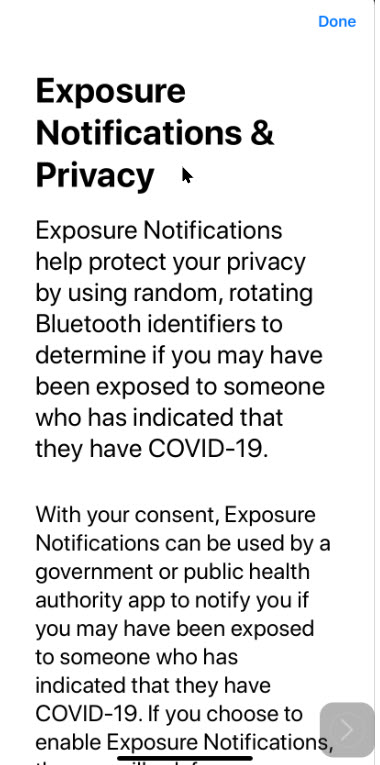
Information on Exposure Notifications & Privacy terms and conditions will be displayed. See following image:
The Terms and Conditions for contact tracing and exposure
I have found TechSavvy.Life blog posts extremely helpful. Check them out for posts on smart phone apps, Macs and PCs!<
Please feel free to leave a comment. I would love hearing from you. Do you have a computer or smart device tech question? I will do my best to answer your inquiry. Please mention the device, app and version that you are using. To help us out, you can send screenshots of your data related to your question.
The author’s Vietnam eBook on the Battle for Tra Bong: Events and Aftermath
At times you would like to “grab” a copy of a web page in Google Chrome without printing it out on paper. This is not obvious but easily to do on various devices.
At times you would like to “grab” a copy of a web page in Google Chrome without printing it out on paper. This is not obvious but easily to do on various devices.
This is for Windows 10 PCs, Macs and other devices that support Google Chrome
Copyright Scott Adams, Inc./Distributed by Universal Uclick for UFS
First, open Chrome and navigate to a web page you would like to save as a PDF. In the upper right hand corner, click on the hamburger icon (the one with three dots). Refer to below image:
The Hamburger icon
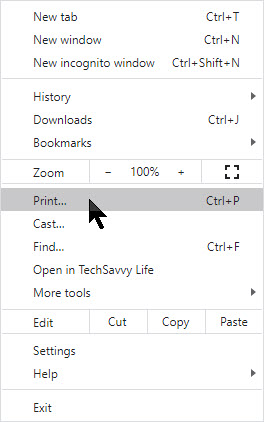
In the pop-up menu, select Print. See below image:
The Chrome Print option
The Print window will open. From here, select Destination, then click on Save as PDF. See following image:
Chrome’s Save as PDF option
Use the Pages option to save certain pages (for example, only the first page like in my example or a range of pages). If you would like to change the orientation of the PDF file from portrait (the default) to landscape, click on the Layout option.
When you are done with your options, click on the Save button at the bottom of the page. Refer to below image:
Chrome’s Save your changes option
The Save As dialog box will open. Enter the path where you want to save your PDF file and rename the file, if necessary. Click Save to save your file. See following image:
Chrome’s Save the PDF file
Your web page(s) will be saved as a PDF file in the location you have chosen.
It’s possible to save documents to PDF files other than Chrome. Whether its a Window 10 or a Mac computer, print-to-PDF functionally will be similar.
Please feel free to leave a comment. I would love hearing from you. Do you have a computer or smart device tech question? I will do my best to answer your inquiry. Please mention the device, app and version that you are using. To help us out, you can send screenshots of your data related to your question.
The author’s Vietnam eBook on the Battle for Tra Bong: Events and Aftermath
Oops! You just sent a Google Gmail message that you did not want to send. You realize for one reason or another that the message has a mistake or that it shouldn’t have been sent at all. Using Gmail, you have a small window of time in which to undo your mistake.
Oops! You just sent a Google Gmail message that you did not want to send. You realize for one reason or another that the message has a mistake or that it shouldn’t have been sent at all. Using Gmail, you have a small window of time in which to undo your mistake.
By default, Gmail only gives you a 5 second delay in which to recall an email after you hit the Send button. If this is too short, you’ll need to extend the length of time Gmail will keep emails pending before it sends them. Once an email(s) are sent, you are unable to recall them.
This is for Windows 10 PCs, Macs and other devices that support Google Gmail
Copyright Scott Adams, Inc./Distributed by Universal Uclick for UFS
Unfortunately, you can’t change the length of this cancellation period in the Gmail app. You’ll need to do this in the Settings menu of Web based Gmail using your Windows 10 PC or Mac.
First, open Gmail using your browser and click Settings (the gear icon) in upper right-hand corner. Next, click the See all settings option. Refer to below image:
Open Web based Gmail Settings
In the General tab, you’ll see an option for Undo Send with a default 5 seconds delay. You can change this to periods of 10, 20, and 30 seconds from the drop-down list. It is recommended you set a 30 second delay. See below image:
Setting the Cancellation Period in Web based Gmail Settings
Scroll way down till you see the Save Changes button at the bottom of the screen. Press this button to save your change. The Settings window will then close.
The cancellation period you’ve selected will be applied to your Google account across all your devices.
How to Recall a Web Email in Gmail
If you want to recall a message sent by a Web based Gmail, you’ll need to do so within the cancellation period that applies to your account. This period begins from the moment you press the Send button. If you followed my recommendation, you have 30 seconds.
To recall an email, press the Undo button that appears in the black Message Sent pop-up. It is visible in the bottom-left corner of the Web based Gmail window. See following image:
Undo your email in Web based Gmail
This is your only chance to recall the email. If you miss it, or you click the “X” button to close the pop-up, you won’t be able to recall it. Once the cancellation period has passed, the Undo button will disappear and the email will be sent.
How to Recall a Mobile Device Email in Gmail
The process for recalling a mobile device email is similar to using the Web based Gmail. Your cancellation period you setup above for your Google account applies.
Go ahead an send an email using the Gmail app. A black pop-up box will appear at the bottom of your screen, telling you that the email has been sent.
The Undo button will appear on the right-hand side of this pop-up. If you want to stop the email, tap this button within the cancellation period or 30 seconds if following my recommendation. Refer to below image:
Undo your email using Gmail app
Pressing Undo will recall the email, returning you to the Compose draft screen in the Gmail app. At this point, you can then make changes to your email, save it as a draft or delete it.
Please feel free to leave a comment. I would love hearing from you. Do you have a computer or smart device tech question? I will do my best to answer your inquiry. Please mention the device, app and version that you are using. To help us out, you can send screenshots of your data related to your question.
The author’s Vietnam eBook on the Battle for Tra Bong: Events and Aftermath























 Tech Savvy Life