How to Identify Songs with Siri and Shazam

Siri can now identify ambient music using the Shazam app by simply asking, “Hey Siri, what song is this?” Users can easily purchase recognized songs from Apple Music. Ensure your device runs iOS 26.5 or greater for compatibility. This feature enhances music discovery and purchasing convenience for users.

RAYMOND OGLESBY @RaymondOglesby2
June 23, 2026 – 4 minutes read time

Ever listen to the radio and wonder what band recorded it, or the name of the song? Siri can help! In the past, you could ask Siri to identify music playing on your device; now, you can ask Siri to identify any ambient music. And, conveniently, Siri makes it easy to purchase the song or album.

Be sure Siri is setup before trying these steps, or this tip will not work. To set up and activate Siri, click here.

Also: A lot of people want to know how to find a song by humming. We tried humming a couple of songs using the “Hey Siri, what song is this?” feature, but they were not recognized.

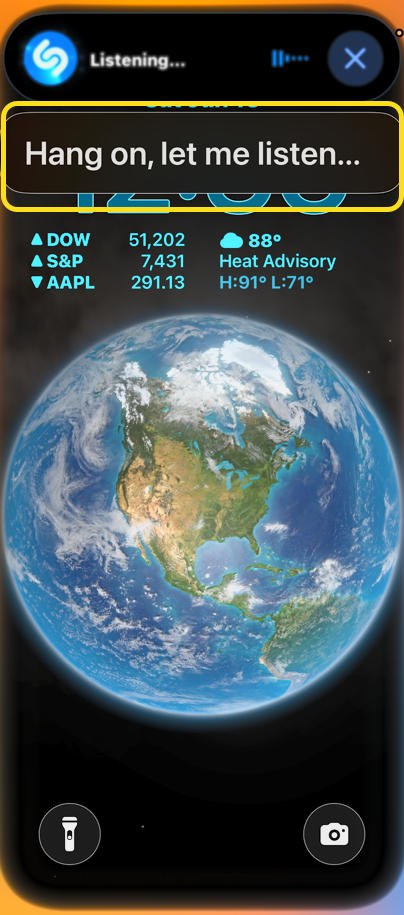
When you hear a song you want identified, you can ask, “Hey Siri, what song is this?”, “Siri, what song is playing?”, or “Hey Siri, who sings this song?” Siri responds with “Hang on, let me listen….” Then, Siri uses the Shazam music recognition app to find the artist and song title, as well as an image from the album cover, and the option to purchase the song from Apple Music.

  • Use the Shazam music recognition app via Siri to recognize music hands-free.
  • Say, “Hey Siri, what song is this?” and get an answer almost every time.
  • Purchase the song Siri recognized from Apple Music to add it to your library.

This tip was tested on an iPhone 17 Pro running iOS 26.5. For this tip to work, you must be running iOS 26.5 or greater!

Click here to learn how to update your iPhone to the latest iOS version.

First, after you ask Siri what song is playing, you will see the Rainbow circle indicating Siri is listening, and “Hang on, let me listen…” (or “Listening…” or something similar) somewhere on your screen. Refer to the image below:
Siri 1
Siri is going to listen for the song

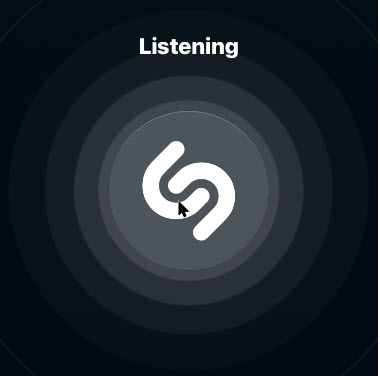
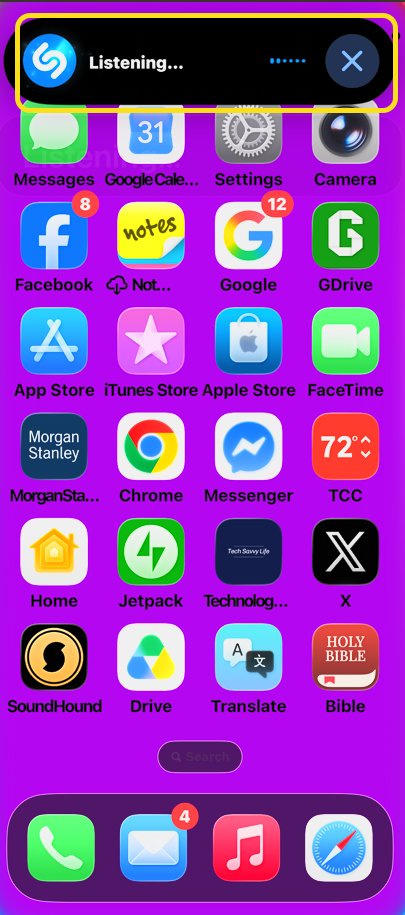
Next, you will see the Shazam icon and “Listening… “ at the top of the screen. See the image below:
Siri 2
Siri is now listening to the song

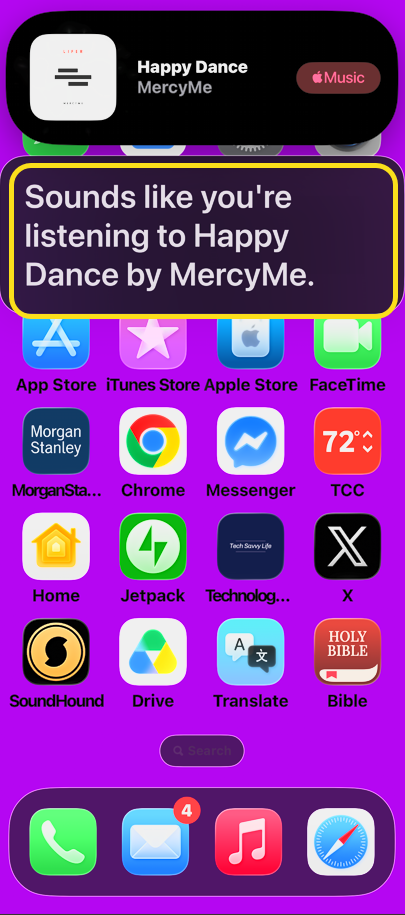
Now, if Siri was able to recognize your song, you will see the title, artist(s), and an Apple Music icon at the top of the page. See the following image:
Siri 3
Siri has identified the song

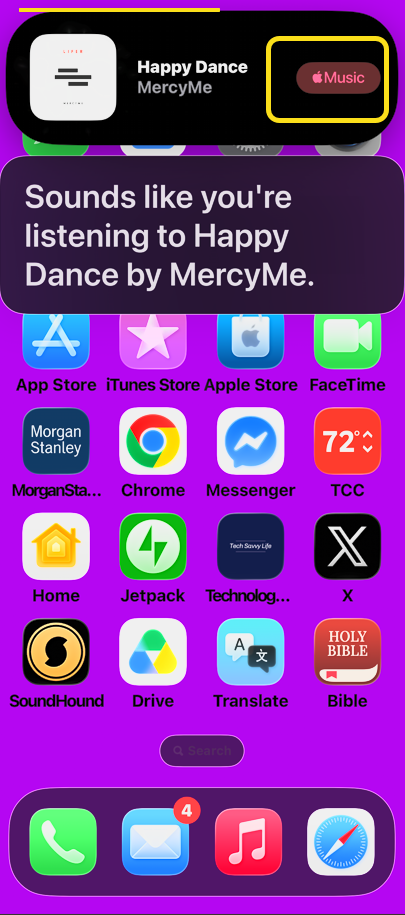
Next, tap the Apple Music icon to purchase the song. Refer to the image below::
Siri 4
Want to purchase the song?

Now you know how to use the “Hey Siri, what song is this?” feature to identify music. You know, sometimes Apple provides us with neat features!

TexTechnology is constantly evolving, and smartphone and desktop tech rarely remains static. Therefore, the information in this post is only accurate as of the date it was written. Blog posts that are older than six months may contain instructions that are no longer compatible with your device or operating system. We hope that the content from previous posts continues to function as intended. Thank you for reading TechSavvy.Life, where technology works for you.t

We now expect more from technology and less from each other.

– Sherry Turkle

That’s it. Please feel free to share this post! One way to share is via Twitter.

Just click the Tweet icon below. This will launch Twitter where you click its icon to post the Tweet.

Checkout TechSavvy.Life for blog posts on smartphones, PCs, and Macs! You may email us at contact@techsavvy.life for comments or questions.

We value your feedback! Was this post helpful? Please share your comments with us. If you have a tech question related to your computer or smart device, feel free to reach out. Just send an email to contact@techsavvy.life, and be sure to include the device, app, and version you are using. To assist us further, you can also attach screenshots related to your inquiry.

Author’s eBook

The author’s Vietnam eBook, “Battle for Tra Bong Vietnam: Events and Aftermath,” is available on Kindle devices and the Kindle App for desktop, laptop, and smartphone. The apps are free.


The author’s Vietnam eBook on the Battle for Tra Bong Vietnam: Events and Aftermath

How to Identify Music on iPhone or iPad

Apple released a software update for iPhones and iPads in their operating system that includes a built-in music recognition icon that can help you quickly identify a song that is playing.

Apple released a software update for iPhones and iPads in their operating system that includes a built-in music recognition app that can help you quickly identify a song that is playing.

It is one way Apple is using Shazam, which it acquired in 2018. Since it is built-in, you don’t need to have the Shazam app installed for this to work. All you do is add a button to the Control Center menu and then, when you hear a song you like and want to know who the artist is, you just tap the button.

This is for iPhone and iPad

Dilbert and Diversity
Copyright Scott Adams, Inc./Distributed by Universal Uclick for UFS

Setting Up Music Recognition

We need to check your software updates, enable Siri, and download/install the Shamaz app.

First, let’s check your software updates. Head to

Settings > General > Software Update

for the iOS or iPadOS 14.2 update (or higher) and update if necessary.

Next, head to the Apple Store to download/install the Shazam app.

Here.is how the feature works. When you tell your iPhone to listen for a song, it uses its microphone to record the audio around you. That audio data is uploaded to a server and analyzed, matching it to a known song in a database.

Listen by Siri

Let’s examine another built-in feature that does not require the lastest software update; Siri. To enable Siri, go to

Settings > Siri & Search

and toggle on Listen for Hey Siri. You may also want to enable Press Side Button for Siri. Refer to below image:

Music 1
Enabling Siri

You can ask Siri what song is playing by saying something like “What’s that song?” or “What’s playing?”.

To activate Siri, long-press the Power button. Say “What’s that song?”. If you have Hey Siri set up, you can also say “Hey Siri, what’s that song?” without pressing any buttons.

Siri will pop up and say something like “Let me listen” or “Naming that tune.” Be sure your iPhone can hear the music properly. If you are in a noisy location or someone is talking loudly over the music, it might not hear the song well enough. If you have a problem, try moving your iPhone closer to the sound source playing the music, reducing noise in the area, or turning the volume up on the speaker playing the song. See below image where Siri is listening for a song:

Music A
Listening by Siri

If your device hears the song well enough, it will show you the song. If not, you will receive a message like “I can’t seem to recognize this song”.

Listen by Shazam in Control Center

As of the iOS and iPadOS 14.2 update, there is now a quick Control Center button you can use to start identifying a song. However, it is not enabled by default. Why; I do not know. Why does Apple want to hide this feature? But that is the reason for this post; to show you how to setup and use the Shazam built-in app.

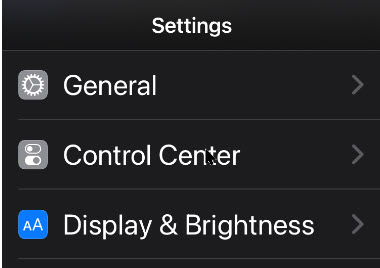
First, head to Settings (the gear icon). See following image:

Music 2
Accessing Settings

Next, scroll down to Control Center. Refer to below image:

Music 3
Accessing Control Center option

Now, scroll down and tap the plus (+) sign to the left of the Music Recognition button to add the feature to the Control Center. If you do not see this option on the Settings screen, you have not updated your iPhone or iPad to 14.2 or higher yet. See below image:

Music 4
Enabling Music Recognition in Control Center

You can then drag it up or down in the list to rearrange the Control Center layout.

With the button added, you can now swipe down from the top-right corner of your device screen to open the Control Center. (On an older iPhone without a notch, you will have to swipe up from the bottom of the screen instead.)

Now, tap the button with the Shazam logo. The button will light up and pulse while it listens to the audio around you. Ensure your iPhone can hear the audio source properly. See following image:

Music 6
Listening by Shazam in Control Center

When the process is complete (it can take 10-15 seconds), you will see a “Music Recognition” notification banner showing you what song is playing. This notification appears along with all your other apps’ notifications in your notification center. If it can not identify a song in that period of time, you will see a notification saying a song was not detected.

Listen by the Shazam App

If you want more features, you will need a separate music recognition app on your device. The integrated music recognition features rely on Shazam, the music recognition app Apple purchased.

Shazam still has an app for your device that you can install, and it has more features. For example, the Shazam app supports Autp Shazam. In this mode, Shazma will stay in the background on your iPhone or iPad, listen to everything around you, and store a history of songs it’s heard. For example, let’s say you are at a party or ballroom dance competition and you love the playlist. You can enable Auto Shazma mode and your phone or tablet will automatically remember all the songs that was played. You can even keep using other apps on your device while Shazma listens.

To use this feature, install the Shazma app as mentioned in the beginning of this post. Now, launch it, and long-press the big Shazma button, to enable Auto Shazma mode. Refer to below image:

Music 7
Listening by Shazam app

Listen by Google

Although, not an Apple product, here is another music recognition method.

If a song you are trying to identify is trapped in your head and all you can remember is the song’s melody, there is still something you can do. With the Google app, you can hum or whistle a song’s tune to identify it.

  • Launch Google Search
  • Tap the microphone icon
  • Tap the Search A Song button

Now, start humming or whistling the song you are trying to identify. If Google can find similar matches, the results will appear labeled with match percentages. Tap More Results to see more possible matches. If Google does not find a match, you will receive a message saying so.

That’s it. Please feel free to share this post! One way to share is via Twitter, as mentioned below.

Just click the Tweet icon below to launch Twitter where you click its icon to post the Tweet.

Check out TechSavvy.Life for blog posts on smartphones, PCs, and Macs! You may email us at contact@techsavvy.life for comments or questions.

I Would Like to Hear From You

Please feel free to leave a comment. I would love hearing from you. Do you have a computer or smart device tech question? I will do my best to answer your inquiry. Just send an email to contact@techsavvy.life. Please mention the device, app and version that you are using. To help us out, you can send screenshots of your data related to your question.

The author’s Vietnam eBook on the Battle for Tra Bong: Events and Aftermath