Customize Email Summaries in iOS 26 Mail App

The iOS 26 Mail app’s new feature allows users to customize email summaries, ranging from one to five lines. Users can disable this preview feature if it isn’t useful. Instructions for adjusting these settings are provided.

RAYMOND OGLESBY @RaymondOglesby2
November 25, 2025 – 3 minutes read time

Some people love the Mail app Preview feature, while others want to know how to turn off Mail Preview.

The iOS 18 Mail app update included an Apple Intelligence feature that gives you email summaries. With iOS 26, you can shrink or enlarge those email summaries.

Here’s how to turn off Mail Preview, as well as how to change the length of the previews you see in the Mail app, so you can get a preview that’s actually helpful for you.

  • Choose anywhere from a one-line to a five-line summary of your emails in the Mail app.
  • Turn off email summaries if you do not find them useful.

This tip was performed on an iPhone 14 Pro running iOS 26.1.

Click here to learn how to update your iPhone to the latest iOS version.

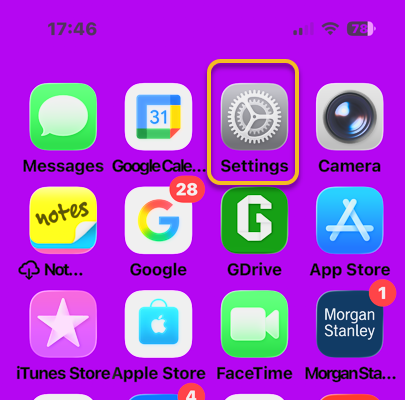
First, open the Settings app. Refer to the image below:

Email Preview 1
Selecting the Settings app

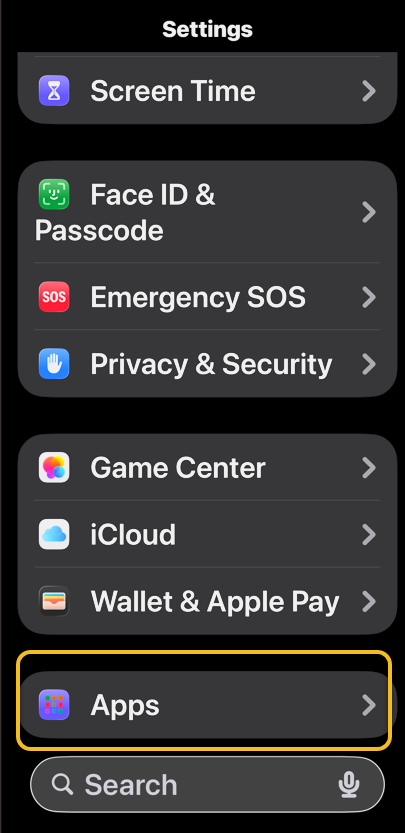
Next, rap Apps option.See the image below:

Email Preview 2
Selecting the Apps option

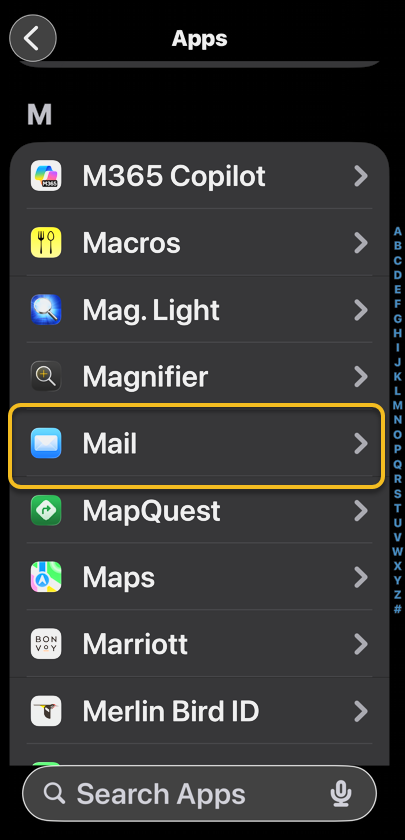
Now, tap the Mail app,See the following image:

Email Preview 3
Selecting the Mail app

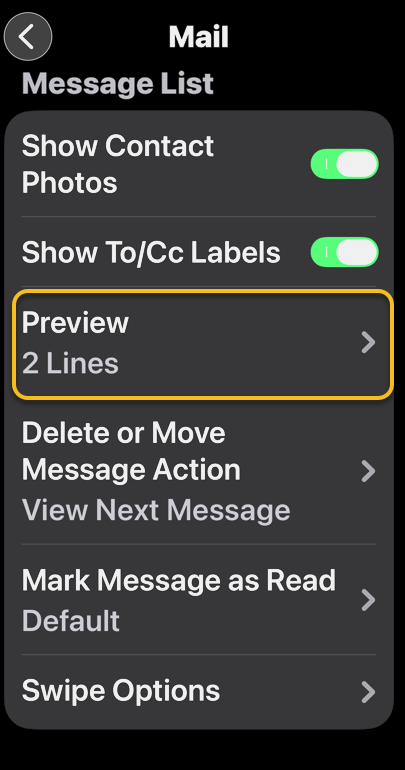
Next, scroll down and tap the Preview option.Refer to the image below:

Email Preview 4
Selecting the Preview option

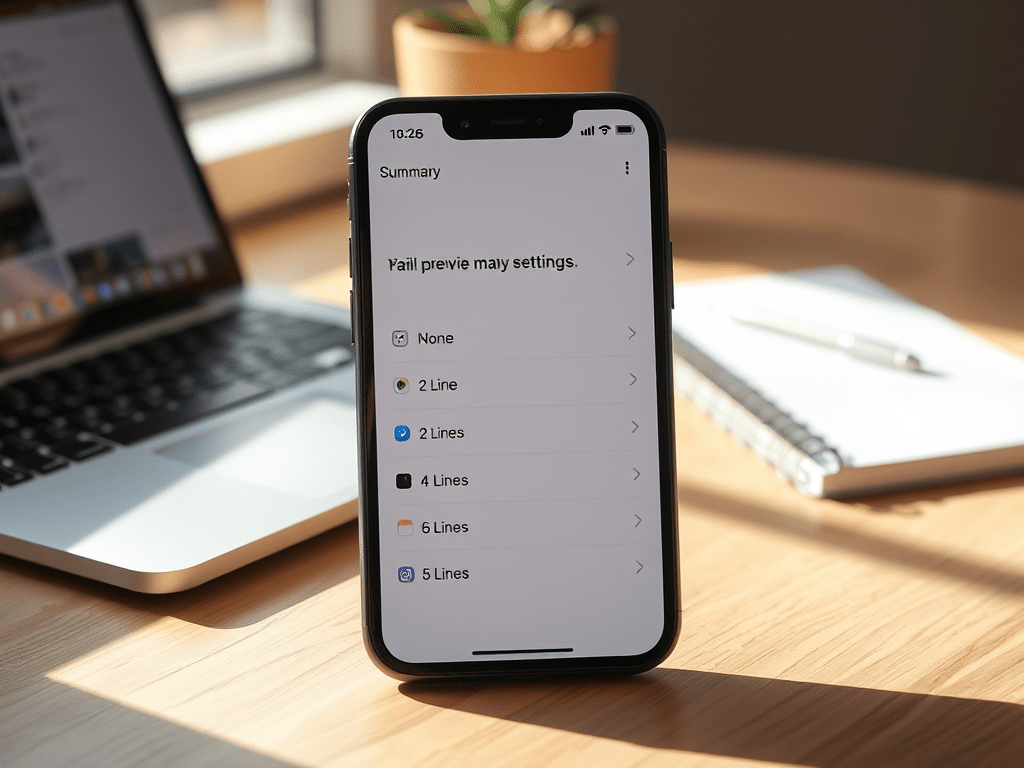
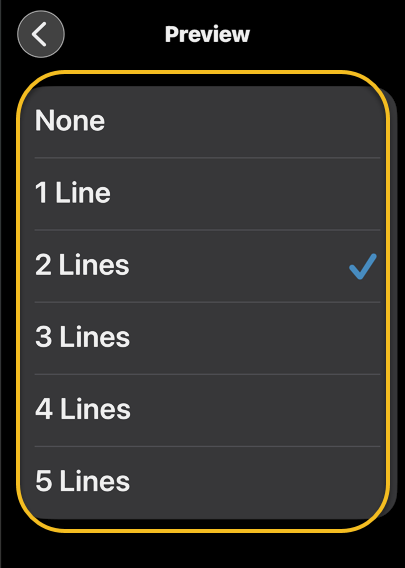
Now, tap None1 Line2 Lines3 Lines4 Lines, or 5 Lines for your preview length. See the below image:

Email Preview 5
Selecting preview lines to display

Now you know how to turn off email previews or change the length of your iPhone and iPad email previews to anywhere from none to five lines.

Technology is constantly evolving, and smartphone and desktop tech rarely remains static. Therefore, the information in this post is only accurate as of the date it was written. Blog posts that are older than six months may contain instructions that are no longer compatible with your device or operating system. We hope that the content from previous posts continues to function as intended. Thank you for reading TechSavvy.Life, where technology works for you.

“First we build the tools, then they build us.”

Marshall McLuhan, Media Theorist

That’s it. Please feel free to share this post! One way to share is via Twitter.

Just click the Tweet icon below. This will launch Twitter where you click its icon to post the Tweet.

Checkout TechSavvy.Life for blog posts on smartphones, PCs, and Macs! You may email us at contact@techsavvy.life for comments or questions.

We value your feedback! Was this post helpful? Please share your comments with us. If you have a tech question related to your computer or smart device, feel free to reach out. Just send an email to contact@techsavvy.life, and be sure to include the device, app, and version you are using. To assist us further, you can also attach screenshots related to your inquiry.

Author’s eBook

The author’s Vietnam eBook on the “Battle for Tra Bong Vietnam: Events and Aftermath” can be accessed from a Kindle device or the Kindle App for a desktop or smartphone. The apps are free.
The author’s Vietnam eBook on the Battle for Tra Bong Vietnam: Events and Aftermath

Stop Spam Calls with iOS 26 Call Screening

iOS 26 introduces Call Screening, a feature designed to reduce spam calls by silencing unknown numbers and asking callers to identify themselves. Users can then decide to accept calls based on transcriptions of the caller’s responses. This feature, currently glitchy, is compatible with iPhone 14 Pro and newer plus iOS 26.

RAYMOND OGLESBY @RaymondOglesby2
November 18, 2025 – 3 minutes read time

Tired of getting spam calls? Well, the newest version of iOS has a feature that should alleviate the annoyance of spam: Call Screening. This useful tool will silence unknown callers and ask them to give their reason for calling, allowing you to decide whether you want to pick up the phone.

Call Screening on iPhone is an iOS 26 feature that silences incoming calls from unknown numbers and prompts the caller to provide their name and reason for calling. Then, your phone will ring and display a transcript of the caller’s answer, allowing you to easily decide whether or not you want to pick up the call. Let’s explore how to stop spam calls with Call Screening.

  • Never worry about spam again since you will always know who is calling.
  • Avoid picking up the phone without knowing the reason for the call.

This tip was performed on an iPhone 14 Pro running iOS 26.1. It does not work with earlier iOS versions.

Click here to learn how to update your iPhone to the latest iOS version.

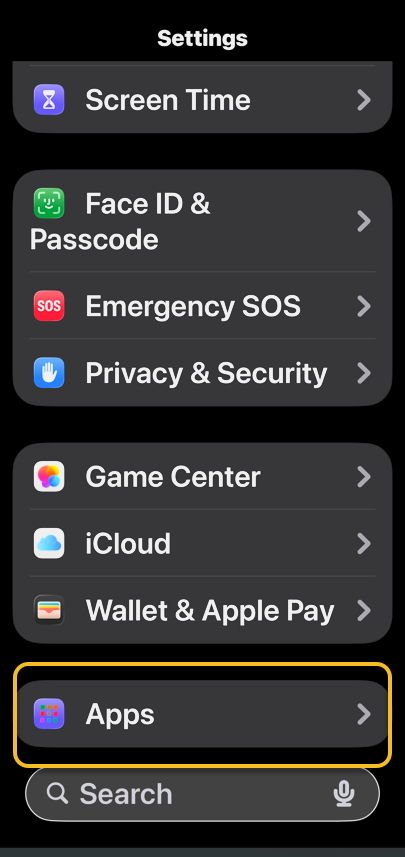
First, open the Settings app and select Apps.Refer to the image below:

Call Screen 1
Selecting the Apps option

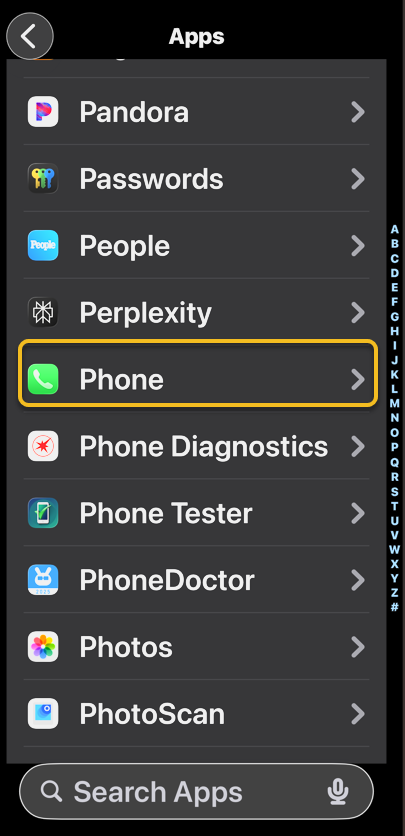
Next, find the Phone app in the list or use the search bar. See the image below:

Call Screen 2
Selecting the Phone app

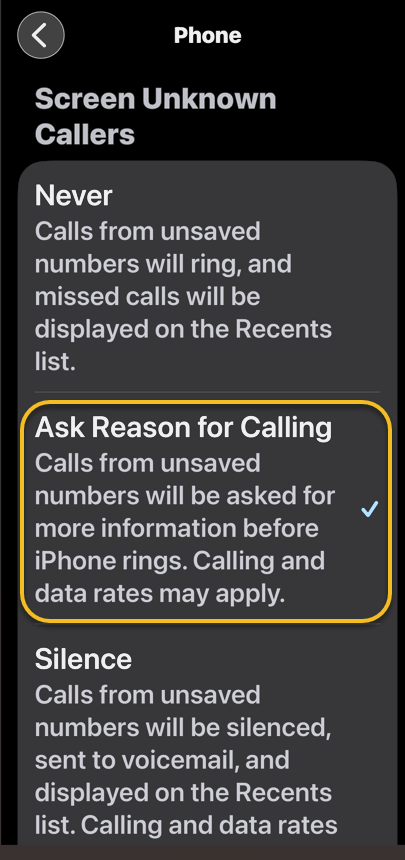
Now, scroll down to Screen Unknown Callers, and select Ask Reason for Calling. See the following image.

Call Screen 3
Selecting the Ask Reason for Calling option

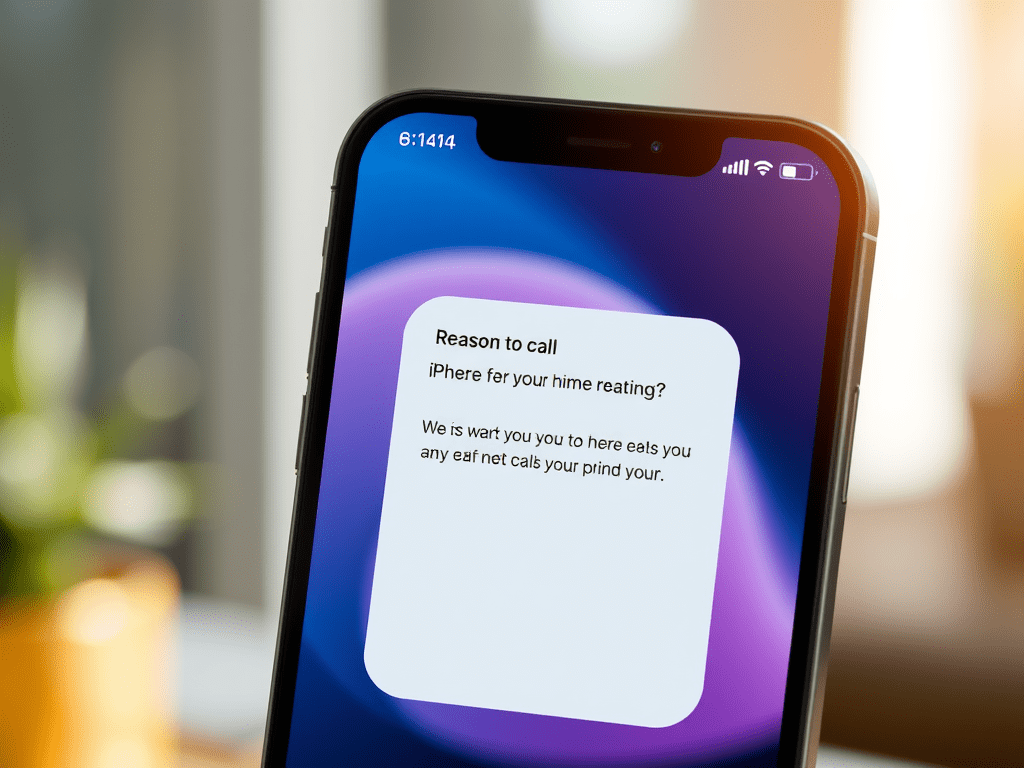
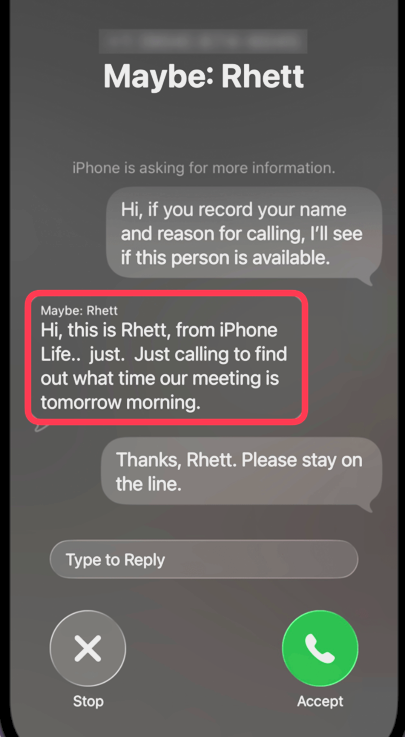
Next, when you receive a call from an unknown number, you should see a transcription of the caller’s name and reason for calling. Refer to the image below:

Call Screen 4
Call Screening message

Note! This feature has been glitchy, so if you experience problems getting Call Screening to work, you are not alone. We expect the feature to become more stable with future iOS updates.

That’s how to turn on Call Screening on the iPhone! Whether you have phone anxiety or you are just tired of receiving spam calls, this feature is sure to come in handy.

Technology is constantly evolving, and smartphone and desktop tech rarely remains static. Therefore, the information in this post is only accurate as of the date it was written. Blog posts that are older than six months may contain instructions that are no longer compatible with your device or operating system. We hope that the content from previous posts continues to function as intended. Thank you for reading TechSavvy.Life, where technology works for you.

“We’re entering a world where anyone can create, connect, and collaborate—and that’s changing everything.”

 – Reid Hoffman, Co-founder of LinkedIn

IYou are finished. Please feel free to share this post! One way to share is via Twitter.

Just click the Tweet icon below. This will launch Twitter where you click its icon to post the Tweet.

Checkout TechSavvy.Life for blog posts on smartphones, PCs, and Macs! You may email us at contact@techsavvy.life for comments or questions.

We value your feedback! Was this post helpful? Please share your comments with us. If you have a tech question related to your computer or smart device, feel free to reach out. Just send an email to contact@techsavvy.life, and be sure to include the device, app, and version you are using. To assist us further, you can also attach screenshots related to your inquiry.

Author’s eBook

The author’s Vietnam eBook on the “Battle for Tra Bong Vietnam: Events and Aftermath” can be accessed from a Kindle device or the Kindle App for a desktop or smartphone. The apps are free.
The author’s Vietnam eBook on the Battle for Tra Bong Vietnam: Events and Aftermath

How to Enable Adaptive Power Mode on iOS 26

Apple’s new Adaptive Power mode in iOS 26 optimizes battery life by dynamically adjusting performance and resource allocation based on usage, unlike the Low Power Mode. It’s easy to enable on iPhone 15 Pro or later, requiring seven days to learn charging habits. This feature balances battery preservation with device performance effectively.

RAYMOND OGLESBY @RaymondOglesby2
November 4, 2025 – 4 minutes read time

One of the best practical uses of Apple Intelligence is the new Adaptive Power mode. Adaptive Power mode, new in iOS 26, allows your phone to adjust its resources and performance to optimize battery life during high-power use. It’s easy to turn on, and then you just let your iPhone do the rest.

Adaptive Power Mode enables your phone to adjust idoing things like automatically dimming your screen or slightly slowing down some apps. Unlike Low Power Mode, this mode does not go into power-saving measures 100% of the time. So, you can toggle this on and leave it running all the time, preserving performance when your phone is not working as hard and helping you prevent battery drain well before the little icon turns red. Let’s explore how to enable Adaptive Power Mode:

  • Find the perfect balance between performance and battery saving.
  • Allow your phone to adjust its settings based on your current usage.

This tip requires an iPhone 15 Pro or later running iOS 26. If you do not see the Power Mode option, you are using an older iPhone.

Click here to learn how to update your iPhone to the latest iOS version.

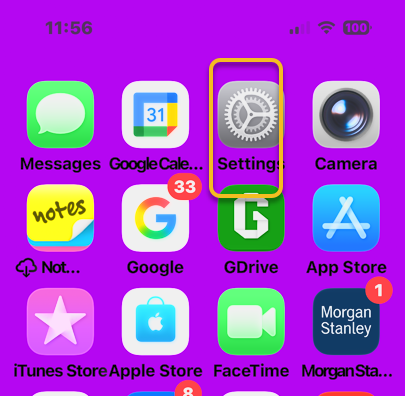
First. Ipen your Settings app. Refer to the image below:

Battery 1
Selecting Settings

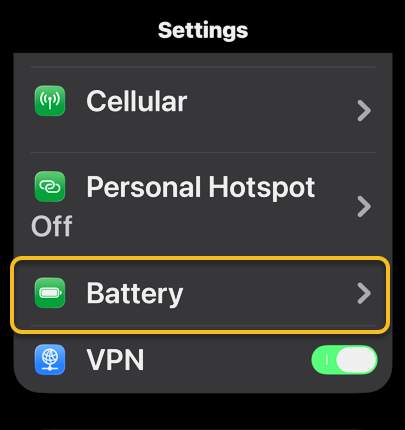
Next, tap Battery. See the image below:

Battery 2
Selecting the Battery option

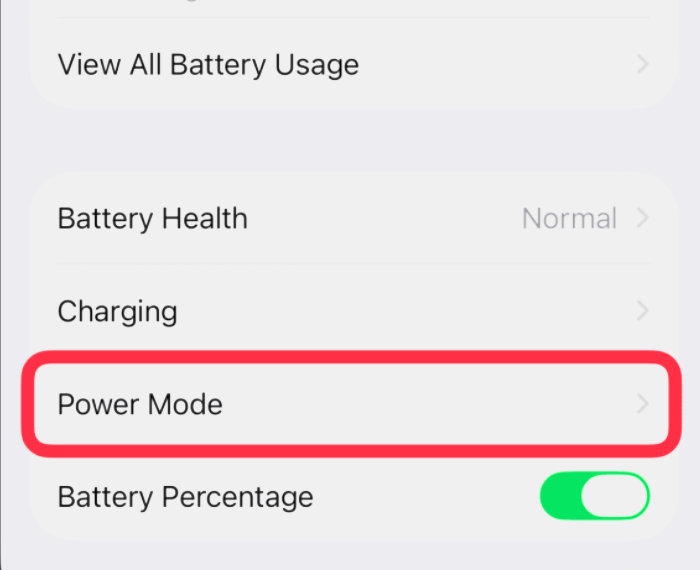
Now, tap Power Mode. See the following image:

Battery 3
Selecting Power Mode option

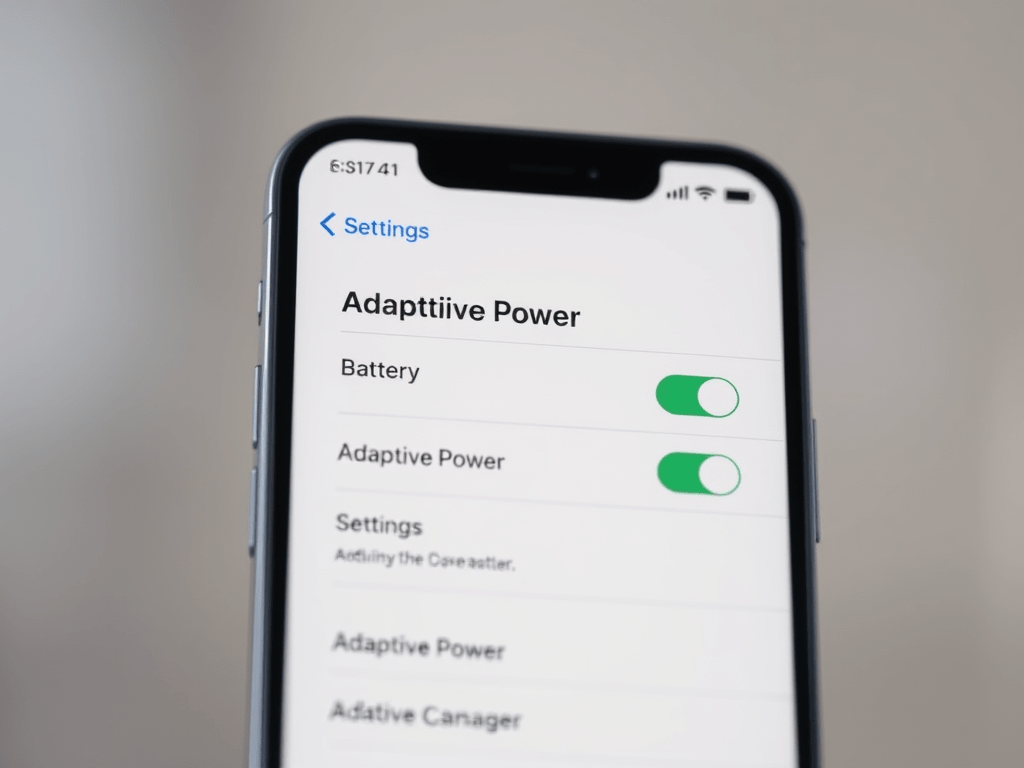
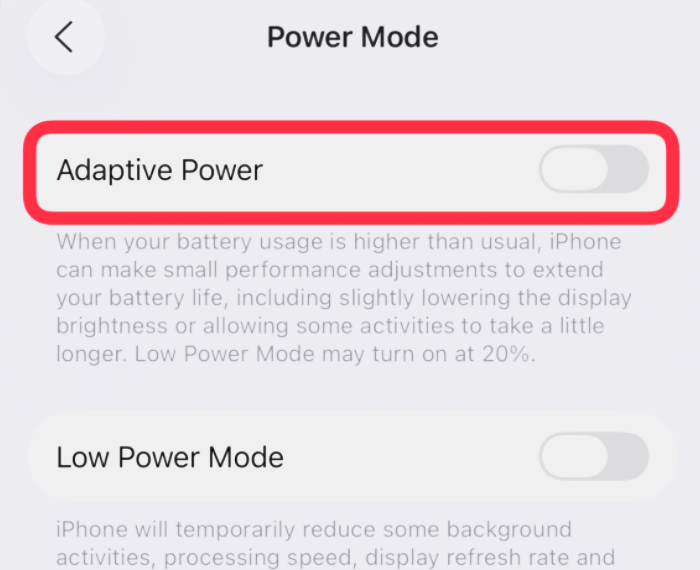
Next toggle on Adaptive Power. Refer to the image below:

Battery 4
Selecting Adaptive Power option

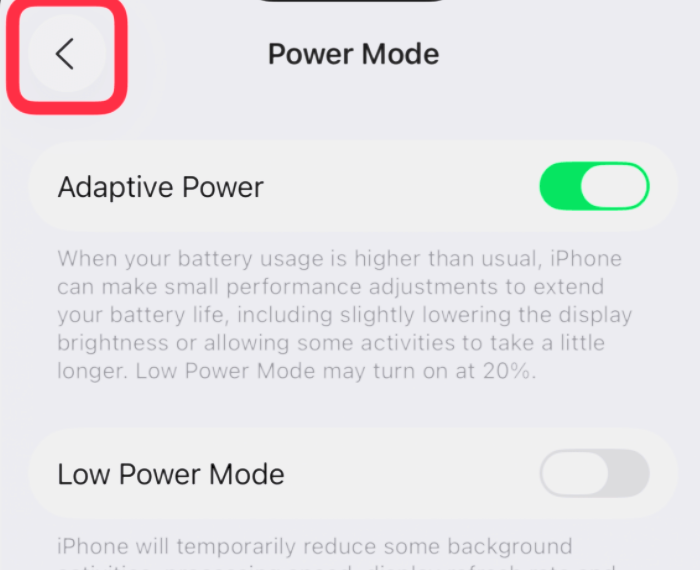
Now, tap the back arrow to return to Settings. See the image below:

Battery 5
Saving your setting

Note! Adaptive Power needs at least seven days to learn your charging habits, so it will not engage before then.

Now your iPhone will adjust its performance to optimize your battery when needed. If you want to turn this feature off, just follow the above steps and toggle Adaptive Power off instead.

Technology is constantly evolving, and smartphone and desktop tech rarely remains static. Therefore, the information in this post is only accurate as of the date it was written. Blog posts that are older than six months may contain instructions that are no longer compatible with your device or operating system. We hope that the content from previous posts continues to function as intended. Thank you for reading TechSavvy.Life, where technology works for you.

When you innovate, you’ve got to be prepared for everyone telling you you’re nuts.” 

– Larry Ellison, Co-founder of Oracle

That’s it. Please feel free to share this post! One way to share is via Twitter.

Just click the Tweet icon below. This will launch Twitter where you click its icon to post the Tweet.

Checkout TechSavvy.Life for blog posts on smartphones, PCs, and Macs! You may email us at contact@techsavvy.life for comments or questions.

We value your feedback! Was this post helpful? Please share your comments with us. If you have a tech question related to your computer or smart device, feel free to reach out. Just send an email to contact@techsavvy.life, and be sure to include the device, app, and version you are using. To assist us further, you can also attach screenshots related to your inquiry.

Author’s eBook

The author’s Vietnam eBook on the “Battle for Tra Bong Vietnam: Events and Aftermath” can be accessed from a Kindle device or the Kindle App for a desktop or smartphone. The apps are free.
The author’s Vietnam eBook on the Battle for Tra Bong Vietnam: Events and Aftermath