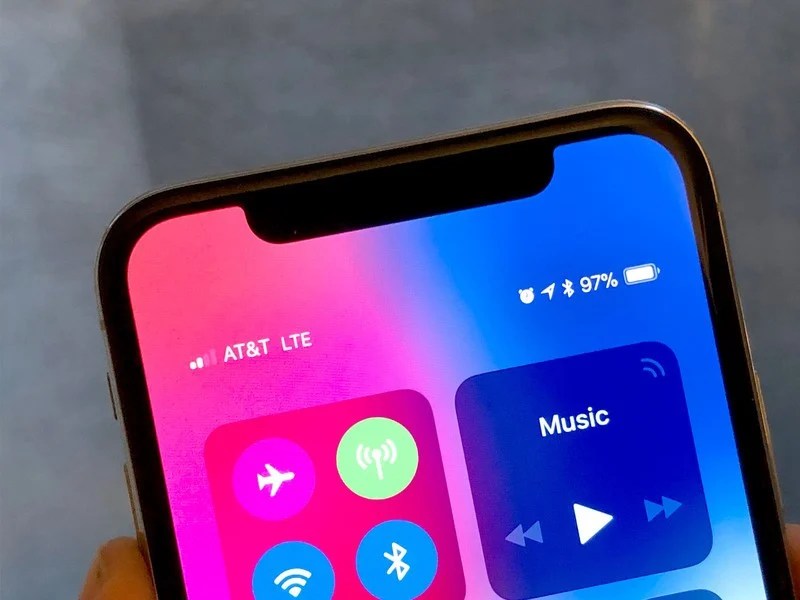
iPhone models that have notches in the upper portion of the screen (such as the iPhone X, 11, 12, 13, and their variants) do not have the option to display the numerical battery percentage on the status bar as on older models.
iPhone models that have notches in the upper portion of the screen (such as the iPhone X, 11, 12, 13, and their variants) do not have the option to display the numerical battery percentage on the status bar as on older models. So, let’s explore how to see battery percentage on newer models.
This is for iPhone and iPad. Screensho9ts are from iPhone XR
Copyright Scott Adams, Inc./Distributed by Universal Uclick for UFS
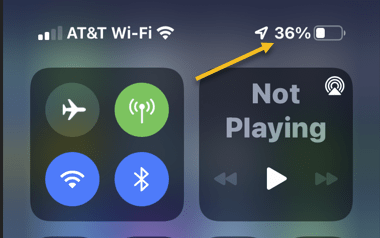
Instead, you can quickly check the battery percentage by launching Control Center. To do so, first, place your finger on the Battery icon in the upper- right-hand corner of your screen and swipe downward. Refer to the below image:
Opening the Control Center
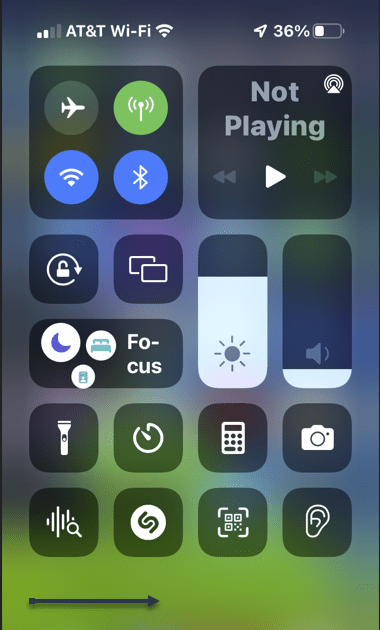
Next, when the Control Center appears, you will see the battery percentage in the upper right-hand corner of your screen. See the below image:
Your Battery percentage
To return back to your Home Screen, just tap any blank area or swipe up from thelower handle. See the following image:
Return back to the Home screen
It’s also possible to add a widget on your iPhone or iPad called “Batteries” to your Home screen (or Today View) that will let you keep an eye on your battery percentage at all times.
Quote for the Day
Technological society has succeeded in multiplying the opportunities for pleasure, but it has great difficulty in generating joy.
Pope Paul VI
Tweet Info
That’s it. Please feel free to share this post! One way to share is via Twitter.
Just click the Tweet icon below. This will launch Twitter where you click its icon to post the Tweet.
Check out TechSavvy.Life for blog posts on smartphones, PCs, and Macs! You may email us at contact@techsavvy.life for comments or questions.
Please feel free to leave a comment. I would love to hear from you. Do you have a computer or smart device tech question? I will do my best to answer your inquiry. Just send an email to contact@techsavvy.life. Please mention the device, app, and version you are using. To help us out, you can send screenshots of your data related to your question.
Author’s E-book
You can access the e-book from a Kindle device, the Kindle App for the desktop or smartphone, which is a free app.
The author’s Vietnam eBook on the Battle for Tra Bong Vietnam: Events and Aftermath
f you would like to share what you are looking at on your iPhone or iPad screen with a friend, it’s as easy as making a FaceTime call now thanks to the built-in Share Screen feature.
If you would like to share what you are looking at on your iPhone or iPad screen with a friend, it’s as easy as making a FaceTime call now thanks to the built-in Share Screen feature. Let’s explore this feature.
This is for the iPhone and iPad. Screenshots are from iPhone XR
Copyright Scott Adams, Inc./Distributed by Universal Uclick for UFS
Need to Know
To share your screen with FaceTime, both you and the person you will be sharing with need iOS 15.1 or iPadOS 15.1 or later. You also need an Apple ID to use FaceTime.
Be aware that you can not share content from apps that require a subscription or a purchase to view.
Sharing your screen in FaceTime is great for when you need help troubleshooting or would like to present information to other people remotely. While sharing your screen, notifications will be hidden. But be careful about screen sharing if you have sensitive information on your screen because the party on the other end might see it.
Share Your Screen on iPhone and iPad
To share your screen on iPhone or iPad, first, run the FaceTime app and make a call to someone else who also has FaceTime set up. Once you’re connected, tap the Screen Sharing button in the toolbar that looks like a rectangle with a person in front of it. In the pop-up that appears, tap Share My Screen. Refer to the below image:
Accessing Share My Screen
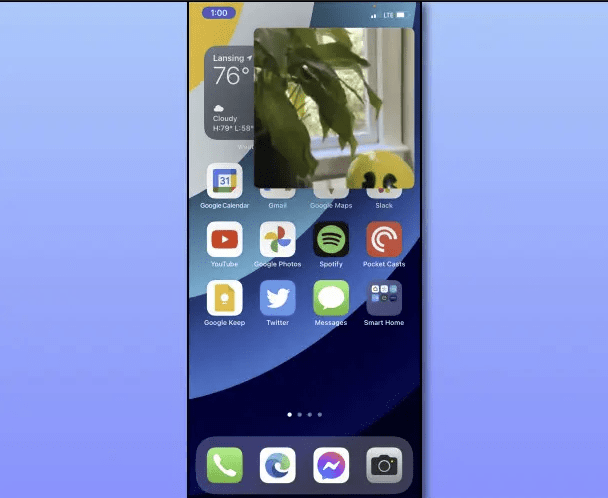
Next, when the screen-sharing starts, FaceTime shrinks to a small window on your screen, and you can use your iPhone or iPad as usual to launch apps. The person on the other side of the call will see what you are doing on your screen (but they will not see the inset video window). See the below image:
Your screen sharing
Now, to stop screen sharing, bring up the FaceTime toolbar again by tapping the video thumbnail and selecting the Screen Sharing button again. See the following image:
Stop Screen Sharing
Next, when you are done with the FaceTime call, tap End. Refer to the below image:
Ending FaceTime call
Quote For the Day
The march of science and technology does not imply growing intellectual complexity in the lives of most people. It often means the opposite.
Thomas Sowell
Tweet Info
That’s it. Please feel free to share this post! One way to share is via Twitter.
Just click the Tweet icon below. This will launch Twitter where you click its icon to post the Tweet.
Check out TechSavvy.Life for blog posts on smartphones, PCs, and Macs! You may email us at contact@techsavvy.life for comments or questions.
Please feel free to leave a comment. I would love to hear from you. Do you have a computer or smart device tech question? I will do my best to answer your inquiry. Just send an email to contact@techsavvy.life. Please mention the device, app, and version you are using. To help us out, you can send screenshots of your data related to your question.
Author’s E-book
You can access the e-book from a Kindle device, the Kindle App for the desktop or smartphone, which is a free app.
The author’s Vietnam eBook on the Battle for Tra Bong Vietnam: Events and Aftermath
If you do not wish to keep a single or an entire chat in your Facebook Messenger, the company allows you to delete individual or all your messages at once.
If you do not wish to keep a single or an entire chat in your Facebook Messenger, the company allows you to delete individual or all your messages at once. Let’s find out on your desktop and mobile.
Note! Your deleted messages can not be restored, so make sure you really want to get rid of your messages.
This is for devices using Facebook Messenger. Screenshots are from iPhone XR and Windows 10. Messenger’s latest version is 2022 so screenshots may be different from your device.
Copyright Scott Adams, Inc./Distributed by Universal Uclick for UFS
You can remove, unsend, or delete messages or chats. This post gives you different methods on how to “back out” your messages or chats. This means you can “undo” mistakenly sent messages. For the Unsend, you have 10 minutes to retract the original message. The Remove feature deletes the message.
Delete Messages on the Desktop
If you are on a desktop computer like Windows, Mac, Linux, or Chromebook, use the Facebook website to delete individual or all messages from your account.
First, launch a web browser on your computer and access Facebook. Log in to your account on the site if you are not already logged in.
Next, in Facebook’s top right-hand corner, click the Messenger icon. Refer to the below image:
Accessing Messenger
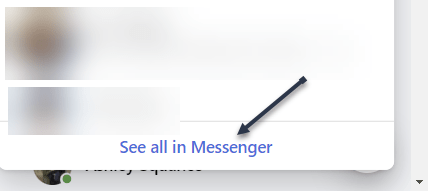
Now, in the Messenger panel, at the bottom, click See All in Messenger. See the below image:
Selecting all messages
Next, in the Chats sidebar on the left, you will see all your conversations. Select the chat in which you want to delete messages.
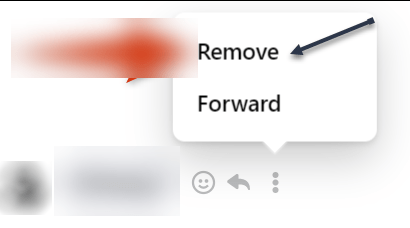
Now, on the right pane, find the individual message to delete. Then hover over that message, click the Menu icon (the three vertical dots), and choose Remove. See the following image:
Remove a message in a chat
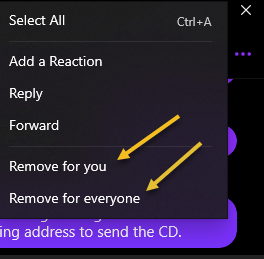
Next, depending on the message you select, click either Remove for you or Remove for everyone. Refer to the below image:
Selecting your option
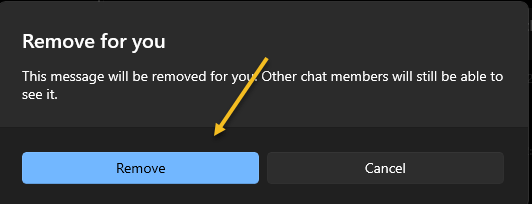
Now, if you have selected your own message, select Remove For You.
In the window’s bottom left-hand corner, click Remove and your message will be deleted. See the below image:
Removing only for you
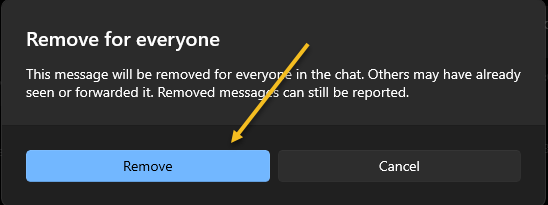
Next, if you have selected an everybody message, select Remove for everyone.
In the window’s bottom left-hand corner, click Remove and your message will be deleted. See the following image:
Removing for everyone
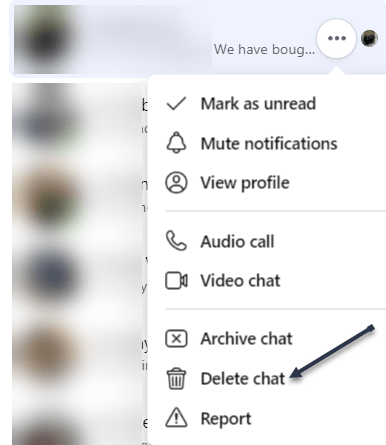
Now, if you would like to delete an entire conversation, then in the left sidebar, find that conversation. Then hover over that chat, click the Menu icon (the three vertical dots), and choose Delete Chat. Refer to the below image:
Selecting to delete a chat
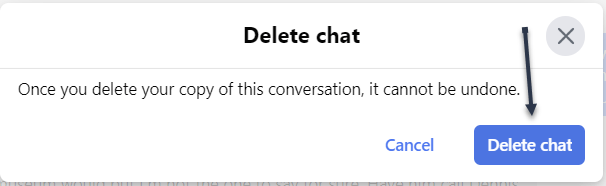
Next, in the prompt that opens, click Delete Chat. See the below image:
Confirming to delete a chat
Now, Facebook will delete your selected chat on the desktop.
Delete Messages on Mobile
On your iPhone, iPad, or Android phone, make use of the Messenger app to delete your individual messages or entire chats.
First, launch the Facebook Messenger app.
Next, tap the conversation from which you want to remove messages.
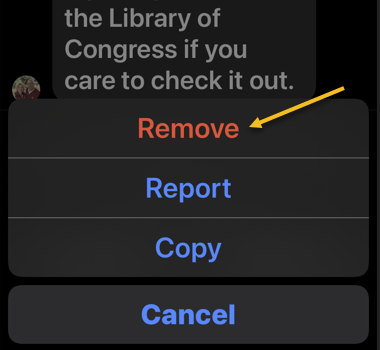
Now, on the conversation page, tap and hold on to the message to remove. If you have selected the other party’s message, then in the menu that opens, select More > Remove. If you have selected your own message, then tap Remove. The message is deleted on your end, but the other party can still access it. See the following image:
Remove a message
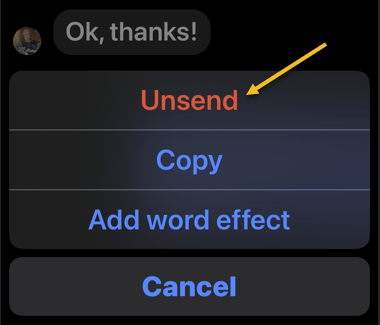
Next, To delete the message from everyone involved in the chat, choose Unsend. Refer to the below image:
Unsend a message
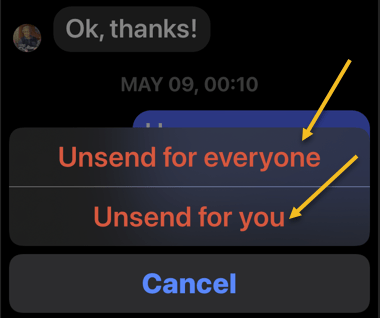
Now, you can choose Unsend for everyone or Unsend for you. See the below image:
Selecting an option to Unsend
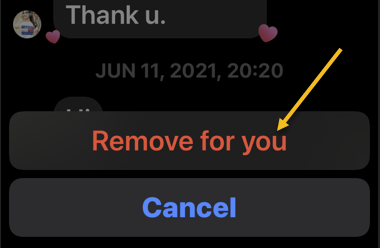
Next, to remove the message only from your own chat history, select Remove For You. See the following image:
Selecting Remove for you option
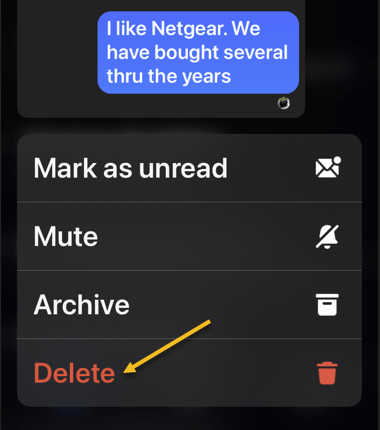
Now, you can also delete entire chats with someone. To do so, tap and hold on to the chat to delete. Then, in the menu that opens, select Delete. Refer to the below image:
Delete a chat
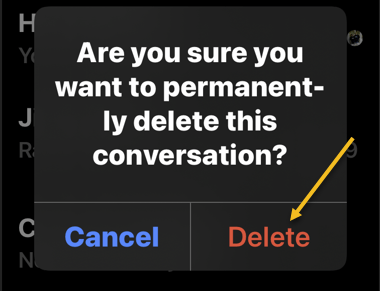
Next, in the prompt that opens, tap Delete. See the below image:
Confirm the delete
Now, you have successfully deleted your messages from Facebook Messenger on mobile.
Quote For the Day
People are stunned to hear that one company has data files on 185 million Americans.
Ralph Nader
Tweet Info
You are finished. Please feel free to share this post! One way to share is via Twitter.
Just click the Tweet icon below. This will launch Twitter where you click its icon to post the Tweet.
Check out TechSavvy.Life for blog posts on smartphones, PCs, and Macs! You may email us at contact@techsavvy.life for comments or questions.
Please feel free to leave a comment. I would love to hear from you. Do you have a computer or smart device tech question? I will do my best to answer your inquiry. Just send an email to contact@techsavvy.life. Please mention the device, app, and version you are using. To help us out, you can send screenshots of your data related to your question.
Author’s E-book
You can access the e-book from a Kindle device, the Kindle App for the desktop or smartphone, which is a free app.
The author’s Vietnam eBook on the Battle for Tra Bong Vietnam: Events and Aftermath
Reading is great, but sometimes you want or need to listen. Let your computer or phone do the reading for you. Let’s explore some tools to do this.
This is for the mobile or desktop
Copyright Scott Adams, Inc./Distributed by Universal Uclick for UFS
Some people struggle with reading text on a screen, or physically can not. Others might want their computer to read something to them aloud while they do something else. There are plenty of reasons to use a text-to-speech tool, also called a “screen reader”.
Although there are standalone text-to-speech apps, you probably do not need them. That’s because every operating system, and several well-known pieces of software, offer a text-to-speech feature, and they are all quite good.
Spoken Content for iPhone
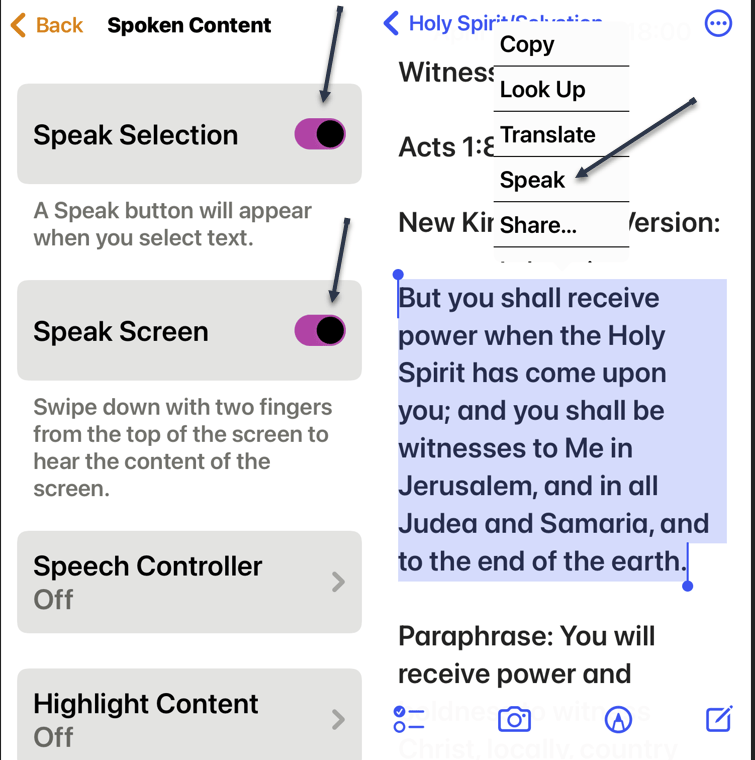
The iPhone’s text-to-speech feature is very easy to use. First, to turn it on, head to:
Settings > Accessibiltu > Spoken Content
and enable Speak Selection and Speak Screen. Once enabled, any text you highlight in any application will have a Speak option, which you tap to activate. We have highlighted some text from the Notes app to be read to us. Refer to the below image:
Spoken Content for iPhone
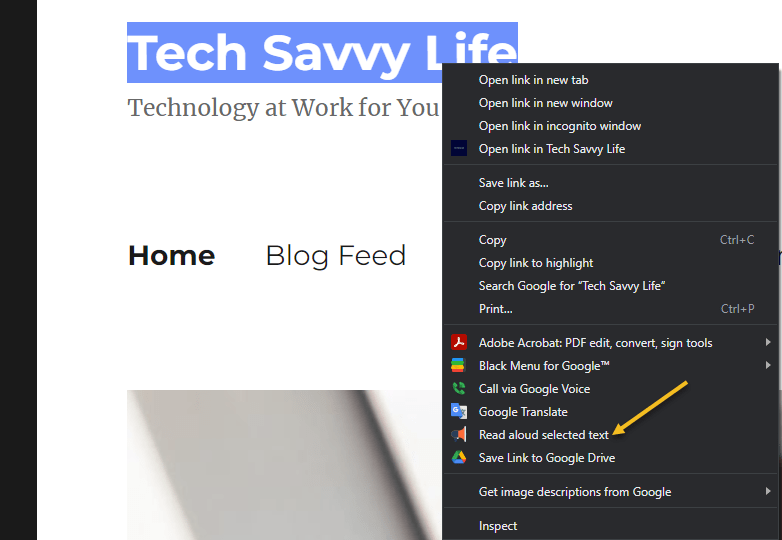
Read Aloud for Browsers
Read Aloud is an extension for Chrome, Firefox, and Edge that can read whatever website you currently have open. First, you will need to download the extension. After downloading, in Chrome, right-click on some highlighted text and choose the Read aloud selected text option. See the below image:
Read Aloud for browsers
Immersive Reader for Office and Edge
Microsoft Office applications have a built-in text-to-speech feature but it’s a little hard to find. First, in any document, click the Immersive Reader tab. If you do not see it, search for it, and from then on it should appear in your interface permanently. Highlight some text, then right-click and select Read Aloud to hear your document read back to you with the corresponding word highlighted as it goes. Immersive Reader is perfect for copy editing and reviewing long documents. See the following image:
Immersive Reader for Office
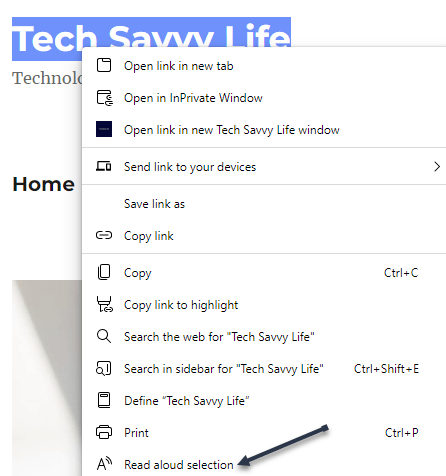
Microsoft Edge has this feature, too. Highlight some text, then right-click and select Real aloud selection. Refer to the below image:
Immersive Reader for Edge
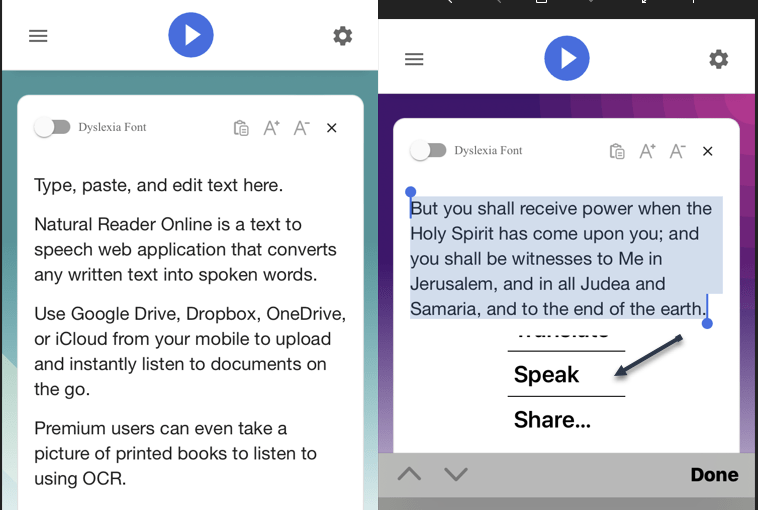
Natural Reader
First, download the mobile version (ours is for the iPhone). Then head to
NaturalReaders.com/online (note the plural in the URL)
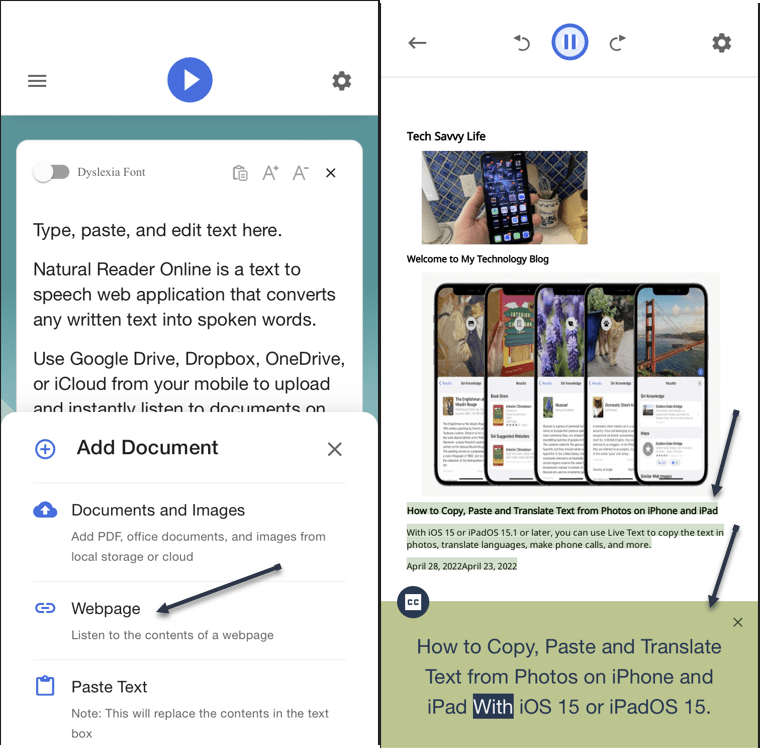
and paste some text, highlighting it to hear it read on a mobile device. See the below image:
Natural Reader on mobile
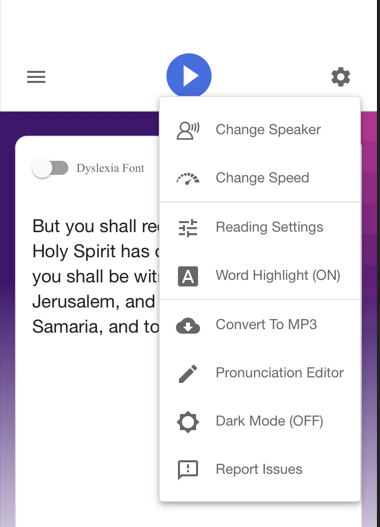
You can also drag documents into your browser window if you prefer. Natural Reader has a variety of voices, and you can control the speed of reading. Just click the Gear icon on the upper right-hand corner for options. See the following image:
Natural Reader options
You can upgrade for features like a Chrome extension, OCR for scanned documents, higher quality voices, and the ability to create MP3 files; these features cost $9.99 a month. The paid version also supports uploading documents, including Microsoft Word, Apple’s Pages, and even image files with text on them. The free version is perfect for quick listening. Refer to the below image for an example of listening to a webpage:
Natural Reader for web pages
Quote For the Day
Technology is so much fun but we can drown in our technology. The fog of information can drive out knowledge.
Daniel J Boorstin
Tweet Info
That’s it. Please feel free to share this post! One way to share is via Twitter.
Just click the Tweet icon below. This will launch Twitter where you click its icon to post the Tweet.
Check out TechSavvy.Life for blog posts on smartphones, PCs, and Macs! You may email us at contact@techsavvy.life for comments or questions.
Please feel free to leave a comment. I would love to hear from you. Do you have a computer or smart device tech question? I will do my best to answer your inquiry. Just send an email to contact@techsavvy.life. Please mention the device, app, and version you are using. To help us out, you can send screenshots of your data related to your question.
Author’s E-book
You can access the e-book from a Kindle device, the Kindle App for the desktop or smartphone, which is a free app.
The author’s Vietnam eBook on the Battle for Tra Bong Vietnam: Events and Aftermath
Many things are easy and obvious on Apple devices. But every so often you come across something that is not. If you want to mark all your emails as read on iPhone and/or iPad and clear those indicators, let’s explore how this is done.
Many things are easy and obvious on Apple devices. But every so often you come across something that is not. If you want to mark all your emails as read on iPhone and/or iPad and clear those indicators, let’s explore how this is done.
This is for the iPhone and iPad
Copyright Scott Adams, Inc./Distributed by Universal Uclick for UFS
Whether you have a mailbox full of unread messages or just a group that you want to mark as read, you can do both in the Mail app on your Apple device.
Mark as Read on iPhone and iPad
First, open the mailbox in the Mail app on iPhone or iPad or choose All Inboxes to take care of all your mailboxes at once. You can also pick a specific folder. Tap Edit on the top right-hand corner and Select All on the top left-hand corner.
On the bottom left-hand corner, tap Mark and select the Mark as Read option. Refer to the below image:
Selecting all emails as read
Mark as Read on Mobile
Maybe you have just a group of emails that you want to mark. They might be newsletters, promotional emails, or confirmation messages.
First, open the mailbox or folder in the Mail app and tap Edit on the top right-hand corner.
Next, you can select each message one at a time if they are not adjacent to each other. Or, to select a range of emails that are next to each other, drag your finger through them to mark them all quickly.
Now, tap Mark on the bottom left-hand corner and select the Mark as Read option. See the below image:
Selecting 2 emails as read
You can also use the Search feature to find particular emails and mark messages as “read” the same way.
Once you clear those unread indicators in your inbox or badge on the Mail icon, you can start fresh with new messages.
Quote For the Day
You affect the world by what you browse.
Tim Berners-Lee
Tweet Info
That’s it. Please feel free to share this post! One way to share is via Twitter.
Just click the Tweet icon below. This will launch Twitter where you click its icon to post the Tweet.
Check out TechSavvy.Life for blog posts on smartphones, PCs, and Macs! You may email us at contact@techsavvy.life for comments or questions.
Please feel free to leave a comment. I would love to hear from you. Do you have a computer or smart device tech question? I will do my best to answer your inquiry. Just send an email to contact@techsavvy.life. Please mention the device, app, and version you are using. To help us out, you can send screenshots of your data related to your question.
Author’s E-book
You can access the e-book from a Kindle device, the Kindle App for the desktop or smartphone, which is a free app.
The author’s Vietnam eBook on the Battle for Tra Bong Vietnam: Events and Aftermath
Are you not a big fan of Google Chrome’s Live Captions, which displays the text version of your media files? If so, it’s easy to turn this feature off/on both temporarily and permanently.
Are you not a big fan of Google Chrome’s Live Captions, which displays the text version of your media files? If so, it’s easy to turn this feature off/on both temporarily and permanently. Let’s explore this feature.
This is for devices using Google Chrome. Screenshots are from Windows 10
Copyright Scott Adams, Inc./Distributed by Universal Uclick for UFS
Temporary Disable Live Captions
You can turn off Chrome’s Live Captions for a specific playback session while keeping it enabled for all other sessions.
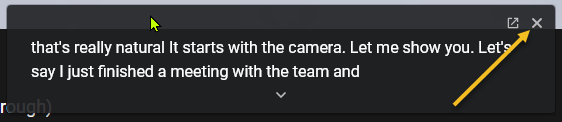
First, open a video containing a voice. The speaker’s voice will be displayed as Live Captions. To close this Live Captions, in the top right-hand corner of Chrome’s Live Captions box, click the “X” icon. Note! We are assuming the Live Captions option has been disabled (see below section). Refer to the below image:
Live Caption being displayed
Live Captions will immediately disappear from your screen, and you can enjoy your media playback without any interruptions.
Permanently Stop Live Captions
If you do not wish to see live captions for any of your media playbacks in Chrome, turn the feature OFF permanently and it will not bother you anymore.
First, from Chrome’s top right-hand corner, select the three dots icon (the Menu icon). See the below image:
Selecting the Menu icon
Next, in the Menu box, click Settings. See the following image:
Selecting Settings
Now, on the Settings screen, from the left sidebar, select Advanced. Refer to the below image:
Selecting Advanced
Next, in the expanded Advanced menu, click Accessibility. See the below image:
Selecting Accessibility
Now, on the right, in the Accessibility pane, toggle the Live Caption option to OFF. See the following image:
Disable Live Caption
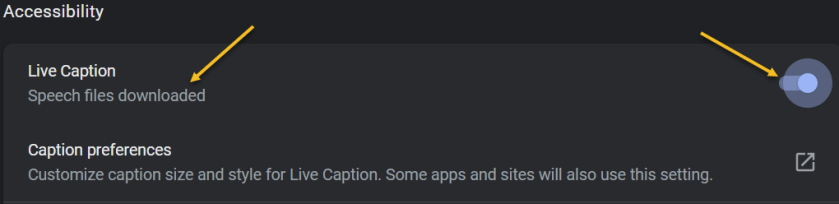
If you want to enable the option again, toggle the Live Caption option to ON. You may see the message “Speech files downloaded” below the Live Caption. Refer to the below image:
Enable Live Caption
Going forward, Chrome will not display any captions for your media playbacks in the browser.
Quote For the Day
Technology is supposed to make our lives easier, allowing us to do things more quickly and efficiently. But too often it seems to make things harder, leaving us with fifty-button remote controls, digital cameras with hundreds of mysterious features and book-length manuals, and cars with dashboard systems worthy of the space shuttle.
James Surowiecki
Tweet Info
You are finished. Please feel free to share this post! One way to share is via Twitter.
Just click the Tweet icon below. This will launch Twitter where you click its icon to post the Tweet.
Check out TechSavvy.Life for blog posts on smartphones, PCs, and Macs! You may email us at contact@techsavvy.life for comments or questions.
Please feel free to leave a comment. I would love to hear from you. Do you have a computer or smart device tech question? I will do my best to answer your inquiry. Just send an email to contact@techsavvy.life. Please mention the device, app, and version you are using. To help us out, you can send screenshots of your data related to your question.
Author’s E-book
You can access the e-book from a Kindle device, the Kindle App for the desktop or smartphone, which is a free app.
The author’s Vietnam eBook on the Battle for Tra Bong Vietnam: Events and Aftermath
If you need to tweet an image or video of something with a content warning, it’s a good idea to mark the media as “sensitive.” Doing so will hide the image or video unless someone clicks the Show button.
If you need to tweet an image or video of something with a content warning, it’s a good idea to mark the media as “sensitive.” Doing so will hide the image or video unless someone clicks the Show button. Here’s how to do this.
This is for devices using Twitter. Screenshots are from iPhone XR
Copyright Scott Adams, Inc./Distributed by Universal Uclick for UFS
First, visit the Twitter website or open the Twitter app. Begin composing a tweet and attach an image or a video. For this post, we are using an image in reverse color. Your video or image should display normally.
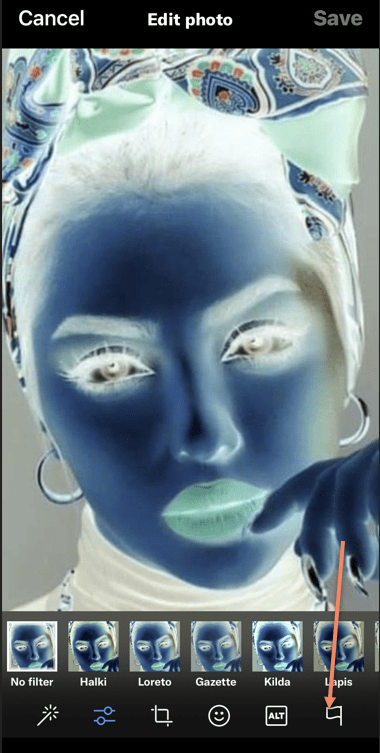
If you are using the Twitter app, tap the Paintbrush icon below the image thumbnail to begin editing. If you are on the web version of Twitter, click Edit in the lower right-hand corner of the image. Refer to the below image:
Edit the image
Next, tap or click the Flag icon. On the Twitter app, it’s in the lower right-hand corner of the screen. On the web, you will find the Flag as a tab in the upper right-hand corner, just above the image thumbnail. See the below image:
Select the Flag icon
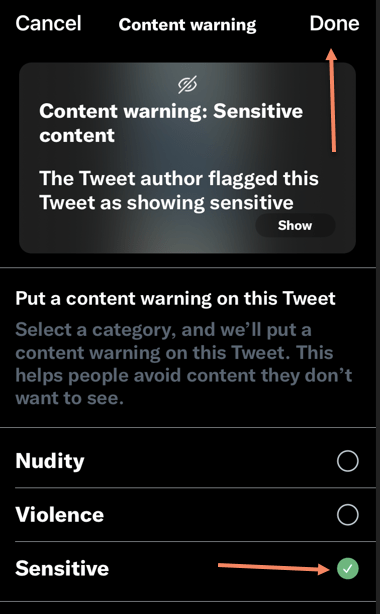
Now, under the Put a content warning on this tweet menu, place a checkmark beside any of the items that apply. If you are posting a spoiler on Twitter, the Sensitive setting works the best. Once finished, tap Done then Save on the Twitter app, or just Save on the web version of Twitter. See the following image:
Select your option(s)
Next, tap Save on the Twitter app. Refer to the below image:
Select Save if using the Twitter app
Now, Tweet your post. See the below image:
Tweet your post
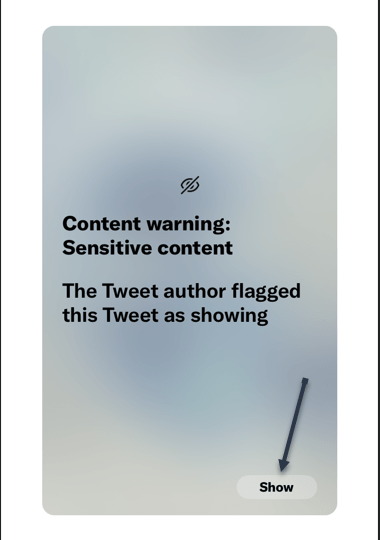
Next, after tweeting, other Twitter users will see the content warning obscuring your image or video unless they click or tap the Show button. See the following image:
Select Show to see the image
The final image is as follows:
The final image
Pretty easy, Just make sure that you do not violate Twitter’s terms of service along the way.
Quote For the Day
People don’t notice whether it’s winter or summer when they’re happy.
Anton Chekhov
Tweet Info
That’s it. Please feel free to share this post! One way to share is via Twitter.
Just click the Tweet icon below. This will launch Twitter where you click its icon to post the Tweet.
Check out TechSavvy.Life for blog posts on smartphones, PCs, and Macs! You may email us at contact@techsavvy.life for comments or questions.
Please feel free to leave a comment. I would love to hear from you. Do you have a computer or smart device tech question? I will do my best to answer your inquiry. Just send an email to contact@techsavvy.life. Please mention the device, app, and version you are using. To help us out, you can send screenshots of your data related to your question.
Author’s E-book
You can access the e-book from a Kindle device, the Kindle App for the desktop or smartphone, which is a free app.
The author’s Vietnam eBook on the Battle for Tra Bong Vietnam: Events and Aftermath
With iOS 15 or iPadOS 15.1 or later, you can use Live Text to copy the text in photos, translate languages, make phone calls, and more. Let’s explore this feature.
This is for iPhone and iPad running OS 15 or higher. Screenshots are from iPhone XR
Copyright Scott Adams, Inc./Distributed by Universal Uclick for UFS
The Live Text feature can easily identify text. The text can then be copied, translated, or used for a search. Live Text also can capture text from your photos. So, instead of retyping text from a photo, the use of Live Text is a time saver.
To use Live Text, you need an iPhone XR, iPhone XS, or a newer model. For the iPad, an iPad 8th generation or later, iPad Mini 5th generation or later, iPad Pro 11 inches or 12.9 inches.
Enable Live Text
First, to turn on Live Text for all supported languages, head to:
Settings > General > Language & Region
Next, toggle the Live Text switch to ON. Refer to the below image:
Enabling Live Text
Copy and Paste Text
First, open a photo with some text. See the below image:
Opening a photo that contains text
Next, touch and hold some word(s), and move the handles to adjust your selection.
Now. a pop-up menu will open. Here, either tap Select or Select All. You can also select all by tapping the Live Text button in the lower right-hand corner of the image. See the following image:
Selecting All of the photo text
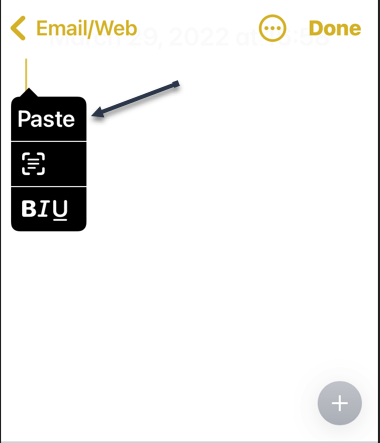
Next, from the pop-up menu, you can Paste your copied photo text. In our example, we are pasting it into Apple Notes. Refer to the below image:
Selecting the Paste option in Apple Notes
Now, you will see your copied text. Tap Done when finished. See the below image:
Your pasted text from a photo
Translate Text
To Translate text, you follow the above steps, except chose a photo with text in a foreign language. First, from the pop-up menu, tap on Translate. You might need to tap Continue, then choose a language to translate in or tap Change Language. Your copied and pasted text will be translated. See the following image:
Selecting to Translate your photo text
Additionally, you can copy and paste links and even make phone calls using Live Text.
Quote For the Day
The more refined one is, the more unhappy.
Anton Chekhov
Tweet Info
That’s it. Please feel free to share this post! One way to share is via Twitter.
Just click the Tweet icon below. This will launch Twitter where you click its icon to post the Tweet.
Check out TechSavvy.Life for blogposts on smartphones, PCs, and Macs! You may email us at contact@techsavvy.life for comments or questions.
Please feel free to leave a comment. I would love to hear from you. Do you have a computer or smart device tech question? I will do my best to answer your inquiry. Just send an email to contact@techsavvy.life. Please mention the device, app, and version you are using. To help us out, you can send screenshots of your data related to your question.
Author’s E-book
You can access the e-book from a Kindle device, the Kindle App for the desktop or smartphone, which is a free app.
The author’s Vietnam eBook on the Battle for Tra Bong Vietnam: Events and AftermathQR code for this blog post
If you do not like someone following you on Twitter but do not want to block them, you can remove them from your follower list. This only takes a few clicks.
If you do not like someone following you on Twitter but do not want to block them, you can remove them from your follower list. This only takes a few clicks. Let’s explore how to do it on Twitter’s desktop and mobile site.
This is for the devices using Twitter
Copyright Scott Adams, Inc./Distributed by Universal Uclick for UFS
Note: As of the writing, the option to remove a follower is only available on Twitter’s desktop and mobile site. The option is not yet available on Twitter for Android or iOS.
The Old and New Methods
Twitter has launched the ability to remove followers at the end of 2021. Earlier, if you wanted to remove a follower, you had to block them. Doing so basically removed that user from your follower’s list, prevented them from following you again, and also hid your tweets from them.
In the new method of removing followers, you can remove someone from your follower’s list without blocking them. Twitter does not notify a user when you remove them from your follower’s list. However, they may notice they are not following you anymore, and they can then choose to follow you again. You will need to block them if you do not want them capable of following you, or choose the nuclear option and delete your Twitter account as a last resort.
Remove Followers Using Desktop
To delete a follower from your Twitter profile on a Windows, Mac, Linux, or Chromebook computer, use the Twitter desktop website.
First, open a web browser on your computer and launch the desktop Twitter site. Log in to your account if you have not already done so.
Next, in Twitter’s left sidebar, click the Profile option (the person icon). Refer to the below image:
Selecting your Profile
Now, your profile page will open. Here, beneath your profile information, click the Followers link to see your followers list. See the below image:
Selecting your Followers link
Next, on the follower’s page, find the follower you want to remove. Then, next to that user’s name, click the Menu icon (the three dots). See the following image:
Selecting the Menu for a follower
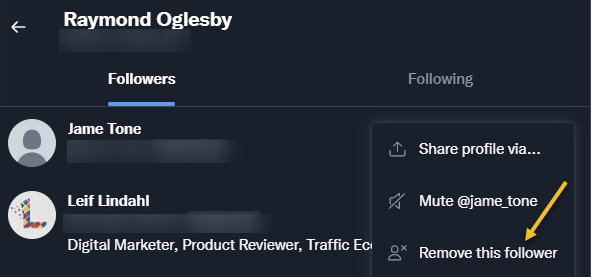
Now, in the three-dots Menu, click Remove this follower. Refer to the below image:
Selecting to Remove this follower
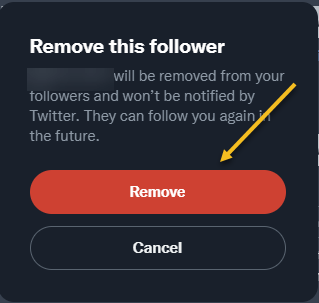
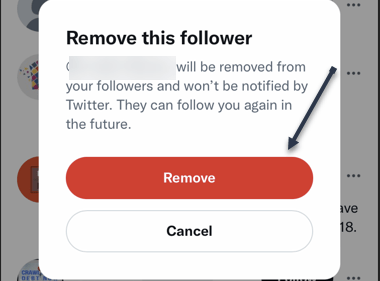
Next, you will see a Remove this follower prompt. Just click the Remove button. See the below image:
Warning: Make sure you really want to remove that follower before clicking “Remove.” Twitter will not show any further prompts and will immediately remove that user from your followers list.
Remove the follower
Now, you are all set. Your selected follower is now removed from your Twitter followers list.
Remove Followers Using Mobile
If you are on an iPhone, iPad, or Android phone, you can use Twitter’s mobile site to remove a follower from your account.
First, open a web browser on your phone and launch the mobile Twitter site (mobile.twitter.com/home). If you launch Twitter.com (as you do on the desktop), the removal process will not work. Sign in to your Twitter account if not already done so.
Next, in Twitter’s top left-hand corner, tap your Profile icon. See the following image:
Selecting your Profile
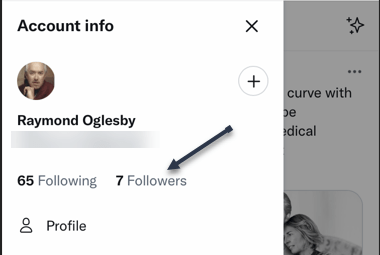
Now, an Account info menu will open. Here, tap the Followers link. Refer to the below image:
Selecting your Followers link
Next, on the follower’s page, find the follower you want to remove. Then, next to that user’s name, tap the Menu icon (the three dots). See the below image:
Selecting the Menu for a follower
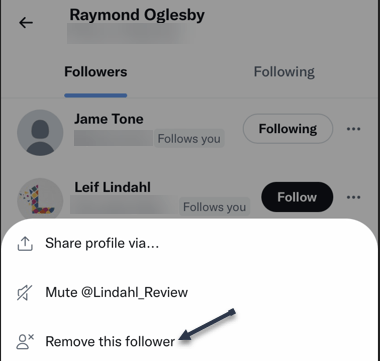
Now, in the three-dots Menu, tap Remove this follower. See the following image:
Selecting to Remove this follower
Next, you will see a Remove this follower prompt. Just tap the Remove button. Refer to the below image:
Warning: Make sure you really want to remove that follower before clicking “Remove.” Twitter will not show any further prompts and will immediately remove that user from your followers list.
Remove the follower
Now, you are all set. Your selected follower is now removed from your Twitter followers list.
Quote For the Day
I have not failed. I’ve just found 10,000 ways that won’t work.
Thomas Edison
That’s it. Please feel free to share this post! One way to share is via Twitter.
Just click the Tweet icon below. This will launch Twitter where you click its icon to post the Tweet.
Check out TechSavvy.Life for blog posts on smartphones, PCs, and Macs! You may email us at contact@techsavvy.life for comments or questions.
Please feel free to leave a comment. I would love to hear from you. Do you have a computer or smart device tech question? I will do my best to answer your inquiry. Just send an email to contact@techsavvy.life. Please mention the device, app, and version you are using. To help us out, you can send screenshots of your data related to your question.
Author’s E-book
You can access the e-book from a Kindle device, the Kindle App for the desktop or smartphone, which is a free app.
The author’s Vietnam eBook on the Battle for Tra Bong Vietnam: Events and Aftermath
Google Chrome can save your website passwords and help you automatically fill them the next time you visit your sites.
There are several ways to turn on the password saving feature in Chrome. Note that Chrome syncs your passwords with your Google account, which means if you enable Chrome to save passwords on one device, that change automatically applies to all your signed-in devices. Let’s explore this feature on both desktop and mobile devices.
This is for desktop and mobile running Chrome. Screenshots are from Windows 10 and iPhone XR
Copyright Scott Adams, Inc./Distributed by Universal Uclick for UFS
Save Passwords on Desktop
To enable Chrome’s password manager on your Windows, Mac, Linux, or Chromebook computer, first, open Chrome on your computer.
Next, in Chrome’s top right-hand corner, click the three dots (the Menu icon). Refer to the below image:
Selecting the Menu icon
Now, from the three-dots Menu icon, select the Settings option. See the below image:
Accessing the Settings option
Next, on the left sidebar of the Settings page, click the Autofill option. See the following image:
Accessing the Autofill option
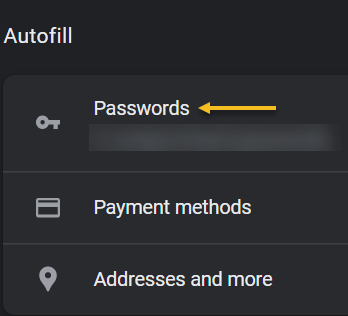
Now, on the right of the Autofill section, click the Passwords option. Refer to the below image:
Selecting the Passwords option
Next, toggle the Offer to save passwords option to ON at the top of the Passwords page. See the below image:
Enable Offer to save passwords
Note! If you decide you do not want password prompts, just toggle the Offer to save passwords to OFF.
From now on, when you log in to a site in Chrome on any of your devices, the browser will ask you to save your password for that site.
Save Passwords on Mobile
First, open Chrome on your iPhone, iPad, or Android device.
Next, tap the three dots (the Menu icon) in Chrome on your device. If you are on Android, these dots are in Chrome’s top right-hand corner. If you are on an iPhone or iPad, you will find the Menu icon in the bottom right-hand corner. See the following image:
Accessing the Menu icon
Now, in the menu that opens, tap the Settings option. Refer to the below image:
Accessing the Settings option
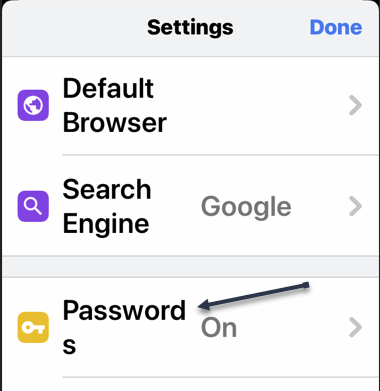
Next, in the Basics section of the Settings page, tap the Passwords option. See the below image:
Accessing the Passwords option
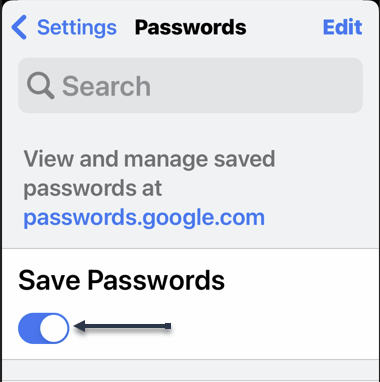
Now, on the Passwords page, toggle the Save Passwords option to ON. See the following image:
Enable Save Passwords
Save Passwords Using Password Manager Site
To use this method, first, open a web browser on your device and access the Google Password Manager site. Log in to the site with the same Google account that you use in Chrome.
Now, when the Password Manager site opens, in the top right-hand corner, click the password options (the gear icon). Refer to the below image:
Accessing Password options
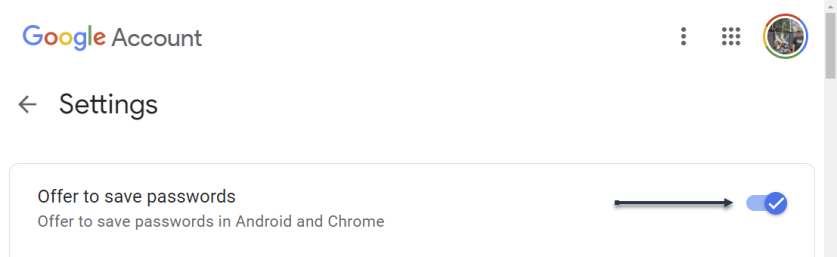
Next, the Settings page will open. Here, at the top, toggle the Offer to save passwords option to ON. See the below image:
Enable Offer to sasve passwords
From now on, no matter what method you used above, Chrome will start prompting you to save passwords on all your signed-in devices.
Quote For the Day
If people like you, they’ll listen to you, but if they trust you, they’ll do business with you.
Zig Ziglar
You are finished. Please feel free to share this post! One way to share is via Twitter.
Just click the Tweet icon below. This will launch Twitter where you click its icon to post the Tweet.
Check out TechSavvy.Life blog posts on smartphones, PCs, and Macs! You may email us at contact@techsavvy.life for comments or questions.
Please feel free to leave a comment. I would love to hear from you. Do you have a computer or smart device tech question? I will do my best to answer your inquiry. Just send an email to contact@techsavvy.life. Please mention the device, app, and version you are using. To help us out, you can send screenshots of your data related to your question.
Author’s E-book
You can access the e-book from a Kindle device, the Kindle App for the desktop or smartphone, which is a free app.
The author’s Vietnam eBook on the Battle for Tra Bong Vietnam: Events and Aftermath











































 Tech Savvy Life