How to Unhide a Facebook Post on Mobile

Do you want to bring a hidden post back to your timeline so everyone can see it? If so, Facebook makes it easy to unhide your hidden posts.

RAYMOND OGLESBY @RaymondOglesby2
March 30, 2022

Do you want to bring a hidden post back to your timeline so everyone can see it? If so, Facebook makes it easy to unhide your hidden posts. Let’s explore how this is done on mobile devices.

This is for mobile devices using Facebook. Screenshots are from iPhone XR

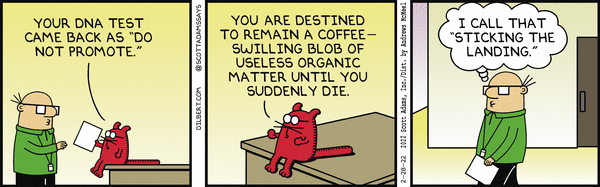
Dilbert and Promote
Copyright Scott Adams, Inc./Distributed by Universal Uclick for UFS

When you unhide a post, the post becomes available on your timeline. Later, if you change your mind, you can re-hide the post and make it hidden again.

If you are using an iPhone, iPad, or Android phone, use the official Facebook app to make a post visible.

First, open the Facebook app on your phone. At the top right-hand corner of the app, tap the Menu icon (three horizontal lines). On some devices, the Menu icon may be in the lower right-hand corner. Refer to the below image:

Unhide 1
Accessing the Menu

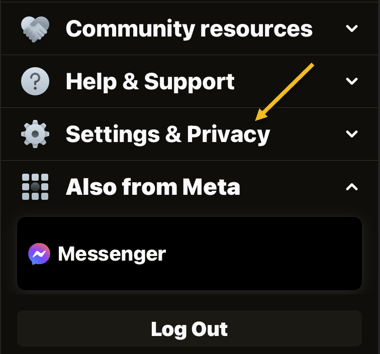
Next, a Menu page will open. Scroll down this page, then tap Settings & Privacy. See the below image:

Unhide 2
Accessing Settings & Privacy option

Now, in the expanded Settings & Privacy menu, tap Settings. See the following image:

Unhide 3
Accessing Settings option

Next, on the Settings & Privacy page, scroll down to the Your Information section and tap Activity Log. Refer to the below image:

Unhide 4
Accessing Activity Log option

Now, scroll down the Activity Log page to the Logged Actions and Other Activity section. Here, tap the down-arrow icon. See the below image:

Unhide 5
Accessing Logged Action and Other Activity option

Next, select Hidden from profile in the menu. See the following image:

Unhide 6
Accessing Hidden from profile option

Facebook will now display all your hidden posts depending on the number of posts. If you have a large number of posts, you may get a server timeout message in trying to load your data. If you keep timing out, select the View Activity History button to locate a hidden post.

Now, to unhide one of these posts, tap the three dots next to the post. Refer to the below image:

Unhide 7
Selecting a post to unhide

Next, from the menu that opens, select Add to profile. See the below image:

Unhide 8
Add the post to your timeline

And Facebook will add your post back to your timeline.

Quote For the Day

You don’t drown by falling into water. You only drown if you stay there.

Zig Ziglar

You are finished. Please feel free to share this post! One way to share is via Twitter.

Just click the Tweet icon below. This will launch Twitter where you click its icon to post the Tweet.

Check out TechSavvy.Life for blog posts on smartphones, PCs, and Macs! You may email us at contact@techsavvy.life for comments or questions.

I Would Like to Hear From You

Please feel free to leave a comment. I would love to hear from you. Do you have a computer or smart device tech question? I will do my best to answer your inquiry. Just send an email to contact@techsavvy.life. Please mention the device, app, and version you are using. To help us out, you can send screenshots of your data related to your question.

Author’s E-book

You can access the e-book from a Kindle device, the Kindle App for the desktop or smartphone, which is a free app.

The author’s Vietnam eBook on the Battle for Tra Bong Vietnam: Events and Aftermath

How to Turn Off Facebook Active Status

When your active status is enabled on Facebook, your contacts can see that you are currently or recently have been online. If you do not want them to know your online presence, turn off your active status on Facebook.

RAYMOND OGLESBY @RaymondOglesby2
March 24, 2022

When your active status is enabled on Facebook, your contacts can see that you are currently or recently have been online. If you do not want them to know your online presence, turn off your active status on Facebook. Let’s explore this feature.

This is for iPhone, iPad. and Android. Screenshots are from iPhone XR. Images may be different on iPad and Android.

Dilbert and Press
Copyright Scott Adams, Inc./Distributed by Universal Uclick for UFS

Later, if you change your mind, you can re-enable active status and let people know that you are online.

First, launch the Facebook app on your phone. In the app, tap the three horizontal lines. If you are on an iPhone or iPad, you will find these lines at the bottom right-hand corner. If you are on an Android phone, these lines are at the top right-hand corner. Refer to the below image:

FB Active 1
Accessing the Menu

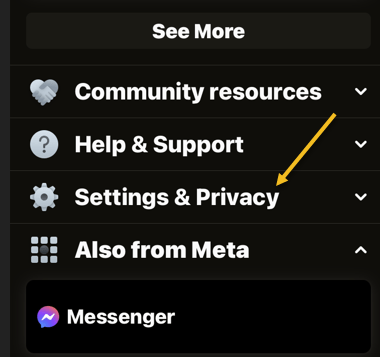
Next, scroll down the Menu screen that opens to the bottom, then tap Settings & Privacy. See the below image:

FB Active 2
Accessing Settings &Privacy option

Now, on the screen that opens, tap Settings. See the following image:

FB Active 3
Accessing Settings

Next, on the Settings & Privacy page, at the bottom of the Audience and Visibility section, select Active Status. Refer to the below image:

FB Active 4
Selecting Active Status

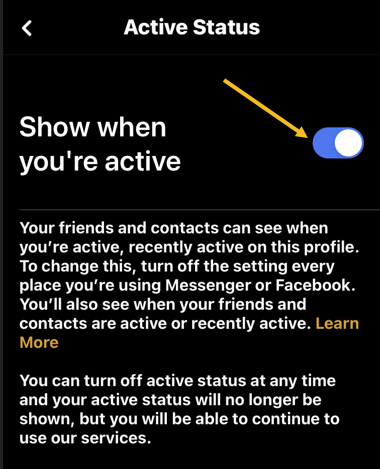
Now, to turn off your active status, on the Active Status page, disable the Show When You’re Active option.

Note: To re-enable your active status on Facebook, turn on the Show When You’re Active option.

See the below image:

FB Active 5
Disable Active Status

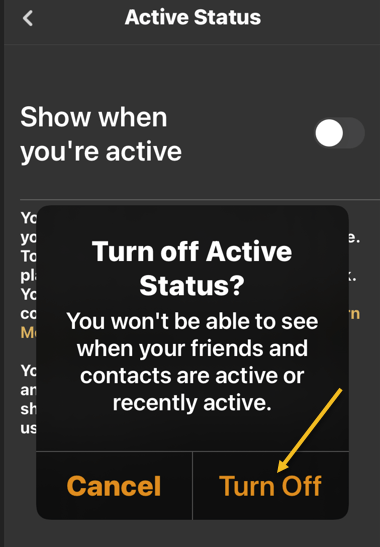
Next, tap Turn Off in the prompt that appears. See the following image:

FB Active 6
Select Turn Off to hide your Active Status

Quote For the Day

When you encourage others, you in the process are encouraged because you’re making a commitment and difference in that person’s life. Encouragement really does make a difference.

Zig Ziglar

That’s it. Please feel free to share this post! One way to share is via Twitter.

Just click the Tweet icon below. This will launch Twitter where you click its icon to post the Tweet.

Check out TechSavvy.Life for blog posts on smartphones, PCs, and Macs! You may email us at contact@techsavvy.life for comments or questions.

I Would Like to Hear From You

Please feel free to leave a comment. I would love to hear from you. Do you have a computer or smart device tech question? I will do my best to answer your inquiry. Just send an email to contact@techsavvy.life. Please mention the device, app, and version you are using. To help us out, you can send screenshots of your data related to your question.

Author’s E-book

You can access the e-book from a Kindle device, the Kindle App for the desktop or smartphone, which is a free app.

The author’s Vietnam eBook on the Battle for Tra Bong Vietnam: Events and Aftermath

How to View/Unblock Blocked People on Facebook Using Mobile

Want to find all the people you have blocked in your Facebook account? If so, Facebook keeps a list of all your blocked users, which you can access and use to unblock a user if you want.

RAYMOND OGLESBY @RaymondOglesby2
March 22, 2022

Want to find all the people you have blocked in your Facebook account? If so, Facebook keeps a list of all your blocked users, which you can access and use to unblock a user if you want. Let’s explore how to do this.

This is for mobile phones using Facebook. Screenshots are from iPhone XR

Dilbert and Experience
Copyright Scott Adams, Inc./Distributed by Universal Uclick for UFS

To check your blocked people list on your iPhone, iPad, or Android phone, we can use the Facebook app.

First, open the Facebook app on your phone. In the app, tap the Hamburger icon (the three horizontal lines). On an iPhone and iPad, the icon is in the bottom right-hand corner. On Android, you will see the icon in the top right-hand corner. Refer to the below image:

FB Blocked 1
Accessing the Hamburger icon

Next, scroll the Menu screen to the bottom and tap Settings & Privacy. See the below image:

FB Blocked 2
Accessing Settings & Privacy

Now, in the expanded menu, tap Settings. See the following image:

FB Blocked 3
Accessing Settings

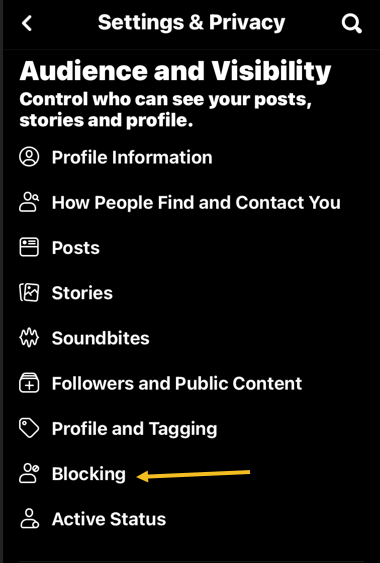
Next, in the Audience and Visibility section, choose Blocking. Refer to the below image:

FB Blocked 4
Selecting Blocking option

Now, on the Blocking page, you will now see a list of people you have blocked in your account. To unblock someone, next to their name, tap the Unblock option. See the below image:

FB Blocked 5
Selecting to unblock a person

Next, on the message that opens, confirm your action by taping Unblock. Continue to unblock others or exit Settings. See the following image:

FB Blocked 6
Confirming to Unblock a person

Quote For the Day

I read the paper every day and the Bible every day; that way I know what both sides are up to.

Zig Ziglar

You are finished. Please feel free to share this post! One way to share is via Twitter.

Just click the Tweet icon below. This will launch Twitter where you click its icon to post the Tweet.

Check out TechSavvy.Life for blog posts on smartphones, PCs, and Macs! You may email us at contact@techsavvy.life for comments or questions.

I Would Like to Hear From You

Please feel free to leave a comment. I would love to hear from you. Do you have a computer or smart device tech question? I will do my best to answer your inquiry. Just send an email to contact@techsavvy.life. Please mention the device, app, and version you are using. To help us out, you can send screenshots of your data related to your question.

Author’s E-book

You can access the e-book from a Kindle device, the Kindle App for the desktop or smartphone, which is a free app.

The author’s Vietnam eBook on the Battle for Tra Bong Vietnam: Events and Aftermath

How to Make a Shareable Facebook Post

If you are the type of person who often makes long, informative posts on Facebook, you have probably gotten the request, “Can you make this shareable?

RAYMOND OGLESBY @RaymondOglesby2
March 8, 2022

If you are the type of person who often makes long, informative posts on Facebook, you have probably gotten the request, “Can you make this shareable?

This is for mobile devices. Screenshots are from iPhone XR

Dilbert and Press
Copyright Scott Adams, Inc./Distributed by Universal Uclick for UFS

Facebook’s sharing feature is a great way to allow users to spread posts, in their entirety, from the original source, instead of just reposting.

Make Individual Post Shareable

First, find the post you want to make shareable and click the three dots (the Menu icon) in the upper right-hand corner. Refer to the below image:

FB Shareable 1
Accessing the menu

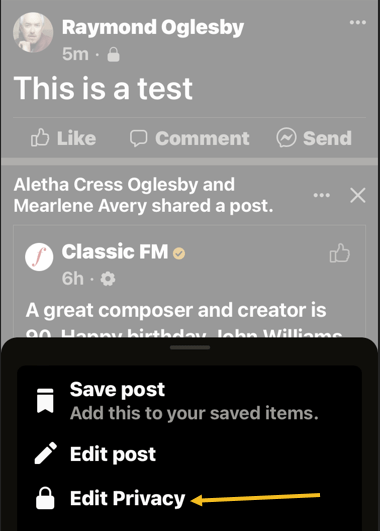
Next, in the pop-up menu, tap Edit Privacy. See the below image:

FB Shareable 2
Accessing Edit Privacy option

Now, in the Edit Privacy menu, tap the checkbox next to Public, then tap Done. See the below image:

FB Shareable 3
Set Privacy to Public

And you are all set. Your friends and followers will now see a Share button beneath your post. They can click this button to share your post wherever they want.

You will have to repeat this process for each post you want to make shareable.

Make All Posts Shareable

You can make all posts sharable when creating a post by tapping on the Select Audience button. Refer to the below image:

FB Shareable 4
AccessingSelect Audience

Next, in the Edit Audience menu. select Public, then tap Done. See the below image:

FB Shareable 5
Selecting Audience to Public

Quote For the Day

You’ve got to be before you can do and do before you can have.

Zig Ziglar

That’s it. Please feel free to share this post! One way to share is via Twitter.

Just click the Tweet icon below. This will launch Twitter where you click its icon to post the Tweet.

Check out TechSavvy.Life for blog posts on smartphones, PCs, and Macs! You may email us at contact@techsavvy.life for comments or questions.

I Would Like to Hear From You

Please feel free to leave a comment. I would love to hear from you. Do you have a computer or smart device tech question? I will do my best to answer your inquiry. Just send an email to contact@techsavvy.life. Please mention the device, app, and version you are using. To help us out, you can send screenshots of your data related to your question.

Author’s E-book

You can access the e-book from a Kindle device, the Kindle App for the desktop or smartphone, which is a free app.

The author’s Vietnam eBook on the Battle for Tra Bong Vietnam: Events and Aftermath

How to Locate Downloaded Files on iPhone or iPad

If you have downloaded files to your iPhone or iPad, accessing them might be confusing. There’s a special folder where iOS and iPadOS store downloads, and you can find it via the Files app.

RAYMOND OGLESBY @RaymondOglesby2
February 23, 2022

If you have downloaded files to your iPhone or iPad, accessing them might be confusing. There’s a special folder where iOS and iPadOS store downloads, and you can find it via the Files app. Let’s find out how to locate downloaded files.

This is for the iPhone and iPad. Screenshots are from iPhone XR

Dilbert and Honest
Copyright Scott Adams, Inc./Distributed by Universal Uclick for UFS

First, locate the Files app on your iPhone or iPad. The quickest way to do this is with Spotlight Search. Swipe one finger down from the middle of the Home screen, and then type Files. In the search results, then tap the Files icon. Refer to the below image:

Files 1
Locating the Files app

Next, select the Browse tab at the bottom. See the below image:

Files 2
Accessing the Browse tab

Now, tap On My iPhone or On My iPad, depending on which device you are using. The list under Locations will vary depending on which apps you have installed, but your device will always have an On My [Device] listing. See the following image:

Files 3
Selecting On My iPhone option

Next, you will see a list of folders which will vary depending on what apps you have installed. Generally, most people save files to the Downloads folder, so tap this folder. Refer to the below image:

Files 4
Selecting the Downloads folder

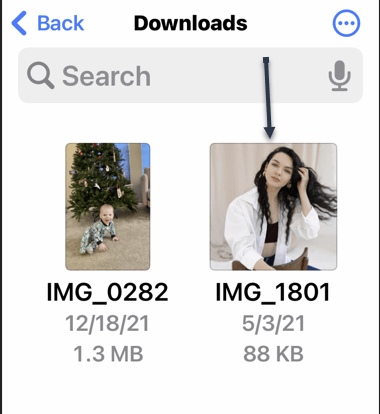
Now, you will see a list of all the files you have downloaded. During the download process, you can save a file to a folder other than Downloads. If you do not see the file you are looking for, tap the Back arrow at the upper left-hand corner, and then tap another folder. See the below image:

Files 5
Selecting a downloaded image

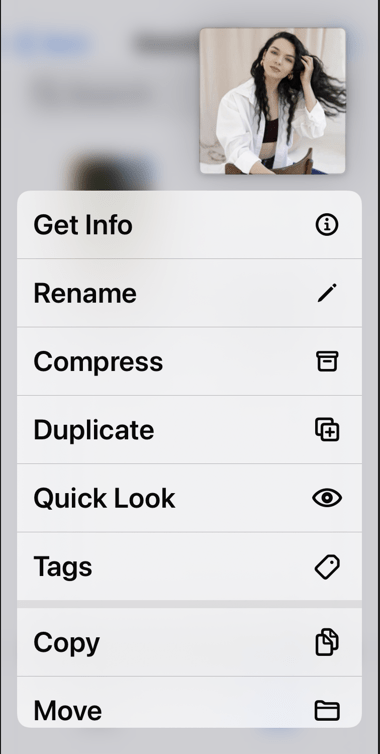
Next, once you locate the file you want, you can tap it to preview it, or tap and hold it to open a pop-up menu. Then, you can move, copy, or rename the file, along with other operations. See the following image:

Files 6
The image options

Quote For the Day

Beware of geeks bearing formulas.

Warren Buffett

That’s it. Please feel free to share this post! One way to share is via Twitter.

Just click the Tweet icon below. This will launch Twitter where you click its icon to post the Tweet.

Checkout TechSavvy.Life for blog posts on smartphones, PCs, and Macs! You may email us at contact@techsavvy.life for comments or questions.

I Would Like to Hear From You

Please feel free to leave a comment. I would love to hear from you. Do you have a computer or smart device tech question? I will do my best to answer your inquiry. Just send an email to contact@techsavvy.life. Please mention the device, app, and version you are using. To help us out, you can send screenshots of your data related to your question.

Author’s E-book

You can access the e-book from a Kindle device, the Kindle App for the desktop or smartphone, which is a free app.

The author’s Vietnam eBook on the Battle for Tra Bong Vietnam: Events and Aftermath

How to Stop Websites Asking For Your Location in Safari

Websites in Safari often bug you to let them access your location services to detect where you are. You can turn off those prompts on iPhone and iPad and even prevent the browser from accessing location services altogether.

RAYMOND OGLESBY @RaymondOglesby2
February 22, 2022

Websites in Safari often bug you to let them access your location services to detect where you are. You can turn off those prompts on iPhone and iPad and even prevent the browser from accessing location services altogether. Let’s explore this feature.

This is for iPhone and iPad using Safari. Screenshots are from iPhone XR

Dilbert and Option
Copyright Scott Adams, Inc./Distributed by Universal Uclick for UFS

Disable Location Requests in Safari

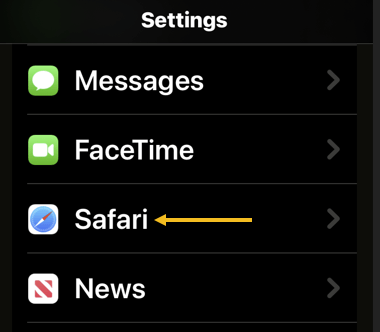
First, open the Settings app on your iPhone or iPad, then scroll down and select Safari. Refer to the below image:

Location 1
Accessing Safari

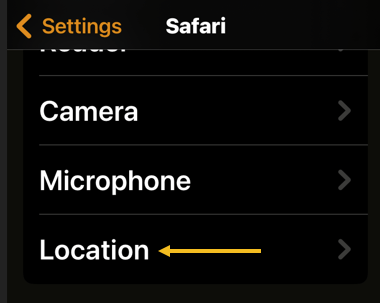
Next, scroll down till you see the Settings For Websites section then tap on Location See the below image:

Location 2
Accessing Location

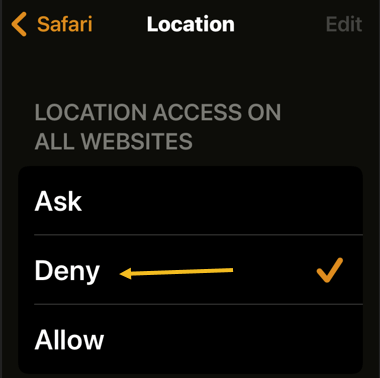
Now, select Deny. See the following image:

Location 3
Disable using Safari Location

Next, Safari will automatically block websites from pushing those prompts that ask for your location.

Disable Location Services in Safari

If you want to prevent Safari from accessing location services entirely for all websites, you can disable its access.

Note: Keep in mind that you will not get to use your iPhone’s location at all in Safari. You may want instead to disable precise location services and allow apps to see only your approximate location.

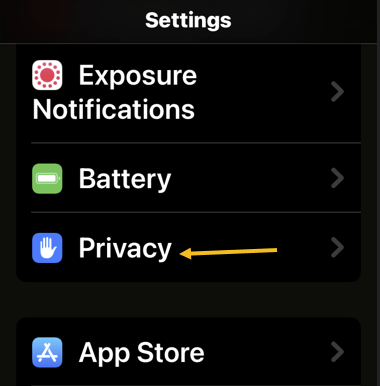
First, open the Settings app on your iPhone or iPad and select Privacy. Refer to the below image:

Location 4
Accessing Privacy

Next, tap Location Services. See the below image:

Location 5
Accessing Location Services

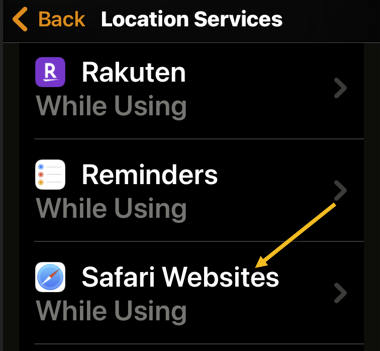
Now, select Safari Websites. See the following image:

Location 6
Accessing Safari Websites

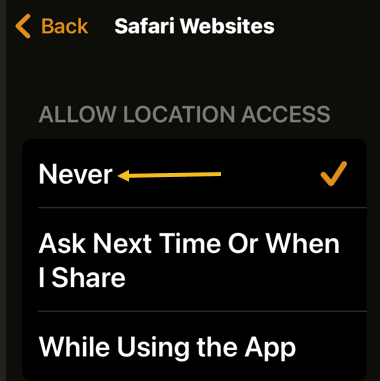
Next, select the Never option under the Allow Location Access. Refer to the below image:

Location 7
Disable Safari Websites

After disabling this, websites will not get to use location services in Safari on your iPhone or iPad.

Quote For the Day

Do more than you are being paid to do, and you’ll eventually be paid more for what you do.

Zig Ziglar

That’s it. Please feel free to share this post! One way to share is via Twitter.

Just click the Tweet icon below. This will launch Twitter where you click its icon to post the Tweet.

Check out TechSavvy.Life for blog posts on smartphones, PCs, and Macs! You may email us at contact@techsavvy.life for comments or questions.

I Would Like to Hear From You

Please feel free to leave a comment. I would love to hear from you. Do you have a computer or smart device tech question? I will do my best to answer your inquiry. Just send an email to contact@techsavvy.life. Please mention the device, app, and version you are using. To help us out, you can send screenshots of your data related to your question.

Author’s E-book

You can access the e-book from a Kindle device, the Kindle App for the desktop or smartphone, which is a free app.

The author’s Vietnam eBook on the Battle for Tra Bong Vietnam: Events and Aftermath

How to Turn Off Auto Brightness on iPhone

Thanks to light sensors, your iPhone or iPad can automatically adjust the display brightness to match the ambient lighting. If you prefer manual controls, it’s possible to turn off Auto-Brightness, but Apple put the option in an unusual place.

RAYMOND OGLESBY @RaymondOglesby2
February 16, 2022

Thanks to light sensors, your iPhone or iPad can automatically adjust the display brightness to match the ambient lighting. If you prefer manual controls, it’s possible to turn off Auto-Brightness, but Apple put the option in an unusual place.

This is for the iPhone and iPad. Screenshots are from iPhone XR

Dilbert and Boss
Copyright Scott Adams, Inc./Distributed by Universal Uclick for UFS

At one of my consultant assignments, I actually had a boss who told me “not to think, just do what I tell you”. I left his office and started calling companies for a new assignment. I left that company as soon as I could.

Strangely, the iPhone and iPad’s automatic brightness option is not in the Display & Brightness settings like you would expect. You will find the True Tone toggle, but nothing for Auto-Brightness. We just need to look somewhere else.

What is Auto-Brightness

In brighter rooms or outdoors, iOS increases the display brightness. In darker environments or at night, it will lower the brightness.

This is handy because it generally keeps your iPhone or iPad screen’s brightness appropriate for the lighting conditions without requiring you to go into Settings or visit the Control Center.

It also helps save battery life, as your device’s display is often the largest battery life eater and Auto-Brightness prevents the screen from being brighter than it needs to be.

But sometimes iOS’s “guess” at what the iPhone’s brightness should be and this is not what you want. For example, it may be quite dark in a room but you want to have maximum brightness for a particular app or movie. Or you may want to reduce screen brightness to save on battery life in an otherwise bright room.

Disable Auto-Brightness

First, open the Settings app from the Home screen. Refer to the below image:

Auto 1
Accessing Settings app

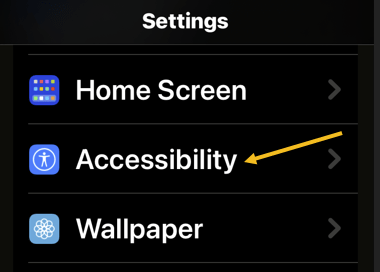
Here’s where Apple throws the curveball. You actually want to go to Accessibility, not the Display settings. See the below image:

Auto 2
Accessing Accessibility option

Now, tap the Display & Text Size category within Accessibility. See the following image:

Auto 3
Accessing Display & Text Size option

Next, scroll down to the bottom and toggle off the switch for Auto-Brightness. Refer to the below image:

Auto 4
Enable/Disable Auto-Brightness toggle

That’s it! Now when you adjust the brightness it will stay at the level you set until you change it again. This can be a good trick to save battery life; if you keep the brightness low; or it can drain the battery quickly if you leave it on high brightness a lot.

Quote For the Day

A public-opinion poll is no substitute for thought.

Warren Buffett

That’s it. Please feel free to share this post! One way to share is via Twitter.

Just click the Tweet icon below. This will launch Twitter where you click its icon to post the Tweet.

Check out TechSavvy.Life for blog posts on smartphones, PCs, and Macs! You may email us at contact@techsavvy.life for comments or questions.

I Would Like to Hear From You

Please feel free to leave a comment. I would love to hear from you. Do you have a computer or smart device tech question? I will do my best to answer your inquiry. Just send an email to contact@techsavvy.life. Please mention the device, app, and version you are using. To help us out, you can send screenshots of your data related to your question.

Author’s E-book

You can access the e-book from a Kindle device, the Kindle App for the desktop or smartphone, which is a free app.

The author’s Vietnam eBook on the Battle for Tra Bong Vietnam: Events and Aftermath

How to Disable/Enable Google Search Dark Theme

Google Search’s Dark Theme looks great, but it’s not for everyone. If you would prefer performing your searches on a light theme, here’s how to turn off/on Dark Theme on Google Search on desktop and mobile.

RAYMOND OGLESBY @RaymondOglesby2
February 15, 2022

Google Search’s Dark Theme looks great, but it’s not for everyone. If you would prefer performing your searches on a light theme, here’s how to turn off/on Dark Theme on Google Search on desktop and mobile.

This is for devices using Google Search. Screenshots are from Windows 10 and iPhone XR

Dilbert and Murder
Copyright Scott Adams, Inc./Distributed by Universal Uclick for UFS

Turn Off on Desktop

To disable Google Search’s Dark theme on your Windows, Mac, Linux, or Chromebook computer, first, launch your web browser and access the Google site.

Next, in the bottom-right-hand corner of the Google site, click Settings. Refer to the below image:

Searvh 1
Accessing Settings

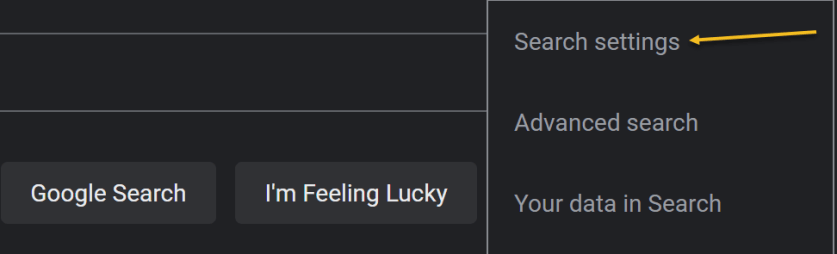
Now, in the menu that opens, select Search Settings. See the below image:

Search 2
Selecting Search settings option

Next, on the Search Settings page, in the left sidebar, click Appearance. See the following image:

Search 3
Selecting Appearance option

Now, in the Appearance section on the right, enable the Light theme option. This disables the Dark theme and enables the Light theme. Simply do the opposite to re-enable the Dark theme.

Next, to save your settings, at the bottom of the Appearance section, click Save. Refer to the below image:

Search 4
Save your change

Now, you will see a Your preferences have been saved prompt. Click OK. See the below image:

Search 5
Confirm your change

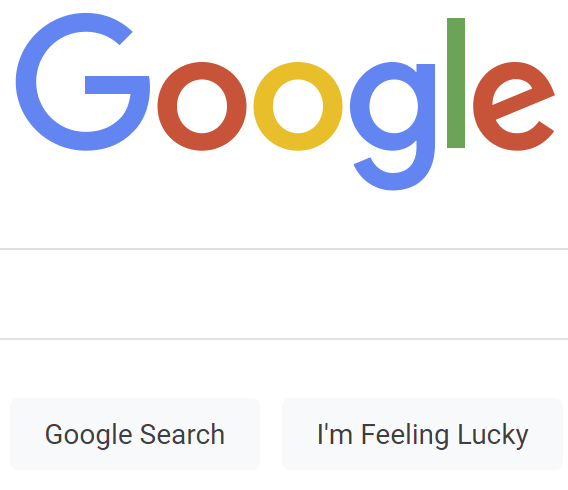
Next, your Google Search will be displayed in the Light theme. See the following image:

Search 6
Your Light theme

Turn Off on Mobile

To deactivate Dark theme on Google Search on your iPhone, iPad, or Android phone, first, launch your web browser and open the Google site.

Next, in Google’s top left-hand corner, tap the Hamburger menu (the three horizontal lines). Refer to the below image:

Search 7
Selecting the menu

Next, from the menu that opens, select Settings. See the below image:

Search 8
Accessing Settings

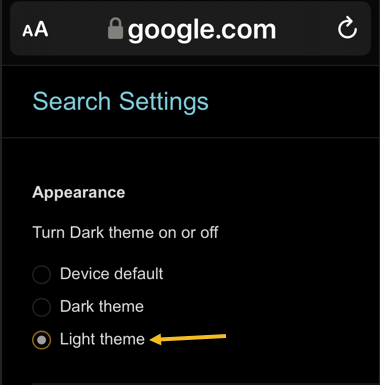
Now, on the Search Settings page, in the Appearance section, enable the Light theme option. See the following image:

Search 9
Selecting Light theme

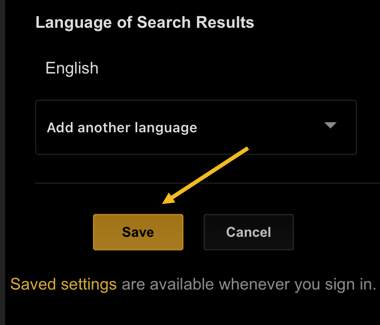
Now, to save your changes, scroll the Search Settings page to the bottom. and tap Save. Refer to the below image:

Search 10
Save your change

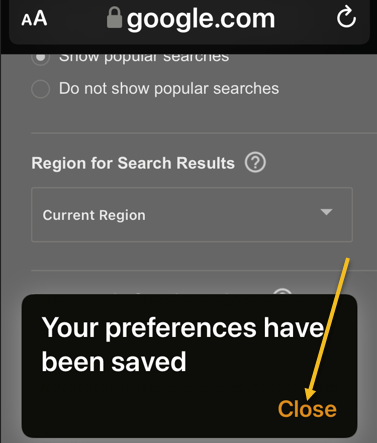
Next, in the Your preferences have been saved prompt, tap Close. See the below image:

Search 11
Close the dialog

And your favorite search engine is now back to Light theme. Simply do the opposite to re-enable the Dark theme.

Now, your Google Search will be displayed in the Light theme. See the following image:

Search 12
Your Light theme

Quote For the Day

When you combine ignorance and leverage, you get some pretty interesting results.

Warren Buffett

You are finished. Please feel free to share this post! One way to share is via Twitter.

Just click the Tweet icon below. This will launch Twitter where you click its icon to post the Tweet.

Check out TechSavvy.Life for blog posts on smartphones, PCs, and Macs! You may email us at contact@techsavvy.life for comments or questions.

I Would Like to Hear From You

Please feel free to leave a comment. I would love to hear from you. Do you have a computer or smart device tech question? I will do my best to answer your inquiry. Just send an email to contact@techsavvy.life. Please mention the device, app, and version you are using. To help us out, you can send screenshots of your data related to your question.

Author’s E-book

You can access the e-book from a Kindle device, the Kindle App for the desktop or smartphone, which is a free app.

The author’s Vietnam eBook on the Battle for Tra Bong Vietnam: Events and Aftermath

How to Clear Chrome Browsing History on iPhone and iPad

The browsing history in Google Chrome for iOS and iPadOS helps you easily get back to your favorite sites. But if you need to clear out a portion of the history on your iPhone or iPad, it’s easy.

RAYMOND OGLESBY @RaymondOglesby2
February 9, 2022

The browsing history in Google Chrome for iOS and iPadOS helps you easily get back to your favorite sites. But if you need to clear out a portion of the history on your iPhone or iPad, it’s easy. Let’s explore how to do this.

This is for the iPhone and iPad

Copyright Scott Adams, Inc./Distributed by Universal Uclick for UFS

Clear Chrome Browsing History

Clearing the browsing history in Safari, the browser for iPhone and iPad is relatively simple, but it is not exactly intuitive. Fortunately, clearing the browsing history in Google Chrome is even easier than in Safari, since you can do it directly within the browser.

First, tap the three-dot icon in the bottom right-hand corner of the browser and select History from the pop-up list. (If you are on the Start page, you can tap the History icon below the Search bar). Refer to the below image where we are selecting History from the pop-up list:

Clear 1
Accessing History option

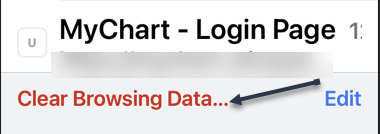
Next, scroll down to the bottom of the screen and tap Clear Browsing Data… to begin clearing your history. See the below image:

Clear 2
Accessing Clear Browsing Data option

Now, select the time range at the top of the page. This ranges from the last hour to all of your browsing history. See the following image:

Clear 3
Setting a Time Range

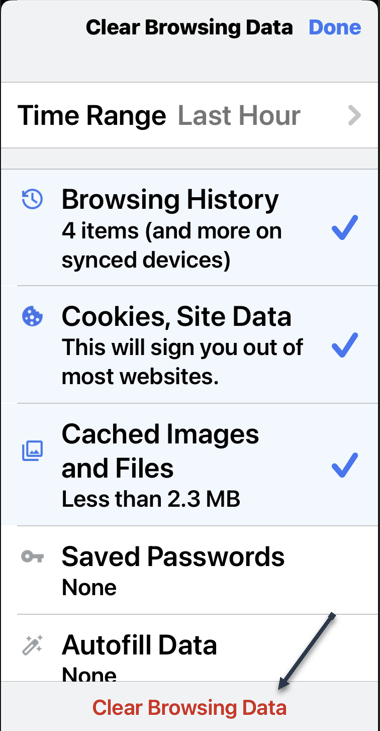
Next, once you have selected the period you wish to delete, check over the data that you are going to delete. By default, Browsing History, Cookies and Site Data, and Cached Images are selected. You can select or deselect these as you see fit. Once you have made your selections, tap Clear Browsing Data at the bottom of the screen. Refer to the below image:

Clear 4
Selecting what information to clear

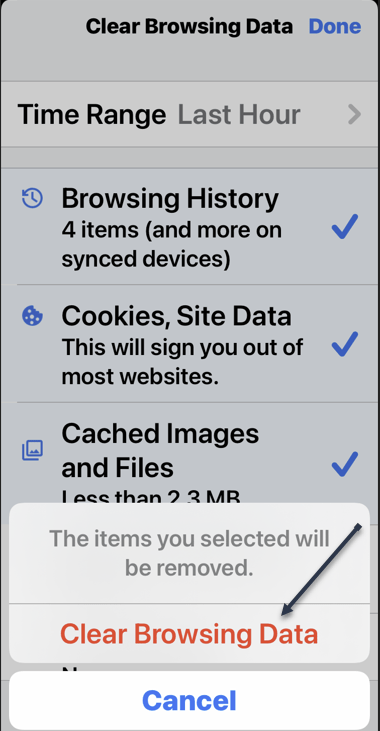
Now, select this option again in the pop-up dialog at the bottom of the screen to finish clearing your history. See the below image:

Clear 5
Selecting Clear Browsing Data once again

Keep in mind that clearing browsing history in Chrome for iPhone and iPad does not always clear browsing history in the desktop version of the browser. To make sure your history is fully clear, take a look at some guides on how to clear your browsing history in any browser.

Don’t Delete Everything

As we touched on above, you do not have to delete all of your browsing history. By selecting the right time range, you can delete your history only from the last hour or the last day. See the following image:

Clear 6
Selecting a Time Range

You also do not need to delete all the data selected by default. For example, you may want to delete all of your website history but do not want to log into sites over again. To accomplish this, just deselect Cookies, Site Data when you are clearing your history.

You can also choose to delete more than what is selected by default. For example, if you’re preparing an iPad for your kids, you might not want your passwords saved. In this case, check Saved Passwords when clearing your history.

Browse Incognito Mode

If you find yourself frequently clearing your browsing history, it could be that you are not making enough use of private browsing, or Incognito Mode.

For the desktop:

How to Easily Open Chrome to Incognito Mode

For the iPhone or iPad:
  • Open your Google App and sign in, if necessary
  • Tap your Profile icon
  • Select Turn on Incognito from the drop-down menu

Quote For the Day

It takes 20 years to build a reputation and five minutes to ruin it. If you think about that, you’ll do things differently.

Warren Buffett

That’s it. Please feel free to share this post! One way to share is via Twitter.

Just click the Tweet icon below. This will launch Twitter where you click its icon to post the Tweet.

Checkout TechSavvy.Life blog posts on smartphones, PCs, and Macs! You may email us at contact@techsavvy.life for comments or questions.

I Would Like to Hear From You

Please feel free to leave a comment. I would love to hear from you. Do you have a computer or smart device tech question? I will do my best to answer your inquiry. Just send an email to contact@techsavvy.life. Please mention the device, app, and version you are using. To help us out, you can send screenshots of your data related to your question.

Author’s E-book

You can access the e-book from a Kindle device, the Kindle App for the desktop or smartphone, which is a free app.

The author’s Vietnam eBook on the Battle for Tra Bong Vietnam: Events and Aftermath

How to Disable Pop-Up Blocker in Safari

By default, Safari on your iPhone and iPad blocks any website pop-ups. If a site requires these tiny windows to function, you can disable Safari’s built-in pop-up blocker.

RAYMOND OGLESBY @RaymondOglesby2
February 8, 2021

By default, Safari on your iPhone and iPad blocks any website pop-ups. If a site requires these tiny windows to function, you can disable Safari’s built-in pop-up blocker. Let’s explore how this is done.

This is for the iPhone and iPad

Dilbert and Covid
Copyright Scott Adams, Inc./Distributed by Universal Uclick for UFS

Why Enable Pop-Ups

One major reason to enable pop-ups in Safari is to allow websites, such as your bank’s website, to display pop-up windows they require to operate. On some sites, without these tiny windows, you can not do what you need to.

Later, when you have finished your task, you can re-enable the built-in pop-up blocker, as explained below.

By default, Safari disables pop-ups automatically in the browser.

Disable the Pop-Up Blocker

First, to disable Safari’s pop-up blocker on your iPhone or iPad, open the Settings app on your phone. Refer to the below image:

Pop Up 1
Accessing Settings

Next, on the Settings page, scroll down and tap Safari. See the below image:

Pop Up 2
Accessing Safari

Now, on the Safari page that opens, you have various options to configure for this web browser. Here, at the bottom of the General section, toggle OFF the Block Pop-ups option. See the following image:

Pop Up 3
Disable Block Pop-up option

To re-enable the built-in pop-up blocker, simply turn ON the Block Pop-ups option again.

Safari’s pop-up blocker is now disabled, and your sites can now launch those small windows while you are browsing in this browser.

Quote For the Day

Mind over mattress.

Stephen Covey

That was easy. Please feel free to share this post! One way to share is via Twitter.

Just click the Tweet icon below. This will launch Twitter where you click its icon to post the Tweet.

Checkout TechSavvy.Life for blog posts on smartphones, PCs, and Macs! You may email us at contact@techsavvy.life for comments or questions.

I Would Like to Hear From You

Please feel free to leave a comment. I would love to hear from you. Do you have a computer or smart device tech question? I will do my best to answer your inquiry. Just send an email to contact@techsavvy.life. Please mention the device, app, and version you are using. To help us out, you can send screenshots of your data related to your question.

Author’s E-book

You can access the e-book from a Kindle device, the Kindle App for the desktop or smartphone, which is a free app.

The author’s Vietnam eBook on the Battle for Tra Bong Vietnam: Events and Aftermath