How to Save Google Chrome Passwords

Google Chrome can save your website passwords and help you automatically fill them the next time you visit your sites.

RAYMOND OGLESBY @RaymondOglesby2
April 13, 2022

Google Chrome can save your website passwords and help you automatically fill them the next time you visit your sites.

There are several ways to turn on the password saving feature in Chrome. Note that Chrome syncs your passwords with your Google account, which means if you enable Chrome to save passwords on one device, that change automatically applies to all your signed-in devices. Let’s explore this feature on both desktop and mobile devices.

This is for desktop and mobile running Chrome. Screenshots are from Windows 10 and iPhone XR

Dilbert and Bonus
Copyright Scott Adams, Inc./Distributed by Universal Uclick for UFS

Save Passwords on Desktop

To enable Chrome’s password manager on your Windows, Mac, Linux, or Chromebook computer, first, open Chrome on your computer.

Next, in Chrome’s top right-hand corner, click the three dots (the Menu icon). Refer to the below image:

Passwords 1
Selecting the Menu icon

Now, from the three-dots Menu icon, select the Settings option. See the below image:

Passwords 1
Accessing the Settings option

Next, on the left sidebar of the Settings page, click the Autofill option. See the following image:

Passwords 3
Accessing the Autofill option

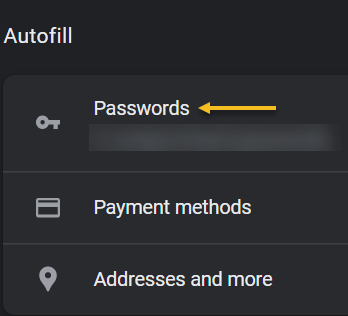
Now, on the right of the Autofill section, click the Passwords option. Refer to the below image:
Passwords 4
Selecting the Passwords option

Next, toggle the Offer to save passwords option to ON at the top of the Passwords page. See the below image:

Passwords 5
Enable Offer to save passwords

Note! If you decide you do not want password prompts, just toggle the Offer to save passwords to OFF.

From now on, when you log in to a site in Chrome on any of your devices, the browser will ask you to save your password for that site. 

Save Passwords on Mobile

First, open Chrome on your iPhone, iPad, or Android device.

Next, tap the three dots (the Menu icon) in Chrome on your device. If you are on Android, these dots are in Chrome’s top right-hand corner. If you are on an iPhone or iPad, you will find the Menu icon in the bottom right-hand corner. See the following image:

Passwords 6
Accessing the Menu icon

Now, in the menu that opens, tap the Settings option. Refer to the below image:

Passwords 7
Accessing the Settings option

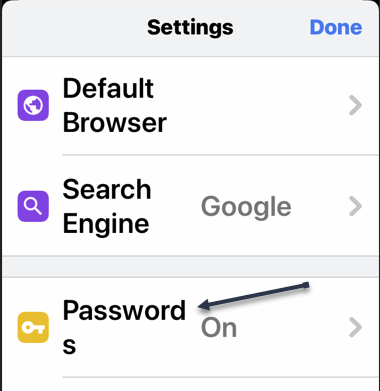
Next, in the Basics section of the Settings page, tap the Passwords option. See the below image:
Passwords 8
Accessing the Passwords option

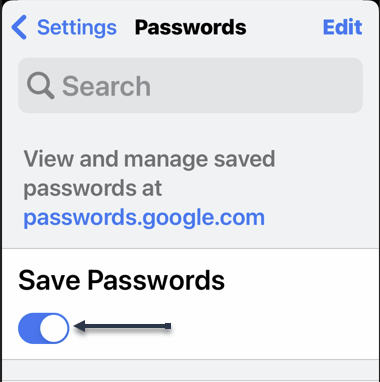
Now, on the Passwords page, toggle the Save Passwords option to ON. See the following image:
Passwords 9
Enable Save Passwords

Save Passwords Using Password Manager Site

To use this method, first, open a web browser on your device and access the Google Password Manager site. Log in to the site with the same Google account that you use in Chrome.

Now, when the Password Manager site opens, in the top right-hand corner, click the password options (the gear icon). Refer to the below image:

Passwords 10
Accessing Password options

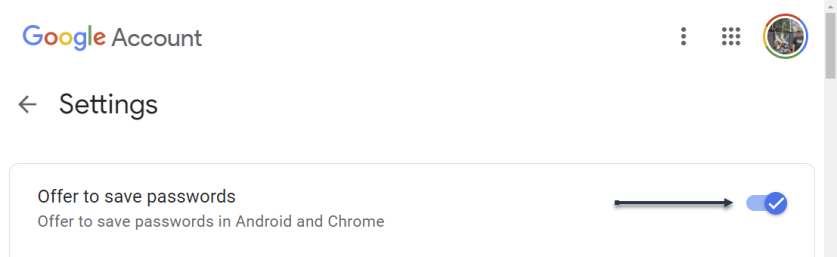
Next, the Settings page will open. Here, at the top, toggle the Offer to save passwords option to ON. See the below image:
Passwords 11
Enable Offer to sasve passwords

From now on, no matter what method you used above, Chrome will start prompting you to save passwords on all your signed-in devices. 

Quote For the Day

If people like you, they’ll listen to you, but if they trust you, they’ll do business with you.

Zig Ziglar

You are finished. Please feel free to share this post! One way to share is via Twitter.

Just click the Tweet icon below. This will launch Twitter where you click its icon to post the Tweet.


Check out TechSavvy.Life blog posts on smartphones, PCs, and Macs! You may email us at contact@techsavvy.life for comments or questions.

I Would Like to Hear From You

Please feel free to leave a comment. I would love to hear from you. Do you have a computer or smart device tech question? I will do my best to answer your inquiry. Just send an email to contact@techsavvy.life. Please mention the device, app, and version you are using. To help us out, you can send screenshots of your data related to your question.

Author’s E-book

You can access the e-book from a Kindle device, the Kindle App for the desktop or smartphone, which is a free app.


The author’s Vietnam eBook on the Battle for Tra Bong Vietnam: Events and Aftermath

How to Use Sound Check on iPhone

Using your iPhone’s Sound Check feature, you can prevent your phone from blasting loud music in your ears.

RAYMOND OGLESBY @RaymondOglesby2
April 12, 2022

Using your iPhone’s Sound Check feature, you can prevent your phone from blasting loud music in your ears. Let’s explore how this feature works.

This is for the iPhone

Dilbert and Questions
Copyright Scott Adams, Inc./Distributed by Universal Uclick for UFS

Explanation of Sound Check

The Sound Check feature on your iPhone basically tries to keep your music’s volume consistent. For example, if you move from a quiet music track to a louder one, your iPhone ensures that that louder track’s volume is not any higher than the quiet one.

It does so by scanning your songs and finding each song’s loudness. This information is saved in each song’s metadata, which basically means your actual and original songs are not modified.

Note! the Sound Check feature is only available in Apple’s stock Music app. This feature does not work in other apps, like Spotify.

Enable Sound Check

First, launch the Settings app on your phone. In Settings, tap the Music option. Refer to the below image:

Sound 1
Selecting Music option

On the Music page, scroll all the way down. Then, toggle ON the Sound Check option. See the below image:

Sound 2
Enabling Sound Check

Sound Check is now enabled. To use it, launch the Music app on your phone and start playing a music track. As you move from one song to another, the feature will ensure you get a consistent volume level.

This is how to keep your ears safe by preventing extremely loud music from playing on your iPhone!

Quote For the Day

Knowledge is of no value unless you put it into practice.

Anton Chekhov

That’s it. Please feel free to share this post! One way to share is via Twitter.

Just click the Tweet icon below. This will launch Twitter where you click its icon to post the Tweet.

Check out TechSavvy.Life for blog posts on smartphones, PCs, and Macs! You may email us at contact@techsavvy.life for comments or questions.

I Would Like to Hear From You

Please feel free to leave a comment. I would love to hear from you. Do you have a computer or smart device tech question? I will do my best to answer your inquiry. Just send an email to contact@techsavvy.life. Please mention the device, app, and version you are using. To help us out, you can send screenshots of your data related to your question.

Author’s E-book

You can access the e-book from a Kindle device, the Kindle App for the desktop or smartphone, which is a free app.

The author’s Vietnam eBook on the Battle for Tra Bong Vietnam: Events and Aftermath

How to Use Safari Tab Groups on iPhone and iPad

Are you overwhelming yourself with the number of tabs you have open in Safari? Using the Tab Groups that arrived with iOS 15 and iPadOS 15, you can organize them so your browser stays orderly.

RAYMOND OGLESBY @RaymondOglesby2
April 6, 2022

Are you overwhelming yourself with the number of tabs you have open in Safari? Using the Tab Groups that arrived with iOS 15 and iPadOS 15, you can organize them so your browser stays orderly. Let’s explore how this is done.

This is for iPhone and iPad using Safari and running iOS15 or iPadOS 15 or higher

Dilbert and Weather
Copyright Scott Adams, Inc./Distributed by Universal Uclick for UFS

Similar to how tab groups work in Google Chrome and Microsoft Edge, you can group several tabs together and give them a label. This allows you to easily find and pull up your tabs again when you need them without cluttering up your view.

First, you will need to open a few tabs in Safari to use the Tabs Groups feature. After that, tap the Tabs button in the bottom left-hand corner. Refer to the below image:

Tab Groups 1
Accessing the Tabs button

Next, the tab count of open tabs will appear on the bottom bar. Tap on the tab count to open the Tab Groups menu. See the below image:

Tab Groups 2
Accessing the Tabs count

Now, in the Tab Groups menu, you will get two options. The New Empty Tab Group means you will get to make a tab group first and then add the tabs to it. If you want to create a group from your open tabs, you will need to choose the New Tab Group from X Tabs option. See the following image:

Tab Groups 3
Create a new tab group

Next, enter a name for your new tab group and hit the Save button. Refer to the below image:

Tab Groups 4
Label the new tab group

Now, Safari will switch you to a new tab group and show you the grid of open tabs. The name of the tab group will appear on the bottom bar. Tap Done to save the changes. See the below image:

Tab Groups 5
Save your change

Next, after creating a tab group in Safari, there are a few things you can do.

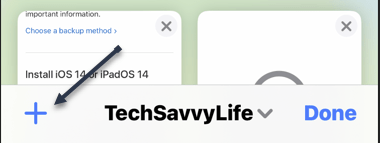
  • Tap the “+” (plus) button to add a new tab to a tab group. See the following image:
Tab Groups 6
Add a new tab
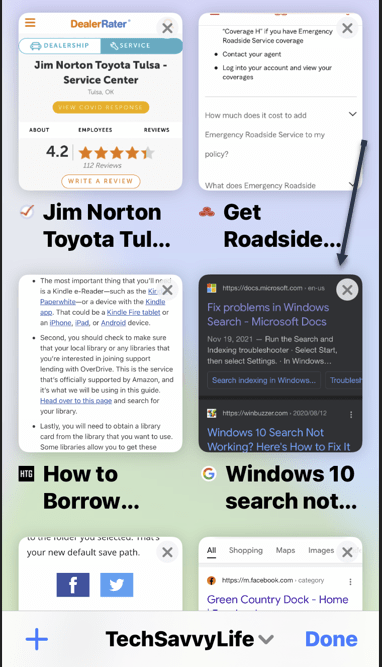
  • Hit the “x” cross sign in the top right-hand corner of the tab preview card to remove it from the group. Refer to the below image:
Tab Groups 7
Remove a tab
  • Tap on an open tab and drag it around to reorder it. Notice that the upper right-hand corner preview on the previous screen has been moved to the middle left. See the below image:
Tab Groups 8
Move your tabs

Now, hard-press on a tab, select Arrange Tabs By from the long-press menu and choose to Arrange Tabs By Title or Arrange Tabs By Websites. See the following image:

Tab Groups 9
Arrange your tabs

You can copy the links from the open tabs in a tab group to save them before closing all the tabs at once.

Quote For the Day

Take time to be kind and to say ‘thank you.’

Zig Ziglar

That’s it. Please feel free to share this post! One way to share is via Twitter.

Just click the Tweet icon below. This will launch Twitter where you click its icon to post the Tweet.

Check out TechSavvy.Life for blog posts on smartphones, PCs, and Macs! You may email us at contact@techsavvy.life for comments or questions.

I Would Like to Hear From You

Please feel free to leave a comment. I would love to hear from you. Do you have a computer or smart device tech question? I will do my best to answer your inquiry. Just send an email to contact@techsavvy.life. Please mention the device, app, and version you are using. To help us out, you can send screenshots of your data related to your question.

Author’s E-book

You can access the e-book from a Kindle device, the Kindle App for the desktop or smartphone, which is a free app.

The author’s Vietnam eBook on the Battle for Tra Bong Vietnam: Events and Aftermath

How to Unhide a Facebook Post on Mobile

Do you want to bring a hidden post back to your timeline so everyone can see it? If so, Facebook makes it easy to unhide your hidden posts.

RAYMOND OGLESBY @RaymondOglesby2
March 30, 2022

Do you want to bring a hidden post back to your timeline so everyone can see it? If so, Facebook makes it easy to unhide your hidden posts. Let’s explore how this is done on mobile devices.

This is for mobile devices using Facebook. Screenshots are from iPhone XR

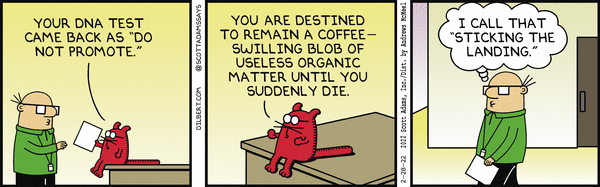
Dilbert and Promote
Copyright Scott Adams, Inc./Distributed by Universal Uclick for UFS

When you unhide a post, the post becomes available on your timeline. Later, if you change your mind, you can re-hide the post and make it hidden again.

If you are using an iPhone, iPad, or Android phone, use the official Facebook app to make a post visible.

First, open the Facebook app on your phone. At the top right-hand corner of the app, tap the Menu icon (three horizontal lines). On some devices, the Menu icon may be in the lower right-hand corner. Refer to the below image:

Unhide 1
Accessing the Menu

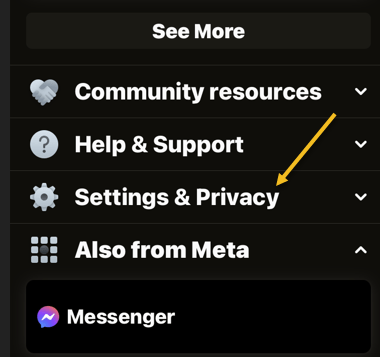
Next, a Menu page will open. Scroll down this page, then tap Settings & Privacy. See the below image:

Unhide 2
Accessing Settings & Privacy option

Now, in the expanded Settings & Privacy menu, tap Settings. See the following image:

Unhide 3
Accessing Settings option

Next, on the Settings & Privacy page, scroll down to the Your Information section and tap Activity Log. Refer to the below image:

Unhide 4
Accessing Activity Log option

Now, scroll down the Activity Log page to the Logged Actions and Other Activity section. Here, tap the down-arrow icon. See the below image:

Unhide 5
Accessing Logged Action and Other Activity option

Next, select Hidden from profile in the menu. See the following image:

Unhide 6
Accessing Hidden from profile option

Facebook will now display all your hidden posts depending on the number of posts. If you have a large number of posts, you may get a server timeout message in trying to load your data. If you keep timing out, select the View Activity History button to locate a hidden post.

Now, to unhide one of these posts, tap the three dots next to the post. Refer to the below image:

Unhide 7
Selecting a post to unhide

Next, from the menu that opens, select Add to profile. See the below image:

Unhide 8
Add the post to your timeline

And Facebook will add your post back to your timeline.

Quote For the Day

You don’t drown by falling into water. You only drown if you stay there.

Zig Ziglar

You are finished. Please feel free to share this post! One way to share is via Twitter.

Just click the Tweet icon below. This will launch Twitter where you click its icon to post the Tweet.

Check out TechSavvy.Life for blog posts on smartphones, PCs, and Macs! You may email us at contact@techsavvy.life for comments or questions.

I Would Like to Hear From You

Please feel free to leave a comment. I would love to hear from you. Do you have a computer or smart device tech question? I will do my best to answer your inquiry. Just send an email to contact@techsavvy.life. Please mention the device, app, and version you are using. To help us out, you can send screenshots of your data related to your question.

Author’s E-book

You can access the e-book from a Kindle device, the Kindle App for the desktop or smartphone, which is a free app.
The author’s Vietnam eBook on the Battle for Tra Bong Vietnam: Events and Aftermath

How to Turn Off Facebook Active Status

When your active status is enabled on Facebook, your contacts can see that you are currently or recently have been online. If you do not want them to know your online presence, turn off your active status on Facebook.

RAYMOND OGLESBY @RaymondOglesby2
March 24, 2022

When your active status is enabled on Facebook, your contacts can see that you are currently or recently have been online. If you do not want them to know your online presence, turn off your active status on Facebook. Let’s explore this feature.

This is for iPhone, iPad. and Android. Screenshots are from iPhone XR. Images may be different on iPad and Android.

Dilbert and Press
Copyright Scott Adams, Inc./Distributed by Universal Uclick for UFS

Later, if you change your mind, you can re-enable active status and let people know that you are online.

First, launch the Facebook app on your phone. In the app, tap the three horizontal lines. If you are on an iPhone or iPad, you will find these lines at the bottom right-hand corner. If you are on an Android phone, these lines are at the top right-hand corner. Refer to the below image:

FB Active 1
Accessing the Menu

Next, scroll down the Menu screen that opens to the bottom, then tap Settings & Privacy. See the below image:

FB Active 2
Accessing Settings &Privacy option

Now, on the screen that opens, tap Settings. See the following image:

FB Active 3
Accessing Settings

Next, on the Settings & Privacy page, at the bottom of the Audience and Visibility section, select Active Status. Refer to the below image:

FB Active 4
Selecting Active Status

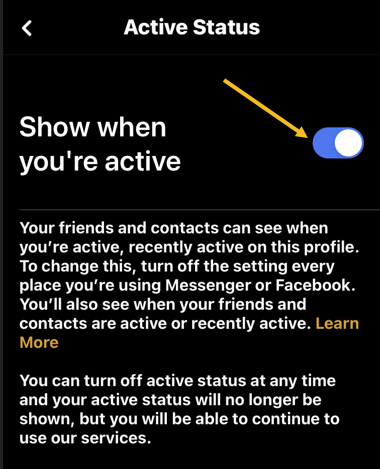
Now, to turn off your active status, on the Active Status page, disable the Show When You’re Active option.

Note: To re-enable your active status on Facebook, turn on the Show When You’re Active option.

See the below image:

FB Active 5
Disable Active Status

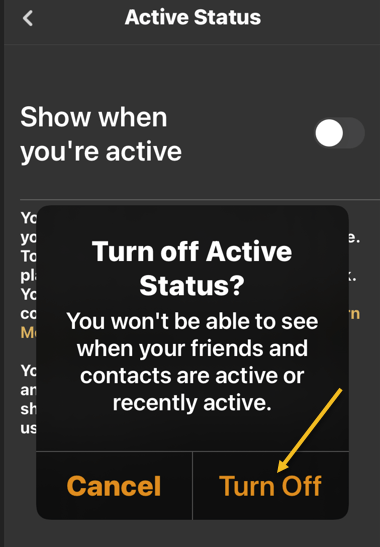
Next, tap Turn Off in the prompt that appears. See the following image:

FB Active 6
Select Turn Off to hide your Active Status

Quote For the Day

When you encourage others, you in the process are encouraged because you’re making a commitment and difference in that person’s life. Encouragement really does make a difference.

Zig Ziglar

That’s it. Please feel free to share this post! One way to share is via Twitter.

Just click the Tweet icon below. This will launch Twitter where you click its icon to post the Tweet.

Check out TechSavvy.Life for blog posts on smartphones, PCs, and Macs! You may email us at contact@techsavvy.life for comments or questions.

I Would Like to Hear From You

Please feel free to leave a comment. I would love to hear from you. Do you have a computer or smart device tech question? I will do my best to answer your inquiry. Just send an email to contact@techsavvy.life. Please mention the device, app, and version you are using. To help us out, you can send screenshots of your data related to your question.

Author’s E-book

You can access the e-book from a Kindle device, the Kindle App for the desktop or smartphone, which is a free app.

The author’s Vietnam eBook on the Battle for Tra Bong Vietnam: Events and Aftermath

How to Set a Pin in iPhone Apple Maps

If you would like to mark a specific location to get directions to it, save it to your favorites list, or share it with someone, simply drop a pin on that location in Apple Maps on your iPhone.

RAYMOND OGLESBY @RaymondOglesby2
March 23, 2022

If you would like to mark a specific location to get directions to it, save it to your favorites list, or share it with someone, simply drop a pin on that location in Apple Maps on your iPhone. Let’s explore this feature.

This is for the iPhone. Screenshots are from iPhone XR

Dilbert and Honest
Copyright Scott Adams, Inc./Distributed by Universal Uclick for UFS

First, launch Apple Maps on your iPhone. In the app, navigate to the location by using the Search Maps to a specific address. Refer to the below image:

Maps 1
Accessing Search Maps

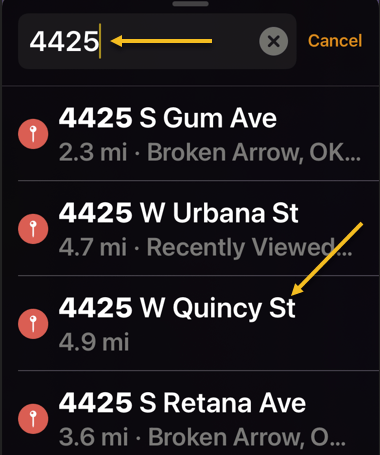
Next, type in the address, and a pop-up list of possible addresses will appear. Choose one from the list. See the below image:

Maps 2
Type in an address and select the address from the list

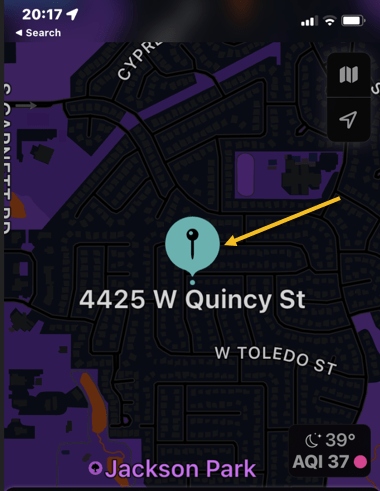
Now, a drop pin will be placed at that location. From here, tap the drop pin. See the following image :

Maps 3
Selecting the dropx pin

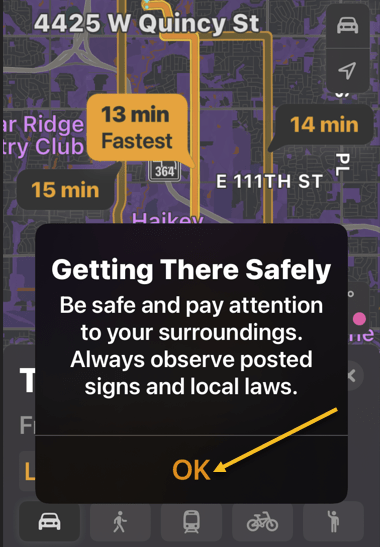
Next, tap OK on the Getting There Safely message. Refer to the below image:

Maps 5
Selecting OK

Now, the driving route(s) will appear. See the below image:

Maps 6
The routes

Next, tap the 3-dots next to the shortest route time. See the following image:

Maps 7
Accessing the menu

Now, tap on Directions. Refer to the below image:

Maps 4
Selecting Directions

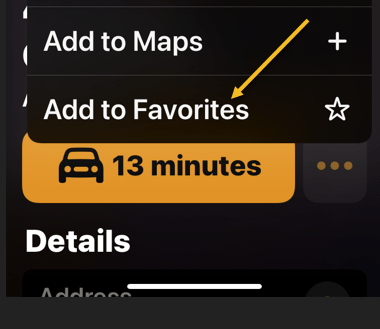
Next, in the pop-up that appears, tap Add to Favorites. You can share the location by tapping Share. See the below image:

Maps 8
Add to Favorites and/or Share

And that’s how you set and use pins in Apple Maps on iPhone.

Quote For the Day

What you get by achieving your goals is not as important as what you become by achieving your goals.

Zig Ziglar

That’s it. Please feel free to share this post! One way to share is via Twitter.

Just click the Tweet icon below. This will launch Twitter where you click its icon to post the Tweet.

Check out TechSavvy.Life for blog posts on smartphones, PCs, and Macs! You may email us at contact@techsavvy.life for comments or questions.

I Would Like to Hear From You

Please feel free to leave a comment. I would love to hear from you. Do you have a computer or smart device tech question? I will do my best to answer your inquiry. Just send an email to contact@techsavvy.life. Please mention the device, app, and version you are using. To help us out, you can send screenshots of your data related to your question.

Author’s E-book

You can access the e-book from a Kindle device, the Kindle App for the desktop or smartphone, which is a free app.

The author’s Vietnam eBook on the Battle for Tra Bong Vietnam: Events and Aftermath

How to View/Unblock Blocked People on Facebook Using Mobile

Want to find all the people you have blocked in your Facebook account? If so, Facebook keeps a list of all your blocked users, which you can access and use to unblock a user if you want.

RAYMOND OGLESBY @RaymondOglesby2
March 22, 2022

Want to find all the people you have blocked in your Facebook account? If so, Facebook keeps a list of all your blocked users, which you can access and use to unblock a user if you want. Let’s explore how to do this.

This is for mobile phones using Facebook. Screenshots are from iPhone XR

Dilbert and Experience
Copyright Scott Adams, Inc./Distributed by Universal Uclick for UFS

To check your blocked people list on your iPhone, iPad, or Android phone, we can use the Facebook app.

First, open the Facebook app on your phone. In the app, tap the Hamburger icon (the three horizontal lines). On an iPhone and iPad, the icon is in the bottom right-hand corner. On Android, you will see the icon in the top right-hand corner. Refer to the below image:

FB Blocked 1
Accessing the Hamburger icon

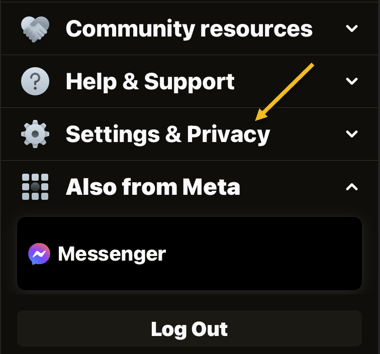
Next, scroll the Menu screen to the bottom and tap Settings & Privacy. See the below image:

FB Blocked 2
Accessing Settings & Privacy

Now, in the expanded menu, tap Settings. See the following image:

FB Blocked 3
Accessing Settings

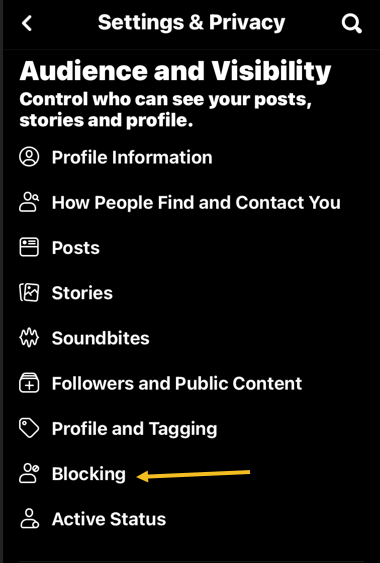
Next, in the Audience and Visibility section, choose Blocking. Refer to the below image:

FB Blocked 4
Selecting Blocking option

Now, on the Blocking page, you will now see a list of people you have blocked in your account. To unblock someone, next to their name, tap the Unblock option. See the below image:

FB Blocked 5
Selecting to unblock a person

Next, on the message that opens, confirm your action by taping Unblock. Continue to unblock others or exit Settings. See the following image:

FB Blocked 6
Confirming to Unblock a person

Quote For the Day

I read the paper every day and the Bible every day; that way I know what both sides are up to.

Zig Ziglar

You are finished. Please feel free to share this post! One way to share is via Twitter.

Just click the Tweet icon below. This will launch Twitter where you click its icon to post the Tweet.

Check out TechSavvy.Life for blog posts on smartphones, PCs, and Macs! You may email us at contact@techsavvy.life for comments or questions.

I Would Like to Hear From You

Please feel free to leave a comment. I would love to hear from you. Do you have a computer or smart device tech question? I will do my best to answer your inquiry. Just send an email to contact@techsavvy.life. Please mention the device, app, and version you are using. To help us out, you can send screenshots of your data related to your question.

Author’s E-book

You can access the e-book from a Kindle device, the Kindle App for the desktop or smartphone, which is a free app.
The author’s Vietnam eBook on the Battle for Tra Bong Vietnam: Events and Aftermath

How to Remove a Credit Card from Your Amazon Account on Mobile

If your credit card has expired, or you simply do not wish to use it for Amazon purchases, it’s easy to remove your credit cards as well as any other payment methods from your Amazon account on a mobile phone. Let’s see how this is done.

RAYMOND OGLESBY @RaymondOglesby2
March 10, 2022

If your credit card has expired, or you simply do not wish to use it for Amazon purchases, it’s easy to remove your credit cards as well as any other payment methods from your Amazon account on a mobile phone. Let’s see how this is done.

Note: Keep in mind that removing a payment method does not cancel any open orders that use that payment method.

This is for mobile phones using Amazon. Screenshots are from iPhone XR

Dilbert and Topic
Copyright Scott Adams, Inc./Distributed by Universal Uclick for UFS

To get rid of an unused payment method from your phone, first, open the Amazon app.

In the Amazon app’s bottom bar, tap the User icon. Refer to the below image:

Amazon Pay 1
Selecting the User icon

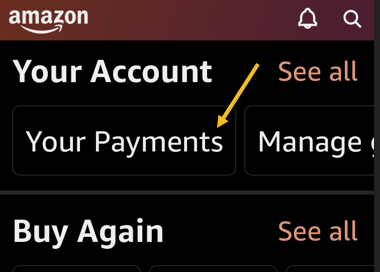
Next, scroll down the page to the Your Account section, then tap Your Payments. See the below image:

Amazon Pay 2
Selecting Your Payments option

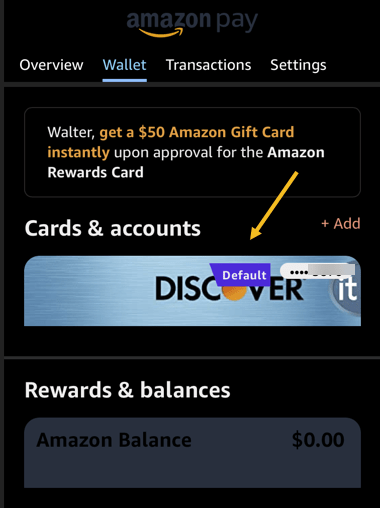
Now, choose the credit card or any other payment method to remove. See the following image:

Amazon Pay 3
Selecting a credit card to remove

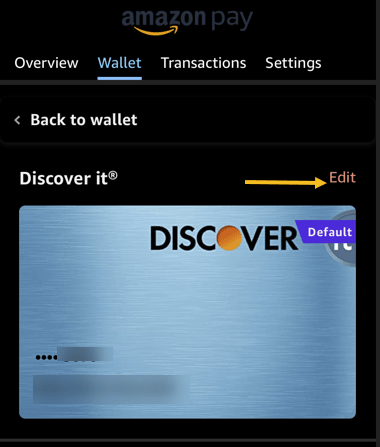
Next, at the top right-hand corner, tap Edit. Refer to the below image:

Amazon Pay 4
Selecting to Edit the credit card

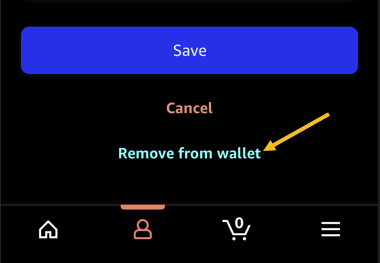
Now, scroll the Edit Payment Method page to the bottom then tap Remove From Wallet. See the below image:

Amazon Pay 5
Selecting to remove the credit card

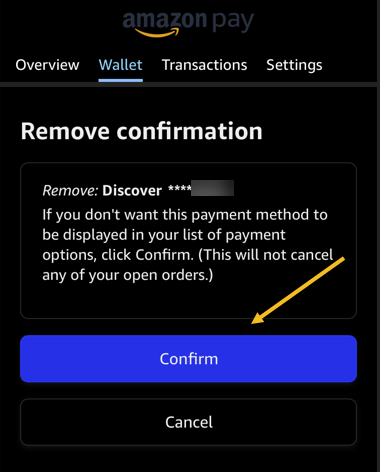
Next, tap Confirm in the Remove Confirmation prompt. See the following image:

Amazon Pay 6
Confirm your removal

And Amazon has now removed your selected payment method.

You may want to check Google Chrome as well if you have saved an expired or unwanted credit card there.

Quote For the Day

You’ve got to be before you can do and do before you can have.

Zig Ziglar

That’s it. Please feel free to share this post! One way to share is via Twitter.

Just click the Tweet icon below. This will launch Twitter where you click its icon to post the Tweet.

Check out TechSavvy.Life for blog posts on smartphones, PCs, and Macs! You may email us at contact@techsavvy.life for comments or questions.

I Would Like to Hear From You

Please feel free to leave a comment. I would love to hear from you. Do you have a computer or smart device tech question? I will do my best to answer your inquiry. Just send an email to contact@techsavvy.life. Please mention the device, app, and version you are using. To help us out, you can send screenshots of your data related to your question.

Author’s E-book

You can access the e-book from a Kindle device, the Kindle App for the desktop or smartphone, which is a free app.

The author’s Vietnam eBook on the Battle for Tra Bong Vietnam: Events and Aftermath

It’s Not Necessary to Close iPhone Apps

If you are constantly closing apps on your iPhone while attempting to speed things up or save battery life, you are doing the opposite and making your iPhone perform worse.

RAYMOND OGLESBY @RaymondOglesby2
March 9, 2022

If you are constantly closing apps on your iPhone while attempting to speed things up or save battery life, you are doing the opposite and making your iPhone perform worse. Let’s explore why.

This is for the iPhone

Dilbert and Researchers
Copyright Scott Adams, Inc./Distributed by Universal Uclick for UFS

iPhone and Resources

If you are like us, you might be familiar with how apps run on a Mac or a Windows PC. On those platforms, if an application is running in the background, it can still be using up CPU cycles or taking up RAM. Conventional wisdom says that closing those programs will make your Mac or PC perform better. Refer to the below image:

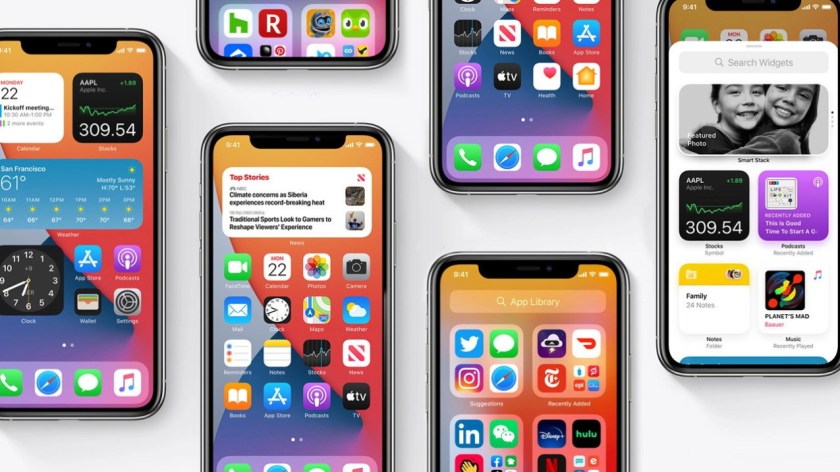
iPhones Header
iPhone Multitasking

On an iPhone, things work differently. When you switch away from an app, the app enters a suspended state, and iOS automatically frees up CPU cycles and RAM that were devoted to running the app. iPhone’s automatic resource management is so good that you never need to worry about an app paused in the background slowing down the app you are using in the foreground. On our iOS 15.2, we have 237 apps running in the background with no problems.

Officially, Apple says “You should close an app only if it’s unresponsive.”

Re-launching Apps Hurts the System

In fact, when you force an app to close on your iPhone, it will not only slow down your app experience but will also use up more battery life. That’s because, once an app is closed completely, it needs to re-launch and reload all of its resources the next time you open the app. That takes extra CPU power, which uses up your battery faster. Re-launching a completely closed app is also slower than switching quickly to a suspended app.

So, instead of increasing performance and saving battery life, regularly closing apps on iPhone will actually do exactly the opposite.

There is one exception. Sometimes a background app can check for new information. If that app is programmed improperly, it might use more battery life than usual. If an app is abusing its resources in the background, you might see evidence of it in the Battery section of the Settings app. In that case, do not force-close. Instead, you can disable Background App Refresh in Settings. Head to:

Settings > General > Background App Refresh

Here, you can turn it off on an app basis.

When to Close Apps

Despite everything we just wrote, there are still a few legitimate reasons you might need to force-close an iPhone app. If an app stops responding or is not working properly, it’s a good idea to bring up the App Switcher and close the app completely. To do so, you will need to perform a different action depending on the type of iPhone you have:

  • On iPhone X or later: Swipe upward from the bottom of the screen toward the middle of the screen, then lift your finger.
  • On iPhones with Home buttons: Double-press the Home button located below the screen.

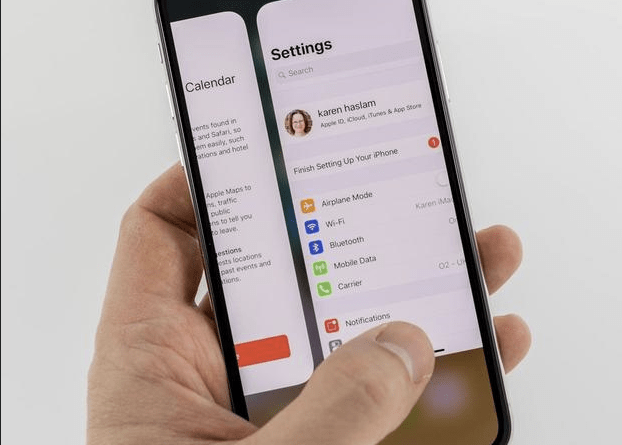
When the App Switcher opens, you will see thumbnails of apps that are suspended in the background. To force-close an app, swipe its thumbnail upward, off the screen. See the below image:

Swipe Up Header
Force-close an app by swiping it up

When the app disappears, the app has been completely closed. The next time you tap its icon, it will re-launch itself.

Even though Apple allows you to force-close apps in this manner, doing so should be a very rare occurrence. iOS takes care of multitasking in an efficient way. 

Quote For the Day

It’s better to hang out with people better than you. Pick out associates whose behavior is better than yours and you’ll drift in that direction.

Warren Buffett

That’s it. Please feel free to share this post! One way to share is via Twitter.

Just click the Tweet icon below. This will launch Twitter where you click its icon to post the Tweet.

Check out TechSavvy.Life for blog posts on smartphones, PCs, and Macs! You may email us at contact@techsavvy.life for comments or questions.

I Would Like to Hear From You

Please feel free to leave a comment. I would love to hear from you. Do you have a computer or smart device tech question? I will do my best to answer your inquiry. Just send an email to contact@techsavvy.life. Please mention the device, app, and version you are using. To help us out, you can send screenshots of your data related to your question.

Author’s E-book

You can access the e-book from a Kindle device, the Kindle App for the desktop or smartphone, which is a free app.

The author’s Vietnam eBook on the Battle for Tra Bong Vietnam: Events and Aftermath

How to Make a Shareable Facebook Post

If you are the type of person who often makes long, informative posts on Facebook, you have probably gotten the request, “Can you make this shareable?

RAYMOND OGLESBY @RaymondOglesby2
March 8, 2022

If you are the type of person who often makes long, informative posts on Facebook, you have probably gotten the request, “Can you make this shareable?

This is for mobile devices. Screenshots are from iPhone XR

Dilbert and Press
Copyright Scott Adams, Inc./Distributed by Universal Uclick for UFS

Facebook’s sharing feature is a great way to allow users to spread posts, in their entirety, from the original source, instead of just reposting.

Make Individual Post Shareable

First, find the post you want to make shareable and click the three dots (the Menu icon) in the upper right-hand corner. Refer to the below image:

FB Shareable 1
Accessing the menu

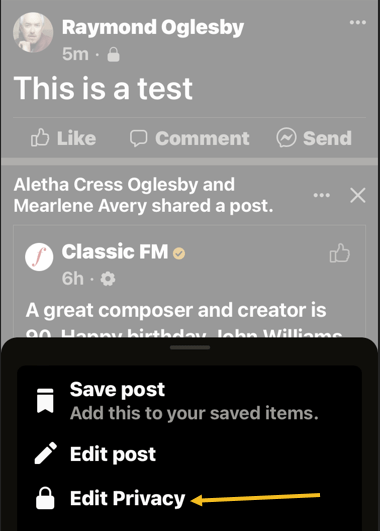
Next, in the pop-up menu, tap Edit Privacy. See the below image:

FB Shareable 2
Accessing Edit Privacy option

Now, in the Edit Privacy menu, tap the checkbox next to Public, then tap Done. See the below image:

FB Shareable 3
Set Privacy to Public

And you are all set. Your friends and followers will now see a Share button beneath your post. They can click this button to share your post wherever they want.

You will have to repeat this process for each post you want to make shareable.

Make All Posts Shareable

You can make all posts sharable when creating a post by tapping on the Select Audience button. Refer to the below image:

FB Shareable 4
AccessingSelect Audience

Next, in the Edit Audience menu. select Public, then tap Done. See the below image:

FB Shareable 5
Selecting Audience to Public

Quote For the Day

You’ve got to be before you can do and do before you can have.

Zig Ziglar

That’s it. Please feel free to share this post! One way to share is via Twitter.

Just click the Tweet icon below. This will launch Twitter where you click its icon to post the Tweet.

Check out TechSavvy.Life for blog posts on smartphones, PCs, and Macs! You may email us at contact@techsavvy.life for comments or questions.

I Would Like to Hear From You

Please feel free to leave a comment. I would love to hear from you. Do you have a computer or smart device tech question? I will do my best to answer your inquiry. Just send an email to contact@techsavvy.life. Please mention the device, app, and version you are using. To help us out, you can send screenshots of your data related to your question.

Author’s E-book

You can access the e-book from a Kindle device, the Kindle App for the desktop or smartphone, which is a free app.
The author’s Vietnam eBook on the Battle for Tra Bong Vietnam: Events and Aftermath