Netflix Subscription Now Includes More Free Mobile Games

Netflix is going heavy on mobile games. The company just added two more games to its service, bringing the total up to 12.

RAYMOND OGLESBY @RaymondOglesby2
February 1, 2022

Netflix is going heavy on mobile games. The company added two more games to its service, bringing the total up to 12.

This is for the iPhone and Android

Dilbert and Sneak
Copyright Scott Adams, Inc./Distributed by Universal Uclick for UFS

You do not need to do anything special to get these games on your Netflix account (which is good since Netflix just increased its price again. Maybe that’s why its stock value dropped). As long as you are a Netflix subscriber, you need to download the games on Android or iPhone, and you will be able to play them without spending anything extra.

Here’s a quick look at the games currently available as part of a Netflix subscription:

  • Arcanium: Rise of Akhan – Card battle game in the vane of Hearthstone
  • Krispee Street – Hidden Object game based on a popular webcomic
  • Asphalt Xtreme – Off-road racing game
  • Bowling Ballers – Endless runner meets bowling game
  • Card Blast – Poker-based card game
  • Dominoes Café – Dominoes game with various modes
  • Knittens – Cat-based match-three puzzle
  • Shooting Hoops – Basketball and dart hybrid game
  • Stranger Things: 1984 – Retro-styled adventure games based in Stranger Things universe
  • Stranger Things 3: The Game – Official game for the third season of Stranger Things
  • Teeter (Up) – Ball manipulating puzzle game
  • Wonderputt Forever – Mini golf game

If you are a Netflix subscriber with an Android or Apple device, you might as well download these games and see if any of them work for you, as they are included in the subscription you are already paying for.

Quote For the Day

Remember that failure is an event, not a person.

Zig Ziglar

That’s it. Please feel free to share this post! One way to share is via Twitter.

Just click the Tweet icon below. This will launch Twitter where you click its icon to post the Tweet.

Check out TechSavvy.Life for blog posts on smartphones, PCs, and Macs! You may email us at contact@techsavvy.life for comments or questions.

I Would Like to Hear From You

Please feel free to leave a comment. I would love to hear from you. Do you have a computer or smart device tech question? I will do my best to answer your inquiry. Just send an email to contact@techsavvy.life. Please mention the device, app, and version you are using. To help us out, you can send screenshots of your data related to your question.

Author’s E-book

You can access the e-book from a Kindle device, the Kindle App for the desktop or smartphone, which is a free app.

The author’s Vietnam eBook on the Battle for Tra Bong Vietnam: Events and Aftermath

How to Stop Unknown Callers on iPhone

Tired of getting robocalls all day long on your iPhone? Your iPhone lets you silence the harassment by turning on a feature called Silence Unknown Callers in Settings.

RAYMOND OGLESBY @RaymondOglesby2
January 26, 2022

Tired of getting robocalls all day long on your iPhone? Your iPhone lets you silence the harassment by turning on a feature called Silence Unknown Callers in Settings. Let’s explore this nifty feature.

This is for the iPhone

Dilbert and Breathing
Copyright Scott Adams, Inc./Distributed by Universal Uclick for UFS

What is an Unknown Caller

On your iPhone, an unknown caller is someone who is not in your Contacts list, which is an address book stored on your device that can be accessed through the Phone or Contacts apps. If you have called a number recently, your iPhone will not consider that number an unknown caller if they call you back.

Apple includes a feature with iOS 13 and up that allows you to silence rings and notifications from unknown callers, which is covered below. This does not include numbers you have called recently. Otherwise, if you want a caller not to be considered unknown (and thus not be silenced) you will need to add the number to your iPhone’s Contacts.

How to Silence Unknown Callers

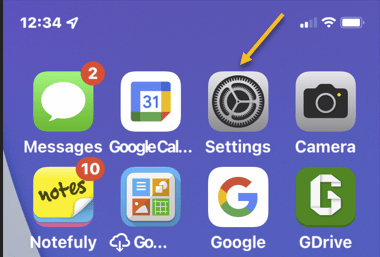
First, to silence these calls, open Settings on your iPhone by tapping the grey gear icon on your Home screen. Refer to the below image:

Callers 1
Accessing Settings

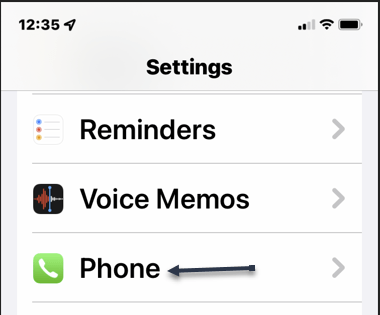
Next, in Settings, scroll down and tap Phone. See the below image:

Callers 2
Accessing Phone option

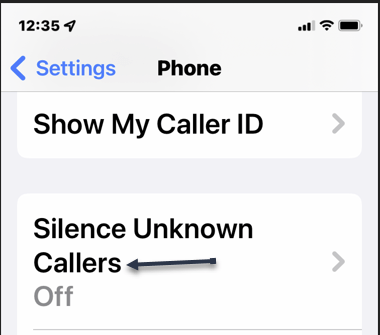
Now, in Phone settings, tap Silence Unknown Callers. See the following image:

Callers 3
Accessing Silence Unknown Callers option

Next, in Silence Unknown Callers settings, enable the switch beside Silence Unknown Callers to ON. Refer to the below image:

Callers 4
Enable Silence Unknown Callers

Now, exit Settings. The next time you get a call from an unknown number, you will not hear a ring or a notification sound. The call will be sent to voicemail, and it will appear in your recent calls list in the Phone app. You may still get a notification if the caller leaves a voicemail.

If you are expecting an important call from an unknown number in the future, open

Settings > Phone > Silence Unknown Callers

and then switch Silence Unknown Callers to OFF. Incoming calls will no longer be silenced.

Quote For the Day

Only when the tide goes out do you discover who’s been swimming naked.

Warren Buffett

That was easy. Please feel free to share this post! One way to share is via Twitter.

Just click the Tweet icon below. This will launch Twitter where you click its icon to post the Tweet.

Checkout TechSavvy.Life for blog posts on smartphones, PCs, and Macs! You may email us at contact@techsavvy.life for comments or questions.

I Would Like to Hear From You

Please feel free to leave a comment. I would love to hear from you. Do you have a computer or smart device tech question? I will do my best to answer your inquiry. Just send an email to contact@techsavvy.life. Please mention the device, app, and version you are using. To help us out, you can send screenshots of your data related to your question.

The author’s Vietnam eBook on the Battle for Tra Bong Vietnam: Events and Aftermath

How to Add a Cover Image to Twitter

Want to change your cover image or add one to your Twitter account? If you have not inserted an image, you will see a blue blank area at top of your account.

RAYMOND OGLESBY @RaymondOglesby2
January 25, 2022

Want to change your cover image or add one to your Twitter account? If you have not inserted an image, you will see a blue blank area at top of your account. Let’s explore how to add a cover image.

This is for devices using Twitter. Screenshots are from iPhone XR.

Dilbert and Work
Copyright Scott Adams, Inc./Distributed by Universal Uclick for UFS

First, log in to Twitter, if not already logged in, and open Twitter. Here, tap your Profile icon. Refer to the below image:

Twitter Header 1
Selecting your Profile icon

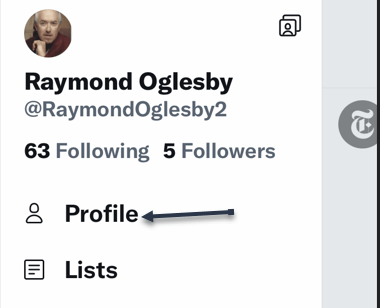
Next, in the pop-up window that opens, tap on Profile. See the below image:

Twitter Header 2
Selecting the Profile option

Now, in the upper right-hand corner, tap the Edit profile link. See the following image:

Twitter Header 3
Selecting Edit Profile link

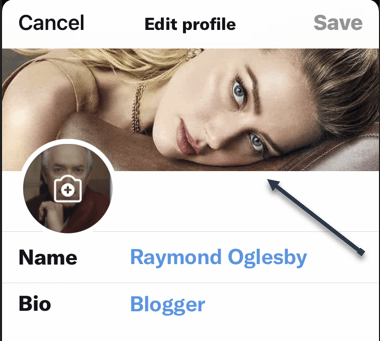
Next, tap on the top of your screen or on an existing image to open your Photos. (On the desktop, click the Camera icon in the image area). Depending on your Twitter settings, you may not see any images. If so, tap on Manage to change your settings or the plus “+” sign to open your photos. Refer to the below image:

Twitter Header 4
Selected image from Photos

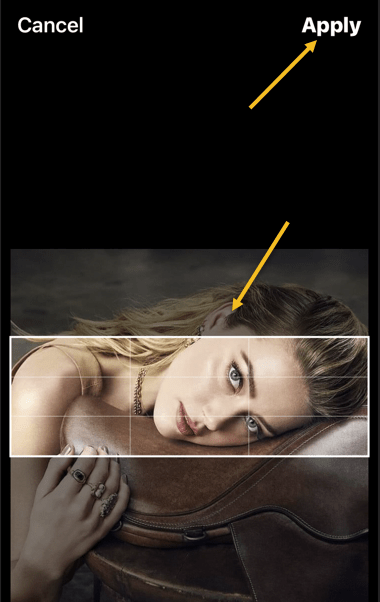
Now, position your image to your liking. Then in the upper right-hand corner, tap Apply. See the below image:

Twitter Header 5
Position your image and Apply

Next, in the upper right-hand corner, tap Done. See the following image:

Twitter Header 6
Finish your change

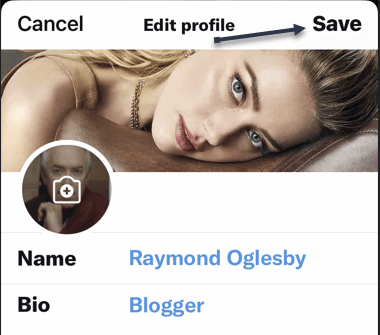
Now, tap Save in the upper right-hand corner. Refer to the below image:

Twitter Header 7
Save your change

Instantly, your saved image is now your cover photo. See the below image:

Twitter Header 8
Your finished image

Quote For the Day

We become what we repeatedly do.

Stephen Covey

That’s it. Please feel free to share this post! One way to share is via Twitter.

Just click the Tweet icon below. This will launch Twitter where you click its icon to post the Tweet.

Checkout TechSavvy.Life for blog posts on smartphones, PCs, and Macs! You may email us at contact@techsavvy.life for comments or questions.

I Would Like to Hear From You

Please feel free to leave a comment. I would love to hear from you. Do you have a computer or smart device tech question? I will do my best to answer your inquiry. Just send an email to contact@techsavvy.life. Please mention the device, app, and version you are using. To help us out, you can send screenshots of your data related to your question.

The author’s Vietnam eBook on the Battle for Tra Bong Vietnam: Events and Aftermath

How to Mirror Selfies on iPhone

Instead of flipping photos after taking selfies, you can capture “mirror selfies” automatically as they appear in the preview on your iPhone.

RAYMOND OGLESBY @RaymondOglesby2
January 19, 2022

Instead of flipping photos after taking selfies, you can capture “mirror selfies” automatically as they appear in the preview on your iPhone. Let’s explore this feature.

The Camera app on the iPhone packs several features, including an option to automatically take mirror selfies. This feature is available on iPhones running at least iOS 14 or later.

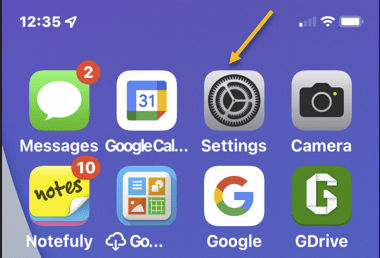
First, open the Settings app on your iPhone. Refer to the below image:

Camera 1
Accessing Settings

Next, in Settings, scroll down and tap Camera. See the below image:

Camera 2
Accessing the Camera

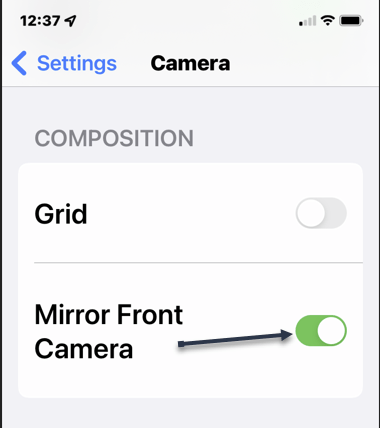
Now, scroll down to the Composition section and toggle the switch for Mirror Front Camera to ON. (On some iPhones, this option might be labeled Mirror Front Photos.) See the following image:

Camera 3
Enabling the Mirror Front Camera toggle

Next, open the Camera app on your iPhone. Turn the camera to face yourself and snap a selfie. The saved image will appear as you see yourself in the mirror, instead of flipped as it usually is. Note that your front camera automatically mirrors the front camera viewfinder, so this setting only affects the image that’s saved to your photo library.

Quote For the Day

To learn something but not to do is really not to learn. To know something but not to do is really not to know.

Stephen Covey

That was easy. Please feel free to share this post! One way to share is via Twitter.

Just click the Tweet icon below. This will launch Twitter where you click its icon to post the Tweet.

Check out TechSavvy.Life for blog posts on smartphones, PCs, and Macs! You may email us at techsavvy.life for comments or questions.

I Would Like to Hear From You

Please feel free to leave a comment. I would love to hear from you. Do you have a computer or smart device tech question? I will do my best to answer your inquiry. Just send an email to contact@techsavvy.life. Please mention the device, app, and version you are using. To help us out, you can send screenshots of your data related to your question.

Author’s E-book

You can access the e-book from a Kindle device, the Kindle App for the desktop or smartphone, which is a free app.
The author’s Vietnam eBook on the Battle for Tra Bong Vietnam: Events and Aftermath

How to Add Alt Text to Facebook Images

Facebook automatically adds alternative text (alt text) to images you upload, but the descriptions are not always accurate. You can make your images more accessible to visually impaired users by writing accurate alt text for your images.

RAYMOND OGLESBY @RaymondOglesby2
January 18, 2022

Facebook automatically adds alternative text (alt text) to images you upload, but the descriptions are not always accurate. You can make your images more accessible to visually impaired users by writing accurate alt text for your images. Let’s explore this feature.

This is for devices using Facebook. Screenshots are from iPhone XR.

Dilbert and Questions
Copyright Scott Adams, Inc./Distributed by Universal Uclick for UFS

Use the Mobile App

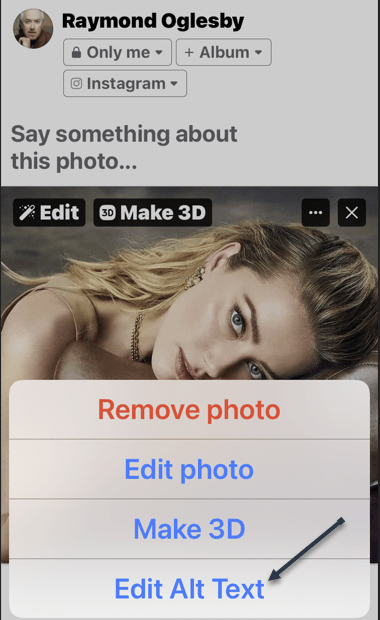
To add alt text to an image you are uploading using the Facebook mobile app, first, open the app on your smartphone, compose a new Facebook post, then select a photo from your device to upload. In the post preview, tap the three dots in the top right-hand corner of the image. Refer to the below image:

Alt Text 1
Selecting to edit a photo

Next, a menu will appear at the bottom of your screen. Here, tap the Edit Alt Text option. See the below image:

Alt Text 2
Selecting Edit Alt Text option

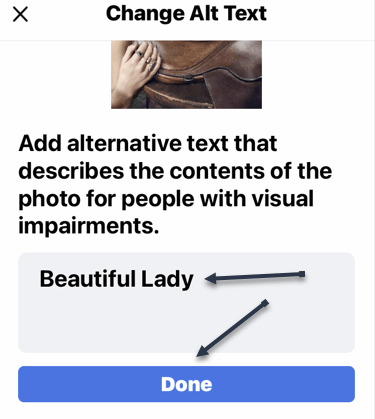
Now, you will be on the Change Alt Text screen. In the text box below your image, enter the text that accurately describes the image you are posting. Then, tap Done. See the following image:

Alt Text 3
Entering Alt Text and saving your change

The alt text is now added to the photo. Refer to the below image for our final image:

Alt Text 4
Your final image

Keep in mind that this alt text description can only be read if someone is using a Screen Reader to access Facebook; it will not be visible on the image.

Use the Desktop App

You can also add alt text to your images on Facebook from your computer. First, launch Facebook from any browser of your choice and then begin creating a new post with an image. Next, in the post preview, click Edit in the top left-hand corner of the image. Refer to the below image:

Alt Text 5
Selecting to edit a photo

Now, the Photo Detail window will appear. Here, click Alternative text at the bottom of the menu in the left-hand pane. See the below image:

Alt Text 6
Selecting Alternative Text option

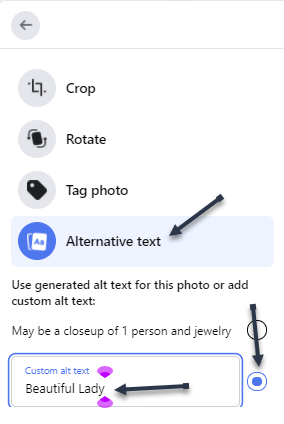
Next, the Alternative text menu will expand. Click the bubble next to the Custom Alt Text option to select it, and then enter the alt text for your image in the text box. See the following image:

Alt Text 7
Entering your custom Alternative text

Now, click the blue Save button at the bottom of the window. Refer to the below image:

Alt Text 8
Saving your change

The alt text is now added to the photo. Refer to the below image for our final image:

Alt Text 9
Your final image

Keep in mind that this alt text description can only be read if someone is using a Screen Reader to access Facebook; it will not be visible on the image.

Quote For the Day

Management is efficiency in climbing the ladder of success; leadership determines whether the ladder is leaning against the right wall.

Stephen Covey

That’s it. Please feel free to share this post! One way to share is via Twitter.

Just click the Tweet icon below. This will launch Twitter where you click its icon to post the Tweet.

Check out TechSavvy.Life blog posts on smartphones, PCs, and Macs! You may email us at contact@techsavvy.life for comments or questions.

I Would Like to Hear From You

Please feel free to leave a comment. I would love to hear from you. Do you have a computer or smart device tech question? I will do my best to answer your inquiry. Just send an email to contact@techsavvy.life. Please mention the device, app, and version you are using. To help us out, you can send screenshots of your data related to your question.

Author’s E-book

You can access the e-book from a Kindle device, the Kindle App for the desktop or smartphone, which is a free app.
The author’s Vietnam eBook on the Battle for Tra Bong Vietnam: Events and Aftermath

How to View the Private Info Your iPhone Apps Are Accessing

While using apps on your iPhone, these apps are often busy behind the scenes, using sensors and contacting internet domains without your knowledge. With iOS 15.2 or later, you can see a detailed report of these activities with the App Privacy Report.

RAYMOND OGLESBY @RaymondOglesby2
January 12, 2022

While using apps on your iPhone, these apps are often busy behind the scenes, using sensors and contacting internet domains without your knowledge. With iOS 15.2 or later, you can see a detailed report of these activities with the App Privacy Report. Let’s find out.

This is for the iPhone running iOS 15.2 or higher

Dilbert and Feature
Copyright Scott Adams, Inc./Distributed by Universal Uclick for UFS

First, open Settings by tapping the grey gear icon. Refer to the below image:

Info 1
Accessing Settings

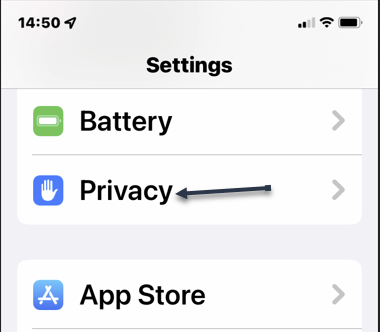
Next, on the Settings screen, tap Privacy. See the below image:

Info 2

Accessing Privacy option

Now, in the Privacy settings, scroll down to the very bottom and tap App Privacy Report. See the following image:

Info 3
Accessing App Privacy Report option

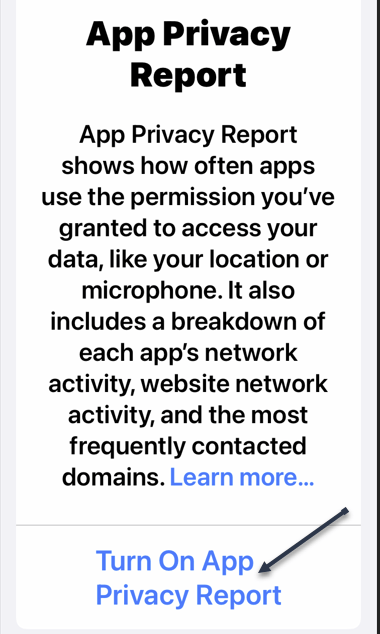
If you have not enabled Record App Activity, tap Turn On App Privacy Report link. Refer to the below image:

Info 4
Enabling App Privacy Report

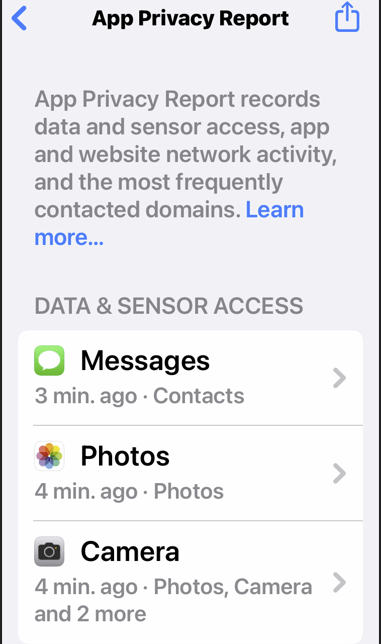
If you just enabled App Privacy Report, you will need to use your iPhone for a few days and let the App Privacy Report feature gather data. After that time (or if you have been using the Record App Activity feature in earlier versions of iOS 15), you will see a detailed report about Data & Sensor Access, App Network Activity, Website Network Activity, and Most Contacted Domains. Here’s what each section means:

  • Data & Sensor Access: This shows how many times an app accessed your iPhone’s sensors (and when), such as camera, location, contacts, screen recording, media library, photo library, or microphone.
  • App Network Activity: This shows how many internet domains an app has contacted and when each contact took place. It includes domains contacted directly by the app and those referenced by content within the app, such as websites that might pull in content from other domains.
  • Website Network Activity: This section shows the internet domains that have been contacted by websites you visited through a web browser within an app.
  • Most Contacted Domains: This shows a ranking of the internet domains that have been contacted the most by your apps. On the internal App Privacy Report details page in iOS 15.2 or higher, Apple notes that high-ranking domains on this list might be used by multiple apps to build a profile of you across different apps or services.

See the below image:

Info 5
Your report

Next, at any time, you can tap any entry on the list to see more details. Tap Show All at the bottom of each privacy report section to get a complete list. See the following image:

Info 6
Accessing Show All option

App Privacy Report Can Be a Risk

Enabling App Privacy Report on your iPhone will keep a detailed record of your internet activities on your iPhone (that is stored on your device). If you allow another person to access your iPhone, they can get a very detailed look at what you have been doing with your iPhone on the

Settings > Privacy > App Privacy

report page. If that’s the case, you might want to make sure that App Privacy Report is disabled.

Turn Off App Privacy Report

To disable App Privacy Report, navigate to

Settings > Privacy > App Privacy

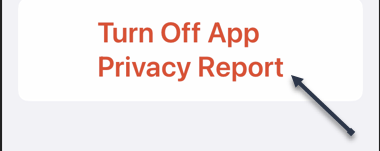
then scroll down to the bottom of the page and tap Turn Off App Privacy Report. Refer to the below image:

Info 7
Disabling App Privacy Report

After that, click OK in the pop-up message, and all existing privacy report activity will be deleted.

If your iPhone is locked down and never shared, App Privacy Report is a great tool to keep an eye on what apps have been doing behind the scenes.

Quote For the Day

Fear may come true that which one is afraid of.

Viktor E Frankl

You are finished. Please feel free to share this post! One way to share is via Twitter.

Just click the Tweet icon below. This will launch Twitter where you click its icon to post the Tweet.

Checkout TechSavvy.Life blog posts on smartphones, PCs, and Macs! You may email us at contact@techsavvy.life for comments or questions.

I Would Like to Hear From You

Please feel free to leave a comment. I would love to hear from you. Do you have a computer or smart device tech question? I will do my best to answer your inquiry. Just send an email to contact@techsavvy.life. Please mention the device, app, and version you are using. To help us out, you can send screenshots of your data related to your question.

Author’s E-book

You can access the e-book from a Kindle device, the Kindle App for the desktop or smartphone, which is a free app.
The author’s Vietnam eBook on the Battle for Tra Bong Vietnam: Events and Aftermath

How to Automatically Add Google Photos to an Album

Photo albums make it easy to keep everything organized, but that usually does not happen by itself. Google Photos can add photos to albums for you, making it even easier.

RAYMOND OGLESBY @RaymondOglesby2
January 4, 2022

Photo albums make it easy to keep everything organized, but that usually does not happen by itself. Google Photos can add photos to albums for you, making it even easier. Let’s explore this feature.

This is for iPhone, iPad, and Android using Google Photos

Dilbert and Phone
Copyright Scott Adams, Inc./Distributed by Universal Uclick for UFS

This feature is called Live Albums. It ties in with Google Photos’ ability to automatically detect people and pets in photos. That means you can have any photo of a person, multiple people, or pets automatically added to an album.

First, open Google Photos on your iPhone, iPad, or Android device and go to the Library tab. Refer to the below image:

Album 1

Accessing the Google Photos Library

Next, select an existing album or tap New Album (our choice). See the below image:

Album 2
Selecting to add an album

Now, if you create a new album, give it a title, and then tap Select People & Pets. See the following image:

Album 3
Giving the album a title and accessing the option to add people or pets

Next, you will be greeted with a list of people and pets that Google has identified in your photos. Select all that you want to automatically add to the album and tap Confirm. Refer to the below image:

Album 4
Selecting the people to add to your album

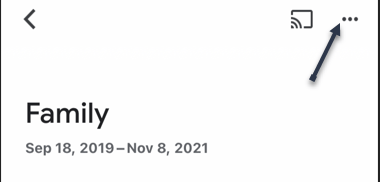
Now, for existing albums, tap the three-dot menu icon. See the below image:

Album 5
Accessing the menu option for an existing album

Next, in the menu pop-up screen, select Options. See the following image:

Album 6
Selecting Options

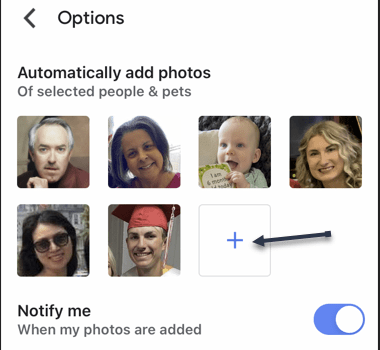
Now, tap the plus “+” button under Automatically Add Photos. Refer to the below image:

Album 7
Adding a new person or pet for your album

That’s all there is to it! Google Photos will immediately add old photos of the people or pets to the album. From this point forward, any new photos will also be automatically added.

Quote For the Day

We think coding should be required in every school because it’s as important as any kind of second language.

Tim Cook

You are finished. Please feel free to share this post! One way to share is via Twitter.

Just click the Tweet icon below. This will launch Twitter where you click its icon to post the Tweet.

Check out TechSavvy.Life for blog posts on smartphones, PCs, and Macs! You may email us at contact@techsavvy.life for comments or questions.

I Would Like to Hear From You

Please feel free to leave a comment. I would love to hear from you. Do you have a computer or smart device tech question? I will do my best to answer your inquiry. Just send an email to contact@techsavvy.life. Please mention the device, app, and version you are using. To help us out, you can send screenshots of your data related to your question.

Author’s E-book

You can access the e-book from a Kindle device, the Kindle App for the desktop or smartphone, which is a free app.

The author’s Vietnam eBook on the Battle for Tra Bong Vietnam: Events and Aftermath

How to Use Apple Notes in a Browser

Apple Notes syncs between devices for anyone with an Apple ID, which is required to use devices like the iPhone, iPad, and Mac computers. Unfortunately, there’s no native app for Windows or Android users, but the web version can make a suitable substitute.

RAYMOND OGLESBY @RaymondOglesby2
December 22, 2021

Apple Notes syncs between devices for anyone with an Apple ID, which is required to use devices like the iPhone, iPad, and Mac computers. Unfortunately, there’s no native app for Windows or Android users, but the web version can make a suitable substitute. Let’s explore how to use Apple Notes on the web.

This is for devices using Notes on iCloud

Dilbert and Time
Copyright Scott Adams, Inc./Distributed by Universal Uclick for UFS

Turn on iCloud Sync for Notes

If you use Apple Notes on an Apple device, first ensure you have iCloud sync enabled so that new notes and changes are pushed to all of your devices. This should be enabled by default, but it’s a good idea to check.

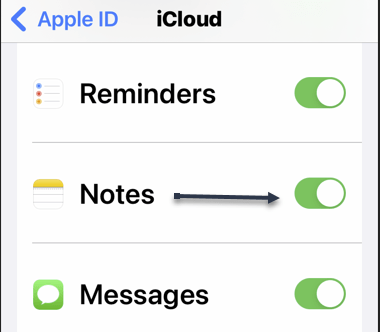
First, on an iPhone or iPad, you can do this under:

Settings > [Your Name] > iCloud

and enabling the Apple Notes setting. Refer to the below image:

Notes 1
Enabling iCloud Notes sync

On a Mac, this can be turned on under:

System Preferences > Apple ID

and checkmark the Notes setting.

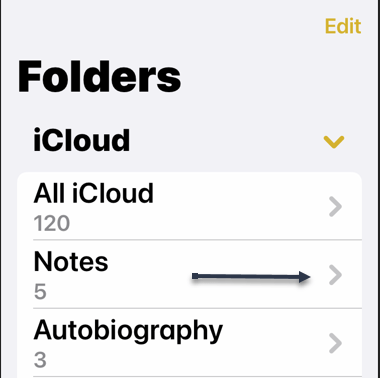
When making notes, make sure that you are placing them in your iCloud folders since it’s possible to have offline folders too that are device-specific. See the below image:

Notes 2
Ensuring Notes are under iCloud

Once enabled, new notes will be placed in iCloud by default.

Access Notes in a Browser via iCloud

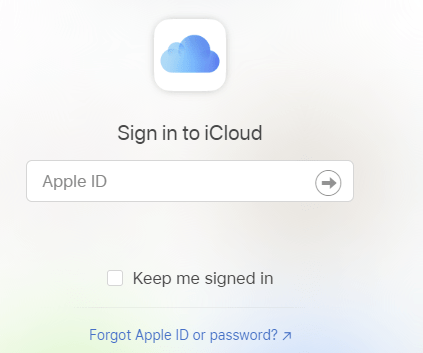
Next, with your Mac, iPhone, and iPad now syncing Apple Notes to iCloud, you can access them using a web browser by heading to iCloud.com and logging in with your Apple ID. See the following image:

Notes 3
Signing in to iCloud.com

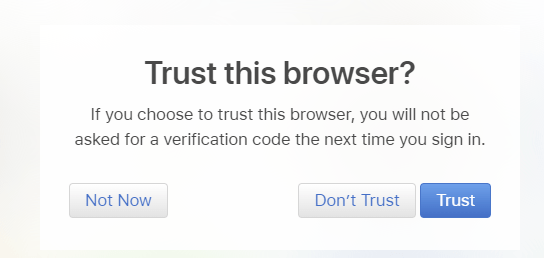
Now, you may need to pass a two-factor authentication check, so make sure you choose to Trust this computer if you want to log in faster in the future. You should only trust personal computers and smartphones that you own, and never trust a computer or device that you share with others. Refer to the below image:

Notes 4
Trusting your device

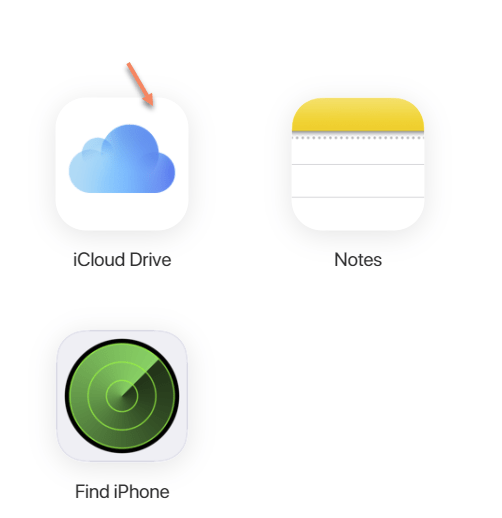
Next, once you are in, click on Notes to see a web-based version of the Apple Notes app. You can use this to access and edit existing notes, create new ones, and share with other iCloud users. See the below image:
Notes 5
Selecting iCloud Notes on the web

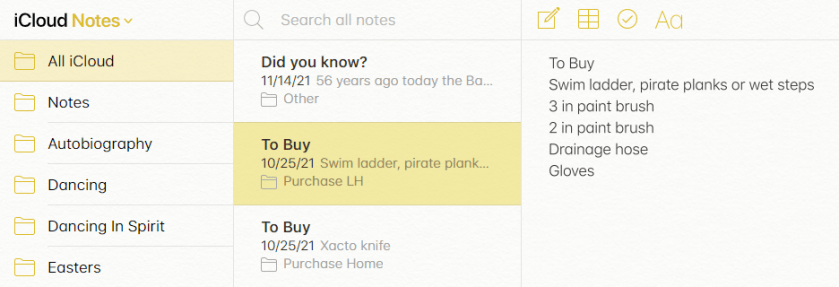
While you can access locked notes by entering your Apple ID password, you can not apply a lock to existing or new notes. See the following image for a listing of your Notes:

Notes 6
Listing of your iCloud Notes

Turn iCloud Into an App on Windows or Android

Now, you can keep Apple Notes open in its own pinned tab, but it may be more convenient to turn the web app into an application or shortcut you can run from your Start menu or Android home screen.

  • Windows users can do this using Chrome or Edge, pin it to your Taskbar, and apply a custom icon if you like. You will need to log in from time to time, but as long as you Trust your browser when entering the two-factor authentication code this process will not be quite as tedious.
  • Android users can also do this using Chrome, which places a shortcut on your home screen.

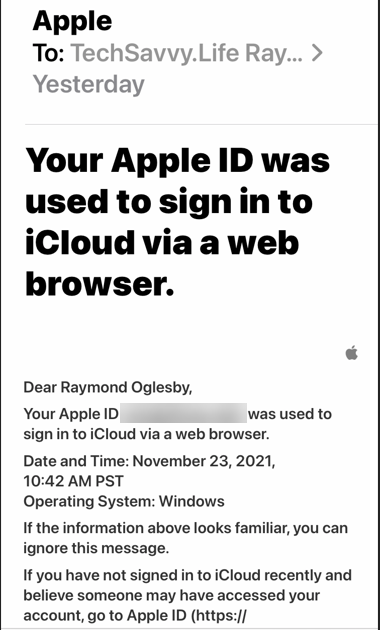
Next, you will receive a message about signing in to iCloud from a browser. Refer to the below image:

Notes 7
Apple message

Apple Notes is just one service you can take advantage of using a browser thanks to iCloud’s web interface.

Quote For the Day

Every time you think the problem is ‘out there,’ that very thought is the problem.

Stephen Covey

You are finished. Please feel free to share this post! One way to share is via Twitter.

Just click the Tweet icon below. This will launch Twitter where you click its icon to post the Tweet.

Checkout TechSavvy.Life for blog posts on smartphones, PCs, and Macs! You may email us at contact@techsavvy.life for comments or questions.

I Would Like to Hear From You

Please feel free to leave a comment. I would love to hear from you. Do you have a computer or smart device tech question? I will do my best to answer your inquiry. Just send an email to contact@techsavvy.life. Please mention the device, app, and version you are using. To help us out, you can send screenshots of your data related to your question.

The author’s Vietnam eBook on the Battle for Tra Bong Vietnam: Events and Aftermath

How to Check Your Amazon Gift Card Balance

Not sure if you have sufficient funds to buy that item on Amazon? If so, it’s easy to check your gift card balance on both the Amazon website and the Amazon mobile app, as well as the history of cards you have redeemed. Let’s find out.

RAYMOND OGLESBY @RaymondOglesby2
December 21, 2021

Not sure if you have sufficient funds to buy that item on Amazon? If so, it’s easy to check your gift card balance on both the Amazon website and the Amazon mobile app, as well as the history of cards you have redeemed. Let’s find out.

This is for devices using Amazon

Dilbert and CEO
Copyright Scott Adams, Inc./Distributed by Universal Uclick for UFS

Use the Amazon Website

If you are on a Windows, Mac, Linux, or Chromebook computer, use the official Amazon website to see the available gift card balance in your account.

First, open a web browser on your computer and launch the Amazon site. Sign in to your account on the site.

Next, in Amazon’s top-right corner, hover your mouse over the Account & Lists menu to see an expanded menu. Refer to the below image:

Gift Card 1
Accessing Account & Lists menu option

Now, in the expanded menu, under Your Account, click Account. See the below image:

Gift Card 2
Accessing Your Account

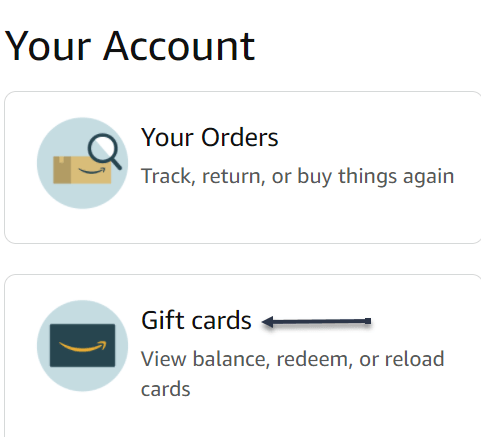
Next, on the Your Account page that opens, click Gift cards. See the following image:

Gift Card 3
Accessing your Gift cards

Now, on the page that opens, right next to Your Gift Card Balance, you will see the gift card balance currently available in your account. Refer to the below image:

Gift Card 4
Viewing your Gift Card balance

Note! You can redeem a gift card by clicking the Redeem a Gift Card button, entering the key, and clicking Apply to your balance button.

If you would like to view the values of gift cards that you have redeemed in your account, scroll down the page to see that information. See the following image:

Gift Card 5
Viewing your Gift Card history

Use the Amazon Mobile App

If you are on an iPhone, iPad, or Android phone, use the Amazon mobile app to check your gift card balance.

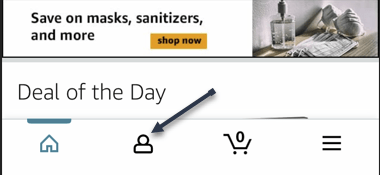
First, launch the Amazon app on your phone. Sign in to your account if you have not already. Then, at the bottom of the app, tap the user icon. Refer to the below image:

Gift Card 6
Accessing the User icon

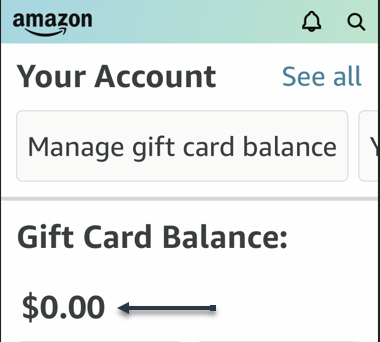
Next, on the account page that opens, scroll down to the Gift Card Balance section. Here, you will see the gift card balance available to use in your Amazon account. See the below image:

Gift Card 7
Viewing your Gift Card Balance

Now, to view the gift cards that you have added to your account so far, then next to Gift Card Balance, tap the Manage option. See the following image:

Gift Card 8
Accessing to Manage your Gift Card

Note! You can redeem a gift card by clicking the Redeem Gift Card button, entering the key, and taping Apply to your balance button.

Next, scroll down the page to the Your Balance activity section. Here, you will see all your redeemed gift cards along with their values. Refer to the below image:

Gift Card 9
Your Gift Card history

And that’s how you know if your gift card balance can buy a certain item on Amazon.

Quote For the Day

Faith is trust in ultimate meaning.

Viktor E Frankl

That’s it. Please feel free to share this post! One way to share is via Twitter.

Just click the Tweet icon below. This will launch Twitter where you click its icon to post the Tweet.

Checkout TechSavvy.LIfe blog posts on smartphones, PCs, and Macs! You may email us at contact@techsavvy.life for comments or questions.

I Would Like to Hear From You

Please feel free to leave a comment. I would love to hear from you. Do you have a computer or smart device tech question? I will do my best to answer your inquiry. Just send an email to contact@techsavvy.life. Please mention the device, app, and version you are using. To help us out, you can send screenshots of your data related to your question.

The author’s Vietnam eBook on the Battle for Tra Bong Vietnam: Events and Aftermath

How to Obtain a Link to a Photo or Video on Instagram

If you would like to share an Instagram photo or video outside the platform, you will have to get that item’s shareable link.

RAYMOND OGLESBY @RaymondOglesby2
December 16, 2021

If you would like to share an Instagram photo or video outside the platform, you will have to get that item’s shareable link. Let’s explore how to get these links from your Instagram account, on either desktop or mobile.

Note! You can not get links to photos or videos that are in a private Instagram account. For these accounts, Instagram does not offer the option to get a link.

This is for devices running Instagram

Dilbert and Security
Copyright Scott Adams, Inc./Distributed by Universal Uclick for UFS

The instructions to get a link to a photo or video on Instagram are the same for all Instagram-supported devices, including Windows, Mac, Linux, and Chromebook computers, as well as iPhones and Android smartphones.

First, open Instagram and find the photo or video for which you want to get a shareable link. At the top-right corner of that item, click or tap the three dots Menu. Refer to the below image:

Link 1
Accessing the Menu

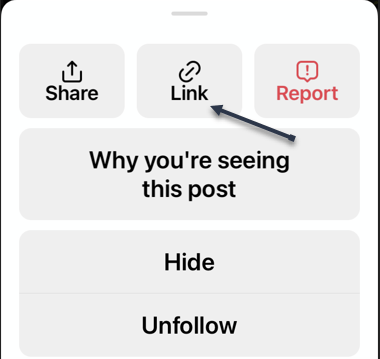
Next, choose Link on an iPhone or Copy Link on other devices. See the below image:

Link 2
Accessing the Link icon

Now, the link to your selected photo or video on Instagram will be copied to your device’s clipboard. Use the Paste option in any text field on your device to view your link. In our example, we pasted the link to the iPhone Notes app.

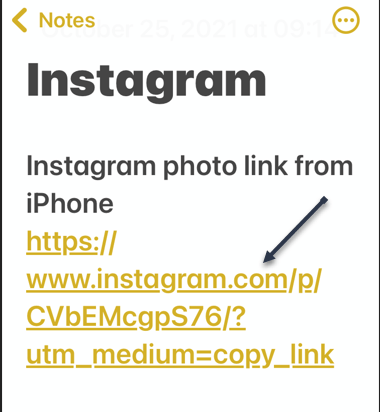
Your shareable Instagram link should look something like the following image:

Link 3
Your Instagram link

You may now send this link to your friends and family. They can click or tap it to access the photo or video on Instagram.

Quote For the Day

The system is that there is no system. That doesn’t mean we don’t have process. Apple is a very disciplined company, and we have great processes. But that’s not what it’s about. Process makes you more efficient.

Steve Jobs

That was easy. Please feel free to share this post! One way to share is via Twitter.

Just click the Tweet icon below. This will launch Twitter where you click its icon to post the Tweet.

Check out TechSavvy.Life for blog posts on smartphones, PCs, and Macs! You may email us at contact@techsavvy.life for comments or questions.

I Would Like to Hear From You

Please feel free to leave a comment. I would love hearing from you. Do you have a computer or smart device tech question? I will do my best to answer your inquiry. Just send an email to contact@techsavvy.life. Please mention the device, app, and version you are using. To help us out, you can send screenshots of your data related to your question.

The author’s Vietnam eBook on the Battle for Tra Bong Vietnam: Events and Aftermath