Maximize Online Protection: The Power of Password Managers and Unique Access Codes

This post emphasizes the importance of strong, unique passwords and the use of password managers to enhance security. It highlights the risks of using common or personal information-based passwords and provides tips for creating and managing secure passwords.

RAYMOND OGLESBY @RaymondOglesby2
August 13, 2024 -9 minutes read time

This is for devices using passwords. Screenshots are from iPhone 14 Pro running iOS 17.5.1+

If you are still using “qwerty” or “starwars” as a password, you should stop doing this. Let’s find out what makes a bad password, why you should care, and how to make a good one.

Don’t have the password to get into your bank account? You are out of luck unless you can trick the bouncer into telling you the password is “kangaroo.” A simple password like that would be a terrible choice to protect your access to a bank site. And yet, chances are good you are using something just as bad, because stronger passwords are too hard to remember.

The only safe way to store proper passwords is in a password manager. If you are not using one, you probably rely on a highly crackable password like “baseball” or “12345”, or you have memorized one complex password, like “Jazz2day4Me!” and use it everywhere. Password security is no small matter. Given the enormous risk, you need to keep your passwords safe.

Even the best password manager does not guarantee the safety of your accounts; not if you use it to store the same old, tired passwords. You have to switch out your old and weak passwords for new and stronger ones.

Once you have replaced all your lame passwords with strong, unique ones, you can relax, at least until a data breach forces a change. The National Institute of Standards and Technology (NST) no longer recommends changing passwords every 90 days. NIST now recommends using long phrases like “Correct-Horse-Battery-Staple” and changing them only when necessary. If you have terrible passwords, “when necessary” means right now.
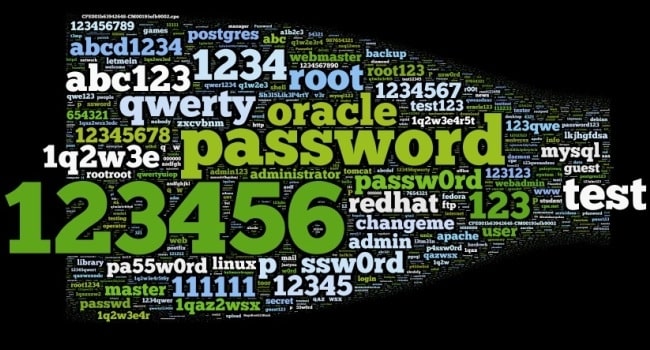
Passwords 1
Bad passwords

Just what makes a bad password? Let’s look at some of the attributes of terrible passwords, and then some pointers on improving them.

Every few months a news outlet posts a list of the worst passwords. We see a lot of easy-to-type options, like“12345” and “qwerty”. Easy for you to type? Sure. But also easy for hackers to crack. Other common (and poor) passwords consist of simple dictionary words, like “baseball”, “monkey”, and “starwars” in the list of worst passwords. These, too, are easy to crack.

A few of the best password managers (tap or click a button to view):

Some secure websites lock down after a given number of wrong password attempts, but many do not. For those with no bad guess lockout, hackers can cross a list of email addresses with a list of popular passwords and set up an automated process to keep trying combinations until they get in.

A properly secured website does not store your password anywhere. Instead, it runs the password through a hashing algorithm, a one-way encryption. The same input always produces the same output, but there’s no way to return to the original password from the resulting hash. If the password you type hashes to the same one that’s stored, you gain access. Even if hackers capture the site’s user data, they do not get passwords, just hashes.

But smart hackers can crack weak passwords if they know the site’s hashing function. They start by running a huge dictionary of common passwords through the hashing function. Then they look for the resulting hashes in the captured data. Each match is a cracked password. Sites with the best security enhance the hash function with password salting, which makes table-based cracking impossible, but why take the risk? Just stay out of the dictionary.

What about this perfect password: 1qaz2wsx3edc4rfv. You just “type” it by sliding a finger down four slanted columns of the keyboard. You think it’s so perfect, that you use it everywhere. And that is a big mistake.

Hardly a week goes by without news of a breach at some company or website, exposing thousands or millions of usernames and passwords. Smart victims change their passwords immediately. Those who ignore the problem may find themselves locked out of their accounts after the hackers have reset your passwords.

Those hackers know that all too many people recycle their passwords. Once they find a working username and password pair, they try the same credentials on other sites. You may not be so worried about losing access to your old Dropbox account, but if you used the same login on your bank’s website, you are in big trouble.
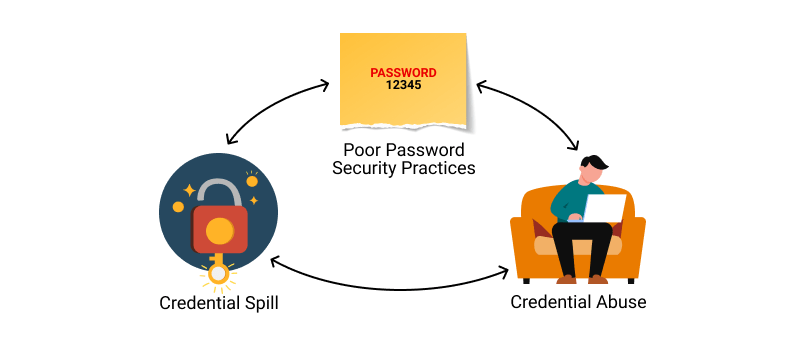
Passwords 2
Using the same credentials on websites

It gets worse. If someone else takes control of your email account, they can lock you out by changing the password. Then they can break into your other accounts by having a password reset link emailed to that account. Worried yet? You should be!!!!

Using personal information as the basis for your passwords is awfully tempting, but it’s a bad idea. Whether your dog’s name is Fifi or Khaleesi, that name probably appears in the dictionaries hackers use for brute-force attacks. Other possibilities such as the initials and birthdate of a family member probably will not fall to a brute-force attack. If someone wants to hack your account specifically, that personal data can fuel a trial-and-error guessing attack.

Do not think for a minute that your personal details are private. There are dozens of sites people can use to find details about anybody: address, birthdate, marital status, and more. Your social media posts can be another source of personal info, especially if you have not properly secured your accounts. A determined hacker (or a nosy neighbor) can probably guess any password you build based on your data.

If you are not using a password manager, you have surely experienced forgetting the password for a site. It’s all too common. That is why virtually every login page includes a “Forgot your password?” link. Some sites send a reset link to your email address, while others let you reset the password after answering your security questions. And that opens a back door to anyone wanting to hack your account.

Most sites offer abysmal options for security questions like:

  • What is your mother’s maiden name?
  • Where did you go to high school?
  • What was your first job?

As noted, your personal life is an open book to anyone with internet searching skills. When possible, ignore the preset questions. Create your own question, with a unique answer you will always remember but nobody else could guess.

It’s harder when the site does not let you define your own questions. In that case, your best bet is to use a memorable answer that’s a total LIE like:

  • My mother’s maiden name is Fauci.
  • I went to school at More Science High School.
  • For my first job, I was a linotype operator.

There is an element of risk since you might forget which lie you chose. We suggest storing these oddball answers in the iPhone Notes app or on Google Drive.

We hope we have convinced you that using common passwords is a rotten idea, as is building passwords from personal information. Even the best strong, random password becomes a liability if you use it everywhere. If you are ready to spring into action, here are some starting points:

  • Use a password manager
  • Switch to a better password manager
  • Remember an extremely secure master password for your password manager and keep it on another app. Better yet, just remember the master password.
  • Take advantage of a random password generator to upgrade your old, bad passwords
  • You could even create your own random password generator in Excel
  • Enable multi-factor authentication wherever available

If a secure site does not take care of security, you could still lose that site’s credentials to a data breach, but by making all your passwords long, strong, and unique, you can rest assured that you have done everything you can to protect your online accounts from password-based attacks.
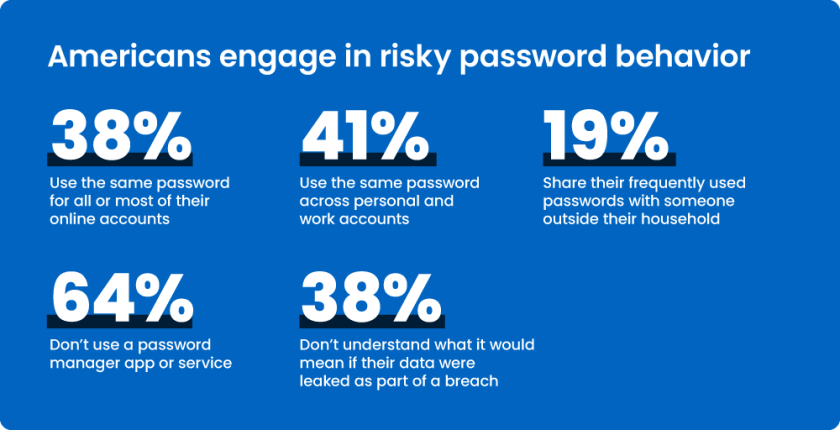
Passwords 3
Risky password behavior

You may want to switch to using Passkeys or Passphrases.

Source: PC Mag

Disclaimer

Technology is always changing. Rarely is there static tech for smartphones and desktops. Thus, the contents of this post are only valid at the time of writing. Blog posts older than six months may have directions incompatible with your device or OS. Hopefully, older post content will continue to work as advertised. Thank you for reading TechSavvy.Life for Technology at Work For You.

“Try and keep on trying until that which seems difficult becomes possible and that which seems only possible becomes habit and a real part of you.”

Dieter F Uchtdorf

That’s it. Please feel free to share this post! One way to share is via Twitter.

Just click the Tweet icon below. This will launch Twitter where you click its icon to post the Tweet.

Checkout TechSavvy.Life for blog posts on smartphones, PCs, and Macs! You may email us at contact@techsavvy.life for comments or questions.

Was this post helpful? We would love to hear your comments. Do you have a computer or smart device tech question? I will do my best to answer your inquiry. Just send an email to contact@techsavvy.life. Please mention the device, app, and version you are using. To help us, you can send screenshots of the data related to your question.

You can access the E-book from a Kindle device, or the Kindle App for a desktop or smartphone. The apps are free.
The author’s Vietnam eBook on the Battle for Tra Bong Vietnam: Events and Aftermath

How to View Saved Wi-Fi Passwords

This post provides instructions on finding Wi-Fi passwords on Windows and iPhone devices. For Windows, it details how to access and reveal the password in plain text. For iPhone, it explains the steps to reveal the Wi-Fi password. The post also includes a disclaimer about technology changes and a quote by Thomas Sowell.

RAYMOND OGLESBY @RaymondOglesby2
February 13, 2024

This is for Windows 10/11 and iPhone. Screenshots are from Windows 10 and iPhone 14 Pro running iOS 17+

Are you connected to Wi-Fi on one device, but need the password to log in on another? Here’s how to find Wi-Fi passwords in Windows and iOS.

Struggling to connect to Wi-Fi? Maybe your laptop is connected but your phone is not, or you need to share your network with a guest but can not remember the password. There are ways to wirelessly share passwords between devices, but that’s not always an option.

Below, we will outline how to grab a Wi-Fi password from already-connected devices by viewing it as plain text. This way you do not need to reset the network security or hack the Wi-Fi network so everyone can get online.

Windows makes this easy, as long as you are connected to the network.

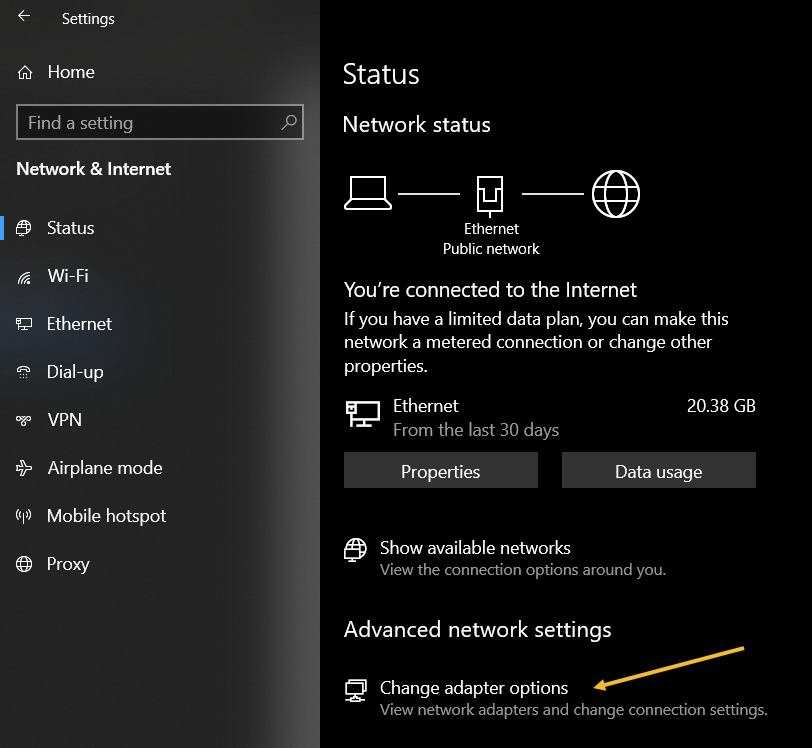
For Windows 10, open:

Settings > Network & Internet

then click the Change Adapter Options button. Refer to the below image:

Password 1
Accessing your network

For Windows 11, open:

Advanced network settings > More network adapter options

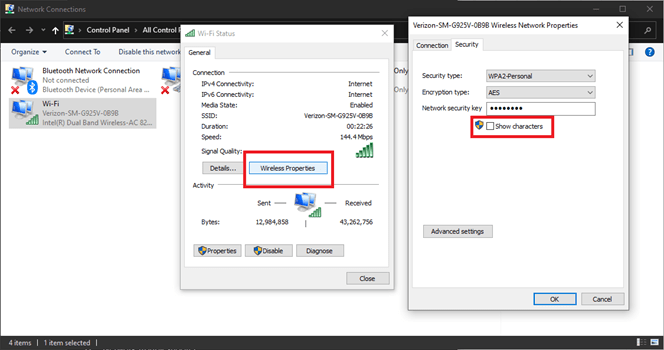
then right-click on your computer’s Wi-Fi adapter in the list and choose:

Status > Wireless Properties

Open the Security tab, and you should see a password box with dots in it. Click the Show Characters box to see the password in plain text. See the below image for Windows 10:

Password 2
Viewing your password in plain text on Windows 10

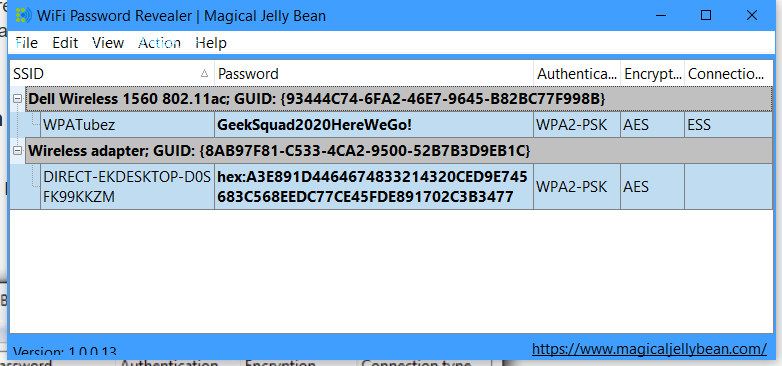
If you are trying to view the password for a network you are not currently connected to, things are a tad more complicated. You can download a third-party app like Wi-Fi Password Revealer which will show you the passwords of all saved networks. See the following image :

Password 3
Viewing Password Revealer software

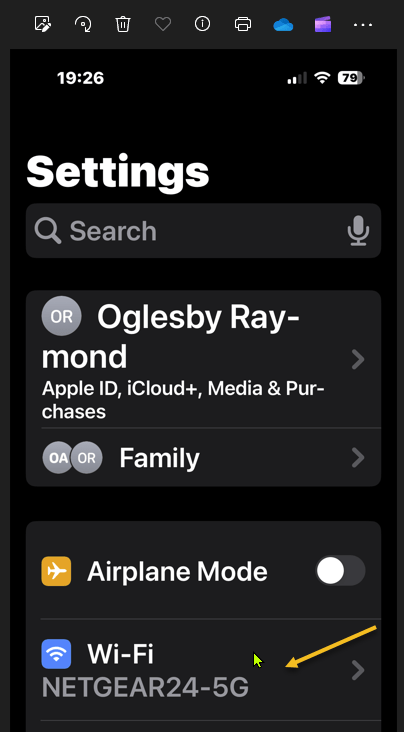
iPhone users could not view Wi-Fi passwords as plain text until iOS 16. First, open:

Settings > Wi-Fi

Refer to the below image:

Password 4
Accessing your Wi-Fi network

Now, tap the “i” icon for the current network. See the below image:

Password 5
Tapping the informational icon

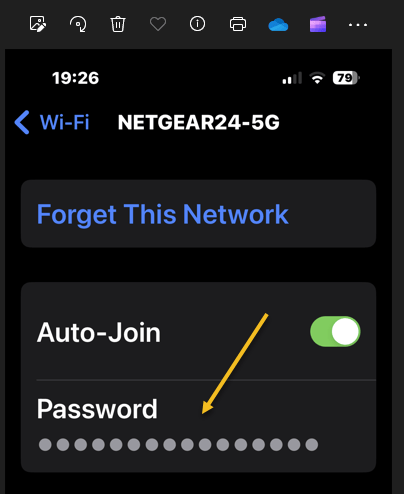
Next, select the Password entry and verify your identity with FaceID, Touch ID, or a Passcode. See the following image:

Password 6
Tapping the hidden password

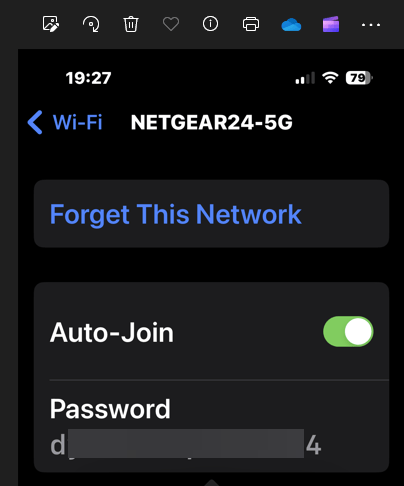
Now tap the password box with dots in it to reveal the password in plain text. Refer to the below image:

Password 7
Revealing the hidden password in plain text

Disclaimer

Technology is always changing and rarely is there static tech for smartphones and desktops. Thus, the contents of this post are only valid at the time of writing. Blog posts older than six months may have directions incompatible with your device or OS. Hopefully, older post content will continue to work as advertised. Thank you for reading TechSavvy.Life for Technology at Work For You.

It is hard to imagine a more stupid or more dangerous way of making decisions than by putting those decisions in the hands of people who pay no price for being wrong.

Thomas Sowell

That’s it. Please feel free to share this post! One way to share is via Twitter.

Just click the Tweet icon below. This will launch Twitter where you click its icon to post the Tweet.

Checkout TechSavvy.Life for blog posts on smartphones, PCs, and Macs! You may email us at contact@techsavvy.life for comments or questions.

Please feel free to leave a comment. I would love to hear from you. Do you have a computer or smart device tech question? I will do my best to answer your inquiry. Just send an email to contact@techsavvy.life. Please mention the device, app, and version you are using. To help us out, you can send screenshots of your data related to your question.

You can access the e-book from a Kindle device, the Kindle App for the desktop or smartphone, which is a free app.

The author’s Vietnam eBook on the Battle for Tra Bong Vietnam: Events and Aftermath

How to Save Google Chrome Passwords

Google Chrome can save your website passwords and help you automatically fill them the next time you visit your sites.

RAYMOND OGLESBY @RaymondOglesby2
April 13, 2022

Google Chrome can save your website passwords and help you automatically fill them the next time you visit your sites.

There are several ways to turn on the password saving feature in Chrome. Note that Chrome syncs your passwords with your Google account, which means if you enable Chrome to save passwords on one device, that change automatically applies to all your signed-in devices. Let’s explore this feature on both desktop and mobile devices.

This is for desktop and mobile running Chrome. Screenshots are from Windows 10 and iPhone XR

Dilbert and Bonus
Copyright Scott Adams, Inc./Distributed by Universal Uclick for UFS

Save Passwords on Desktop

To enable Chrome’s password manager on your Windows, Mac, Linux, or Chromebook computer, first, open Chrome on your computer.

Next, in Chrome’s top right-hand corner, click the three dots (the Menu icon). Refer to the below image:

Passwords 1
Selecting the Menu icon

Now, from the three-dots Menu icon, select the Settings option. See the below image:

Passwords 1
Accessing the Settings option

Next, on the left sidebar of the Settings page, click the Autofill option. See the following image:

Passwords 3
Accessing the Autofill option

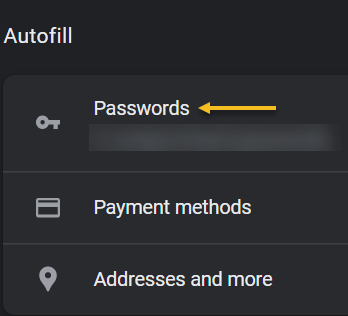
Now, on the right of the Autofill section, click the Passwords option. Refer to the below image:

Passwords 4
Selecting the Passwords option

Next, toggle the Offer to save passwords option to ON at the top of the Passwords page. See the below image:

Passwords 5
Enable Offer to save passwords

Note! If you decide you do not want password prompts, just toggle the Offer to save passwords to OFF.

From now on, when you log in to a site in Chrome on any of your devices, the browser will ask you to save your password for that site. 

Save Passwords on Mobile

First, open Chrome on your iPhone, iPad, or Android device.

Next, tap the three dots (the Menu icon) in Chrome on your device. If you are on Android, these dots are in Chrome’s top right-hand corner. If you are on an iPhone or iPad, you will find the Menu icon in the bottom right-hand corner. See the following image:

Passwords 6
Accessing the Menu icon

Now, in the menu that opens, tap the Settings option. Refer to the below image:

Passwords 7
Accessing the Settings option

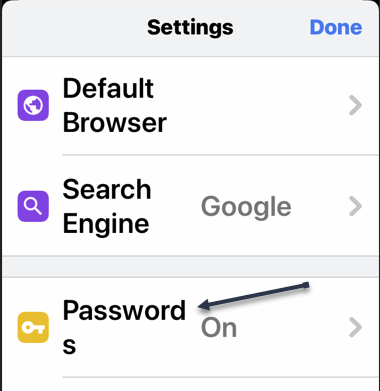
Next, in the Basics section of the Settings page, tap the Passwords option. See the below image:

Passwords 8
Accessing the Passwords option

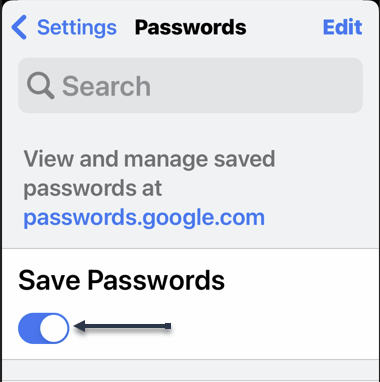
Now, on the Passwords page, toggle the Save Passwords option to ON. See the following image:

Passwords 9
Enable Save Passwords

Save Passwords Using Password Manager Site

To use this method, first, open a web browser on your device and access the Google Password Manager site. Log in to the site with the same Google account that you use in Chrome.

Now, when the Password Manager site opens, in the top right-hand corner, click the password options (the gear icon). Refer to the below image:

Passwords 10
Accessing Password options

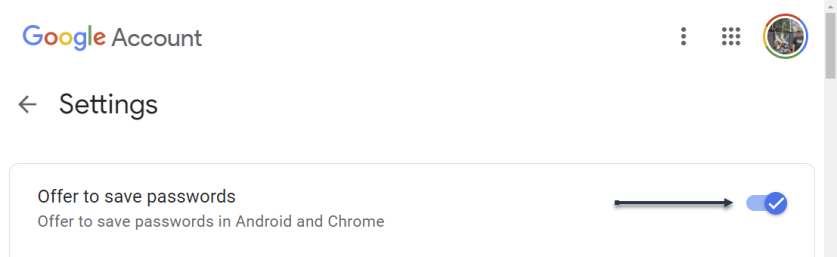
Next, the Settings page will open. Here, at the top, toggle the Offer to save passwords option to ON. See the below image:

Passwords 11
Enable Offer to sasve passwords

From now on, no matter what method you used above, Chrome will start prompting you to save passwords on all your signed-in devices. 

Quote For the Day

If people like you, they’ll listen to you, but if they trust you, they’ll do business with you.

Zig Ziglar

You are finished. Please feel free to share this post! One way to share is via Twitter.

Just click the Tweet icon below. This will launch Twitter where you click its icon to post the Tweet.


Check out TechSavvy.Life blog posts on smartphones, PCs, and Macs! You may email us at contact@techsavvy.life for comments or questions.

I Would Like to Hear From You

Please feel free to leave a comment. I would love to hear from you. Do you have a computer or smart device tech question? I will do my best to answer your inquiry. Just send an email to contact@techsavvy.life. Please mention the device, app, and version you are using. To help us out, you can send screenshots of your data related to your question.

Author’s E-book

You can access the e-book from a Kindle device, the Kindle App for the desktop or smartphone, which is a free app.

The author’s Vietnam eBook on the Battle for Tra Bong Vietnam: Events and Aftermath

How to View Privacy and Other Features in Safari for iPhone and iPad

Apple’s default web browser on iPhone or iPad is Safari, but have you ever taken the time to investigate its many hidden features and settings? We are going to concentrate on three features regarding security, privacy and the new start page. You may be amazed at what you find, at least we were.

Apple’s default web browser on iPhone or iPad is Safari, but have you ever taken the time to investigate its many hidden features and settings? We are going to concentrate on three features regarding security, privacy and the new start page. You may be amazed at what you find, at least we were.

With iOS or iPadOS 14 and higher, Safari has a few new tricks up its sleeve, including privacy reports, and password monitoring. Let’s explore three hidden features.

This is for the iPhone and iPad

Dilbert and Fedex
Copyright Scott Adams, Inc./Distributed by Universal Uclick for UFS

Your Privacy Report

Cross-site trackers monitor your web-based activities as you surf from one site to another, an activity that can certainly raise privacy concerns. Safari blocks such trackers from profiling you by default, and now allows you to see which sites and trackers are blocked.

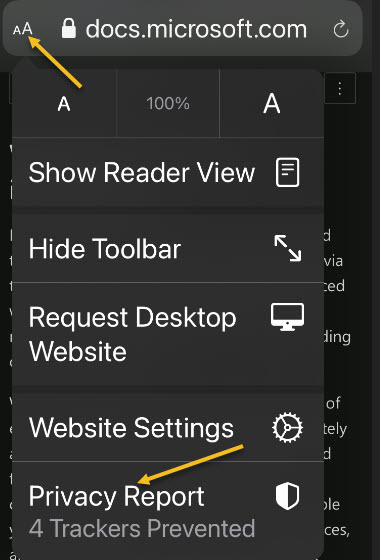
First, to check your Privacy Report, tap the aA icon in upper left-hand corner of a website. Next, tap Privacy Report. Refer to below image:

Safari 8
Accessing the Privacy Report

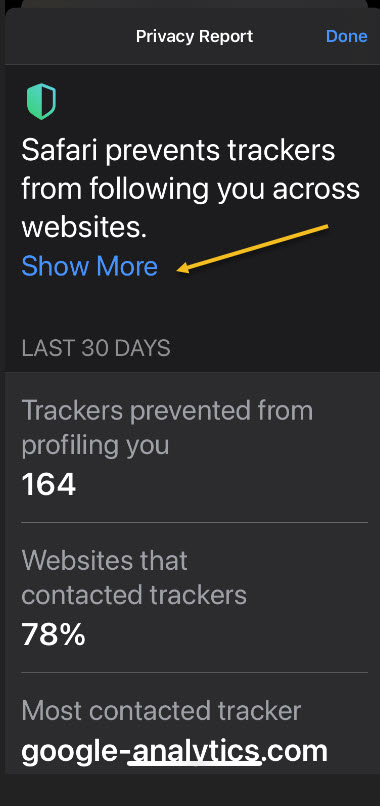
Now, your report will open. See below image:

Safari 7
Your Privacy Report

In my Privacy Report, I have 164 trackers with 78% of visited websites with trackers.

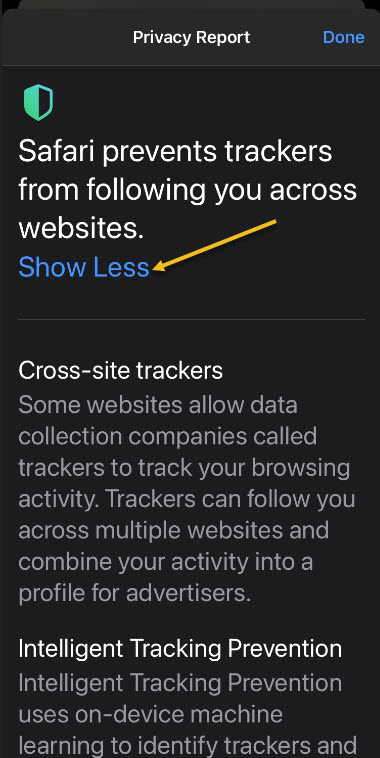
Next, click the Show More link to learn more about the cross-site tracking and how Apple blocks them and to read about trackers. The window reveals how many trackers were prevented from profiling you and how many sites contacted such trackers. See following image:

Safari 9
Stats about your browsing

Let’s go back one screen and tap the Show Less link. Now, scroll down till you see two tabs. Websites and Trackers tabs. Refer to below image:

Safari 10
Verbage about trackers

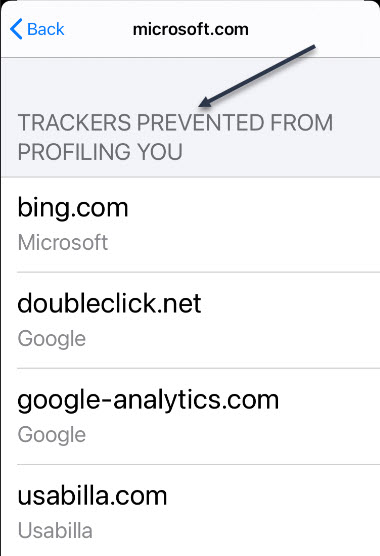
Next, tap on a Website to see which trackers were blocked. See below image:

Safari 5
Selecting a website for tracking info

In my example, I selected Microsoft.com. Yes, even Microsoft has trackers. You may be alarmed at the number and percentage of trackers wanting to profile you, especially if you access Safari a lot. Your device is blocking them.

You may tap on the Trackers link to see a list of trackers. See following image:

Safari 7
The list of trackers for a website

My son works for a cyber security firm. He helps recover “hacked” devices. If a person wants to “hack” your device, with the proper tools, they can. The best you can do, is to “protect” your device. by using security features on your device and apps, having strong passwords, using multi factor authentication, and the like.

Your iCloud Passwords

On your iPhone or iPad, you can now see any passwords saved in the iCloud Keychain that has been leaked in a data breach, are being reused for multiple login credentials, or are considered weak.

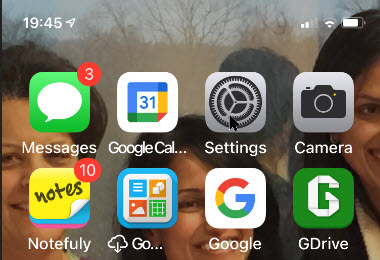
First, launch Settings (the gear icon). Refer to below image:

Safari 1
Accessing Settings

Now, scroll down to the Passwords option and tap it. See below image:

Safari 2
Accessing the Passwords option

Next, tap the Security Recommendations option. See following image:

Safari 3
Accessing Security Recommendations option

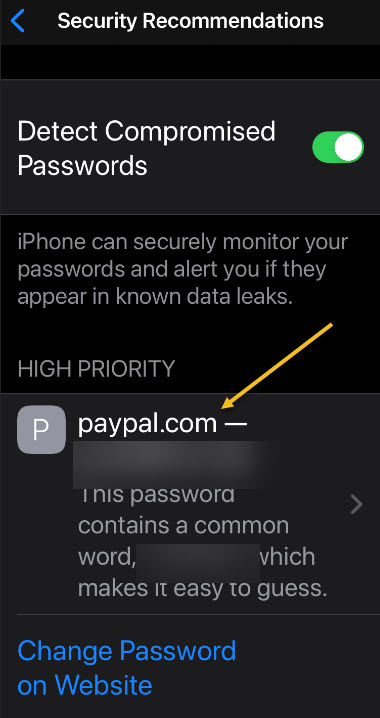
Now, you can tap a specific entry to delete or change the password. You may be surprised by passwords you have forgotten. Apple has provided a link to access the website for updating these passwords. In my example, I have one High Priority password that I need to change; one that I had forgotten about. The password for PayPal website has been erased for privacy purposes. Refer to below image:

Safari 4
Your comprised passwords

Your New Start Page

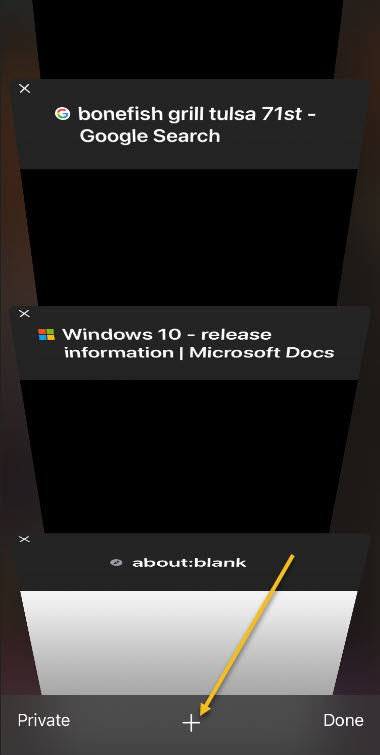
Safari debuted a new Start page with the release of iOS/iPadOS 13. Open a new tab by taping the plus “+” button at the bottom of your screen. See below image:

Safari 11
Selecting a new tab

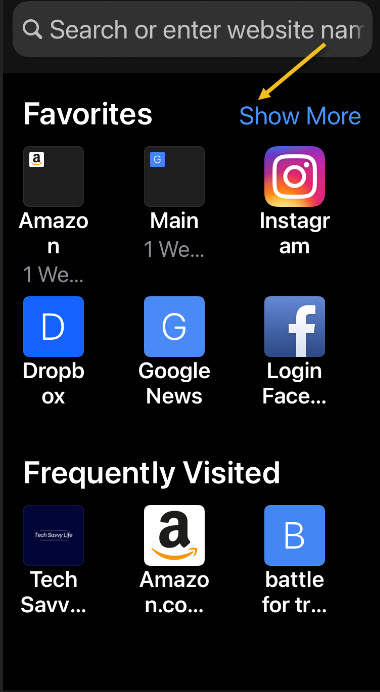
Now, you will see your bookmarks, frequently visited sites, and Siri suggested sites. Tap the Show More or Show Less link in the upper right to see more or fewer icons. See following image:

Safari 12
Your new Start page

Using SpeedTest

Althrough not a feature of privacy in Safari, you may want to know about the speed of your ISP for downloads and uploads. This tool is best used for a PC or Mac. Simply, head over to SpeedTest in your browser for your ISP speeds. Next, click the big round GO button. When it is finished, you will see your results like the image below:

Safari 13
Results of running SpeedTest

You can click the GO button again to rerun the test. Your results will differ depending on the time of day and Internet traffic. The firm, Ookla, has specific apps for your operating system that you can download and use.

That’s it. Please feel free to share this post! One way to share is via Twitter.

Just click the Tweet icon below. This will launch Twitter where you click its icon to post the Tweet.

Check out TechSavvy.Life for this post and similar blog posts on smartphones, PCs, and Macs!

I Would Like to Hear From You

Please feel free to leave a comment. I would love hearing from you. Do you have a computer or smart device tech question? I will do my best to answer your inquiry. Please mention the device, app and version that you are using. To help us out, you can send screenshots of your data related to your question.

The author’s Vietnam eBook on the Battle for Tra Bong: Events and Aftermath