TechSavvy.Life explores an iPhone Camera app setting called Prioritize Faster Shooting, which allows quick, successive photography, specifically for iPhone models XS/XR or later running on iOS 14 and above. However, enabling this feature reduces photo quality due to shorter image processing time. Users can personalize this setting in their iPhone settings.
This is for the iPhone XS/XR or later running iOS 14 or higher. Screenshots are from iPhone 14 Pro running iOS 17+
The iPhone is a great camera out of the box. Just set the phone up and start taking photos and recording videos without worrying about advanced settings. However, if you do want to take your photo skills to the next level, all sorts of iPhone photo tricks can help you improve your game. The iPhone’s Camera app holds settings that can also enhance the pictures and clips coming out of your iPhone.
One of those image settings can come in handy when you do not want to miss a shot. But it can also ruin photo quality, as the iPhone might devote less time to processing the image.
Disable Prioritize Faster Shooting Feature
Called Prioritize Faster Shooting, the setting is straightforward. It does what it says; it enables faster shooting, especially if you take lots of burst photos. The setting lets the iPhone capture more shots per unit of time, which can be useful if you are following certain events and want to capture everything. But it might not be worth taking so many shots if the quality of the resulting images has to suffer.
The setting comes enabled by default. To disable this feature, head to:
Settings > Camera > Prioritize Faster Shooting
and toggle to the OFF position. Reger to the below image:
To disable, turn the option to OFF
To enable, set the toggle to the ON position.
If you do not find the setting, you probably use an older iPhone or iOS. You must either update the software or get a new iPhone to take advantage of Prioritize Faster Shooting.
Disclaimer
Technology is always changing and rarely is there static tech for smartphones and desktops. Thus, the contents of this post are only valid at the time of writing. Blog posts older than six months may have directions incompatible with your device or OS. Hopefully, older post content will continue to work as advertised. Thank you for reading TechSavvy.Life for Technology at Work For You.
Quote For the Day
. “You don’t learn to walk by following rules. You learn by doing and falling over.”
Richard Branson
Tweet Info
That’s it. Please feel free to share this post! One way to share is via Twitter.
Just click the Tweet icon below. This will launch Twitter where you click its icon to post the Tweet.
Checkout TechSavvy.Life for blog posts on smartphones, PCs, and Macs! You may email us at contact@techsavvy.life for comments or questions.
Please feel free to leave a comment. I would love to hear from you. Do you have a computer or smart device tech question? I will do my best to answer your inquiry. Just send an email to contact@techsavvy.life. Please mention the device, app, and version you are using. To help us out, you can send screenshots of your data related to your question.
Author’s E-Book
You can access the e-book from a Kindle device, the Kindle App for the desktop or smartphone, which is a free app.
The author’s Vietnam eBook on the Battle for Tra Bong Vietnam: Events and Aftermath
The simplest way to search your Photos library is to use the Search tab at the top. However, you can also find specific photos and videos by filtering images by app name, camera or device, and even location.
Summary: The simplest way to search your Photos library is to use the Search tab at the top. However, you can also find specific photos and videos by filtering images by app name, camera or device, and even location. Using iPhone’s Live Text feature, you can also search for text within images.
This is for the iPhone. Screenshots are from iPhone 14 Pro running iOS 16+
Copyright Scott Adams, Inc./Distributed by Universal Uclick for UFS. This is one of my favorites
Finding that favorite photo you took can be frustrating when you have thousands to sift through. Fortunately, there are plenty of useful tips for searching and filtering your media, including photos, videos, imports, and more. Let’s discover some of these tips.
Find Specific People and Objects
Using the Search tab, you can search for people, animals, and objects in the Photos app. The Search function works well for finding animals like cats and dogs, objects like cars and boats, clothing like hats and sunglasses, or natural features like rivers and mountains.
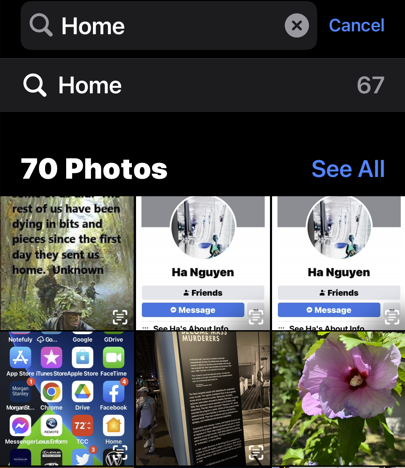
First, launch Photos and select Search from the Toolbar at the bottom. Then type your criteria into the Search bar. Refer to the below image:
Search for flowers
Next, you can get as descriptive as you like. For example, you can look for food items like steak or rooms in your house like the bedroom. Start typing “at the concert” and see what you find.
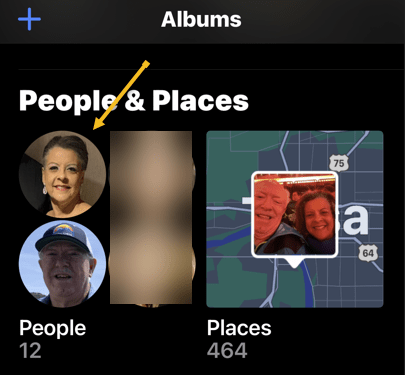
Now, for the search to work with people, you will need to link their likeness to a contact. Tap on the Albums tab. Scroll down to People and Places and tap on the selection of faces that Photos have generated. See the below image:
Search for faces
Next, you can tap on individual people, then tap Add Name at the top to link the likeness to a contact. See the following image:
Add a person’s name
Now, tap Next in the upper right-hand corner to see the tagged person, then click Done in the upper right-hand corner. Refer to the below image:
The person’s name has been added
Next, to train Photos to recognize people better, click each photo and look for the Review button. You can then confirm or deny likenesses. You may find some people have multiple entries due to changes in appearance, like a new haircut. Just tag them with the same name. See the below image:
Review your photos
Now, return to your Albums tab and tap on People. Here, you will see your tagged entries. See the following image:
Your named people’s photos
Find Text and Captions
Next, thanks to the iPhone’s Live Text feature, you can search for text within images. For example, you can search for words on a page, titles of books, road signs, or notices. You may even be able to pick up handwriting if it’s legible enough for the iPhone to recognize. Refer to the below image:
Find text in your photos
Now, you can give yourself a chance at finding something specific later by attaching a caption to it. To do so, find the photo in your library, then swipe up to reveal more information about it. Then tap the Add a Caption field and type your description.
Find Old Objects
Your iPhone can surface images from this time last year, three years ago, or even ten years ago if your media files go back that far. These sometimes appear on the For You tab or as Memories Notifications, but you can also search for them manually.
Next, the key is to type the phrase exactly to see the relevant entry. For example, you can type Three Years Ago and then tap on the event that shows up. Also, you can do this for Last Month or Last Week. Head to the Albums tab and tap on Search at the bottom of the Toolbar. See the below image:
Find photos from last month
Now, you can even filter by images taken in a particular month and year by searching for it, like July 2022. Also, you could search by scrolling down to the date range in your Library tab and selecting a date, but doing the above is much quicker. See the following image:
Find photos with a specific date
Find Hidden or Deleted
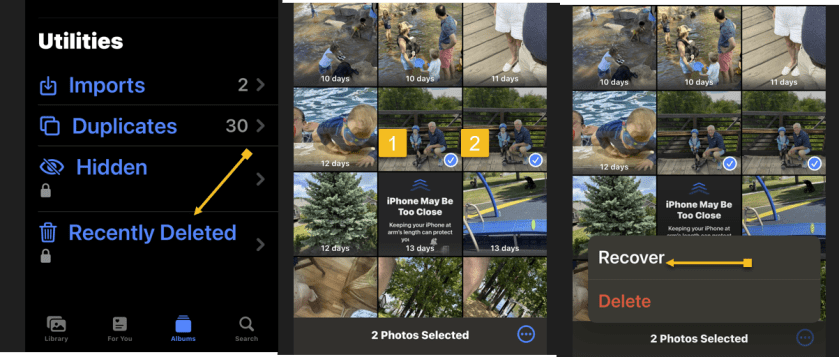
Next, in iOS 16, the Hidden and Recently Deleted albums are protected by Face ID or Touch ID. You can still find them in the usual place on the Albums tab by scrolling down to the bottom of the page and tapping on the Hidden or Recently Deleted album label in the Utility section.
Note:Recently Deleted photos will be removed after 30 days.
Refer to the below image:
Find Hidden or Recently Deleted photos
Find Duplicates and Delete Them
Now, the Photos app can also find and merge duplicate photos and videos to save space. Scroll to the bottom of your Albums tab and tap Duplicates in the Utility section to see a list of duplicate photos or videos. See the below image:
Find Duplicate photos
Next, you can review each entry and then tap Merge. Your iPhone will then keep the highest quality version of any duplicates. See the following image:
Merge Duplicate photos
You can also merge all of your duplicates at once by tapping:
Select > Select All > Merge (###)
Where “###” is the number of duplicates you are going to merge shown at the bottom of your screen. Refer to the below image:
Merge all Duplicate photos
The iPhone Photos app is both useful and powerful. These tips are just some of what you can do.
Disclaimer
Technology is always changing, and rarely is their static tech for smartphones and desktops. Thus, the contents of this post are only valid at the time of writing. Blog posts older than six months may have directions incompatible with your device or OS. Hopefully, older post content will continue to work as advertised. Thank you for reading TechSavvy.Life for Technology at Work For You.
Quote For the Day
We refuse to turn off our computers, turn off our phone, log off Facebook, and just sit in silence because in those moments we might actually have to face up to who we really are.
Jefferson Bethke
Tweet Info
That’s it. Please feel free to share this post! One way to share is via Twitter.
Just click the Tweet icon below. This will launch Twitter where you click its icon to post the Tweet.
Checkout TechSavvy.Life for blog posts on smartphones, PCs, and Macs! You may email us at contact@techsavvy.life for comments or questions.
Please feel free to leave a comment. I would love to hear from you. Do you have a computer or smart device tech question? I will do my best to answer your inquiry. Just send an email to contact@techsavvy.life. Please mention the device, app, and version you are using. To help us out, you can send screenshots of your data related to your question.
Author’s E-Book
You can access the e-book from a Kindle device, the Kindle App for the desktop or smartphone, which is a free app.
The author’s Vietnam eBook on the Battle for Tra Bong Vietnam: Events and Aftermath
Duplicate photos and videos take up precious space on your iPhone. Since iOS 16, Apple has offered the ability to easily find and delete duplicates in the Photos app; no third-party app is required.
Duplicate photos and videos take up precious space on your iPhone. Since iOS 16, Apple has offered the ability to easily find and delete duplicates in the Photos app; no third-party app is required. Let’s explore how to do this.
This is for the iPhone running iOS 16+. Screenshots are from iPhone XR
Copyright Scott Adams, Inc./Distributed by Universal Uclick for UFS
iOS 16 Required
This feature was released with iOS 16. You can see your current iOS version under:
Settings > General > About > iOS Version
Refer to the below image:
Your iOS version
If you need to, you can upgrade to iOS 16 by going to
Settings > General > Software Update
Find and Delete Duplicates in Photos
Note! After updating the iOS. It could take anything from a few hours to a few days for the Duplicates album to appear.
First, to find duplicate photos and videos, open the Photos app on your iPhone and tap the Albums tab at the bottom of the screen. See the below image:
Selecting your Albums
Next, scroll down to the bottom of the page to the Utilities section where you will find the Duplicates album. See the following image:
Selecting Duplications option
Now, tap on Duplicates to see a list of all the duplicate photos and videos found on your iPhone. Refer to the below image:
Your Duplications total
Next, you will see a preview of each image and the relevant file size. You can review each duplicate entry individually, then tap on Merge to save one of the photos or videos. iOS will automatically keep the higher-quality version.
Now, you will need to confirm that you wish to merge the photos or videos in the pop-up window that opens. See the below image:
Merge the current Duplicate
Next, if you do not have time to merge each duplicate individually, you can merge everything at once. To do this, tap Select at the top of the screen followed by Select All. Then, tap Merge at the bottom of the screen. See the following image:
Merge all your Duplicates
Processing Your Photos
You might find that after merging all of your duplicates, more appear as your whole library finishes processing.
Apple states that the detection process requires your iPhone to be locked and connected to power. The size of your library and the tasks running on your device will influence the speed at which the process completes.
If your photos are stored in an iCloud Photo Library, removing duplicates is a good way of freeing up precious iCloud storage.
Quote For the Day
Cars will soon have the Internet on the dashboard. I worry that this will distract me from my texting.
Andy Borowitz
Tweet Info
That’s it. Please feel free to share this post! One way to share is via Twitter.
Just click the Tweet icon below. This will launch Twitter where you click its icon to post the Tweet.
Checkout TechSavvy.Life for blog posts on smartphones, PCs, and Macs! You may email us at contact@techsavvy.life for comments or questions.
Please feel free to leave a comment. I would love to hear from you. Do you have a computer or smart device tech question? I will do my best to answer your inquiry. Just send an email to contact@techsavvy.life. Please mention the device, app, and version you are using. To help us out, you can send screenshots of your data related to your question.
Author’s E-Book
You can access the e-book from a Kindle device, the Kindle App for the desktop or smartphone, which is a free app.
The author’s Vietnam eBook on the Battle for Tra Bong Vietnam: Events and Aftermath
Your iPhone’s Mail app makes it easy to add photos, videos, and other file types as attachments to your emails. We will show you how to add files from various sources to your emails on your iPhone.
This is for the iPhone
Copyright Scott Adams, Inc./Distributed by Universal Uclick for UFS
When you choose to attach a photo or video, Mail opens iPhone’s default Photos app to let you add your items. For other file types, Mail opens iCloud Drive from where you can choose and attach your files. You may also choose other cloud storage providers to attach your files.
Attach Photo or Video
First, launch Mail on your iPhone. Then, in Mail’s bottom right-hand corner, tap the Pencil icon to compose a new email. Refer to the below image:
Selecting to compose an email
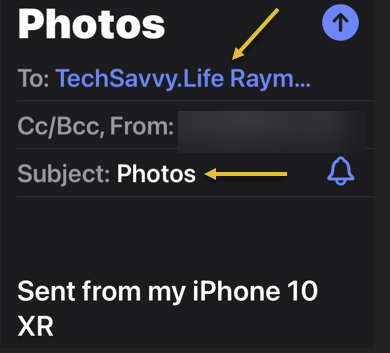
Next, you will see a New Message page. Here, tap the To field and enter the recipient’s email address, then tap the Subject and enter a subject for your email. See the below image:
Addressing the email
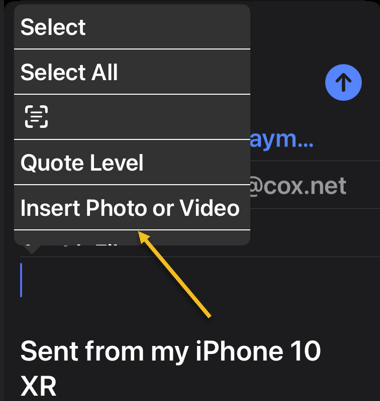
Now, to attach a photo or video to this email, tap and hold anywhere on the email’s body (the large text area). Then in the menu that opens, choose Insert Photo or Video. See the following image:
Selecting the Insert a Photo or Video option
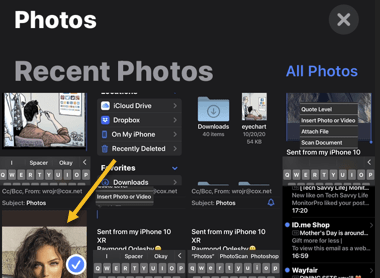
Next, Mail will open your iPhone’s Photos app where you can select the photo or video you want to add to your email. Tap an item when your item opens in full screen. Refer to the below image:
Selecting a photo
N0w, back on the New Message page, you will see your selected photo or video attached to your email. See the below image:
Your selected photo
Attach Other File Types
Next, to attach another file type, tap and hold on the email body and choose Attach File. See the following image:
Selecting Attach File option
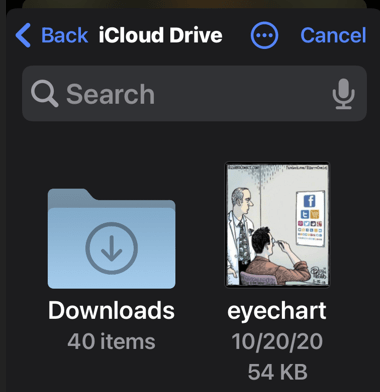
Now, your iCloud Drive page will open where you can select a file to add to your email. Refer to the below image:
Select a file from iCloud Drive
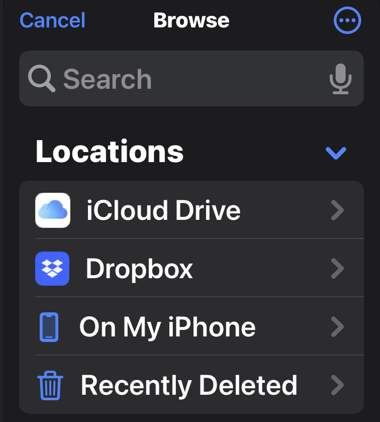
Next, to use another cloud storage, in the top-left-hand corner, tap Locations Select your cloud storage to pick your files. See the below image:
Selecting a Location to attach a file
Your files are now attached to your email, and you may send out your email as usual. The recipient will get your email with your attached content.
Quote For the Day
Defect-free software does not exist.
Wietse Venema
Tweet Info
That’s it. Please feel free to share this post! One way to share is via Twitter.
Just click the Tweet icon below. This will launch Twitter where you click its icon to post the Tweet.
Check out TechSavvy.Life for blog posts on smartphones, PCs, and Macs! You may email us at techsavvy.life for comments or questions.
Please feel free to leave a comment. I would love to hear from you. Do you have a computer or smart device tech question? I will do my best to answer your inquiry. Just send an email to contact@techsavvy.life. Please mention the device, app, and version you are using. To help us out, you can send screenshots of your data related to your question.
Author’s E-book
You can access the e-book from a Kindle device, the Kindle App for the desktop or smartphone, which is a free app.
The author’s Vietnam eBook on the Battle for Tra Bong Vietnam: Events and Aftermath
Thanks to the iPhone’s built-in Photos app, you can make a slideshow and have your photos and/or videos play one after another without manual interaction. You can choose a custom background music track, theme, and even the speed of the slideshow.
Note: The Photos app only lets you play your content as a slideshow; you can not save these slideshows to play at a later time on another device. However, as a workaround, you could record a video of your iPhone’s screen while it plays and save it, or stream it to your Apple TV using AirPlay.
This is for the iPhone
Copyright Scott Adams, Inc./Distributed by Universal Uclick for UFS
Create a Slideshow
First, launch the Photos app on your iPhone.
In the Photos app, select the photos and/or videos you would like to include in your slideshow. Refer to the below image where we have selected 15 photos:
Selected photos
Next, when you have selected your photos and/or videos, in the bottom left-hand corner of your screen, tap the Share icon. See the below image:
Selecting the Share icon
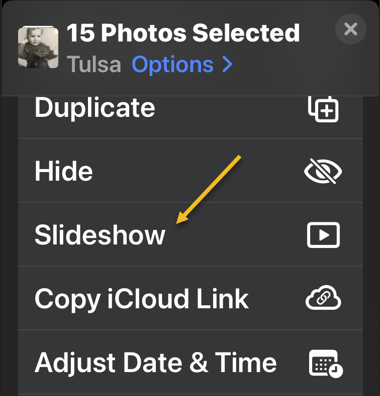
Now, in the Share menu that opens, tap the Slideshow option. See the following image:
Selecting the Slideshow option
Next, your iPhone will automatically create and play a slideshow containing your photos and/or videos.
Now, to customize this slideshow, tap on the slideshow and then select Options in the bottom right-hand corner. Refer to the below image:
Selecting Options
Next, on the Slideshow Options page, choose the item you would like to change for your slideshow. Your options are:
Theme: Use this option to change your slideshow’s theme.
Music: Change your slideshow’s background music with this option. You can load music from the Music app as well.
Repeat: To play your slideshow in a loop, enable this option.
Slider: Use this slider to change your slideshow’s playback speed. Dragging the slider to the left decreases the speed, while dragging it to the right increases the speed.
Now, when you have specified custom options, save your settings by tapping Done in the top right-hand corner. See the below image:
Saving your options
Enjoy the customized slideshow of your favorite photos and/or videos! If only Apple allowed you to save the slideshow for later playback would make this a nifty feature.
Another way to make a slideshow on your iPhone or other devices is to use Google Photos.
Quote For the Day
Everybody gets so much information all day long that they lose their common sense.
Gertrude Stein
Tweet Info
That’s it. Please feel free to share this post! One way to share is via Twitter.
Just click the Tweet icon below. This will launch Twitter where you click its icon to post the Tweet.
Check ourt TechSavvy.Life for blog posts on smartphones, PCs, and Macs! You may email us at contact@techsavvy.life for comments or questions.
Please feel free to leave a comment. I would love to hear from you. Do you have a computer or smart device tech question? I will do my best to answer your inquiry. Just send an email to contact@techsavvy.life. Please mention the device, app, and version you are using. To help us out, you can send screenshots of your data related to your question.
Author’s E-book
You can access the e-book from a Kindle device, the Kindle App for the desktop or smartphone, which is a free app.
The author’s Vietnam eBook on the Battle for Tra Bong Vietnam: Events and Aftermath
With iOS 15 or iPadOS 15.1 or later, you can use Live Text to copy the text in photos, translate languages, make phone calls, and more. Let’s explore this feature.
This is for iPhone and iPad running OS 15 or higher. Screenshots are from iPhone XR
Copyright Scott Adams, Inc./Distributed by Universal Uclick for UFS
The Live Text feature can easily identify text. The text can then be copied, translated, or used for a search. Live Text also can capture text from your photos. So, instead of retyping text from a photo, the use of Live Text is a time saver.
To use Live Text, you need an iPhone XR, iPhone XS, or a newer model. For the iPad, an iPad 8th generation or later, iPad Mini 5th generation or later, iPad Pro 11 inches or 12.9 inches.
Enable Live Text
First, to turn on Live Text for all supported languages, head to:
Settings > General > Language & Region
Next, toggle the Live Text switch to ON. Refer to the below image:
Enabling Live Text
Copy and Paste Text
First, open a photo with some text. See the below image:
Opening a photo that contains text
Next, touch and hold some word(s), and move the handles to adjust your selection.
Now. a pop-up menu will open. Here, either tap Select or Select All. You can also select all by tapping the Live Text button in the lower right-hand corner of the image. See the following image:
Selecting All of the photo text
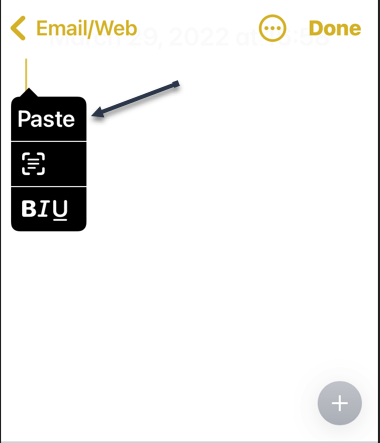
Next, from the pop-up menu, you can Paste your copied photo text. In our example, we are pasting it into Apple Notes. Refer to the below image:
Selecting the Paste option in Apple Notes
Now, you will see your copied text. Tap Done when finished. See the below image:
Your pasted text from a photo
Translate Text
To Translate text, you follow the above steps, except chose a photo with text in a foreign language. First, from the pop-up menu, tap on Translate. You might need to tap Continue, then choose a language to translate in or tap Change Language. Your copied and pasted text will be translated. See the following image:
Selecting to Translate your photo text
Additionally, you can copy and paste links and even make phone calls using Live Text.
Quote For the Day
The more refined one is, the more unhappy.
Anton Chekhov
Tweet Info
That’s it. Please feel free to share this post! One way to share is via Twitter.
Just click the Tweet icon below. This will launch Twitter where you click its icon to post the Tweet.
Check out TechSavvy.Life for blogposts on smartphones, PCs, and Macs! You may email us at contact@techsavvy.life for comments or questions.
Please feel free to leave a comment. I would love to hear from you. Do you have a computer or smart device tech question? I will do my best to answer your inquiry. Just send an email to contact@techsavvy.life. Please mention the device, app, and version you are using. To help us out, you can send screenshots of your data related to your question.
Author’s E-book
You can access the e-book from a Kindle device, the Kindle App for the desktop or smartphone, which is a free app.
The author’s Vietnam eBook on the Battle for Tra Bong Vietnam: Events and AftermathQR code for this blog post
Did you hide some photos on your iPhone but you are not sure where those photos are? It’s easy to see those hidden photos on an iPhone. Let’s explore how this is done.
Note: Respect other people’s privacy when using this knowledge, as they have their own reasons for hiding photos on their iPhones.
This is for the iPhone
Copyright Scott Adams, Inc./Distributed by Universal Uclick for UFS
View iPhone’s Hidden Photos
To view your hidden photos, first, launch the Photos app on your iPhone. At the bottom of the Photos app, tap Albums. Refer to the below image:
Accessing photo Albums
Next, on the Albums page, scroll down to the bottom. There, in the Other Albums section, tap Hidden.
On certain iOS versions, the Hidden album is located in the Utilities section as shown below.
Note: If you do not see the Hidden album option, the album itself might be hidden. To enable it, follow the steps in the section below.
See the below image:
Accessing the Hidden option
Now, the Hidden album screen shows all your hidden photos and videos. If none is displayed, you have no hidden photos or videos. See the following image:
Selecting a hidden photo
Next, to unhide a photo or video, tap that item on the list. When the item opens in full-screen, in the bottom left-hand corner, tap the Share icon. Refer to the below image:
Accessing the Share icon
Now, in the Share menu, tap Unhide. See the below image:
Unhide your photo
Next, your selected photo or video is now visible to everyone in Photos.
If you are not finding the photos you were looking for, consider trying to recover deleted photos on your iPhone or iPad.
Enable the Hidden Album
On iOS 14 and later, you can turn off the Hidden album in the Photos app. To re-enable that album, you will have to change an option in your iPhone’s Settings.
To do so, first, open the Settings app on your iPhone and tap Photos. See the following image:
Accessing Photos
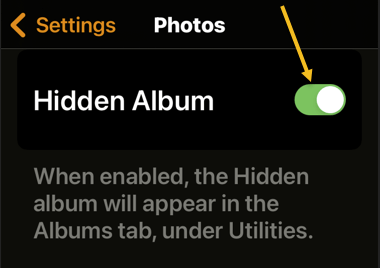
Next, toggle the Hidden Album option to ON. Refer to the below image:
Enable Hidden Album option
Now, your album is now visible in the Photos app, and you can access your hidden photo(s).
Quote For the Day
Your attitude, not your aptitude, will determine your altitude.
Zig Zigler
That’s it. Please feel free to share this post! One way to share is via Twitter.
Just click the Tweet icon below. This will launch Twitter where you click its icon to post the Tweet.
Check out TechSavvy.Life for blog posts on smartphones, PCs, and Macs! You may email us at contact@techsavvy.life for comments or questions.
Please feel free to leave a comment. I would love to hear from you. Do you have a computer or smart device tech question? I will do my best to answer your inquiry. Just send an email to contact@techsavvy.life. Please mention the device, app, and version you are using. To help us out, you can send screenshots of your data related to your question.
Author’s E-book
You can access the e-book from a Kindle device, the Kindle App for the desktop or smartphone, which is a free app.
The author’s Vietnam eBook on the Battle for Tra Bong Vietnam: Events and Aftermath
You may be used to tapping the arrow keys to quickly scroll through images in Windows’ Photos app, but an even faster method is using the mouse wheel. Let’s explore how to make the mouse wheel scroll instead of zoom.
This is for devices running Windows 10
Copyright Scott Adams, Inc./Distributed by Universal Uclick for UFS
By default, when an image is open in Photos and you use your mouse wheel, your photo either zooms in or zooms out. By adjusting Photos’ settings, you can change this behavior so the mouse wheel opens the next or previous photo in your folder.
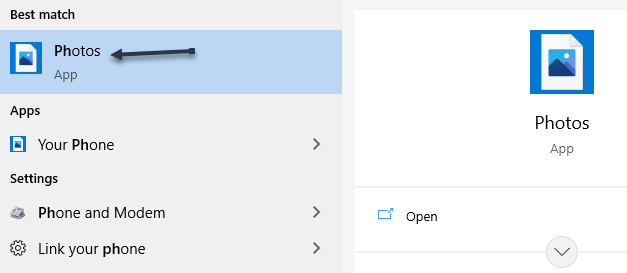
First, open the Photos app on your Windows 10 device by opening the Start menu, entering Photos in the Cortana search box, and clicking the app in the search results. Refer to the below image:
Selecting your Photos app
Next, in the top right-hand corner, click the three dots Menu. See the below image:
Selecting Photos Menu
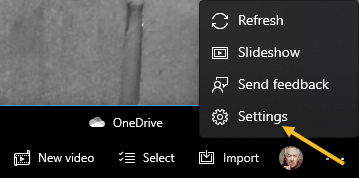
Now, select Settingsto open the Photos app’s Settings Menu. See the following image:
Selecting Photos Settings
Next, scroll down to the Viewing and Editing section. At the bottom of this section, in the Mouse Wheel subsection, enable the View next or previous item option. Refer to the below image:
Changing your mouse wheel option
And that’s it. In Photos, your mouse wheel will now navigate between the images in your folder.
Quote For the Day
Everything comes to him who hustles while he waits.
Thomas A Edison
You are finished. Please feel free to share this post! One way to share is via Twitter.
Just click the Tweet icon below. This will launch Twitter where you click its icon to post the Tweet.
Check out TechSavvy.Life for blog posts on smartphones, PCs, and Macs! You may email us at contact@techsavvy.life for comments or questions.
Please feel free to leave a comment. I would love hearing from you. Do you have a computer or smart device tech question? I will do my best to answer your inquiry. Just send an email to contact@techsavvy.life. Please mention the device, app, and version you are using. To help us out, you can send screenshots of your data related to your question.
The author’s Vietnam eBook on the Battle for Tra Bong Vietnam: Events and Aftermath
For years, Apple devices have made it easy to share nearly anything. Website links, videos, photos; you name it, chances are it’s easy to share via Messages, especially if you are sharing with other Apple users. Finding the media and links others share with you was not always easy until now.
For years, Apple devices have made it easy to share nearly anything. Website links, videos, photos; you name it. Chances are it’s easy to share via Messages, especially if you are sharing with other Apple users. Finding the media and links others share with you was not always easy until now. Let’s explore this feature.
This is for iPhone and iPad running iOS or iPadOS 15 or higher
Copyright Scott Adams, Inc./Distributed by Universal Uclick for UFS
What is Shared with You
Shared with You is a feature built into multiple apps on both iPhone and iPad that automatically gathers together any content your contacts have sent you. It works in Messages, but is also built into Apple Music, Apple TV, Podcasts, Photos, and Safari.
This feature works in two ways. First, you can easily view all the various media a contact has shared with you in Messages. Second, you can view all the Apple TV shows, for example, that all of your contacts have shared with you, directly inside that app.
Shared with You is a new feature as of iOS 15 and iPadOS 15 or higher, but it works with content sent from older iOS and iPadOS versions. It will even work automatically with some content sent from other devices.
How to Use in Messages
The easiest way to use Shared with You is not all that different from how you would find a friend’s recommendations. First, open the Messages app, then find a conversation with the person whose content you wish to see. Refer to below image:
A Contact to share with
Now, on this screen you will see some of the contact’s details as you would have before. At the bottom of the screen, you will now notice a new section with media that contact has shared with you. See below image for sharing of Links:

Sharing a link
How to Use in Safari
Shared with You makes it easy to see all the links to various websites and articles that contacts have sent you.
First, open Safari, then open a new tab to get to the Start Page. Now, scroll down until you see the Shared with You section. Tap any of the links here to open them in a new tab. See the following image:
Safari Shared with You section
If you do not see a Shared with You section, you might not have it enabled in the Start Page.
To enable the Shared with You section, next, scroll to the bottom of the StartPage and tap Edit. Refer to below image:
Accessing Edit to enable Shared with You
Now, find and enable the Shared with You toggle. See below image:
Enable/disable Shared with You
How to Use in Other Apps
While the Messages app provides the easiest way to see everything a given contact has shared, it’s not the only way to use Shared with You. You can also see content shared by your contacts in any supported app.
As of this writing, Shared With You is available for Apple TV, Messages, Photos, Podcasts, and Music.
Too Much Sharing
We all know people who seem to share everything they stumble across on social media. If you know more than one of that sort of person, they could quickly overwhelm you with notifications and content.
The good news is that if you are not interested in seeing some or all Shared with You content, you can turn it off. You can either disable Shared with You entirely or simply turn off the feature on a per-app basis.
First, to disable Shared with You features, open the Settings app. See following image:
Accessing Settings app
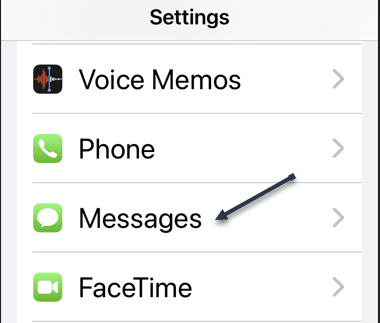
Now, go to Messages. Refer to below image:
Accessing Messages option
Next, tap Shared With You. See the below image:
Accessing Shared with You
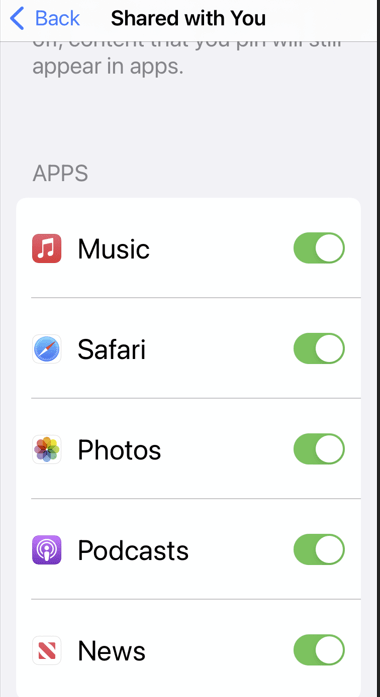
Here you can customize whether you want to use Shared with You at all or only in certain apps. See following image:
Enable/disable Shared with You
Quote For the Day
As individuals, people are inherently good. I have a somewhat more pessimistic view of people in groups. And I remain extremely concerned when I see what’s happening in our country, which is in many ways the luckiest place in the world. We don’t seem to be excited about making our country a better place for our kids.
Steve Jobs
That’s it for a few examples on how to use Shared with You. Please feel free to share this post! One way to share is via Twitter.
Just click the Tweet icon below. This will launch Twitter where you click its icon to post the Tweet.
Check out TechSavvy.Life for blog posts on smartphones, PCs, and Macs! You may email us at techsavvy.life for comments or questions.
Please feel free to leave a comment. I would love to hear from you. Do you have a computer or smart device tech question? I will do my best to answer your inquiry. Just send an email to contact@techsavvy.life. Please mention the device, app, and version you are using. To help us out, you can send screenshots of your data related to your question.
The author’s Vietnam eBook on the Battle for Tra Bong Vietnam: Events and Aftermath
Multitasking can be difficult on a small phone screen. Apple’s drag and drop tool makes it easy to move photos, text, links, and more between your favorite apps. This powerful feature can improve your photo or text manipulation.
Multitasking can be difficult on a small phone screen. Apple’s drag and drop tool makes it easy to move photos, text, links, and more between your favorite apps. This powerful feature can improve your photo or text workflow.
iOS 15 gives you the ability to simply drag something, such as a photo, from one app, and drop it in another. No messing around with downloading items or copy and pasting. Lets see how this is done.
This is for the iPhone running iOS 15 or higher
Copyright Scott Adams, Inc./Distributed by Universal Uclick for UFS
Drag and Drop Requirements
There are quite a few things you can drag and drop on the iPhone. Photos and text are the most obvious, but you can also grab videos, documents, links, audio files, and PDFs. However, you will need a source and destination app that supports the feature.
Developers need to implement drag and drop support in their app, which means the feature is not available everywhere. Apple’s own apps support it, including Safari, Mail, Messages, and Files. Other supported apps include Gmail, and WhatsApp.
Drag and Drop Essentials
First, open an app that supports the feature. In our example, we will be dragging a photo from Photos to Messages, but the action is exactly the same for text, links, and other items. If you are unable to find your Photos app, navigate to your first screen and use the Spotlight Search, to find the app. Refer to below image for the Photos app:
Accessing Photos app
Next, select a photo. See below image:
Find a photo to drag and drop
Now, hold a finger down on a photo until you feel a little vibration. Keep your finger pressed on the screen and drag the photo until it floats. Do not stop holding the selecting object. In our example, we have moved the photo to another spot on the Photos screen, my finger is still holding down on the photo. See following image:
Dragging a Photo while holding down my finger on the photo
Now, with a different finger, navigate around the iPhone like you normally would. Keep the first finger pressed on the photo and use your other finger to open the destination. In our example, we are dropping the photo onto a Message, then release your finger. Refer to below image:
Dropping the photo onto a Message and releasing your finger
Quote For the Day
I was lucky – I found what I loved to do early in life. Woz and I started Apple in my parents’ garage when I was 20. We worked hard, and in 10 years, Apple had grown from just the two of us in a garage into a $2 billion company with over 4000 employees.
Steve Jobs
That’s it you now know how to drag and drop a photo. Please feel free to share this post! One way to share is via Twitter.
Just click the Tweet icon below. This will launch Twitter where you click its icon to post the Tweet.
Check out TechSavvy.Life for blog posts on smartphones, PCs, and Macs! You may email us at contact@techsavvy.life for comments or questions.
Please feel free to leave a comment. I would love hearing from you. Do you have a computer or smart device tech question? I will do my best to answer your inquiry. Just send an email to contact@techsavvy.life. Please mention the device, app, and version you are using. To help us out, you can send screenshots of your data related to your question.
The author’s Vietnam eBook on the Battle for Tra Bong Vietnam: Events and Aftermath