How to Recover Deleted Photos from iPhone

This post provides detailed instructions on recovering deleted photos and videos on iPhone, emphasizing the 30-day recovery period and the importance of backups. It also suggests using Google Photos and mentions third-party solutions for permanent deletions.

RAYMOND OGLESBY @RaymondOglesby2
July 9, 2024 – 3 minute read

This is for the iPhone. Screenshots are from iPhone 14 Pro running iOS 17+

The first thing we used to do to free storage on my previous iPhones was to head to the Photos app and delete pictures and videos. We usually did this after a backup or AirDrop the files we wanted to keep to our PC. However, there were exceptions to the rule, and we sometimes accidentally deleted photos and videos we still needed.

If you accidentally delete files while cleaning up, you should not panic. The files are not actually lost. Go to the Albums section of your iPhone and look for the Recently Deleted folder. You must unlock it with Face ID, Touch ID, or PIN code. In there, tap the Select button and check the photos you deleted by mistake, tap the three dots menu button at the bottom, and then tap Recover. Refer to the below image:
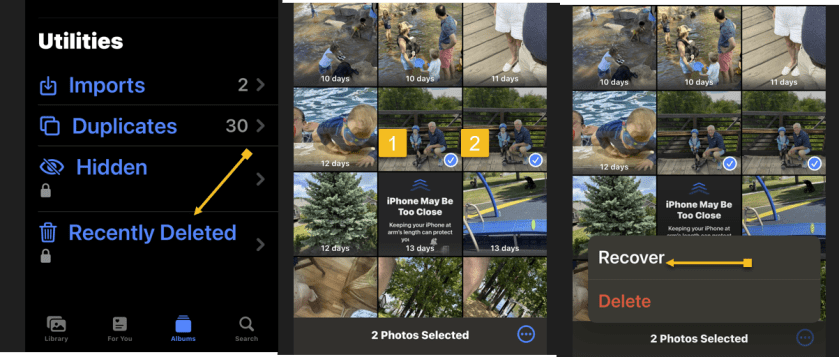
Recover Photo 1
Selecting your photos to recover

If you have selected more than one photo, click the recover multiple photos button. See the below image:
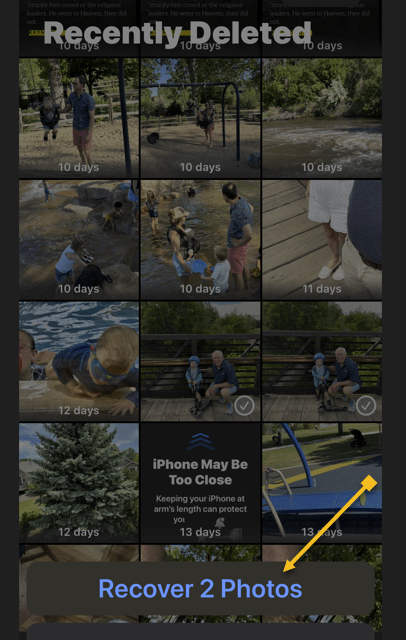
Recover Photo 2
Recover your photos

We already knew how to rescue those files, as there’s a simple rule about deleting stuff on iPhone. The files do not get permanently removed. Instead, they sit for 30 days in the Trash folders of the various apps where you can delete content. The Photos app is one of them. And that’s how easy it is to recover those deleted photos and videos.

It gets even better if you do regular backups via iCloud or use a third-party alternative to Apple Photos. Google Photos easily comes to mind, as it’s a great app to store and back up photos.

Most iPhone users will use the default Photos app. That’s where to start when viewing photos and videos and managing the storage.

Another option is to bring a single photo into view and then look for the same Recover button. This method only lets you recover photos and videos one by one.

Once that’s done, the recovered files will be available in the Photos app.

You have to remember to recover your deleted photos within 30 days. That’s how long you have until the iPhone permanently removes them. We went to this folder on iPhones with lower storage than my current iPhone 14 Pro to permanently delete the files we did not need. That’s the only way to free storage immediately.

The best way to ensure your photos and videos are safe is to perform routine backups. Whether via iCloud or your PC, the backups will help you recover files. Another option is to manually transfer the photos to a computer and store them on external devices.

There are many Photo Recovery apps from the App Store you can install.

Google Photos is a handy tool for storing images and photos on your iPhone. But, like the default Apple Photos app, you can accidentally delete files in Google Photos.

The solution is similar to Apple Photos. Google does not delete the images directly, moving them to a Trash file in the Library tab. You have 30 days to recover the file if the photo or video was not backed up to the cloud. That goes up to 60 days if the files you deleted accidentally were backed up to the cloud.

Google Photos is also available on the web and other devices.

Whether you forget the 30-day recovery deadline or accidentally empty the trash, recovering permanently deleted files might be a big problem. Third-party software solutions might help you get those files back. 

But as Gizmodo points out, not all of them might work. The blog also mentions Stellar Data Recovery as a well-reviewed solution for recovering deleted files from iPads and iPhones.

The software is not free, starting at $49.99, and there are no guarantees it will work. But if you must try anything to recover a particularly dear deleted photo from your iPhone, you will want to look into third-party apps that claim they can do the job.

Disclaimer

Technology is always changing. Rarely is there static tech for smartphones and desktops. Thus, the contents of this post are only valid at the time of writing. Blog posts older than six months may have directions incompatible with your device or OS. Hopefully, older post content will continue to work as advertised. Thank you for reading TechSavvy.Life for Technology at Work For You.

Kites rise highest against the wind, not with it.

Winston Churchill

That’s it. Please feel free to share this post! One way to share is via Twitter.

Just click the Tweet icon below. This will launch Twitter where you click its icon to post the Tweet.

Checkout TechSavvy.Life for blog posts on smartphones, PCs, and Macs! You may email us at contact@techsavvy.life for comments or questions.

Was this post helpful? We would love to hear your comments. Do you have a computer or smart device tech question? I will do my best to answer your inquiry. Just send an email to contact@techsavvy.life. Please mention the device, app, and version you are using. To help us out, you can send screenshots of your data related to your question.

You can access the E-book from a Kindle device, or the Kindle App for a desktop or smartphone. The apps are free.

The author’s Vietnam eBook on the Battle for Tra Bong Vietnam: Events and Aftermath

How to Create Windows 10 Recovery USB Drive

Have you received the dreaded “No bootable device found” message or a similar one on boot? My wife recently received this message on her PC. Windows 10 would not load. This usually means your hard drive has failed or your PC Master Boot Record (MBR) is corrupt. In her case, the hard drive had failed. We got no warning the hard drive was failing, it died immediately.

Have you received the dreaded “No bootable device found” message or a similar one on boot? My wife recently received this message on her PC. Windows 10 would not load. This usually means your hard drive has failed or your PC Master Boot Record (MBR) is corrupt. In her case, the hard drive had failed. We got no warning the hard drive was failing, it died immediately.

Let’s explore how to create a Windows 10 recovery USB drive to reset your computer to load Windows 10 or reinstall the operating system..

You should create this USB recovery drive after each major upgrade of Windows 10; which is usually every 6 months.

Related

How to Fix a Detected Hard Disk Problem

How to Check Your Hard Drive Status

Microsoft File Recovery Tool for Windows 10

This is for devices running Windows 10

Dilbert and Project
Copyright Scott Adams, Inc./Distributed by Universal Uclick for UFS

What is a Windows 10 Recovery Drive

If you do not have a USB drive to create Windows 10 recovery disk, you can use a CD or DVD to create s system repair disc. Both types of Windows 10 recovery media allow you to use Windows recovery options even when your computer fails to boot. If you cannot restore your computer, Windows 10 boot repair disk also gives you a chance to reinstall Windows 10.

We will be using the built-in Recovery Media Creator.

You may be concerned about the Windows 10 recovery USB size. While creating a recovery drive, the program will copy a lot of files to the USB drive, so you need to prepare a flash drive that has at least 16 GB capacity (32 GB is preferred) and ensure it’s empty, because all the data on the USB drive will be deleted in this process. If the drive is new, it will be formatted during the recovery creation process.

Create the Recovery Drive

First, connect the USB drive to your computer, and then type “recovery drive” into the Cortana search box. In the listed results, select Recovery Drive app. Refer to below image:

Recovery Drive 1
Start the Recovery Drive app

In the pop-up window that appears, check the option Back up system files to the recovery drive and click Next. See below image:

Recovery Drive 2
The create a Recovery Drive dialog

Now, select the USB flash drive you prepared, and click Next to continue. See following image:

Recovery Drive 3
Selecting your USB device

On the next screen, click Create the recovery drive link to begin creating your Windows 10 recovery USB drive. Refer to below image:

Recovery Drive 4
A warning message that the contents of the USB will be deleted

After finishing this process, you may see an option Delete the recovery partition from your PC. If you have a Windows recovery partition on your PC, you can click it to delete the recovery partition and free up some space on your computer.

When your computer fails to boot, you can use this recovery USB drive to restore Windows 10 to a new hard drive. After installing a new hard drive, power up your computer, change boot order in BIOS to boot your system from the USB drive and follow on-screen instructions to finish the restoration.

Restoring Windows

The recovery drive created by Recovery Media Creator will not work across different versions of Windows. In other words, you cannot use a Windows 8 recovery disk to restore Windows 10, nor can you use a recovery drive made by Windows 10 64-bit to boot a 32-bit computer. That is to say, you cannot create a Windows 10 recovery USB disk from another computer to use for your computer with the built in tool.

Sometimes, you are not allowed to create recovery disk in Windows 10 and the built-in tool says, “We can’t create the recovery drive. A problem occurred while creating the recovery drive”.

Recovery Drive 5
The Recovery Drive problem dialog

If Windows fails to create a recovery drive with the error “We can’t create the recovery drive”, you should first check whether your USB drive is well connected and can be recognized by Windows. If that is not the case, you can simply download the Windows 10 recovery disk ISO file and burn it to your USB flash drive or CD/DVD.

That’s all on how to create Windows 10 recovery disk on a USB drive. As mentioned earlier, you should do this after each major upgrade of Windows 10.

Please feel free to share this post! One way to share is via Twitter, as mentioned below.

I hope you have found this post helpful. If so, click the Tweet icon below. This will launch Twitter where you click its icon to post the Tweet.

Check out TechSavvy.Life for blog post on smartphone, PCs, and Macs! You may email us at contact@techsavvy.life for comments or questions.

I Would Like to Hear From You

Please feel free to leave a comment. I would love hearing from you. Do you have a computer or smart device tech question? I will do my best to answer your inquiry. Just send an email to contact@techsavvy.life. Please mention the device, app and version that you are using. To help us out, you can send screenshots of your data related to your question.

The author’s Vietnam eBook on the Battle for Tra Bong: Events and Aftermath