

RAYMOND OGLESBY @RaymondOglesby2
November 17, 2026 – 5 minutes read time
Overview
New with iOS 27 (and iPadOS 27) is a setting called Impersonation Risk Detection that aims to warn you of suspicious activity that could trap you in a scam.
Social engineering scams often succeed because they evade traditional security protections to trick you into doing something that puts you at risk. Now, Apple has created a new defense designed to protect iPhone and iPad users from these types of scams.
When enabled, this option will warn you before you take certain actions in a supported app that might lead you to an active scam. The goal is to help you when more traditional security measures like two-factor authentication can not detect or protect you from a potential threat.
Key Takeaways
- Apple has unveiled a new security option called Impersonation Risk Detection.
- Added in iOS 27 and iPadOS 27, this tries to protect you from social engineering scams.
- Apps that support the feature will warn you of a potential threat.
System Requirements
This post was performed on iPhone 17 Pro running iOS 27.
Click here to learn how to update your iPhone to the latest iOS version.
How It Works
Let’s say you are using an app on your iPhone or iPad that supports Impersonation Risk Detection. You are about to perform a sensitive action, such as making a payment, changing your password, or sharing your account details. Impersonation Risk Detection steps in to analyze your Apple account and the information on your device to look for signs of a scam.
Based on the results, Apple will send one of the following three risk levels to the app:
- Unknown: This means that no suspicious activity was detected, but it does not confirm that the action you are about to take is safe.
- Medium: This indicates that some signs of suspicious activity were detected.
- High: This means that significant signs of suspicious activity were detected.
The app then decides what to do next. If a high level of suspicious activity is found, the app could ask you to verify your identify, show a warning, or delay your action before it gets you into trouble. The app makes this determination, not Apple.
Apple will analyze certain information related to an interaction to generate the risk level, but it never receives the data itself. The company does not analyze your content in such apps as Mail, Messages, and Photos. But Apple does learn the type of action you attempted when an app requests a risk assessment. Supported apps receive only the risk level and not the data used to create it.
Impersonation Risk Detection is turned off by default because a supported app requires a certain level of access to your actions and activities.
How to Enable
To enable the setting in iOS 27, go to;
Settings > Privacy & Security
Swipe toward the bottom of the screen and tap the setting for Impersonation Risk Detection. At the next screen, turn on the switch for “Share with App Developers”. Refer to the image below:
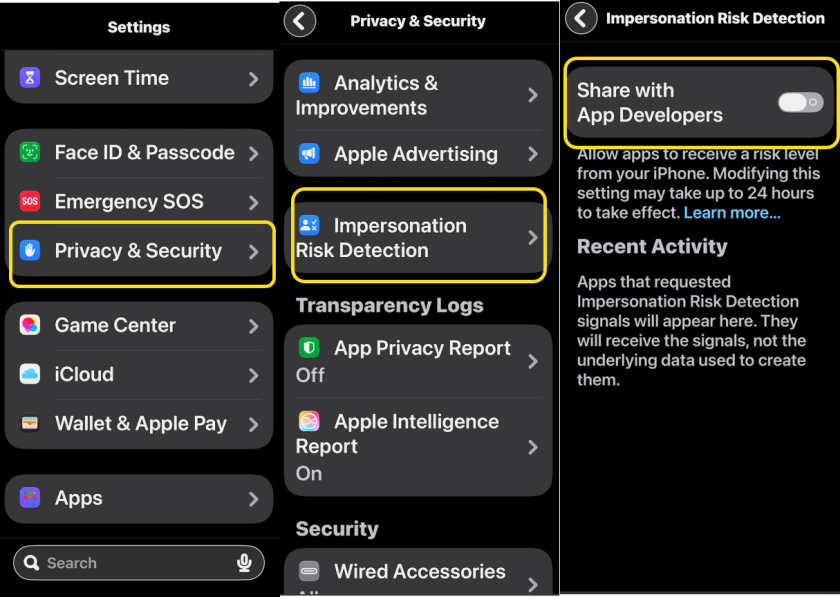
You are not finished.
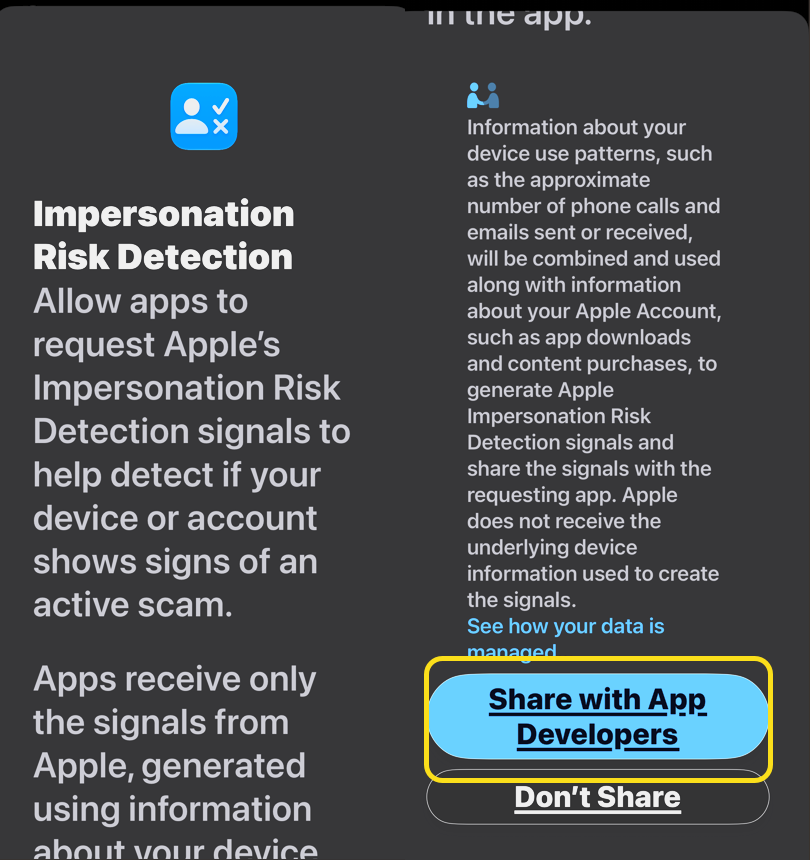
You will see a long message. Scroll down to the end and tap the button “Share with App Developers” (again). After turning this setting on, you may have to wait 24 hours for it to take effect. See the image below:
Any apps that participate in Impersonation Risk Detection will appear on the same screen, so you can always check them periodically for recent activity. You will see which apps asked for a risk assessment and which actions triggered the request. Here, you can also turn off access for individual apps.
Both built-in and third-party apps can support the feature, though Apple did not list any specific programs on its support page. However, with social engineering scams so pervasive, hopefully enough apps will jump on this bandwagon to better prevent people from becoming victims.
Disclaimer
Technology is constantly evolving, and smartphone and desktop tech rarely remains static. Therefore, the information in this post is only accurate as of the date it was written. Blog posts that are older than six months may contain instructions that are no longer compatible with your device or operating system. We hope that the content from previous posts continues to function as intended. Thank you for reading TechSavvy.Life, where technology works for you.
Quote For the Day
Technology feeds on itself. Technology makes more technology possible.
– Alvin Toffler
(X) Twitter Info
That’s it. Please feel free to share this post! One way to share is via Twitter.
Just click the Tweet icon below. This will launch Twitter where you click its icon to post the Tweet.
Checkout TechSavvy.Life for blog posts on smartphones, PCs, and Macs! You may email us at contact@techsavvy.life for comments or questions.
Tweet
I Would Like to Hear From You
We value your feedback! Was this post helpful? Please share your comments with us. If you have a tech question related to your computer or smart device, feel free to reach out. Just send an email to contact@techsavvy.life, and be sure to include the device, app, and version you are using. To assist us further, you can also attach screenshots related to your inquiry.
The author’s Vietnam eBook, “Battle for Tra Bong Vietnam: Events and Aftermath”, is available on Kindle devices and the Kindle App for desktop, laptop, and smartphone. The apps are free.


