How to Send eBooks to Your Kindle: A Step-by-Step Guide

The Amazon Kindle is an effective ebook reader, linked closely to Amazon’s ecosystem. Users can send various ebook formats to their Kindle via methods like the Send to Kindle tool, Kindle app, or email. Free ebooks are readily available through various platforms, enhancing Kindle’s reading options.

RAYMOND OGLESBY @RaymondOglesby2
January 28, 2025 – 7 minutes read time

The Amazon Kindle is a great ebook reader, but it’s tightly tied to Amazon’s ecosystem. If you have a Fire tablet or a smartphone, you can download other e-reading apps to beef up your library, but with the Kindle hardware, you are pretty much tied to getting your content directly from Amazon. Well, sort of. Using some free software, you can take ebooks in various formats and zap them over to your Kindle.

Let’s explore how to send other ebook formats to your e-reader, and where to get free ebooks.

  • Of course, we all like free stuff.
  • A large variety of free ebooks to choose from.
  • Download in a variety of formats for reading on your Kindle.

This is for the Amazon Kindle. It uses the iPhone, Android, PC, and Mac. The screenshots are from Windows 10 and iPhone 14 Pro.

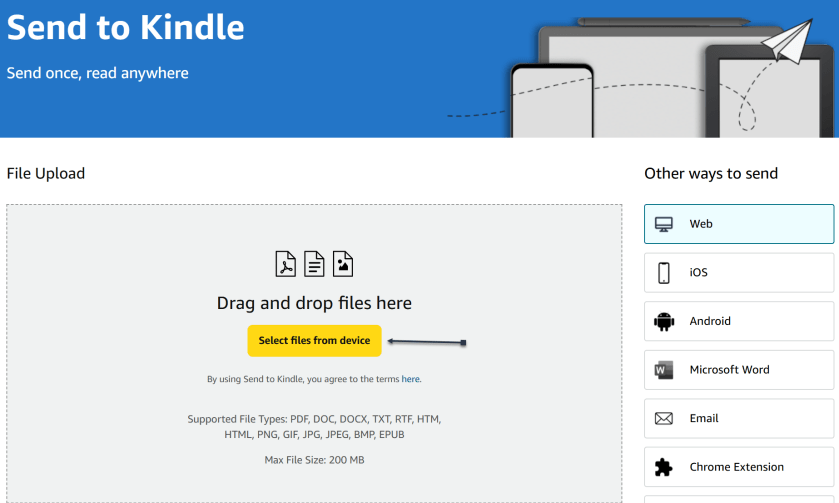
Amazon offers a Send to Kindle page where you can upload ebook files saved on your device. First, on amazon.com/sendtokindle, click Select files from device. Refer to the below image:
Kindle 1
Selecting files to send

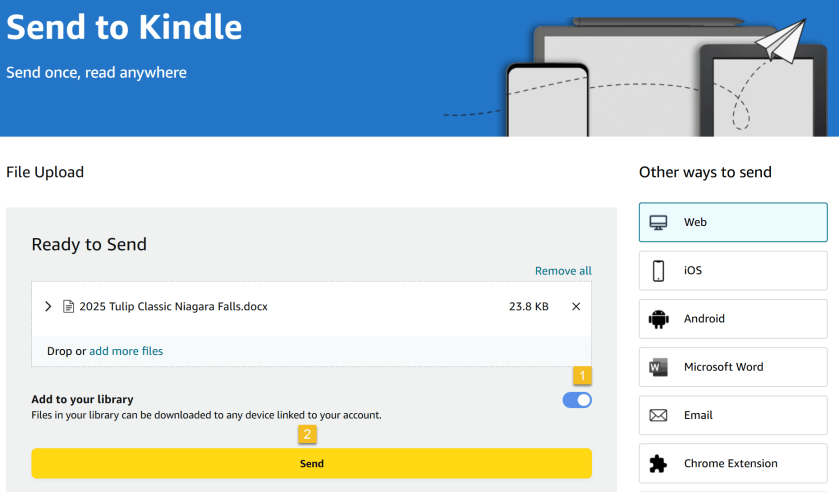
Next, select the book you want on your Kindle. This tool supports PDF, DOC, DOCX, TXT, RTF, HTM, HTML, PNG, GIF, JPG, JPEG, BMP, and EPUB formats on ebooks up to 200MB in size. (Amazon no longer supports sending new Mobi files.) Ensure the Add to your library toggle is ON, then click Send. See the below image:
Kindle 2
Send your files

Now, a status bar will appear, letting you keep tabs on the upload. You will see a checkmark and an In Library notice when it’s ready. See the following image:

Kindle 3
Status of sending to Kindle

Amazon also has an app for Windows and macOS that lets you do the same thing. Chrome has an extension you can enable though results are mixed.

If you have the Kindle app installed on your iPhone or Android device, you can add ebooks to your library with a few taps. In the example below we downloaded an ebook from Project Gutenberg on the iPhone.

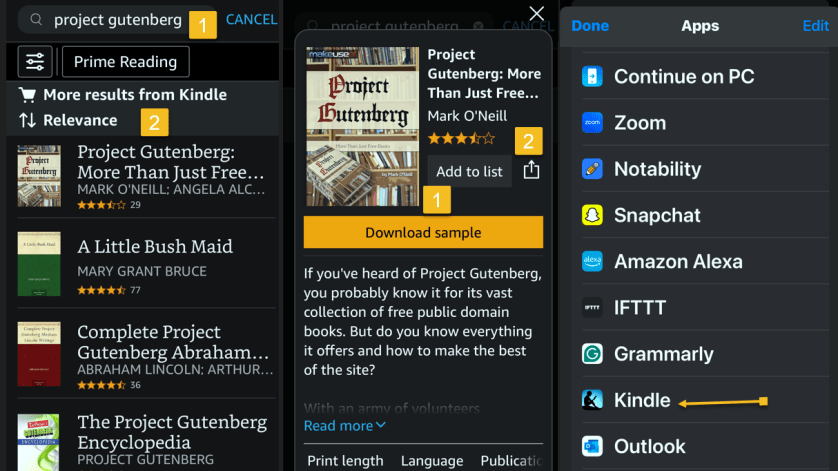
First, open your Kindle app on your iPhone and search for an ebook. Next, tap the ebook. From here, you can Download sample to see a preview or tap the Share icon. Now, locate the Kindle app and tap it. Refer to the below image:
Kindle 5
Selecting a file to send to Kindle

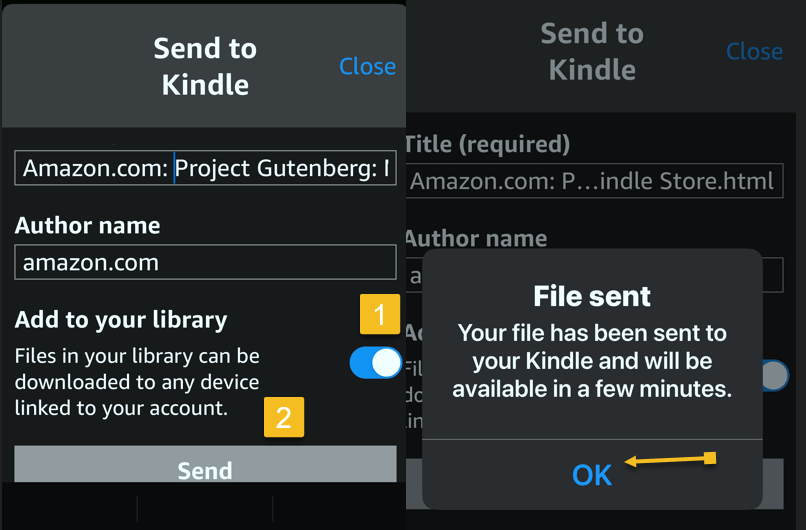
Next, ensure the Add to your library toggle is ON, then tap Send. Now, the ebook will be saved in your library in the Kindle app and on our Kindle device. The process is similar for Android. See the below image:
Kindle 5
Send your file

Amazon also lets you email ebooks to your Kindle account via a specially crafted email address. First, to get your Kindle’s email address, go to:

amazon.com/myk 

or go to:

Account & Lists > Content Library > Devices

Next, in the list below, find your Kindle device and click it. In the drop-down window, click [your name’s] Kindle. See the following image:
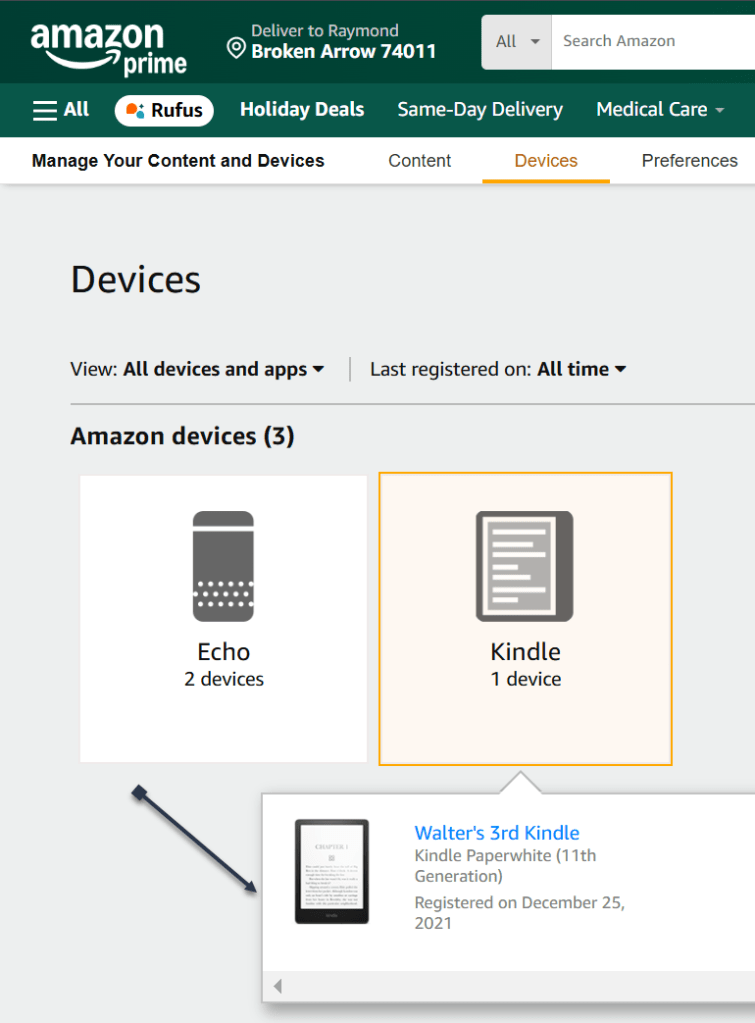
Kindle 7
Find your Kindle

On the next page, you will see a Device Summary that lists your @kindle.com email address. (It’s set to a default address, but you can change it by clicking Edit.)  Refer to the below page:
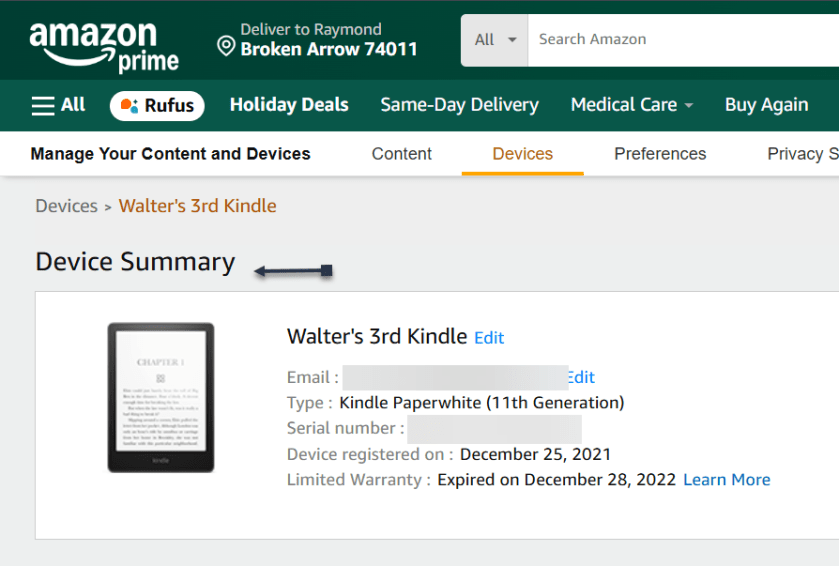
Kindle 7
Your Kindle information

Back up top, click the Preferences tab, and scroll down to Personal Document Settings. Click the down arrow on the right and scroll to Approved Personal Document E-mail List. The email attached to your Amazon account should be listed here. If that’s the email address you will be using to send ebooks to your Kindle, you are all set. To use a different email, click:

Add a new approved e-mail address and enter the address you want to use.

Remember, your Kindle needs to be attached to a Wi-Fi network for this to work.

Amazon can automatically convert PDFs into the Kindle format, but you get two formatting choices. If you want your Kindle to display every page in the PDF as if it were a graphic, just email the .pdf file to your Kindle’s address without a subject line, upload it via the Send to Kindle website, or drag and drop the file onto a Kindle that’s attached to your PC with a USB cable.

That will maintain the formatting and graphics; it will appear on your Kindle like on your laptop. However, the font size may be too small to read.

Your other option is to attach the PDF file to an email and make the subject line “convert”—just that word. Send it to your Kindle email address and your PDF will be converted into a Kindle version that will let you mark it up and change the formatting. The graphics will still be in there as well, but you will lose the layout of the original PDF.

Third-party software, such as MiniTool PDF Editor – Kindle format converter, can also convert PDF files to Kindle formats like Word, image, TXT, and HTML.

Once you have emailed your ebook, on your Kindle head to:

Home > From Your Library

It might take a few minutes, but if your Kindle is connected to Wi-Fi, it should update automatically and the ebook will appear.

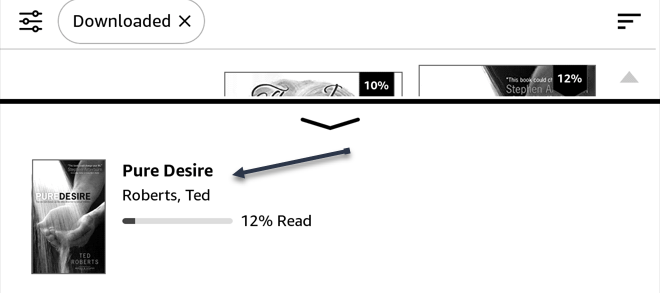
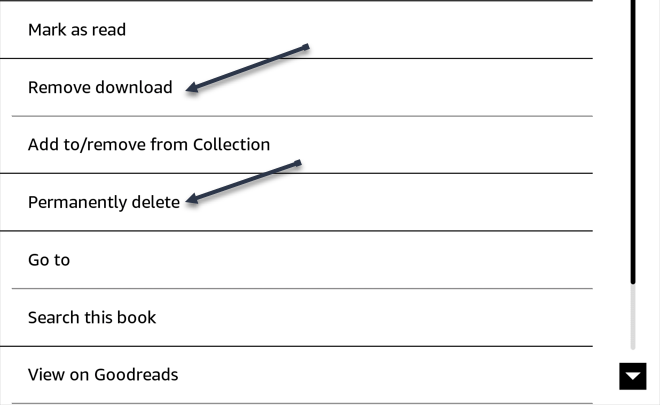
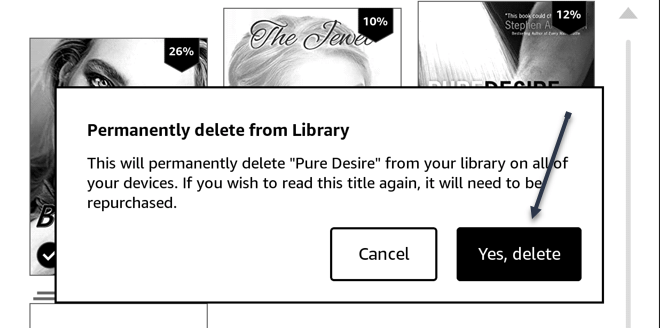
Want to delete the ebook? Tap the Menu icon (the three-dots) on the bottom right of your ebook in Your Library and select Remove download to remove it from your Kindle or Permanently Delete to remove it from your Amazon account.

  • Amazon hosts periodic Stuff Your Kindle Days, where select ebooks are free for a 24-hour period. They are usually grouped by theme.
  • To hook into public library catalogs and send ebooks to your Kindle, check out the Libby app from OverDrive. (Hoopla offers a similar service.)
  • If you want classics, Project Gutenberg has 70,000+ copyright-free ebooks.
  • For historical and academic texts, check out archive.org.
  • ManyBooks.net has a mix of free and paid classics and self-published titles.
  • Free-Ebooks.net has a large collection of self-published ebooks and classics; provide your email address to get five free ebooks per month.
  • If you like science fiction, the publisher Baen also has a set of free ebooks.
  • BookBub has a free ebook section filled with romance novels and other casual reads.

Source: Amazon, PC Mag

Disclaimer

Technology is always changing. Rarely is there static tech for smartphones and desktops. Thus, the contents of this post are only valid at the time of writing. Blog posts older than six months may have directions incompatible with your device or OS. Hopefully, older post content will continue to work as advertised. Thank you for reading TechSavvy.Life for Technology at Work For You.

Technology is just a tool. In terms of getting the kids working together and motivating them, the teacher is the most important.

-Bill Gates

That’s it. Please feel free to share this post! One way to share is via Twitter.

Just click the Tweet icon below. This will launch Twitter where you click its icon to post the Tweet.

Checkout TechSavvy.Life for blog posts on smartphones, PCs, and Macs! You may email us at contact@techsavvy.life for comments or questions.

Was this post helpful? We would love to hear your comments. Do you have a computer or smart device tech question? I will do my best to answer your inquiry. Just send an email to contact@techsavvy.life. Please mention the device, app, and version you are using. To help us, you can send screenshots of the data related to your question.

Author’s eBook

The author’s Vietnam eBook on the “Battle for Tra Bong Vietnam: Events and Aftermath” can be accessed from a Kindle device or the Kindle App for a desktop or smartphone. The apps are free.
The author’s Vietnam eBook on the Battle for Tra Bong Vietnam: Events and Aftermath

How to Listen to Music on Amazon Echo: Complete Guide

The content discusses how to play music on Amazon Echo using various services and how to set default music and podcast services. It also covers connecting and streaming music via Bluetooth.

RAYMOND OGLESBY @RaymondOglesby2
August 27, 2024– 7 minutes read time

This is for devices using Amazon Echo device. Screenshots are from iPhone 14 Pro running iOS 17.6.1

Alexa is a jack of all trades, but Amazon’s digital assistant can also help you listen to music via Pandora, Spotify, and other streaming services on your Echo device. Let’s explore listening to music on your Echo.

Your Amazon Echo possesses various skills, but its ability to play music is most useful and enjoyable. You can listen to music in various ways, though the process differs depending on whether you want to hear your own media library or stream songs from a specific service.

Amazon does not make it easy if you are looking to listen to music that you own, though it’s still doable. Your best bet is to stream music from your phone to your Echo over Bluetooth.

The simplest way to play music on your Echo device is to listen through a music streaming service. By default, your Echo will link to Amazon Music, or Amazon Music Prime if you are a Prime member. You can also connect to other popular music services and wirelessly stream songs directly from your mobile device.

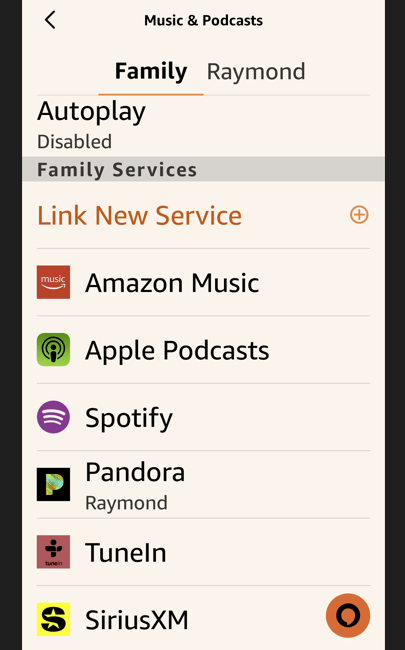
After you set up your Amazon Echo, you can link your favorite music services, including Amazon Music, Apple Music, Deezer, iHeartRadio, Pandora, SiriusXM, Spotify, Tidal, TuneIn, Vevo, and Global Player. They all need an account with each one before accessing it through your Echo.

While most of these services have premium subscription options, you do not need to pay to play music through your Echo device. If the service offers a free tier, you can still listen (in a limited capacity). Refer to the below image:

Echo 1
Available Echo services

First, open the Alexa app on your mobile device to start playing music through your service of choice.

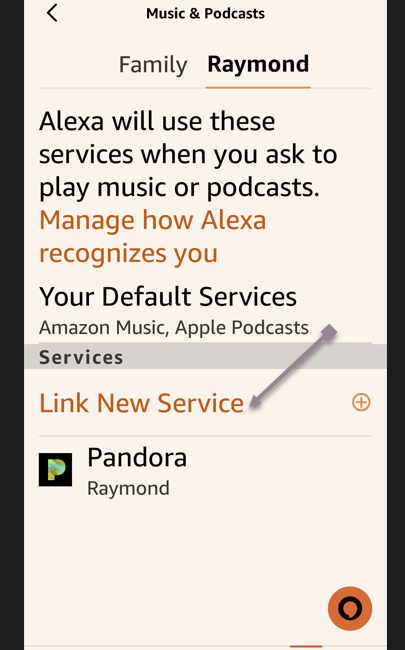
Next, tap More > Music & More, then swipe down the screen to the Link New Service section

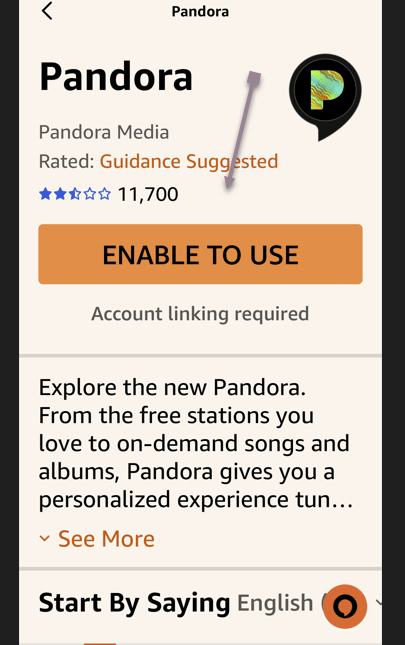
Now, tap the service name (we are selecting (Pandora), you want to add and choose Enable to Use. See the below image:

Echo 2
Enabling a service (Pandora)

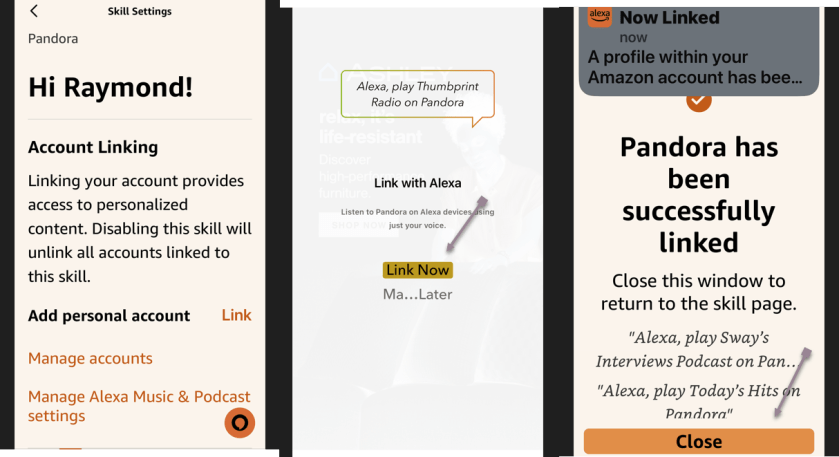
Alternatively, tap the settings gear at the top right of the Music & More screen and tap Link New Service to see all the available services you can add. See the following image:

Echo 3
Selecting to link a new service (Pandora)

Next, sign in to that service and agree to let Alexa access your data. Refer to the below image:

Echo 4
Successful linking a new service (Pandora)

Now, after you finish adding your services, scroll to the bottom of the Music page in the Alexa app. You should see all the new services you previously added. To start playing music, you can open a streaming app and select your Echo as the destination to begin listening.

You can also ask your Echo to play music by specifying the name of the service. For example, you could say something like “Alexa, play the Rolling Stones from Apple Music,” or “Alexa, play country music from Pandora“.

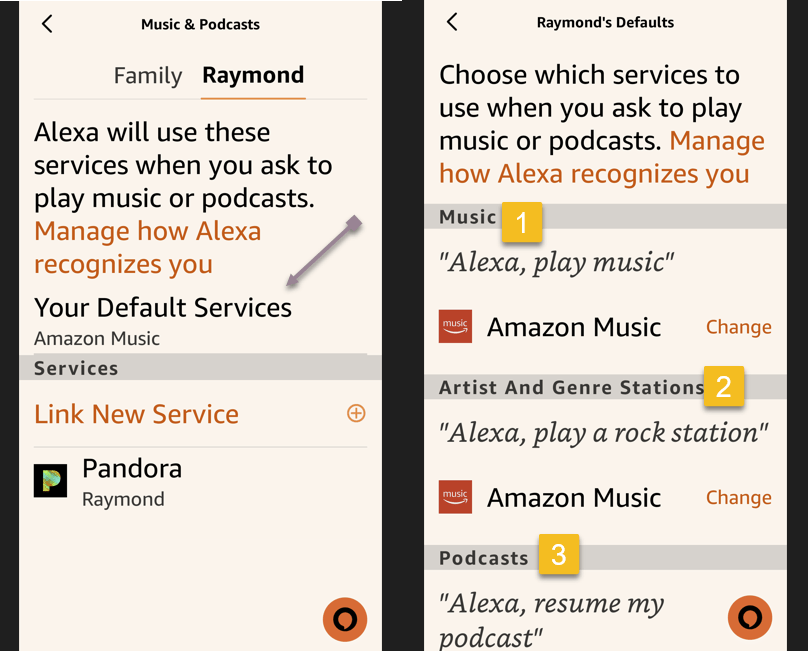
You must set one as the default to avoid specifying a service in your command. You can do this for both music and podcasts. First, head back to the Music & More screen in the Alexa app, tap the Settings icon at the top, and then select Default Services.

Next, tap Change next to Music and select the service you wish to set as the default for playing music. Tap Change next to Artist and Genre Stations to set default stations for a specific artist and genre. You can then tell Alexa to play music from an artist or genre, and it will play it from your default. service. See the below image:

Echo 5
Selecting to change your default services

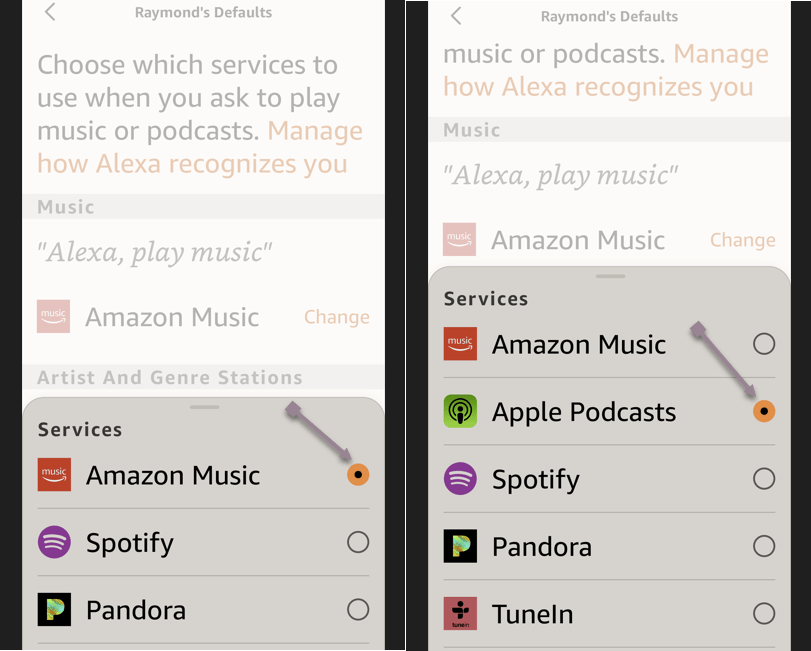
Now, tap Change next to Music to set your music default service. Then tap Change next to Podcasts to set your default podcast service. See the following image:

Echo 6
Changing your default services

When you ask Alexa to play a song, album, artist, genre, or station, you can simply tell it what you want to play, and it will pull the music from the appropriate place without you needing to specify the name of the service. Refer to the below image:

Echo 7
Playing your selection

You may need to change the default speaker if you do not hear sound from your Echo device.

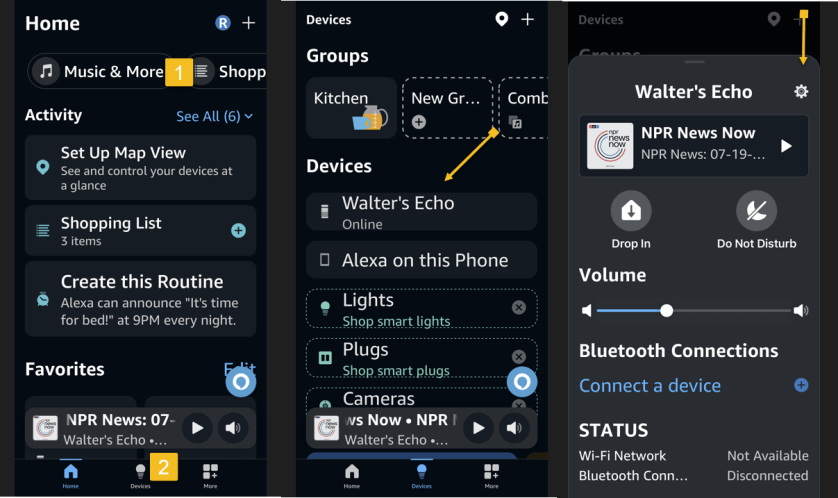
First, head to Music & More and tap the Groups icon in the bottom middle of the screen.

Next, tap your Echo device, then tap its Settings gear icon. See the below image:

Echo 8
Accessing Settings for your Echo device

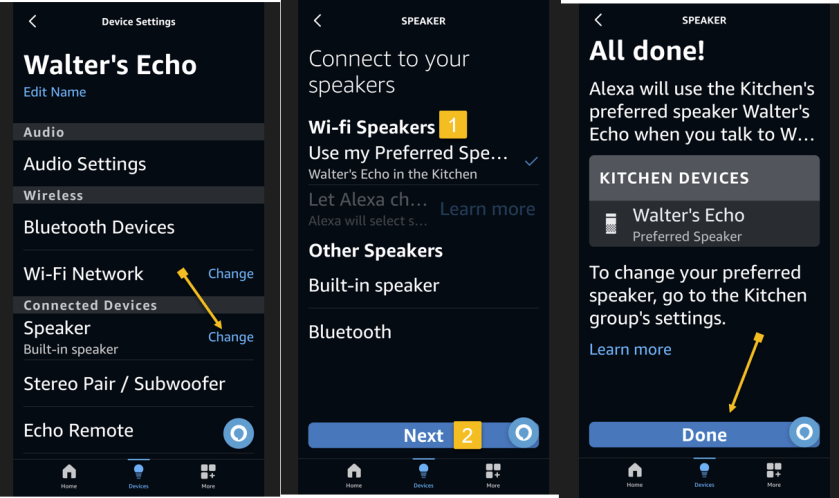
Now, tap the Change link and select your preferred speaker.

Next, tap the Next button. You will receive a message that your preferred speaker has been set. Simply tap Done to close the message. See the following image:

Echo 9
Changing your default speaker

Instead of listening to music directly from your Amazon Echo device, you can stream songs from your mobile device or computer to the speaker through Bluetooth.

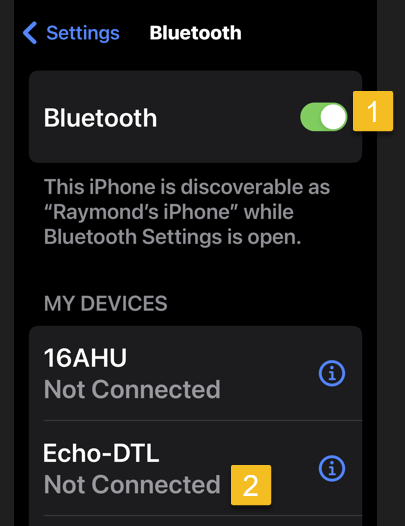
With your phone or tablet nearby, say “Alexa, pair,” and your Echo will enter pairing mode. Open the Bluetooth settings screen on your device and tap your Echo (it should appear as Echo-XXX) when it shows up. Alexa then announces the connection. Refer to the below image:

Echo 10
Choosing to connect your Echo device

Alternatively, you can pair the Echo to your mobile device through the Alexa app. Head to Devices and select the Echo you want to pair with your phone or tablet.

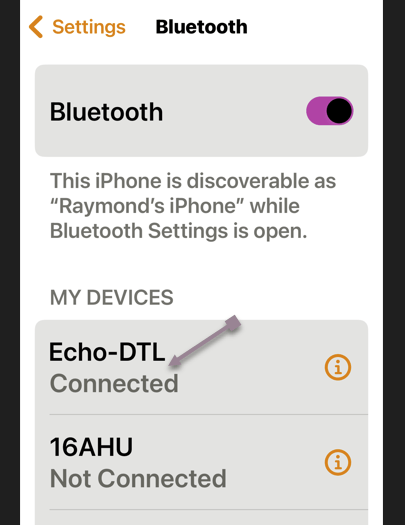
First, under Bluetooth Connections for that device, tap Connect a device. Choose your device, and your Echo is connected. See the below image:

Echo 11
Your Echo device is connected

Now, the audio will go through your Echo device when you play music from your phone or tablet. You can then control playback from your mobile device or Alexa.

To disconnect your Echo from your mobile device, say, “Alexa, disconnect from [name of device].”

You can always reconnect the device by saying “Alexa, connect to [name of device]”.

Disclaimer

Technology is always changing. Rarely is there static tech for smartphones and desktops. Thus, the contents of this post are only valid at the time of writing. Blog posts older than six months may have directions incompatible with your device or OS. Hopefully, older post content will continue to work as advertised. Thank you for reading TechSavvy.Life for Technology at Work For You.

“In the real world, the smartest people are people who make mistakes and learn. In school, the smartest people don’t make mistakes.”

Robert T Kiyosaki

That’s it. Please feel free to share this post! One way to share is via Twitter.

Just click the Tweet icon below. This will launch Twitter where you click its icon to post the Tweet.

Checkout TechSavvy.Life for blog posts on smartphones, PCs, and Macs! You may email us at contact@techsavvy.life for comments or questions.

Was this post helpful? We would love to hear your comments. Do you have a computer or smart device tech question? I will do my best to answer your inquiry. Just send an email to contact@techsavvy.life. Please mention the device, app, and version you are using. To help us out, you can send screenshots of your data related to your question.

You can access the E-book from a Kindle device, or the Kindle App for a desktop or smartphone. The apps are free.
The author’s Vietnam eBook on the Battle for Tra Bong Vietnam: Events and Aftermath

Amazon RxPass for Your Prescriptions

Hot on the heels of shutting down the AmazonSmile charity platform, a new add-on to Amazon Prime has been revealed. It aims to fill prescriptions for generic medications for one low monthly price.
RAYMOND OGLESBY @RaymondOglesby2
May 11, 2023

Hot on the heels of shutting down the AmazonSmile charity platform, a new add-on to Amazon Prime has been revealed. It aims to fill prescriptions for generic medications for one low monthly price.
This is for devices using Amazon

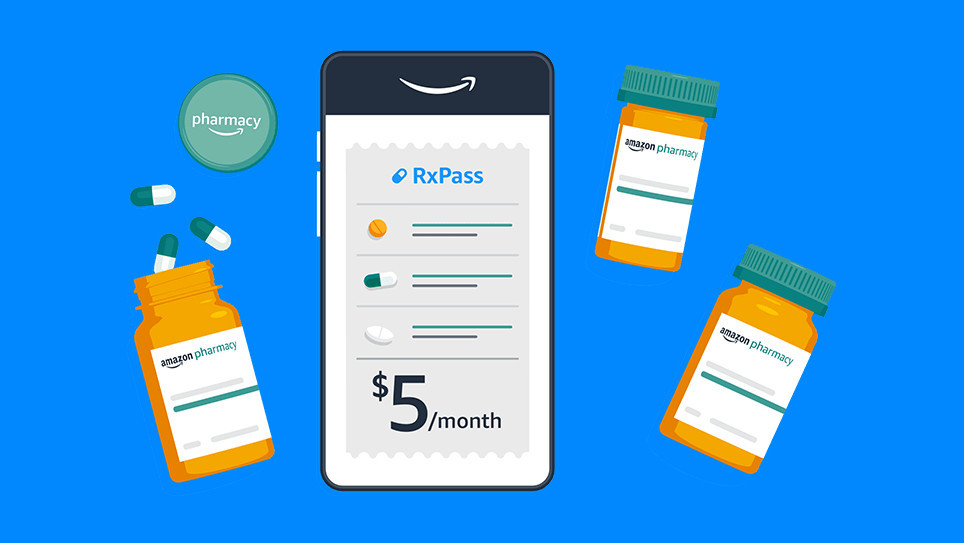
Amazon already runs a pharmacy through its online store, bolstered by the purchase of PillPack in 2018, but now the company is going a step further. Instead of buying each drug individually, Amazon is launching an optional subscription called RxPass, priced at $5 per month in the United States. No health insurance is required, but most (if not all) of the medications are controlled substances that require a prescription from a doctor.

RxPass does not cover every drug Amazon sells, but it does provide access to “commonly prescribed generic medications that treat more than 80 common health conditions.” There’s a full list on the RxPass website (scroll down to see the list), which includes anti-inflammatory drugs like Piroxicam and Naproxen, nine medications for high blood pressure and cardiac dysrhythmias, and even some drugs for treating Parkinson’s disease.

The new subscription could potentially save some people a lot of money, but there is a darker side to RxPass. CNN reports the subscription is almost certainly a loss leader for Amazon, meaning it’s intended to maintain subscriptions to Amazon Prime rather than be self-sustaining. You are probably going to be less likely to cancel Amazon Prime on the next price hike if it’s responsible for your access to critical medication, and Amazon’s FAQ page says canceling Prime will also cancel RxPass.

Disclaimer

Technology is always changing, and rarely is there static tech for smartphones and desktops. Thus, the contents of this post are only valid at the time of writing. Blog posts older than six months may have directions incompatible with your device or OS. Hopefully, older post content will continue to work as advertised. Thank you for reading TechSavvy.Life for Technology at Work For You.

Quote For the Day

We live in a society exquisitely dependent on science and technology, in which hardly anyone knows anything about science and technology.

Carl Sagan

Tweet Info

That’s it. Please feel free to share this post! One way to share is via Twitter.

Just click the Tweet icon below. This will launch Twitter where you click its icon to post the Tweet.

Checkout TechSavvy.Life for blog posts on smartphones, PCs, and Macs! You may email us at contact@techsavvy.life for comments or questions.

I Would Like to Hear From You

Please feel free to leave a comment. I would love to hear from you. Do you have a computer or smart device tech question? I will do my best to answer your inquiry. Just send an email to contact@techsavvy.life. Please mention the device, app, and version you are using. To help us out, you can send screenshots of your data related to your question.

Author’s E-Book

You can access the e-book from a Kindle device, the Kindle App for the desktop or smartphone, which is a free app.

The author’s Vietnam eBook on the Battle for Tra Bong Vietnam: Events and Aftermath

How to Dry a Wet Kindle

You might have noticed Kindle ads feature waterproof Kindles now. Want to know if your model is beach-and-bath friendly and how to dry a wet one?

RAYMOND OGLESBY @RaymondOglesby2
May 2, 2023

You might have noticed Kindle ads feature waterproof Kindles now. Want to know if your model is beach-and-bath friendly and how to dry a wet one? Here’s what you need to know.

This is for the Amazon Kindle

Is My Kindle Waterproof

First, a word on the concept of waterproof gadgets is in order.

No gadget is truly waterproof in the sense that it is completely impervious to the effects of water exposure. Gadgets are never waterproof but merely water resistant, and the degree to how resistant they are is spelled out by the ingress protection (IP) rating they qualified for. Those ratings range from the equivalent of “Yeah, you can wear it in the rain” to “Sure, wear it while you go scuba diving.”

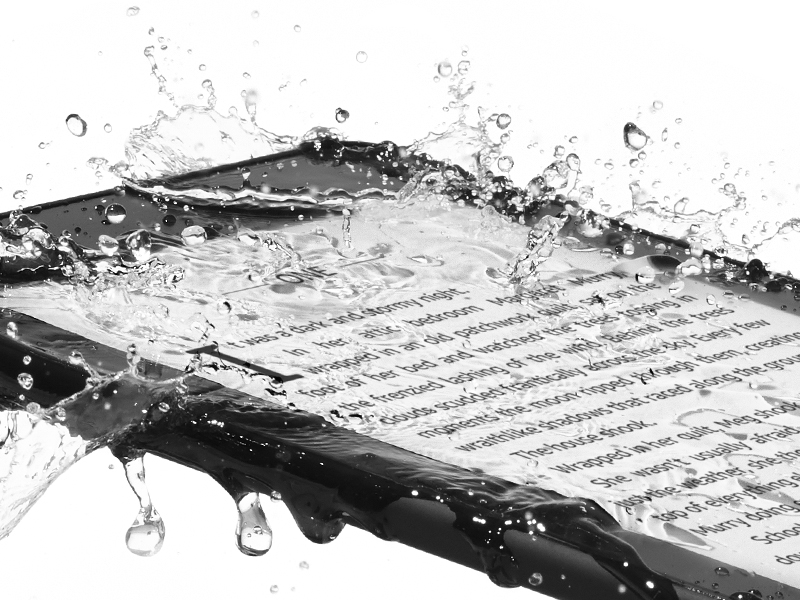
In the case of the Kindle models that have a water resistance rating, they have a rating of IPX8. That means the manufacturer has tested the product and asserts it can withstand continuous immersion in water to a depth of 1 meter (3.28 feet) or greater for a period specified by the manufacturer.

The water-resistant Kindles resist water ingress for up to 60 minutes in fresh water up to 2 meters deep (6.56 feet) and up to 3 minutes in salt water up to 0.25 meters (0.82 feet) deep. Amazon does not specify chlorinated water conditions in its documentation, but we recommend you treat it like salt water, as chlorine is corrosive.

Models That Are Water Resistant

As of early 2023, the following Kindle models are water-resistant with an IPX8 rating. We have noted the version of the Kindles listed below using both the generation and iteration terminology Amazon uses. Generation refers to the broader Kindle family, and iteration refers to the version of that particular model.

  • The Kindle Oasis — 8th Generation/2nd Iteration (2017) and up.
  • The Kindle Paperwhite — 10th Generation/4th Iteration (2018) and up.
  • The Kindle Paperwhite, Signature Edition— 10th Generation/1st Iteration (2021) and up.

If you have any other model of Kindle or you have an older version of the models listed above (such as the first version of the Kindle Oasis) your Kindle is not water-resistant. If your model is not listed here, it does not have an IPX8 rating and should not be exposed to water in any form without a suitably water-resistant protective case or enclosure.

Frequently Asked Questions

How to Dry

You can wipe your Kindle off with a clean, dry towel to take care of light freshwater splashes. If your Kindle ends up fully dunked in the water or anything is spilled on it, there are a few extra steps and precautions, however.

After freshwater submersion, retrieve the Kindle, wipe it down, remove the case (if applicable), and then allow it to dry fully before using the USB port. It’s recommended to dry your Kindle in an upright position with the USB port tilted down to allow the water to exit the port fully.

If your Kindle is submerged in salt water, chlorinated pool water or another liquid is spilled on it (such as soda), you should remove the case and gently rinse your Kindle with fresh water immediately after exposure to the liquids.

If your Kindle is not a water-resistant model, you should dry the Kindle as thoroughly as possible and put the Kindle in a warm, dry place, preferably with a desiccant to accelerate the drying process.

Do not use high-pressure water like the sprayer on a sink. Just run cool fresh water over the Kindle until it is fully rinsed. Then wipe it dry with a clean towel and let it fully dry before using the USB port.

Will My Kindle Stop Working

It depends. Typically IP ratings and manufacture claims are fairly conservative, so if you exceed them a little bit, your device should survive the experience.

There would be a good chance if your Kindle slipped off the pool float you were napping on and sunk to the bottom of the shallow end of your pool that it would survive longer than an hour. Though that’s certainly not recommended, you should consider yourself lucky if you wake up from your pool nap with a functional Kindle.

Also, note that we said the shallow end of the pool. Water pressure increases substantially with depth, and finding your lost Kindle sitting covered in a half inch of rainwater in a serving tray beside your pool is a much different story than it spending the night at the bottom of the deep end.

On the other hand, it’s unlikely your Kindle would survive an extended dunk in the ocean (even if it was just sitting in the shallows along the surf line) because salt water is far more corrosive.

My Kindle Dropped In a Hot Tub

Water temperature plays a role in how well water resistance works. IP ratings are based on room temperature or colder water. Hot water increases the chance of water ingress. So if you drop your Kindle into your hot tub and do not immediately retrieve it, there’s a much higher chance the seals will fail, and water will get inside your Kindle.

There’s no need to stress about hot tub water splashing on it or even accidentally dropping it in for a moment, but it’s best not to let your Kindle be exposed to hot water of any kind.

My Kindle Is Not Water Resistant

You can pick up a small dry-bag case for your Kindle if you are worried about it getting splashed at the pool or want to read in the tub. But, having used such cases in the past, we are not big fans as they really diminish the Kindle experience.

It makes it harder to use the screen, and the shiny plastic has so much glare compared to the nice matte screen of the Kindle. We would recommend just upgrading your Kindle if you have an older model. The newer models are a significant upgrade over the older ones and you will gain that nice IPX8 rating.

Disclaimer

Technology is always changing and rarely is there static tech for smartphones and desktops. Thus, the contents of this post are only valid at the time of writing. Blog posts older than six months may have directions incompatible with your device or OS. Hopefully, older post content will continue to work as advertised. Thank you for reading TechSavvy.Life for Technology at Work For You.

Quote For the Day

Programming today is a race between software engineers striving to build bigger and better idiot-proof programs, and the Universe trying to produce bigger and better idiots. So far, the Universe is winning.

Rick Cook

Tweet Info

Note! WordPress is canceling the use of Twitter services. The below Twitter button may not work!

That’s it. Please feel free to share this post! One way to share is via Twitter.

Just click the Tweet icon below. This will launch Twitter where you click its icon to post the Tweet.

Checkout TechSavvy.Life for blog posts on smartphones, PCs, and Macs! You may email us at contact@techsavvy.life for comments or questions.

I Would Like to Hear From You

Please feel free to leave a comment. I would love to hear from you. Do you have a computer or smart device tech question? I will do my best to answer your inquiry. Just send an email to contact@techsavvy.life. Please mention the device, app, and version you are using. To help us out, you can send screenshots of your data related to your question.

Author’s E-Book

You can access the e-book from a Kindle device, the Kindle App for the desktop or smartphone, which is a free app.

The author’s Vietnam eBook on the Battle for Tra Bong Vietnam: Events and Aftermath

How to Keep Library Books on a Kindle Past Their Return Date

One of the best features of Amazon Kindle eReaders is the ability to borrow library books. However, just like physical books from a library, they come with return dates.

RAYMOND OGLESBY @RaymondOglesby2
April 11, 2023

One of the best features of Amazon Kindle eReaders is the ability to borrow library books. However, just like physical books from a library, they come with return dates. Let’s explore a nifty trick to “keep” a book after its return date.

This is for the Amazon Kindle. Screenshots are from Kindle Paperwhite (11 generation)

It may seem strange, but digital eBooks from the library are treated the same as physical books. That means there are a limited number of eBooks to check out, and you typically only get them for 14 days. When those 14 days are up, you can check it out again, but there’s usually a waitlist of people who you will have to wait behind.

There’s a very simple “trick” that will allow you to read a library book on your Kindle for an indefinite length of time. All you have to do is put your Kindle in Airplane mode before the due date and never close out of the book. Wait, are we suggesting you steal from the library?

The best part about this trick is it’s a victimless “crime”. You are not preventing the next person on the waitlist from getting the book. The eBook has still technically been “returned,” but your Kindle does not know that.

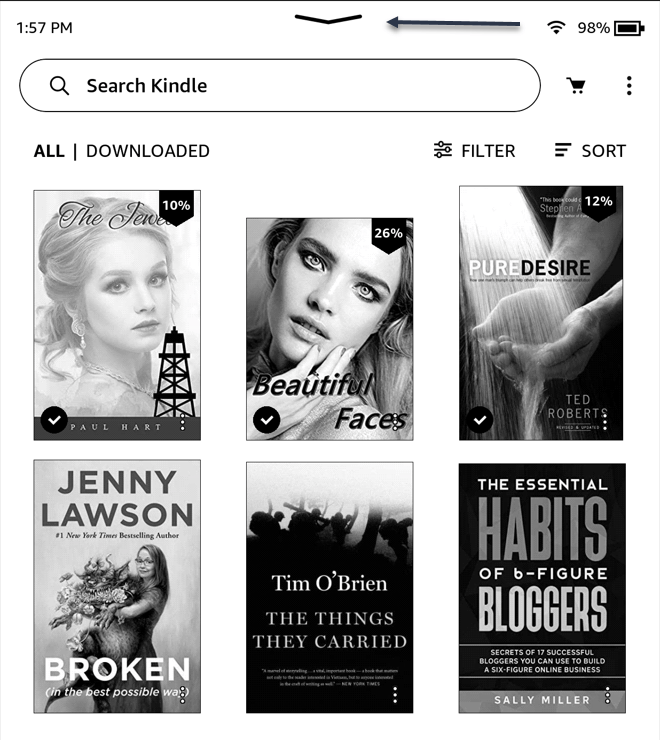
To enable Airplane mode on your Kindle, tap the down arrow at the top of the Home screen. If you are in a book, tap toward the top of the screen to reveal the down arrow. Refer to the below image:

Kindle Trick 1
Taping the down arrow at top of the screen

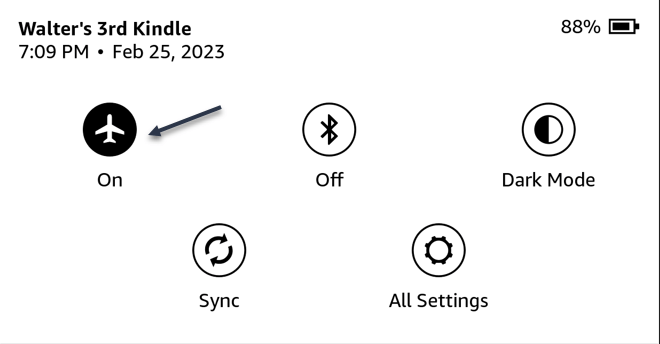
Next, tap the Airplane icon to turn it ON. See the below image:

Kindle Trick 2
Enable Airplane Mode

That’s it! Now just open the book and do not leave it until you are done. That also includes if the eReader powers off due to a low battery. Theoretically, you should be able to read the book for as long as you need. Your Kindle can hold a lot of books, but sometimes one takes a while, and that’s okay.

Disclaimer

Technology is always changing and rarely is there static tech for smartphones and desktops. Thus, the contents of this post are only valid at the time of writing. Blog posts older than six months may have directions incompatible with your device or OS. Hopefully, older post content will continue to work as advertised. Thank you for reading TechSavvy.Life for Technology at Work For You.

Quote for the Day

It’s not information overload. It’s filter failure.

Clay Shirky

Tweet Info

That’s it. Please feel free to share this post! One way to share is via Twitter.

Just click the Tweet icon below. This will launch Twitter where you click its icon to post the Tweet.

Checkout TechSavvy.Life for blog posts on smartphones, PCs, and Macs! You may email us at contact@techsavvy.life for comments or questions.

I Would Like to Hear From You

Please feel free to leave a comment. I would love to hear from you. Do you have a computer or smart device tech question? I will do my best to answer your inquiry. Just send an email to contact@techsavvy.life. Please mention the device, app, and version you are using. To help us out, you can send screenshots of your data related to your question.

Author’s E-Book

You can access the e-book from a Kindle device, the Kindle App for the desktop or smartphone, which is a free app.

The author’s Vietnam eBook on the Battle for Tra Bong Vietnam: Events and Aftermath

Ten Kindle Features You Should be Using

Amazon Kindle devices are among the best eReaders you can buy. They are easy to use, but to get the most out of your Kindle, there are some features you may not know about.

RAYMOND OGLESBY @RaymondOglesby2
March 30, 2023

Amazon Kindle devices are among the best eReaders you can buy. They are easy to use, but to get the most out of your Kindle, there are some features you may not know about. Let’s explore the best ones.

This is for the Amazon Kindle. Screenshots are from Kindle Paperwhite (11 generation)

Let’s start with something everyone really needs to know about. One of the advantages of using an eReader over a physical book is you can customize the size and look of the text. It’s a simple feature but can make a world of difference.

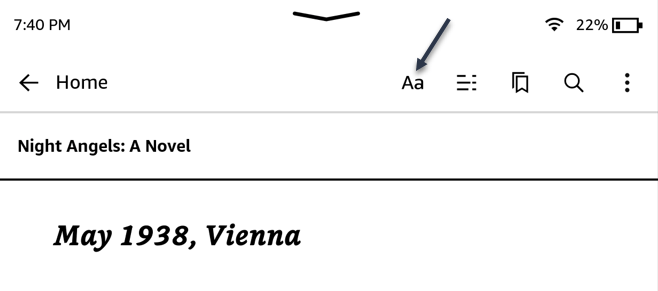
First, open a book and tap anywhere near the top of the screen to bring up the menu, then tap the Aa icon to see the text options. Refer to the below image:

Kindle 1
Selecting Text icon

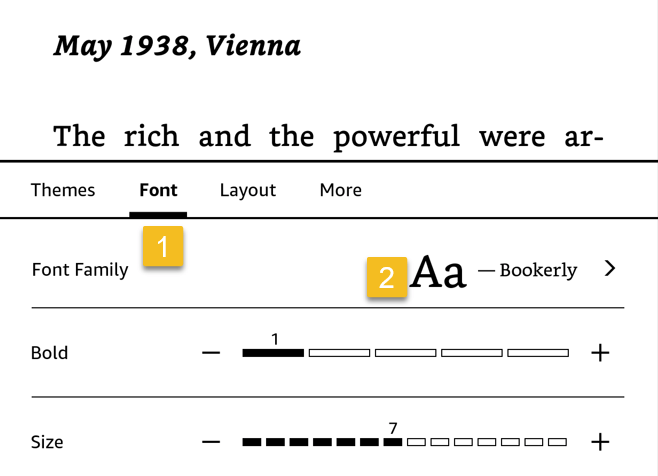
Next, tap the Font tab and select your font for reading. See the below image:

Kindle 2
Selecting your Font

Using Dark Mode

Dark Mode is everything. If that’s your mantra, you will be happy to know Kindle eReaders have Dark Mode too. It’s super easy to toggle on and off.

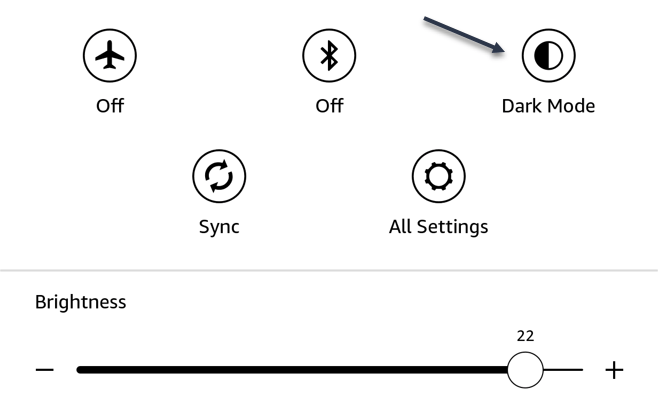
First, swipe down from the top of the screen and tap the Dark Mode icon. See the following image:

Kindle 3
Enabling Dark Mode

Hide Audiobooks

Modern Kindle readers can download and play audiobooks as well as ebooks. However, if you do not want your Kindle to be your audiobook-listening device, it can be annoying on the Home screen.

Thankfully, it’s possible to hide audiobooks from your library. That way you will only see ebooks on the Home screen. The option can be found in the Home & Library section of the Device Options settings.

Use Collections

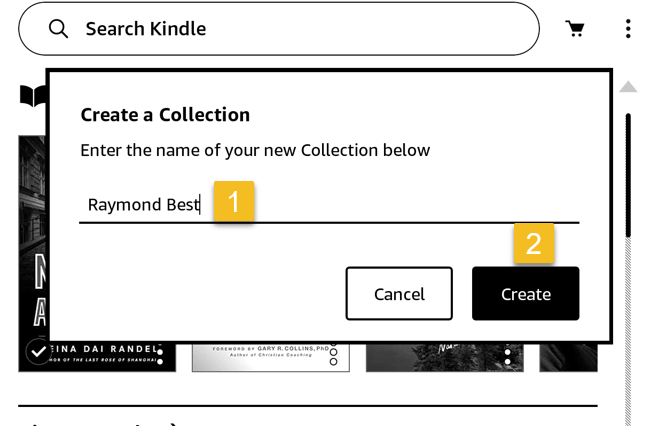
First, tap the three-dot menu in the top right of the Home screen and select Create Collections. You will be asked to enter a name for the collection, then select all the books you want to add to it. The collection will be in the Library tab. Refer to the below image:

Kindle 4
Create a Collection

Use Landscape Mode for Reading

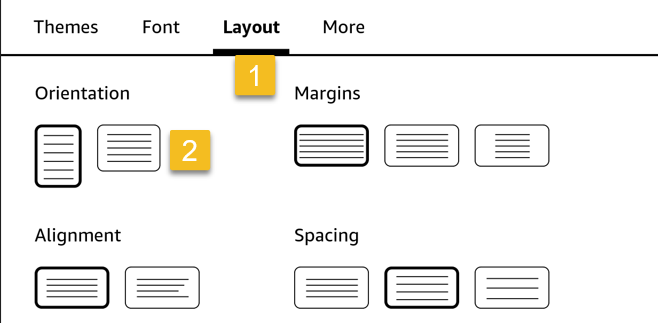
The default orientation for Kindle eReaders is vertical, the Portrait Mode. This matches the orientation of most physical books, so it makes sense. However, you can switch to horizontal Landscape Mode as well. You can swap the orientation by going to the Layout tab in the Text options while reading a book. See the below image:

Kindle 5
Select a Layout

Turn Off Highlights

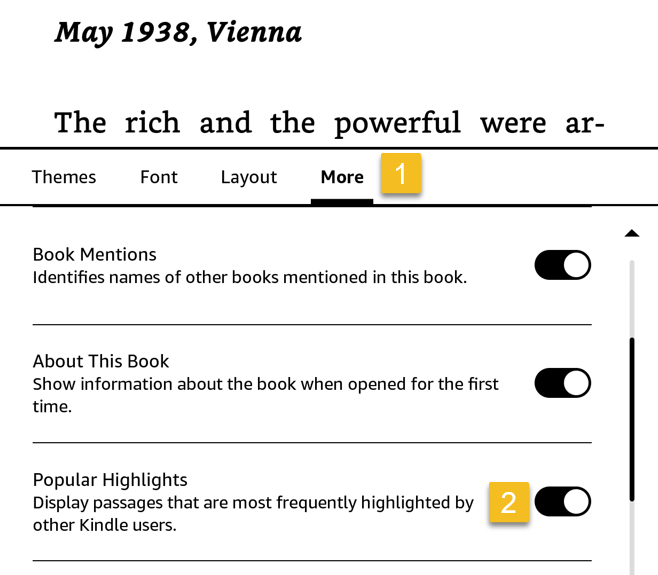
Kindle’s Popular Highlights feature underlines text in ebooks when more than ten people have highlighted the passage. It sounds like a cool idea, but it can get annoying.

First, open the book you want to turn off Popular Highlights on. Next, tap the screen to bring up the menu and select the Aa button. Switch over to the More tab and toggle the Popular Highlights switch to OFF. See the following image:

Kindle 8
Disable Popular Highlights

Use Passcode

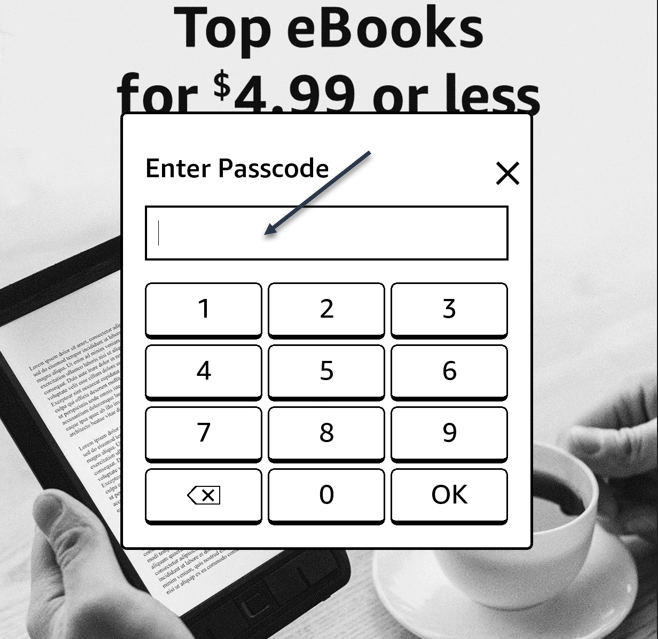
You might not think of your Kindle as a device containing a lot of personal information that you might want to add some privacy. The Passcode feature is an easy way to add a layer of security between another person and your library. Refer to the below image:

Kindle 6
Using a Passcode

Transfer EPUB Books

While Amazon is heavily integrated into the Kindle eReader experience, you are not limited to books from the Amazon Store. EPUB is a common format you will find outside of the store, and it can be transferred to a Kindle.

Amazon started supporting EPUB on Kindle devices in August 2022. Now it’s very easy to send EPUB files to a Kindle eReader with the Kindle app on Android, iPhone, or iPad.

Borrow Books

This might be the best feature of Kindle devices. You can get free eBooks from your local library right on your Kindle, and all you need is a library card. This works with a service called OverDrive.

Since it’s a library, there are typical library limitations. There is not an infinite number of ebooks to rent, so you may have to wait your turn. Also, you will have to “return” the book after a certain time.

Use Less Storage Space

Kindles have enough storage space for hundreds or thousands of ebooks, but you may still run into storage issues, especially if you download a lot of audiobooks, which take up more space.

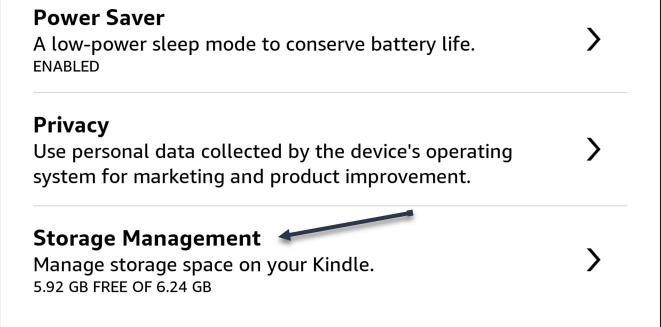
Kindle devices have a couple handy ways to clear out some extra room. It’s somewhat difficult to find your storage screen. To view and/or clean your Kindle storage space, head to:

Settings > Device Options >Advanced > Storage Management

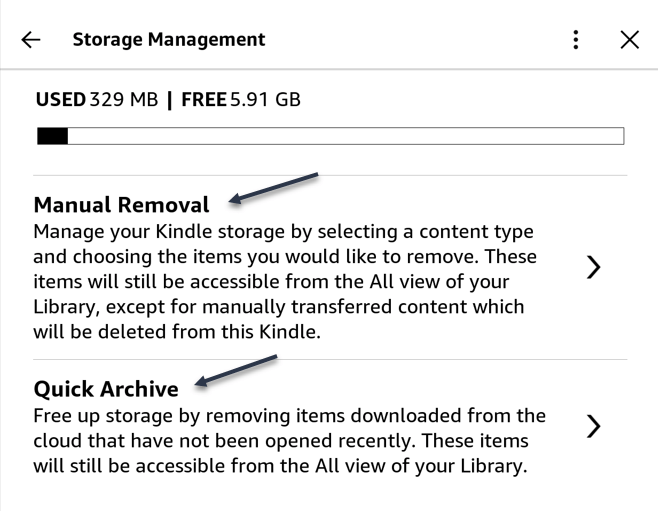
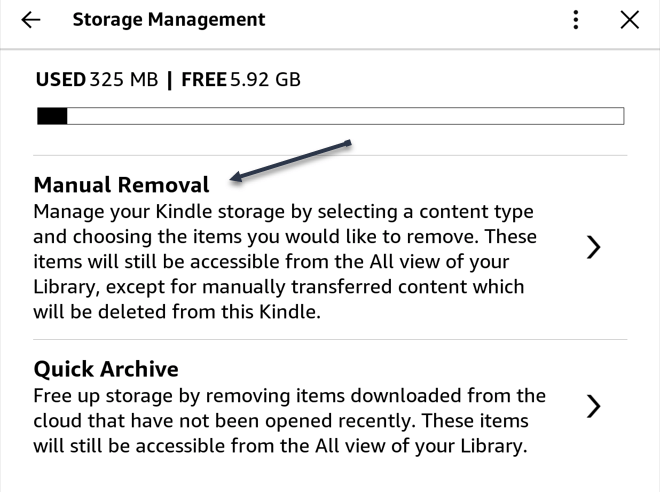
There’s a manual option and a Quick Archive feature, which will automatically remove items that have been downloaded from the cloud and not opened yet. See the below image:

Kindle 7
Your Kindle Storage Space
Disclaimer

Technology is always changing and rarely is their static tech for smartphones and desktops. Thus, the contents of this post are only valid at the time of writing. Blog posts older than six months may have directions incompatible with your device or OS. Hopefully, older post content will continue to work as advertised. Thank you for reading TechSavvy.Life for Technology at Work For You.

Quote for The Day

Technology alone is not enough.

Steve Jobs

Tweet Info

You are finished. Please feel free to share this post! One way to share is via Twitter.

Just click the Tweet icon below. This will launch Twitter where you click its icon to post the Tweet.

Checkout TechSavvy.Life for blog posts on smartphones, PCs, and Macs! You may email us at contact@techsavvy.life for comments or questions.

I Would Like to Hear From You

Please feel free to leave a comment. I would love to hear from you. Do you have a computer or smart device tech question? I will do my best to answer your inquiry. Just send an email to contact@techsavvy.life. Please mention the device, app, and version you are using. To help us out, you can send screenshots of your data related to your question.

Author’s E-Book

You can access the e-book from a Kindle device, the Kindle App for the desktop or smartphone, which is a free app.

The author’s Vietnam eBook on the Battle for Tra Bong Vietnam: Events and Aftermath

Seven Useful Alexa Features for Your Amazon Echo

In case you do not already know, you can control Alexa’s various features right from your desktop, iPhone, or Android smartphone.

RAYMOND OGLESBY @RaymondOglesby2
November 3, 2022

This is for the desktop, iPhone, and Android. Screenshots are from iPhone XR

Dilbert and Quiet
Copyright Scott Adams, Inc./Distributed by Universal Uclick for UFS

Manage Alexa

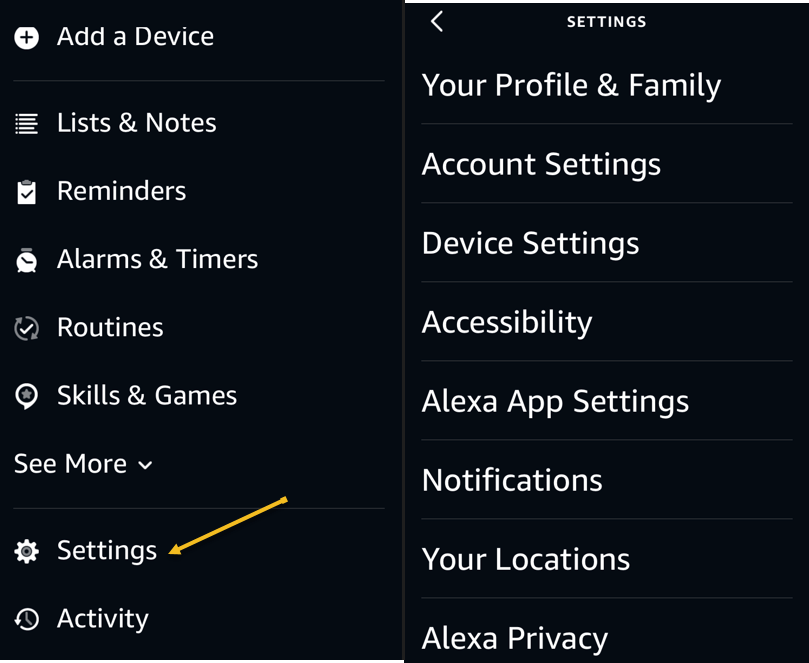
In case you do not already know, you can control Alexa’s various features right from your desktop, iPhone, or Android smartphone. This allows you to tweak various setting options for your Echo without needing physical access to your device. You can manage everything from reminders and alarms to connected smart home devices. Refer to the below image:

Echo 1
Accessing Alexa Settings

On your desktop, you can use the Amazon Alexa website to do that, though it’s worth noting that the web implementation is not as robust as it used to be. You will have a better experience using the official Alexa mobile app on iPhone and Android.

Alexa Voice Tempo

If you find Alexa’s speech too fast or too slow, you can ask her to adjust her speaking speed. Simply say “Alexa, speak slower” or “Alexa, speak faster” and she will obey your command.

That will allow you to listen to certain words carefully, or go through everything quickly if you like to get your information fast.

Alexa Brief Mode

Sometimes, Alexa’s answers are too verbose. She might keep saying little things that you will eventually find annoying. Fortunately, there’s a way around it.

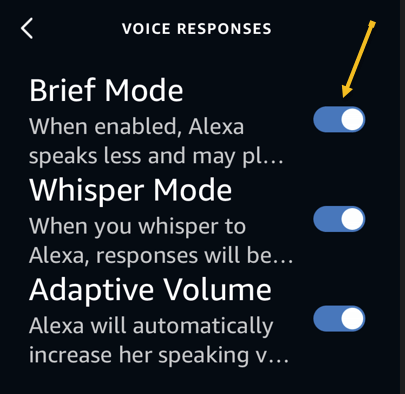
Enter Brief Mode, an Alexa feature that makes the virtual assistant keep her responses shorter. When this mode is enabled, Alexa will not speak as many words as she normally does. You can enable the mode by accessing the Alexa website, heading into:

Settings > Alexa Voice Responses

and enabling Brief Mode. See the below image:

Echo 2
Enabling Brief Mode

On the same page, you can make Alexa whisper her responses by enabling the Whisper Mode option.

Alexa Commute

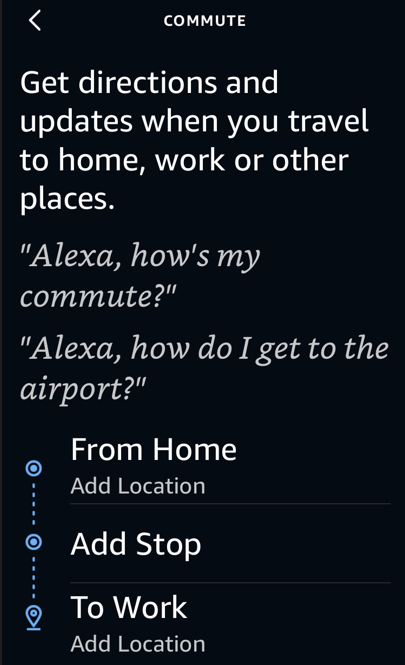
Alexa can let you know what kind of traffic you will meet on your way to your office. As long as you have specified your To and From addresses in Alexa, you can get your commute’s traffic details. See the following image:

Echo 3
Commute info

If you have not already, you can configure your To and From addresses in the

Settings > Traffic

menu on the Alexa website.

Alexa Reminder App

It’s easy to forget your important tasks in this busy life. Setting up a reminder for each of your tasks in a mobile reminder app is also cumbersome.

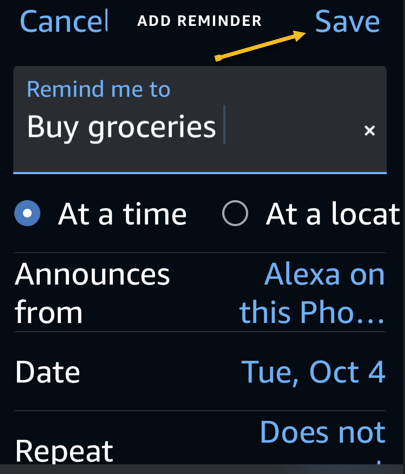
Fortunately, you can use your Alexa assistant as a reminder tool. Simply ask Alexa when you would like to be reminded and about what or type in a reminder, and she will make sure to send you a notification at the specified time. Refer to the below image:

Echo 4
Enter and Save your reminder

Alexa Security Updates

Alexa offers a security feature called Guard to help you keep a check on your home when you are away. This feature listens to certain sounds, like those of breaking glass and smoke alarms going off.

When Alexa detects those sounds, you get a notification as well as a short audio clip of the sound, letting you know something’s not right at your home.

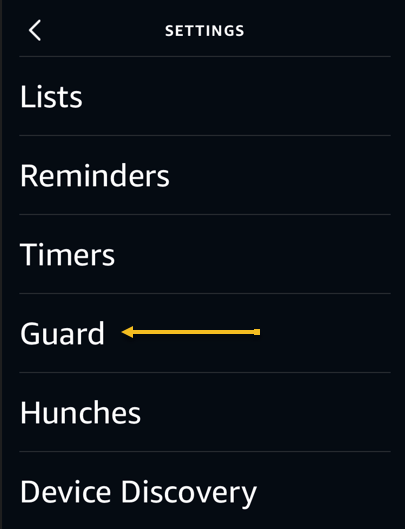
You can activate Alexa’s Guard feature from the

More > Settings > Guard

menu in the Alexa mobile app. You can purchase the Guard Plus feature for a fee if you would like emergency authorities to be notified when those sounds play at your home. See the below image:

Echo 5
Accessing Guard

Alexa Echo as a Bluetooth Speaker

Last but not least, you can use your Alexa-enabled Amazon Echo as a Bluetooth speaker. This way, you can connect any of your Bluetooth-enabled devices to your Echo and play your favorite music.

You may want to use this feature when your favorite music app is not supported by Alexa, or when you prefer to play music from your phone or your desktop. You can pair your phone or desktop with your Amazon Echo by simply asking “Alexa, pair.”

Those are some of the Alexa features you can use to make your Amazon Echo device even more useful.

Quote For the Day

I might love my e-reader, but I’d never pass up the chance to browse real books.

Nichole Chase

Tweet Info

That’s it. Please feel free to share this post! One way to share is via Twitter.

Just click the Tweet icon below. This will launch Twitter where you click its icon to post the Tweet.

Checkout TechSavvy.Life for blog posts on smartphones, PCs, and Macs! You may email us at contact@techsavvy.life for comments or questions.

I Would Like to Hear From You

Please feel free to leave a comment. I would love to hear from you. Do you have a computer or smart device tech question? I will do my best to answer your inquiry. Just send an email to contact@techsavvy.life. Please mention the device, app, and version you are using. To help us out, you can send screenshots of your data related to your question.

Author’s E-Book

You can access the e-book from a Kindle device, the Kindle App for the desktop or smartphone, which is a free app.

The author’s Vietnam eBook on the Battle for Tra Bong Vietnam: Events and Aftermath

How to Remove Books From Kindle

Kindles can hold a lot of eBooks, but you may want to remove some. eBooks are stored in two places; on the eReader itself and your Kindle Library.

RAYMOND OGLESBY @RaymondOglesby2
September 1, 2022

Kindles can hold a lot of eBooks, but you may want to remove some. eBooks are stored in two places; on the eReader itself and your Kindle Library. We will show you how to remove your books.

This is for a Kindle. Screenshots are from Kindle Paperwhite

Dilbert and Inflation
Copyright Scott Adams, Inc./Distributed by Universal Uclick for UFS

When you buy an eBook from Amazon, rent one from your local library, or send one to your Kindle, it’s added to your Kindle Library. This is essentially iCloud storage for your eBooks. When you open the book on your Paperwhite, that’s when it downloads the eBook file to the device’s storage.

Remove an E-Book From Kindle

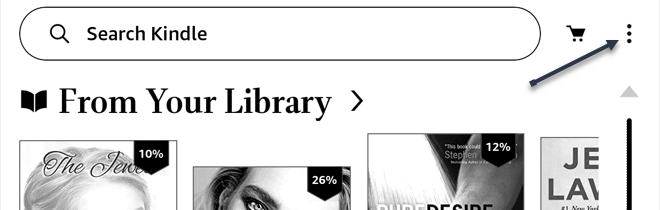
First, we will remove the actual eBook file from your Kindle. Note that this does not remove the book from your Kindle Library. On your Kindle home screen, tap the three-dot menu icon in the top-right corner. Refer to the below image:

Kindle 1
Accessing the Menu

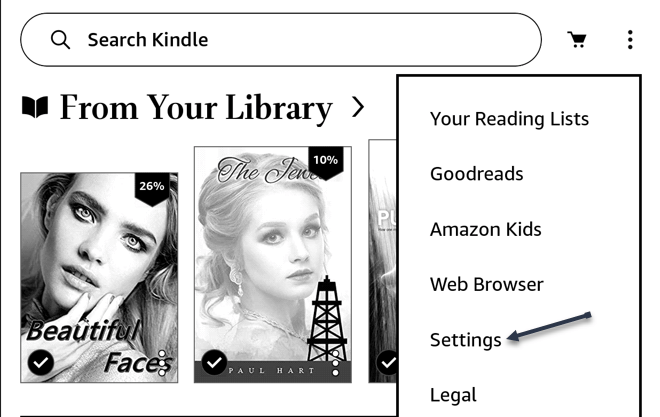
Next, select Settings from the menu. See the below image:

Kindle 2
Accessing Settings

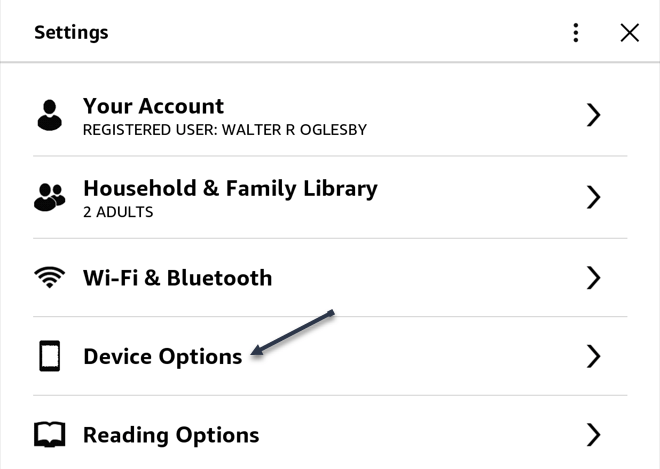
Now, go to Device Options. See the following image:

Kindle 3
Accessing Device Options

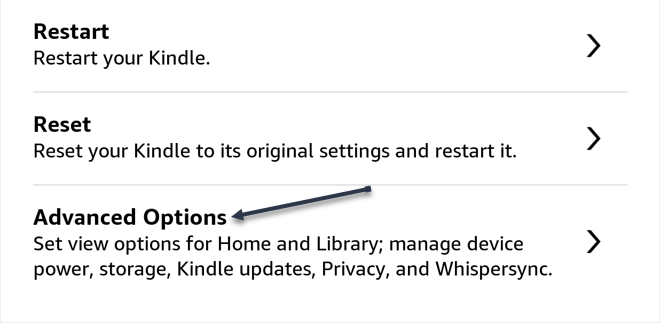
Next, go to Advanced Options. Refer to the below image:

Kindle 4
Accessing Advanced Options

Now, select Storage Management. See the below image:

Kindle 5
Accessing Storage Management

Next, select Manual Removal. See the following image:

Kindle 6
Accessing Manual Removal

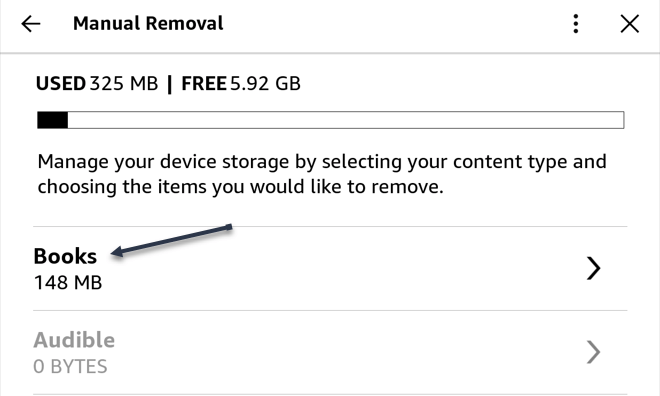
Now, select the Books category. Refer to the below image:

Kindle 7
Accessing Books

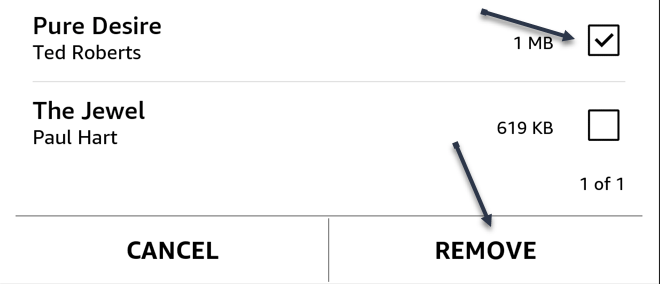
Next, choose the books you do not need anymore and tap Remove. See the below image:

Kindle 8
Selecting Books and Remove them

Your books will no longer be taking up storage space on your Kindle Reader. It will still be in your Kindle Library.

Remove a Book From Kindle Library

You can also remove books from the Library, which will disassociate them from your account.

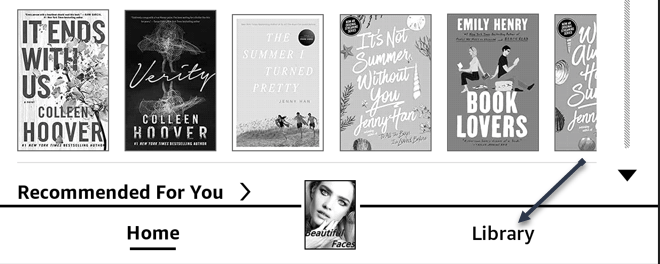
Removing eBooks from your Library can be done from the Kindle app on iPhone, iPad, or Android and the eReader itself. First, open the app or go to the Kindle home screen and select the Library tab. See the following image:

Kindle 9
Accessing Library

Next, find the book you want to remove and press and hold until a menu appears. Refer to the below image:

Kindle 10
Select a Book to delete/remove

Now, select Remove from Download/Library or Permanently Delete from the menu. See the below image:

Kindle 11
Removing/Deleting the Book from your Library

Next, confirm you want to remove the eBook, and you are done! The eBook will no longer appear in your Kindle Library. If you want the book again, you will need to re-purchase or send it to your Library again. See the following image:

Kindle 12
Confirm the removal or deletion

Quote For the Day

It’s not that we use technology, we live technology.

Godfrey Reggio

Tweet Info

You are finished. Please feel free to share this post! One way to share is via Twitter.

Just click the Tweet icon below. This will launch Twitter where you click its icon to post the Tweet.

Checkout TechSavvy.Life for blog posts on smartphones, PCs, and Macs! You may email us at contact@techsavvy.life for comments or questions.

I Would Like to Hear From You

Please feel free to leave a comment. I would love to hear from you. Do you have a computer or smart device tech question? I will do my best to answer your inquiry. Just send an email to contact@techsavvy.life. Please mention the device, app, and version you are using. To help us out, you can send screenshots of your data related to your question.

Author’s E-Book

You can access the e-book from a Kindle device, the Kindle App for the desktop or smartphone, which is a free app.

The author’s Vietnam eBook on the Battle for Tra Bong Vietnam: Events and Aftermath

How to Check for New Books on Kindle

When you buy books on Amazon, your Kindle should automatically add them to your Library. Sometimes, though, books do not show up straight away.

RAYMOND OGLESBY @RaymondOglesby2
April 21, 2022

When you buy books on Amazon, your Kindle should automatically add them to your Library. Sometimes, though, books do not show up straight away. Let’s find out what to do when that happens.

This is for Kindle

Dilbert and Promotion
Copyright Scott Adams, Inc./Distributed by Universal Uclick for UFS

Ensure Your Kindle is Connected to WiFi or Cellular

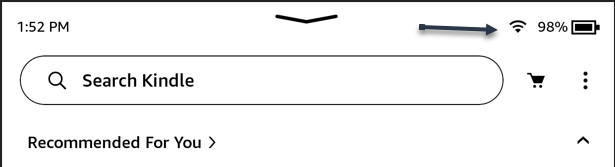
When your Kindle is connected to your Wi-Fi network you will see a little Wi-Fi symbol in the top-right of your screen. For Kindles with Cellular data, there’s also a 3G or 4G symbol. Refer to the below image:

Kindle 1
Checking if Wi-Fi enabled

If you do not see one, or you see an Airplane symbol instead, your Kindle is not connected to the internet. Seeing the Airplane symbol it means your Kindle is in Airplane mode.

Tap the arrow at the top of the screen to open the menu. Then, tap the Airplane icon to turn it OFF. This will allow your Kindle to connect to your Wi-Fi network.

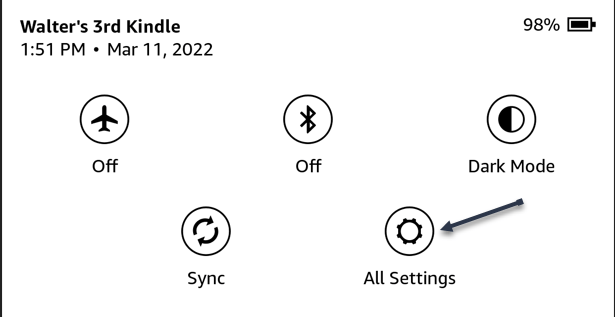
Otherwise, first, tap the arrow at the top of the screen to open the Menu, then tap All Settings icon to open the Settings menu. See the below image:

Kindle 2
Selecting the All Settings icon

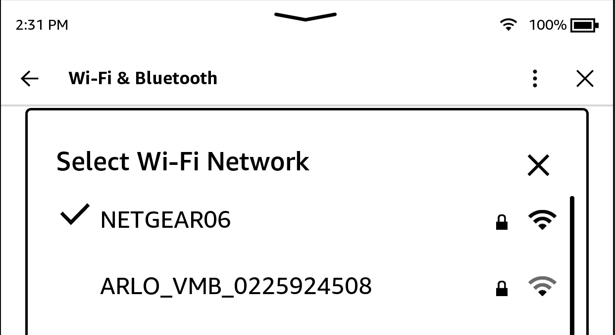
Next, tap Wi-Fi & Bluetooth, then tap Wi-Fi Networks to see a list of all your available Wi-Fi networks. See the following image:

Kindle 3
Your available networks

If you do not see your Wi-Fi network, restart your router. Otherwise, select the network you want to connect to and, if you need to, enter the Wi-Fi password.

Force Yout Kindle to Sync

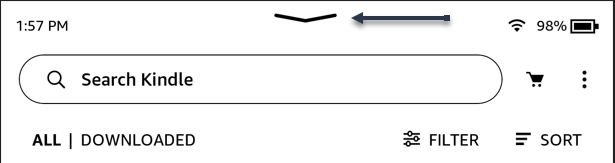
First, from your Home screen, tap the Arrow at the top of the screen to open the Menu. Refer to the below image:

Kindle 4
Opening the Menu

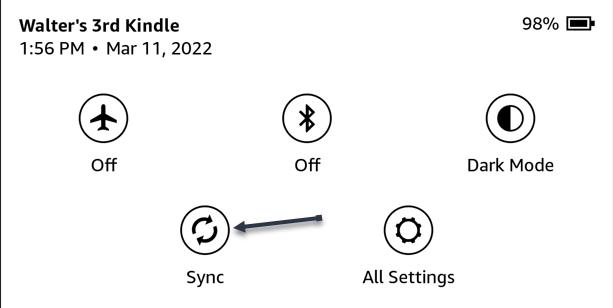
Next, tap the Sync icon. This will force your Kindle to check in with Amazon’s servers. See the below image:

Kindle 5
Selecting the Sync icon

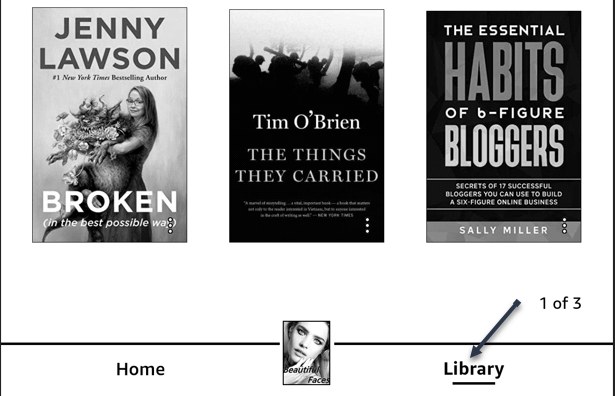
Now, tap the Library button in the bottom toolbar. See the following image:

Kindle 6
Selecting the Library button

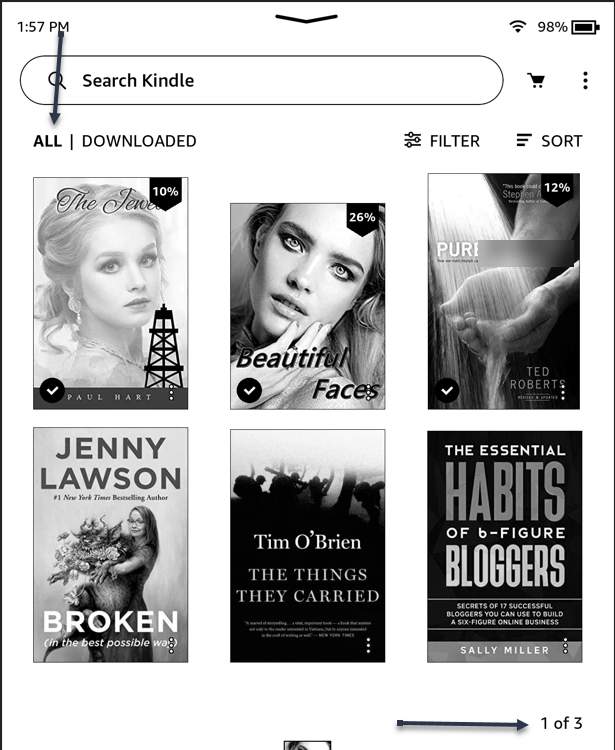
Next, tap ALL at the top of your screen. Notice at the bottom right-hand corner, that we show 1 of 3 pages. Tap the one you want to read. If it’s not already on your device, it will download straight away. Refer to the below image:

Kindle 7
Selecting to show ALL Kindle books

Now, this will show you all the Kindle books in your Amazon account, not just the ones downloaded to your Kindle. Any new books should show up first.

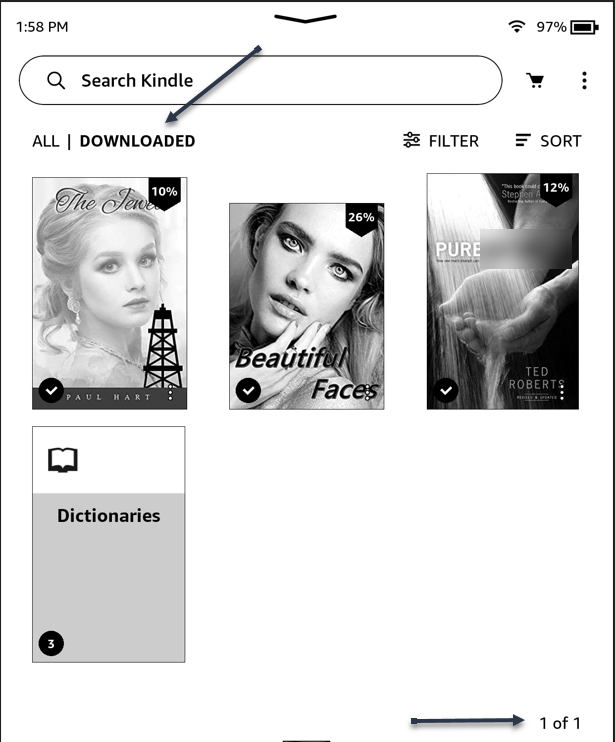
To see your downloaded books, tap DOWNLOADED at the top of your screen. Notice at the bottom right-hand corner, that we show 1 of 1 page. See the below image:

Kindle 8
Selecting to show DOWNLOADED books

Need Some Help

If you still can not find the new book you’re looking for after forcing your Kindle to sync, there are a couple of things you can do:

  • Restart your Kindle. Turning things off and on again really can work.
  • Update your Kindle to the latest software version.
  • Check your Amazon orders to see if your purchase went through.

Quote For the Day

The only way to make sense out of change is to plunge into it, move with it, and join the dance.

Alan Watts

That’s it. Please feel free to share this post! One way to share is via Twitter.

Just click the Tweet icon below. This will launch Twitter where you click its icon to post the Tweet.

Check out TechSavvy.Life for blog posts on smartphones, PCs, and Macs! You may email us at contact@techsavvy.life for comments or questions.

I Would Like to Hear From You

Please feel free to leave a comment. I would love to hear from you. Do you have a computer or smart device tech question? I will do my best to answer your inquiry. Just send an email to contact@techsavvy.life. Please mention the device, app, and version you are using. To help us out, you can send screenshots of your data related to your question.

‘Author’s E-book

You can access the e-book from a Kindle device, the Kindle App for the desktop or smartphone, which is a free app.

The author’s Vietnam eBook on the Battle for Tra Bong Vietnam: Events and Aftermath

How to Remove a Credit Card from Your Amazon Account on Mobile

If your credit card has expired, or you simply do not wish to use it for Amazon purchases, it’s easy to remove your credit cards as well as any other payment methods from your Amazon account on a mobile phone. Let’s see how this is done.

RAYMOND OGLESBY @RaymondOglesby2
March 10, 2022

If your credit card has expired, or you simply do not wish to use it for Amazon purchases, it’s easy to remove your credit cards as well as any other payment methods from your Amazon account on a mobile phone. Let’s see how this is done.

Note: Keep in mind that removing a payment method does not cancel any open orders that use that payment method.

This is for mobile phones using Amazon. Screenshots are from iPhone XR

Dilbert and Topic
Copyright Scott Adams, Inc./Distributed by Universal Uclick for UFS

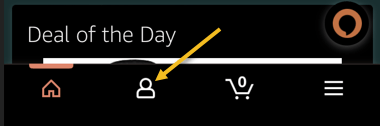
To get rid of an unused payment method from your phone, first, open the Amazon app.

In the Amazon app’s bottom bar, tap the User icon. Refer to the below image:

Amazon Pay 1
Selecting the User icon

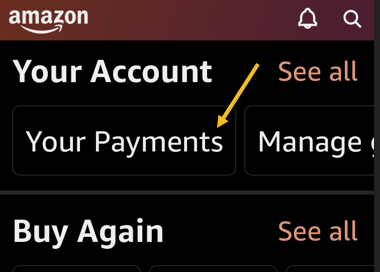
Next, scroll down the page to the Your Account section, then tap Your Payments. See the below image:

Amazon Pay 2
Selecting Your Payments option

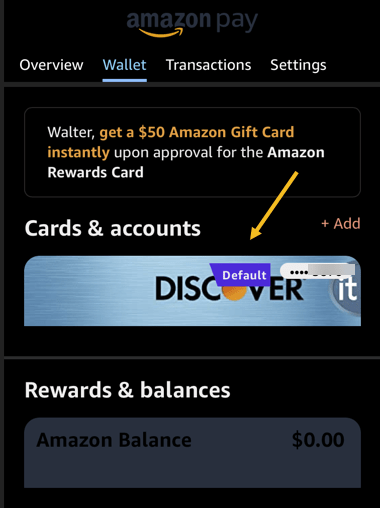
Now, choose the credit card or any other payment method to remove. See the following image:

Amazon Pay 3
Selecting a credit card to remove

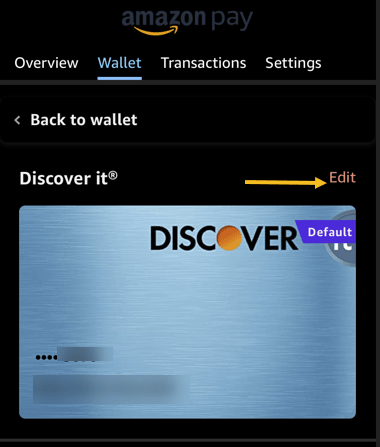
Next, at the top right-hand corner, tap Edit. Refer to the below image:

Amazon Pay 4
Selecting to Edit the credit card

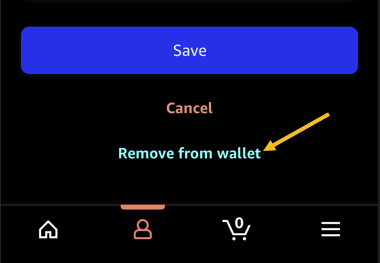
Now, scroll the Edit Payment Method page to the bottom then tap Remove From Wallet. See the below image:

Amazon Pay 5
Selecting to remove the credit card

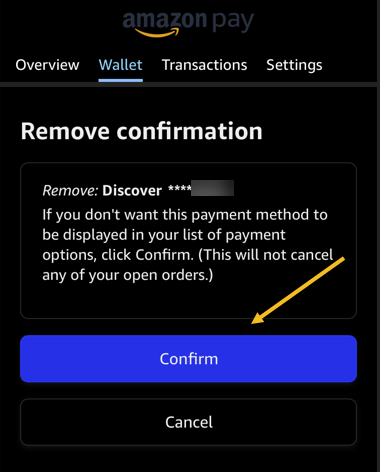
Next, tap Confirm in the Remove Confirmation prompt. See the following image:

Amazon Pay 6
Confirm your removal

And Amazon has now removed your selected payment method.

You may want to check Google Chrome as well if you have saved an expired or unwanted credit card there.

Quote For the Day

You’ve got to be before you can do and do before you can have.

Zig Ziglar

That’s it. Please feel free to share this post! One way to share is via Twitter.

Just click the Tweet icon below. This will launch Twitter where you click its icon to post the Tweet.

Check out TechSavvy.Life for blog posts on smartphones, PCs, and Macs! You may email us at contact@techsavvy.life for comments or questions.

I Would Like to Hear From You

Please feel free to leave a comment. I would love to hear from you. Do you have a computer or smart device tech question? I will do my best to answer your inquiry. Just send an email to contact@techsavvy.life. Please mention the device, app, and version you are using. To help us out, you can send screenshots of your data related to your question.

Author’s E-book

You can access the e-book from a Kindle device, the Kindle App for the desktop or smartphone, which is a free app.

The author’s Vietnam eBook on the Battle for Tra Bong Vietnam: Events and Aftermath