Five Ways to Tell if Your iPhone or Android is Being Tapped

To see if your phone is being tapped, look for apps using too much battery or data, listen for weird noises in phone calls, and watch for weird behavior like random mic activation or redirected websites. You can also use MMI or USSD codes to check your call forwarding status.

RAYMOND OGLESBY @RaymondOglesby2
August 15, 2023

This is for the iPhone and Android. Screenshots are from iPhone 14 Pro running iOS 16+

For better or worse, our smartphones are always with us, so if someone taps into the camera or mic, it’s a serious problem. But how can you tell if your phone is being tapped, and how do you protect yourself?

How to Tell

If someone gains access to your phone they can potentially send fake emails, read your personal messages, record your calls, and all sorts of other nefarious behavior. But can you even tell if someone’s hacked your phone? Let’s explore a few ways to find out.

1) Battery Life is Failing

If your phone constantly overheats seemingly for no reason and the battery drains quickly without any apparent cause, your phone might be hacked. Malicious software running in the background can drain your battery without any apps running and can be anything from malware that’s reading your email to call-recording spyware.

If you are already a heavy phone user, your battery probably gets hot anyway. Streaming video or playing games for long periods of time, for example, will cause your phone to heat up which is pretty normal. If you have not been using your phone a lot and the battery still heats up or can no longer hold a charge, you might want to check for malicious software.

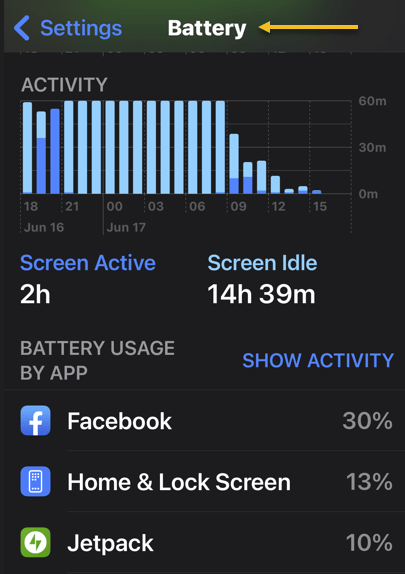
To do that, check your battery settings. On either an Android or iPhone you can see which apps are using the most battery by going to:

Settings > Battery

where you will see which apps are using the most power. If there are apps on that list you do not remember installing, or a third-party app that should not be using much power, uninstall them immediately. Refer to the below image:
iPhone Tapped 1
Battery Settings

2) Weird Noises

A high-pitched hum or strange, pulsating static on the line could be a sign your calls are being recorded. If you hear static or other strange sounds like clicking or beeping even when you are not calling someone, that’s another sign, especially when your phone’s been tapped by the police.

Hearing these sounds once or twice at random is probably okay, but if it happens consistently, check your phone. You can try using a sound-bandwidth sensor app from another phone set to a low frequency. If it picks up several sounds over a minute, your phone may be compromised.

3) High Data Use

Spyware and malware will routinely use a lot of data; constantly sending information back to whoever hacked your device. If your location or data icons at the top of your screen regularly move or light up, that could be a sign someone is sending data from your phone or controlling it remotely. Higher than normal data use can also show up as a higher phone bill if you do not have an unlimited data plan.

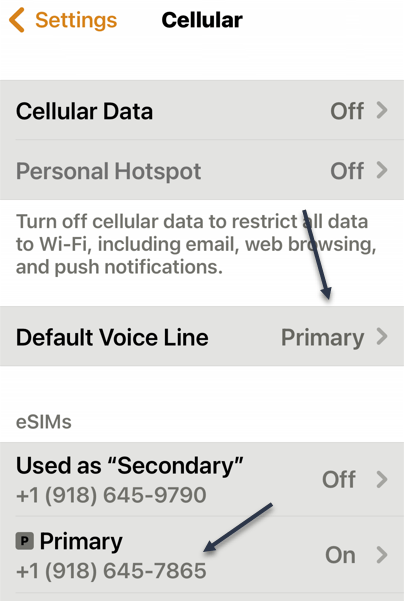
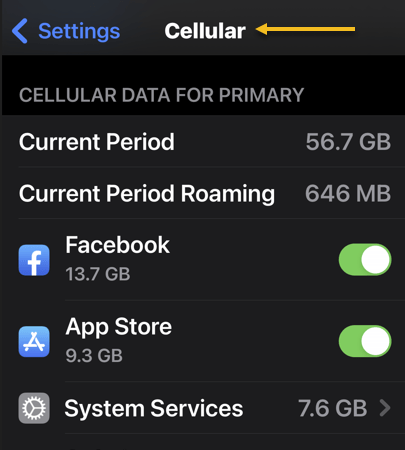
iPhones and Android phones both let you check your data usage to see if your phone is (possibly) tapped. To do it on an iPhone, go to:

Settings > Cellular

See the below image:
iPhone Tapped 2
Cellular Settings

On Android, go to

Settings > Network & Internet

It may also be under:

Connections > Data usage or > Mobile data usage.

4) Unusual Activity

If your phone has trouble shutting down, that could be a sign it’s being tapped. Randomly shutting down on its own is another sign of trouble. When turning off your phone, check to see if the backlight stays on even when the phone is powered off or if the shutdown fails altogether.

Other strange behaviors your phone could exhibit if it’s been compromised include popup ads, the screen lighting up at random, and messages you do not recognize that push you to follow unfamiliar links. Also, performance often slows way down.

Watch out for your camera or mic turning on randomly. If you keep seeing the camera light go on when you did not open an app that uses the camera, it could be a sign your phone’s been hacked. Some malicious software lets hackers access your camera without turning the light on, so always dig deeper if you think something’s fishy.

5) Websites Look Strange

Some forms of malicious software can infiltrate your browser, showing you a fake web page that looks legitimate, then harvesting your login credentials when you type them in. If you are browsing on your phone and the web page you are looking at acts strange or does not look quite like it’s supposed to, close the browser and check your phone for malware by scanning it or taking it to a professional.

Protect Your Phone From Being Tapped

If you want to make sure your phone is never compromised, avoid downloading any apps that are not from the Google Play Store or Apple’s App Store. Even when using the mainstream app stores, though, do a Google search of the app and the developer to double-check that they are on the level before you download; bad apps can and do occasionally get past their vetting processes.

Download trusted anti-malware and antivirus apps and use them regularly. If you can afford a premium subscription, do it. If not, there are some great free options available.

Using a VPN to obscure your true IP address can make it harder for someone who’s trying to track you to pin down your location. If you can, try a few out and use one regularly when are in public or on an unsecured connection

.You can also check and see whether your calls and messages are being forwarded to other devices using Man-Machine Interface (MMI) codes. They will be different depending on the network but can allow you to discover and cut off any unauthorized forwarding. To use them, dial the desired MMI code with your keypad, then hit the call button.

If you are on a GSM network (like AT&T and T-Mobile):

  • *#002# — Lists all call and data forwarding settings
  • ##002# — Clears all call and data forwarding settings

If you’re on a CDMA network (like Verizon and US Cellular):

  • *72 — Lists all call and data forwarding settings
  • *73 — Clears all call and data forwarding settings

Unfortunately, MMI codes only work on Android devices, but you can use the USSD (Unstructured Supplementary Service Data) code *#21# on an iPhone to check your call forwarding status and see if your calls are being forwarded anywhere else.

If you are done your due diligence but you are still experiencing these symptoms, take your phone to a professional. Odds are they will have the tools to scan more deeply and remove any bad software that could be causing the problem.

Disclaimer

Technology is always changing and rarely is there static tech for smartphones and desktops. Thus, the contents of this post are only valid at the time of writing. Blog posts older than six months may have directions incompatible with your device or OS. Hopefully, older post content will continue to work as advertised. Thank you for reading TechSavvy.Life for Technology at Work For You.

Quote For the Day

Our inventions are wont to be pretty toys, which distract our attention from serious things. They are but improved means to an unimproved end.

David Thoreau

Tweet Info

That’s it. Please feel free to share this post! One way to share is via Twitter.

Just click the Tweet icon below. This will launch Twitter where you click its icon to post the Tweet.

Checkout TechSavvy.Life for blog posts on smartphones, PCs, and Macs! You may email us at contact@techsavvy.life for comments or questions.

I Would Like to Hear From You

Please feel free to leave a comment. I would love to hear from you. Do you have a computer or smart device tech question? I will do my best to answer your inquiry. Just send an email to contact@techsavvy.life. Please mention the device, app, and version you are using. To help us out, you can send screenshots of your data related to your question.

Author’s E-Book

You can access the e-book from a Kindle device, the Kindle App for the desktop or smartphone, which is a free app.

The author’s Vietnam eBook on the Battle for Tra Bong Vietnam: Events and Aftermath

How to Make a Slideshow on Google Photos

Using Google Photos‘ slideshow feature, you can have all or specific album photos play one after another automatically. You can make this slideshow on both your desktop and your mobile device.

RAYMOND OGLESBY @RaymondOglesby2
July 25, 2023

This is for the desktop and smartphones. Screenshots are from Windows 10 and iPhone 14 Pro running iOS 16+

Using Google Photos‘ slideshow feature, you can have all or specific album photos play one after another automatically. You can make this slideshow on both your desktop and your mobile device. Let’s explore how this is done.

On Your Desktop

To create a slideshow on your desktop computer, first, open a web browser and launch the Google Photos site. Sign in to your account on the site if you have not already.

Next, once you see your photos, if you want to include all your photos in the slideshow, then click the first photo on the main screen to open it in full screen.

Now, once the photo opens in full screen, at the top-right corner, click the three dots (the Menu icon). Refer to the below image:

Photos 1
Selecting the Menu icon

Next, in the menu that opens, click Slideshow. See the below image:

Photos 2
Selecting the Slideshow option

Now, your browser will go full screen and your slideshow will start playing. Sit back, relax, and enjoy recollecting your memories with your photos.

Next, you can stop the slideshow at any time by pressing the Esc key on your keyboard. See the following image:

Photos 3
Exiting the Slideshow

Now, if you would like to make a slideshow using photos from a specific album, then access that album on Google Photos. On the album page, in the top-right corner, click the three dots (the Menu icon). Refer to the below image:

Photos 4
Selecting the Menu icon

Next, from the three dots (the Menu icon), select Slideshow to start playing your photos. You can close the slideshow by pressing the Esc key. See the below image:

Photos 5
Selecting the Slideshow option

On Your Mobile

To play your photos slideshow on your phone, first, launch the Google Photos app on your phone.

Next, to include all your photos in the slideshow, then tap the first photo on the main screen.

Now, when your photo opens in full screen, in the top-right corner, tap the three dots (the Menu icon). See the following image:

Photos 6
Selecting the Menu icon

Next, from the three dots (the Menu icon), select Slideshow to start playing your photos. Refer to the below image:

Photos 7
Selecting the Slideshow option

Now, Google Photos will start playing a slideshow for all your photos. If you would like to stop this slideshow, tap anywhere on the screen then tap Done in the top-left corner. See the below image:

Photos 8
Exiting the Slideshow

To create a slideshow using photos from a particular album, first, tap Library and choose your photo album. Select the first photo in the album, then in the top-right corner, tap the three dots (the Menu icon). See the following image:

Photos 9
Selecting the Menu icon

Next, in the menu that opens, tap Slideshow. Refer to the below image:

Photos 10
Selecting the Slideshow option

Now, your slideshow containing photos only from the selected album will play. If you would like to stop this slideshow, tap anywhere on the screen then tap Done in the top-left corner. See the below image:

Photos 11
Exiting the Slideshow

Disclaimer

Technology is always changing; there is rarely static tech for smartphones and desktops. Thus, the contents of this post are only valid at the time of writing. Blog posts older than six months may have directions incompatible with your device or OS. Hopefully, older post content will continue to work as advertised. Thank you for reading TechSavvy.Life for Technology at Work For You.

Quote for the Day

My view is that if your philosophy is not unsettled daily then you are blind to all the universe has to offer.

Neil deGrasse Tyson

Tweet Info

That’s it. Please feel free to share this post! One way to share is via Twitter.

Just click the Tweet icon below. This will launch Twitter where you click its icon to post the Tweet.

Checkout TechSavvy.Life for blog posts on smartphones, PCs, and Macs! You may email us at contact@techsavvy.life for comments or questions.

Author’s E-Book

You can access the e-book from a Kindle device, the Kindle App for the desktop or smartphone, which is a free app.

The author’s Vietnam eBook on the Battle for Tra Bong Vietnam: Events and Aftermath

Threads the New Social Media App

Meta, formerly known as Facebook, has made a history of copying features from other platforms. This time, Meta has launched Threads, a social media app connected to Instagram that works more like Twitter and should eventually connect to Mastodon.

RAYMOND OGLESBY @RaymondOglesby2
July 18, 2023

As of this writing, We have reached 50,000 views in 487 posts!!!

This is for devices that use social media

Meta, formerly known as Facebook, has made a history of copying features from other platforms. This time, Meta has launched Threads, a social media app connected to Instagram that works more like Twitter and should eventually connect to Mastodon.

Meta, as the maker of Facebook, Instagram, and WhatsApp, has been after Twitter for many, many years. The company attempted to buy Twitter back in 2008, but that did not work out. Last year, Elon Musk acquired Twitter, and then promptly ran it into the ground. That has led to a surge in popularity for Twitter-like platforms, and now Meta’s app is live.

What Is Threads

Threads is a micro-blogging platform that looks and feels just like Twitter, letting you post texts up to 500 characters. This is almost twice Twitter’s 280-character standard limit, but still just enough for posts to not look like so much text. The platform itself is heavily linked to Instagram, and if you have an Instagram account, you can sign up for Threads with a couple of taps. All handles are pre-reserved; your username on Instagram will be your username on Threads. Refer to the below image of Threads:

Threads 2

Threads is actually seeing plenty of adoption, with the platform getting up to 20 million users within the first hours of launch. However, many of those accounts are brands instead of actual people. Instagram’s user base is in the billions, so we can only expect this number to keep increasing as time passes.

As it keeps growing, we can also expect a number of other changes, too. Threads is supposed to play nice with Mastodon and the Fediverse, and it will be getting ActivityPub support down the road. The exact degree to which Mastodon and Threads will be interoperable remains to be seen, but you will be able to follow and interact with Mastodon users from Threads. Likewise, Mastodon users will be able to follow Threads users by using their full username, such as “@john@threads.net.”

Pause Before You Download

Be aware of Threads Privacy Policy and the Dara the app collects. In our opinion, the app collects way too much data about you. This includes Data from your: Health/Fitness, Financial info, Contact info, User Content, Browsing history, Usage data, Diagnostics, Purchases, Location, Contacts, Search history, Identifiers, Sensitive data, and Other data.

In contrast, Facebook and Instagram only track Contact info, Identifiers, and Other data.

According to its Privacy Policy, you cannot delete your Threads account, until you delete your Instagram account. You can deactivate your Threads account at any time but you can not delete your Threads account without also deleting your Instagram account.

Our Summary

We recommend you wait until the Data collection and Privacy Policy issues are addressed.

If You Want to Download the App

If you want to give it a spin, Threads is now available from the Apple App Store and the Google Play Store. In the Apple App Store and Google Play Store, the app name is “Threads, an Instagram app”. There are other Threads apps, so ensure you download the correct one.

Disclaimer

Technology is always changing and rarely is there static tech for smartphones and desktops. Thus, the contents of this post are only valid at the time of writing. Blog posts older than six months may have directions incompatible with your device or OS. Hopefully, older post content will continue to work as advertised. Thank you for reading TechSavvy.Life for Technology at Work For You.

Quote For the Day

Always deliver more than expected.

Larry Page

Tweet Info

That’s it. Please feel free to share this post! One way to share is via Twitter.

Just click the Tweet icon below. This will launch Twitter where you click its icon to post the Tweet.

Just click the Tweet icon below. This will launch Twitter where you click its icon to post the Tweet.

I Would Like to Hear From You

Please feel free to leave a comment. I would love to hear from you. Do you have a computer or smart device tech question? I will do my best to answer your inquiry. Just send an email to contact@techsavvy.life. Please mention the device, app, and version you are using. To help us out, you can send screenshots of your data related to your question.

Author’s E-Book

You can access the e-book from a Kindle device, the Kindle App for the desktop or smartphone, which is a free app.

The author’s Vietnam eBook on the Battle for Tra Bong Vietnam: Events and Aftermath

Amazon RxPass for Your Prescriptions

Hot on the heels of shutting down the AmazonSmile charity platform, a new add-on to Amazon Prime has been revealed. It aims to fill prescriptions for generic medications for one low monthly price.

RAYMOND OGLESBY @RaymondOglesby2
May 11, 2023

Hot on the heels of shutting down the AmazonSmile charity platform, a new add-on to Amazon Prime has been revealed. It aims to fill prescriptions for generic medications for one low monthly price.

This is for devices using Amazon

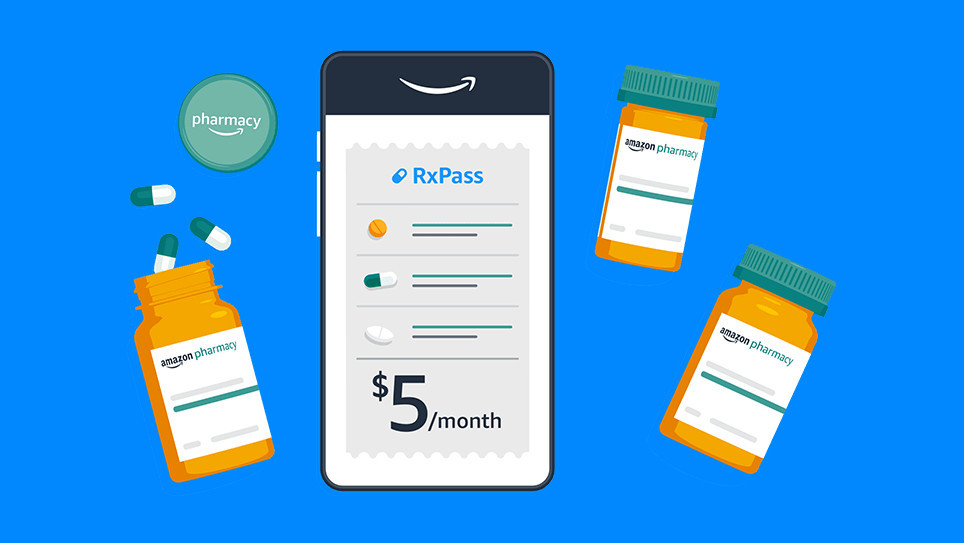
Amazon already runs a pharmacy through its online store, bolstered by the purchase of PillPack in 2018, but now the company is going a step further. Instead of buying each drug individually, Amazon is launching an optional subscription called RxPass, priced at $5 per month in the United States. No health insurance is required, but most (if not all) of the medications are controlled substances that require a prescription from a doctor.

RxPass does not cover every drug Amazon sells, but it does provide access to “commonly prescribed generic medications that treat more than 80 common health conditions.” There’s a full list on the RxPass website (scroll down to see the list), which includes anti-inflammatory drugs like Piroxicam and Naproxen, nine medications for high blood pressure and cardiac dysrhythmias, and even some drugs for treating Parkinson’s disease.

The new subscription could potentially save some people a lot of money, but there is a darker side to RxPass. CNN reports the subscription is almost certainly a loss leader for Amazon, meaning it’s intended to maintain subscriptions to Amazon Prime rather than be self-sustaining. You are probably going to be less likely to cancel Amazon Prime on the next price hike if it’s responsible for your access to critical medication, and Amazon’s FAQ page says canceling Prime will also cancel RxPass.

Disclaimer

Technology is always changing, and rarely is there static tech for smartphones and desktops. Thus, the contents of this post are only valid at the time of writing. Blog posts older than six months may have directions incompatible with your device or OS. Hopefully, older post content will continue to work as advertised. Thank you for reading TechSavvy.Life for Technology at Work For You.

Quote For the Day

We live in a society exquisitely dependent on science and technology, in which hardly anyone knows anything about science and technology.

Carl Sagan

Tweet Info

That’s it. Please feel free to share this post! One way to share is via Twitter.

Just click the Tweet icon below. This will launch Twitter where you click its icon to post the Tweet.

Checkout TechSavvy.Life for blog posts on smartphones, PCs, and Macs! You may email us at contact@techsavvy.life for comments or questions.

I Would Like to Hear From You

Please feel free to leave a comment. I would love to hear from you. Do you have a computer or smart device tech question? I will do my best to answer your inquiry. Just send an email to contact@techsavvy.life. Please mention the device, app, and version you are using. To help us out, you can send screenshots of your data related to your question.

Author’s E-Book

You can access the e-book from a Kindle device, the Kindle App for the desktop or smartphone, which is a free app.

The author’s Vietnam eBook on the Battle for Tra Bong Vietnam: Events and Aftermath

How to Check if Your Smartphone Has 5G

With 5G frequently being portrayed as a game-changer in cellular technology, you may wonder: is my phone 5G?

RAYMOND OGLESBY @RaymondOglesby2
May 4, 2023

This is for Android and iPhone. Screenshots are from Android and iPhone Pro 14 running iOS 16+

With 5G frequently being portrayed as a game-changer in cellular technology, you may wonder: is my phone 5G? Let’s find out in a few simple steps.

5G Explained

5G, a successor to 4G, is a moniker used to describe the fifth-generation cellular network technologies used by carriers worldwide. It comes with a promise of faster data speeds, greater bandwidth, and reduced latency than previous-generation cell networks. So if you use 5G on your phone, you should be able to download content faster, stream high-definition movies and TVs without buffering, play online video games without connectivity issues, and do much more.

But like any new major technology, it needs new hardware. Carriers are upgrading hardware on their end to deliver 5G networks, and as a consumer, you need a 5G-compatible phone to enjoy its benefits. Any 5G compatible phone has specialized hardware, such as newer cellular modems that can connect to the 5G networks. So how do you check if you have a 5G phone?

How to Know if Your Smartphone Has 5G

As of March 2023, pretty much all new high-end and mid-range phones being launched can use a 5G network. And the same is true for quite a few budget phones as well. But if you are unsure whether your phone is 5G, it’s pretty easy to check.

But remember, apart from having 5G hardware, a phone must be certified to work on a carrier’s 5G network. So if your 5G phone did not come certified to work on your carrier, it would need that certification, which often accompanies a software update to enable carrier support. Otherwise, you will not be able to use 5G on your device.

Is My iPhone 5G Compatible

Apple has included 5G hardware in every iPhone shipped since iPhone 12 series, including the iPhone SE (3rd gen). So if you own iPhone 12 series or newer, your phone is 5G-compatible. Apple’s relatively simple iPhone lineup makes knowing if your iPhone is 5G compatible easy. But as mentioned earlier, it’s not as simple as having 5G hardware in the phone; you also need the necessary software to support your carrier.

To check if your iPhone can work with your carrier’s 5G networks, first, navigate to:

Settings > Mobile Data > Mobile Data Options > Voice & Data

Or

Settings > Cellular > Cellular Data

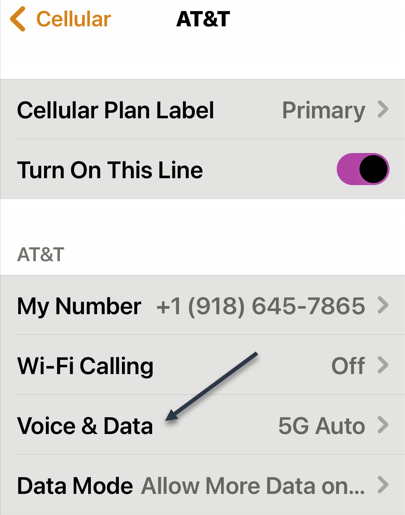
If you do not see either one, go back one screen. You may see that you have an eSIM. The Cellular Data option will point to Primary or Secondary. Under eSIMs section, tap the corresponding option. Refer to the below image:

iPhone 5G 1
Selecting your Primary option

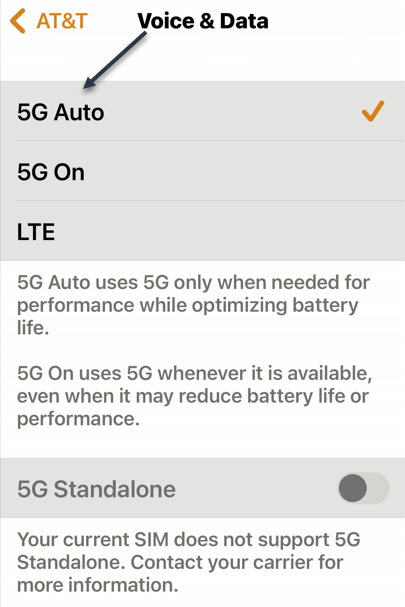
Next, tap the Voice & Data option. See the below image:

iPhone 5G 2
Selecting Voice & Data option

Now, if you see 5G Auto or 5G On options listed, your iPhone can work with your carrier’s 5G networks. But if only LTEor 3G options are listed, your iPhone will not work with your mobile operator’s 5G network. See the following image:

iPhone 5G 3
Your iPhone supports5G

In case you own an iPhone 12 series or newer iPhone, but there is no 5G on the Voice & Data page for your carrier, you will have to wait for Apple to update iOS to include the necessary support for your cell carrier.

What is 5G+

If you happen to be lucky enough to see this symbol in your status bar, you have access to a multi-gigabit connection. 5G+ indicates you’re connected to a mmWave 5G NR tower, short-range radios that deliver breakneck speeds. Performing a speed test will reveal download speeds of 1–3 Gbps.

Is My Android 4G or 5G Compatible

The process of checking 5G compatibility on an Android phone is similar to iPhone, but given the diverse nature of Android handsets, the options and their location in the phone software can differ depending on your device manufacturer.

So if you own an Android phone, you can confirm whether your phone is 4G or 5G by navigating to:

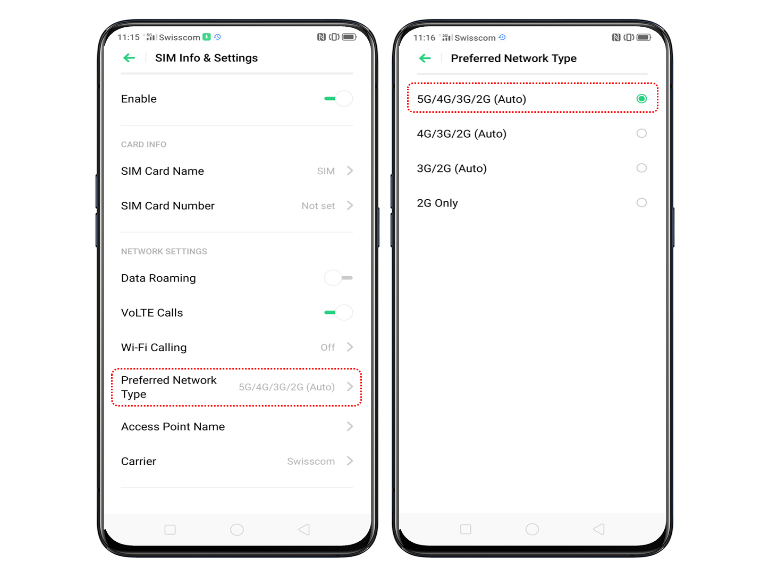
Settings > Network & internet > SIMs > Preferred Network Type

If you find 5G listed as one of the options, then your phone supports 5G. Otherwise, see if you have 4G or LTE listed; their presence will indicate support for 4G. Refer to the below image:

Android 5G
Your Android phone supports 5G

However, if you do not see 5G option on your phone even though it’s marketed as a 5G phone by the manufacturer, it’s not currently certified to support 5G on your carrier. You will have to wait for the phone manufacturer to release a software update adding the necessary support, or it’s possible your phone supports some 5G bands, but not the ones used by your mobile operator.

Another way to confirm 5G support on your Android phone is to check its specifications on the manufacturer’s website. But this will only tell you whether your phone has 5G hardware or not. For carrier-specific compatibility, the previously-mentioned method is the best way.

Is 5G In My Area

5G compatibility is only one part of the equation when it comes to enjoying 5G data speeds and other benefits. You will also need 5G network coverage at your location. As of 2023, 5G networks are still being deployed in the US, so not every city or town has extensive 5G coverage. But carriers are gradually rolling out 5G networks, so the places that do not have 5G coverage right now may get it in the coming months or years.

If you want to check if your carrier offers 5G in your area, the best way is to contact them directly. You can call their customer service or ask a representative at their store. Alternatively, you can check the network coverage maps available on their websites. All three major carriers in the US—AT&T, T-Mobile, and Verizon—allow you to check their 5G and 4G coverage on their website. You can even search your address or zip code for coverage information.

Disclaimer

Technology is always changing and rarely is there static tech for smartphones and desktops. Thus, the contents of this post are only valid at the time of writing. Blog posts older than six months may have directions incompatible with your device or OS. Hopefully, older post content will continue to work as advertised. Thank you for reading TechSavvy.Life for Technology at Work For You.

Quote For the Day

Technology is both a tool for helping humans and for destroying them. This is the paradox of our times which we’re compelled to face.

Frank Herbert

Tweet Info

That’s it. Please feel free to share this post! One way to share is via Twitter.

Note! WordPress has or will be stopping service with Twitter. So, the below Twitter button may not work.

Just click the Tweet icon below. This will launch Twitter where you click its icon to post the Tweet.

Checkout TechSavvy.Life for blog posts on smartphones, PCs, and Macs! You may email us at contact@techsavvy.life for comments or questions.

I Would Like to Hear From You

Please feel free to leave a comment. I would love to hear from you. Do you have a computer or smart device tech question? I will do my best to answer your inquiry. Just send an email to contact@techsavvy.life. Please mention the device, app, and version you are using. To help us out, you can send screenshots of your data related to your question.

Author’s E-Book

You can access the e-book from a Kindle device, the Kindle App for the desktop or smartphone, which is a free app.

The author’s Vietnam eBook on the Battle for Tra Bong Vietnam: Events and Aftermath

Explore the World of Radio Stations

While radio is not particularly hard to access; you just need a device capable of tuning into radio frequencies; listening to the radio outside of your area can be difficult. This app, however, lets you listen to any radio station in any country worldwide, complete with a colorful interface.

RAYMOND OGLESBY @RaymondOglesby2
January 10,2023

While radio is not particularly hard to access; you just need a device capable of tuning into radio frequencies. Listening to the radio outside of your area can be difficult. This app, however, lets you listen to any radio station in any country worldwide, complete with a colorful interface. Let’s check this out.

This is for computers and mobiles running a web browser. Screenshots are from Windows 10 PC

Dilbert and Dating
Copyright Scott Adams, Inc./Distributed by Universal Uclick for UFS

Radio Garden is available as a web version, and it also has mobile apps for Android and iOS. Its whole premise is that you can listen to several radio stations in many different countries and cities. You will see a bunch of small green dots all across the globe, and those are radio stations that you can tune into immediately. You do not need a login or any kind of subscription. All you need is a device that can access the internet, like your computer or smartphone. Refer to the below image:

Radio 1
South Carolina

You can zoom in or out, move the round circle to any part of the world, or tap a green dot to listen to a station. Check out the Settings menu for options. We suggest you ignore the ads, they take you where you may not want to go; just close them. You can purchase the app for $2.99 (under Settings) to remove the virtual ads.

Some examples of Radio Garden stations:

Radio 2
Brazil
Radio 3
Ukraine
Radio 4
North Korea

It’s a lot of fun to play around with the app and learn something new.

Disclaimer

Technology is always changing and rarely is there static for smartphones and desktops. Thus, the contents of this post are only valid at the time of writing. Blog posts older than six months may have directions incompatible with your device or OS. Hopefully, older post content will continue to work as advertised. Thank you for reading TechSavvy.Life for Technology at Work For You.

Quote For the Day

Good, bad or indifferent, if you are not investing in new technology, you are going to be left behind.

Philip Green

Tweet Info

That’s it. Please feel free to share this post! One way to share is via Twitter.

Just click the Tweet icon below. This will launch Twitter where you click its icon to post the Tweet.

Checkout TechSavvy.Life for blog posts on smartphones, PCs, and Macs! You may email us at contact@techsavvy.life for comments or questions.

I Would Like to Hear From You

Please feel free to leave a comment. I would love to hear from you. Do you have a computer or smart device tech question? I will do my best to answer your inquiry. Just send an email to contact@techsavvy.life. Please mention the device, app, and version you are using. To help us out, you can send screenshots of your data related to your question.

Author’s E-Book

You can access the e-book from a Kindle device, the Kindle App for the desktop or smartphone, which is a free app.

The author’s Vietnam eBook on the Battle for Tra Bong Vietnam: Events and Aftermath

Checkout James Webb Telescope Photo Gallery

NASA launched the James Webb Space Telescope (JWT) in December 2021, giving scientists a fresh look at the universe and giving the rest of us some cool wallpapers.

RAYMOND OGLESBY @RaymondOglesby2
December 20, 2022

NASA launched the James Webb Space Telescope (JWT) in December 2021, giving scientists a fresh look at the universe and giving the rest of us some cool wallpapers. There’s an easy way to check out the latest images and save them for your device’s wallpaper. Let’s explore how.

This is for desktop and mobile devices

Flicker Main
MACS NIRCam Image – Dense Cosmic Knot in the Early Universe

Processed images from JWT have been published on Twitter, the telescope’s official website (this is a really cool site), and other locations, but there’s another portal you may not have seen. NASA operates a Flickr site for the telescope, which contains images of engineering tests, control centers, and best of all, space pictures. To see all the photos, you need to signup for Flickr in the top right-hand corner. Refer to the below image for an example of their gallery:

Flickr 1
Deep Space – Pillars of Creation – Emerging Galaxies

You can browse through the whole collection in your browser, and saving the full-resolution version of an image is as easy as clicking the Download button (the arrow pointing down). If you have a Flickr account, you can also follow the account to see new pictures. After creating your Flickr account, in the Search box (located in the upper right-hand corner), type in James Web Telescope to view the images.

The first few photos from JWT were already excellent wallpapers, but the Flickr gallery is being updated with the latest images. There are the Pillars of Creationtwo galaxies mergingJupiter in infrared, and the fiery hourglass.

In the 32-year run (and counting) of the Hubble Space Telescope is any indication, the JWT should continue giving us fantastic images for years to come.

Disclaimer

Technology is always changing and rarely is there static for smartphones and desktops. Thus, the contents of this post are only valid at the time of writing. Blog posts older than six months may have directions that are incompatible with your device or OS. Hopefully, older post content will continue to work as advertised. Thank you for reading TechSavvy.Life for Technology at Work For You.

Quote For the Day

Technology means you can now do amazing things easily; but you couldn’t easily do them legally.

Lawrence lessig

Tweet Info

That’s it. Please feel free to share this post! One way to share is via Twitter.

Just click the Tweet icon below. This will launch Twitter where you click its icon to post the Tweet.

Checkout TechSavvy.Life for blog posts on smartphones, PCs, and Macs! You may email us at contact@techsavvy.life for comments or questions.

I Would Like to Hear From You

Please feel free to leave a comment. I would love to hear from you. Do you have a computer or smart device tech question? I will do my best to answer your inquiry. Just send an email to contact@techsavvy.life. Please mention the device, app, and version you are using. To help us out, you can send screenshots of your data related to your question.

Author’s E-Book

You can access the e-book from a Kindle device, the Kindle App for the desktop or smartphone, which is a free app.

The author’s Vietnam eBook on the Battle for Tra Bong Vietnam: Events and Aftermath

What’s the Difference Between Google Wallet and Pay

Google has confusing named products, and that might be most apparent with Google Wallet and Google Pay. These two apps have taken a convoluted path to get where they are today. So, which one should you be using?

RAYMOND OGLESBY @RaymondOglesby2
December 15, 2022

Google has confusing named products, and that might be most apparent with Google Wallet and Google Pay. These two apps have taken a convoluted path to get where they are today. So, which one should you be using?

This is for diPhone and Android. Screenshots are from iPhone XR running iOS 16+

Dilbert and Rumor
Copyright Scott Adams, Inc./Distributed by Universal Uclick for UFS

Both Google Wallet and Pay have seen some pretty drastic revamps over the years. Their purposes have changed a lot and confused many people in the process. Let’s see what these products have to offer.

Some History

You may be surprised to learn that the original version of Google Wallet was introduced way back in 2011. The service was primarily for sending money to people and there was a physical Google Wallet credit card as well.

The Google Wallet card allowed people to pay for things in physical and online stores with the funds in their accounts. This was before mobile payments with tap-to-pay were widely supported. The Wallet card was a very clever solution.

Eventually, tap-to-pay gained enough traction that Google launched Android Pay in 2015. It maintained Google Wallet and Android Pay separately until 2018 when the two were combined into a single service called Google Pay. The Wallet card was discontinued in 2016.

Then, in 2020, Google Pay got a massive overhaul with a bunch of new features. All of Google’s mobile payment services were under one umbrella… for a while. In the summer of 2022, the service was split in two, with the Google Wallet branding making a return.

That’s where things stand as of September 2022. Google Pay and Google Wallet exist as two separate products; sometimes. More on that later.

Google Wallet

Google Wallet can most easily be summed up by its name; it’s a digital wallet. You can add credit cards, debit cards, loyalty cards, transportation passes, event tickets, vaccine cards, and gift cards.

Basically, Google Wallet is for paying for things online and in physical stores with tap-to-pay. It features a very simple interface that shows your cards, tickets, and passes. Google Wallet is only available for Android since the iPhone does not allow non-Apple apps for tap-to-pay.

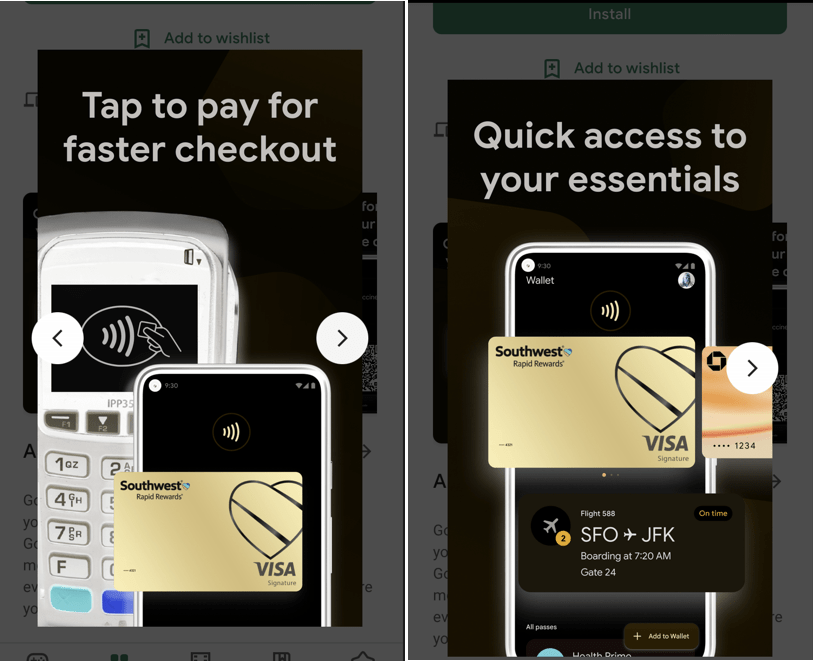
Google Wallet can generally be used with any card reader that has an Apple Wallet, Google Pay, or the contactless tap-to-pay icon. For online purchases, look for the Google Pay or Google Wallet buttons at checkout. It will take some time for the Wallet branding to replace Google Pay. Refer to the below image:

Google 4-5
Google Wallet

Google Pay

Google Pay received a massive overhaul in 2020, and it’s pretty much the same experience now. The tap-to-pay functionality is still present in Google Pay, but that’s not the only thing it can do.

The Google Pay app has peer-to-peer payments, shopping deals, cashback offers, and a full-blown banking experience with personal finance insights. You can think of Pay as a combination of services similar to Venmo, PayPal, RetailMeNot, and Mint.

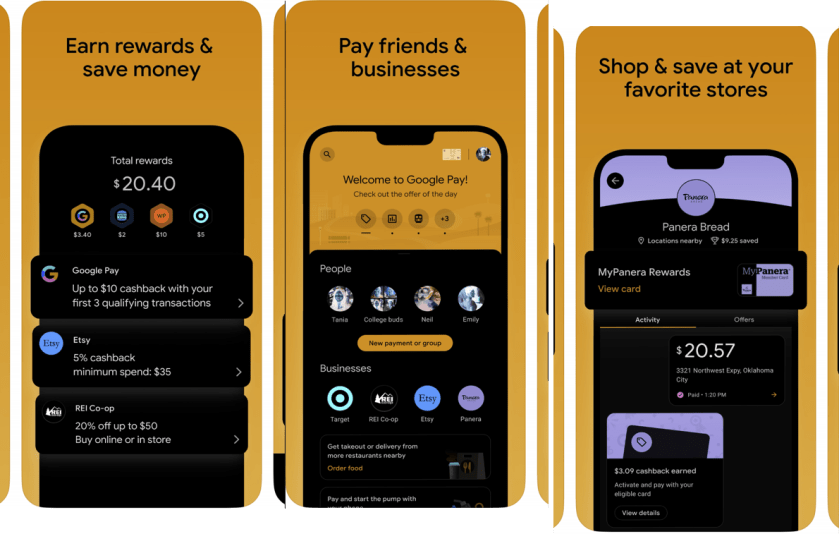
Unlike Google Wallet, Google Pay is available on both Android and iPhone. The tap-to-pay functionality does not work on the iPhone, but the other features do. It’s a feature-packed app that tries to do a lot of things. In fact, it might be too much for some people, which is why Google Wallet exists. See the below image:

Google 1-3
Google Pay

Which App to Use?

Depending on where you live, you may not even need to decide which app to use. Google Pay and Google Wallet only exist side-by-side in the U.S. and Singapore. In every other country, Google Wallet entirely replaced Google Pay, and India does not have Wallet at all (as of September 2022).

Google Pay can do everything Google Wallet can do, but Google Wallet can not do everything Google Pay can do. If you are in a country that has both, you can choose between the full experience (Pay) or just mobile payments (Wallet). There’s no reason to have both.

Use Google Pay if you want peer-to-peer payments, deals, rewards, or personal finance tools. If you only care about mobile payments, Google Wallet is a much more streamlined experience for that. The choice is even simpler for iPhone users; Google Pay is the only option.

In closing, Google Wallet is for mobile payments, Google Pay is for mobile payments, and more. In the author’s opinion, it’s still too complicated.

-Courtesy of other tech blog posts

Quote For the Day

Books don’t need batteries.

Nadine Gordimer

Tweet Info

That’s it. Please feel free to share this post! One way to share is via Twitter.

Just click the Tweet icon below. This will launch Twitter where you click its icon to post the Tweet.

Checkout TechSavvy.Life for blog posts on smartphones, PCs, and Macs! You may email us at contact@techsavvy.life for comments or questions.

I Would Like to Hear From You

Please feel free to leave a comment. I would love to hear from you. Do you have a computer or smart device tech question? I will do my best to answer your inquiry. Just send an email to contact@techsavvy.life. Please mention the device, app, and version you are using. To help us out, you can send screenshots of your data related to your question.

Author’s E-Book

You can access the e-book from a Kindle device, the Kindle App for the desktop or smartphone, which is a free app.

The author’s Vietnam eBook on the Battle for Tra Bong Vietnam: Events and Aftermath

Nine Smartphone Battery Myths You Can Ignore

Smartphones are a necessary part of our daily lives. We hear about the numerous myths on how to eke out more life from your smartphone battery.

RAYMOND OGLESBY @RaymondOglesby2
November 17, 2022

Copyright Scott Adams, Inc./Distributed by Universal Uclick for UFS Let’s explore these myths.

This is for smartphones

Dilbert and Listen
Copyright Scott Adams, Inc./Distributed by Universal Uclick for UFS

Maintain Battery Life Forever

Let’s open with the most persistent overarching myth: that you can somehow baby your phone’s battery to keep it in good health forever.

A smartphone battery is, ultimately, a consumable good. Like a battery in your car, the battery exists to be used and, when it has reached the end of its life cycle, replaced.

Sure it’s a minor hassle to get the battery on your phone replaced, given that many phones have sealed-body designs now. But it’s not particularly expensive to do so. You might have to spend $50-$70 for a new battery.

Kill Apps to Save Battery Life

Your phone was designed to be used the way the vast majority of people use it: opening apps when needed, never actually closing them, and just letting unused apps sit off to the side when moving on to the next app; leaving the original apps to hang out in a sort of suspended state until needed again.

Your phone was not designed with the idea that you, the end user, would force quit an app when you were done using it as if you were closing apps down on a desktop computer. That’s true for iPhones, and it’s true for Android-based phones.

Yes, there are rare instances of poorly coded applications using too much background data or otherwise negatively impacting your battery life. If you have an app you really need to use, and it’s one of those apps, force quitting it when you are not actually using it might be wise.

But for the majority of us, closing apps is a waste of time, and actually hurts the performance and battery life of your phone.

Discharge the Battery to 0% Before Using

The consumer use of lithium-ion batteries is fairly recent. Because of that, many people either have first-hand experience with older (and more finicky) batteries or were given advice by people who did.

Some types of rechargeable batteries suffer from “memory” issues. That’s not the case with lithium-ion batteries. In fact, you should go out of your way to avoid fully draining the battery. In general, your phone battery is healthier when it is being regularly used and charged.

However, once or twice a year it is useful to let your lithium-ion battery drain all the way down before recharging to recalibrate the battery. That does not extend the life of the battery, but it does ensure that your phone software can accurately report the charge of the battery.

While Charging Don’t Use It

This myth is based on the idea that heat is damaging to your phone and to the battery life. That’s not entirely untrue. Your battery is healthier operating near room temperature (and actually works a little better in cooler-than-room temperature conditions). Electronics, in general, do not like heat.

But the little bit of heat introduced by charging and then the extra heat introduced by you using the phone is not a big deal. Should you charge your phone while sitting in the direct summer sun, playing the most demanding mobile game you have? No, probably not. But anything short of those kinds of stress-test conditions is fine.

Third-Party Chargers Will Damage Your Phone

Is it ideal to only use first-party OEM chargers created by the manufacturer specifically for your smartphone? Sure. Is it a huge risk to do otherwise? In most cases, not at all.

There are plenty of really great third-party chargers out there from reputable companies like Anker, Belkin, Spigen, and so on.

What you want to avoid are the poorly constructed and poorly quality chargers you find at gas stations, flea markets, and other places where bargain-basement no-name products are sold. Do not trust your phone to a $4 gas station charger.

Fast and Wireless Charging Will Damage Your Battery

Let’s lump these two together because the basis of the myth is the same. There is a long-standing belief that using a fast charger or a wireless charger damages your battery because it introduces excess heat that degrades the battery circuits.

Technically, it’s true that the brief period of intense charging during the peak of a fast charging cycle introduces more heat than not using fast charging would introduce.

It’s also technically true that the inherent inefficiency of a wireless charger over a wired charger will also introduce extra heat.

Neither of these has an impact significant enough to merit any real consideration, that’s why new cars feature wireless charging.

Charging Overnight Damages Your Battery

Here’s another myth that was significantly more true in the past and barely relevant today: leaving your phone plugged in to charge overnight is bad for the battery.

In the past, smartphones were not smart about battery management. Your phone would charge up to 100%, stop charging, and then after slowly discharging, it would charge back up again. Modern phones have adaptive charging, and they strategically manage the charging window to minimize battery damage.

Having a fully charged and ready-to-go phone in the morning far outweighs any minor wear and tear overnight charging might put on the battery.

Battery Is Damaged by Turning It Off at Night

This myth, depending on who shares it, goes both ways. Some people will tell you turning the phone off is good for the battery. Some people will tell you leaving the phone on all the time is bad for the battery. The truth is, neither state really matters much.

Your phone is designed to be on all the time. Not a single phone manufacturer has designed their device with the intention that you power it down and put it in a drawer when you are not using it.

Sure, you can extend the life of a lithium-ion battery by charging it to roughly 50-60% and then storing it in a cool, dry place. But this is your smartphone, you do not have to put it in storage, instead, you use it every day.

Disable Bluetooth and Other Features

Years ago, disabling features to save battery life was a far more useful tip than it is now. To be certain, any features on your smartphone that require energy such as Wi-Fi, Bluetooth, background data, and so on, will impact your battery life.

Turning off Wi-Fi when you are on a plane and not using the plane’s in-flight Wi-Fi, for example, is a straightforward way to squeeze out a little battery life if you do not have a charger handy. And disabling background data updates for a particular app that is aggressively polling for data you do not need constant updates about is also a wise decision.

But turning off Bluetooth and Wi-Fi, leaving your phone in Airplane Mode, or disabling all background data is overkill. For day-to-day use, it just makes your phone a pain to use.

The same thing goes for Low-Power Mode. If you are stuck between locations where you can charge your phone, by all means, use it. But keeping your phone in Low-Power Mode just makes it more frustrating to use.

Micro-managing how you charge your smartphone can, at best, only add a tiny amount to the battery’s lifespan and is hardly worth worrying about.

Quote For the Day

The only way to define your limits is by going beyond them.

Arthur C Clarke

Tweet Info

That’s it. Please feel free to share this post! One way to share is via Twitter.

Just click the Tweet icon below. This will launch Twitter where you click its icon to post the Tweet.

Checkout TechSavvy.Life for blog posts on smartphones, PCs, and Macs! You may email us at contact@techsavvy.life for comments or questions.

I Would Like to Hear From You

Please feel free to leave a comment. I would love to hear from you. Do you have a computer or smart device tech question? I will do my best to answer your inquiry. Just send an email to contact@techsavvy.life. Please mention the device, app, and version you are using. To help us out, you can send screenshots of your data related to your question.

Author’s E-Book

You can access the e-book from a Kindle device, the Kindle App for the desktop or smartphone, which is a free app.

The author’s Vietnam eBook on the Battle for Tra Bong Vietnam: Events and Aftermath

Seven Useful Alexa Features for Your Amazon Echo

In case you do not already know, you can control Alexa’s various features right from your desktop, iPhone, or Android smartphone.

RAYMOND OGLESBY @RaymondOglesby2
November 3, 2022

This is for the desktop, iPhone, and Android. Screenshots are from iPhone XR

Dilbert and Quiet
Copyright Scott Adams, Inc./Distributed by Universal Uclick for UFS

Manage Alexa

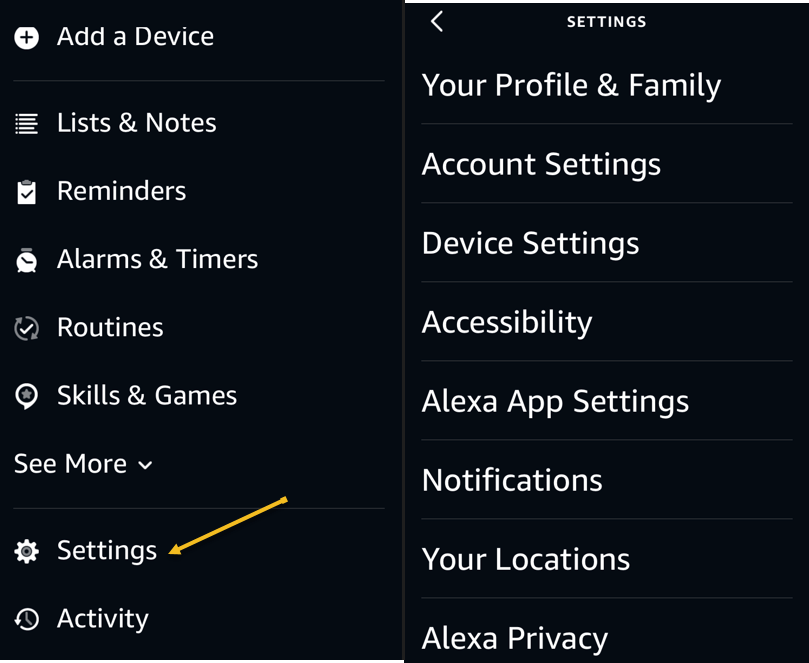
In case you do not already know, you can control Alexa’s various features right from your desktop, iPhone, or Android smartphone. This allows you to tweak various setting options for your Echo without needing physical access to your device. You can manage everything from reminders and alarms to connected smart home devices. Refer to the below image:

Echo 1
Accessing Alexa Settings

On your desktop, you can use the Amazon Alexa website to do that, though it’s worth noting that the web implementation is not as robust as it used to be. You will have a better experience using the official Alexa mobile app on iPhone and Android.

Alexa Voice Tempo

If you find Alexa’s speech too fast or too slow, you can ask her to adjust her speaking speed. Simply say “Alexa, speak slower” or “Alexa, speak faster” and she will obey your command.

That will allow you to listen to certain words carefully, or go through everything quickly if you like to get your information fast.

Alexa Brief Mode

Sometimes, Alexa’s answers are too verbose. She might keep saying little things that you will eventually find annoying. Fortunately, there’s a way around it.

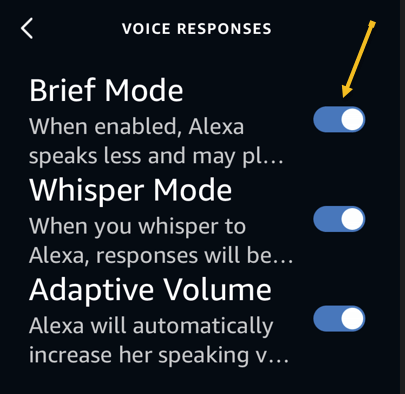
Enter Brief Mode, an Alexa feature that makes the virtual assistant keep her responses shorter. When this mode is enabled, Alexa will not speak as many words as she normally does. You can enable the mode by accessing the Alexa website, heading into:

Settings > Alexa Voice Responses

and enabling Brief Mode. See the below image:

Echo 2
Enabling Brief Mode

On the same page, you can make Alexa whisper her responses by enabling the Whisper Mode option.

Alexa Commute

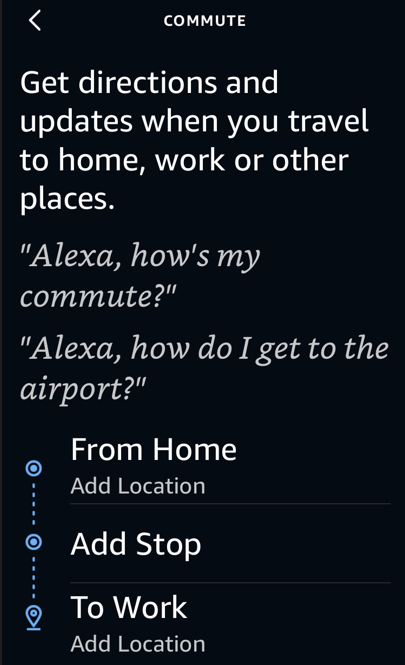
Alexa can let you know what kind of traffic you will meet on your way to your office. As long as you have specified your To and From addresses in Alexa, you can get your commute’s traffic details. See the following image:

Echo 3
Commute info

If you have not already, you can configure your To and From addresses in the

Settings > Traffic

menu on the Alexa website.

Alexa Reminder App

It’s easy to forget your important tasks in this busy life. Setting up a reminder for each of your tasks in a mobile reminder app is also cumbersome.

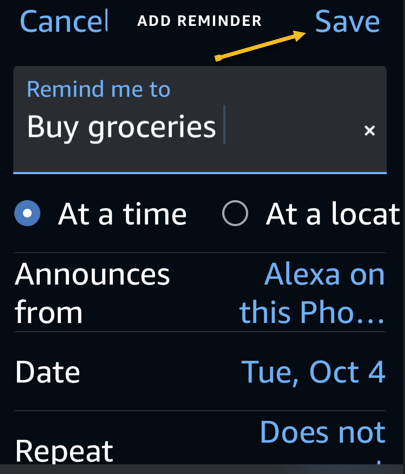
Fortunately, you can use your Alexa assistant as a reminder tool. Simply ask Alexa when you would like to be reminded and about what or type in a reminder, and she will make sure to send you a notification at the specified time. Refer to the below image:

Echo 4
Enter and Save your reminder

Alexa Security Updates

Alexa offers a security feature called Guard to help you keep a check on your home when you are away. This feature listens to certain sounds, like those of breaking glass and smoke alarms going off.

When Alexa detects those sounds, you get a notification as well as a short audio clip of the sound, letting you know something’s not right at your home.

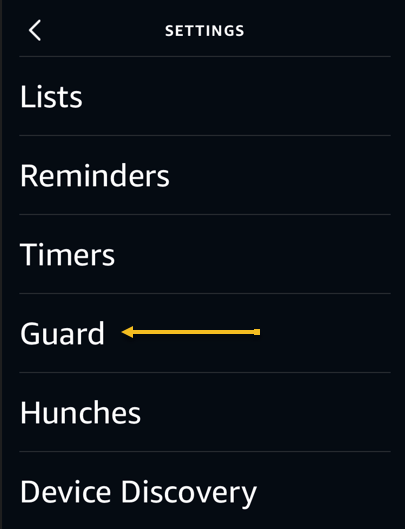
You can activate Alexa’s Guard feature from the

More > Settings > Guard

menu in the Alexa mobile app. You can purchase the Guard Plus feature for a fee if you would like emergency authorities to be notified when those sounds play at your home. See the below image:

Echo 5
Accessing Guard

Alexa Echo as a Bluetooth Speaker

Last but not least, you can use your Alexa-enabled Amazon Echo as a Bluetooth speaker. This way, you can connect any of your Bluetooth-enabled devices to your Echo and play your favorite music.

You may want to use this feature when your favorite music app is not supported by Alexa, or when you prefer to play music from your phone or your desktop. You can pair your phone or desktop with your Amazon Echo by simply asking “Alexa, pair.”

Those are some of the Alexa features you can use to make your Amazon Echo device even more useful.

Quote For the Day

I might love my e-reader, but I’d never pass up the chance to browse real books.

Nichole Chase

Tweet Info

That’s it. Please feel free to share this post! One way to share is via Twitter.

Just click the Tweet icon below. This will launch Twitter where you click its icon to post the Tweet.

Checkout TechSavvy.Life for blog posts on smartphones, PCs, and Macs! You may email us at contact@techsavvy.life for comments or questions.

I Would Like to Hear From You

Please feel free to leave a comment. I would love to hear from you. Do you have a computer or smart device tech question? I will do my best to answer your inquiry. Just send an email to contact@techsavvy.life. Please mention the device, app, and version you are using. To help us out, you can send screenshots of your data related to your question.

Author’s E-Book

You can access the e-book from a Kindle device, the Kindle App for the desktop or smartphone, which is a free app.

The author’s Vietnam eBook on the Battle for Tra Bong Vietnam: Events and Aftermath