How to Alphabetize Notes on iPhone and iPad

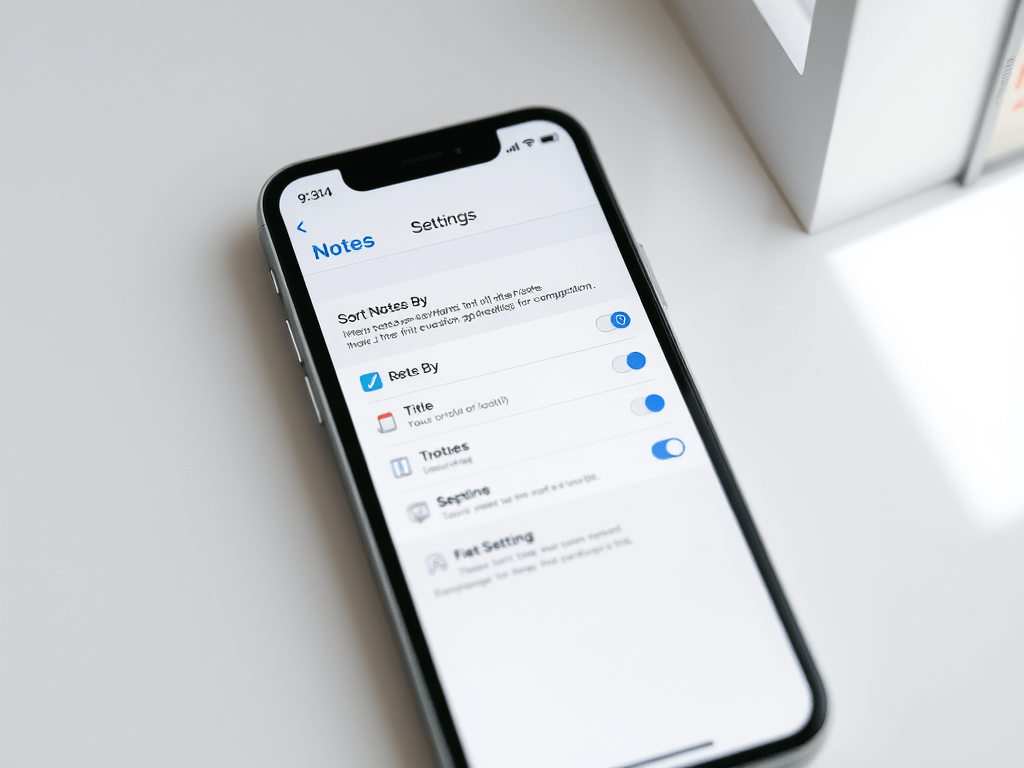
The Notes app on Apple devices sorts notes by default based on the most recent update. However, users can change settings to organize notes alphabetically by title or first line. This enhances note accessibility and organization. The guide also addresses setting defaults for new notes.

RAYMOND OGLESBY @RaymondOglesby2
June 3, 2025– 3 minutes read time

Can you alphabetize in Notes? Yes! By default, the Notes app sorts your notes by most recently updated. Even if you created a note years ago, if you edit that note, it will appear at the top of the list afterward.

But you can easily sort your notes alphabetically by changing your Settings. Your notes will then be sorted according to either the title or first line (if the note does not have a title). Let explore how to sort Apple Notes alphabetically on iPhone or iPad.

  • Alphabetize notes by note titles or the beginning of your note, instead of by date created or last edited.
  • Alphabetize notes on iPhone and iPad to make your notes more organized and easier to find.

This tip was performed on an iPhone 14 Pro running iOS 18.5.

Click here to learn how to update your iPhone to the latest iOS version.

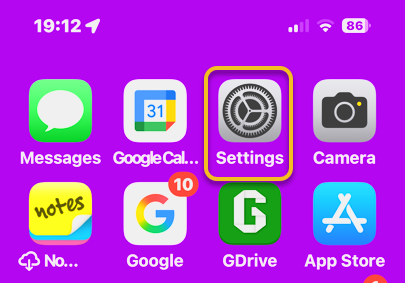
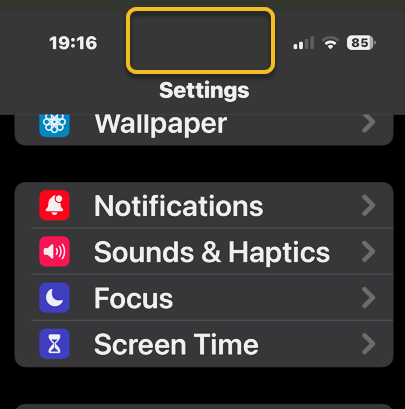
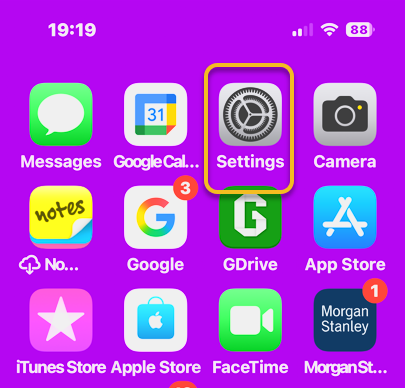
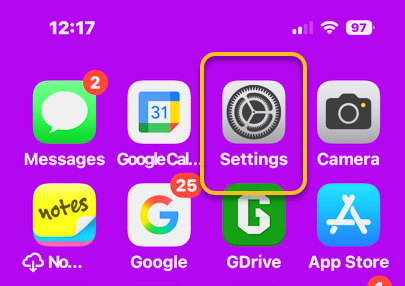
First, open the Settings app. Refer to below image:

Notes 1
Selecting Settings

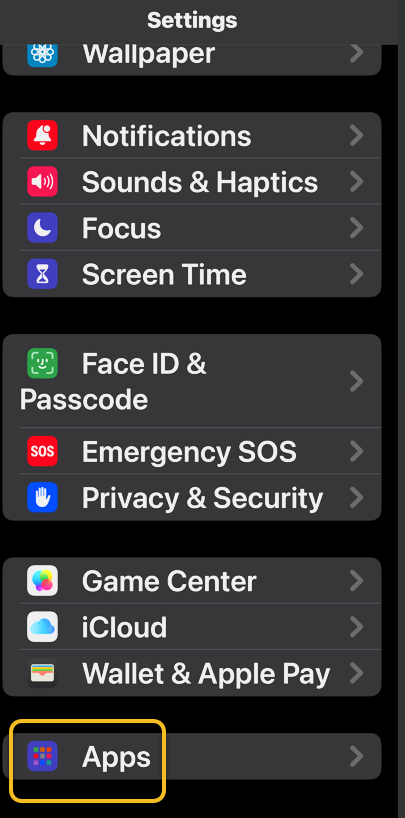
Next, scroll down and tap Apps. See the image below:

Notes 2
Selecting Apps

Now, rap Notes. See the following image:

Notes 3
Selecting Notes

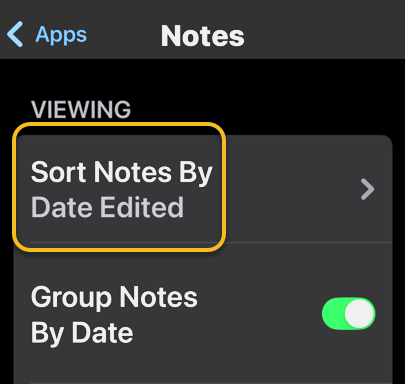
Next, tap Sort Notes By: Refer to image below:

Notes 4
Selecting the Sort Notes By option

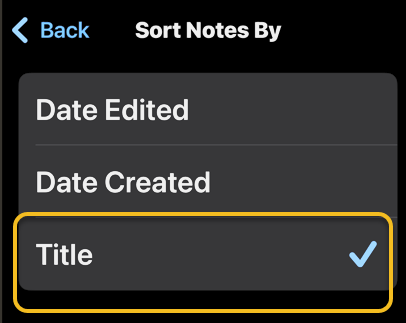
Now, tap Title. See the image below:

Notes 5
Selecting the Title option

Choosing Title will sort your Notes alphabetically. You can also select Date Created if you would rather have all your notes sorted by the day each was started.

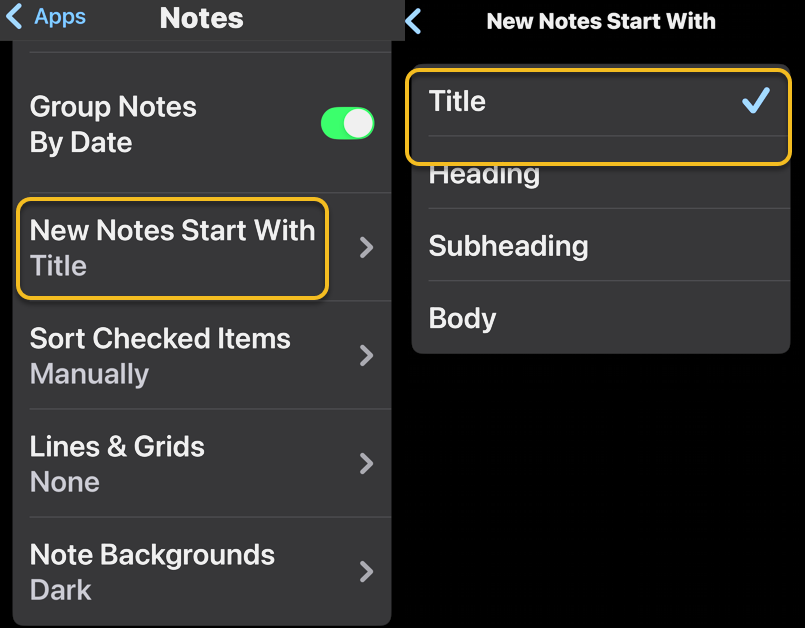
You may want to set a couple of defaults. One is to set the Title as the default heading for a New Note. See the following image:

Notes 6
Selecting the New Notes Start With Title option

If you prefer a New Note with lines or grids, you can choose from various styles. Refer to the image below:

Notes 7
Selecting a Style for a New Note

Disclaimer

Technology is constantly evolving, and smartphone and desktop tech rarely remains static. Therefore, the information in this post is only accurate as of the date it was written. Blog posts that are older than six months may contain instructions that are no longer compatible with your device or operating system. We hope that the content from previous posts continues to function as intended. Thank you for reading TechSavvy.Life, where technology works for you.

“Technology is not just a tool. It can give learners a voice that they may not have had before.”

― George Couros

You are finished. Please feel free to share this post! One way to share is via Twitter.

Just click the Tweet icon below. This will launch Twitter where you click its icon to post the Tweet.

Checkout TechSavvy.Life for blog posts on smartphones, PCs, and Macs! You may email us at contact@techsavvy.life for comments or questions.

We value your feedback! Was this post helpful? Please share your comments with us. If you have a tech question related to your computer or smart device, feel free to reach out. Just send an email to contact@techsavvy.life, and be sure to include the device, app, and version you are using. To assist us further, you can also attach screenshots related to your inquiry.

Author’s eBook

The author’s Vietnam eBook on the “Battle for Tra Bong Vietnam: Events and Aftermath” can be accessed from a Kindle device or the Kindle App for a desktop or smartphone. The apps are free.

The author’s Vietnam eBook on the Battle for Tra Bong Vietnam: Events and Aftermath

How to Change Your iPhone Default Browser Easily

The post provides a step-by-step guide on how to change the default web browser on an iPhone from Safari to a preferred alternative, such as Chrome. It includes tips, system requirements, and FAQs regarding browser functionalities, catering to users seeking to customize their browsing experience on Apple devices.

RAYMOND OGLESBY @RaymondOglesby2
May 27, 2025 – 3 minutes read time

On Apple devices, Safari is the default browser. However, many people prefer to use other browsers, such as Chrome, instead of Safari. Fortunately, you can easily change the default web browser on your iPhone to your preferred one. Here’s how to change the default browser on an iPhone.

  • Easily change default browser from Safari.
  • You have different preferences than Apple’s standard browser.

This tip was performed in iPhone 14 Pro running iOS 18.5

Click here to learn how to update your iPhone to the latest iOS version.

First, open the Settings app. Refer to the image below:

Default Browser 1
Selecting Settings

Next, tap Apps. See the image below:

Default Browser 2
Selecting Apps

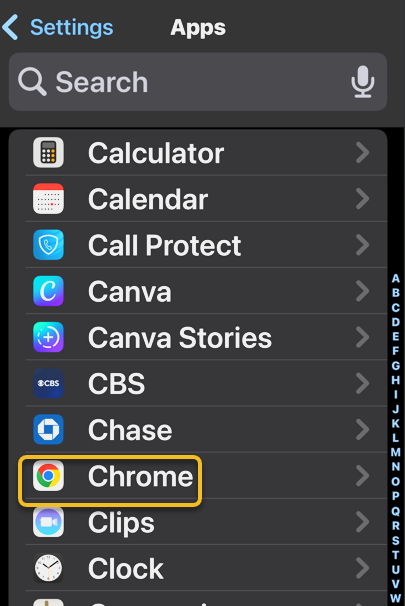
Now, scroll down to the app list to find your preferred browser, such as Chrome, and tap it. See the following image:

Default Browser 3
Selecting preferred browser

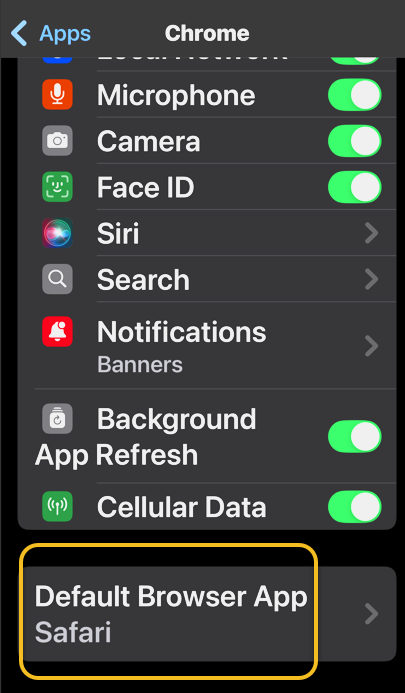
Next, tap Default Browser App. Refer to the image below:

Default Browser 4
Selecting Defsult Briwser App option

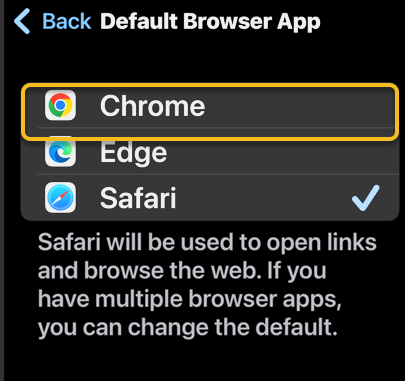
Now, tap whichever browser you would like to use as your default browser. See the image below:

Default Browser 5
Selecting a browser

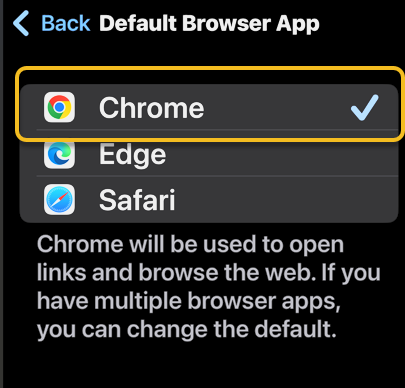
Next, when you haveselected your new default browser, you will see a blue check mark next to it. See the following image:

Default Browser 6
Your preferred browser selected

Now that you know how to change the default browser on your iPhone, you can easily open links in your preferred web browser, whether it’s Safari, Chrome, Edge, or another browser.

  • How do I clear my Safari history on my iPhone? To clear your Safari history on an iPhone, tap the Bookmark icon, then the History tab, then choose which parts of your Safari history you want to delete. 
  • How do I make Safari the default browser again? Follow the same steps above and select Safari from Apps. Alternatively, if you uninstall the browser app that is set as default, your iPhone will automatically switch back to Safari.
  • What do I do if Safari is not working on my iPhone? If Safari is not working on your iPhone, make sure you have a strong Wi-Fi or cellular connection. Additionally, verify that Screen Time limits are not enabled.

Disclaimer

Technology is constantly evolving, and smartphone and desktop tech rarely remains static. Therefore, the information in this post is only accurate as of the date it was written. Blog posts that are older than six months may contain instructions that are no longer compatible with your device or operating system. We hope that the content from previous posts continues to function as intended. Thank you for reading TechSavvy.Life, where technology works for you.

 “Technology means you can now do amazing things easily, but you can’t easily do them legally.”

― Lawrence Lessig

That’s it. Please feel free to share this post! One way to share is via Twitter.

Just click the Tweet icon below. This will launch Twitter where you click its icon to post the Tweet.

Checkout TechSavvy.Life for blog posts on smartphones, PCs, and Macs! You may email us at contact@techsavvy.life for comments or questions.

We value your feedback! Was this post helpful? Please share your comments with us. If you have a tech question related to your computer or smart device, feel free to reach out. Just send an email to contact@techsavvy.life, and be sure to include the device, app, and version you are using. To assist us further, you can also attach screenshots related to your inquiry.

Author’s eBook

The author’s Vietnam eBook on the “Battle for Tra Bong Vietnam: Events and Aftermath” can be accessed from a Kindle device or the Kindle App for a desktop or smartphone. The apps are free.

The author’s Vietnam eBook on the Battle for Tra Bong Vietnam: Events and Aftermath

How to Add Another Face ID on iPhone

The article explains how to set up an Alternate Appearance for Face ID on iPhones, allowing other users to unlock the device in emergencies. This is useful for shared phones. Instructions are provided for adding a second face, including using it while wearing a mask. Full access is granted to added faces.

RAYMOND OGLESBY @RaymondOglesby2
May 20, 2025– 5 minutes read time

Face ID has been the default security feature for Apple’s smartphones since its debut. However, if you would like to share your iPhone with a partner, friend, or child, unlocking might be a little difficult. Fortunately, just like Touch ID allows you to save multiple fingerprints, there is a way to enable another person’s face to unlock your iPhone. Let’s explore how to add another Face ID.

  • Set up an Alternate Appearance for Face ID to allow other family members or friends to unlock your device in case of emergency.
  • If someone is sharing an iPhone, adding two appearances to Face ID ensures both users can get into the phone.

This tip was performed on an iPhone 14 Pro running iOS 18.4.1.

Click here to learn how to update your iPhone to the latest iOS version.

Before we begin, it’s essential to note that the Alternate Appearance option is designed to enable the use of Face ID and Apple Pay while wearing glasses, sunglasses, facemasks, hats, and other similar accessories.

Please be aware that if you set up this feature to add the face of a partner, friend, or child so that they can unlock your phone, they will have full access to your device.

Now, here’s how to add a second Face ID by adding an alternate appearance.

First, open the Settings app, and select Face ID & Passcode option. You will be prompted to enter your passcode to continue. Refer to the image below:

Face ID 1
Selecting the Face ID & Passcode option

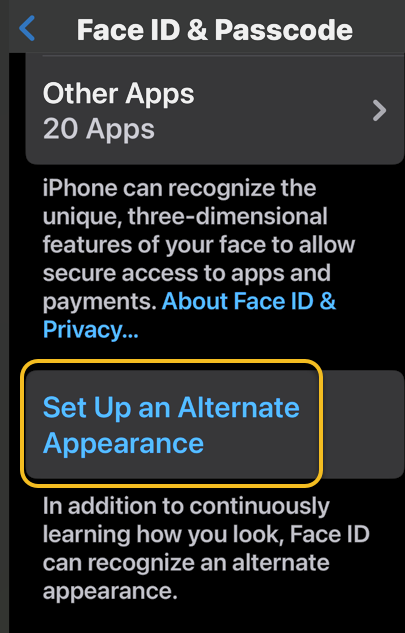
Next, tap Set Up an Alternate Appearance option. See the image below:

Face ID 2
Selecting the Setup Up an Alternate Appearance option

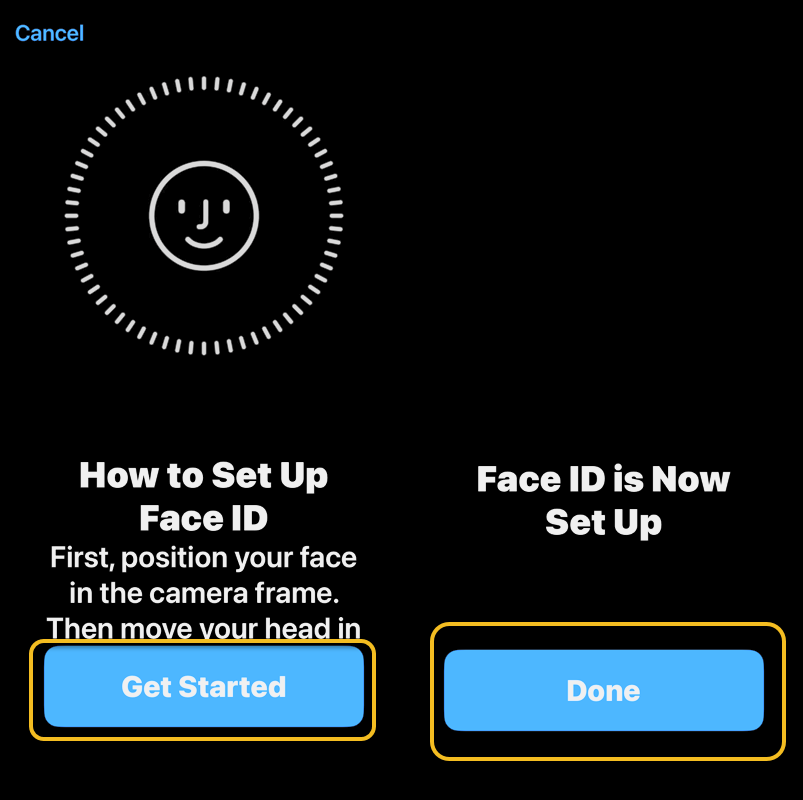
Now, tap Get Started and follow the on-screen prompts to add a second face to Face ID. See the following image:

Face ID 3
Selecting Get Started, then Done when finished

Next, if you do not see the Set Up an Alternate Appearance button, you may already have an alternate appearance saved. The only way to remove an alternate appearance and add a new one is to tap Reset Face ID. When resetting Face ID, you will need to set up your own face again before setting up the alternate appearance. Refer to the image below:

Face ID 4
Selecting the Reset Face ID option

That’s how to add another face to Face ID. Once you have set up an Alternate Appearance for Face ID, they should have no problem using Face ID to unlock your device. This can be incredibly useful in the event of an emergency in which you are unable to unlock your phone yourself.

Be aware that if you have locked any apps with Face ID, any other faces you have saved as alternate appearances will also be able to unlock them. Alternate faces will also be able to make purchases with Face ID.

Additionally, you can setup an Alternate Appearance when wearing a mask. First, head to:

Settings > Face IO & Passcode

You will be prompted to enter your passcode to continue. See the image below:

Face ID 1
Selecting the Face ID & Passcode option

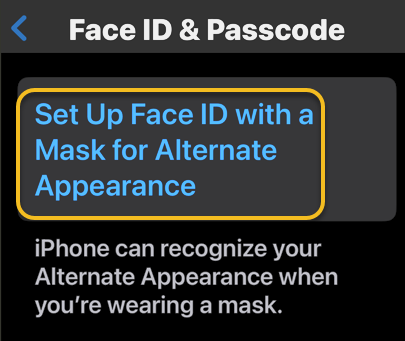
Next, scroll down and tap Setup Face ID with a Mask for Alternate Appearance. See the following image:

Face ID 6
Selecting the Set Up Face ID with a Mask for the Alternate Appearance option

Now, tap Use Face ID with a Mask and follow the on-screen prompts. Refer to the image below:

Face ID 7
Selecting the Use Face ID with a Mask option

Disclaimer

Technology is constantly evolving, and smartphone and desktop tech rarely remains static. Therefore, the information in this post is only accurate as of the date it was written. Blog posts that are older than six months may contain instructions that are no longer compatible with your device or operating system. We hope that the content from previous posts continues to function as intended. Thank you for reading TechSavvy.Life, where technology works for you.

“Humanity is acquiring all the right technology for all the wrong reasons.”

― R. Buckminster Fuller

You are finished. Please feel free to share this post! One way to share is via Twitter.

Just click the Tweet icon below. This will launch Twitter where you click its icon to post the Tweet.

Checkout TechSavvy.Life for blog posts on smartphones, PCs, and Macs! You may email us at contact@techsavvy.life for comments or questions.

We value your feedback! Was this post helpful? Please share your comments with us. If you have a tech question related to your computer or smart device, feel free to reach out. Just send an email to contact@techsavvy.life, and be sure to include the device, app, and version you are using. To assist us further, you can also attach screenshots related to your inquiry.

Author’s eBook

The author’s Vietnam eBook on the “Battle for Tra Bong Vietnam: Events and Aftermath” can be accessed from a Kindle device or the Kindle App for a desktop or smartphone. The apps are free.

The author’s Vietnam eBook on the Battle for Tra Bong Vietnam: Events and Aftermath

How to Enable Dark Mode on Your iPhone

The iPhone Dark Mode feature enhances user experience by darkening backgrounds and lightening text for better contrast, reducing eye strain, and improving battery life. Accessible through Settings or Control Center, it can be toggled manually or set to activate automatically. This feature is available on most iPhone models.

RAYMOND OGLESBY @RaymondOglesby2
May 13, 2025 – 3 minutes read time

The iPhone Dark Mode feature reverses the color scheme on your iPhone, darkening the background and lightening text to provide higher contrast. This change will affect the theme for built-in apps, including Files, Messages, Music, Notes, Safari, and Settings.

Additionally, it can help reduce eye strain caused by looking at bright screens, or just look better to some users. To enable Dark Mode on iPhones of most models, simply make a quick change in the Settings app.

Enabling Dark Mode on your iPhone is easy, as it can be turned on and off as needed, or you can set it to activate automatically in the evenings. Let’s explore this feature.

  • Dark Mode on iPhone is a neat setting that can help reduce eye strain while you use your iPhone.
  • You can also enjoy longer battery life and improved focus while using Dark Mode for iPhone.
  • Your phone can automatically toggle between Light and Dark Mode, depending on the time of day!

This tip was performed on an iPhone 14 Pro running iOS 18.4.1 but will work on most models and older software versions.

Click here to learn how to update your iPhone to the latest iOS version.

First, open Settings. Refer to the image below:

Dark Mode 1
Selecting the Settings app

Next, tap Disply & Brightness. See the image below:

Dark Mode 2
Selecting the Display & Brightness option

Now, tap the circle under Dark. See the following image:

Dark Mode 3
Running on Dark Mode

Next, to make Dark Mode turn on automatically when the sun sets and off again when the sun rises, make sure that Automatic is toggled on. Refer to the image below:

Dark Mode 4
Enabling automatic Dark Mode

Now, Dark Mode is turned on for your iPhone, and you can enjoy some battery saving, improved focus, and reduced eye strain!

You can also access Dark Mode from your Control Center. Simply open your Control Center by swiping down from the upper right corner. Then, touch and hold the Brightness bar and select Dark Mode. See the image below:

Dark Mode 5
Accessing Dark Mode via Control Center

The fastest way to turn Dark Mode on or off is to just ask Siri. “Hey Siri, turn on Dark Mode. See the following image:

Dark Mode 6
Using Siri to access Dark Mode

Disclaimer

Technology is constantly evolving, and smartphone and desktop tech rarely remains static. Therefore, the information in this post is only accurate as of the date it was written. Blog posts that are older than six months may contain instructions that are no longer compatible with your device or operating system. We hope that the content from previous posts continues to function as intended. Thank you for reading TechSavvy.Life, where technology works for you.

. “I’d rather check my Facebook than face my checkbook.”

― Craig Coelho

That’s it. Please feel free to share this post! One way to share is via Twitter.

Just click the Tweet icon below. This will launch Twitter where you click its icon to post the Tweet.

Checkout TechSavvy.Life for blog posts on smartphones, PCs, and Macs! You may email us at contact@techsavvy.life for comments or questions.

We value your feedback! Was this post helpful? Please share your comments with us. If you have a tech question related to your computer or smart device, feel free to reach out. Just send an email to contact@techsavvy.life, and be sure to include the device, app, and version you are using. To assist us further, you can also attach screenshots related to your inquiry.

Author’s eBook

The author’s Vietnam eBook on the “Battle for Tra Bong Vietnam: Events and Aftermath” can be accessed from a Kindle device or the Kindle App for a desktop or smartphone. The apps are free.

The author’s Vietnam eBook on the Battle for Tra Bong Vietnam: Events and Aftermath

How to Forward Text Messages on iPhone

The post details how to forward text messages, including photos, on an iPhone. To forward a message, users should long press the message, select “More,” choose additional messages if desired, tap the forward icon, enter the recipient’s contact, and send it. This method allows efficient sharing without creating group texts.

RAYMOND OGLESBY @RaymondOglesby2
May 6, 2025– 4 minutes read time

You can easily forward texts from the Messages app, including photos. Just press and hold the message you want to forward. Let’s explore how to forward a text message on an iPhone.

Why You Will Like This Tip

  • Learn how to forward a text on iPhone to quickly send pictures you received in Messages to friends and family.
  • Use text message forwarding to send the same message to multiple people without making it a group text

This tip was performed on an iPhone 14 Pro running iOS 18.4..1.

Click here to learn how to update your iPhone to the latest iOS version.

Whether it’s sharing important information, funny memes, or heartfelt messages, we often find ourselves wanting to pass along these texts to others. Fortunately, forwarding a text message is a simple task that can be accomplished on most smartphones.

Text message forwarding allows you to send a message you have received to another recipient, either within the same messaging app or through a different platform like email. This feature is handy for sharing information quickly and efficiently.  However, remember that forwarded text messages can not be deleted once sent to another contact.

First, open the Messages app. Refer to the image below.

Forward 1
Selecting the Messages app

Next, tap the conversation containing the text you want to forward. See the below image:

Forward 2
Selecting a conversation

Now, long press on the body of the message you want to forward, then tap More. See the following image:

Forward 3
Selecting the More option

Next, all the messages will have small circles that will appear to the left of each text, with the chosen message already selected. If desired, tap the circle next to any other messages you want to forward. Refer to the image below:

Forward 4
Tapping the circle next to the message you want to forward

Now, tap the Forward icon, and a new message will open. See the below image:

Forward 5
Selecting the Forward icon

Next, enter your recipient’s contact information and tap the contact when it pops up. See the following image:

Forward 6
Entering a contact

Now, tap the Send icon. Refer to the image below:

Forward 5
Selecting the Send icon

Your friend will receive the text you have forwarded. So much easier than retyping a whole message or using copy and paste!

Disclaimer

Technology is constantly evolving, and smartphone and desktop tech rarely remains static. Therefore, the information in this post is only accurate as of the date it was written. Blog posts that are older than six months may contain instructions that are no longer compatible with your device or operating system. We hope that the content from previous posts continues to function as intended. Thank you for reading TechSavvy.Life, where technology works for you.

. “Even the technology that promises to unite us divides us. Each of us is now electronically connected to the globe, and yet we feel utterly alone.”

― Dan Brown

That’s it. Please feel free to share this post! One way to share is via Twitter.

Just click the Tweet icon below. This will launch Twitter where you click its icon to post the Tweet.

Checkout TechSavvy.Life for blog posts on smartphones, PCs, and Macs! You may email us at contact@techsavvy.life for comments or questions.

We value your feedback! Was this post helpful? Please share your comments with us. If you have a tech question related to your computer or smart device, feel free to reach out. Just send an email to contact@techsavvy.life, and be sure to include the device, app, and version you are using. To assist us further, you can also attach screenshots related to your inquiry.

Author’s eBook

The author’s Vietnam eBook on the “Battle for Tra Bong Vietnam: Events and Aftermath” can be accessed from a Kindle device or the Kindle App for a desktop or smartphone. The apps are free.
The author’s Vietnam eBook on the Battle for Tra Bong Vietnam: Events and Aftermath

How to Change Siri’s Voice on iPhone

This post provides a guide on changing Siri’s voice on iPhones. Users can select different accents and voice options in the Settings app under Siri. The process is straightforward, enhancing user experience by personalizing Siri’s voice to be more relatable and understandable. Compatibility depends on current iOS versions.

RAYMOND OGLESBY @RaymondOglesby2
April 29, 2025 – 3 minutes read time

Tired of your current Siri voice? Let’s learn how to change it. Apple has recorded actors’ voices and run them through its neural text-to-speech engine in an effort to make Siri sound more natural, so you have more options than ever for how Siri’s voice should sound.

If you have not used Siri before, when you first use the virtual assistant, you will be prompted to choose a voice for it, but if you have, you can change the voice Siri is using manually. So, how do you change Siri’s voice? You can customize Siri’s voice in the Settings app. Let’s find out how.

  • Customize Siri’s voice to one that you like the best.
  • Make Siri more understandable by matching the voice to your country’s native accent.

This tip was performed on an iPhone 14 Pro running iOS 18.4.1

Click here to learn how to update your iPhone to the latest iOS version.

First, open Settings, and tap either Siri or Apple Intelligence & Siri (the menu option will appear differently depending on whether or not you have an Apple Intelligence-enabled device). Refer to the below image:

Siri 1
Selecting the Siri option

Next, tap Voice. See the image below:

Siri 2
Selecting the Voice option

Now, under Variations, you can choose between AmericanAustralianBritishIndianIrish, or South African. See the following image:

Siri 3
Selecting a Voice Variation

Next, after you have decided on your Variation, you can select a Voice. Depending on which Variation you chose, you should have between 2-5 different voices. Refer to the image below:

Siri 4
Selecting a Voice

Now, once you have found one you like, it will take some time for your iPhone to completely download the voice, though you do not need to wait in Settings for it to do so. See the image below:

Siri 5
Downloading a Voice

If you change the voice of your Siri on your iPhone, it will change it across your synced devices.

That’s how to change Siri’s voice. It’s that easy!

Disclaimer

Technology is constantly evolving, and smartphone and desktop tech rarely remains static. Therefore, the information in this post is only accurate as of the date it was written. Blog posts that are older than six months may contain instructions that are no longer compatible with your device or operating system. We hope that the content from previous posts continues to function as intended. Thank you for reading TechSavvy.Life, where technology works for you.

. “Cars will soon have the Internet on the dashboard. I worry that this will distract me from my texting.”

― Andy Borowitz

That’s it. Please feel free to share this post! One way to share is via Twitter.

Just click the Tweet icon below. This will launch Twitter where you click its icon to post the Tweet.

vCheckout TechSavvy.Life for blog posts on smartphones, PCs, and Macs! You may email us at contact@techsavvy.life for comments or questions.

We value your feedback! Was this post helpful? Please share your comments with us. If you have a tech question related to your computer or smart device, feel free to reach out. Just send an email to contact@techsavvy.life, and be sure to include the device, app, and version you are using. To assist us further, you can also attach screenshots related to your inquiry.

Author’s eBook

The author’s Vietnam eBook on the “Battle for Tra Bong Vietnam: Events and Aftermath” can be accessed from a Kindle device or the Kindle App for a desktop or smartphone. The apps are free.
The author’s Vietnam eBook on the Battle for Tra Bong Vietnam: Events and Aftermath

The Best Way to Type Numbers on iPhone Plus a Bonus Tip

This post highlights a helpful trick for iPhone users to type numbers and symbols without switching keyboards. By holding the 123 button, users can access numbers while continuing to type with the ABC keyboard. It also discusses a fun, less practical feature in iOS 17 that displays the time on-screen.

RAYMOND OGLESBY @RaymondOglesby2
March 25, 2025 – 5 minutes read time

It would be convenient if Apple added a numbers row to the standard iPhone keyboard, but it has not happened yet. If you want an iPhone keyboard with numbers, here’s an iPhone texting trick. This post shows how to access iOS keyboard symbols and numbers without leaving the standard keyboard.

  • Type numbers quickly and efficiently without having to switch to the number keyboard.
  • Impress your friends with your iPhone keyboard-shortcut knowledge.

While the steps below work on previous iOS software versions, the screenshots shown were captured using iOS 18.3.2 on iPhone 14 Pro.

Click here to learn how to update your iPhone to the latest iOS version.

Have you been wishing for an iPhone keyboard with numbers and symbols? Let’s go over how to access numbers and symbols without leaving the ABC keyboard on your iPhone.

First, open any app where you want to use a keypad with numbers, such as Messages or Notes.

Next, when typing, touch and hold the 123 button to bring up the keypad with numbers. Since the button is on the left side of the screen, it works best to do this with your left hand. You will need to keep holding it while you type the numbers and/or symbols. Refer to the below image:

Numbers 1
Entering a new message

Now, while still holding the 123 buttons, type the numbers or symbols you need using the other hand. See the below image:

Numbers 2
Holding down the 123 button to display the numbers

Next, release the 123 button, which will automatically switch back to the ABC keys. You can then carry on typing in the standard iPhone keyboard to complete your text. See the following image:

Numbers 3
Release the 123 button to return the normal keyboard

That’s how to get numbers on an iPhone keyboard the quickest way! For those who already type with two hands, this will be a breeze. If you typically type with only one hand, this iPhone keyboard shortcut may take a little bit of getting used to, but it’s still faster than having to navigate from the ABC keyboard to the 123 keyboard and back!

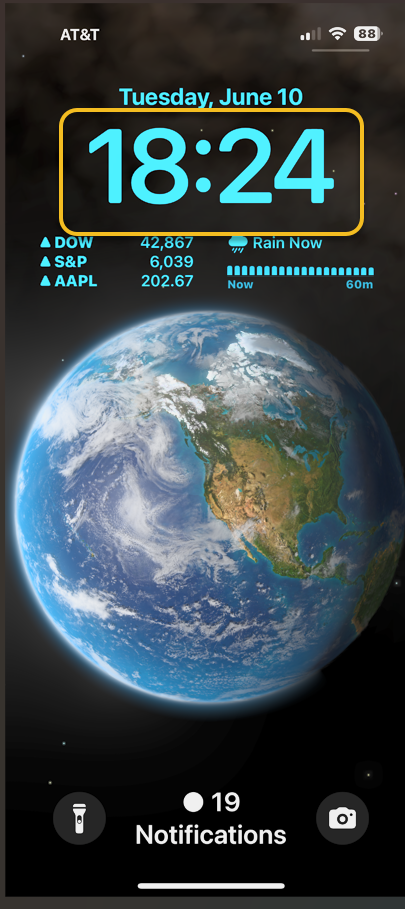
This tip uses the StandBy feature introduced in iOS 17. It should be enabled by default in iOS 17 and higher, but you will still want to confirm that it’s set up for this tip to work.

This nameless tip will show the time in the middle of your screen upon a certain action.

First, head to:

Settings > StandBy 

and make sure StandBy and Always On (if you have that feature) are enabled.

Next, if you want to see notifications, turn on Show Notifications.

Now, tap the Display option, then enable the Night Mode switch if you want the screen to take on a red tint in reaction to low ambient light at night so it does not disturb your sleep. Refer to the below image:

Numbers 4
Enabling options

Bext, you simply press and hold down the Time indicator in the status bar (top left). The current time will be displayed in the middle of your screen and stay there until you release the Time indicator. We ask, why? Some Apple engineer had too much time on his hands. See the below image:

Numbers 5
Press and hold the Time indicator to display Time in the middle of the screen

Want more useless information? Press and hold the other indicators (signal strength, WiFi and Battery). See the following image:

Numbers 6
Display another useless indicators

Technology is constantly evolving, and smartphone and desktop tech rarely remains static. Therefore, the information in this post is only accurate as of the date it was written. Blog posts that are older than six months may contain instructions that are no longer compatible with your device or operating system. We hope that the content from previous posts continues to function as intended. Thank you for reading TechSavvy.Life, where technology works for you.

“Please, no matter how we advance technologically, please don’t abandon the book. There is nothing in our material world more beautiful than the book.”

-Patti Smith

That’s it. Please feel free to share this post! One way to share is via Twitter.

Just click the Tweet icon below. This will launch Twitter where you click its icon to post the Tweet.

Checkout TechSavvy.Life for blog posts on smartphones, PCs, and Macs! You may email us at contact@techsavvy.life for comments or questions.

We value your feedback! Was this post helpful? Please share your comments with us. If you have a tech question related to your computer or smart device, feel free to reach out. Just send an email to contact@techsavvy.life, and be sure to include the device, app, and version you are using. To assist us further, you can also attach screenshots related to your inquiry.

Author’s eBook

The author’s Vietnam eBook on the “Battle for Tra Bong Vietnam: Events and Aftermath” can be accessed from a Kindle device or the Kindle App for a desktop or smartphone. The apps are free.

The author’s Vietnam eBook on the Battle for Tra Bong Vietnam: Events and Aftermath

iOS 18 Photos Search: Find Any Image Easily

Apple’s iOS 18 update enhances the Photos app with natural language search capabilities, allowing users to find images and videos more precisely by describing details. Users can combine elements or search for specific moments in videos.

InserRAYMOND OGLESBY @RaymondOglesby2
March 4, 2025 – 4 minutes read time

Apple’s iOS 18 update brings powerful new search functions to the Photos app, allowing you to find specific images with unprecedented precision. Let’s explore the new Photos app.

iOS 18, the key to effective searching in Photos is using natural language. Instead of simple keywords, try describing the photo you are looking for in detail. The app can now understand complex queries and find images based on specific elements within them.

The new search function is also pretty handy at finding objects and scenes. Try queries like “car next to lake” or “sunset over Tulsa.” You can combine multiple elements in your search, such as “blue flowers in vase by window.”

For food lovers, searches like “pizza with mushrooms” or “steak and chips on the table” can help you find culinary inspiration from your photo library. When searching for people, you can now include details about their appearance or actions. “Rachel in the green hat with a wine glass” or “Susan in a wedding dress” are examples of how specific you can get.

The Photos app can even search within videos. If you remember a specific moment in a video but can not recall which one, try describing the scene. For instance, “baby crawling” or “fireworks over Grand Lake” can take you directly to that moment.

Note! For these advanced search features to work, the Photos app needs time to index your library. This process happens on your device to protect your privacy, so be patient if searches aren’t immediately accurate after updating to iOS 18.

  • Find Photos of nearly anything using the new search feature.
  • Search for objects or text that appear in your photos.

This tip works on iPhones running iOS 18 or later. The screenshots are from iPhone 14 Pro running iOS 18.1

Click here to learn how to update your iPhone to the latest iOS version.

First, open the Photos app. Refer to the below image:

Photos 1
Selecting your Photos app

Next, tap the Search icon. See the below image:

Photos 2
Selecting the Search icon

Now, you will see some personalized suggestions, which you can tap. Or you can tap the Search bar to type in your own search terms. See the following image:

Photos 3
Selecting the Search button

Next, once you enter a search term, you will see all the photos in your library that match. Refer to the below image:

Photos 4
Entering your Search criteria

For example, we are searching for “Aletha Niagara Falls”. Now, we can see all the photos related to “Aletha in Niagara Falls”. See the below image:

Photos 5
Your results

Aletha, my wife, also has a blog at Watercress Words, exploring and sharing the HEART of health.

That’s how to search photos or videos on the iPhone. Try it out yourself! Put in a few search terms and see what you get! While iOS 18 made some controversial changes to the Photos app, this is one change that you will love. It’s super easy to find the exact photo you are looking for every time.

Disclaimer

Technology is constantly evolving, and smartphone and desktop tech rarely remains static. Therefore, the information in this post is only accurate as of the date it was written. Blog posts that are older than six months may contain instructions that are no longer compatible with your device or operating system. We hope that the content from previous posts continues to function as intended. Thank you for reading TechSavvy.Life, where technology works for you.

. “We are stuck with technology when what we really want is just stuff that works.” 

― Douglas Adams

Pretty impressive Photos app? Please feel free to share this post! One way to share is via Twitter.

Just click the Tweet icon below. This will launch Twitter where you click its icon to post the Tweet.

Checkout TechSavvy.Life for blog posts on smartphones, PCs, and Macs! You may email us at contact@techsavvy.life for comments or questions.

We value your feedback! Was this post helpful? Please share your comments with us. If you have a tech question related to your computer or smart device, feel free to reach out. Just send an email to contact@techsavvy.life, and be sure to include the device, app, and version you are using. To assist us further, you can also attach screenshots related to your inquiry.

Author’s eBook

The author’s Vietnam eBook on the “Battle for Tra Bong Vietnam: Events and Aftermath” can be accessed from a Kindle device or the Kindle App for a desktop or smartphone. The apps are free.

The author’s Vietnam eBook on the Battle for Tra Bong Vietnam: Events and Aftermath

Master the Look Up Feature on iPhone

The Look Up feature on iPhones allows users to quickly access definitions, thesaurus entries, and related websites by highlighting text and selecting the option. Available on iOS 16 or later, it enhances vocabulary learning and information retrieval across apps.

RAYMOND OGLESBY @RaymondOglesby2
February 18, 2025 – 3 minutes read time

Sometimes, while browsing the internet, you will come across words you do not understand or subjects you want to learn more about.

The Look Up feature allows you to easily look up the definition of words. Its menu provides links to several options: Apple’s dictionary, other dictionaries, Siri-suggested websites, Wikipedia, the App Store, and more.

You can even use Look Up as a free thesaurus app, or use the Look Up feature in Safari to find additional references to a word or phrase on the internet.

Let’s explore looking up words on iPhone with the Look Up feature.

  • Quickly check the definition of words or phrases with just a few taps.
  • Easily find websites or apps related to specific words.

This tip works on iPhones running iOS 16 or later.

Screenshots are from iPhone 14 Pro running iOS 18.3

Click here to learn how to update your iPhone to the latest iOS version.

First, anywhere you can select text, tap and hold to highlight the text. Refer to the below image:

Lookup 1
Highlight text to look up

Next, above the word or phrase, a horizontal menu or a drop down menu will appear depending on your iOS. Tap the arrow to the right or select the Look Up option (as shown). See the below image:

Lookup 2
Selecting the Look Up option

Now the results will appear in a pop-up. Usually, you will see a dictionary definition of the word(s). Pull up on the window to see more results. See the following image:

Lookup 3
The dictionary meaning of the highlighted text

Bext, depending on the text you selected, you will see various results from different websites and apps. Scroll down to see more results. Refer to the below image:

Lookup 5
Additional results for the highlighted text

That’s how to use the Look Up feature on your iPhone. While we demonstrated this feature from a WordPress blog, it can be used anywhere where you can select text.

Technology is constantly evolving, and smartphone and desktop tech rarely remains static. Therefore, the information in this post is only accurate as of the date it was written. Blog posts that are older than six months may contain instructions that are no longer compatible with your device or operating system. We hope that the content from previous posts continues to function as intended. Thank you for reading TechSavvy.Life, where technology works for you.

Technology is nothing. What’s important is that you have faith in people, that they’re basically good and smart, and if you give them tools, they’ll do wonderful things with them.

– Steve Jobs

That’s it. Please feel free to share this post! One way to share is via Twitter.

Just click the Tweet icon below. This will launch Twitter where you click its icon to post the Tweet.

Checkout TechSavvy.Life for blog posts on smartphones, PCs, and Macs! You may email us at contact@techsavvy.life for comments or questions.

We value your feedback! Was this post helpful? Please share your comments with us. If you have a tech question related to your computer or smart device, feel free to reach out. Just send an email to contact@techsavvy.life, and be sure to include the device, app, and version you are using. To assist us further, you can also attach screenshots related to your inquiry.

Author’s eBook

The author’s Vietnam eBook on the “Battle for Tra Bong Vietnam: Events and Aftermath” can be accessed from a Kindle device or the Kindle App for a desktop or smartphone. The apps are free.

The author’s Vietnam eBook on the Battle for Tra Bong Vietnam: Events and Aftermath

Enhance Safety with iPhone’s Emergency SOS Feature

The Emergency SOS feature lets you call for help in many different ways, including discreetly by holding down a button, via satellite, and even automatically if

RAYMOND OGLESBY @RaymondOglesby2
February 4, 2025 – 4 minutes read time

The Emergency SOS feature lets you call for help in many different ways, including discreetly by holding down a button, via satellite, and even automatically if a car crash or fall is detected. After an Emergency SOS call ends, your iPhone will automatically send a message with your location to your Emergency contact(s). Add an extra layer of security to your life by adding your iPhone emergency contact(s).

  • Give your loved ones peace of mind by adding them as Emergency contacts.
  • Customize your Emergency SOS settings to suit your needs.

System Requirements

This tip works on iPhones 14 and above running iOS 18 or later.

Screenshots are from iPhone 14 Pro running iOS 18.3

Click here to learn how to update your iPhone to the latest iOS version.

There are many different ways to set up and activate Emergency SOS depending on what devices and device models you have. Only iPhone 14 and newer models can use Emergency SOS via satellite and have automatic Crash Detection (on by default.) iPhones running iOS 18 can use Live Video during emergency calls. You will need a newer Apple Watch model to use automatic Fall Detection. Here’s how to set your iPhone’s Emergency SOS contact(s). In this example, we are setting up Zoey Oglesby as an emergency contact,

First, open the Health app on your iPhone. Refer to the below image:

Add Emerg 1
Find and open the Health app

Next, tap your Profile icon in the to right corner. See the below image:

Add Emerg 2
Select your Profile icon

Now, select Medical ID. See the following image:

Add Emerg 3
Select the Medical ID option

Next, under Emergency Access section, toggle Show When Locked and Share During Emergency Call to ON. Refer to the below image:

Add Emerg 10
Toggle Show When Locked and Share During Emergency Call to ON

Now, scroll down to Emergency Contacts and tap Edit. See the below image:

Add Emergy 4
Select to Edit Emergency Contacts

Next, tap the green plus sign to add a new emergency contact. See the following image:

Add Emerg 5
Select the plus icon to Add Emergency Contact

Now, your Contacts will pop up. Find the contact you want and tap on their name. Refer to the below image:

Add Emerg 6
Select a contact

Next, select their relationship with you. See the below image:

Add Emerg 7
Select their Relationship with you

Next, tap Done. See the following image:

Add Emerg 8
Select Done to add the contact

Your emergency contact(s) will now receive a text message and your location should you make an emergency call using Emergency SOS on your iPhone. In your Contacts, the emergency contact(s) are indicated by an asterisk (*) next to their name. Refer to the image below, where four family members are indicated as emergency contacts (others are on a different contact page):

Add Emerg 9
Your added Emergency Contacts indicated by an asterisk (*)

Accessing your Medical ID within the Health app allows you to display only your emergency contacts. When the Show When Locked option is turned on, your emergency contact information will appear on the Lock screen.

Disclaimer

Technology is constantly evolving, and smartphone and desktop tech rarely remains static. Therefore, the information in this post is only accurate as of the date it was written. Blog posts that are older than six months may contain instructions that are no longer compatible with your device or operating system. We hope that the content from previous posts continues to function as intended. Thank you for reading TechSavvy.Life, where technology works for you.

The technology you use impresses no one. The experience you create with it is everything.

-Sean Gerety

That’s it. You have just setup emergency contacts that may save your life. Please feel free to share this post! One way to share is via Twitter.

Just click the Tweet icon below. This will launch Twitter where you click its icon to post the Tweet.

Checkout TechSavvy.Life for blog posts on smartphones, PCs, and Macs! You may email us at contact@techsavvy.life for comments or questions.

We value your feedback! Was this post helpful? Please share your comments with us. If you have a tech question related to your computer or smart device, feel free to reach out. Just send an email to contact@techsavvy.life, and be sure to include the device, app, and version you are using. To assist us further, you can also attach screenshots related to your inquiry.

Author’s eBook

The author’s Vietnam eBook on the “Battle for Tra Bong Vietnam: Events and Aftermath” can be accessed from a Kindle device or the Kindle App for a desktop or smartphone. The apps are free.
The author’s Vietnam eBook on the Battle for Tra Bong Vietnam: Events and Aftermath