Quick Camera Access in iOS 26

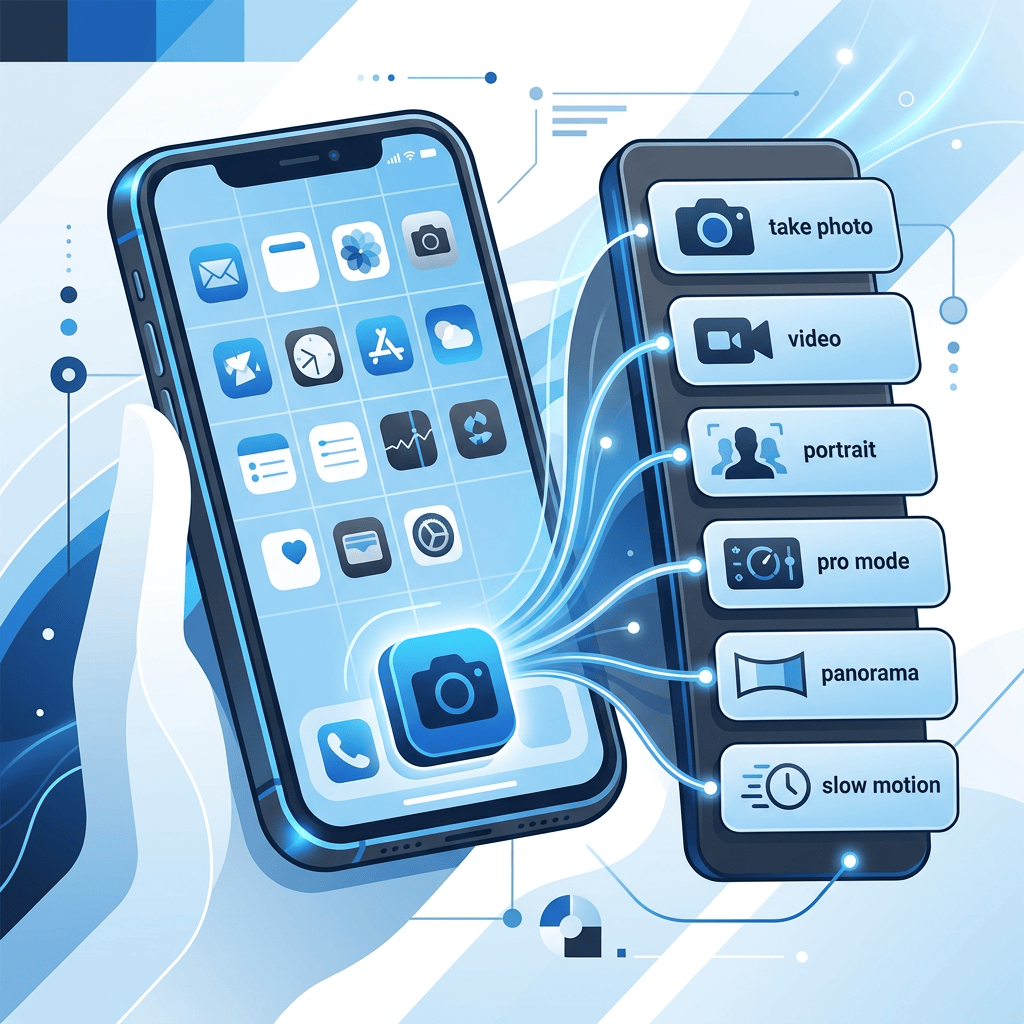
In iOS 26, accessing different camera modes has become simpler by allowing users to long press the Camera app icon on the Home Screen. This bypasses the need to swipe through modes, saving time and reducing confusion. The feature applies to modes like Selfie, Video, and Portrait on devices running iOS 26.

RAYMOND OGLESBY @RaymondOglesby2
October 6 2026 – 3 minutes read time

In iOS 26, the Camera app controls have been tucked away, making the display cleaner but making it more challenging to find the camera mode (like selfie, video, or portrait) you want. We all know that taking the perfect photo can require lightning reflexes, so here’s how to launch into your camera mode of choice right from your Home Screen, bypassing your in-app controls altogether.

No need to swipe to find the right one. All you have to do is long press on your Camera icon and then select either Selfie, Video, Portrait, or Portrait Selfie. Let explore this nifty feature.

Note! This only works from your Home Screen, not from a Lock Screen shortcut.

  • Open your Camera in the exact mode you’re looking for, whether Selfie, Video, or Portrait.
  • Save time by not swiping between modes.
  • Avoid confusion with the iOS 26 Camera layout.

This tip was performed on an iPhone 17 Pro running iOS 26.5.

Click here to learn how to update your iPhone to the latest iOS version.

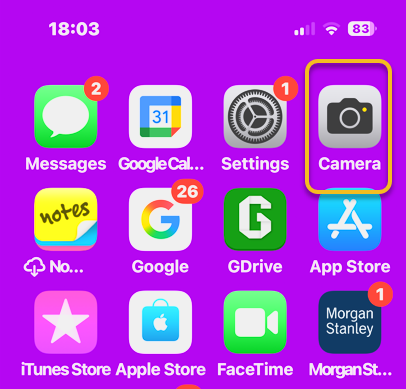
1. On your Home Screen, long press on your Camera app icon. Refer to the image below:
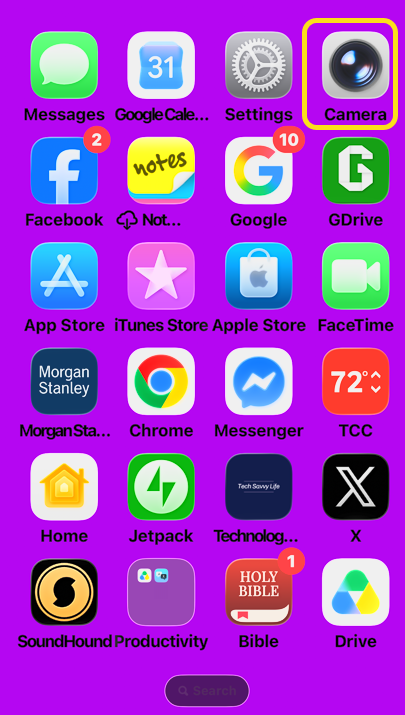
Selfie 1
Selecting the Camera app

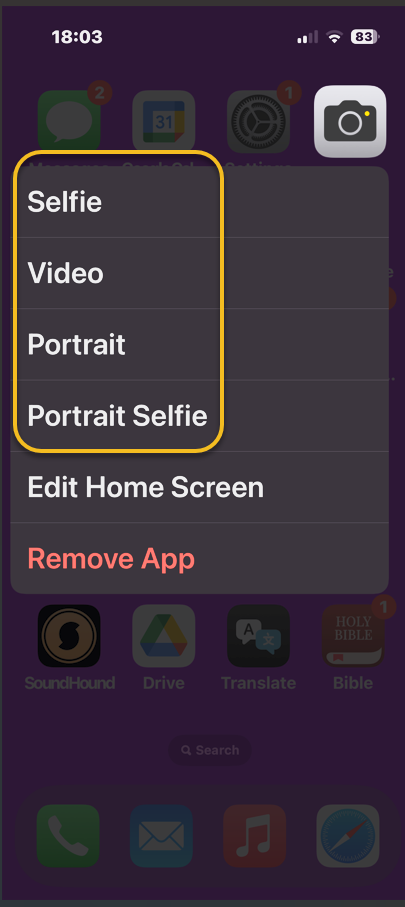
2. Tap Selfie, Video, Portrait, or Portrait Selfie. See the image below:
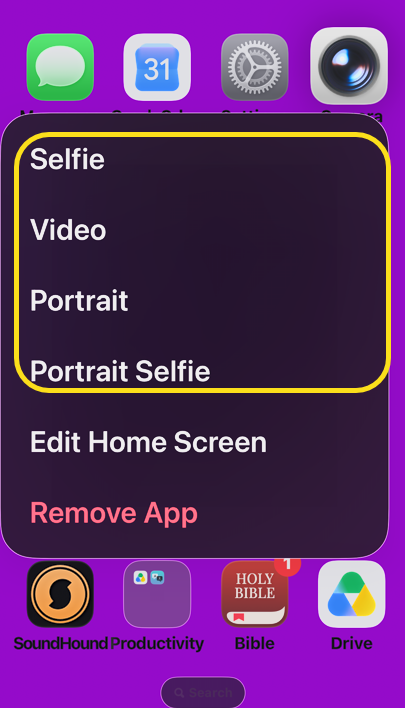
Selfie 2
‘selecting a Camera mode

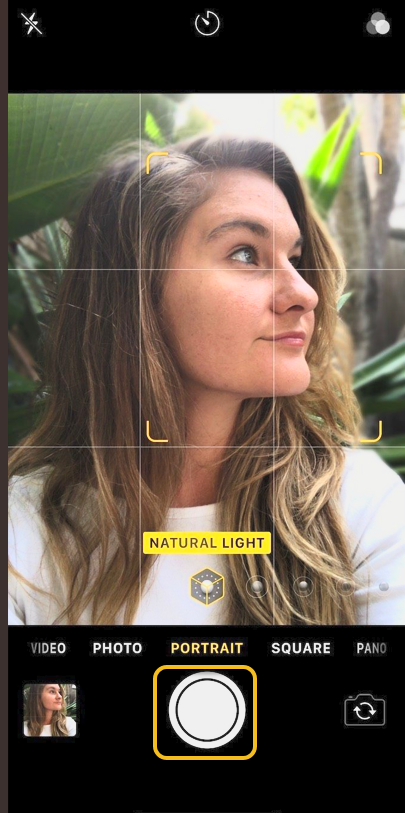
Your Camera app will open in your selected mode, ready to shoot. Tap the capture/record icon and you are set! See the following image:
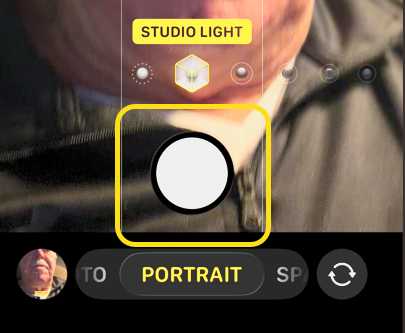
Selfie 3
Take the selfie

Your photos will capture as usual, and if you want to switch modes, you can do it in the now open Camera app.

Technology is constantly evolving, and smartphone and desktop tech rarely remains static. Therefore, the information in this post is only accurate as of the date it was written. Blog posts that are older than six months may contain instructions that are no longer compatible with your device or operating system. We hope that the content from previous posts continues to function as intended. Thank you for reading TechSavvy.Life, where technology works for you.

The saddest aspect of life right now is that science gathers knowledge faster than society gathers wisdom. 

– Isaac Asimov

That’s it. Please feel free to share this post! One way to share is via Twitter.

Just click the Tweet icon below. This will launch Twitter where you click its icon to post the Tweet.

Checkout TechSavvy.Life for blog posts on smartphones, PCs, and Macs! You may email us at contact@techsavvy.life for comments or questions.

We value your feedback! Was this post helpful? Please share your comments with us. If you have a tech question related to your computer or smart device, feel free to reach out. Just send an email to contact@techsavvy.life, and be sure to include the device, app, and version you are using. To assist us further, you can also attach screenshots related to your inquiry.

Author’s ebook

The author’s Vietnam eBook, “Battle for Tra Bong Vietnam: Events and Aftermath”, is available on Kindle devices and the Kindle App for desktop, laptop, and smartphone. The apps are free.
The author’s Vietnam eBook on the Battle for Tra Bong Vietnam: Events and Aftermath

Access Selfie, Video, and Portrait Modes Instantly

In iOS 26, the Camera app’s controls are hidden, complicating mode selection. A useful tip allows users to open the Camera in desired modes (Selfie, Video, Portrait) directly from the Home Screen via a long press. This method saves time and enhances usability for capturing moments.

RAYMOND OGLESBY @RaymondOglesby2
September 9, 2025 – 3 minutes read time

In iOS 26, the Camera app controls have been tucked away, making the display cleaner but making it more challenging to find the camera mode (like selfie, video, or portrait) you want. We all know that taking the perfect photo can require lightning reflexes, so here’s how to launch into your camera mode of choice right from your Home Screen, bypassing your in-app controls altogether.

Why You Will Like This Tip

  • Open your Camera in the exact mode you’re looking for, whether Selfie, Video, or Portrait.
  • Save time by not swiping between modes.
  • Avoid confusion with the iOS 26 Camera layout.

This tip can be performed on an iPhone running iOS 26 to be available in September 2025. This tip works on earlier OS versions as well such as iOS 18.6.

Click here to learn how to update your iPhone to the latest iOS version.

Did you know you can open your Camera app to a specific mode right from your Home Screen? No need to swipe to find the right one. All you have to do is long-press on your Camera icon and then select either Selfie, Video, Portrait, or Portrait Selfie.

Note! This only works from your Home Screen, not from a Lock Screen shortcut.

First, on your Home Screen, long-press on your Camera app icon. Refer to the image below:

Selfie 1
Selecting the Camera app

Next, tap Selfie, Video, Portrait, or Portrait Selfie from the menu. See the image below:

Selfie 2
Selecting a camera option

Now, yourCamera app will open in your selected mode, ready to shoot. Tap the Capture/Record icon , and you are set! See the following image:

Selfie 3
Selecting the icon to take a selfie

Say cheese! Your photos will capture as usual, and if you want to switch modes, you can do it in the now-open Camera app.

Technology is constantly evolving, and smartphone and desktop tech rarely remains static. Therefore, the information in this post is only accurate as of the date it was written. Blog posts that are older than six months may contain instructions that are no longer compatible with your device or operating system. We hope that the content from previous posts continues to function as intended. Thank you for reading TechSavvy.Life, where technology works for you.

“In a tech-savvy world, true innovation lies in being people-savvy.”

 – Whitney Wolfe Herd, Founder of Bumble

You are finished. Please feel free to share this post! One way to share is via Twitter.

Just click the Tweet icon below. This will launch Twitter where you click its icon to post the Tweet.

Checkout TechSavvy.Life for blog posts on smartphones, PCs, and Macs! You may email us at contact@techsavvy.life for comments or questions.

We value your feedback! Was this post helpful? Please share your comments with us. If you have a tech question related to your computer or smart device, feel free to reach out. Just send an email to contact@techsavvy.life, and be sure to include the device, app, and version you are using. To assist us further, you can also attach screenshots related to your inquiry.

Author’s eBook

The author’s Vietnam eBook on the “Battle for Tra Bong Vietnam: Events and Aftermath” can be accessed from a Kindle device or the Kindle App for a desktop or smartphone. The apps are free.

The author’s Vietnam eBook on the Battle for Tra Bong Vietnam: Events and Aftermath