Smartphone displays are rarely the same aspect ratio as YouTube videos. That leaves black bars on the sides. You can pinch-to-zoom to fill the screen, but if you are always doing that, you might as well make it default.
Smartphone displays are rarely the same aspect ratio as YouTube videos. That leaves black bars on the sides. You can pinch-to-zoom to fill the screen, but if you are always doing that, you might as well make it default. Let’s explore how to setup viewing a YouTube video in full screen.
This is is for the iPhone, iPad, and Android. Screenshots are from iPhone XR.
Copyright Scott Adams, Inc./Distributed by Universal Uclick for UFS
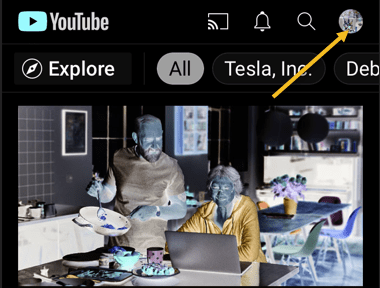
First, open the YouTube app on your iPhone, iPad, or Android device. Now, tap your profile icon in the top-right-hand corner. Refer to below image:
Accessing your Profile icon
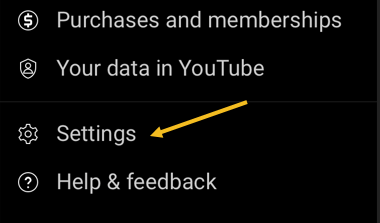
Next, tap Settings from the menu. See below image:
Accessing Settings
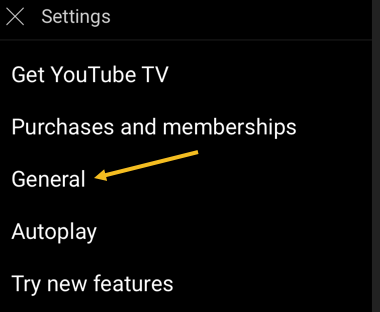
Now, go to the General section. See following image:
Accessing General section
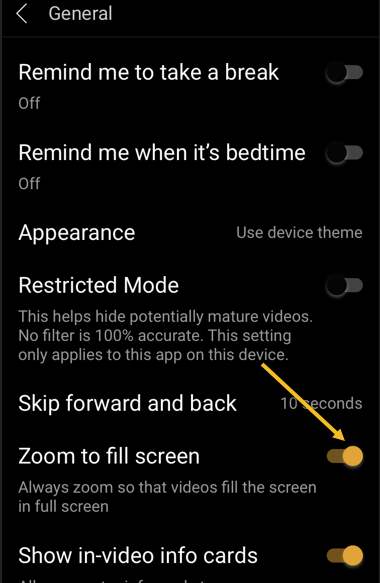
Next, toggle the switch for Zoom to fill screen to ON. Refer to below image:
Toggle ON the Zoom to fill screen
Now, you will no longer need to zoom in on every YouTube video to take up the entire screen.
Quote For the Day
An iPod, a phone, an internet mobile communicator… these are NOT three separate devices! And we are calling it iPhone! Today Apple is going to reinvent the phone. And here it is.
Steve Jobs
You are finished. Please feel free to share this post! One way to share is via Twitter.
Just click the Tweet icon below. This will launch Twitter where you click its icon to post the Tweet.
Check out TechSavvy.Life for blog posts on smartphones, PCs, and Macs! You may email us at contact@techsavvy.life for comments or questions.
Please feel free to leave a comment. I would love hearing from you. Do you have a computer or smart device tech question? I will do my best to answer your inquiry. Just send an email to contact@techsavvy.life. Please mention the device, app and version that you are using. To help us out, you can send screenshots of your data related to your question.

The author’s Vietnam eBook on the Battle for Tra Bong Vietnam: Events and Aftermath
Do you have videos on your smartphone that you want to upload to YouTube but not sure how to do this? If you have recorded videos with your smartphone, you can upload them directly to your YouTube channel from your iPhone or Android device.
Do you have videos on your smartphone that you want to upload to YouTube but not sure how to do this? If you have recorded videos with your smartphone, you can upload them directly to your YouTube channel from your iPhone or Android device. Let’s see how this is done.
This is for iPhone and Android
Copyright Scott Adams, Inc./Distributed by Universal Uclick for UFS
First, to upload a video to YouTube from your iPhone or Android device, you will need the official YouTube app on your phone. Download and install the app on your iPhone or Android device, if you have not already done so. To search for the app on an iPhone, go to your very first screen, the Spotlight Search, and type in “YouTube” to locate the app.
Uploading a Video
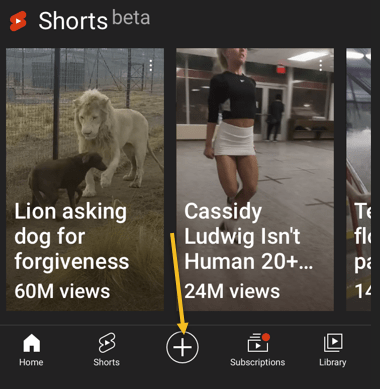
Next, launch the YouTube app on your phone and log in to your YouTube (Google) account. Then, from the bar at the bottom of the app, select the “+” (plus) sign. Refer to below image:
Accessing the Add icon
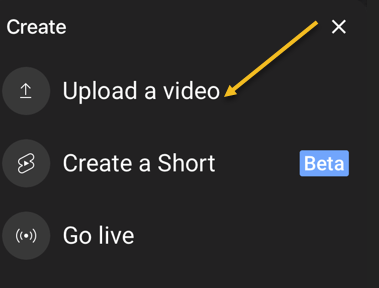
Now, YouTube will open a Create menu. Select Upload a video from this menu. Note! If you want to make a YouTube Short, tap the Create a Short option, or, to stream a video, tap the Go live option. See below image:
Selecting to Upload a video
Next, you will see an Upload screen that displays all your phone’s videos. Here, tap the video that you would like to upload to YouTube. Then, when the video begins to play, tap NEXT at the top-right corner of the app. See following image:
Your Video to upload
Add Details
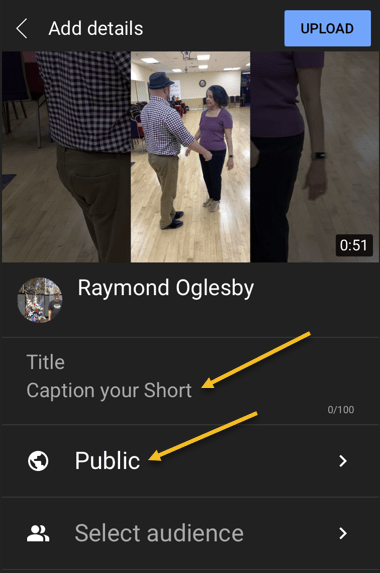
Now, you are on the Add details screen. Here, tap the Title field and enter a title for your video. Then tap Public to choose who can watch your video on YouTube. Refer to below image:
Add some details about your Video
Set Visibility, Schedule, and Audience
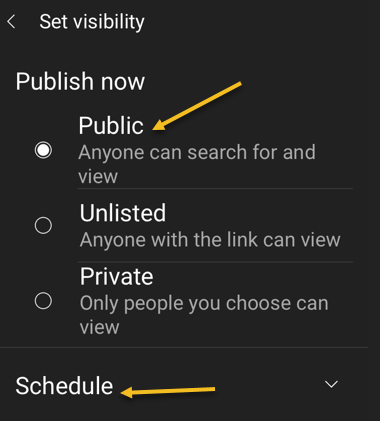
Next, on the Set Visibility screen, select one of these visibility options for your video:
Public: This allows anyone on YouTube to watch your video.
Unlisted: With this option, only the people you share your video’s link with can watch the video.
Private: Only you and the people you choose can watch the video.
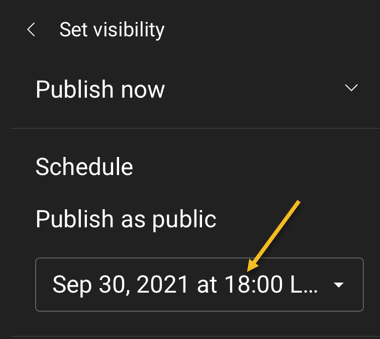
Now, tap Schedule to release your video on YouTube at a specific time. See below image:
Selecting who can see your Video
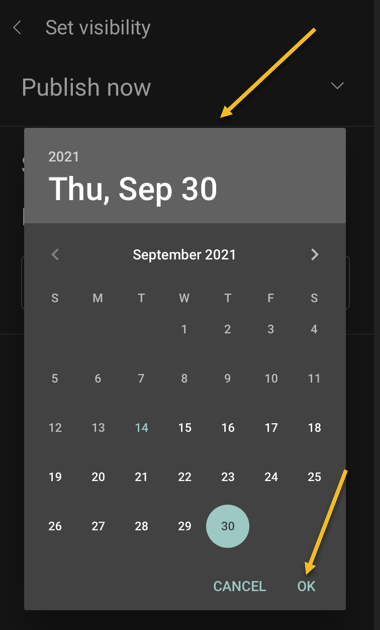
Set your date then tap OK. See following image:
Selecting the Video scheduled date
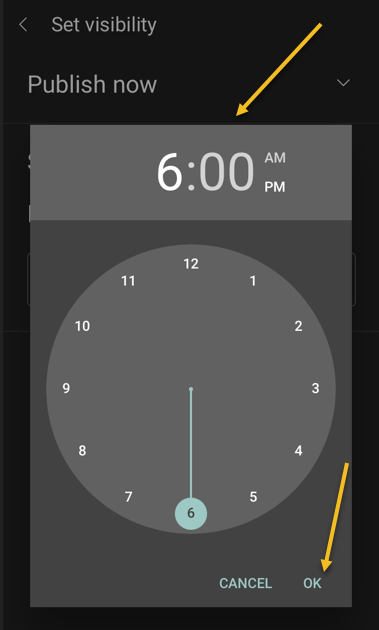
Set your time then tap OK. Refer to below image:
Selecting the Video scheduled time
Your scheduled release of the video is displayed. See below image:
Your Video release date and time
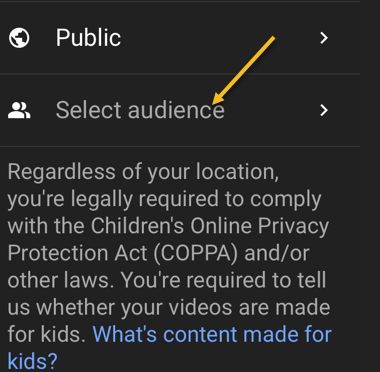
Next, tap the Select audience option. See following image:
Selecting your Audience
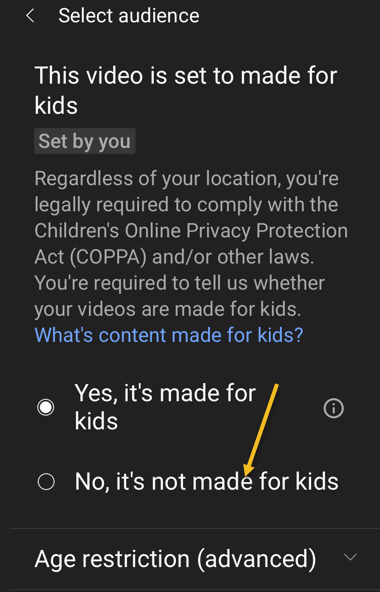
If your video is meant for kids, select the Yes, it’s made for kids option. Otherwise, select the No, it’s not made for kids option. If you choose the No… option, you can specify further options by tapping Age restriction (advanced). Next, at the top-right corner of the app, tap Upload (not shown). Refer to below image where we selected the video is made for kids:
Selecting who is your Audience
Edit Your Video Details
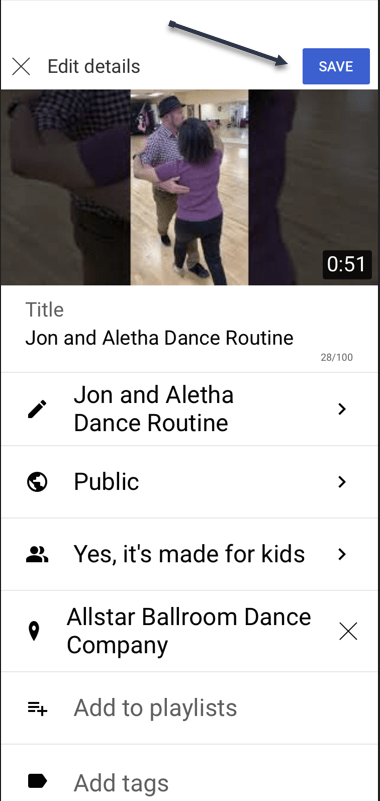
Your video will begin to upload to YouTube. When that’s done, go to Library > Your videos section of the YouTube app. Then, tap the video 3 dots menu button. Now, tap Edit to open the Edit Details screen and make any changes. When you are finished, tap Save. See below image:
Edit your Video details
Your Videos Listing
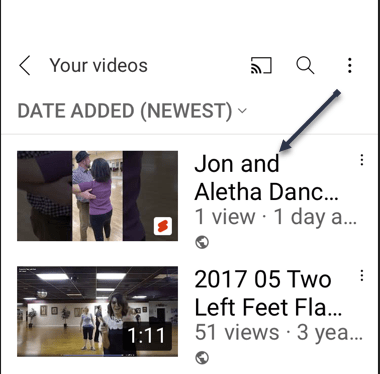
Next, access Your videos section to see your uploaded video. See following image:
Your recently uploaded Video
And that’s how you begin your journey of becoming a YouTuber!
Quote For the Day
Remembering that you are going to die is the best way I know to avoid the trap of thinking you have something to lose. You are already naked. There is no reason not to follow your heart.
Steve Jobs
You are finished. Please feel free to share this post! One way to share is via Twitter.
Just click the Tweet icon below. This will launch Twitter where you click its icon to post the Tweet.
Check out TechSavvy.Life for blog posts on smartphones, PCs, and Macs! You may email us at contact@techsavvy.life for comments or questions.
Please feel free to leave a comment. I would love hearing from you. Do you have a computer or smart device tech question? I will do my best to answer your inquiry. Just send an email to contact@techsavvy.life. Please mention the device, app and version that you are using. To help us out, you can send screenshots of your data related to your question.

The author’s Vietnam eBook on the Battle for Tra Bong Vietnam: Events and Aftermath
Features like Google account’s password and bookmark sync, extension support, cross-device migration, etc., make Chrome the number one choice over competitors. Chrome is the most installed web browser used today.
Features like Google account’s password and bookmark sync, extension support, cross-device migration, etc., make Chrome the number one choice over competitors. Chrome is the most installed web browser used today. Let’s explore how to set Chrome as your default browser.
This is for Windows 10 and iPhone/iPad running Chrome
Copyright Scott Adams, Inc./Distributed by Universal Uclick for UFS
Before we go any further, you need to have the Google Chrome browser installed on your computer or iPhone/iPad. You can download the Chrome app from the app or play store for your iPhone/iPad or from Google’s website if you are using a desktop or laptop.
Set Chrome as Default Browser on Windows 10
First, open System settings by pressing Windows key+I, and then click on Apps. Refer to below image:
Selecting Apps from Settings
Next, from the pane on the left side, click Default Apps. See below image:
Selecting Default Apps
Now, locate the Web Browser section, click on your current default browser, and then scroll through the list and select Google Chrome. See following image where Google Chrome is already my default browser:
Setting Chrome as default web browser
Next, close Settings. Chrome is now your default web browser.
Set Chrome as Default Browser on iPhone/iPad
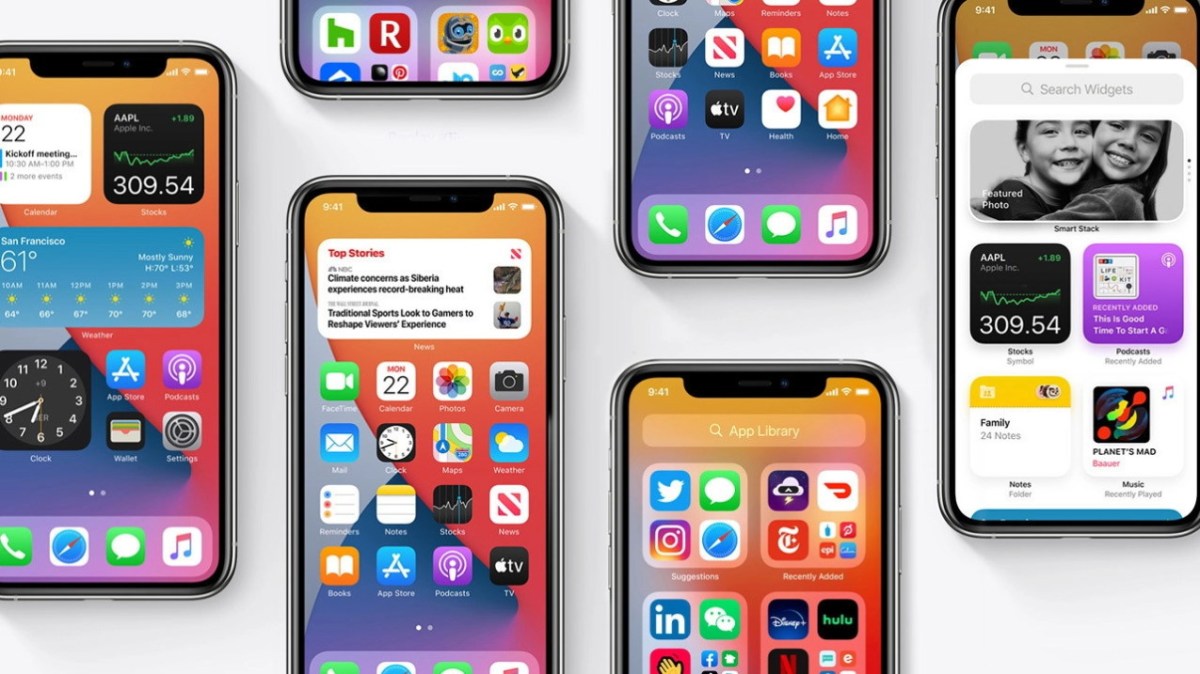
If you are running iOS 14 and iPadOS 14 or higher, Apple made it possible to change the default web browser on iPhone/iPad.
First, locate your Settings app on your iPhone/iPad and tap it. Use Apple’s built-in Spotlight Search (your first screen) to quickly find the app if you can not locate it on your Home screen. Refer to below image:
Accessing Settings
Next, scroll down and select the Chromeapp. See below image:
Selecting Chrome
Now, select the Default Browser App from the menu. If the setting has not been changed before, it will list Safari as the default. See following image:
Selecting Default Browser app
Next, choose Chrome from the list of installed web browser apps. Refer to below image:
Setting Chrome as default web browser
Now, close Settings. The next time you click on a link in any app installed on your iPhone/iPad, it will automatically open Chrome.
Quote For the Day
I was born not knowing and have had only a little time to change that here and there.
Richard Feynman
And that’s it. Please feel free to share this post! One way to share is via Twitter.
Just click the Tweet icon below. This will launch Twitter where you click its icon to post the Tweet.
Checkout TechSavvy.Life for blog posts on smartphones, PCs, and Macs! You may email us at contact@techsavvy.life for comments or questions.
Please feel free to leave a comment. I would love hearing from you. Do you have a computer or smart device tech question? I will do my best to answer your inquiry. Just send an email to contact@techsavvy.life. Please mention the device, app and version that you are using. To help us out, you can send screenshots of your data related to your question.
The author’s Vietnam eBook on the Battle for Tra Bong Vietnam: Events and Aftermath
Google Chrome 93 is officially here. There is plenty to be excited about. For example, with Chrome 93, progressive web apps (PWAs) feel a lot more like native desktop apps, as clicking on a link can open an associated web app. There’s also improved multi-screen support for web apps, making this an update web app users will love.
Google Chrome 93 is officially here. There is plenty to be excited about. For example, with Chrome 93, progressive web apps (PWAs) feel a lot more like native desktop apps, as clicking on a link can open an associated web app. There’s also improved multi-screen support for web apps, making this an update web app users will love. Let’s explore how to install Chrome 93.
This is for Windows, Android, Mac, iPhone, and iPad
Copyright Scott Adams, Inc./Distributed by Universal Uclick for UFS
Some new features are related to recently closed tabs, a Material You theme for Android 12, a new Google Search UI on Android, the ability to sync Two-Factor OTP codes across devices (a true game-changer), the ability to use note-taking apps right from the browser, a new context menu on iPhone, and so much more.
Chrome 93 will now also show Google Drive documents on the New Tab page. The suggested documents will appear in a card underneath the Search Bar, allowing you to easily access recently edited Google Docs or Sheets.
First, you can check for an update by going to the three-dot menu hamburger icon on the top-right of Chrome. Next, click Help followed by About Google Chrome. Refer to below image:
Selecting the About option
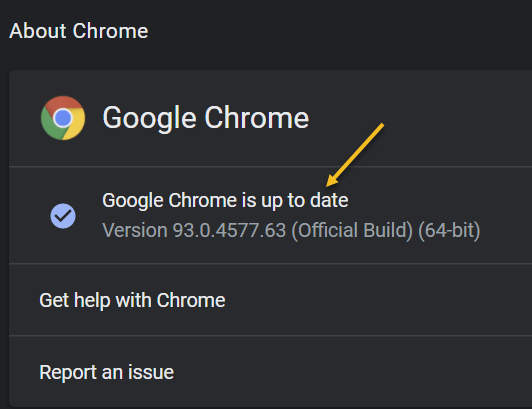
Now, the Chrome Settings window open. If Chrome is outdated, it will automatically download and install the latest version. See below image:
Your Chrome version
Now, close Chrome and restart the app.
If you are on iPhone or Android, update the app as you would for any other application.
Quote For the Day
The most remarkable discovery in all of astronomy is that the stars are made of atoms of the same kind as those on the earth.
Richard P Feynman
You are finished. Please feel free to share this post! One way to share is via Twitter.
Just click the Tweet icon below. This will launch Twitter where you click its icon to post the Tweet.
Check out TechSavvy.Life for blog posts on smartphones, PCs, and Macs. You may email us at contact@techsavvy.life for comments or questions.
Please feel free to leave a comment. I would love hearing from you. Do you have a computer or smart device tech question? I will do my best to answer your inquiry. Just send an email to contact@techsavvy.life. Please mention the device, app and version that you are using. To help us out, you can send screenshots of your data related to your question.
The author’s Vietnam eBook on the Battle for Tra Bong Vietnam: Events and Aftermath
The Reading List is a similar concept to bookmarks but intended for reading material that you find online. At the time of this writing, it’s available in Chrome on the desktop (Windows, Mac, and Linux) and for iPhone and iPad. The feature is not available on Android.
The Reading List is a similar concept to bookmarks but intended for reading material that you find online. At the time of this writing, it’s available in Chrome on the desktop (Windows, Mac, and Linux) and for iPhone and iPad. The feature is not available on Android. For this blog post, we will explore this feature for the iPhone and iPad.
This is for the iPhone and iPad using Google Chrome
Copyright Scott Adams, Inc./Distributed by Universal Uclick for UFS
Chrome for iPhone and iPad has two different ways to add web pages to your Reading List. It can either be done from Chrome or from another app.
Method 1 – Within Chrome
First, find a page to save for later, and then tap the Share icon in the address bar. Refer to below image:
Accessing the Share icon
Next, select Read Later from the menu. See below image:
Selecting Read Later option
That’s it! The page is now in your Reading List.
Method 2 – Use an App
The second method allows you to add things to the list from outside of Chrome. Now, find a news article or story that you would like to read later in any app. In our example, we are using Apple News. Next, find the Share icon in the app and tap it. See following image:
Accessing the Share icon
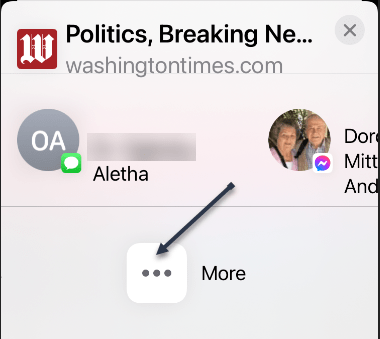
Now, find Chrome in the app row and select it. If you do not see Chrome, tap the three-dot More menu. Refer to below image:
Finding the Chrome app
Now, find Chrome from the app list and tap it. See below image:
Selecting Chrome app
Next, from the Chrome menu, tap Read Later. See following image:
Selecting Read Later option
To access the Reading List on your iPhone or iPad, first, open Chrome and tap the three-dot Menu icon at the bottom. Refer to below image:
Accessing the Menu icon
Next, select Reading List from the menu. You will notice a number that indicates unread pages. See below image:
Accessing Reading List option
Now, the Reading List will open with Unread pages at the top and Pages You’ve Read at the bottom. Pages marked with a green check are ready to read offline. See following image:
Your Reading List
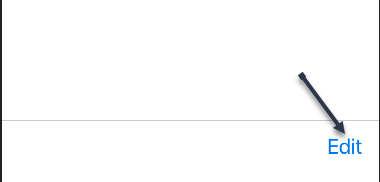
Next, tap Edit in the bottom corner to manage the list. Refer to below image:
Selecting to Edit your Reading List
From here, you can select pages and delete or mark them as read. See below image:
Selecting Delete or Mark as Read option
The Reading List is a nice, simple alternative to apps that provide similar services. It all happens right inside of Chrome without any additional software.
Quote For the Day
We’ve gotta reinvest in space travel. We should’ve never left the moon.
Ray Bradbury
That’s it. Please feel free to share this post! One way to share is via Twitter.
Just click the Tweet icon below. This will launch Twitter where you click its icon to post the Tweet.
Check out TechSavvy.Life for blog posts on smartphones, PCs, and Macs. You may email us at contact@techsavvy.life for comments or questions.
Please feel free to leave a comment. I would love hearing from you. Do you have a computer or smart device tech question? I will do my best to answer your inquiry. Just send an email to contact@techsavvy.life. Please mention the device, app and version that you are using. To help us out, you can send screenshots of your data related to your question.
The author’s Vietnam eBook on the Battle for Tra Bong Vietnam: Events and Aftermath
When you click a PDF link in Chrome, the browser opens the PDF in a preview window. If you do not want this, you can change its default behavior.
The Chrome browser has a built-in option to change this default setting. You can instruct Chrome to automatically download the PDF file without opening it in a preview window.
Instead, Chrome will prompt you to save your PDFs. Let’s explore how to set this feature in Google Chrome.
This is for devices running Google Chrome
Copyright Scott Adams, Inc./Distributed by Universal Uclick for UFS
First, open Google Chrome on your computer. Next, click the Chrome menu (three dots hamburger icon) in the top right-hand corner of your window. Now, select Settings. Refer to below image:
Accessing Settings
Next, in Chrome settings, click Privacy and security in the left sidebar. Click Site Settings on the right. See below image:
Accessing Site Settings
Now, scroll down in Site Settings and click Additional content settings at the very bottom of your screen. See following image:
Accessing additional content
Next, in the expanded menu, select PDF documents on the left. Refer to below image:
Accessing PDF documents
Now, toggle ON the Download PDF files instead of automatically opening them in Chrome option. Refer to below image:
Enable download of PDF documents instead of preview
Chrome will now display the standard save prompt for PDFs.
Quote For the Day
But the fact that some geniuses were laughed at does not imply that all who are laughed at are geniuses. They laughed at Columbus, they laughed at Fulton, they laughed at the Wright Brothers. But they also laughed at Bozo the Clown.
Carl Sagan
You are finished. Please feel free to share this post! One way to share is via Twitter.
Just click the Tweet icon below. This will launch Twitter where you click its icon to post the Tweet.
Check out TechSavvy.Life for blog posts on smartphones, PCs, and Macs! You may email us at contact@techsavvy.life for comments or questions.
Please feel free to leave a comment. I would love hearing from you. Do you have a computer or smart device tech question? I will do my best to answer your inquiry. Just send an email to contact@techsavvy.life. Please mention the device, app and version that you are using. To help us out, you can send screenshots of your data related to your question.
The author’s Vietnam eBook on the Battle for Tra Bong: Events and Aftermath
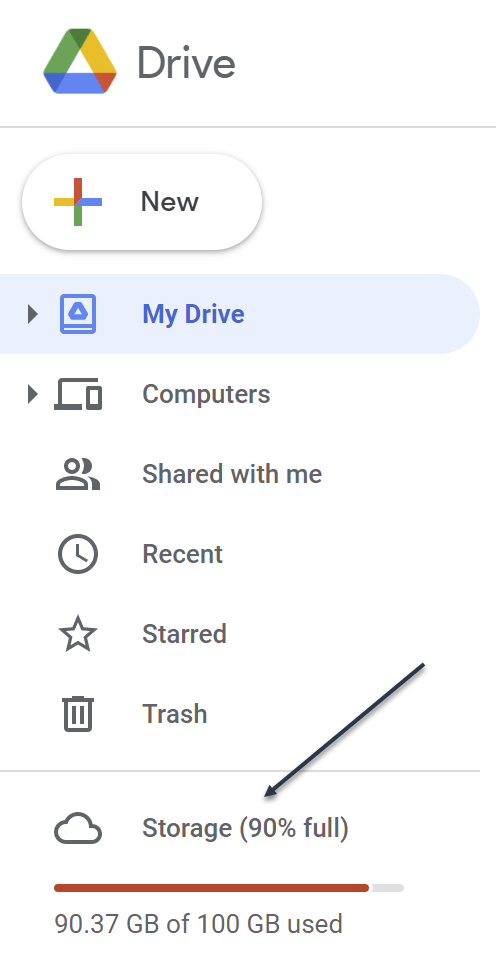
It’s easy to run out of space on Google Drive, since it stores data across much of your Google account. Fortunately, it’s also easy to delete data and free up some storage. As you will see, I am running out of space. Let’s explore how to do this.
This is for devices using Google Drive. Screenshots are from Drive on Windows 10 PC
Copyright Scott Adams, Inc./Distributed by Universal Uclick for UFS
If you use Google Drive to share large files, it’s quite easy to hit the 15GB free data limit on your Google account. While you can upgrade, for a price, it’s best to manually delete some data for more space first. After doing this, I upgraded to the 100GB plan, yet I am still out of space.
You will not need to spend hours combing through every nook and cranny in Google Drive. The website has a storage management feature that lists all your files, sorting them based on their file size.
First, open the Drive website in your browser.
You will see the Storage section at the bottom of the left sidebar. This will show you how much storage space you have left in your account. Now, click the Storage button. Refer to below image:
Your used Storage space
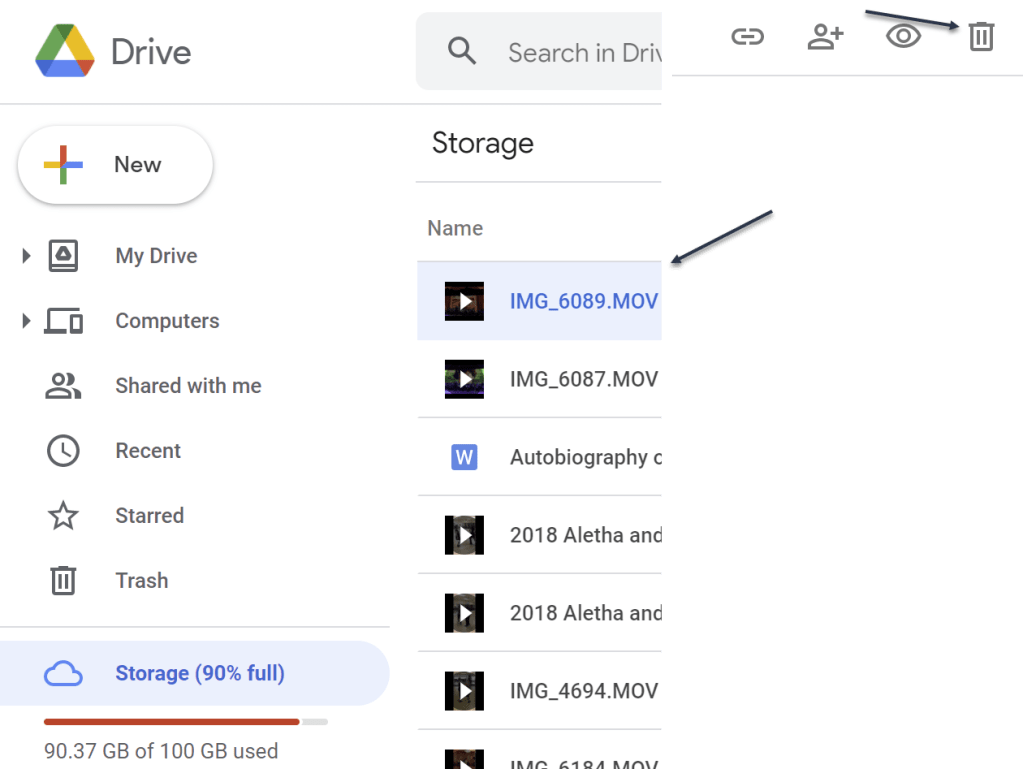
Next, you will see a list of all the large files in your account. Just click a file to select it. To select multiple files, hold the Command/Control key while selecting the file.
Now, to delete the file (or files), click the Remove button (the Trashcan icon) in the top toolbar. See below image:
Delete a file
Google Drive will remove the file and send it to the Trash.
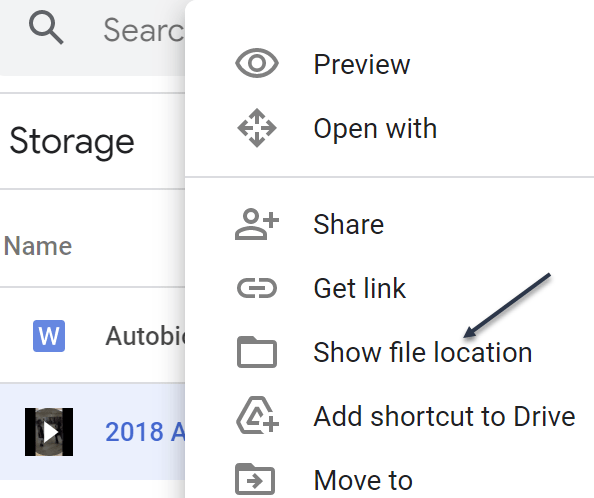
If you want to find and open a folder where a particular file is saved (or find more files to delete), right-click and choose the Show File Location option. See following image:
Find more files
Next, you can select multiple files and use the Remove (Trashcan icon) in the toolbar to delete all the files at once. (You can use this method to delete entire folders as well.)
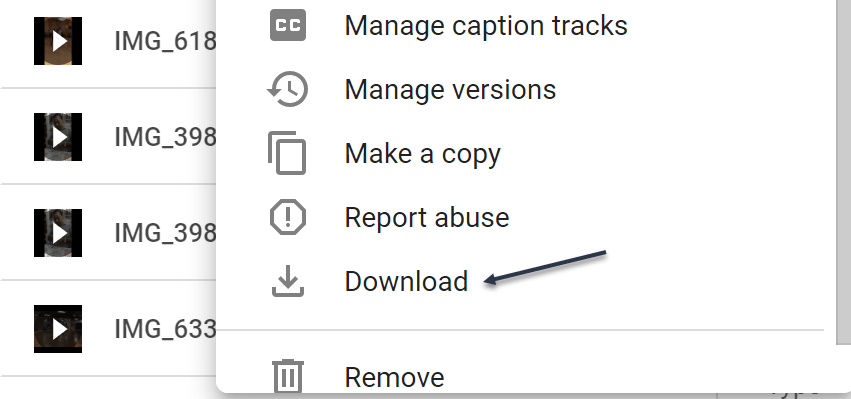
If you do not have a backup of the file that you are planning to delete, click the Download button in the right-click menu to download a copy of the file to your local storage. Refer to below image:
Download a file before deletion
Once you delete files like this, the files are no longer available in Google Drive, but you have not recovered any storage space yet. That’s because Google Drive does not actually delete the files for 30 days. So, if you change your mind, you have up to 30 days to recover the data.
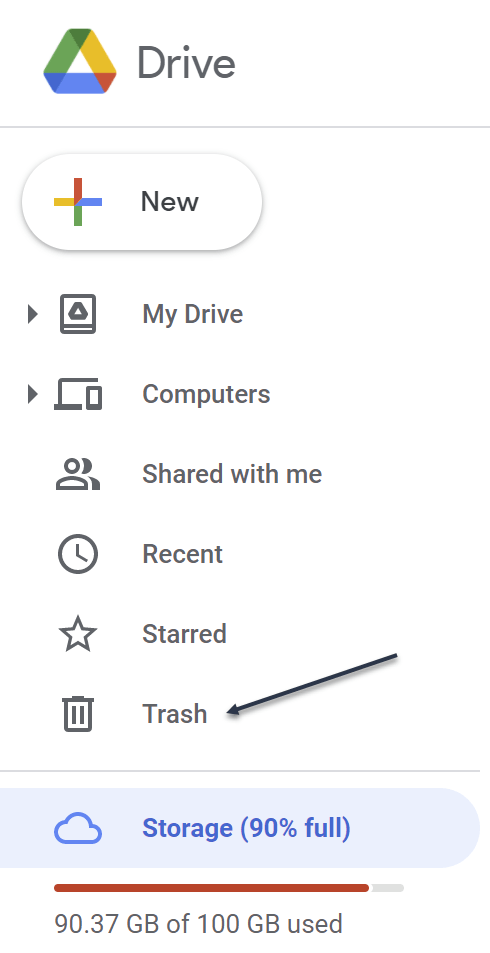
If you want to reclaim the storage space, you will have to force Google Drive to permanently delete the data. To do this, go to the Trash or Bin section in the sidebar. See below image:
Accessing the Trash
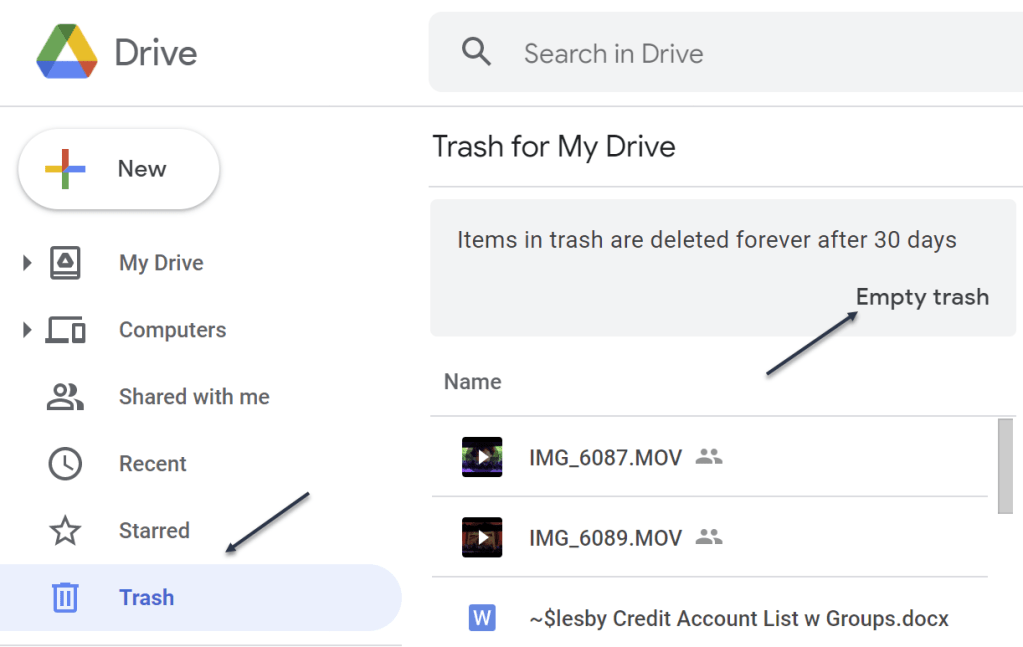
Now, in the Trash, you will see a list of files that have yet to be deleted. To individually delete a file, right-click and choose the Delete Forever option. Or, click Empty Trash to delete all the files. See following image:
Delete your file(s)
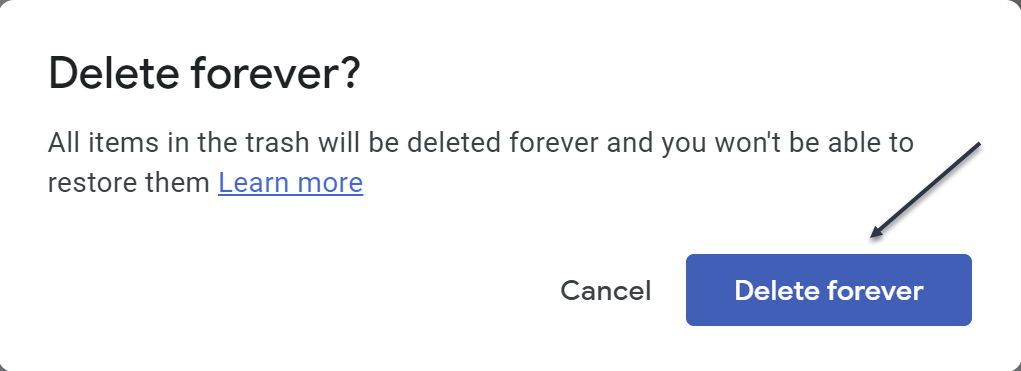
Next, in the pop-up that appears, confirm using the Delete Forever button. Refer to below image:
Confirm to delete the file(s) forever
Now, all the files will be deleted. Once you reload the page, you will see that the storage space has been recovered.
Quote For the Day
I have noticed even people who claim everything is predestined, and that we can do nothing to change it, look before they cross the road.
Stephen Hawking
You now know how to clean up storage space on Google Drive. Please feel free to share this post! One way to share is via Twitter.
Just click the Tweet icon below. This will launch Twitter where you click its icon to post the Tweet.
Check out TechSavvy.Life for blog posts on smartphones, PCs, and Macs! You may email us at contact@techsavvy.life for comments or questions.
Please feel free to leave a comment. I would love hearing from you. Do you have a computer or smart device tech question? I will do my best to answer your inquiry. Just send an email to contact@techsavvy.life. Please mention the device, app and version that you are using. To help us out, you can send screenshots of your data related to your question.

The author’s Vietnam eBook on the Battle for Tra Bong: Events and Aftermath
As of Google Chrome version 90 and higher, you can create a link to selected text on a web page. When clicked, this link takes you to the page and highlights the selected text.
As of Google Chrome version 90 and higher, you can create a link to selected text on a web page. When clicked, this link takes you to the page and highlights the selected text. Let’s explore how to create such links.
This is for devices running Chrome 90 and higher. Screenshots are from Windows 10 PC
Copyright Scott Adams, Inc./Distributed by Universal Uclick for UFS
Enable the Feature
For some of us, Chrome’sCopy Link to Text feature is enabled by default, for others, it’s not. If this is your case, you will have to manually enable it on Chrome’s experimental flags page.
First, open Google Chrome on your computer. In the address bar of any window, type:
chrome://flags
and press Enter. Refer to below image:
Enabling Chrome flags
Now, on the Experiments tab that opens, click the search box at the top and type this:
Copy Link To Text
See below image:
Setting up the feature
Next, in the search results, click the drop-down menu beside Copy Link To Text and select Enabled. See following image:
Enabling the feature
Now, Chrome will ask you to restart the browser so that the change can take effect. Click Relaunch in bottom left-hand corner. Refer to below image:
Restart Chrome
After Chrome restarts, the feature will now be enabled.
Create the Link
To use the Copy Link to Text feature, first, open a site and select the text that you want to copy a link for using your mouse or keyboard. See below image:
Highlight the link
Next, right-click the highlighted text and select Copy Link to Highlight from the menu. See following image:
Copy highlighted link
Now, Chrome will copy the link for your selected text to your clipboard. You can now share this link via social media, send it in an email, paste it in a text editor, or use any other method. Refer to below image for sending the link via email:
Paste the link in an email
When the recipient clicks the link, they will be taken directly to the page with the previously selected passage highlighted. See below image:
Once the above email link is clicked, you will see the highlighted text in the original document
It’s a very handy feature.. Repeat as often as you like.
Quote For the Day
Hard work spotlights the character of people: some turn up their sleeves, some turn up their noses, and some don’t turn up at all.
Sam Ewing
You are finished. Please feel free to share this post! One way to share is via Twitter.
Just click the Tweet icon below. This will launch Twitter where you click its icon to post the Tweet.
Check out TechSavvy.Life for blog posts on smartphones, PCs, and Macs! You may email us at contact@techsavvy.life for comments or questions.
Please feel free to leave a comment. I would love hearing from you. Do you have a computer or smart device tech question? I will do my best to answer your inquiry. Just send an email to contact@techsavvy.life. Please mention the device, app and version that you are using. To help us out, you can send screenshots of your data related to your question.
The author’s Vietnam eBook on the Battle for Tra Bong: Events and Aftermath
Google Chrome offers a tool that lets you perform a checkup to secure your web browsing.
Google Chrome offers a tool that lets you perform a checkup to secure your web browsing. Let’s explore this feature.
This is for devices running Google Chrome. Screenshots are from Windows 10 PC
Copyright Scott Adams, Inc./Distributed by Universal Uclick for UFS
First, launch the Chrome web browser on your Windows 10, Mac, Chrome OS, or Linux computer and click the three-dot (hamburger icon) located in the top-right corner. Refer to below image:
Selecting the hamburger icon
Next, click on Settings from the drop-down menu. See below image:
Selecting the Settings option
Now, scroll down to find the Safety Check section and click the Check Now option. See following image:
Selecting the Check Now option
Next, Chrome will kick off the Safety Check test. Depending on how much browsing data you have, this can take anywhere from a few seconds to a couple of minutes. When finished, just click the Review option by any listing. Refer to below image:
Selecting the Review button
In this process, Chrome scans a total of four core modules to look for any malicious code. It will make sure that the browser app is on the most recent version for protection against the latest internet viruses and that all of your installed third-party extensions are harmless. It will also check whether any of your saved passwords have been compromised in a data breach and that Safe Browsing, a setting that warns you against suspicious sites, is enabled.
Once the Safety Check is complete, Chrome will pull up shortcuts for anything that may need your immediate attention, such as reviewing compromised credentials.
After running Safety Check on my PC, it found comprised passwords. See below image where we are displaying three of them:
Viewing Comprised Passwords
After taking the recommended steps, you can also run the Safety Check again to ensure that your new security settings are active.
There’s another feature you can use by switching on Enhanced Safe Browsing, an advanced mode that allows Google to assess your browsing for potential threats and suggest privacy-focused improvements. However, we do not recommend using this option because you are choosing to share a copy of your browsing data with Google.
You are finished. Please feel free to share this post! One way to share is via Twitter.
Just click the Tweet icon below. This will launch Twitter where you click its icon to post the Tweet.
Check out TechSavvy.Life for blog posts on smartphones, PCs, and Macs! You may email us at contact@techsavvy.life for comments or questions.
Please feel free to leave a comment. I would love hearing from you. Do you have a computer or smart device tech question? I will do my best to answer your inquiry. Just send an email to contact@techsavvy.life. Please mention the device, app and version that you are using. To help us out, you can send screenshots of your data related to your question.
The author’s Vietnam eBook on the Battle for Tra Bong: Events and Aftermath
If you keep many Google Chrome windows open to organize your tabs like me, you can go one step further and name each window. Chrome’s built-in naming feature makes it easy to remember the windows name in the Taskbar or the overview screen (Alt+Tab).
The Windows naming feature was introduced in Chrome 90 and is available for Chrome on Windows 10, Mac, and Linux. It is easy to use and can save you from opening the wrong window.
This is for devices running Chrome 90. Screenshots are from Windows 10
Copyright Scott Adams, Inc./Distributed by Universal Uclick for UFS
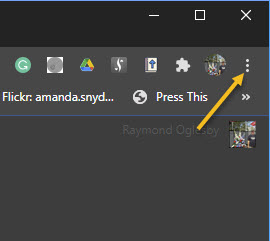
First, launch Chrome and open a Chrome window. Next, click the three-dot menu (the hamburger) icon in the top-right of the Chrome window. Refer to below image:
Accessing the main menu
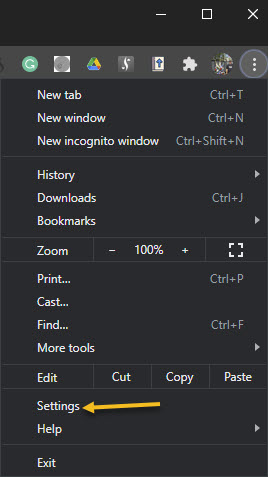
Now, from the drop-down menu, select More Tools. See below image:
Selecting More Tools option
Next, from the expanded options, click Name Window. If you don’t see this, you are not running Chrome 90. To check your Chrome version, go to:
Click the three-dot menu (the hamburger) icon > Help > About Google Chrome
Now, your Google version will be displayed. Google should auto update to the latest version.
See following image for your expanded options:
Accessing Name window option
A pop-up text box will appear. Now, enter the name for the window and click OK. Refer to below image:
Naming your window
Alternatively, you can right-click the title bar of the Chrome window and select Name Window from the drop-down menu and go through the process of assigning it a name. See below image:
Accessing Name window option from title bar
You will now see this name in the Alt+Tab on Windows 10. See following image:
Your Alt+Tab named window
Additionally, this name will appear in the Taskbar on Windows 10. Refer to below image:
Your Taskbar named window
Quote For the Day
The more you eliminate the inefficient use of information, the better it is for productivity.
Mitch Kapor
You are finished. This is probably a pretty niche feature, but for those of us who like to organize Chrome tabs by separating them out into windows, it’s a handy little trick.
Please feel free to share this post! One way to share is via Twitter.
Just click the Tweet icon below. This will launch Twitter where you click its icon to post the Tweet.
Check out TechSavvy.Life for blog posts on smartphones, PCs, and Macs! You may email us at contact@techsavvy.life for comments or questions.
Please feel free to leave a comment. I would love hearing from you. Do you have a computer or smart device tech question? I will do my best to answer your inquiry. Just send an email to contact@techsavvy.life. Please mention the device, app and version that you are using. To help us out, you can send screenshots of your data related to your question.

The author’s Vietnam eBook on the Battle for Tra Bong: Events and Aftermath